02각도를 재서 색상을 고르는 색상환
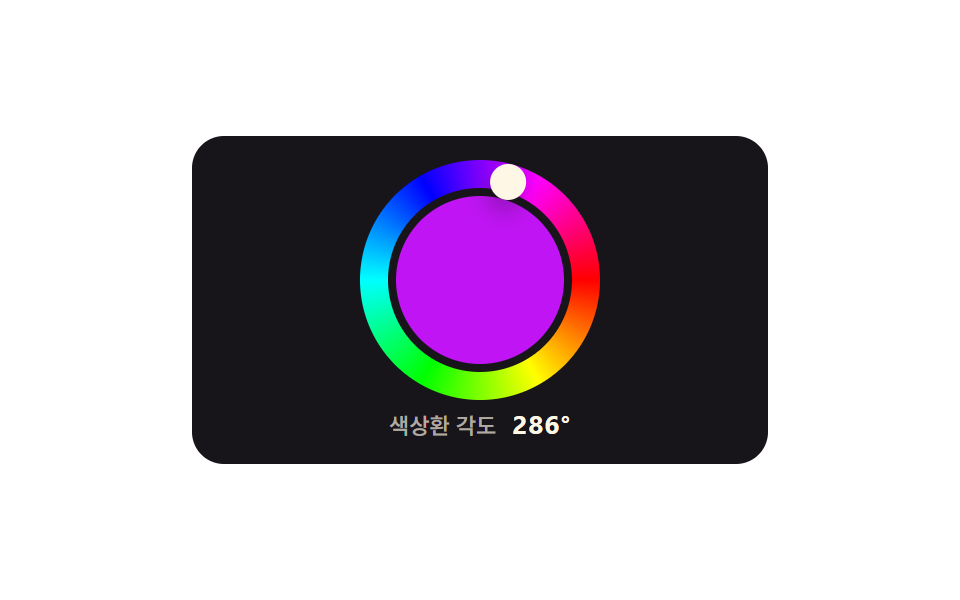
원 안을 누르면 중심에서의 각도를 구해 0~360 의 색상값으로 바꾸고, 손잡이가 테두리를 따라 돕니다.
쓰임브랜드 색 고르기, 그리기 도구 팔레트
conic-gradientMath.atan2rotate
<main class="stage">
  <div class="hw is-demo">
    <div class="hw__ring" id="hueWheel" role="slider" tabindex="0"
         aria-label="색상환에서 각도로 고르기"
         aria-valuemin="0" aria-valuemax="360" aria-valuenow="212"
         aria-valuetext="색상환 각도 212도">
      <span class="hw__core" aria-hidden="true"></span>
      <span class="hw__arm" aria-hidden="true"></span>
    </div>
    <p class="hw__read" aria-hidden="true">
      <span class="hw__cap">색상환 각도</span><span class="hw__val"></span>
    </p>
  </div>
</main>
@use "../../../../site/static/demo-tokens" as *;
// 색상환 — 원 위를 누른 자리의 각도가 곧 색상값(0~360)이다.
// 움직이는 값은 --h 하나뿐이고, 손잡이 각도·가운데 원 색·아래 숫자가 전부 그 한 값에서 나온다.
// 그래서 어느 프레임을 잘라도 손잡이가 선 자리의 색과 원 색과 숫자가 같은 값을 가리킨다.
// conic-gradient 의 from 90deg 는 빨강(색상 0)을 3시에 놓는다 — Math.atan2 의 0 과 같은 자리라
// JS 는 잰 각도를 그대로 색상값으로 쓰고, 손잡이만 +90 으로 그 기준에 맞춘다.
$duration: $dur-loop;
$easing: $ease-spring;
$color: $subject-blue;
@include stage($stage-paper);
// 각도. <integer> 로 등록해 counter-set 이 그대로 받아 쓴다 — 한 값이 각도·색·숫자를 함께 움직인다
@property --h { syntax: "<integer>"; inherits: true; initial-value: 212; }
.hw {
box-sizing: border-box;
display: grid;
justify-items: center;
width: 288px;
max-width: 100%;
padding: $sp-3;
border-radius: $r-card;
background: $subject-ink;
color: $subject-cream;
font-family: inherit;
}
.hw * { box-sizing: border-box; }
.hw__ring {
position: relative;
width: 120px;
height: 120px;
border-radius: 50%;
cursor: pointer;
touch-action: none;
// 색상환 한 바퀴. from 90deg 라 빨강이 3시에서 시작해 시계방향으로 돈다
background-image: conic-gradient(from 90deg,
#ff0000, #ffff00, #00ff00, #00ffff, #0000ff, #ff00ff, #ff0000);
}
.hw__ring:focus-visible { outline: 3px solid $color; outline-offset: 3px; }
.hw__core {
position: absolute;
left: 50%;
top: 50%;
width: 84px;
height: 84px;
border-radius: 50%;
// 자기 중심을 링 중심에 맞춘다. 가운데를 덮어 링 두께가 18px 로 남는다
transform: translate(-50%, -50%);
background: hsl(var(--h) 92% 52%);
box-shadow: 0 0 0 4px $subject-ink; // 카드 바탕색 테두리가 링과 가운데 원을 갈라 놓는다
}
.hw__arm {
position: absolute;
inset: 0;
// 손잡이는 링에 붙어 도는 요소다 — 회전 중심이 자기 중심이 아니라 링 중심이라 링 크기 레이어째 돌린다.
// +90 은 conic 의 from 90deg 보정이다. 색상 0 이 3시에 있으니 손잡이도 3시에서 출발해야 색 위에 선다
transform: rotate(calc((var(--h) + 90) * 1deg));
}
.hw__arm::after {
content: "";
position: absolute;
left: 50%;
top: 50%;
width: 18px;
height: 18px;
border-radius: 50%;
background: $subject-cream;
box-shadow: $shadow-press;
// 자기 크기의 절반만큼 되민 뒤 링 두께 한가운데(반지름 51px)로 올린다
transform: translate(-50%, -50%) translateY(-51px);
}
.hw__read {
display: flex;
align-items: baseline;
gap: $sp-2;
margin: $sp-1 0 0;
}
.hw__cap {
font-size: 11px;
font-weight: 500;
line-height: 1.2;
color: rgba(255, 247, 230, .66);
}
// 숫자는 JS 가 쓰지 않는다 — counter-set 이 --h 를 계수기로 옮기고 ::after 가 찍는다
.hw__val {
counter-set: ch calc(var(--h));
font-size: 13px;
font-weight: 700;
line-height: 1.2;
letter-spacing: .04em;
}
.hw__val::after { content: counter(ch) "°"; }
// ── 미리보기 루프(정적 규칙 먼저, 그 위에 덧씌움) ─────────────────
.hw.is-demo {
animation-name: hwSpin;
animation-duration: $duration;
animation-timing-function: $easing;
animation-iteration-count: infinite;
}
// 212도(파랑) → 344도(분홍) → 같은 길을 되짚어 212도. 90% 에 제자리로 돌아온다
// (24프레임의 마지막 장이 95.8% 지점이라 그 뒤에 두면 복귀가 영영 안 찍힌다)
@keyframes hwSpin {
0% { --h: 212; }
45% { --h: 344; }
90%, 100% { --h: 212; }
}
@media (prefers-reduced-motion: reduce) {
.hw.is-demo { animation: none !important; }
}@charset "UTF-8";
html, body {
margin: 0;
overflow: hidden;
}
.stage {
box-sizing: border-box;
min-height: 100vh;
display: grid;
place-items: center;
margin: 0;
background: #ffffff;
font-family: -apple-system, "Segoe UI", "Noto Sans KR", sans-serif;
padding: clamp(8px, 4vw, 24px);
}
@property --h {
syntax: "<integer>";
inherits: true;
initial-value: 212;
}
.hw {
box-sizing: border-box;
display: grid;
justify-items: center;
width: 288px;
max-width: 100%;
padding: 12px;
border-radius: 16px;
background: #17141a;
color: #fff7e6;
font-family: inherit;
}
.hw * {
box-sizing: border-box;
}
.hw__ring {
position: relative;
width: 120px;
height: 120px;
border-radius: 50%;
cursor: pointer;
touch-action: none;
background-image: conic-gradient(from 90deg, #ff0000, #ffff00, #00ff00, #00ffff, #0000ff, #ff00ff, #ff0000);
}
.hw__ring:focus-visible {
outline: 3px solid #2f6df6;
outline-offset: 3px;
}
.hw__core {
position: absolute;
left: 50%;
top: 50%;
width: 84px;
height: 84px;
border-radius: 50%;
transform: translate(-50%, -50%);
background: hsl(var(--h), 92%, 52%);
box-shadow: 0 0 0 4px #17141a;
}
.hw__arm {
position: absolute;
inset: 0;
transform: rotate(calc((var(--h) + 90) * 1deg));
}
.hw__arm::after {
content: "";
position: absolute;
left: 50%;
top: 50%;
width: 18px;
height: 18px;
border-radius: 50%;
background: #fff7e6;
box-shadow: 0 6px 12px rgba(23, 20, 26, 0.32);
transform: translate(-50%, -50%) translateY(-51px);
}
.hw__read {
display: flex;
align-items: baseline;
gap: 8px;
margin: 4px 0 0;
}
.hw__cap {
font-size: 11px;
font-weight: 500;
line-height: 1.2;
color: rgba(255, 247, 230, 0.66);
}
.hw__val {
counter-set: ch calc(var(--h));
font-size: 13px;
font-weight: 700;
line-height: 1.2;
letter-spacing: 0.04em;
}
.hw__val::after {
content: counter(ch) "°";
}
.hw.is-demo {
animation-name: hwSpin;
animation-duration: 2s;
animation-timing-function: cubic-bezier(0.2, 0.8, 0.2, 1);
animation-iteration-count: infinite;
}
@keyframes hwSpin {
0% {
--h: 212;
}
45% {
--h: 344;
}
90%, 100% {
--h: 212;
}
}
@media (prefers-reduced-motion: reduce) {
.hw.is-demo {
animation: none !important;
}
}(function () {
var root = document.querySelector('.hw');
var wheel = document.getElementById('hueWheel');
var hueFormat = '색상환 각도 %h도';
var hue = 212;
// 값은 --h 하나뿐이다. 손잡이 각도도, 가운데 원 색도, 아래 숫자도 전부 이 한 값에서 나온다 —
// 글자는 CSS 계수기가 찍으므로 JS 가 숫자를 따로 쓸 일이 없고, 색과 글자가 어긋날 수가 없다
function applyHue() {
root.style.setProperty('--h', hue);
wheel.setAttribute('aria-valuenow', hue);
wheel.setAttribute('aria-valuetext', hueFormat.replace('%h', hue));
}
// 중심에서 포인터까지의 각도를 잰다. Math.atan2 는 3시 방향이 0 이고 시계방향으로 커지는데,
// conic-gradient(from 90deg) 도 빨강(색상 0)을 3시에 놓는다 — 두 기준이 같아 보정 없이 그대로 색상값이다
function pickAngle(e) {
var box = wheel.getBoundingClientRect();
var deg = Math.atan2(e.clientY - box.top - box.height / 2, e.clientX - box.left - box.width / 2) * 180 / Math.PI;
hue = Math.round((deg + 360) % 360) % 360; // 등록 속성 --h 는 정수만 받는다
applyHue();
}
wheel.addEventListener('pointerdown', function (e) {
root.classList.remove('is-demo');
wheel.setPointerCapture(e.pointerId); // 원 밖으로 끌어도 이 요소가 각도를 계속 받는다
pickAngle(e);
});
wheel.addEventListener('pointermove', function (e) {
if (wheel.hasPointerCapture(e.pointerId)) { pickAngle(e); }
});
wheel.addEventListener('keydown', function (e) {
var step = e.shiftKey ? 15 : 3;
if (e.key === 'ArrowRight' || e.key === 'ArrowUp') { hue = (hue + step) % 360; }
else if (e.key === 'ArrowLeft' || e.key === 'ArrowDown') { hue = (hue - step + 360) % 360; }
else { return; }
e.preventDefault();
root.classList.remove('is-demo');
applyHue();
});
applyHue();
})();// HueWheelAngle — vanilla 판(run/286/demo/02-color-picker-hue-wheel-angle) 의 React 포트.
// 변수 3개(duration·easing·color)는 props 로 받아 CSS 변수(var(--duration) 등)로 들어온다.
// 상태는 hue 숫자 하나뿐이다. 손잡이 각도도, 가운데 원 색도, 아래 숫자도 전부 --h 한 값에서 나오고
// 숫자는 module.scss 의 counter-set 이 찍는다 — JS 가 글자를 쓰지 않는다.
import { useState } from "react";
import type { CSSProperties, PointerEvent as ReactPointerEvent } from "react";
import styles from "./HueWheelAngle.module.scss";
type KeyEvt = { key: string; shiftKey: boolean; preventDefault(): void };
export type HueWheelAngleProps = {
wheelLabel?: string;
capLabel?: string;
/** "색상환 각도 %h도" 처럼 자리표시자 하나를 가진 틀 */
hueFormat?: string;
/** 격자 미리보기용 2초 자동 루프. 사람이 손대면 꺼진다 */
demo?: boolean;
duration?: number;
easing?: string;
color?: string;
};
type Vars = CSSProperties & {
"--duration"?: string;
"--easing"?: string;
"--color"?: string;
"--h"?: number;
};
export default function HueWheelAngle({
wheelLabel = "색상환에서 각도로 고르기",
capLabel = "색상환 각도",
hueFormat = "색상환 각도 %h도",
demo = true,
duration = 2000,
easing = "cubic-bezier(.2, .8, .2, 1)",
color = "#2f6df6",
}: HueWheelAngleProps) {
const [live, setLive] = useState(demo);
const [hue, setHue] = useState(212);
const vars: Vars = {
"--duration": `${duration}ms`,
"--easing": easing,
"--color": color,
"--h": hue,
};
// 중심에서 포인터까지의 각도를 잰다. Math.atan2 는 3시 방향이 0 이고 시계방향으로 커지는데,
// conic-gradient(from 90deg) 도 빨강(색상 0)을 3시에 놓는다 — 기준이 같아 보정 없이 그대로 색상값이다
function angleAt(e: ReactPointerEvent<HTMLDivElement>): number {
const box = e.currentTarget.getBoundingClientRect();
const deg =
(Math.atan2(e.clientY - box.top - box.height / 2, e.clientX - box.left - box.width / 2) * 180) / Math.PI;
return Math.round((deg + 360) % 360) % 360;
}
function start(e: ReactPointerEvent<HTMLDivElement>) {
setLive(false);
e.currentTarget.setPointerCapture(e.pointerId); // 원 밖으로 끌어도 각도를 계속 받는다
setHue(angleAt(e));
}
function drag(e: ReactPointerEvent<HTMLDivElement>) {
if (e.currentTarget.hasPointerCapture(e.pointerId)) setHue(angleAt(e));
}
function press(e: KeyEvt) {
const step = e.shiftKey ? 15 : 3;
if (e.key === "ArrowRight" || e.key === "ArrowUp") setHue((hue + step) % 360);
else if (e.key === "ArrowLeft" || e.key === "ArrowDown") setHue((hue - step + 360) % 360);
else return;
e.preventDefault();
setLive(false);
}
const hueText = hueFormat.replace("%h", String(hue));
return (
<div className={[styles.hw, live ? styles.isDemo : ""].filter(Boolean).join(" ")} style={vars}>
<div
className={styles.ring}
role="slider"
tabIndex={0}
aria-label={wheelLabel}
aria-valuemin={0}
aria-valuemax={360}
aria-valuenow={hue}
aria-valuetext={hueText}
onPointerDown={start}
onPointerMove={drag}
onKeyDown={press}
>
<span className={styles.core} aria-hidden="true" />
<span className={styles.arm} aria-hidden="true" />
</div>
<p className={styles.read} aria-hidden="true">
<span className={styles.cap}>{capLabel}</span>
<span className={styles.val} />
</p>
</div>
);
}02 각도를 재서 색상을 고르는 색상환 — 측정 누적면적 5.619% · 움직인 프레임 19/23GODRICH 원작 · zip 에 SCSS·React 포함 · 컬러 피커 직접 만들기 CSS+JS 9종 — 라이브러리 없이
이 데모가 속한 글
 컬러 피커 직접 만들기 CSS+JS 9종 — 라이브러리 없이컬러 피커는 화면에서 색을 골라 HEX 코드로 돌려주는 선택 창입니다. 이 페이지에는 그 부품 아홉 벌이 라이브러리 없이 색 공간 계산까지 직접 짠 코드로 돌아가고 있고, 코드는 통째로 복사해 쓰면 됩니다. 채도·명 이 글의 데모 전부 보기