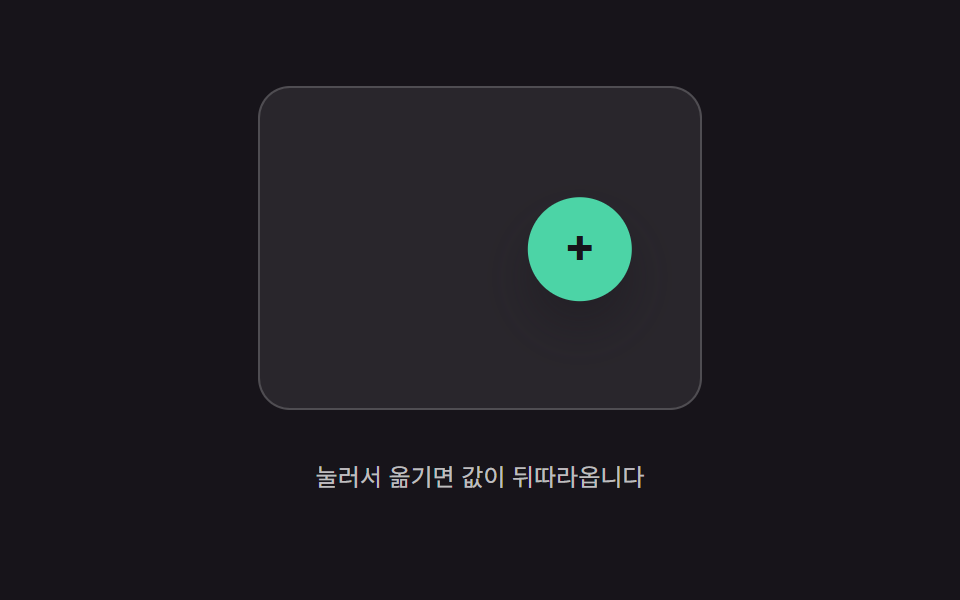
02따라오는 값의 지연 보간 — 포인터 위치 값을 버튼 위치 값이 일정 비율만큼씩 뒤따라가며 좁히는 방식
포인터 위치 값과 버튼 위치 값의 차이가 매 순간 일정 비율만큼만 줄어들어, 버튼이 값을 뒤따라갑니다.
쓰임드래그로 옮기는 플로팅 액션 버튼, 자유롭게 재배치하는 툴바 버튼
LERP_RATIOFAB_RtargetX
<main class="stage">
<div class="bil is-demo" id="bil">
  <div class="bil__field" id="bilField" role="application" aria-label="플로팅 버튼 드래그 실험판">
    <button class="bil__fab" id="bilFab" type="button" aria-label="플로팅 액션 버튼">+</button>
  </div>
  <p class="bil__hint">눌러서 옮기면 값이 뒤따라옵니다</p>
</div>
</main>
@use "../../../../site/static/demo-tokens" as *;
// 계산 겹(지연 보간 적분)은 JS 에 있다 — 여기는 정적 배치만.
@include stage($stage-ink);
.stage { position: relative; }
.bil {
display: flex;
flex-direction: column;
align-items: center;
gap: $sp-3;
}
.bil__field {
position: relative;
width: 220px;
height: 160px;
border-radius: $r-card;
background: rgba($stage-paper, .08);
border: 1px solid rgba($stage-paper, .18);
}
.bil__fab {
position: absolute;
left: 0;
top: 0;
width: 52px;
height: 52px;
border: 0;
border-radius: $r-pill;
background: $subject-mint;
color: $subject-ink;
font-size: 24px;
font-weight: 700;
line-height: 1;
cursor: grab;
touch-action: none;
box-shadow: $shadow-raised;
}
.bil__hint {
color: rgba($stage-paper, .72);
font-size: 12px;
text-align: center;
}
@media (max-width: 340px) {
.bil__field { width: 160px; height: 96px; }
.bil__fab { width: 40px; height: 40px; font-size: 18px; }
}
@media (prefers-reduced-motion: reduce) {
.bil__fab { transition: none !important; }
}html, body {
margin: 0;
overflow: hidden;
}
.stage {
box-sizing: border-box;
min-height: 100vh;
display: grid;
place-items: center;
margin: 0;
background: #17141a;
font-family: -apple-system, "Segoe UI", "Noto Sans KR", sans-serif;
padding: clamp(8px, 4vw, 24px);
}
.stage {
position: relative;
}
.bil {
display: flex;
flex-direction: column;
align-items: center;
gap: 12px;
}
.bil__field {
position: relative;
width: 220px;
height: 160px;
border-radius: 16px;
background: rgba(255, 255, 255, 0.08);
border: 1px solid rgba(255, 255, 255, 0.18);
}
.bil__fab {
position: absolute;
left: 0;
top: 0;
width: 52px;
height: 52px;
border: 0;
border-radius: 999px;
background: #4cd4a6;
color: #17141a;
font-size: 24px;
font-weight: 700;
line-height: 1;
cursor: grab;
touch-action: none;
box-shadow: 0 14px 24px rgba(23, 20, 26, 0.32);
}
.bil__hint {
color: rgba(255, 255, 255, 0.72);
font-size: 12px;
text-align: center;
}
@media (max-width: 340px) {
.bil__field {
width: 160px;
height: 96px;
}
.bil__fab {
width: 40px;
height: 40px;
font-size: 18px;
}
}
@media (prefers-reduced-motion: reduce) {
.bil__fab {
transition: none !important;
}
}(function () {
var root = document.getElementById('bil');
var field = document.getElementById('bilField');
var fab = document.getElementById('bilFab');
var reduce = window.matchMedia('(prefers-reduced-motion: reduce)').matches;
// 계산 겹: 포인터 위치 값(targetX/Y)과 버튼 위치 값(x/y)의 차이를 매 프레임 LERP_RATIO
// 만큼만 좁힌다 — x += (targetX-x)*LERP_RATIO. 비율이 1에 가까울수록 즉시 따라붙고,
// 낮을수록 지연(트레일)이 길어진다.
var LERP_RATIO = 0.14;
var FAB_R = 26;
var x = 0, y = 0, targetX = 0, targetY = 0, raf = null;
function bounds() { return { w: field.clientWidth, h: field.clientHeight }; }
function clampPos(px, py) {
var b = bounds();
return [Math.max(FAB_R, Math.min(b.w - FAB_R, px)), Math.max(FAB_R, Math.min(b.h - FAB_R, py))];
}
function paint() { fab.style.transform = 'translate(' + (x - FAB_R).toFixed(1) + 'px,' + (y - FAB_R).toFixed(1) + 'px)'; }
function tick() {
x += (targetX - x) * LERP_RATIO;
y += (targetY - y) * LERP_RATIO;
paint();
raf = requestAnimationFrame(tick);
}
function start() { if (raf === null) { raf = requestAnimationFrame(tick); } }
function setTarget(px, py) {
var c = clampPos(px, py);
targetX = c[0]; targetY = c[1];
if (reduce) { x = targetX; y = targetY; paint(); return; }
start();
}
function wireReal() {
var dragging = false;
fab.addEventListener('pointerdown', function (e) {
root.classList.remove('is-demo'); stopAutoplay(); dragging = true;
fab.setPointerCapture(e.pointerId);
});
fab.addEventListener('pointermove', function (e) {
if (!dragging) { return; }
var r = field.getBoundingClientRect();
setTarget(e.clientX - r.left, e.clientY - r.top);
});
fab.addEventListener('pointerup', function () { dragging = false; });
}
wireReal();
var b0 = bounds();
x = targetX = b0.w / 2; y = targetY = b0.h / 2;
paint();
// 자동 루프: 목표 값을 좌우로 오가게 옮겨 같은 lerp 경로를 반복 재현한다.
var autoTimer = null, phase = 0;
function autoTick() {
var b = bounds();
phase += 1;
var px = b.w / 2 + Math.sin(phase * 0.9) * (b.w / 2 - FAB_R - 6);
var py = b.h / 2 + Math.cos(phase * 0.6) * (b.h / 2 - FAB_R - 6) * 0.5;
setTarget(px, py);
}
function stopAutoplay() { if (autoTimer) { clearInterval(autoTimer); autoTimer = null; } }
if (!reduce) { autoTimer = setInterval(autoTick, 260); autoTick(); }
})();import { useEffect, useRef } from "react";
import styles from "./ButtonPhysicsInertiaLerpDrag.module.scss";
export type ButtonPhysicsInertiaLerpDragProps = {
color?: string;
};
export default function ButtonPhysicsInertiaLerpDrag({
color = "#4cd4a6",
}: ButtonPhysicsInertiaLerpDragProps) {
const rootRef = useRef<HTMLDivElement | null>(null);
useEffect(() => {
const root = rootRef.current;
if (!root) return;
const field = root.querySelector<HTMLDivElement>(`.${styles.field}`);
const fab = root.querySelector<HTMLButtonElement>(`.${styles.fab}`);
if (!field || !fab) return;
const reduce = window.matchMedia("(prefers-reduced-motion: reduce)").matches;
// 계산 겹: 포인터 위치 값(targetX/Y)과 버튼 위치 값(x/y)의 차이를 매 프레임 LERP_RATIO
// 만큼만 좁힌다 — x += (targetX-x)*LERP_RATIO. 비율이 1에 가까울수록 즉시 따라붙고,
// 낮을수록 지연(트레일)이 길어진다.
const LERP_RATIO = 0.14;
const FAB_R = 26;
let x = 0, y = 0, targetX = 0, targetY = 0, raf: number | null = null;
function bounds() { return { w: field!.clientWidth, h: field!.clientHeight }; }
function clampPos(px: number, py: number): [number, number] {
const b = bounds();
return [Math.max(FAB_R, Math.min(b.w - FAB_R, px)), Math.max(FAB_R, Math.min(b.h - FAB_R, py))];
}
function paint() { fab!.style.transform = "translate(" + (x - FAB_R).toFixed(1) + "px," + (y - FAB_R).toFixed(1) + "px)"; }
function tick() {
x += (targetX - x) * LERP_RATIO;
y += (targetY - y) * LERP_RATIO;
paint();
raf = requestAnimationFrame(tick);
}
function start() { if (raf === null) { raf = requestAnimationFrame(tick); } }
function setTarget(px: number, py: number) {
const c = clampPos(px, py);
targetX = c[0]; targetY = c[1];
if (reduce) { x = targetX; y = targetY; paint(); return; }
start();
}
let dragging = false;
function onPointerDown(e: PointerEvent) {
stopAutoplay(); dragging = true;
fab!.setPointerCapture(e.pointerId);
}
function onPointerMove(e: PointerEvent) {
if (!dragging) return;
const r = field!.getBoundingClientRect();
setTarget(e.clientX - r.left, e.clientY - r.top);
}
function onPointerUp() { dragging = false; }
fab.addEventListener("pointerdown", onPointerDown);
fab.addEventListener("pointermove", onPointerMove);
fab.addEventListener("pointerup", onPointerUp);
const b0 = bounds();
x = targetX = b0.w / 2; y = targetY = b0.h / 2;
paint();
let autoTimer: number | null = null, phase = 0;
function autoTick() {
const b = bounds();
phase += 1;
const px = b.w / 2 + Math.sin(phase * 0.9) * (b.w / 2 - FAB_R - 6);
const py = b.h / 2 + Math.cos(phase * 0.6) * (b.h / 2 - FAB_R - 6) * 0.5;
setTarget(px, py);
}
function stopAutoplay() { if (autoTimer !== null) { window.clearInterval(autoTimer); autoTimer = null; } }
if (!reduce) { autoTimer = window.setInterval(autoTick, 260); autoTick(); }
return () => {
stopAutoplay();
if (raf !== null) cancelAnimationFrame(raf);
fab.removeEventListener("pointerdown", onPointerDown);
fab.removeEventListener("pointermove", onPointerMove);
fab.removeEventListener("pointerup", onPointerUp);
};
}, []);
return (
<div ref={rootRef} className={styles.stage}>
<div className={styles.bil}>
<div className={styles.field} role="application" aria-label="플로팅 버튼 드래그 실험판">
<button className={styles.fab} type="button" aria-label="플로팅 액션 버튼" style={{ background: color }}>+</button>
</div>
<p className={styles.hint}>눌러서 옮기면 값이 뒤따라옵니다</p>
</div>
</div>
);
}02 따라오는 값의 지연 보간 — 포인터 위치 값을 버튼 위치 값이 일정 비율만큼씩 뒤따라가며 좁히는 방식 — 측정 누적면적 10.234% · 움직인 프레임 23/23GODRICH 원작 · zip 에 SCSS·React 포함 · 버튼 눌림 효과 UI 9종 — 눌림 값이 되돌아오는 아홉 가지 방식
이 데모가 속한 글
 버튼 눌림 효과 UI 9종 — 눌림 값이 되돌아오는 아홉 가지 방식버튼 눌림 효과는 버튼을 누르거나 놓는 순간의 깊이·위치·각도 같은 값이 물리 계산을 거쳐 원래 상태로 돌아가는 것을 말하는데, 아홉 개 중 하나는 눌린 값이 목표 값을 넘었다가 되돌아오길 반복하며 잦아들고, 하나는 이 글의 데모 전부 보기