05Gradient Angle Easing Toward the Pointer
As the pointer moves over the button the gradient angle follows its direction through inertia interpolation, then drifts back to the start angle when the pointer leaves.
Best forA button whose color direction follows the pointer
FOLLOW_RATEREST_ANGLEORBIT_SPANORBIT_MS
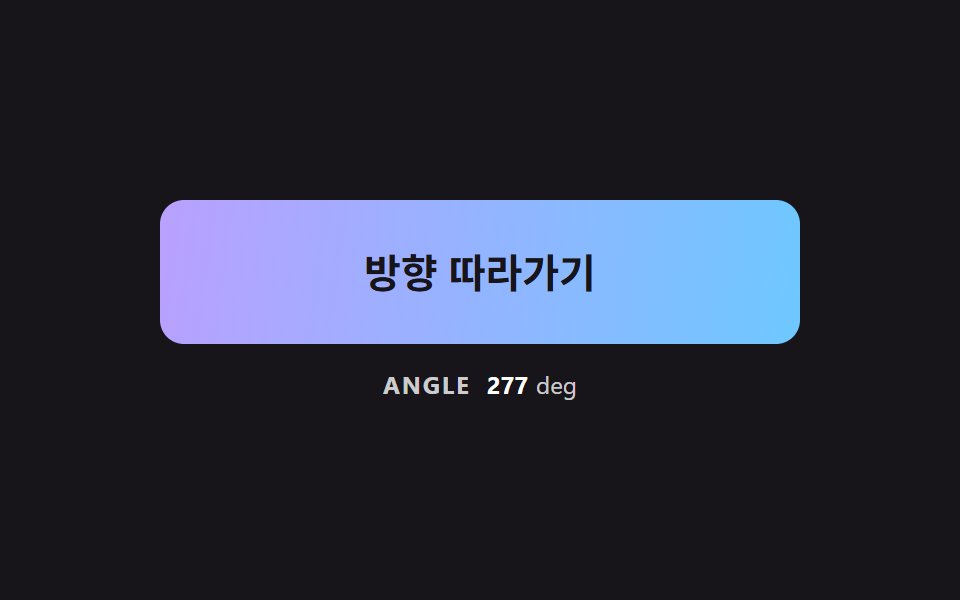
<main class="stage">
<div class="bc is-demo" id="bcRoot">
  <button class="bc__btn" id="bcBtn" type="button">Follow the direction</button>
  <p class="bc__meta"><span class="bc__tag">ANGLE</span> <b id="bcAng">135</b><span>deg</span></p>
</div>
</main>
@use "../../../../site/static/demo-tokens" as *;
// 핵심: 그라데이션 각도(--ang)는 포인터 방향을 향해 일정 비율씩 도는 숫자다. 0/360 경계는 차이를 접어서 가까운 쪽으로 돈다.
$angle-a: $subject-sky;
$angle-b: $subject-lilac;
$angle-rest: 135;
@include stage($stage-ink);
.bc {
width: min(100%, 320px);
display: grid;
gap: $sp-3;
justify-items: center;
}
.bc__btn {
--ang: #{$angle-rest};
box-sizing: border-box;
width: 100%;
height: 72px;
border: 0;
border-radius: $r-control;
background: linear-gradient(calc(var(--ang) * 1deg), $angle-a, $angle-b);
color: $subject-ink;
font-family: inherit;
font-size: 20px;
font-weight: 700;
line-height: 24px;
cursor: pointer;
}
.bc__btn:focus-visible { outline: 3px solid $stage-paper; outline-offset: 3px; }
.bc__meta {
margin: 0;
display: flex;
align-items: baseline;
gap: $sp-1;
font-size: 12px;
line-height: 16px;
color: rgba($stage-paper, .78);
}
.bc__tag { margin-right: $sp-1; font-weight: 700; letter-spacing: .08em; }
.bc__meta b { min-width: 3ch; text-align: right; font-variant-numeric: tabular-nums; color: $stage-paper; }
@media (prefers-reduced-motion: reduce) {
.bc__btn { transition: none; }
}html, body {
margin: 0;
overflow: hidden;
}
.stage {
box-sizing: border-box;
min-height: 100vh;
display: grid;
place-items: center;
margin: 0;
background: #17141a;
font-family: -apple-system, "Segoe UI", "Noto Sans KR", sans-serif;
padding: clamp(8px, 4vw, 24px);
}
.bc {
width: min(100%, 320px);
display: grid;
gap: 12px;
justify-items: center;
}
.bc__btn {
--ang: 135;
box-sizing: border-box;
width: 100%;
height: 72px;
border: 0;
border-radius: 12px;
background: linear-gradient(calc(var(--ang) * 1deg), #6ec8ff, #b9a0ff);
color: #17141a;
font-family: inherit;
font-size: 20px;
font-weight: 700;
line-height: 24px;
cursor: pointer;
}
.bc__btn:focus-visible {
outline: 3px solid #ffffff;
outline-offset: 3px;
}
.bc__meta {
margin: 0;
display: flex;
align-items: baseline;
gap: 4px;
font-size: 12px;
line-height: 16px;
color: rgba(255, 255, 255, 0.78);
}
.bc__tag {
margin-right: 4px;
font-weight: 700;
letter-spacing: 0.08em;
}
.bc__meta b {
min-width: 3ch;
text-align: right;
font-variant-numeric: tabular-nums;
color: #ffffff;
}
@media (prefers-reduced-motion: reduce) {
.bc__btn {
transition: none;
}
}(function () {
// 기법: 포인터가 버튼 중심에서 향한 방향을 각도로 바꿔 목표로 삼고, 현재 각도가 그쪽으로 일정 비율씩 돈다.
// 각도는 0/360 경계가 있어 차이를 -180~180 으로 접어 가까운 쪽으로 돌린다. 포인터가 나가면 REST_ANGLE 로 돌아온다.
var FOLLOW_RATE = 6;
var REST_ANGLE = 135;
var START_MS = 200;
var ORBIT_MS = 1300;
var CYCLE_MS = 2000;
var ORBIT_SPAN = 300;
var root = document.getElementById('bcRoot');
var btn = document.getElementById('bcBtn');
var angEl = document.getElementById('bcAng');
var reduce = window.matchMedia('(prefers-reduced-motion: reduce)').matches;
var angle = REST_ANGLE;
var goalAngle = REST_ANGLE;
var pointerIn = false;
var t0 = null;
var lastTs = null;
function wrap(a) { return ((a % 360) + 360) % 360; }
function fromPoint(x, y) {
var r = btn.getBoundingClientRect();
var dx = x - (r.left + r.width / 2);
var dy = y - (r.top + r.height / 2);
return wrap(Math.atan2(dx, -dy) * 180 / Math.PI);
}
function paint() {
btn.style.setProperty('--ang', angle.toFixed(2));
angEl.textContent = String(Math.round(wrap(angle)));
}
function stopDemo() { root.classList.remove('is-demo'); }
btn.addEventListener('pointermove', function (e) {
stopDemo();
pointerIn = true;
goalAngle = fromPoint(e.clientX, e.clientY);
if (reduce) { angle = goalAngle; paint(); }
});
btn.addEventListener('pointerleave', function () {
pointerIn = false;
goalAngle = REST_ANGLE;
if (reduce) { angle = goalAngle; paint(); }
});
function demoGoal(now) {
if (now < START_MS) return REST_ANGLE;
var c = (now - START_MS) % CYCLE_MS;
if (c >= ORBIT_MS) return REST_ANGLE;
return wrap(60 + (c / ORBIT_MS) * ORBIT_SPAN);
}
function tick(ts) {
if (t0 === null) t0 = ts;
var now = ts - t0;
var dt = lastTs === null ? 0.016 : Math.min(0.05, (ts - lastTs) / 1000);
lastTs = ts;
var g = root.classList.contains('is-demo') ? demoGoal(now) : goalAngle;
var diff = ((g - angle + 540) % 360) - 180;
angle = wrap(angle + diff * (1 - Math.exp(-dt * FOLLOW_RATE)));
paint();
requestAnimationFrame(tick);
}
if (reduce) {
stopDemo();
paint();
} else {
requestAnimationFrame(tick);
}
})();// AngleFollowButton — vanilla 판(05-btn-gradient-angle-pointer-lerp) 의 React 포트.
// 포인터가 버튼 중심에서 향한 방향을 각도로 바꿔 목표로 삼고, 현재 각도가 일정 비율씩 따라간다.
import { useEffect, useRef } from "react";
import styles from "./AngleFollowButton.module.scss";
type Box<T> = { current: T };
type PointLike = { clientX: number; clientY: number };
const FOLLOW_RATE = 6;
const REST_ANGLE = 135;
const START_MS = 200;
const ORBIT_MS = 1300;
const CYCLE_MS = 2000;
const ORBIT_SPAN = 300;
function wrap(a: number): number {
return ((a % 360) + 360) % 360;
}
export default function AngleFollowButton() {
const btnRef = useRef<HTMLButtonElement | null>(null) as Box<HTMLButtonElement | null>;
const angRef = useRef<HTMLElement | null>(null) as Box<HTMLElement | null>;
useEffect(() => {
const btn = btnRef.current;
const angEl = angRef.current;
if (!btn || !angEl) return;
const reduce = window.matchMedia("(prefers-reduced-motion: reduce)").matches;
let angle = REST_ANGLE;
let goalAngle = REST_ANGLE;
let demo = !reduce;
let t0: number | null = null;
let lastTs: number | null = null;
let raf = 0;
const fromPoint = (x: number, y: number): number => {
const r = btn.getBoundingClientRect();
const dx = x - (r.left + r.width / 2);
const dy = y - (r.top + r.height / 2);
return wrap((Math.atan2(dx, -dy) * 180) / Math.PI);
};
const paint = (): void => {
btn.style.setProperty("--ang", angle.toFixed(2));
angEl.textContent = String(Math.round(wrap(angle)));
};
const stopDemo = (): void => { demo = false; };
const onMove = (e: Event): void => {
const p = e as unknown as PointLike;
stopDemo();
goalAngle = fromPoint(p.clientX, p.clientY);
if (reduce) { angle = goalAngle; paint(); }
};
const onLeave = (): void => {
goalAngle = REST_ANGLE;
if (reduce) { angle = goalAngle; paint(); }
};
btn.addEventListener("pointermove", onMove);
btn.addEventListener("pointerleave", onLeave);
const demoGoal = (now: number): number => {
if (now < START_MS) return REST_ANGLE;
const c = (now - START_MS) % CYCLE_MS;
if (c >= ORBIT_MS) return REST_ANGLE;
return wrap(60 + (c / ORBIT_MS) * ORBIT_SPAN);
};
function tick(ts: number): void {
if (t0 === null) t0 = ts;
const now = ts - t0;
const dt = lastTs === null ? 0.016 : Math.min(0.05, (ts - lastTs) / 1000);
lastTs = ts;
const g = demo ? demoGoal(now) : goalAngle;
const diff = ((g - angle + 540) % 360) - 180;
angle = wrap(angle + diff * (1 - Math.exp(-dt * FOLLOW_RATE)));
paint();
raf = requestAnimationFrame(tick);
}
if (reduce) paint();
else raf = requestAnimationFrame(tick);
return () => {
cancelAnimationFrame(raf);
btn.removeEventListener("pointermove", onMove);
btn.removeEventListener("pointerleave", onLeave);
};
}, []);
return (
<main className={styles.stage}>
<div className={styles.bc}>
<button className={styles.bc__btn} type="button" ref={btnRef}>방향 따라가기</button>
<p className={styles.bc__meta}><span className={styles.bc__tag}>ANGLE</span> <b ref={angRef}>135</b><span>deg</span></p>
</div>
</main>
);
}05 Gradient Angle Easing Toward the Pointer — Measured area 14.651% · moving frames 23/23Original by GODRICH · SCSS and React ship in the zip · CSS Button Color Transition: 9 Hover Demos
The post this demo lives in
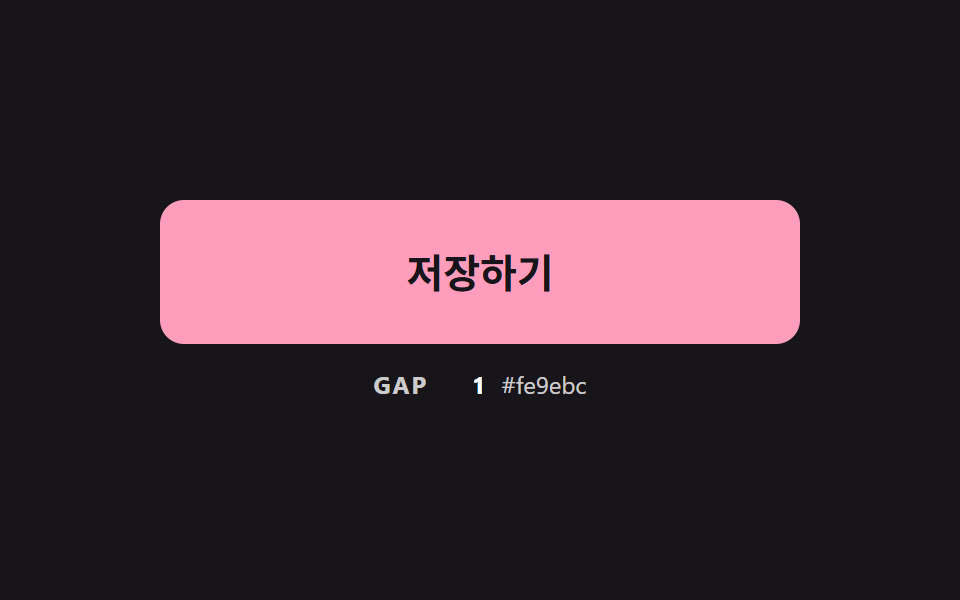 CSS Button Color Transition: 9 Hover DemosOne line recolors a button on hover, yet it muddies the midpoint, cannot move a gradient and loses the label midway — sc See all demos in this post
If you like this effect - similar demos
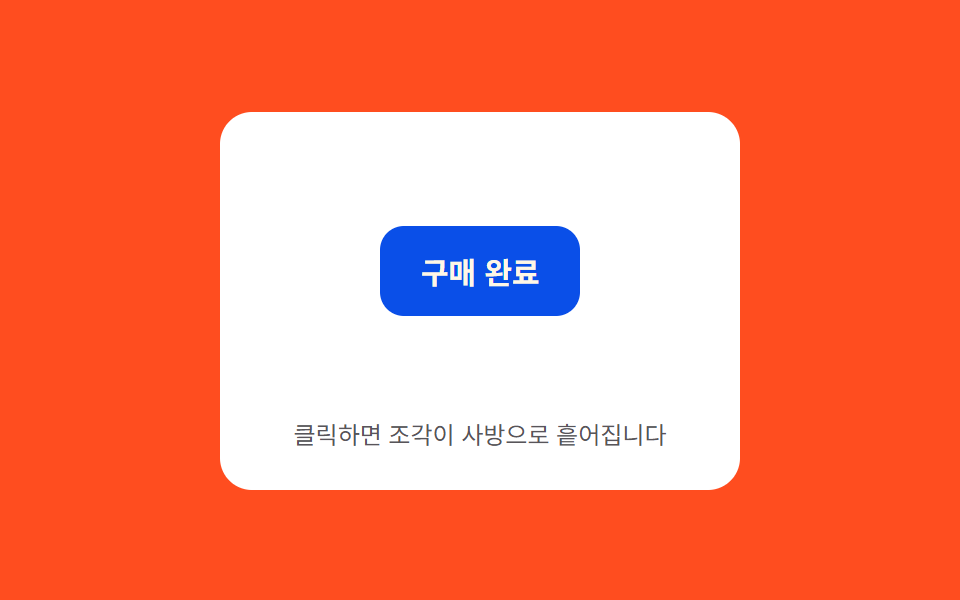 Buttons03 Burst scatter — pieces scatter from the click point at differing angle values before fadingCTA Button Design: 9 Interaction Patterns
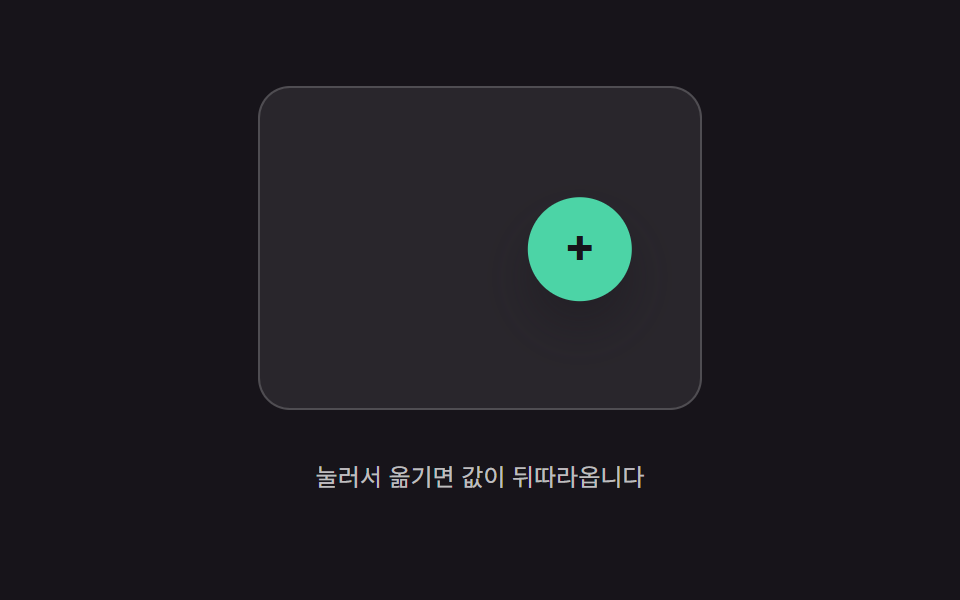 Buttons02 Trailing-value interpolation — the button's position value follows the pointer's position value, narrowing the gap by a fixed ratio each momentButton Press Animation UI: 9 Calculation Patterns
 Buttons03 Divider fade — the opacity value of the line between buttons fades as the pointer nears an adjacent buttonButton Group CSS: 9 Adjoined Patterns