CSS Button Hover Effects — 9 Proximity Patterns
These are css button hover effects. If the cursor is still a hand-width away, the distance value stays large.
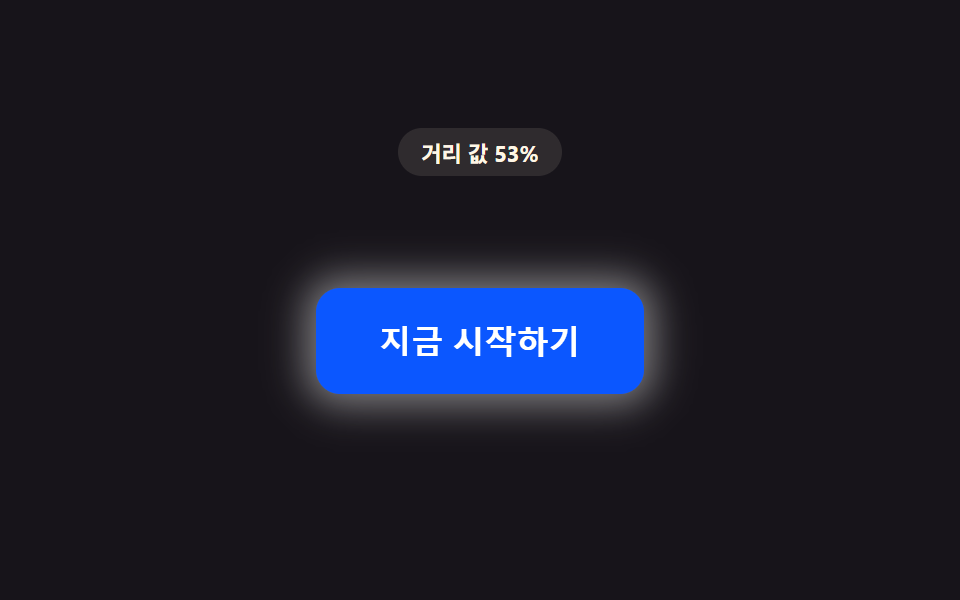 01 btn-proximity-glow-radius-grow
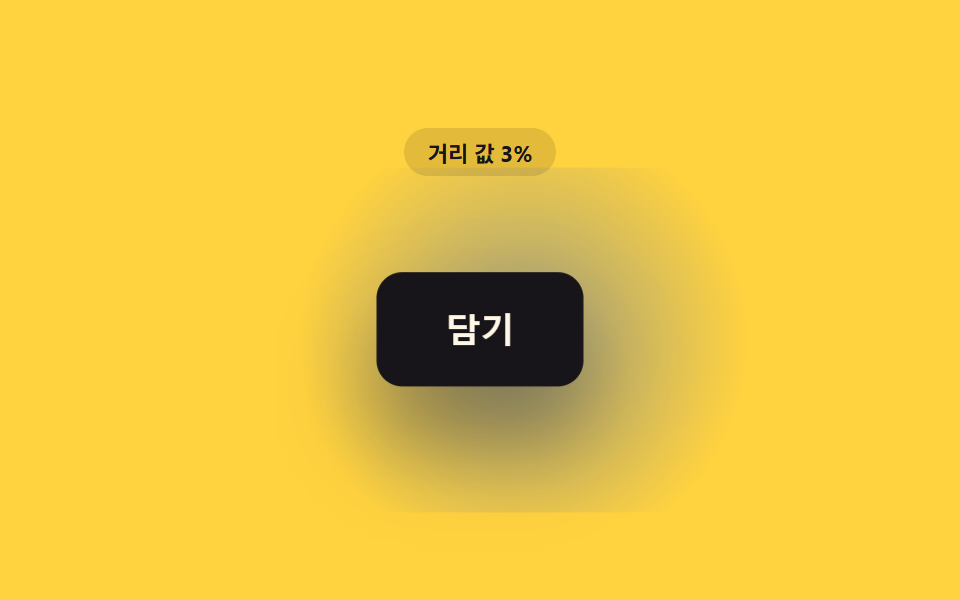 02 btn-proximity-scale-lift-hover
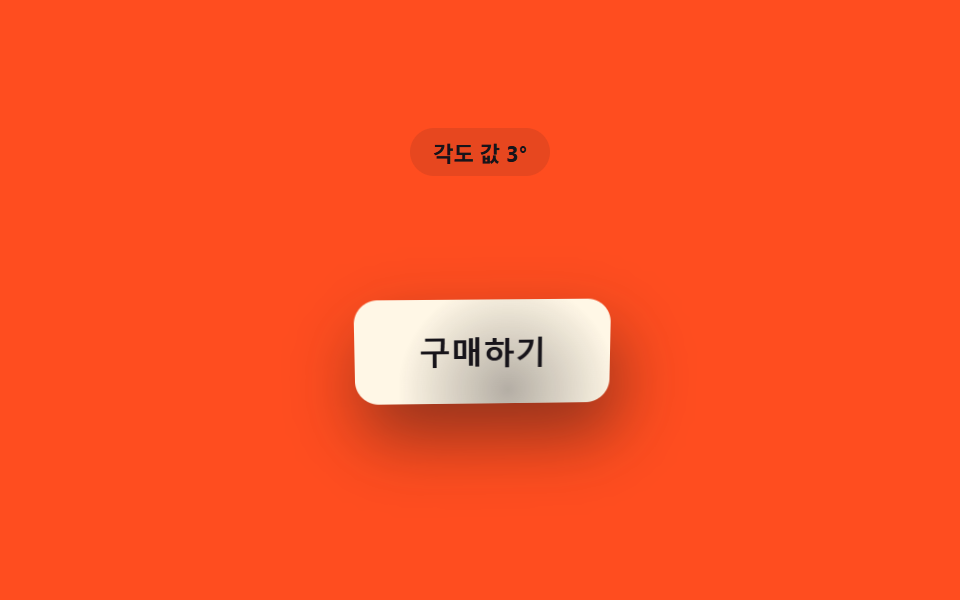 03 btn-proximity-tilt-angle-follow
 04 btn-proximity-blur-focus-sharpen
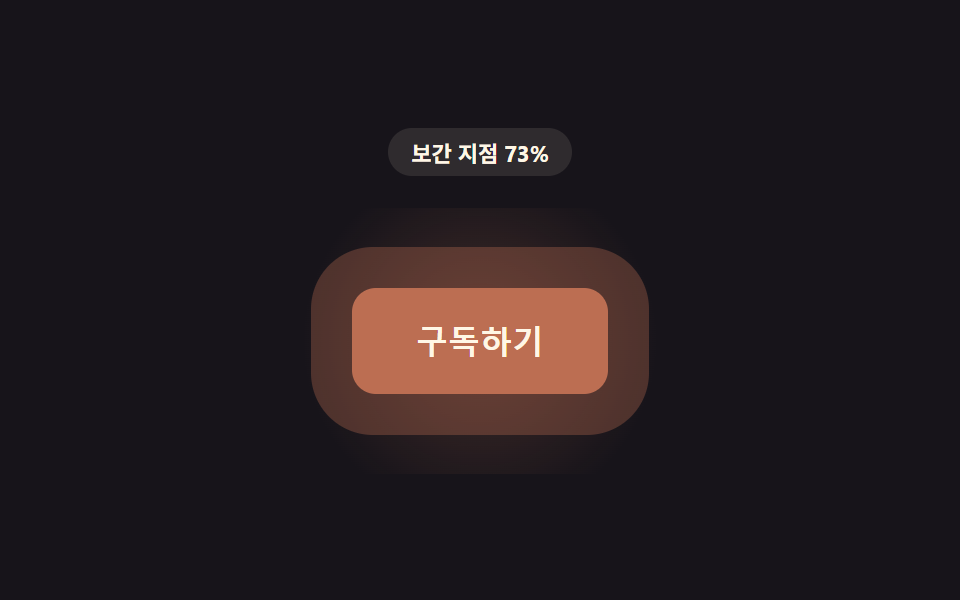 05 btn-proximity-hue-shift-approach
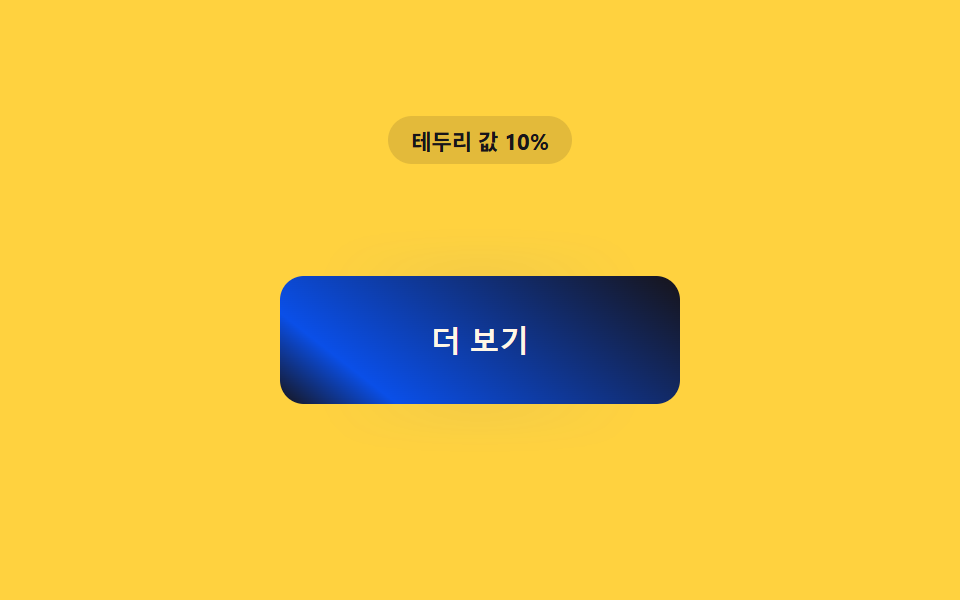 06 btn-proximity-border-trace-draw
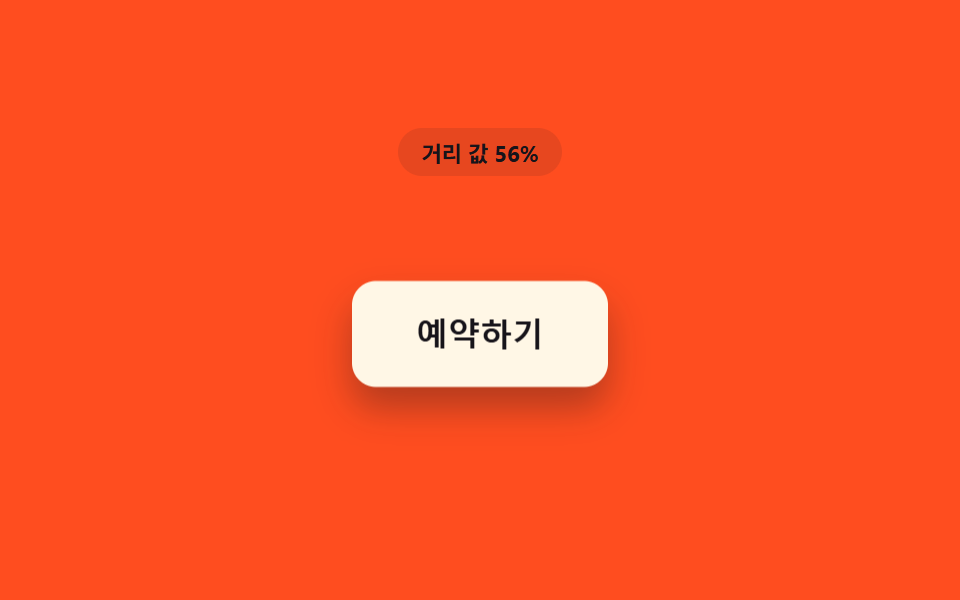 07 btn-proximity-shadow-lift-depth
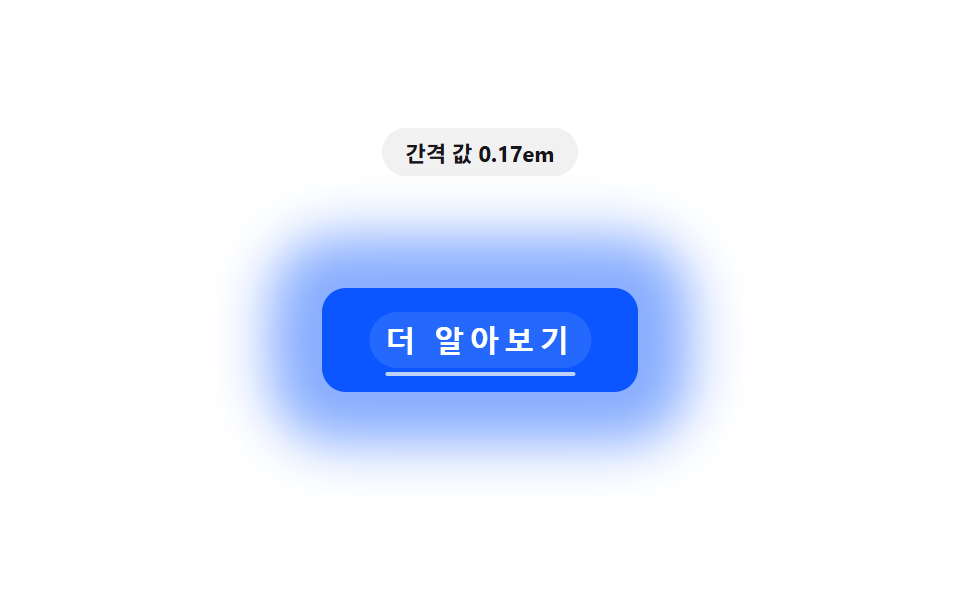 08 btn-proximity-letter-spacing-expand
 09 btn-proximity-particle-density-swarm
Auto-plays · click a tile to jump to its section · all nine in one zip
- 01 Button Whose Glow Widens With the Distance Value
- 02 Button That Gradually Grows as the Distance Value Shrinks
- 03 Tilting Button Whose Distance Value Becomes an Angle Value
- 04 Neighboring Buttons That Blur as the Distance Value Grows
- 05 Button Whose Distance Value Becomes a Color-interpolation Point
- 06 Button Whose Border Is Drawn by the Distance Value
- 07 Button That Lifts by the Distance Value's Shadow
- 08 Button Whose Distance Value Stretches Letter Spacing
- 09 Button Around Which Particles Gather by the Distance Value
Why One Distance Value Drives All Nine Buttons
Every demo on this page starts from the same tiny function: measure the pixel distance between the pointer and the button's center, turn that number into a ratio between 0 and 1, and let every visible property read from that one ratio. None of the nine switch a class on and off at a boundary — a css button hover animation generator that only toggles :hover would miss the part where the reaction keeps changing while the cursor is still approaching, before it ever lands on the button. What differs between the nine is only which property reads the ratio, and whether a second calculation layer (a spring, a vector, a rank, a real measured width) sits between the ratio and what you see.
Nine Proximity Patterns, Compared by Moved Area and Intensity
Each demo is captured as 24 frames while a scripted virtual cursor orbits the button, and the delta between consecutive frames is measured as a share of the 480×300 canvas.
| # | Pattern | Cumulative area | Avg intensity | Moved frames |
|---|---|---|---|---|
| 01 | Glow radius grows | 20.6% | 52.6 | 22/23 |
| 02 | Scale and lift | 18.8% | 47.4 | 18/23 |
| 03 | Tilt follows angle | 13.2% | 52.4 | 18/23 |
| 04 | Blur sharpens nearest | 18.2% | 19.6 | 16/23 |
| 05 | Hue shifts on approach | 14.5% | 46.7 | 20/23 |
| 06 | Border traces around | 14.9% | 46.5 | 21/23 |
| 07 | Shadow lifts in depth | 7.6% | 62.1 | 21/23 |
| 08 | Letter spacing expands | 26.5% | 37.6 | 21/23 |
| 09 | Particle density swarms | 11.0% | 102.3 | 20/23 |
Code Per Pattern, Read Straight From index.html
Every block below is copied unchanged from each item's own index.html; only the on-screen badge text is swapped for the English string it actually shows. The auto-play cursor you see in the demo comes from a syntheticOffset function that orbits a virtual point — it's a scripted loop for the page, not a recording of anyone's real pointer.
01Button Whose Glow Widens With the Distance Value
As the distance value between the cursor and the button shrinks, the glow radius around it widens and its brightness climbs at the same time. One proximity ratio (p) feeds three CSS values in the same call — blur radius, spread, and brightness() — so the glow, the spread, and the light all move together instead of drifting out of sync.
<main class="stage">
<div class="pg is-demo" id="pg">
  <p class="pg__badge" id="pgBadge">Distance value 100%</p>
  <div class="pg__scene" id="pgScene">
    <button class="pg__btn" id="pgBtn" type="button">Get started</button>
  </div>
</div>
</main>
@use "../../../../site/static/demo-tokens" as *;
// 핵심: pointermove 로 커서–버튼 중심 거리(px)를 재고 1 - clamp(d / PROX_RADIUS_PX) 로
// 거리 값(0~1)을 만든다. 그 값이 후광의 blur-radius·spread·밝기를 함께 키운다.
// 계산 한 겹: 매 프레임 lerp 로 목표값을 관성 있게 뒤쫓는다(속성 트윈이 아니라 계산).
$duration: $dur-loop;
$easing: linear;
$color: $subject-blue-deep;
@include stage($stage-ink);
.pg {
display: grid;
gap: $sp-4;
justify-items: center;
}
.pg__badge {
margin: 0;
padding: $sp-1 $sp-3;
border-radius: $r-pill;
background: rgba(255, 247, 230, .1);
color: $subject-cream;
font-weight: 700;
font-size: 11px;
font-variant-numeric: tabular-nums;
}
.pg__scene {
padding: $sp-10;
}
.pg__btn {
border: 0;
cursor: pointer;
padding: $sp-4 $sp-8;
border-radius: $r-control;
background: $color;
color: $subject-cream;
font-size: 16px;
font-weight: 700;
will-change: box-shadow, filter;
}
.pg__btn:focus-visible {
outline: 2px solid $subject-cream;
outline-offset: 3px;
}
@media (max-width: 340px) {
.pg__scene { padding: $sp-6; }
.pg__btn { padding: $sp-3 $sp-6; font-size: 14px; }
}
@media (prefers-reduced-motion: reduce) {
.pg__btn { transition: none; }
}html, body {
margin: 0;
overflow: hidden;
}
.stage {
box-sizing: border-box;
min-height: 100vh;
display: grid;
place-items: center;
margin: 0;
background: #17141a;
font-family: -apple-system, "Segoe UI", "Noto Sans KR", sans-serif;
padding: clamp(8px, 4vw, 24px);
}
.pg {
display: grid;
gap: 16px;
justify-items: center;
}
.pg__badge {
margin: 0;
padding: 4px 12px;
border-radius: 999px;
background: rgba(255, 247, 230, 0.1);
color: #fff7e6;
font-weight: 700;
font-size: 11px;
font-variant-numeric: tabular-nums;
}
.pg__scene {
padding: 40px;
}
.pg__btn {
border: 0;
cursor: pointer;
padding: 16px 32px;
border-radius: 12px;
background: #0a4fe8;
color: #fff7e6;
font-size: 16px;
font-weight: 700;
will-change: box-shadow, filter;
}
.pg__btn:focus-visible {
outline: 2px solid #fff7e6;
outline-offset: 3px;
}
@media (max-width: 340px) {
.pg__scene {
padding: 24px;
}
.pg__btn {
padding: 12px 24px;
font-size: 14px;
}
}
@media (prefers-reduced-motion: reduce) {
.pg__btn {
transition: none;
}
}(function () {
// PROX_GLOW_RADIUS_MAX_PX — 변형 1: 40 → 80 로 늘리면 후광이 버튼 전체를 덮을 만큼 크게 번진다.
var PROX_GLOW_RADIUS_MAX_PX = 40;
var PROX_RADIUS_PX = 170;
var LERP = 0.18;
var root = document.getElementById('pg');
var scene = document.getElementById('pgScene');
var btn = document.getElementById('pgBtn');
var badge = document.getElementById('pgBadge');
var reduce = window.matchMedia('(prefers-reduced-motion: reduce)').matches;
function clamp(v, lo, hi) { return Math.max(lo, Math.min(hi, v)); }
var targetP = 0;
var curP = 0;
var hasPointer = false;
  function distanceToButton(x, y) {
    var r = btn.getBoundingClientRect();
    var cx = r.left + r.width / 2;
    var cy = r.top + r.height / 2;
    return Math.hypot(x - cx, y - cy);
  }

  function render(p) {
    var blurRadius = p * PROX_GLOW_RADIUS_MAX_PX;
    var spread = p * PROX_GLOW_RADIUS_MAX_PX * 0.3;
    var alpha = (0.18 + p * 0.55).toFixed(2);
    btn.style.boxShadow = '0 0 ' + blurRadius.toFixed(1) + 'px ' + spread.toFixed(1) + 'px rgba(255,247,230,' + alpha + ')';
    btn.style.filter = 'brightness(' + (1 + p * 0.22).toFixed(3) + ')';
  badge.textContent = 'Distance value ' + Math.round((1 - p) * 100) + '%';
  }
// 자동 시연: 가상 커서가 궤도(반지름이 2초 동안 0 → 최대 → 0)를 돌며 접근·이탈을 만든다.
function syntheticOffset(t) {
var ang = t * 1.7;
var rad = 110 * (1 + Math.cos(t * Math.PI));
return [Math.cos(ang) * rad, Math.sin(ang) * rad];
}
var startTime = null;
function loop(now) {
if (startTime === null) { startTime = now; }
var t = (now - startTime) / 1000;
if (!hasPointer && !reduce) {
var r = btn.getBoundingClientRect();
var cx = r.left + r.width / 2;
var cy = r.top + r.height / 2;
var off = syntheticOffset(t);
var d = Math.hypot(off[0], off[1]);
targetP = clamp(1 - d / PROX_RADIUS_PX, 0, 1);
void cx; void cy;
}
curP += (targetP - curP) * LERP;
render(curP);
requestAnimationFrame(loop);
}
scene.addEventListener('pointermove', function (e) {
hasPointer = true;
root.classList.remove('is-demo');
var d = distanceToButton(e.clientX, e.clientY);
targetP = clamp(1 - d / PROX_RADIUS_PX, 0, 1);
if (reduce) { curP = targetP; render(curP); }
});
scene.addEventListener('pointerleave', function () {
hasPointer = false;
targetP = 0;
if (reduce) { curP = 0; render(0); }
});
btn.addEventListener('focus', function () {
hasPointer = true;
targetP = 1;
if (reduce) { curP = 1; render(1); }
});
btn.addEventListener('blur', function () {
hasPointer = false;
targetP = 0;
if (reduce) { curP = 0; render(0); }
});
if (reduce) {
render(0);
} else {
requestAnimationFrame(loop);
}
})();// ProximityGlowButton — vanilla 판(run/408/demo/01-btn-proximity-glow-radius-grow/index.html) 의 React 포트.
// 버튼까지 거리 값(0~1)을 lerp 로 관성 있게 따라가며 후광(box-shadow blur·spread)과 밝기(filter)를 계산한다.
// 포인터가 없을 때(자동 시연)는 궤도 반지름이 2초 동안 0 → 최대 → 0 으로 도는 가상 커서 거리로 같은 계산을 돌린다.
import { useEffect, useRef, useState } from "react";
import type { PointerEvent as ReactPointerEvent } from "react";
import styles from "./ProximityGlowButton.module.scss";
type Box<T> = { current: T };
// PROX_GLOW_RADIUS_MAX_PX — 변형 1: 40 → 80 로 늘리면 후광이 버튼 전체를 덮을 만큼 크게 번진다.
const PROX_GLOW_RADIUS_MAX_PX = 40;
const PROX_RADIUS_PX = 170;
const LERP = 0.18;
function clamp(v: number, lo: number, hi: number): number {
return Math.max(lo, Math.min(hi, v));
}
function syntheticOffset(t: number): [number, number] {
const ang = t * 1.7;
const rad = 110 * (1 + Math.cos(t * Math.PI));
return [Math.cos(ang) * rad, Math.sin(ang) * rad];
}
export default function ProximityGlowButton() {
const sceneRef = useRef<HTMLDivElement | null>(null);
const btnRef = useRef<HTMLButtonElement | null>(null);
const badgeRef = useRef<HTMLParagraphElement | null>(null);
const targetPRef = useRef<number>(0) as Box<number>;
const curPRef = useRef<number>(0) as Box<number>;
const hasPointerRef = useRef<boolean>(false) as Box<boolean>;
const frameRef = useRef<number>(0) as Box<number>;
const t0Ref = useRef<number>(0) as Box<number>;
const [demo, setDemo] = useState(true);
const [reduce, setReduce] = useState(false);
function render(p: number): void {
const btn = btnRef.current;
const badge = badgeRef.current;
if (!btn || !badge) return;
const blurRadius = p * PROX_GLOW_RADIUS_MAX_PX;
const spread = p * PROX_GLOW_RADIUS_MAX_PX * 0.3;
const alpha = (0.18 + p * 0.55).toFixed(2);
btn.style.boxShadow = "0 0 " + blurRadius.toFixed(1) + "px " + spread.toFixed(1) + "px rgba(255,247,230," + alpha + ")";
btn.style.filter = "brightness(" + (1 + p * 0.22).toFixed(3) + ")";
badge.textContent = "거리 값 " + Math.round((1 - p) * 100) + "%";
}
function distanceToButton(x: number, y: number): number {
const btn = btnRef.current;
if (!btn) return PROX_RADIUS_PX;
const r = btn.getBoundingClientRect();
const cx = r.left + r.width / 2;
const cy = r.top + r.height / 2;
return Math.hypot(x - cx, y - cy);
}
useEffect(() => {
setReduce(window.matchMedia("(prefers-reduced-motion: reduce)").matches);
}, []);
useEffect(() => {
if (reduce) {
render(0);
return;
}
function loop(now: number): void {
if (t0Ref.current === 0) t0Ref.current = now;
const t = (now - t0Ref.current) / 1000;
if (!hasPointerRef.current) {
const off = syntheticOffset(t);
const d = Math.hypot(off[0], off[1]);
targetPRef.current = clamp(1 - d / PROX_RADIUS_PX, 0, 1);
}
curPRef.current += (targetPRef.current - curPRef.current) * LERP;
render(curPRef.current);
frameRef.current = requestAnimationFrame(loop);
}
frameRef.current = requestAnimationFrame(loop);
return () => cancelAnimationFrame(frameRef.current);
}, [reduce]);
function onPointerMove(event: ReactPointerEvent<HTMLDivElement>): void {
hasPointerRef.current = true;
setDemo(false);
const d = distanceToButton(event.clientX, event.clientY);
targetPRef.current = clamp(1 - d / PROX_RADIUS_PX, 0, 1);
if (reduce) { curPRef.current = targetPRef.current; render(curPRef.current); }
}
function onPointerLeave(): void {
hasPointerRef.current = false;
targetPRef.current = 0;
if (reduce) { curPRef.current = 0; render(0); }
}
function onFocus(): void {
hasPointerRef.current = true;
targetPRef.current = 1;
if (reduce) { curPRef.current = 1; render(1); }
}
function onBlur(): void {
hasPointerRef.current = false;
targetPRef.current = 0;
if (reduce) { curPRef.current = 0; render(0); }
}
const cls = [styles.pg, demo ? styles.isDemo : ""].filter(Boolean).join(" ");
return (
<main className={styles.stage}>
<div className={cls}>
<p className={styles.badge} ref={badgeRef}>거리 값 100%</p>
<div className={styles.scene} ref={sceneRef} onPointerMove={onPointerMove} onPointerLeave={onPointerLeave}>
<button className={styles.btn} ref={btnRef} type="button" onFocus={onFocus} onBlur={onBlur}>지금 시작하기</button>
</div>
</div>
</main>
);
}01 · Button Whose Glow Widens With the Distance Value — Measured area 20.583% · moving frames 22/23Original by GODRICH · SCSS and React ship in the zip · See the password
function distanceToButton(x, y) {
var r = btn.getBoundingClientRect();
var cx = r.left + r.width / 2;
var cy = r.top + r.height / 2;
return Math.hypot(x - cx, y - cy);
}
function render(p) {
var blurRadius = p * PROX_GLOW_RADIUS_MAX_PX;
var spread = p * PROX_GLOW_RADIUS_MAX_PX * 0.3;
var alpha = (0.18 + p * 0.55).toFixed(2);
btn.style.boxShadow = '0 0 ' + blurRadius.toFixed(1) + 'px ' + spread.toFixed(1) + 'px rgba(255,247,230,' + alpha + ')';
btn.style.filter = 'brightness(' + (1 + p * 0.22).toFixed(3) + ')';
badge.textContent = 'Distance value ' + Math.round((1 - p) * 100) + '%';
}
Measured: cumulative area 20.6%, average intensity 52.6, moved 22/23 frames.
02Button That Gradually Grows as the Distance Value Shrinks
The cursor's distance value doesn't flip the button's size on and off — a spring (STIFFNESS, DAMPING) chases the target ratio frame by frame, so the size keeps drifting for a moment even after the cursor stops moving. That same spring position is also written to a --tone-p custom property, so the background tone overshoots along with the scale.
<main class="stage">
<div class="sl is-demo" id="sl">
  <p class="sl__badge" id="slBadge">Distance value 100%</p>
  <div class="sl__scene" id="slScene">
    <button class="sl__btn" id="slBtn" type="button">Add</button>
  </div>
</div>
</main>
@use "../../../../site/static/demo-tokens" as *;
// 핵심: 거리 값을 스프링 방정식(강성·감쇠)에 흘려 버튼 크기·들림을 연속으로 바꾼다.
// 이진적 켜짐·꺼짐이 아니라 목표를 살짝 넘겼다가 정착하는 계산 한 겹(오버슛)을 더했다.
$duration: $dur-loop;
$easing: $ease-lerp-settle;
$color: $subject-ink;
@include stage($stage-yellow);
.sl {
display: grid;
gap: $sp-4;
justify-items: center;
}
.sl__badge {
margin: 0;
padding: $sp-1 $sp-3;
border-radius: $r-pill;
background: rgba(23, 20, 26, .12);
color: $subject-ink;
font-weight: 700;
font-size: 11px;
font-variant-numeric: tabular-nums;
}
.sl__scene {
position: relative;
padding: $sp-10;
--tone-p: 0;
}
.sl__scene::before {
content: '';
position: absolute;
inset: 0;
margin: auto;
width: 220px;
height: 140px;
border-radius: $r-control;
background: radial-gradient(circle, rgba($subject-blue-deep, .4), transparent 70%);
transform: scale(calc(0.55 + var(--tone-p) * 0.7));
opacity: var(--tone-p);
pointer-events: none;
z-index: 0;
}
.sl__btn {
position: relative;
z-index: 1;
border: 0;
cursor: pointer;
padding: $sp-4 $sp-8;
border-radius: $r-control;
background: $color;
color: $subject-cream;
font-size: 16px;
font-weight: 700;
transform-origin: center;
will-change: transform, box-shadow;
}
.sl__btn:focus-visible {
outline: 2px solid $subject-cream;
outline-offset: 3px;
}
@media (max-width: 340px) {
.sl__scene { padding: $sp-6; }
.sl__btn { padding: $sp-3 $sp-6; font-size: 14px; }
}
@media (prefers-reduced-motion: reduce) {
.sl__btn { transition: none; }
}html, body {
margin: 0;
overflow: hidden;
}
.stage {
box-sizing: border-box;
min-height: 100vh;
display: grid;
place-items: center;
margin: 0;
background: #ffd23f;
font-family: -apple-system, "Segoe UI", "Noto Sans KR", sans-serif;
padding: clamp(8px, 4vw, 24px);
}
.sl {
display: grid;
gap: 16px;
justify-items: center;
}
.sl__badge {
margin: 0;
padding: 4px 12px;
border-radius: 999px;
background: rgba(23, 20, 26, 0.12);
color: #17141a;
font-weight: 700;
font-size: 11px;
font-variant-numeric: tabular-nums;
}
.sl__scene {
position: relative;
padding: 40px;
--tone-p: 0;
}
.sl__scene::before {
content: "";
position: absolute;
inset: 0;
margin: auto;
width: 220px;
height: 140px;
border-radius: 12px;
background: radial-gradient(circle, rgba(10, 79, 232, 0.4), transparent 70%);
transform: scale(calc(0.55 + var(--tone-p) * 0.7));
opacity: var(--tone-p);
pointer-events: none;
z-index: 0;
}
.sl__btn {
position: relative;
z-index: 1;
border: 0;
cursor: pointer;
padding: 16px 32px;
border-radius: 12px;
background: #17141a;
color: #fff7e6;
font-size: 16px;
font-weight: 700;
transform-origin: center;
will-change: transform, box-shadow;
}
.sl__btn:focus-visible {
outline: 2px solid #fff7e6;
outline-offset: 3px;
}
@media (max-width: 340px) {
.sl__scene {
padding: 24px;
}
.sl__btn {
padding: 12px 24px;
font-size: 14px;
}
}
@media (prefers-reduced-motion: reduce) {
.sl__btn {
transition: none;
}
}(function () {
var PROX_RADIUS_PX = 170;
var SL_SCALE_MAX = 0.08;
var SL_LIFT_MAX_PX = 6;
// 스프링 방정식(강성·감쇠) — lerp 보다 한 겹 더한 관성: 목표를 살짝 넘겼다가 정착한다.
var STIFFNESS = 0.22;
var DAMPING = 0.72;
var root = document.getElementById('sl');
var scene = document.getElementById('slScene');
var btn = document.getElementById('slBtn');
var badge = document.getElementById('slBadge');
var reduce = window.matchMedia('(prefers-reduced-motion: reduce)').matches;
function clamp(v, lo, hi) { return Math.max(lo, Math.min(hi, v)); }
var targetP = 0;
var pos = 0;
var vel = 0;
var hasPointer = false;
function distanceToButton(x, y) {
var r = btn.getBoundingClientRect();
var cx = r.left + r.width / 2;
var cy = r.top + r.height / 2;
return Math.hypot(x - cx, y - cy);
}
function render(p) {
var scale = 1 + p * SL_SCALE_MAX;
var lift = p * SL_LIFT_MAX_PX;
var depth = 8 + p * 18;
btn.style.transform = 'translateY(' + (-lift).toFixed(2) + 'px) scale(' + scale.toFixed(4) + ')';
btn.style.boxShadow = '0 ' + depth.toFixed(1) + 'px ' + (depth * 1.6).toFixed(1) + 'px rgba(23,20,26,' + (0.18 + p * 0.18).toFixed(2) + ')';
// 계산 레이어: 스프링 오버슛(p) 을 배경 톤(그림자 뒤 글로우)에도 같은 값으로 전파한다.
var tone = clamp(p, 0, 1.15);
scene.style.setProperty('--tone-p', tone.toFixed(3));
badge.textContent = 'Distance value ' + Math.round((1 - clamp(p, 0, 1)) * 100) + '%';
}
function springStep(target) {
var force = (target - pos) * STIFFNESS;
vel = (vel + force) * DAMPING;
pos += vel;
}
function syntheticOffset(t) {
var ang = t * 1.4 + 0.6;
var rad = 110 * (1 + Math.cos(t * Math.PI));
return [Math.cos(ang) * rad, Math.sin(ang) * rad];
}
var startTime = null;
function loop(now) {
if (startTime === null) { startTime = now; }
var t = (now - startTime) / 1000;
if (!hasPointer && !reduce) {
var off = syntheticOffset(t);
var d = Math.hypot(off[0], off[1]);
targetP = clamp(1 - d / PROX_RADIUS_PX, 0, 1);
}
springStep(targetP);
render(clamp(pos, -0.2, 1.2));
requestAnimationFrame(loop);
}
scene.addEventListener('pointermove', function (e) {
hasPointer = true;
root.classList.remove('is-demo');
var d = distanceToButton(e.clientX, e.clientY);
targetP = clamp(1 - d / PROX_RADIUS_PX, 0, 1);
if (reduce) { pos = targetP; render(pos); }
});
scene.addEventListener('pointerleave', function () {
hasPointer = false;
targetP = 0;
if (reduce) { pos = 0; render(0); }
});
btn.addEventListener('focus', function () {
hasPointer = true;
targetP = 1;
if (reduce) { pos = 1; render(1); }
});
btn.addEventListener('blur', function () {
hasPointer = false;
targetP = 0;
if (reduce) { pos = 0; render(0); }
});
if (reduce) {
render(0);
} else {
requestAnimationFrame(loop);
}
})();// ProximityScaleLiftButton — vanilla 판(run/408/demo/02-btn-proximity-scale-lift-hover/index.html) 의 React 포트.
// 거리 값을 스프링 방정식(강성 STIFFNESS·감쇠 DAMPING)에 흘려 목표를 살짝 넘겼다가 정착하는
// 오버슛 한 겹을 더한다 — 단순 lerp 보다 한 계산 층이 깊다.
import { useEffect, useRef, useState } from "react";
import type { PointerEvent as ReactPointerEvent } from "react";
import styles from "./ProximityScaleLiftButton.module.scss";
type Box<T> = { current: T };
const PROX_RADIUS_PX = 170;
const SL_SCALE_MAX = 0.08;
const SL_LIFT_MAX_PX = 6;
const STIFFNESS = 0.22;
const DAMPING = 0.72;
function clamp(v: number, lo: number, hi: number): number {
return Math.max(lo, Math.min(hi, v));
}
function syntheticOffset(t: number): [number, number] {
const ang = t * 1.4 + 0.6;
const rad = 110 * (1 + Math.cos(t * Math.PI));
return [Math.cos(ang) * rad, Math.sin(ang) * rad];
}
export default function ProximityScaleLiftButton() {
const sceneRef = useRef<HTMLDivElement | null>(null);
const btnRef = useRef<HTMLButtonElement | null>(null);
const badgeRef = useRef<HTMLParagraphElement | null>(null);
const targetPRef = useRef<number>(0) as Box<number>;
const posRef = useRef<number>(0) as Box<number>;
const velRef = useRef<number>(0) as Box<number>;
const hasPointerRef = useRef<boolean>(false) as Box<boolean>;
const frameRef = useRef<number>(0) as Box<number>;
const t0Ref = useRef<number>(0) as Box<number>;
const [demo, setDemo] = useState(true);
const [reduce, setReduce] = useState(false);
function render(p: number): void {
const btn = btnRef.current;
const badge = badgeRef.current;
const scene = sceneRef.current;
if (!btn || !badge || !scene) return;
const scale = 1 + p * SL_SCALE_MAX;
const lift = p * SL_LIFT_MAX_PX;
const depth = 8 + p * 18;
btn.style.transform = "translateY(" + (-lift).toFixed(2) + "px) scale(" + scale.toFixed(4) + ")";
btn.style.boxShadow = "0 " + depth.toFixed(1) + "px " + (depth * 1.6).toFixed(1) + "px rgba(23,20,26," + (0.18 + p * 0.18).toFixed(2) + ")";
// 계산 레이어: 스프링 오버슛 값(p, 1 을 넘나든다)을 장면 배경 글로우 크기·불투명도에도 전파한다.
const tone = clamp(p, 0, 1.15);
scene.style.setProperty("--tone-p", tone.toFixed(3));
badge.textContent = "거리 값 " + Math.round((1 - clamp(p, 0, 1)) * 100) + "%";
}
function springStep(target: number): void {
const force = (target - posRef.current) * STIFFNESS;
velRef.current = (velRef.current + force) * DAMPING;
posRef.current += velRef.current;
}
function distanceToButton(x: number, y: number): number {
const btn = btnRef.current;
if (!btn) return PROX_RADIUS_PX;
const r = btn.getBoundingClientRect();
const cx = r.left + r.width / 2;
const cy = r.top + r.height / 2;
return Math.hypot(x - cx, y - cy);
}
useEffect(() => {
setReduce(window.matchMedia("(prefers-reduced-motion: reduce)").matches);
}, []);
useEffect(() => {
if (reduce) {
render(0);
return;
}
function loop(now: number): void {
if (t0Ref.current === 0) t0Ref.current = now;
const t = (now - t0Ref.current) / 1000;
if (!hasPointerRef.current) {
const off = syntheticOffset(t);
const d = Math.hypot(off[0], off[1]);
targetPRef.current = clamp(1 - d / PROX_RADIUS_PX, 0, 1);
}
springStep(targetPRef.current);
render(clamp(posRef.current, -0.2, 1.2));
frameRef.current = requestAnimationFrame(loop);
}
frameRef.current = requestAnimationFrame(loop);
return () => cancelAnimationFrame(frameRef.current);
}, [reduce]);
function onPointerMove(event: ReactPointerEvent<HTMLDivElement>): void {
hasPointerRef.current = true;
setDemo(false);
const d = distanceToButton(event.clientX, event.clientY);
targetPRef.current = clamp(1 - d / PROX_RADIUS_PX, 0, 1);
if (reduce) { posRef.current = targetPRef.current; render(posRef.current); }
}
function onPointerLeave(): void {
hasPointerRef.current = false;
targetPRef.current = 0;
if (reduce) { posRef.current = 0; render(0); }
}
function onFocus(): void {
hasPointerRef.current = true;
targetPRef.current = 1;
if (reduce) { posRef.current = 1; render(1); }
}
function onBlur(): void {
hasPointerRef.current = false;
targetPRef.current = 0;
if (reduce) { posRef.current = 0; render(0); }
}
const cls = [styles.sl, demo ? styles.isDemo : ""].filter(Boolean).join(" ");
return (
<main className={styles.stage}>
<div className={cls}>
<p className={styles.badge} ref={badgeRef}>거리 값 100%</p>
<div className={styles.scene} ref={sceneRef} onPointerMove={onPointerMove} onPointerLeave={onPointerLeave}>
<button className={styles.btn} ref={btnRef} type="button" onFocus={onFocus} onBlur={onBlur}>담기</button>
</div>
</div>
</main>
);
}02 · Button That Gradually Grows as the Distance Value Shrinks — Measured area 18.788% · moving frames 18/23Original by GODRICH · SCSS and React ship in the zip · See the password
  function render(p) {
    var scale = 1 + p * SL_SCALE_MAX;
    var lift = p * SL_LIFT_MAX_PX;
    var depth = 8 + p * 18;
    btn.style.transform = 'translateY(' + (-lift).toFixed(2) + 'px) scale(' + scale.toFixed(4) + ')';
    btn.style.boxShadow = '0 ' + depth.toFixed(1) + 'px ' + (depth * 1.6).toFixed(1) + 'px rgba(23,20,26,' + (0.18 + p * 0.18).toFixed(2) + ')';
    // Calculation layer: propagate the same spring overshoot value (p) to the background tone (the glow behind the shadow).
    var tone = clamp(p, 0, 1.15);
    scene.style.setProperty('--tone-p', tone.toFixed(3));
  badge.textContent = 'Distance value ' + Math.round((1 - clamp(p, 0, 1)) * 100) + '%';
  }

  function springStep(target) {
    var force = (target - pos) * STIFFNESS;
    vel = (vel + force) * DAMPING;
    pos += vel;
  }
Measured: cumulative area 18.8%, average intensity 47.4, moved 18/23 frames.
03Tilting Button Whose Distance Value Becomes an Angle Value
The direction from the button's center to the cursor is kept as a vector, not just a scalar distance, then converted into a rotation angle — so the button leans toward the cursor's side before the cursor ever reaches it. The same ux, uy, and p used for the angle are reused, unchanged, to place the border highlight and the depth shadow.
<main class="stage">
<div class="ta is-demo" id="ta">
  <p class="ta__badge" id="taBadge">Angle value 0°</p>
  <div class="ta__scene" id="taScene">
    <button class="ta__btn" id="taBtn" type="button">
      <span class="ta__label">Buy now</span>
    </button>
  </div>
</div>
</main>
@use "../../../../site/static/demo-tokens" as *;
// 핵심: 커서–버튼 중심 방향 벡터를 단위 벡터로 정규화하고 atan2 로 각도를 구한 뒤,
// 거리 값(가까울수록 1)을 그 각도의 크기로 곱한다 — 닿기 전부터 커서 쪽으로 미리 기운다.
$duration: $dur-loop;
$easing: linear;
$color: $subject-cream;
@include stage($stage-orange);
.ta {
display: grid;
gap: $sp-4;
justify-items: center;
}
.ta__badge {
margin: 0;
padding: $sp-1 $sp-3;
border-radius: $r-pill;
background: rgba(23, 20, 26, .1);
color: $subject-ink;
font-weight: 700;
font-size: 11px;
font-variant-numeric: tabular-nums;
}
.ta__scene {
perspective: 600px;
padding: $sp-10;
}
.ta__btn {
position: relative;
border: 0;
cursor: pointer;
padding: $sp-4 $sp-8;
border-radius: $r-control;
background: $color;
color: $subject-ink;
font-size: 16px;
font-weight: 700;
transform-style: preserve-3d;
box-shadow: $shadow-raised;
will-change: transform, box-shadow;
--hl-x: 50%;
--hl-y: 50%;
--hl-o: 0;
}
.ta__btn::before {
content: '';
position: absolute;
inset: 0;
border-radius: inherit;
background: radial-gradient(circle at var(--hl-x) var(--hl-y), rgba(23, 20, 26, .55), transparent 62%);
opacity: var(--hl-o);
pointer-events: none;
}
.ta__btn:focus-visible {
outline: 2px solid $subject-ink;
outline-offset: 3px;
}
@media (max-width: 340px) {
.ta__scene { padding: $sp-6; }
.ta__btn { padding: $sp-3 $sp-6; font-size: 14px; }
}
@media (prefers-reduced-motion: reduce) {
.ta__btn { transition: none; }
}html, body {
margin: 0;
overflow: hidden;
}
.stage {
box-sizing: border-box;
min-height: 100vh;
display: grid;
place-items: center;
margin: 0;
background: #ff4d1f;
font-family: -apple-system, "Segoe UI", "Noto Sans KR", sans-serif;
padding: clamp(8px, 4vw, 24px);
}
.ta {
display: grid;
gap: 16px;
justify-items: center;
}
.ta__badge {
margin: 0;
padding: 4px 12px;
border-radius: 999px;
background: rgba(23, 20, 26, 0.1);
color: #17141a;
font-weight: 700;
font-size: 11px;
font-variant-numeric: tabular-nums;
}
.ta__scene {
perspective: 600px;
padding: 40px;
}
.ta__btn {
position: relative;
border: 0;
cursor: pointer;
padding: 16px 32px;
border-radius: 12px;
background: #fff7e6;
color: #17141a;
font-size: 16px;
font-weight: 700;
transform-style: preserve-3d;
box-shadow: 0 14px 24px rgba(23, 20, 26, 0.32);
will-change: transform, box-shadow;
--hl-x: 50%;
--hl-y: 50%;
--hl-o: 0;
}
.ta__btn::before {
content: "";
position: absolute;
inset: 0;
border-radius: inherit;
background: radial-gradient(circle at var(--hl-x) var(--hl-y), rgba(23, 20, 26, 0.55), transparent 62%);
opacity: var(--hl-o);
pointer-events: none;
}
.ta__btn:focus-visible {
outline: 2px solid #17141a;
outline-offset: 3px;
}
@media (max-width: 340px) {
.ta__scene {
padding: 24px;
}
.ta__btn {
padding: 12px 24px;
font-size: 14px;
}
}
@media (prefers-reduced-motion: reduce) {
.ta__btn {
transition: none;
}
}(function () {
var PROX_RADIUS_PX = 190;
var TA_MAX_DEG = 12;
var LERP = 0.16;
var root = document.getElementById('ta');
var scene = document.getElementById('taScene');
var btn = document.getElementById('taBtn');
var badge = document.getElementById('taBadge');
var reduce = window.matchMedia('(prefers-reduced-motion: reduce)').matches;
function clamp(v, lo, hi) { return Math.max(lo, Math.min(hi, v)); }
var targetDx = 0, targetDy = 0;
var curDx = 0, curDy = 0;
var hasPointer = false;
function vectorToButton(x, y) {
var r = btn.getBoundingClientRect();
var cx = r.left + r.width / 2;
var cy = r.top + r.height / 2;
return [x - cx, y - cy];
}
function render(dx, dy) {
// 방향 벡터 → 각도(atan2) 변환 — Distance value(가까울수록 1)을 각도 크기로 쓴다.
var d = Math.hypot(dx, dy);
var p = clamp(1 - d / PROX_RADIUS_PX, 0, 1);
var ux = d > 0.001 ? dx / d : 0;
var uy = d > 0.001 ? dy / d : 0;
var rotY = ux * p * TA_MAX_DEG;
var rotX = -uy * p * TA_MAX_DEG;
var lean = p * 6;
btn.style.transform = 'translate(' + (ux * lean).toFixed(2) + 'px,' + (uy * lean).toFixed(2) + 'px) rotateX(' + rotX.toFixed(2) + 'deg) rotateY(' + rotY.toFixed(2) + 'deg)';
// 계산 레이어: 같은 기울기 각도(ux·uy·p) 를 테두리 하이라이트 위치·깊이 그림자에도 전파한다.
var shadowX = ux * p * 16;
var shadowY = 6 + uy * p * 12;
var shadowBlur = 14 + p * 22;
btn.style.boxShadow = shadowX.toFixed(1) + 'px ' + shadowY.toFixed(1) + 'px ' + shadowBlur.toFixed(1) + 'px rgba(23,20,26,' + (0.2 + p * 0.3).toFixed(2) + ')';
btn.style.setProperty('--hl-x', (50 + ux * 38).toFixed(1) + '%');
btn.style.setProperty('--hl-y', (50 + uy * 38).toFixed(1) + '%');
btn.style.setProperty('--hl-o', (0.12 + p * 0.5).toFixed(2));
var angleDeg = Math.atan2(dy, dx) * 180 / Math.PI;
badge.textContent = 'Angle value ' + Math.round(rotY) + '°';
void angleDeg;
}
function syntheticOffset(t) {
var ang = t * 1.9;
var rad = 130 * (1 + Math.cos(t * Math.PI));
return [Math.cos(ang) * rad, Math.sin(ang) * rad * 0.7];
}
var startTime = null;
function loop(now) {
if (startTime === null) { startTime = now; }
var t = (now - startTime) / 1000;
if (!hasPointer && !reduce) {
var off = syntheticOffset(t);
targetDx = off[0]; targetDy = off[1];
}
curDx += (targetDx - curDx) * LERP;
curDy += (targetDy - curDy) * LERP;
render(curDx, curDy);
requestAnimationFrame(loop);
}
scene.addEventListener('pointermove', function (e) {
hasPointer = true;
root.classList.remove('is-demo');
var v = vectorToButton(e.clientX, e.clientY);
targetDx = v[0]; targetDy = v[1];
if (reduce) { curDx = v[0]; curDy = v[1]; render(curDx, curDy); }
});
scene.addEventListener('pointerleave', function () {
hasPointer = false;
targetDx = PROX_RADIUS_PX * 2; targetDy = 0;
if (reduce) { curDx = targetDx; curDy = 0; render(curDx, 0); }
});
btn.addEventListener('focus', function () {
hasPointer = true;
targetDx = 0; targetDy = 0;
if (reduce) { curDx = 0; curDy = 0; render(0, 0); }
});
btn.addEventListener('blur', function () {
hasPointer = false;
targetDx = PROX_RADIUS_PX * 2; targetDy = 0;
if (reduce) { curDx = targetDx; curDy = 0; render(curDx, 0); }
});
if (reduce) {
curDx = PROX_RADIUS_PX * 2; curDy = 0;
render(curDx, curDy);
} else {
requestAnimationFrame(loop);
}
})();// ProximityTiltButton — vanilla 판(run/408/demo/03-btn-proximity-tilt-angle-follow/index.html) 의 React 포트.
// 커서–버튼 중심 방향 벡터를 단위 벡터로 정규화하고, 거리 값(가까울수록 1)을 그 방향의 각도 크기로
// 곱한다 — atan2 로 각도를 구하는 계산 한 겹이 단순 좌표 매핑과 다르다.
import { useEffect, useRef, useState } from "react";
import type { PointerEvent as ReactPointerEvent } from "react";
import styles from "./ProximityTiltButton.module.scss";
type Box<T> = { current: T };
const PROX_RADIUS_PX = 190;
const TA_MAX_DEG = 12;
const LERP = 0.16;
function clamp(v: number, lo: number, hi: number): number {
return Math.max(lo, Math.min(hi, v));
}
function syntheticOffset(t: number): [number, number] {
const ang = t * 1.9;
const rad = 130 * (1 + Math.cos(t * Math.PI));
return [Math.cos(ang) * rad, Math.sin(ang) * rad * 0.7];
}
export default function ProximityTiltButton() {
const sceneRef = useRef<HTMLDivElement | null>(null);
const btnRef = useRef<HTMLButtonElement | null>(null);
const badgeRef = useRef<HTMLParagraphElement | null>(null);
const targetDxRef = useRef<number>(0) as Box<number>;
const targetDyRef = useRef<number>(0) as Box<number>;
const curDxRef = useRef<number>(0) as Box<number>;
const curDyRef = useRef<number>(0) as Box<number>;
const hasPointerRef = useRef<boolean>(false) as Box<boolean>;
const frameRef = useRef<number>(0) as Box<number>;
const t0Ref = useRef<number>(0) as Box<number>;
const [demo, setDemo] = useState(true);
const [reduce, setReduce] = useState(false);
function render(dx: number, dy: number): void {
const btn = btnRef.current;
const badge = badgeRef.current;
if (!btn || !badge) return;
const d = Math.hypot(dx, dy);
const p = clamp(1 - d / PROX_RADIUS_PX, 0, 1);
const ux = d > 0.001 ? dx / d : 0;
const uy = d > 0.001 ? dy / d : 0;
const rotY = ux * p * TA_MAX_DEG;
const rotX = -uy * p * TA_MAX_DEG;
const lean = p * 6;
btn.style.transform = "translate(" + (ux * lean).toFixed(2) + "px," + (uy * lean).toFixed(2) + "px) rotateX(" + rotX.toFixed(2) + "deg) rotateY(" + rotY.toFixed(2) + "deg)";
// 계산 레이어: 같은 기울기 각도(ux·uy·p) 를 테두리 하이라이트 위치·깊이 그림자에도 전파한다.
const shadowX = ux * p * 16;
const shadowY = 6 + uy * p * 12;
const shadowBlur = 14 + p * 22;
btn.style.boxShadow = shadowX.toFixed(1) + "px " + shadowY.toFixed(1) + "px " + shadowBlur.toFixed(1) + "px rgba(23,20,26," + (0.2 + p * 0.3).toFixed(2) + ")";
btn.style.setProperty("--hl-x", (50 + ux * 38).toFixed(1) + "%");
btn.style.setProperty("--hl-y", (50 + uy * 38).toFixed(1) + "%");
btn.style.setProperty("--hl-o", (0.12 + p * 0.5).toFixed(2));
badge.textContent = "각도 값 " + Math.round(rotY) + "°";
}
function vectorToButton(x: number, y: number): [number, number] {
const btn = btnRef.current;
if (!btn) return [PROX_RADIUS_PX * 2, 0];
const r = btn.getBoundingClientRect();
const cx = r.left + r.width / 2;
const cy = r.top + r.height / 2;
return [x - cx, y - cy];
}
useEffect(() => {
setReduce(window.matchMedia("(prefers-reduced-motion: reduce)").matches);
}, []);
useEffect(() => {
if (reduce) {
curDxRef.current = PROX_RADIUS_PX * 2;
curDyRef.current = 0;
render(curDxRef.current, curDyRef.current);
return;
}
function loop(now: number): void {
if (t0Ref.current === 0) t0Ref.current = now;
const t = (now - t0Ref.current) / 1000;
if (!hasPointerRef.current) {
const off = syntheticOffset(t);
targetDxRef.current = off[0];
targetDyRef.current = off[1];
}
curDxRef.current += (targetDxRef.current - curDxRef.current) * LERP;
curDyRef.current += (targetDyRef.current - curDyRef.current) * LERP;
render(curDxRef.current, curDyRef.current);
frameRef.current = requestAnimationFrame(loop);
}
frameRef.current = requestAnimationFrame(loop);
return () => cancelAnimationFrame(frameRef.current);
}, [reduce]);
function onPointerMove(event: ReactPointerEvent<HTMLDivElement>): void {
hasPointerRef.current = true;
setDemo(false);
const v = vectorToButton(event.clientX, event.clientY);
targetDxRef.current = v[0];
targetDyRef.current = v[1];
if (reduce) { curDxRef.current = v[0]; curDyRef.current = v[1]; render(curDxRef.current, curDyRef.current); }
}
function onPointerLeave(): void {
hasPointerRef.current = false;
targetDxRef.current = PROX_RADIUS_PX * 2;
targetDyRef.current = 0;
if (reduce) { curDxRef.current = targetDxRef.current; curDyRef.current = 0; render(curDxRef.current, 0); }
}
function onFocus(): void {
hasPointerRef.current = true;
targetDxRef.current = 0;
targetDyRef.current = 0;
if (reduce) { curDxRef.current = 0; curDyRef.current = 0; render(0, 0); }
}
function onBlur(): void {
hasPointerRef.current = false;
targetDxRef.current = PROX_RADIUS_PX * 2;
targetDyRef.current = 0;
if (reduce) { curDxRef.current = targetDxRef.current; curDyRef.current = 0; render(curDxRef.current, 0); }
}
const cls = [styles.ta, demo ? styles.isDemo : ""].filter(Boolean).join(" ");
return (
<main className={styles.stage}>
<div className={cls}>
<p className={styles.badge} ref={badgeRef}>각도 값 0°</p>
<div className={styles.scene} ref={sceneRef} onPointerMove={onPointerMove} onPointerLeave={onPointerLeave}>
<button className={styles.btn} ref={btnRef} type="button" onFocus={onFocus} onBlur={onBlur}>
<span>구매하기</span>
</button>
</div>
</div>
</main>
);
}03 · Tilting Button Whose Distance Value Becomes an Angle Value — Measured area 13.244% · moving frames 18/23Original by GODRICH · SCSS and React ship in the zip · See the password
  function render(dx, dy) {
    // Direction vector → angle (atan2) conversion — use the distance value (1 when closest) as the angle magnitude.
    var d = Math.hypot(dx, dy);
    var p = clamp(1 - d / PROX_RADIUS_PX, 0, 1);
    var ux = d > 0.001 ? dx / d : 0;
    var uy = d > 0.001 ? dy / d : 0;
    var rotY = ux * p * TA_MAX_DEG;
    var rotX = -uy * p * TA_MAX_DEG;
    var lean = p * 6;
    btn.style.transform = 'translate(' + (ux * lean).toFixed(2) + 'px,' + (uy * lean).toFixed(2) + 'px) rotateX(' + rotX.toFixed(2) + 'deg) rotateY(' + rotY.toFixed(2) + 'deg)';
    // Calculation layer: propagate the same tilt angle (ux, uy, p) to the border highlight position and the depth shadow as well.
    var shadowX = ux * p * 16;
    var shadowY = 6 + uy * p * 12;
    var shadowBlur = 14 + p * 22;
    btn.style.boxShadow = shadowX.toFixed(1) + 'px ' + shadowY.toFixed(1) + 'px ' + shadowBlur.toFixed(1) + 'px rgba(23,20,26,' + (0.2 + p * 0.3).toFixed(2) + ')';
    btn.style.setProperty('--hl-x', (50 + ux * 38).toFixed(1) + '%');
    btn.style.setProperty('--hl-y', (50 + uy * 38).toFixed(1) + '%');
    btn.style.setProperty('--hl-o', (0.12 + p * 0.5).toFixed(2));
    var angleDeg = Math.atan2(dy, dx) * 180 / Math.PI;
  badge.textContent = 'Angle value ' + Math.round(rotY) + '°';
    void angleDeg;
  }
Measured: cumulative area 13.2%, average intensity 52.4, moved 18/23 frames.
04Neighboring Buttons That Blur as the Distance Value Grows
Instead of measuring each button against a fixed radius alone, every button's distance is sorted against every other button's distance first — the closest one always gets rank 0, and blur is driven by the worse of "raw proximity" and "rank," so the nearest button clears even when two buttons sit close together. Rank is what keeps exactly one button sharp at a time, not distance alone.
<main class="stage">
<div class="bf is-demo" id="bf">
  <div class="bf__row" id="bfRow">
    <button class="bf__btn" type="button" data-i="0">New</button>
    <button class="bf__btn" type="button" data-i="1">Popular</button>
    <button class="bf__btn" type="button" data-i="2">Sale</button>
    <button class="bf__btn" type="button" data-i="3">Recommended</button>
  </div>
</div>
</main>
@use "../../../../site/static/demo-tokens" as *;
// 핵심: 버튼 여러 개의 중심 좌표를 각각 재고, 커서까지 거리로 정렬(sort)해 순위를 구한다.
// 가장 가까운(순위 0) 버튼만 흐림 값이 0 으로 남고 나머지는 순위·거리 값을 섞어 흐려진다.
$duration: $dur-loop;
$easing: linear;
$color: $subject-blue-deep;
@include stage($stage-paper);
.bf {
display: grid;
gap: $sp-4;
justify-items: center;
}
.bf__row {
display: flex;
gap: $sp-3;
padding: $sp-8;
flex-wrap: wrap;
justify-content: center;
}
.bf__btn {
border: 0;
cursor: pointer;
padding: $sp-3 $sp-5;
border-radius: $r-control;
background: $color;
color: $subject-cream;
font-size: 14px;
font-weight: 700;
will-change: filter;
}
.bf__btn:focus-visible {
outline: 2px solid $subject-ink;
outline-offset: 3px;
}
@media (max-width: 340px) {
.bf__row { padding: $sp-4; gap: $sp-2; }
.bf__btn { padding: $sp-2 $sp-3; font-size: 12px; }
}
@media (prefers-reduced-motion: reduce) {
.bf__btn { transition: none; }
}html, body {
margin: 0;
overflow: hidden;
}
.stage {
box-sizing: border-box;
min-height: 100vh;
display: grid;
place-items: center;
margin: 0;
background: #ffffff;
font-family: -apple-system, "Segoe UI", "Noto Sans KR", sans-serif;
padding: clamp(8px, 4vw, 24px);
}
.bf {
display: grid;
gap: 16px;
justify-items: center;
}
.bf__row {
display: flex;
gap: 12px;
padding: 32px;
flex-wrap: wrap;
justify-content: center;
}
.bf__btn {
border: 0;
cursor: pointer;
padding: 12px 20px;
border-radius: 12px;
background: #0a4fe8;
color: #fff7e6;
font-size: 14px;
font-weight: 700;
will-change: filter;
}
.bf__btn:focus-visible {
outline: 2px solid #17141a;
outline-offset: 3px;
}
@media (max-width: 340px) {
.bf__row {
padding: 16px;
gap: 8px;
}
.bf__btn {
padding: 8px 12px;
font-size: 12px;
}
}
@media (prefers-reduced-motion: reduce) {
.bf__btn {
transition: none;
}
}(function () {
var PROX_RADIUS_PX = 220;
var BF_BLUR_MAX_PX = 6;
var LERP = 0.2;
var root = document.getElementById('bf');
var row = document.getElementById('bfRow');
var btns = Array.prototype.slice.call(row.querySelectorAll('.bf__btn'));
var reduce = window.matchMedia('(prefers-reduced-motion: reduce)').matches;
function clamp(v, lo, hi) { return Math.max(lo, Math.min(hi, v)); }
var targetBlur = btns.map(function () { return BF_BLUR_MAX_PX; });
var curBlur = btns.map(function () { return BF_BLUR_MAX_PX; });
var hasPointer = false;
function centersOf() {
return btns.map(function (b) {
var r = b.getBoundingClientRect();
return [r.left + r.width / 2, r.top + r.height / 2];
});
}
function updateTargets(px, py) {
var centers = centersOf();
var dists = centers.map(function (c) { return Math.hypot(px - c[0], py - c[1]); });
// 거리 정렬: 가장 가까운 버튼의 순위(rank)를 구해 순위가 낮을수록(가까울수록) 흐림을 줄인다.
var order = dists.map(function (d, i) { return i; }).sort(function (a, b) { return dists[a] - dists[b]; });
order.forEach(function (idx, rank) {
var near = clamp(1 - dists[idx] / PROX_RADIUS_PX, 0, 1);
var byRank = rank === 0 ? 0 : Math.min(1, rank / (btns.length - 1));
var mix = Math.max(byRank, 1 - near);
targetBlur[idx] = mix * BF_BLUR_MAX_PX;
});
}
function render() {
btns.forEach(function (b, i) {
curBlur[i] += (targetBlur[i] - curBlur[i]) * LERP;
// 계산 레이어: 같은 흐림 값(curBlur)을 채도·명도에도 전파한다 — 멀수록 흐리고 탁하게.
var t = clamp(curBlur[i] / BF_BLUR_MAX_PX, 0, 1);
var sat = (1 - t * 0.55).toFixed(2);
var bri = (1 - t * 0.24).toFixed(2);
b.style.filter = 'blur(' + curBlur[i].toFixed(2) + 'px) saturate(' + sat + ') brightness(' + bri + ')';
// 계산 레이어: 흐림이 풀릴수록(근접) 같은 값을 후광 그림자 반경·불투명도에도 전파한다.
var near = 1 - t;
var spread = (near * 22).toFixed(1);
var glowA = (near * 0.5).toFixed(2);
b.style.boxShadow = '0 0 ' + spread + 'px ' + spread + 'px rgba(10,79,232,' + glowA + ')';
});
}
function syntheticPoint(t) {
var centers = centersOf();
var rowRect = row.getBoundingClientRect();
var idx = Math.floor((t * 0.6) % centers.length);
var target = centers[idx] || [rowRect.left + rowRect.width / 2, rowRect.top + rowRect.height / 2];
var wobble = Math.sin(t * Math.PI) * 30;
return [target[0] + wobble, target[1]];
}
var startTime = null;
function loop(now) {
if (startTime === null) { startTime = now; }
var t = (now - startTime) / 1000;
if (!hasPointer && !reduce) {
var p = syntheticPoint(t);
updateTargets(p[0], p[1]);
}
render();
requestAnimationFrame(loop);
}
row.addEventListener('pointermove', function (e) {
hasPointer = true;
root.classList.remove('is-demo');
updateTargets(e.clientX, e.clientY);
if (reduce) { curBlur = targetBlur.slice(); render(); }
});
row.addEventListener('pointerleave', function () {
hasPointer = false;
targetBlur = btns.map(function () { return BF_BLUR_MAX_PX * 0.4; });
if (reduce) { curBlur = targetBlur.slice(); render(); }
});
btns.forEach(function (b, i) {
b.addEventListener('focus', function () {
hasPointer = true;
targetBlur = btns.map(function (_, j) { return j === i ? 0 : BF_BLUR_MAX_PX; });
if (reduce) { curBlur = targetBlur.slice(); render(); }
});
b.addEventListener('blur', function () {
hasPointer = false;
targetBlur = btns.map(function () { return BF_BLUR_MAX_PX * 0.4; });
if (reduce) { curBlur = targetBlur.slice(); render(); }
});
});
if (reduce) {
targetBlur = btns.map(function () { return BF_BLUR_MAX_PX * 0.4; });
curBlur = targetBlur.slice();
render();
} else {
requestAnimationFrame(loop);
}
})();// ProximityBlurFocusButtons — vanilla 판(run/408/demo/04-btn-proximity-blur-focus-sharpen/index.html) 의 React 포트.
// 버튼 4개의 중심 좌표를 각각 재고 커서까지 거리로 정렬(sort)해 순위를 구한다 —
// 가장 가까운(순위 0) 버튼만 흐림 값이 0 으로 남고 나머지는 순위·거리 값을 섞어 흐려진다.
import { useEffect, useRef, useState } from "react";
import type { PointerEvent as ReactPointerEvent } from "react";
import styles from "./ProximityBlurFocusButtons.module.scss";
type Box<T> = { current: T };
const PROX_RADIUS_PX = 220;
const BF_BLUR_MAX_PX = 6;
const LERP = 0.2;
const LABELS = ["신규", "인기", "할인", "추천"];
function clamp(v: number, lo: number, hi: number): number {
return Math.max(lo, Math.min(hi, v));
}
export default function ProximityBlurFocusButtons() {
const rowRef = useRef<HTMLDivElement | null>(null);
const btnRefs = useRef<(HTMLButtonElement | null)[]>([]) as Box<(HTMLButtonElement | null)[]>;
const targetBlurRef = useRef<number[]>(LABELS.map(() => BF_BLUR_MAX_PX)) as Box<number[]>;
const curBlurRef = useRef<number[]>(LABELS.map(() => BF_BLUR_MAX_PX)) as Box<number[]>;
const hasPointerRef = useRef<boolean>(false) as Box<boolean>;
const frameRef = useRef<number>(0) as Box<number>;
const t0Ref = useRef<number>(0) as Box<number>;
const [demo, setDemo] = useState(true);
const [reduce, setReduce] = useState(false);
function centersOf(): [number, number][] {
return btnRefs.current.map((b) => {
if (!b) return [0, 0];
const r = b.getBoundingClientRect();
return [r.left + r.width / 2, r.top + r.height / 2];
});
}
function updateTargets(px: number, py: number): void {
const centers = centersOf();
const dists = centers.map((c) => Math.hypot(px - c[0], py - c[1]));
const order = dists.map((_, i) => i).sort((a, b) => dists[a] - dists[b]);
order.forEach((idx, rank) => {
const near = clamp(1 - dists[idx] / PROX_RADIUS_PX, 0, 1);
const byRank = rank === 0 ? 0 : Math.min(1, rank / (LABELS.length - 1));
const mix = Math.max(byRank, 1 - near);
targetBlurRef.current[idx] = mix * BF_BLUR_MAX_PX;
});
}
function render(): void {
LABELS.forEach((_, i) => {
const b = btnRefs.current[i];
if (!b) return;
curBlurRef.current[i] += (targetBlurRef.current[i] - curBlurRef.current[i]) * LERP;
// 계산 레이어: 같은 흐림 값(curBlur)을 채도·명도·후광 그림자에도 전파한다 — 멀수록 흐리고 탁하게.
const t = clamp(curBlurRef.current[i] / BF_BLUR_MAX_PX, 0, 1);
const sat = (1 - t * 0.55).toFixed(2);
const bri = (1 - t * 0.24).toFixed(2);
b.style.filter = "blur(" + curBlurRef.current[i].toFixed(2) + "px) saturate(" + sat + ") brightness(" + bri + ")";
const near = 1 - t;
const spread = (near * 22).toFixed(1);
const glowA = (near * 0.5).toFixed(2);
b.style.boxShadow = "0 0 " + spread + "px " + spread + "px rgba(10,79,232," + glowA + ")";
});
}
function syntheticPoint(t: number): [number, number] {
const centers = centersOf();
const row = rowRef.current;
const rowRect = row ? row.getBoundingClientRect() : { left: 0, width: 0, top: 0 };
const idx = Math.floor((t * 0.6) % centers.length);
const target = centers[idx] || [rowRect.left + rowRect.width / 2, rowRect.top];
const wobble = Math.sin(t * Math.PI) * 30;
return [target[0] + wobble, target[1]];
}
useEffect(() => {
setReduce(window.matchMedia("(prefers-reduced-motion: reduce)").matches);
}, []);
useEffect(() => {
if (reduce) {
targetBlurRef.current = LABELS.map(() => BF_BLUR_MAX_PX * 0.4);
curBlurRef.current = targetBlurRef.current.slice();
render();
return;
}
function loop(now: number): void {
if (t0Ref.current === 0) t0Ref.current = now;
const t = (now - t0Ref.current) / 1000;
if (!hasPointerRef.current) {
const p = syntheticPoint(t);
updateTargets(p[0], p[1]);
}
render();
frameRef.current = requestAnimationFrame(loop);
}
frameRef.current = requestAnimationFrame(loop);
return () => cancelAnimationFrame(frameRef.current);
}, [reduce]);
function onPointerMove(event: ReactPointerEvent<HTMLDivElement>): void {
hasPointerRef.current = true;
setDemo(false);
updateTargets(event.clientX, event.clientY);
if (reduce) { curBlurRef.current = targetBlurRef.current.slice(); render(); }
}
function onPointerLeave(): void {
hasPointerRef.current = false;
targetBlurRef.current = LABELS.map(() => BF_BLUR_MAX_PX * 0.4);
if (reduce) { curBlurRef.current = targetBlurRef.current.slice(); render(); }
}
function onFocusIdx(i: number): void {
hasPointerRef.current = true;
targetBlurRef.current = LABELS.map((_, j) => (j === i ? 0 : BF_BLUR_MAX_PX));
if (reduce) { curBlurRef.current = targetBlurRef.current.slice(); render(); }
}
function onBlurIdx(): void {
hasPointerRef.current = false;
targetBlurRef.current = LABELS.map(() => BF_BLUR_MAX_PX * 0.4);
if (reduce) { curBlurRef.current = targetBlurRef.current.slice(); render(); }
}
const cls = [styles.bf, demo ? styles.isDemo : ""].filter(Boolean).join(" ");
return (
<main className={styles.stage}>
<div className={cls}>
<div className={styles.row} ref={rowRef} onPointerMove={onPointerMove} onPointerLeave={onPointerLeave}>
{LABELS.map((label, i) => (
<button
key={label}
className={styles.btn}
type="button"
ref={(el: HTMLButtonElement | null) => { btnRefs.current[i] = el; }}
onFocus={() => onFocusIdx(i)}
onBlur={onBlurIdx}
>
{label}
</button>
))}
</div>
</div>
</main>
);
}04 · Neighboring Buttons That Blur as the Distance Value Grows — Measured area 18.241% · moving frames 16/23Original by GODRICH · SCSS and React ship in the zip · See the password
  function centersOf() {
    return btns.map(function (b) {
      var r = b.getBoundingClientRect();
      return [r.left + r.width / 2, r.top + r.height / 2];
    });
  }

  function updateTargets(px, py) {
    var centers = centersOf();
    var dists = centers.map(function (c) { return Math.hypot(px - c[0], py - c[1]); });
    // Distance sort: rank the buttons by distance, and reduce blur further for lower (closer) ranks.
    var order = dists.map(function (d, i) { return i; }).sort(function (a, b) { return dists[a] - dists[b]; });
    order.forEach(function (idx, rank) {
      var near = clamp(1 - dists[idx] / PROX_RADIUS_PX, 0, 1);
      var byRank = rank === 0 ? 0 : Math.min(1, rank / (btns.length - 1));
      var mix = Math.max(byRank, 1 - near);
      targetBlur[idx] = mix * BF_BLUR_MAX_PX;
    });
  }
Measured: cumulative area 18.2%, average intensity 19.6, moved 16/23 frames.
05Button Whose Distance Value Becomes a Color-interpolation Point
The distance ratio isn't read as a size or an angle here — it's used as the mix point t between two fixed RGB triples, so the button's own color is a linear interpolation, not a CSS transition on background-color. The same interpolated color is reused, channel for channel, to color the ring around the button and the background wash behind it.
<main class="stage">
<div class="hu is-demo" id="hu">
  <p class="hu__badge" id="huBadge">Interpolation point 0%</p>
  <div class="hu__scene" id="huScene">
    <button class="hu__btn" id="huBtn" type="button">Subscribe</button>
  </div>
</div>
</main>
@use "../../../../site/static/demo-tokens" as *;
// 핵심: 거리 값을 두 색상 값 사이의 보간 지점(0~1)으로 쓴다. 채널(R·G·B)마다
// 선형 보간해 커서가 가까워질수록 버튼 색이 강조 색 쪽으로 옮겨간다.
$duration: $dur-loop;
$easing: linear;
$color: $subject-blue-deep;
@include stage($stage-ink);
.hu {
display: grid;
gap: $sp-4;
justify-items: center;
}
.hu__badge {
margin: 0;
padding: $sp-1 $sp-3;
border-radius: $r-pill;
background: rgba(255, 247, 230, .1);
color: $subject-cream;
font-weight: 700;
font-size: 11px;
font-variant-numeric: tabular-nums;
}
.hu__scene {
padding: $sp-10;
will-change: background;
}
.hu__btn {
border: 0;
cursor: pointer;
padding: $sp-4 $sp-8;
border-radius: $r-control;
background: $color;
color: $subject-cream;
font-size: 16px;
font-weight: 700;
will-change: background, box-shadow;
}
.hu__btn:focus-visible {
outline: 2px solid $subject-cream;
outline-offset: 3px;
}
@media (max-width: 340px) {
.hu__scene { padding: $sp-6; }
.hu__btn { padding: $sp-3 $sp-6; font-size: 14px; }
}
@media (prefers-reduced-motion: reduce) {
.hu__btn { transition: none; }
}html, body {
margin: 0;
overflow: hidden;
}
.stage {
box-sizing: border-box;
min-height: 100vh;
display: grid;
place-items: center;
margin: 0;
background: #17141a;
font-family: -apple-system, "Segoe UI", "Noto Sans KR", sans-serif;
padding: clamp(8px, 4vw, 24px);
}
.hu {
display: grid;
gap: 16px;
justify-items: center;
}
.hu__badge {
margin: 0;
padding: 4px 12px;
border-radius: 999px;
background: rgba(255, 247, 230, 0.1);
color: #fff7e6;
font-weight: 700;
font-size: 11px;
font-variant-numeric: tabular-nums;
}
.hu__scene {
padding: 40px;
will-change: background;
}
.hu__btn {
border: 0;
cursor: pointer;
padding: 16px 32px;
border-radius: 12px;
background: #0a4fe8;
color: #fff7e6;
font-size: 16px;
font-weight: 700;
will-change: background, box-shadow;
}
.hu__btn:focus-visible {
outline: 2px solid #fff7e6;
outline-offset: 3px;
}
@media (max-width: 340px) {
.hu__scene {
padding: 24px;
}
.hu__btn {
padding: 12px 24px;
font-size: 14px;
}
}
@media (prefers-reduced-motion: reduce) {
.hu__btn {
transition: none;
}
}(function () {
var PROX_RADIUS_PX = 170;
var LERP = 0.17;
// 두 색상 값 — 거리 값이 이 사이를 보간하는 지점이 된다.
var COLOR_FAR = [10, 79, 232]; // $subject-blue-deep
var COLOR_NEAR = [255, 122, 26]; // 강조 색
var root = document.getElementById('hu');
var scene = document.getElementById('huScene');
var btn = document.getElementById('huBtn');
var badge = document.getElementById('huBadge');
var reduce = window.matchMedia('(prefers-reduced-motion: reduce)').matches;
function clamp(v, lo, hi) { return Math.max(lo, Math.min(hi, v)); }
var targetP = 0;
var curP = 0;
var hasPointer = false;
function distanceToButton(x, y) {
var r = btn.getBoundingClientRect();
var cx = r.left + r.width / 2;
var cy = r.top + r.height / 2;
return Math.hypot(x - cx, y - cy);
}
// 두 색상 값 보간 — 채널마다 선형 보간(계산 한 겹, 속성 트윈이 아니다)
function lerpColor(c1, c2, t) {
return [
Math.round(c1[0] + (c2[0] - c1[0]) * t),
Math.round(c1[1] + (c2[1] - c1[1]) * t),
Math.round(c1[2] + (c2[2] - c1[2]) * t)
];
}
function render(p) {
var c = lerpColor(COLOR_FAR, COLOR_NEAR, p);
btn.style.background = 'rgb(' + c[0] + ',' + c[1] + ',' + c[2] + ')';
// 계산 레이어: 같은 보간 색을 테두리(퍼지는 링)·카드 전체 배경 톤에도 전파한다.
var ringPx = (6 + p * 20).toFixed(1);
var ringA = (0.14 + p * 0.26).toFixed(2);
btn.style.boxShadow = '0 0 0 ' + ringPx + 'px rgba(' + c[0] + ',' + c[1] + ',' + c[2] + ',' + ringA + ')';
scene.style.background = 'radial-gradient(circle, rgba(' + c[0] + ',' + c[1] + ',' + c[2] + ',' + (0.1 + p * 0.22).toFixed(2) + '), transparent 72%)';
badge.textContent = 'Interpolation point ' + Math.round(p * 100) + '%';
}
function syntheticOffset(t) {
var ang = t * 1.5 + 0.3;
var rad = 110 * (1 + Math.cos(t * Math.PI));
return [Math.cos(ang) * rad, Math.sin(ang) * rad];
}
var startTime = null;
function loop(now) {
if (startTime === null) { startTime = now; }
var t = (now - startTime) / 1000;
if (!hasPointer && !reduce) {
var off = syntheticOffset(t);
var d = Math.hypot(off[0], off[1]);
targetP = clamp(1 - d / PROX_RADIUS_PX, 0, 1);
}
curP += (targetP - curP) * LERP;
render(curP);
requestAnimationFrame(loop);
}
scene.addEventListener('pointermove', function (e) {
hasPointer = true;
root.classList.remove('is-demo');
var d = distanceToButton(e.clientX, e.clientY);
targetP = clamp(1 - d / PROX_RADIUS_PX, 0, 1);
if (reduce) { curP = targetP; render(curP); }
});
scene.addEventListener('pointerleave', function () {
hasPointer = false;
targetP = 0;
if (reduce) { curP = 0; render(0); }
});
btn.addEventListener('focus', function () {
hasPointer = true;
targetP = 1;
if (reduce) { curP = 1; render(1); }
});
btn.addEventListener('blur', function () {
hasPointer = false;
targetP = 0;
if (reduce) { curP = 0; render(0); }
});
if (reduce) {
render(0);
} else {
requestAnimationFrame(loop);
}
})();// ProximityHueShiftButton — vanilla 판(run/408/demo/05-btn-proximity-hue-shift-approach/index.html) 의 React 포트.
// 거리 값을 두 색상 값 사이의 보간 지점(0~1)으로 쓴다. 채널(R·G·B)마다 선형 보간해
// 커서가 가까워질수록 버튼 색이 강조 색 쪽으로 옮겨간다 — 계산 한 겹, 속성 트윈이 아니다.
import { useEffect, useRef, useState } from "react";
import type { PointerEvent as ReactPointerEvent } from "react";
import styles from "./ProximityHueShiftButton.module.scss";
type Box<T> = { current: T };
type RGB = [number, number, number];
const PROX_RADIUS_PX = 170;
const LERP = 0.17;
const COLOR_FAR: RGB = [10, 79, 232];
const COLOR_NEAR: RGB = [255, 122, 26];
function clamp(v: number, lo: number, hi: number): number {
return Math.max(lo, Math.min(hi, v));
}
function lerpColor(c1: RGB, c2: RGB, t: number): RGB {
return [
Math.round(c1[0] + (c2[0] - c1[0]) * t),
Math.round(c1[1] + (c2[1] - c1[1]) * t),
Math.round(c1[2] + (c2[2] - c1[2]) * t),
];
}
function syntheticOffset(t: number): [number, number] {
const ang = t * 1.5 + 0.3;
const rad = 110 * (1 + Math.cos(t * Math.PI));
return [Math.cos(ang) * rad, Math.sin(ang) * rad];
}
export default function ProximityHueShiftButton() {
const sceneRef = useRef<HTMLDivElement | null>(null);
const btnRef = useRef<HTMLButtonElement | null>(null);
const badgeRef = useRef<HTMLParagraphElement | null>(null);
const targetPRef = useRef<number>(0) as Box<number>;
const curPRef = useRef<number>(0) as Box<number>;
const hasPointerRef = useRef<boolean>(false) as Box<boolean>;
const frameRef = useRef<number>(0) as Box<number>;
const t0Ref = useRef<number>(0) as Box<number>;
const [demo, setDemo] = useState(true);
const [reduce, setReduce] = useState(false);
function render(p: number): void {
const btn = btnRef.current;
const badge = badgeRef.current;
const scene = sceneRef.current;
if (!btn || !badge || !scene) return;
const c = lerpColor(COLOR_FAR, COLOR_NEAR, p);
btn.style.background = "rgb(" + c[0] + "," + c[1] + "," + c[2] + ")";
// 계산 레이어: 같은 보간 색(c)을 버튼 링·장면 배경 전체에도 전파한다.
const ringPx = (6 + p * 20).toFixed(1);
const ringA = (0.14 + p * 0.26).toFixed(2);
btn.style.boxShadow = "0 0 0 " + ringPx + "px rgba(" + c[0] + "," + c[1] + "," + c[2] + "," + ringA + ")";
scene.style.background = "radial-gradient(circle, rgba(" + c[0] + "," + c[1] + "," + c[2] + "," + (0.1 + p * 0.22).toFixed(2) + "), transparent 72%)";
badge.textContent = "보간 지점 " + Math.round(p * 100) + "%";
}
function distanceToButton(x: number, y: number): number {
const btn = btnRef.current;
if (!btn) return PROX_RADIUS_PX;
const r = btn.getBoundingClientRect();
const cx = r.left + r.width / 2;
const cy = r.top + r.height / 2;
return Math.hypot(x - cx, y - cy);
}
useEffect(() => {
setReduce(window.matchMedia("(prefers-reduced-motion: reduce)").matches);
}, []);
useEffect(() => {
if (reduce) {
render(0);
return;
}
function loop(now: number): void {
if (t0Ref.current === 0) t0Ref.current = now;
const t = (now - t0Ref.current) / 1000;
if (!hasPointerRef.current) {
const off = syntheticOffset(t);
const d = Math.hypot(off[0], off[1]);
targetPRef.current = clamp(1 - d / PROX_RADIUS_PX, 0, 1);
}
curPRef.current += (targetPRef.current - curPRef.current) * LERP;
render(curPRef.current);
frameRef.current = requestAnimationFrame(loop);
}
frameRef.current = requestAnimationFrame(loop);
return () => cancelAnimationFrame(frameRef.current);
}, [reduce]);
function onPointerMove(event: ReactPointerEvent<HTMLDivElement>): void {
hasPointerRef.current = true;
setDemo(false);
const d = distanceToButton(event.clientX, event.clientY);
targetPRef.current = clamp(1 - d / PROX_RADIUS_PX, 0, 1);
if (reduce) { curPRef.current = targetPRef.current; render(curPRef.current); }
}
function onPointerLeave(): void {
hasPointerRef.current = false;
targetPRef.current = 0;
if (reduce) { curPRef.current = 0; render(0); }
}
function onFocus(): void {
hasPointerRef.current = true;
targetPRef.current = 1;
if (reduce) { curPRef.current = 1; render(1); }
}
function onBlur(): void {
hasPointerRef.current = false;
targetPRef.current = 0;
if (reduce) { curPRef.current = 0; render(0); }
}
const cls = [styles.hu, demo ? styles.isDemo : ""].filter(Boolean).join(" ");
return (
<main className={styles.stage}>
<div className={cls}>
<p className={styles.badge} ref={badgeRef}>보간 지점 0%</p>
<div className={styles.scene} ref={sceneRef} onPointerMove={onPointerMove} onPointerLeave={onPointerLeave}>
<button className={styles.btn} ref={btnRef} type="button" onFocus={onFocus} onBlur={onBlur}>구독하기</button>
</div>
</div>
</main>
);
}05 · Button Whose Distance Value Becomes a Color-interpolation Point — Measured area 14.462% · moving frames 20/23Original by GODRICH · SCSS and React ship in the zip · See the password
  function lerpColor(c1, c2, t) {
    return [
      Math.round(c1[0] + (c2[0] - c1[0]) * t),
      Math.round(c1[1] + (c2[1] - c1[1]) * t),
      Math.round(c1[2] + (c2[2] - c1[2]) * t)
    ];
  }

  function render(p) {
    var c = lerpColor(COLOR_FAR, COLOR_NEAR, p);
    btn.style.background = 'rgb(' + c[0] + ',' + c[1] + ',' + c[2] + ')';
    // Calculation layer: propagate the same interpolated color to the border (the spreading ring) and the whole card's background tone.
    var ringPx = (6 + p * 20).toFixed(1);
    var ringA = (0.14 + p * 0.26).toFixed(2);
    btn.style.boxShadow = '0 0 0 ' + ringPx + 'px rgba(' + c[0] + ',' + c[1] + ',' + c[2] + ',' + ringA + ')';
    scene.style.background = 'radial-gradient(circle, rgba(' + c[0] + ',' + c[1] + ',' + c[2] + ',' + (0.1 + p * 0.22).toFixed(2) + '), transparent 72%)';
  badge.textContent = 'Interpolation point ' + Math.round(p * 100) + '%';
  }
Measured: cumulative area 14.5%, average intensity 46.7, moved 20/23 frames.
06Button Whose Border Is Drawn by the Distance Value
The outline isn't a border at all — it's an SVG rect whose real perimeter is read once with getTotalLength(), so the dash length used for the draw-on effect is a measured number, not a guessed one. strokeDashoffset then reads the same distance ratio to reveal that exact length, stroke by stroke, as the cursor closes in.
<main class="stage">
<div class="bt is-demo" id="bt">
  <p class="bt__badge" id="btBadge">Border value 0%</p>
  <div class="bt__scene" id="btScene">
    <div class="bt__wrap" id="btWrap">
      <svg class="bt__ring" id="btRing" viewBox="0 0 200 64" preserveAspectRatio="none" aria-hidden="true">
        <rect id="btRect" x="2" y="2" width="196" height="60" rx="12" ry="12"></rect>
      </svg>
      <button class="bt__btn" id="btBtn" type="button">See more</button>
    </div>
  </div>
</div>
</main>
@use "../../../../site/static/demo-tokens" as *;
// 핵심: SVG rect 의 실제 둘레 길이(getTotalLength)를 재서 stroke-dasharray 에 쓰고,
// 거리 값이 줄어드는 만큼 stroke-dashoffset 을 그 길이만큼 되돌려 테두리가 한 바퀴 그려지게 한다.
$duration: $dur-loop;
$easing: linear;
$color: $subject-ink;
@include stage($stage-yellow);
.bt {
display: grid;
gap: $sp-4;
justify-items: center;
}
.bt__badge {
margin: 0;
padding: $sp-1 $sp-3;
border-radius: $r-pill;
background: rgba(23, 20, 26, .12);
color: $subject-ink;
font-weight: 700;
font-size: 11px;
font-variant-numeric: tabular-nums;
}
.bt__scene {
padding: $sp-10;
}
.bt__wrap {
position: relative;
width: 200px;
height: 64px;
--p: 0;
}
.bt__wrap::before {
content: '';
position: absolute;
inset: -16px;
border-radius: calc($r-control + 16px);
background: radial-gradient(circle, rgba($subject-blue-deep, .5), transparent 70%);
filter: blur(calc(4px + var(--p) * 18px));
opacity: var(--p);
pointer-events: none;
z-index: 0;
}
.bt__ring {
position: absolute;
inset: 0;
width: 100%;
height: 100%;
overflow: visible;
z-index: 1;
rect {
fill: none;
stroke: $subject-blue-deep;
stroke-width: 3;
will-change: stroke-dashoffset;
}
}
.bt__btn {
position: relative;
z-index: 2;
width: 100%;
height: 100%;
border: 0;
cursor: pointer;
border-radius: $r-control;
background: linear-gradient(calc(var(--p) * 360deg), $color 0%, $subject-blue-deep calc(15% + var(--p) * 55%), $color 100%);
color: $subject-cream;
font-size: 15px;
font-weight: 700;
}
.bt__btn:focus-visible {
outline: 2px solid $subject-cream;
outline-offset: 3px;
}
@media (max-width: 340px) {
.bt__scene { padding: $sp-6; }
.bt__wrap { width: 168px; height: 52px; }
}
@media (prefers-reduced-motion: reduce) {
.bt__ring rect { transition: none; }
}html, body {
margin: 0;
overflow: hidden;
}
.stage {
box-sizing: border-box;
min-height: 100vh;
display: grid;
place-items: center;
margin: 0;
background: #ffd23f;
font-family: -apple-system, "Segoe UI", "Noto Sans KR", sans-serif;
padding: clamp(8px, 4vw, 24px);
}
.bt {
display: grid;
gap: 16px;
justify-items: center;
}
.bt__badge {
margin: 0;
padding: 4px 12px;
border-radius: 999px;
background: rgba(23, 20, 26, 0.12);
color: #17141a;
font-weight: 700;
font-size: 11px;
font-variant-numeric: tabular-nums;
}
.bt__scene {
padding: 40px;
}
.bt__wrap {
position: relative;
width: 200px;
height: 64px;
--p: 0;
}
.bt__wrap::before {
content: "";
position: absolute;
inset: -16px;
border-radius: 28px;
background: radial-gradient(circle, rgba(10, 79, 232, 0.5), transparent 70%);
filter: blur(calc(4px + var(--p) * 18px));
opacity: var(--p);
pointer-events: none;
z-index: 0;
}
.bt__ring {
position: absolute;
inset: 0;
width: 100%;
height: 100%;
overflow: visible;
z-index: 1;
}
.bt__ring rect {
fill: none;
stroke: #0a4fe8;
stroke-width: 3;
will-change: stroke-dashoffset;
}
.bt__btn {
position: relative;
z-index: 2;
width: 100%;
height: 100%;
border: 0;
cursor: pointer;
border-radius: 12px;
background: linear-gradient(calc(var(--p) * 360deg), #17141a 0%, #0a4fe8 calc(15% + var(--p) * 55%), #17141a 100%);
color: #fff7e6;
font-size: 15px;
font-weight: 700;
}
.bt__btn:focus-visible {
outline: 2px solid #fff7e6;
outline-offset: 3px;
}
@media (max-width: 340px) {
.bt__scene {
padding: 24px;
}
.bt__wrap {
width: 168px;
height: 52px;
}
}
@media (prefers-reduced-motion: reduce) {
.bt__ring rect {
transition: none;
}
}(function () {
var PROX_RADIUS_PX = 170;
var LERP = 0.18;
var root = document.getElementById('bt');
var scene = document.getElementById('btScene');
var wrap = document.getElementById('btWrap');
var btn = document.getElementById('btBtn');
var rect = document.getElementById('btRect');
var badge = document.getElementById('btBadge');
var reduce = window.matchMedia('(prefers-reduced-motion: reduce)').matches;
function clamp(v, lo, hi) { return Math.max(lo, Math.min(hi, v)); }
// 실제 도형 둘레 길이(px) — 짐작값이 아니라 SVG 가 직접 잰 값이다.
var totalLength = rect.getTotalLength();
rect.style.strokeDasharray = String(totalLength);
var targetP = 0;
var curP = 0;
var hasPointer = false;
function distanceToButton(x, y) {
var r = wrap.getBoundingClientRect();
var cx = r.left + r.width / 2;
var cy = r.top + r.height / 2;
return Math.hypot(x - cx, y - cy);
}
function render(p) {
var offset = (1 - p) * totalLength;
rect.style.strokeDashoffset = String(offset);
rect.style.opacity = String(0.2 + p * 0.8);
badge.textContent = 'Border value ' + Math.round(p * 100) + '%';
// 계산 레이어: 같은 진행률(p)을 링 주변 글로우·버튼 배경 하이라이트 각(그라디언트 각)에도 전파한다.
wrap.style.setProperty('--p', p.toFixed(3));
}
function syntheticOffset(t) {
var ang = t * 1.6;
var rad = 120 * (1 + Math.cos(t * Math.PI));
return [Math.cos(ang) * rad, Math.sin(ang) * rad];
}
var startTime = null;
function loop(now) {
if (startTime === null) { startTime = now; }
var t = (now - startTime) / 1000;
if (!hasPointer && !reduce) {
var off = syntheticOffset(t);
var d = Math.hypot(off[0], off[1]);
targetP = clamp(1 - d / PROX_RADIUS_PX, 0, 1);
}
curP += (targetP - curP) * LERP;
render(curP);
requestAnimationFrame(loop);
}
scene.addEventListener('pointermove', function (e) {
hasPointer = true;
root.classList.remove('is-demo');
var d = distanceToButton(e.clientX, e.clientY);
targetP = clamp(1 - d / PROX_RADIUS_PX, 0, 1);
if (reduce) { curP = targetP; render(curP); }
});
scene.addEventListener('pointerleave', function () {
hasPointer = false;
targetP = 0;
if (reduce) { curP = 0; render(0); }
});
btn.addEventListener('focus', function () {
hasPointer = true;
targetP = 1;
if (reduce) { curP = 1; render(1); }
});
btn.addEventListener('blur', function () {
hasPointer = false;
targetP = 0;
if (reduce) { curP = 0; render(0); }
});
if (reduce) {
render(0);
} else {
requestAnimationFrame(loop);
}
})();// ProximityBorderTraceButton — vanilla 판(run/408/demo/06-btn-proximity-border-trace-draw/index.html) 의 React 포트.
// SVG rect 의 실제 둘레 길이(getTotalLength)를 재서 stroke-dasharray 에 쓰고, 거리 값이 줄어드는
// 만큼 stroke-dashoffset 을 그 길이만큼 되돌려 테두리가 한 바퀴 그려지게 한다 — 짐작값이 아니라 실측값이다.
import { useEffect, useRef, useState } from "react";
import type { PointerEvent as ReactPointerEvent } from "react";
import styles from "./ProximityBorderTraceButton.module.scss";
type Box<T> = { current: T };
const PROX_RADIUS_PX = 170;
const LERP = 0.18;
function clamp(v: number, lo: number, hi: number): number {
return Math.max(lo, Math.min(hi, v));
}
function syntheticOffset(t: number): [number, number] {
const ang = t * 1.6;
const rad = 120 * (1 + Math.cos(t * Math.PI));
return [Math.cos(ang) * rad, Math.sin(ang) * rad];
}
export default function ProximityBorderTraceButton() {
const sceneRef = useRef<HTMLDivElement | null>(null);
const wrapRef = useRef<HTMLDivElement | null>(null);
const btnRef = useRef<HTMLButtonElement | null>(null);
const rectRef = useRef<SVGRectElement | null>(null);
const badgeRef = useRef<HTMLParagraphElement | null>(null);
const totalLengthRef = useRef<number>(0) as Box<number>;
const targetPRef = useRef<number>(0) as Box<number>;
const curPRef = useRef<number>(0) as Box<number>;
const hasPointerRef = useRef<boolean>(false) as Box<boolean>;
const frameRef = useRef<number>(0) as Box<number>;
const t0Ref = useRef<number>(0) as Box<number>;
const [demo, setDemo] = useState(true);
const [reduce, setReduce] = useState(false);
function render(p: number): void {
const rect = rectRef.current;
const badge = badgeRef.current;
const wrap = wrapRef.current;
if (!rect || !badge || !wrap) return;
const offset = (1 - p) * totalLengthRef.current;
rect.style.strokeDashoffset = String(offset);
rect.style.opacity = String(0.2 + p * 0.8);
// 계산 레이어: 같은 진행률(p)을 링 글로우·버튼 배경 그라디언트 각도에도 전파한다.
wrap.style.setProperty("--p", p.toFixed(3));
badge.textContent = "테두리 값 " + Math.round(p * 100) + "%";
}
function distanceToButton(x: number, y: number): number {
const wrap = wrapRef.current;
if (!wrap) return PROX_RADIUS_PX;
const r = wrap.getBoundingClientRect();
const cx = r.left + r.width / 2;
const cy = r.top + r.height / 2;
return Math.hypot(x - cx, y - cy);
}
useEffect(() => {
setReduce(window.matchMedia("(prefers-reduced-motion: reduce)").matches);
}, []);
useEffect(() => {
const rect = rectRef.current;
if (!rect) return;
// 실제 도형 둘레 길이(px) — 짐작값이 아니라 SVG 가 직접 잰 값이다.
totalLengthRef.current = rect.getTotalLength();
rect.style.strokeDasharray = String(totalLengthRef.current);
if (reduce) {
render(0);
return;
}
function loop(now: number): void {
if (t0Ref.current === 0) t0Ref.current = now;
const t = (now - t0Ref.current) / 1000;
if (!hasPointerRef.current) {
const off = syntheticOffset(t);
const d = Math.hypot(off[0], off[1]);
targetPRef.current = clamp(1 - d / PROX_RADIUS_PX, 0, 1);
}
curPRef.current += (targetPRef.current - curPRef.current) * LERP;
render(curPRef.current);
frameRef.current = requestAnimationFrame(loop);
}
frameRef.current = requestAnimationFrame(loop);
return () => cancelAnimationFrame(frameRef.current);
}, [reduce]);
function onPointerMove(event: ReactPointerEvent<HTMLDivElement>): void {
hasPointerRef.current = true;
setDemo(false);
const d = distanceToButton(event.clientX, event.clientY);
targetPRef.current = clamp(1 - d / PROX_RADIUS_PX, 0, 1);
if (reduce) { curPRef.current = targetPRef.current; render(curPRef.current); }
}
function onPointerLeave(): void {
hasPointerRef.current = false;
targetPRef.current = 0;
if (reduce) { curPRef.current = 0; render(0); }
}
function onFocus(): void {
hasPointerRef.current = true;
targetPRef.current = 1;
if (reduce) { curPRef.current = 1; render(1); }
}
function onBlur(): void {
hasPointerRef.current = false;
targetPRef.current = 0;
if (reduce) { curPRef.current = 0; render(0); }
}
const cls = [styles.bt, demo ? styles.isDemo : ""].filter(Boolean).join(" ");
return (
<main className={styles.stage}>
<div className={cls}>
<p className={styles.badge} ref={badgeRef}>테두리 값 0%</p>
<div className={styles.scene} ref={sceneRef} onPointerMove={onPointerMove} onPointerLeave={onPointerLeave}>
<div className={styles.wrap} ref={wrapRef}>
<svg className={styles.ring} viewBox="0 0 200 64" preserveAspectRatio="none" aria-hidden="true">
<rect ref={rectRef} x={2} y={2} width={196} height={60} rx={12} ry={12} />
</svg>
<button className={styles.btn} ref={btnRef} type="button" onFocus={onFocus} onBlur={onBlur}>더 보기</button>
</div>
</div>
</div>
</main>
);
}06 · Button Whose Border Is Drawn by the Distance Value — Measured area 14.921% · moving frames 21/23Original by GODRICH · SCSS and React ship in the zip · See the password
  // The shape's real perimeter length (px) — not a guessed value, but one measured directly by SVG.
  var totalLength = rect.getTotalLength();
  rect.style.strokeDasharray = String(totalLength);

  var targetP = 0;
  var curP = 0;
  var hasPointer = false;

  function distanceToButton(x, y) {
    var r = wrap.getBoundingClientRect();
    var cx = r.left + r.width / 2;
    var cy = r.top + r.height / 2;
    return Math.hypot(x - cx, y - cy);
  }

  function render(p) {
    var offset = (1 - p) * totalLength;
    rect.style.strokeDashoffset = String(offset);
    rect.style.opacity = String(0.2 + p * 0.8);
  badge.textContent = 'Border value ' + Math.round(p * 100) + '%';
    // Calculation layer: propagate the same progress value (p) to the glow around the ring and the button's background highlight angle (gradient angle) as well.
    wrap.style.setProperty('--p', p.toFixed(3));
  }
Measured: cumulative area 14.9%, average intensity 46.5, moved 21/23 frames.
07Button That Lifts by the Distance Value's Shadow
Offset and blur read the same distance value, but they aren't independent — blur is defined as offset times a fixed multiplier, so the shadow always keeps one visual relationship no matter how close the cursor gets. That single relationship is what makes the css button hover effects codepen crowd often copy this pattern first: it reads as depth, not just a bigger blob under the button.
<main class="stage">
<div class="sd is-demo" id="sd">
  <p class="sd__badge" id="sdBadge">Distance value 100%</p>
  <div class="sd__scene" id="sdScene">
    <button class="sd__btn" id="sdBtn" type="button">Reserve now</button>
  </div>
</div>
</main>
@use "../../../../site/static/demo-tokens" as *;
// 핵심: 거리 값이 줄어들수록 그림자의 오프셋(y)·번짐(blur)을 같은 값에서 함께 키운다.
// 두 속성이 한 값의 함수라서 그림자만 따로 흔들리지 않고 버튼이 통째로 떠오른 것처럼 보인다.
$duration: $dur-loop;
$easing: linear;
$color: $subject-cream;
@include stage($stage-orange);
.sd {
display: grid;
gap: $sp-4;
justify-items: center;
}
.sd__badge {
margin: 0;
padding: $sp-1 $sp-3;
border-radius: $r-pill;
background: rgba(23, 20, 26, .1);
color: $subject-ink;
font-weight: 700;
font-size: 11px;
font-variant-numeric: tabular-nums;
}
.sd__scene {
padding: $sp-10;
}
.sd__btn {
border: 0;
cursor: pointer;
padding: $sp-4 $sp-8;
border-radius: $r-control;
background: $color;
color: $subject-ink;
font-size: 16px;
font-weight: 700;
will-change: transform, box-shadow;
}
.sd__btn:focus-visible {
outline: 2px solid $subject-ink;
outline-offset: 3px;
}
@media (max-width: 340px) {
.sd__scene { padding: $sp-6; }
.sd__btn { padding: $sp-3 $sp-6; font-size: 14px; }
}
@media (prefers-reduced-motion: reduce) {
.sd__btn { transition: none; }
}html, body {
margin: 0;
overflow: hidden;
}
.stage {
box-sizing: border-box;
min-height: 100vh;
display: grid;
place-items: center;
margin: 0;
background: #ff4d1f;
font-family: -apple-system, "Segoe UI", "Noto Sans KR", sans-serif;
padding: clamp(8px, 4vw, 24px);
}
.sd {
display: grid;
gap: 16px;
justify-items: center;
}
.sd__badge {
margin: 0;
padding: 4px 12px;
border-radius: 999px;
background: rgba(23, 20, 26, 0.1);
color: #17141a;
font-weight: 700;
font-size: 11px;
font-variant-numeric: tabular-nums;
}
.sd__scene {
padding: 40px;
}
.sd__btn {
border: 0;
cursor: pointer;
padding: 16px 32px;
border-radius: 12px;
background: #fff7e6;
color: #17141a;
font-size: 16px;
font-weight: 700;
will-change: transform, box-shadow;
}
.sd__btn:focus-visible {
outline: 2px solid #17141a;
outline-offset: 3px;
}
@media (max-width: 340px) {
.sd__scene {
padding: 24px;
}
.sd__btn {
padding: 12px 24px;
font-size: 14px;
}
}
@media (prefers-reduced-motion: reduce) {
.sd__btn {
transition: none;
}
}(function () {
// PROX_SHADOW_LIFT_MAX_PX — 변형 2: 24 → 48 로 늘리면 그림자가 멀리 번져 버튼이 훨씬 높이 떠오른 것처럼 보인다.
var PROX_SHADOW_LIFT_MAX_PX = 24;
var PROX_RADIUS_PX = 170;
var LERP = 0.18;
var root = document.getElementById('sd');
var scene = document.getElementById('sdScene');
var btn = document.getElementById('sdBtn');
var badge = document.getElementById('sdBadge');
var reduce = window.matchMedia('(prefers-reduced-motion: reduce)').matches;
function clamp(v, lo, hi) { return Math.max(lo, Math.min(hi, v)); }
var targetP = 0;
var curP = 0;
var hasPointer = false;
function distanceToButton(x, y) {
var r = btn.getBoundingClientRect();
var cx = r.left + r.width / 2;
var cy = r.top + r.height / 2;
return Math.hypot(x - cx, y - cy);
}
// 오프셋·번짐을 거리 함수로 — 둘 다 같은 값(p)에서 갈라져 나온다
function render(p) {
var offsetY = p * PROX_SHADOW_LIFT_MAX_PX;
var blur = offsetY * 1.7;
var lift = p * 8;
btn.style.transform = 'translateY(' + (-lift).toFixed(2) + 'px)';
btn.style.boxShadow = '0 ' + offsetY.toFixed(1) + 'px ' + blur.toFixed(1) + 'px rgba(23,20,26,' + (0.22 + p * 0.24).toFixed(2) + ')';
badge.textContent = 'Distance value ' + Math.round((1 - p) * 100) + '%';
}
function syntheticOffset(t) {
var ang = t * 1.3 + 1.1;
var rad = 110 * (1 + Math.cos(t * Math.PI));
return [Math.cos(ang) * rad, Math.sin(ang) * rad];
}
var startTime = null;
function loop(now) {
if (startTime === null) { startTime = now; }
var t = (now - startTime) / 1000;
if (!hasPointer && !reduce) {
var off = syntheticOffset(t);
var d = Math.hypot(off[0], off[1]);
targetP = clamp(1 - d / PROX_RADIUS_PX, 0, 1);
}
curP += (targetP - curP) * LERP;
render(curP);
requestAnimationFrame(loop);
}
scene.addEventListener('pointermove', function (e) {
hasPointer = true;
root.classList.remove('is-demo');
var d = distanceToButton(e.clientX, e.clientY);
targetP = clamp(1 - d / PROX_RADIUS_PX, 0, 1);
if (reduce) { curP = targetP; render(curP); }
});
scene.addEventListener('pointerleave', function () {
hasPointer = false;
targetP = 0;
if (reduce) { curP = 0; render(0); }
});
btn.addEventListener('focus', function () {
hasPointer = true;
targetP = 1;
if (reduce) { curP = 1; render(1); }
});
btn.addEventListener('blur', function () {
hasPointer = false;
targetP = 0;
if (reduce) { curP = 0; render(0); }
});
if (reduce) {
render(0);
} else {
requestAnimationFrame(loop);
}
})();// ProximityShadowLiftButton — vanilla 판(run/408/demo/07-btn-proximity-shadow-lift-depth/index.html) 의 React 포트.
// 그림자 오프셋(y)과 번짐(blur)을 같은 거리 값(p)의 함수로 갈라내 그림자만 따로 흔들리지 않고
// 버튼이 통째로 떠오른 것처럼 보이게 한다.
import { useEffect, useRef, useState } from "react";
import type { PointerEvent as ReactPointerEvent } from "react";
import styles from "./ProximityShadowLiftButton.module.scss";
type Box<T> = { current: T };
// PROX_SHADOW_LIFT_MAX_PX — 변형 2: 24 → 48 로 늘리면 그림자가 멀리 번져 버튼이 훨씬 높이 떠오른 것처럼 보인다.
const PROX_SHADOW_LIFT_MAX_PX = 24;
const PROX_RADIUS_PX = 170;
const LERP = 0.18;
function clamp(v: number, lo: number, hi: number): number {
return Math.max(lo, Math.min(hi, v));
}
function syntheticOffset(t: number): [number, number] {
const ang = t * 1.3 + 1.1;
const rad = 110 * (1 + Math.cos(t * Math.PI));
return [Math.cos(ang) * rad, Math.sin(ang) * rad];
}
export default function ProximityShadowLiftButton() {
const sceneRef = useRef<HTMLDivElement | null>(null);
const btnRef = useRef<HTMLButtonElement | null>(null);
const badgeRef = useRef<HTMLParagraphElement | null>(null);
const targetPRef = useRef<number>(0) as Box<number>;
const curPRef = useRef<number>(0) as Box<number>;
const hasPointerRef = useRef<boolean>(false) as Box<boolean>;
const frameRef = useRef<number>(0) as Box<number>;
const t0Ref = useRef<number>(0) as Box<number>;
const [demo, setDemo] = useState(true);
const [reduce, setReduce] = useState(false);
function render(p: number): void {
const btn = btnRef.current;
const badge = badgeRef.current;
if (!btn || !badge) return;
const offsetY = p * PROX_SHADOW_LIFT_MAX_PX;
const blur = offsetY * 1.7;
const lift = p * 8;
btn.style.transform = "translateY(" + (-lift).toFixed(2) + "px)";
btn.style.boxShadow = "0 " + offsetY.toFixed(1) + "px " + blur.toFixed(1) + "px rgba(23,20,26," + (0.22 + p * 0.24).toFixed(2) + ")";
badge.textContent = "거리 값 " + Math.round((1 - p) * 100) + "%";
}
function distanceToButton(x: number, y: number): number {
const btn = btnRef.current;
if (!btn) return PROX_RADIUS_PX;
const r = btn.getBoundingClientRect();
const cx = r.left + r.width / 2;
const cy = r.top + r.height / 2;
return Math.hypot(x - cx, y - cy);
}
useEffect(() => {
setReduce(window.matchMedia("(prefers-reduced-motion: reduce)").matches);
}, []);
useEffect(() => {
if (reduce) {
render(0);
return;
}
function loop(now: number): void {
if (t0Ref.current === 0) t0Ref.current = now;
const t = (now - t0Ref.current) / 1000;
if (!hasPointerRef.current) {
const off = syntheticOffset(t);
const d = Math.hypot(off[0], off[1]);
targetPRef.current = clamp(1 - d / PROX_RADIUS_PX, 0, 1);
}
curPRef.current += (targetPRef.current - curPRef.current) * LERP;
render(curPRef.current);
frameRef.current = requestAnimationFrame(loop);
}
frameRef.current = requestAnimationFrame(loop);
return () => cancelAnimationFrame(frameRef.current);
}, [reduce]);
function onPointerMove(event: ReactPointerEvent<HTMLDivElement>): void {
hasPointerRef.current = true;
setDemo(false);
const d = distanceToButton(event.clientX, event.clientY);
targetPRef.current = clamp(1 - d / PROX_RADIUS_PX, 0, 1);
if (reduce) { curPRef.current = targetPRef.current; render(curPRef.current); }
}
function onPointerLeave(): void {
hasPointerRef.current = false;
targetPRef.current = 0;
if (reduce) { curPRef.current = 0; render(0); }
}
function onFocus(): void {
hasPointerRef.current = true;
targetPRef.current = 1;
if (reduce) { curPRef.current = 1; render(1); }
}
function onBlur(): void {
hasPointerRef.current = false;
targetPRef.current = 0;
if (reduce) { curPRef.current = 0; render(0); }
}
const cls = [styles.sd, demo ? styles.isDemo : ""].filter(Boolean).join(" ");
return (
<main className={styles.stage}>
<div className={cls}>
<p className={styles.badge} ref={badgeRef}>거리 값 100%</p>
<div className={styles.scene} ref={sceneRef} onPointerMove={onPointerMove} onPointerLeave={onPointerLeave}>
<button className={styles.btn} ref={btnRef} type="button" onFocus={onFocus} onBlur={onBlur}>예약하기</button>
</div>
</div>
</main>
);
}07 · Button That Lifts by the Distance Value's Shadow — Measured area 7.634% · moving frames 21/23Original by GODRICH · SCSS and React ship in the zip · See the password
  function distanceToButton(x, y) {
    var r = btn.getBoundingClientRect();
    var cx = r.left + r.width / 2;
    var cy = r.top + r.height / 2;
    return Math.hypot(x - cx, y - cy);
  }

  // Offset and blur as functions of distance — both branch out from the same value (p)
  function render(p) {
    var offsetY = p * PROX_SHADOW_LIFT_MAX_PX;
    var blur = offsetY * 1.7;
    var lift = p * 8;
    btn.style.transform = 'translateY(' + (-lift).toFixed(2) + 'px)';
    btn.style.boxShadow = '0 ' + offsetY.toFixed(1) + 'px ' + blur.toFixed(1) + 'px rgba(23,20,26,' + (0.22 + p * 0.24).toFixed(2) + ')';
  badge.textContent = 'Distance value ' + Math.round((1 - p) * 100) + '%';
  }
Measured: cumulative area 7.6%, average intensity 62.1, moved 21/23 frames.
08Button Whose Distance Value Stretches Letter Spacing
The distance ratio is written straight to letterSpacing in em, but the layer that matters comes after: once the letters have actually spread, the label's real rendered width is read back with getBoundingClientRect() and used to size the underline and the glow — not a formula that assumes how wide the spread text will be.
<main class="stage">
<div class="ls is-demo" id="ls">
  <p class="ls__badge" id="lsBadge">Spacing value 0em</p>
  <div class="ls__scene" id="lsScene">
    <button class="ls__btn" id="lsBtn" type="button">
      <span class="ls__label" id="lsLabel">Learn more</span>
      <span class="ls__underline" id="lsUnderline" aria-hidden="true"></span>
    </button>
  </div>
</div>
</main>
@use "../../../../site/static/demo-tokens" as *;
// 핵심: 거리 값(0~1)을 letter-spacing 값(em)으로 바로 매핑한다. 커서가 멀 때는
// 글자가 좁게 뭉쳐 있다가 가까워질수록 라벨 글자 사이가 넓게 벌어진다.
$duration: $dur-loop;
$easing: linear;
$color: $subject-blue-deep;
@include stage($stage-paper);
.ls {
display: grid;
gap: $sp-4;
justify-items: center;
}
.ls__badge {
margin: 0;
padding: $sp-1 $sp-3;
border-radius: $r-pill;
background: rgba(23, 20, 26, .06);
color: $subject-ink;
font-weight: 700;
font-size: 11px;
font-variant-numeric: tabular-nums;
}
.ls__scene {
padding: $sp-10;
}
.ls__btn {
position: relative;
border: 0;
cursor: pointer;
padding: $sp-4 $sp-8;
border-radius: $r-control;
background: $color;
color: $subject-cream;
font-size: 15px;
font-weight: 700;
will-change: filter;
--label-w: 0px;
--label-o: 0;
--underline-o: 0;
}
.ls__btn::before {
content: '';
position: absolute;
left: 50%;
top: 50%;
width: calc(var(--label-w) + #{$sp-4});
height: 28px;
transform: translate(-50%, -50%);
border-radius: $r-pill;
background: rgba($subject-cream, .22);
opacity: var(--label-o);
pointer-events: none;
z-index: 0;
}
.ls__label {
position: relative;
z-index: 1;
display: inline-block;
will-change: letter-spacing;
}
.ls__underline {
position: absolute;
left: 50%;
bottom: $sp-2;
transform: translateX(-50%);
height: 2px;
width: 0;
background: $subject-cream;
opacity: var(--underline-o);
border-radius: $r-pill;
pointer-events: none;
z-index: 1;
}
.ls__btn:focus-visible {
outline: 2px solid $subject-cream;
outline-offset: 3px;
}
@media (max-width: 340px) {
.ls__scene { padding: $sp-6; }
.ls__btn { padding: $sp-3 $sp-6; font-size: 13px; }
}
@media (prefers-reduced-motion: reduce) {
.ls__label { transition: none; }
}html, body {
margin: 0;
overflow: hidden;
}
.stage {
box-sizing: border-box;
min-height: 100vh;
display: grid;
place-items: center;
margin: 0;
background: #ffffff;
font-family: -apple-system, "Segoe UI", "Noto Sans KR", sans-serif;
padding: clamp(8px, 4vw, 24px);
}
.ls {
display: grid;
gap: 16px;
justify-items: center;
}
.ls__badge {
margin: 0;
padding: 4px 12px;
border-radius: 999px;
background: rgba(23, 20, 26, 0.06);
color: #17141a;
font-weight: 700;
font-size: 11px;
font-variant-numeric: tabular-nums;
}
.ls__scene {
padding: 40px;
}
.ls__btn {
position: relative;
border: 0;
cursor: pointer;
padding: 16px 32px;
border-radius: 12px;
background: #0a4fe8;
color: #fff7e6;
font-size: 15px;
font-weight: 700;
will-change: filter;
--label-w: 0px;
--label-o: 0;
--underline-o: 0;
}
.ls__btn::before {
content: "";
position: absolute;
left: 50%;
top: 50%;
width: calc(var(--label-w) + 16px);
height: 28px;
transform: translate(-50%, -50%);
border-radius: 999px;
background: rgba(255, 247, 230, 0.22);
opacity: var(--label-o);
pointer-events: none;
z-index: 0;
}
.ls__label {
position: relative;
z-index: 1;
display: inline-block;
will-change: letter-spacing;
}
.ls__underline {
position: absolute;
left: 50%;
bottom: 8px;
transform: translateX(-50%);
height: 2px;
width: 0;
background: #fff7e6;
opacity: var(--underline-o);
border-radius: 999px;
pointer-events: none;
z-index: 1;
}
.ls__btn:focus-visible {
outline: 2px solid #fff7e6;
outline-offset: 3px;
}
@media (max-width: 340px) {
.ls__scene {
padding: 24px;
}
.ls__btn {
padding: 12px 24px;
font-size: 13px;
}
}
@media (prefers-reduced-motion: reduce) {
.ls__label {
transition: none;
}
}(function () {
var PROX_RADIUS_PX = 170;
var LS_MAX_EM = 0.22;
var LERP = 0.17;
var root = document.getElementById('ls');
var scene = document.getElementById('lsScene');
var btn = document.getElementById('lsBtn');
var label = document.getElementById('lsLabel');
var underline = document.getElementById('lsUnderline');
var badge = document.getElementById('lsBadge');
var reduce = window.matchMedia('(prefers-reduced-motion: reduce)').matches;
function clamp(v, lo, hi) { return Math.max(lo, Math.min(hi, v)); }
var targetP = 0;
var curP = 0;
var hasPointer = false;
function distanceToButton(x, y) {
var r = btn.getBoundingClientRect();
var cx = r.left + r.width / 2;
var cy = r.top + r.height / 2;
return Math.hypot(x - cx, y - cy);
}
// 거리 값을 글자 사이 간격 값으로 바꾼다 — 멀 때는 0, 가까워질수록 벌어진다
function render(p) {
var spacing = p * LS_MAX_EM;
label.style.letterSpacing = spacing.toFixed(3) + 'em';
btn.style.filter = 'brightness(' + (1 + p * 0.12).toFixed(3) + ')';
// 계산 레이어: 벌어진 실제 글자 폭(getBoundingClientRect)을 라벨 배경·밑줄 길이에 전파한다.
var w = label.getBoundingClientRect().width;
underline.style.width = w.toFixed(1) + 'px';
btn.style.setProperty('--underline-o', (0.2 + p * 0.6).toFixed(2));
btn.style.setProperty('--label-w', w.toFixed(1) + 'px');
btn.style.setProperty('--label-o', (0.12 + p * 0.4).toFixed(2));
// 계산 레이어: 같은 진행률(p)을 버튼 후광 그림자 반경·불투명도에도 전파한다.
var spread = (6 + p * 26).toFixed(1);
btn.style.boxShadow = '0 0 ' + spread + 'px ' + spread + 'px rgba(10,79,232,' + (0.16 + p * 0.42).toFixed(2) + ')';
badge.textContent = 'Spacing value ' + spacing.toFixed(2) + 'em';
}
function syntheticOffset(t) {
var ang = t * 1.6 + 2.1;
var rad = 110 * (1 + Math.cos(t * Math.PI));
return [Math.cos(ang) * rad, Math.sin(ang) * rad];
}
var startTime = null;
function loop(now) {
if (startTime === null) { startTime = now; }
var t = (now - startTime) / 1000;
if (!hasPointer && !reduce) {
var off = syntheticOffset(t);
var d = Math.hypot(off[0], off[1]);
targetP = clamp(1 - d / PROX_RADIUS_PX, 0, 1);
}
curP += (targetP - curP) * LERP;
render(curP);
requestAnimationFrame(loop);
}
scene.addEventListener('pointermove', function (e) {
hasPointer = true;
root.classList.remove('is-demo');
var d = distanceToButton(e.clientX, e.clientY);
targetP = clamp(1 - d / PROX_RADIUS_PX, 0, 1);
if (reduce) { curP = targetP; render(curP); }
});
scene.addEventListener('pointerleave', function () {
hasPointer = false;
targetP = 0;
if (reduce) { curP = 0; render(0); }
});
btn.addEventListener('focus', function () {
hasPointer = true;
targetP = 1;
if (reduce) { curP = 1; render(1); }
});
btn.addEventListener('blur', function () {
hasPointer = false;
targetP = 0;
if (reduce) { curP = 0; render(0); }
});
if (reduce) {
render(0);
} else {
requestAnimationFrame(loop);
}
})();// ProximityLetterSpacingButton — vanilla 판(run/408/demo/08-btn-proximity-letter-spacing-expand/index.html) 의 React 포트.
// 거리 값(0~1)을 글자 사이 간격 값(em)으로 바로 매핑한다. 커서가 멀 때는 글자가 좁게
// 뭉쳐 있다가 가까워질수록 라벨 글자 사이가 넓게 벌어진다.
import { useEffect, useRef, useState } from "react";
import type { PointerEvent as ReactPointerEvent } from "react";
import styles from "./ProximityLetterSpacingButton.module.scss";
type Box<T> = { current: T };
const PROX_RADIUS_PX = 170;
const LS_MAX_EM = 0.22;
const LERP = 0.17;
function clamp(v: number, lo: number, hi: number): number {
return Math.max(lo, Math.min(hi, v));
}
function syntheticOffset(t: number): [number, number] {
const ang = t * 1.6 + 2.1;
const rad = 110 * (1 + Math.cos(t * Math.PI));
return [Math.cos(ang) * rad, Math.sin(ang) * rad];
}
export default function ProximityLetterSpacingButton() {
const sceneRef = useRef<HTMLDivElement | null>(null);
const btnRef = useRef<HTMLButtonElement | null>(null);
const labelRef = useRef<HTMLSpanElement | null>(null);
const underlineRef = useRef<HTMLSpanElement | null>(null);
const badgeRef = useRef<HTMLParagraphElement | null>(null);
const targetPRef = useRef<number>(0) as Box<number>;
const curPRef = useRef<number>(0) as Box<number>;
const hasPointerRef = useRef<boolean>(false) as Box<boolean>;
const frameRef = useRef<number>(0) as Box<number>;
const t0Ref = useRef<number>(0) as Box<number>;
const [demo, setDemo] = useState(true);
const [reduce, setReduce] = useState(false);
function render(p: number): void {
const btn = btnRef.current;
const label = labelRef.current;
const underline = underlineRef.current;
const badge = badgeRef.current;
if (!btn || !label || !underline || !badge) return;
const spacing = p * LS_MAX_EM;
label.style.letterSpacing = spacing.toFixed(3) + "em";
btn.style.filter = "brightness(" + (1 + p * 0.12).toFixed(3) + ")";
// 계산 레이어: 벌어진 실제 글자 폭(getBoundingClientRect)을 라벨 배경·밑줄 길이·후광 그림자에 전파한다.
const w = label.getBoundingClientRect().width;
underline.style.width = w.toFixed(1) + "px";
btn.style.setProperty("--underline-o", (0.2 + p * 0.6).toFixed(2));
btn.style.setProperty("--label-w", w.toFixed(1) + "px");
btn.style.setProperty("--label-o", (0.12 + p * 0.4).toFixed(2));
const spread = (6 + p * 26).toFixed(1);
btn.style.boxShadow = "0 0 " + spread + "px " + spread + "px rgba(10,79,232," + (0.16 + p * 0.42).toFixed(2) + ")";
badge.textContent = "간격 값 " + spacing.toFixed(2) + "em";
}
function distanceToButton(x: number, y: number): number {
const btn = btnRef.current;
if (!btn) return PROX_RADIUS_PX;
const r = btn.getBoundingClientRect();
const cx = r.left + r.width / 2;
const cy = r.top + r.height / 2;
return Math.hypot(x - cx, y - cy);
}
useEffect(() => {
setReduce(window.matchMedia("(prefers-reduced-motion: reduce)").matches);
}, []);
useEffect(() => {
if (reduce) {
render(0);
return;
}
function loop(now: number): void {
if (t0Ref.current === 0) t0Ref.current = now;
const t = (now - t0Ref.current) / 1000;
if (!hasPointerRef.current) {
const off = syntheticOffset(t);
const d = Math.hypot(off[0], off[1]);
targetPRef.current = clamp(1 - d / PROX_RADIUS_PX, 0, 1);
}
curPRef.current += (targetPRef.current - curPRef.current) * LERP;
render(curPRef.current);
frameRef.current = requestAnimationFrame(loop);
}
frameRef.current = requestAnimationFrame(loop);
return () => cancelAnimationFrame(frameRef.current);
}, [reduce]);
function onPointerMove(event: ReactPointerEvent<HTMLDivElement>): void {
hasPointerRef.current = true;
setDemo(false);
const d = distanceToButton(event.clientX, event.clientY);
targetPRef.current = clamp(1 - d / PROX_RADIUS_PX, 0, 1);
if (reduce) { curPRef.current = targetPRef.current; render(curPRef.current); }
}
function onPointerLeave(): void {
hasPointerRef.current = false;
targetPRef.current = 0;
if (reduce) { curPRef.current = 0; render(0); }
}
function onFocus(): void {
hasPointerRef.current = true;
targetPRef.current = 1;
if (reduce) { curPRef.current = 1; render(1); }
}
function onBlur(): void {
hasPointerRef.current = false;
targetPRef.current = 0;
if (reduce) { curPRef.current = 0; render(0); }
}
const cls = [styles.ls, demo ? styles.isDemo : ""].filter(Boolean).join(" ");
return (
<main className={styles.stage}>
<div className={cls}>
<p className={styles.badge} ref={badgeRef}>간격 값 0em</p>
<div className={styles.scene} ref={sceneRef} onPointerMove={onPointerMove} onPointerLeave={onPointerLeave}>
<button className={styles.btn} ref={btnRef} type="button" onFocus={onFocus} onBlur={onBlur}>
<span className={styles.label} ref={labelRef}>더 알아보기</span>
<span className={styles.underline} ref={underlineRef} aria-hidden="true" />
</button>
</div>
</div>
</main>
);
}08 · Button Whose Distance Value Stretches Letter Spacing — Measured area 26.463% · moving frames 21/23Original by GODRICH · SCSS and React ship in the zip · See the password
  function distanceToButton(x, y) {
    var r = btn.getBoundingClientRect();
    var cx = r.left + r.width / 2;
    var cy = r.top + r.height / 2;
    return Math.hypot(x - cx, y - cy);
  }

  // Convert the distance value into a letter-spacing value — 0 when far, widening as it gets closer
  function render(p) {
    var spacing = p * LS_MAX_EM;
    label.style.letterSpacing = spacing.toFixed(3) + 'em';
    btn.style.filter = 'brightness(' + (1 + p * 0.12).toFixed(3) + ')';
    // Calculation layer: propagate the actual widened letter width (getBoundingClientRect) to the label background and underline length.
    var w = label.getBoundingClientRect().width;
    underline.style.width = w.toFixed(1) + 'px';
    btn.style.setProperty('--underline-o', (0.2 + p * 0.6).toFixed(2));
    btn.style.setProperty('--label-w', w.toFixed(1) + 'px');
    btn.style.setProperty('--label-o', (0.12 + p * 0.4).toFixed(2));
    // Calculation layer: propagate the same progress value (p) to the button's glow shadow radius and opacity as well.
    var spread = (6 + p * 26).toFixed(1);
    btn.style.boxShadow = '0 0 ' + spread + 'px ' + spread + 'px rgba(10,79,232,' + (0.16 + p * 0.42).toFixed(2) + ')';
  badge.textContent = 'Spacing value ' + spacing.toFixed(2) + 'em';
  }
Measured: cumulative area 26.5%, average intensity 37.6, moved 21/23 frames.
09Button Around Which Particles Gather by the Distance Value
The visible particle count is a floating ratio (p * PROX_PARTICLE_MAX_COUNT), not an integer switched on one at a time — each particle only draws once its own index clears that ratio, so the swarm fills in as a continuous edge rather than popping in dot by dot. Angle and radius both carry a per-particle noise and phase offset, so no two particles orbit identically even at the same distance value.
<main class="stage">
<div class="pd is-demo" id="pd">
  <p class="pd__badge" id="pdBadge">Particle value 0/6</p>
  <div class="pd__scene" id="pdScene">
    <div class="pd__wrap" id="pdWrap">
      <canvas class="pd__canvas" id="pdCanvas" width="280" height="150" aria-hidden="true"></canvas>
      <button class="pd__btn" id="pdBtn" type="button">Sign up</button>
    </div>
  </div>
</div>
</main>
@use "../../../../site/static/demo-tokens" as *;
// 핵심: 거리 값이 줄어드는 동안 캔버스에 그리는 입자 개수 값(count)과 궤도 반경(density) 값이
// 함께 바뀐다. 입자마다 고정된 노이즈 오프셋(각도·주기 지터)을 심어 기계적으로 안 보이게 한다.
$duration: $dur-loop;
$easing: linear;
$color: $subject-blue-deep;
@include stage($stage-ink);
.pd {
display: grid;
gap: $sp-2;
justify-items: center;
}
.pd__badge {
margin: 0;
padding: $sp-1 $sp-3;
border-radius: $r-pill;
background: rgba(255, 247, 230, .1);
color: $subject-cream;
font-weight: 700;
font-size: 11px;
font-variant-numeric: tabular-nums;
}
.pd__scene {
padding: $sp-3;
}
.pd__wrap {
position: relative;
width: 340px;
height: 182px;
display: grid;
place-items: center;
--sw-p: 0;
}
.pd__wrap::before {
content: '';
position: absolute;
inset: -8px;
border-radius: $r-control;
background: radial-gradient(circle, rgba($subject-blue-deep, .5), transparent 60%);
transform: scale(calc(0.65 + var(--sw-p) * 0.35));
opacity: calc(var(--sw-p) * 0.4);
pointer-events: none;
z-index: 0;
}
.pd__canvas {
position: absolute;
inset: 0;
width: 100%;
height: 100%;
pointer-events: none;
}
.pd__btn {
position: relative;
border: 0;
cursor: pointer;
padding: $sp-4 $sp-8;
border-radius: $r-control;
background: $color;
color: $subject-cream;
font-size: 16px;
font-weight: 700;
}
.pd__btn:focus-visible {
outline: 2px solid $subject-cream;
outline-offset: 3px;
}
@media (max-width: 340px) {
.pd__scene { padding: $sp-2; }
.pd__wrap { width: 100%; height: 112px; }
.pd__btn { padding: $sp-3 $sp-6; font-size: 14px; }
}
@media (prefers-reduced-motion: reduce) {
.pd__btn { transition: none; }
}html, body {
margin: 0;
overflow: hidden;
}
.stage {
box-sizing: border-box;
min-height: 100vh;
display: grid;
place-items: center;
margin: 0;
background: #17141a;
font-family: -apple-system, "Segoe UI", "Noto Sans KR", sans-serif;
padding: clamp(8px, 4vw, 24px);
}
.pd {
display: grid;
gap: 8px;
justify-items: center;
}
.pd__badge {
margin: 0;
padding: 4px 12px;
border-radius: 999px;
background: rgba(255, 247, 230, 0.1);
color: #fff7e6;
font-weight: 700;
font-size: 11px;
font-variant-numeric: tabular-nums;
}
.pd__scene {
padding: 12px;
}
.pd__wrap {
position: relative;
width: 340px;
height: 182px;
display: grid;
place-items: center;
--sw-p: 0;
}
.pd__wrap::before {
content: "";
position: absolute;
inset: -8px;
border-radius: 12px;
background: radial-gradient(circle, rgba(10, 79, 232, 0.5), transparent 60%);
transform: scale(calc(0.65 + var(--sw-p) * 0.35));
opacity: calc(var(--sw-p) * 0.4);
pointer-events: none;
z-index: 0;
}
.pd__canvas {
position: absolute;
inset: 0;
width: 100%;
height: 100%;
pointer-events: none;
}
.pd__btn {
position: relative;
border: 0;
cursor: pointer;
padding: 16px 32px;
border-radius: 12px;
background: #0a4fe8;
color: #fff7e6;
font-size: 16px;
font-weight: 700;
}
.pd__btn:focus-visible {
outline: 2px solid #fff7e6;
outline-offset: 3px;
}
@media (max-width: 340px) {
.pd__scene {
padding: 8px;
}
.pd__wrap {
width: 100%;
height: 112px;
}
.pd__btn {
padding: 12px 24px;
font-size: 14px;
}
}
@media (prefers-reduced-motion: reduce) {
.pd__btn {
transition: none;
}
}(function () {
// PROX_PARTICLE_MAX_COUNT — 변형 3: 6 → 14 로 늘리면 입자가 촘촘히 모여 붐비듯 화려해진다.
var PROX_PARTICLE_MAX_COUNT = 6;
var PROX_RADIUS_PX = 170;
var LERP = 0.16;
var RADIUS_FAR_PX = 92;
var RADIUS_NEAR_PX = 46;
var root = document.getElementById('pd');
var scene = document.getElementById('pdScene');
var wrap = document.getElementById('pdWrap');
var btn = document.getElementById('pdBtn');
var canvas = document.getElementById('pdCanvas');
var badge = document.getElementById('pdBadge');
var ctx = canvas.getContext('2d');
var reduce = window.matchMedia('(prefers-reduced-motion: reduce)').matches;
function clamp(v, lo, hi) { return Math.max(lo, Math.min(hi, v)); }
// 캔버스 표시 크기 = 스테이지가 실제로 내준 크기(getBoundingClientRect) — 고정 px 캡을 두지 않는다.
var radiusScale = 1;
function resizeCanvas() {
var r = wrap.getBoundingClientRect();
var w = Math.max(1, Math.round(r.width));
var h = Math.max(1, Math.round(r.height));
if (canvas.width !== w) { canvas.width = w; }
if (canvas.height !== h) { canvas.height = h; }
radiusScale = Math.min(w / 280, h / 150);
}
resizeCanvas();
window.addEventListener('resize', resizeCanvas);
// 입자마다 글자별 노이즈 오프셋과 같은 계열 — 각도·주기에 고정 지터를 심어 기계적으로 안 보이게 한다
var particles = [];
for (var i = 0; i < PROX_PARTICLE_MAX_COUNT; i += 1) {
particles.push({
baseAngle: (i / PROX_PARTICLE_MAX_COUNT) * Math.PI * 2,
noise: ((i * 137) % 23) / 23 - 0.5,
phase: (i * 71) % 100 / 100 * Math.PI * 2,
size: 2.4 + ((i * 53) % 7) / 7 * 1.6
});
}
var targetP = 0;
var curP = 0;
var hasPointer = false;
var TRAIL_STEPS = 7;
var trailHistory = [];
function distanceToButton(x, y) {
var r = btn.getBoundingClientRect();
var cx = r.left + r.width / 2;
var cy = r.top + r.height / 2;
return Math.hypot(x - cx, y - cy);
}
  function draw(p, t) {
    var w = canvas.width, h = canvas.height;
    ctx.clearRect(0, 0, w, h);
    var cx = w / 2, cy = h / 2;
    var count = p * PROX_PARTICLE_MAX_COUNT;
    var radius = (RADIUS_FAR_PX + (RADIUS_NEAR_PX - RADIUS_FAR_PX) * p) * radiusScale;
    var positions = [];
    particles.forEach(function (pt, i) {
      var visible = clamp(count - i, 0, 1);
      if (visible <= 0) { return; }
      var ang = pt.baseAngle + t * 0.5 + pt.noise * Math.sin(t * 1.3 + pt.phase) * 0.6;
      var rad = radius + pt.noise * 10 * radiusScale * Math.sin(t * 0.9 + pt.phase);
      var x = cx + Math.cos(ang) * rad;
      var y = cy + Math.sin(ang) * rad * 0.72;
      positions.push({ x: x, y: y, size: pt.size * radiusScale * 1.3, alpha: (0.4 + p * 0.6) * visible });
    });
// 계산 레이어: 최근 몇 프레임의 입자 위치를 옅은 잔상으로 같이 그려 궤적이 남게 한다(전체 캔버스를 덮지 않는다).
trailHistory.push(positions);
if (trailHistory.length > TRAIL_STEPS) { trailHistory.shift(); }
trailHistory.forEach(function (frame, hi) {
var age = trailHistory.length - hi;
var fade = 1 - age / (TRAIL_STEPS + 1);
frame.forEach(function (pos) {
ctx.globalAlpha = pos.alpha * fade;
ctx.beginPath();
ctx.arc(pos.x, pos.y, pos.size * (0.8 + fade * 0.9), 0, Math.PI * 2);
ctx.fillStyle = '#0a4fe8';
ctx.fill();
});
});
positions.forEach(function (pos) {
ctx.globalAlpha = pos.alpha;
ctx.beginPath();
ctx.arc(pos.x, pos.y, pos.size, 0, Math.PI * 2);
ctx.fillStyle = '#fff7e6';
ctx.fill();
});
ctx.globalAlpha = 1;
// 계산 레이어: 같은 진행률(p)을 입자 뒤 글로우 크기·불투명도에도 전파한다 — 배경과 겹치지 않는 색.
wrap.style.setProperty('--sw-p', p.toFixed(3));
badge.textContent = 'Particle value ' + Math.round(count) + '/' + PROX_PARTICLE_MAX_COUNT;
}
function syntheticOffset(t) {
var ang = t * 1.5;
var rad = 110 * (1 + Math.cos(t * Math.PI));
return [Math.cos(ang) * rad, Math.sin(ang) * rad];
}
var startTime = null;
function loop(now) {
if (startTime === null) { startTime = now; }
var t = (now - startTime) / 1000;
if (!hasPointer && !reduce) {
var off = syntheticOffset(t);
var d = Math.hypot(off[0], off[1]);
targetP = clamp(1 - d / PROX_RADIUS_PX, 0, 1);
}
curP += (targetP - curP) * LERP;
draw(curP, t);
requestAnimationFrame(loop);
}
scene.addEventListener('pointermove', function (e) {
hasPointer = true;
root.classList.remove('is-demo');
var d = distanceToButton(e.clientX, e.clientY);
targetP = clamp(1 - d / PROX_RADIUS_PX, 0, 1);
if (reduce) { curP = targetP; draw(curP, 0); }
});
scene.addEventListener('pointerleave', function () {
hasPointer = false;
targetP = 0;
if (reduce) { curP = 0; draw(0, 0); }
});
btn.addEventListener('focus', function () {
hasPointer = true;
targetP = 1;
if (reduce) { curP = 1; draw(1, 0); }
});
btn.addEventListener('blur', function () {
hasPointer = false;
targetP = 0;
if (reduce) { curP = 0; draw(0, 0); }
});
if (reduce) {
draw(0, 0);
} else {
requestAnimationFrame(loop);
}
})();// ProximityParticleSwarmButton — vanilla 판(run/408/demo/09-btn-proximity-particle-density-swarm/index.html) 의 React 포트.
// 거리 값이 줄어드는 동안 캔버스에 그리는 입자 개수 값(count)과 궤도 반경(radius) 값이 함께
// 바뀐다. 입자마다 고정된 노이즈 오프셋(각도·주기 지터)을 심어 기계적으로 안 보이게 한다.
import { useEffect, useRef, useState } from "react";
import type { PointerEvent as ReactPointerEvent } from "react";
import styles from "./ProximityParticleSwarmButton.module.scss";
type Box<T> = { current: T };
type Particle = {
baseAngle: number;
noise: number;
phase: number;
size: number;
};
type TrailPoint = {
x: number;
y: number;
size: number;
alpha: number;
};
// PROX_PARTICLE_MAX_COUNT — 변형 3: 6 → 14 로 늘리면 입자가 촘촘히 모여 붐비듯 화려해진다.
const PROX_PARTICLE_MAX_COUNT = 6;
const PROX_RADIUS_PX = 170;
const LERP = 0.16;
const RADIUS_FAR_PX = 92;
const RADIUS_NEAR_PX = 46;
const TRAIL_STEPS = 7;
function clamp(v: number, lo: number, hi: number): number {
return Math.max(lo, Math.min(hi, v));
}
function makeParticles(): Particle[] {
const list: Particle[] = [];
for (let i = 0; i < PROX_PARTICLE_MAX_COUNT; i += 1) {
list.push({
baseAngle: (i / PROX_PARTICLE_MAX_COUNT) * Math.PI * 2,
noise: ((i * 137) % 23) / 23 - 0.5,
phase: ((i * 71) % 100) / 100 * Math.PI * 2,
size: 2.4 + ((i * 53) % 7) / 7 * 1.6,
});
}
return list;
}
function syntheticOffset(t: number): [number, number] {
const ang = t * 1.5;
const rad = 110 * (1 + Math.cos(t * Math.PI));
return [Math.cos(ang) * rad, Math.sin(ang) * rad];
}
export default function ProximityParticleSwarmButton() {
const sceneRef = useRef<HTMLDivElement | null>(null);
const wrapRef = useRef<HTMLDivElement | null>(null);
const btnRef = useRef<HTMLButtonElement | null>(null);
const canvasRef = useRef<HTMLCanvasElement | null>(null);
const badgeRef = useRef<HTMLParagraphElement | null>(null);
const particlesRef = useRef<Particle[]>(makeParticles()) as Box<Particle[]>;
const targetPRef = useRef<number>(0) as Box<number>;
const curPRef = useRef<number>(0) as Box<number>;
const hasPointerRef = useRef<boolean>(false) as Box<boolean>;
const frameRef = useRef<number>(0) as Box<number>;
const t0Ref = useRef<number>(0) as Box<number>;
const radiusScaleRef = useRef<number>(1) as Box<number>;
const trailHistoryRef = useRef<TrailPoint[][]>([]) as Box<TrailPoint[][]>;
const [demo, setDemo] = useState(true);
const [reduce, setReduce] = useState(false);
function resizeCanvas(): void {
const wrap = wrapRef.current;
const canvas = canvasRef.current;
if (!wrap || !canvas) return;
const r = wrap.getBoundingClientRect();
const w = Math.max(1, Math.round(r.width));
const h = Math.max(1, Math.round(r.height));
if (canvas.width !== w) canvas.width = w;
if (canvas.height !== h) canvas.height = h;
radiusScaleRef.current = Math.min(w / 280, h / 150);
}
function draw(p: number, t: number): void {
const canvas = canvasRef.current;
const badge = badgeRef.current;
const wrap = wrapRef.current;
if (!canvas || !badge || !wrap) return;
const ctx = canvas.getContext("2d");
if (!ctx) return;
const w = canvas.width;
const h = canvas.height;
ctx.clearRect(0, 0, w, h);
const cx = w / 2;
const cy = h / 2;
const radiusScale = radiusScaleRef.current;
const count = p * PROX_PARTICLE_MAX_COUNT;
const radius = (RADIUS_FAR_PX + (RADIUS_NEAR_PX - RADIUS_FAR_PX) * p) * radiusScale;
const positions: TrailPoint[] = [];
particlesRef.current.forEach((pt, i) => {
const visible = clamp(count - i, 0, 1);
if (visible <= 0) return;
const ang = pt.baseAngle + t * 0.5 + pt.noise * Math.sin(t * 1.3 + pt.phase) * 0.6;
const rad = radius + pt.noise * 10 * radiusScale * Math.sin(t * 0.9 + pt.phase);
const x = cx + Math.cos(ang) * rad;
const y = cy + Math.sin(ang) * rad * 0.72;
positions.push({ x, y, size: pt.size * radiusScale, alpha: (0.4 + p * 0.6) * visible });
});
// 계산 레이어: 최근 몇 프레임의 입자 위치를 옅은 잔상으로 같이 그려 궤적이 남게 한다(전체 캔버스를 덮지 않는다).
const trailHistory = trailHistoryRef.current;
trailHistory.push(positions);
if (trailHistory.length > TRAIL_STEPS) trailHistory.shift();
trailHistory.forEach((frame, hi) => {
const age = trailHistory.length - hi;
const fade = 1 - age / (TRAIL_STEPS + 1);
frame.forEach((pos) => {
ctx.globalAlpha = pos.alpha * fade;
ctx.beginPath();
ctx.arc(pos.x, pos.y, pos.size * (0.8 + fade * 0.9), 0, Math.PI * 2);
ctx.fillStyle = "#0a4fe8";
ctx.fill();
});
});
positions.forEach((pos) => {
ctx.globalAlpha = pos.alpha;
ctx.beginPath();
ctx.arc(pos.x, pos.y, pos.size, 0, Math.PI * 2);
ctx.fillStyle = "#fff7e6";
ctx.fill();
});
ctx.globalAlpha = 1;
// 계산 레이어: 같은 진행률(p)을 입자 뒤 글로우 크기·불투명도에도 전파한다 — 배경과 겹치지 않는 색.
wrap.style.setProperty("--sw-p", p.toFixed(3));
badge.textContent = "입자 값 " + Math.round(count) + "/" + PROX_PARTICLE_MAX_COUNT;
}
function distanceToButton(x: number, y: number): number {
const btn = btnRef.current;
if (!btn) return PROX_RADIUS_PX;
const r = btn.getBoundingClientRect();
const cx = r.left + r.width / 2;
const cy = r.top + r.height / 2;
return Math.hypot(x - cx, y - cy);
}
useEffect(() => {
setReduce(window.matchMedia("(prefers-reduced-motion: reduce)").matches);
}, []);
useEffect(() => {
resizeCanvas();
window.addEventListener("resize", resizeCanvas);
return () => window.removeEventListener("resize", resizeCanvas);
}, []);
useEffect(() => {
if (reduce) {
draw(0, 0);
return;
}
function loop(now: number): void {
if (t0Ref.current === 0) t0Ref.current = now;
const t = (now - t0Ref.current) / 1000;
if (!hasPointerRef.current) {
const off = syntheticOffset(t);
const d = Math.hypot(off[0], off[1]);
targetPRef.current = clamp(1 - d / PROX_RADIUS_PX, 0, 1);
}
curPRef.current += (targetPRef.current - curPRef.current) * LERP;
draw(curPRef.current, t);
frameRef.current = requestAnimationFrame(loop);
}
frameRef.current = requestAnimationFrame(loop);
return () => cancelAnimationFrame(frameRef.current);
}, [reduce]);
function onPointerMove(event: ReactPointerEvent<HTMLDivElement>): void {
hasPointerRef.current = true;
setDemo(false);
const d = distanceToButton(event.clientX, event.clientY);
targetPRef.current = clamp(1 - d / PROX_RADIUS_PX, 0, 1);
if (reduce) { curPRef.current = targetPRef.current; draw(curPRef.current, 0); }
}
function onPointerLeave(): void {
hasPointerRef.current = false;
targetPRef.current = 0;
if (reduce) { curPRef.current = 0; draw(0, 0); }
}
function onFocus(): void {
hasPointerRef.current = true;
targetPRef.current = 1;
if (reduce) { curPRef.current = 1; draw(1, 0); }
}
function onBlur(): void {
hasPointerRef.current = false;
targetPRef.current = 0;
if (reduce) { curPRef.current = 0; draw(0, 0); }
}
const cls = [styles.pd, demo ? styles.isDemo : ""].filter(Boolean).join(" ");
return (
<main className={styles.stage}>
<div className={cls}>
<p className={styles.badge} ref={badgeRef}>입자 값 0/6</p>
<div className={styles.scene} ref={sceneRef} onPointerMove={onPointerMove} onPointerLeave={onPointerLeave}>
<div className={styles.wrap} ref={wrapRef}>
<canvas className={styles.canvas} ref={canvasRef} width={280} height={150} aria-hidden="true" />
<button className={styles.btn} ref={btnRef} type="button" onFocus={onFocus} onBlur={onBlur}>가입하기</button>
</div>
</div>
</div>
</main>
);
}09 · Button Around Which Particles Gather by the Distance Value — Measured area 11.006% · moving frames 20/23Original by GODRICH · SCSS and React ship in the zip · See the password
function draw(p, t) {
var w = canvas.width, h = canvas.height;
ctx.clearRect(0, 0, w, h);
var cx = w / 2, cy = h / 2;
var count = p * PROX_PARTICLE_MAX_COUNT;
var radius = (RADIUS_FAR_PX + (RADIUS_NEAR_PX - RADIUS_FAR_PX) * p) * radiusScale;
var positions = [];
particles.forEach(function (pt, i) {
var visible = clamp(count - i, 0, 1);
if (visible <= 0) { return; }
var ang = pt.baseAngle + t * 0.5 + pt.noise * Math.sin(t * 1.3 + pt.phase) * 0.6;
var rad = radius + pt.noise * 10 * radiusScale * Math.sin(t * 0.9 + pt.phase);
var x = cx + Math.cos(ang) * rad;
var y = cy + Math.sin(ang) * rad * 0.72;
positions.push({ x: x, y: y, size: pt.size * radiusScale * 1.3, alpha: (0.4 + p * 0.6) * visible });
});
Measured: cumulative area 11.0%, average intensity 102.3, moved 20/23 frames.
Where a Proximity-driven Button Actually Earns Its Keep
A landing page CTA (items 01 and 09) benefits from a glow or a particle swarm that grows before the click, since it rewards the cursor for simply approaching. A card list (items 02, 04, 07) reads better with the scale-lift or the blur-focus pattern, since only one card needs to read as "selected" among several sitting close together. A product card's pre-reaction (item 03) and an accent color swap (item 05) both suit a single hero button rather than a row of equal siblings. People searching css button hover effects codepen usually want one of these nine copy-pasted whole, not rebuilt from a description — that's exactly what the zip behind this page holds.
Three Variants and the Shape of Their Answers
| Variant | Value | What should change |
|---|---|---|
| Adjust the glow radius max value | 01 PROX_GLOW_RADIUS_MAX_PX 40 → 80 |
Shortening the value should keep the glow small even at closest approach, reading as subtle; lengthening it should spread the glow wide enough to cover the whole button, reading as pronounced. |
| Adjust the shadow lift max value | 07 PROX_SHADOW_LIFT_MAX_PX 24 → 48 |
Shortening the value should keep the shadow tight beneath the button, reading as a low hover; lengthening it should spread the shadow further out, making the button read as lifted much higher. |
| Adjust the particle max-count value | 09 PROX_PARTICLE_MAX_COUNT 6 → 14 |
Shortening the value should keep particles sparse even at closest approach, reading as restrained; lengthening it should gather particles densely, making the area around the button read as crowded and showy. |
Accessibility: What prefers-reduced-motion Actually Skips
Every item checks window.matchMedia('(prefers-reduced-motion: reduce)') once on load. When it's set, the requestAnimationFrame loop that drives the scripted auto-demo cursor never starts at all — the orbiting syntheticOffset point that you see moving in a normal browser session simply doesn't run. Real interaction still works: a real pointermove, focus, or blur calls render() (or springStep for item 2) with the target value directly inside the event handler, so the button snaps straight to its resting state instead of easing into it — see MDN's prefers-reduced-motion reference for the underlying media feature.
Where This Trap Breaks on Touch Input and Underpowered Devices
None of these nine read a real user's pointer position anywhere in this demo — the moving cursor you're watching is syntheticOffset's scripted orbit, not a recording of anyone's mouse. A touch input environment never fires a continuous pointermove before contact the way a mouse does, so a finger lands directly at p = 1 with no approach phase at all; a css button hover animation codepen built and tested only with a mouse in mind will look like it's "missing" every in-between frame on a touch input environment, when really there just isn't a hover state to interpolate through. On an underpowered device, item 9's ctx.clearRect plus per-frame trigonometry for up to 14 particles is the one pattern worth watching first, since it's the only item doing canvas work instead of reading a CSS custom property. Getting the real HTML, CSS, and JS files out of the zip needs the zfbz3x5g written a little further down this page.
How Are CSS Button Hover Effects Different From CSS Button Hover Animation?
A search for css button hover animation usually returns a single keyframe or transition triggered at the :hover boundary — the button is either in its rest state or its hover state, with a fixed-duration tween between the two. Every pattern on this page instead reads a continuous distance value while the cursor is still approaching, so the reaction is already partway done before the cursor ever crosses onto the button. The nine here are hover effects in that broader sense: proximity-aware, not boundary-triggered.
Three Questions Worth Answering Before You Ship One
Does a proximity-driven button still work with keyboard-only navigation?
Yes — every item listens for focus and blur the same way it listens for pointermove and pointerleave, setting the target value straight to 1 on focus and 0 on blur, so tabbing to the button reaches the same resting state a mouse approach would.
Why does item 9's average intensity measure so much higher than the others?
Item 9 redraws a <canvas> with clearRect and repaints every visible particle from scratch each frame, so the pixels that do change tend to change by a larger amount at once, compared with a CSS property that eases smoothly between two close values.
Where can I find more css button hover effects examples like these nine?
Two related sets on this site cover the same button, different physics: a press-and-release spring at Button Press Animation UI: 9 Calculation Patterns and a pointer-driven 3D tilt at 9 CSS 3D Button Effects — Copy-paste Ready.
Where to Find More css button hover effects examples Than These Nine
Beyond the two linked above, a canvas-pixel take on the same button family sits at Button Click Effect CSS: 9 Canvas Pixel Patterns, which answers the click moment this page deliberately leaves out — everything here stops at proximity, before any click ever lands.
You might also like
 Buttons9 CSS Button Animations (SCSS + React, copy-paste)
 Buttons9 button hover effects css that award sites reuse
 ButtonsCTA Button Design: 9 Interaction Patterns
 ButtonsButton Press Animation UI: 9 Calculation Patterns
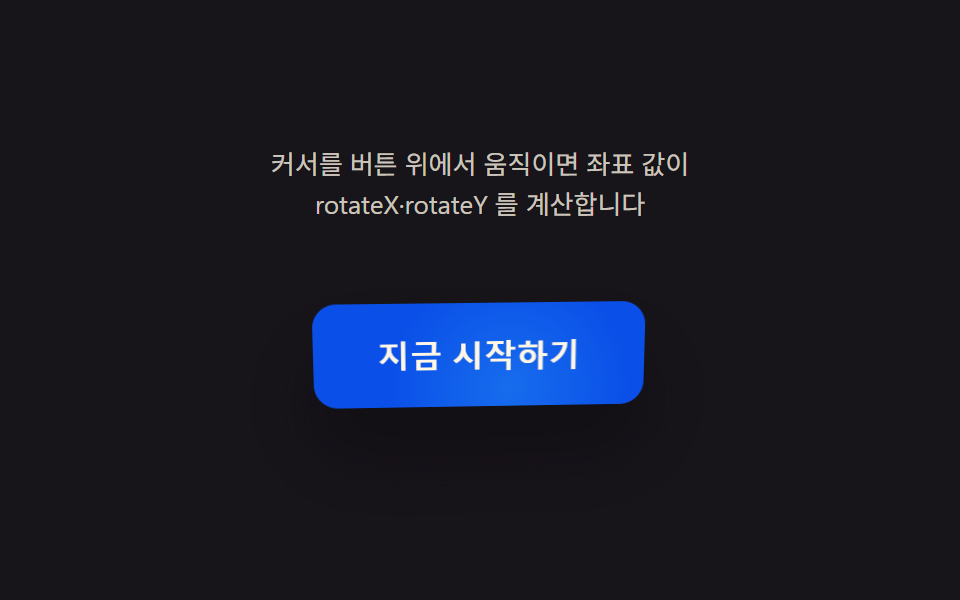 Buttons9 CSS 3D Button Effects — Copy-paste Ready
 ButtonsCSS Button Color Transition: 9 Hover Demos
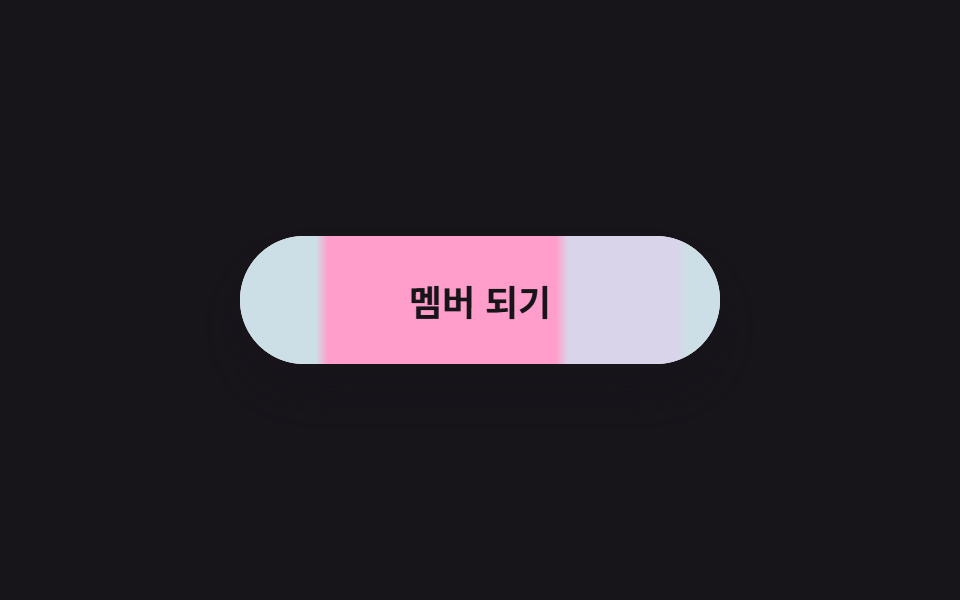 Buttons9 css button design ideas — candy, push, loading
 Buttons9 button state css patterns, loading to done
 ButtonsButton Group CSS: 9 Adjoined Patterns
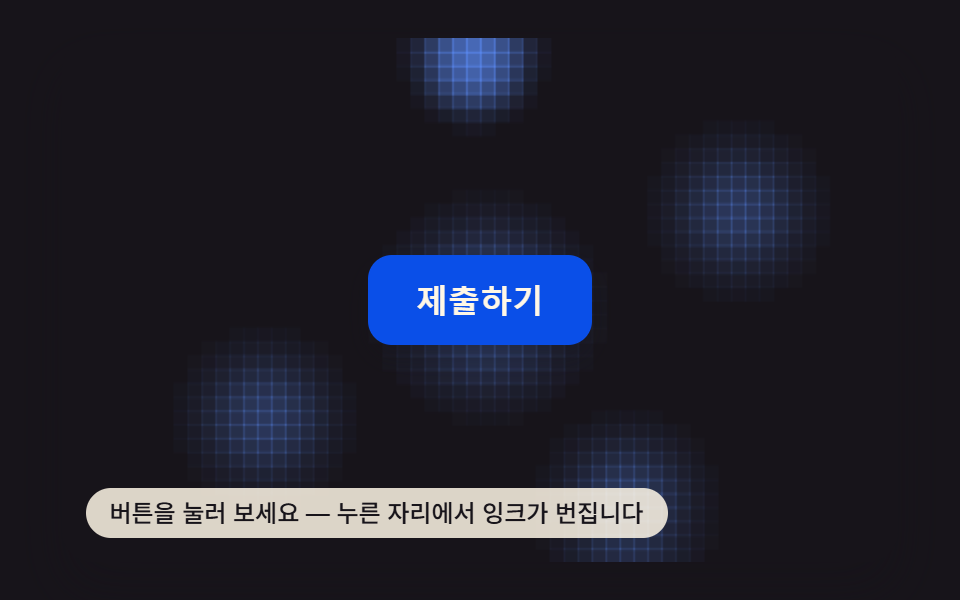 ButtonsButton Click Effect CSS: 9 Canvas Pixel Patterns