requestAnimationFrame Delta Time in 9 Scenes
requestAnimationFrame delta time is the gap between two callback timestamps. Why one loop runs slower on a 60Hz screen and faster on 144Hz, and how a time
What requestAnimationFrame Does Before Each Repaint
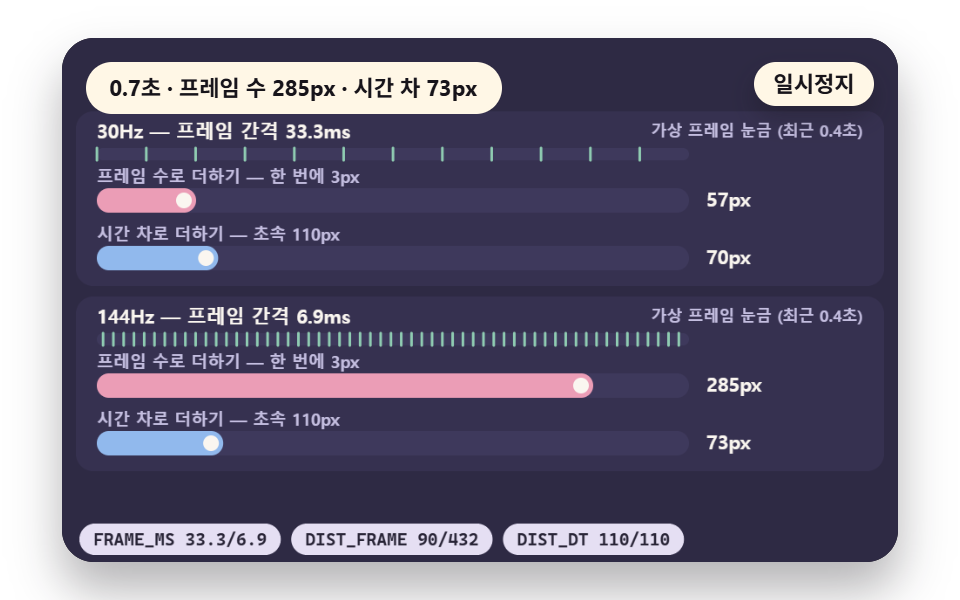 01 raf-delta-compare
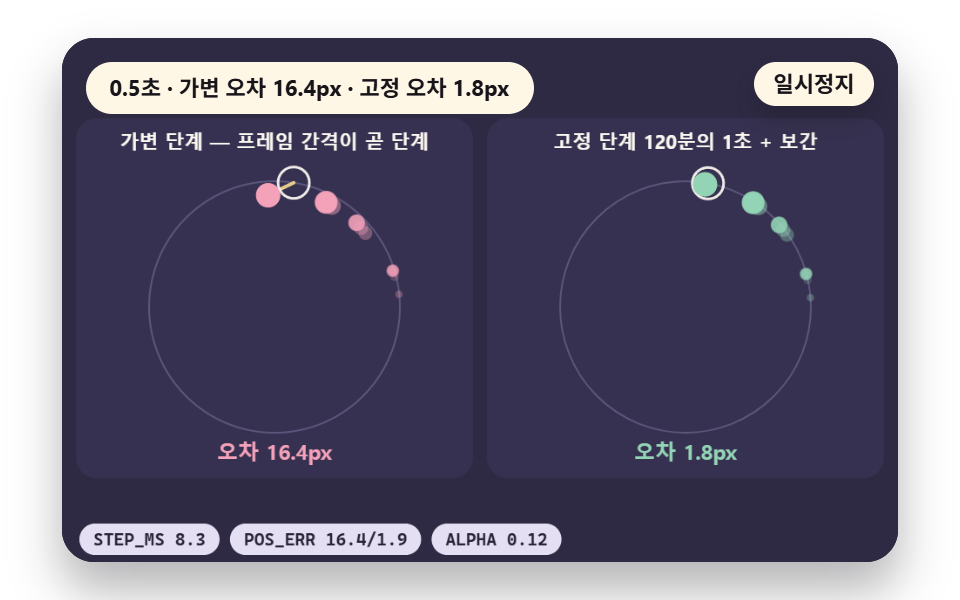 02 raf-fixed-step
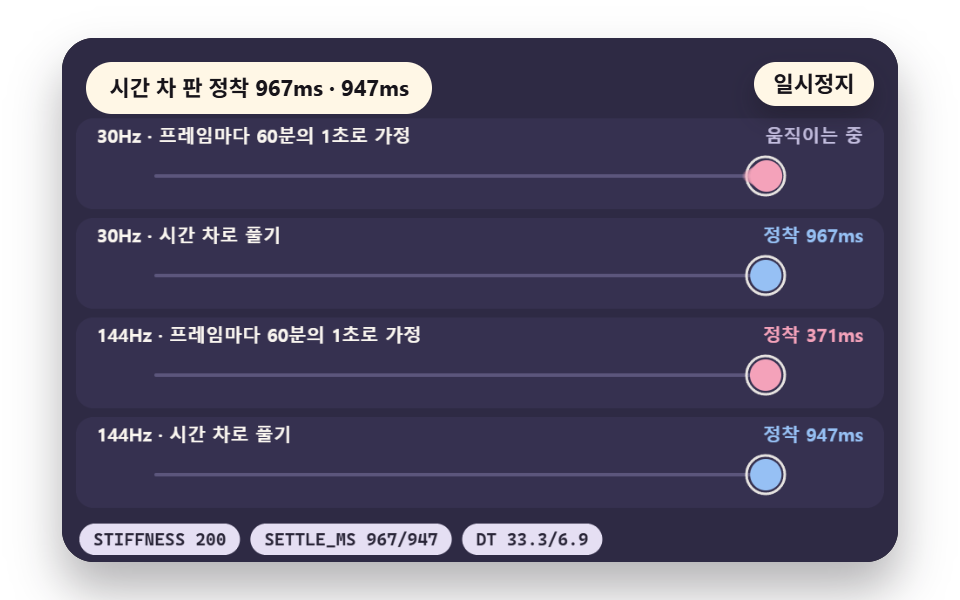 03 raf-timestamp-spring
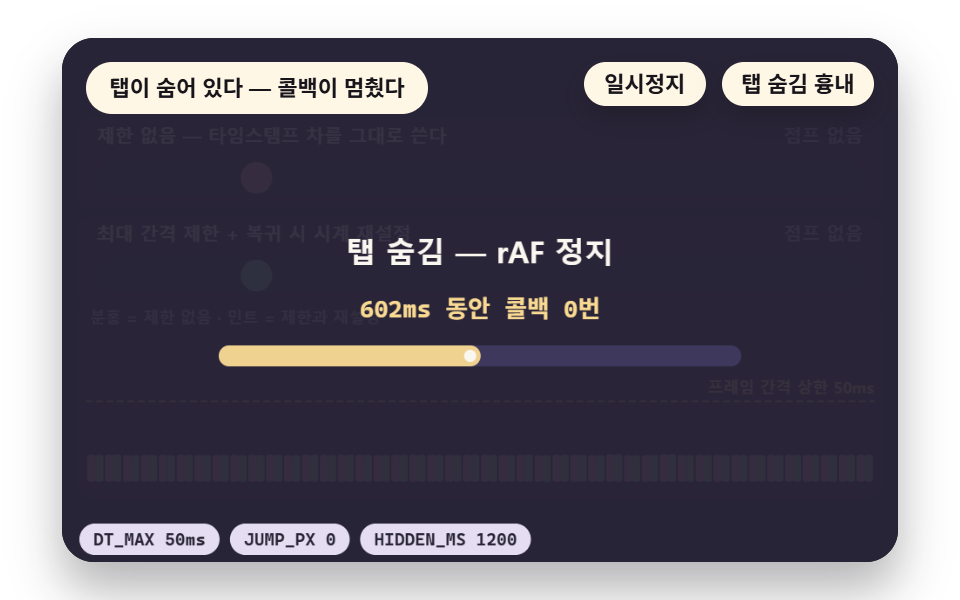 04 raf-visibility-jump
 05 raf-vs-interval
 06 raf-frame-budget
 07 raf-particle-limit
 08 raf-timescale
 09 raf-lerp-decay
- 01 Delta Time: Same Distance at 30Hz and 144Hz
- 02 Fixed Step and Interpolation: A Stable Orbit
- 03 Timestamp Spring: Damped Oscillation From the Callback Argument
- 04 Hidden Tab: Stopping the Clock Jump on Return
- 05 Timer Drift: setInterval Ticks vs rAF Ticks
- 06 Frame Budget Bar: Holding 16.7ms as Work Grows
- 07 Particle Loop: Where Element Count Meets the Limit
- 08 Pause and Speed Clock: Handling Time With timeScale
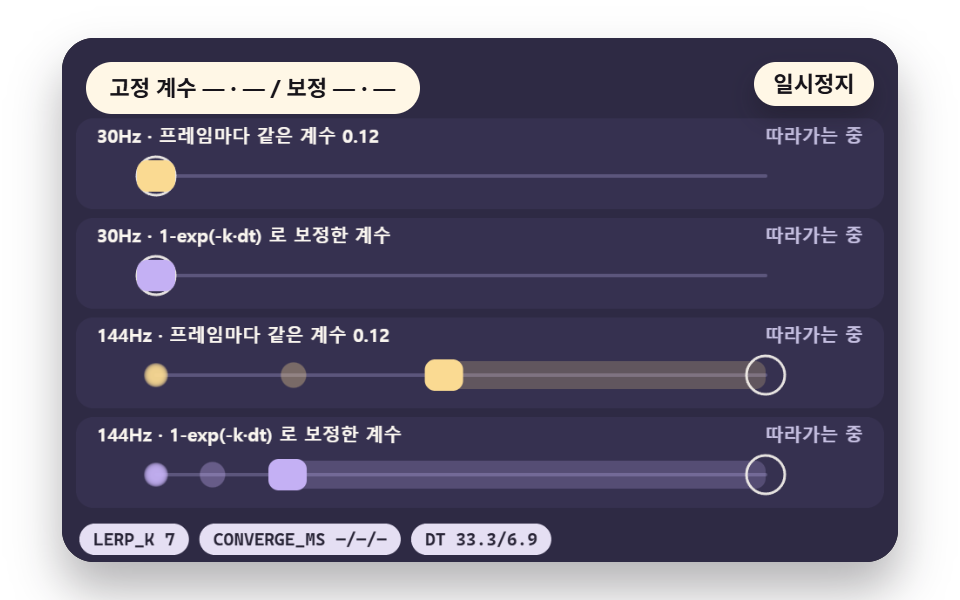
- 09 Frame-Independent Decay: Correcting Scroll Inertia Lerp
Think of requestAnimationFrame (rAF for short) as asking the browser to call your function right before it paints the next screen. It fires once, so a moving picture needs the callback to ask again before it returns, and that chain of requests is the loop every scene below runs.
The Argument the Callback Receives
The callback gets one argument, timestamp, the time of the screen update in milliseconds. Subtract the previous value from the current one and you hold the length of one frame, which is the delta time this post keeps coming back to.
Skip that number and add a fixed 3px per call, and the monitor's refresh rate becomes the speed of your animation. Scene 01 puts the two approaches on one track so you can watch the gap open.
What One Turn of the Loop Does
All nine demos share one skeleton and run it for real. There is no canvas model standing in for the loop: frame asks for window.requestAnimationFrame(frame) again before it ends, and no library, WebGL or external file is involved.
    function frame(ts) {
        rafId = 0;
        if (still || paused || document.hidden) {
            return;
        }
        rawGap = lastTs < 0 ? 0 : ts - lastTs;
        const dt = lastTs < 0 ? 0 : Math.min(rawGap / 1000, DT_MAX);
        lastTs = ts;
        sceneT += dt;
        if (sceneT >= LAP_S) {
            lap += 1;
            resetScene();
        }
        advance(ts, dt);
        redraw();
        if (!holdFlag) {
            rafId = window.requestAnimationFrame(frame);
        }
    }
rawGap is the true distance between two callbacks, and dt is that value cut at DT_MAX, 0.05 seconds. When the scene is paused or the tab is hidden, the early return skips the next request and the loop simply stops.
How to Move at the Same Speed at Any Frame Rate
One Line of Delta Time
The answer is one line: distance per frame equals speed times the time since the last frame. That is the whole of a requestAnimationFrame get delta time calculation, and it makes a 30Hz screen take one big step where a 144Hz screen takes several small ones, so both stand on the same spot after the same time.
The hard part is deciding how far to trust that gap. A hidden tab that comes back, or one frame that took far too long, hands you a huge value, and using it raw makes the object jump. Scenes 04 and 08 look at those cases on their own.
How These Were Measured
The nine scenes carry two kinds of numbers, and mixing them up leads to wrong conclusions. Scenes 01, 02, 03 and 09 are a model with an injected clock: each time a real rAF callback fires, the code walks virtual vsync ticks (33.33ms for 30Hz, 6.94ms for 144Hz) up to the scene time, so every run gives the same value. They are not readings from a real 30Hz or 144Hz monitor.
Scenes 04, 05, 06 and 07 are measured with real rAF timestamps and performance.now, so they move with the machine and its load. Scene 08 mixes both, since a timetable sets the scale while distances come from real callback times. For the measured scenes, read the order and the structure rather than the digits.
Some things stay unchecked. Headless Chrome ties rAF to 60Hz, so no 30Hz or 144Hz hardware values exist here, and a real hidden-tab event could not be produced, so scene 04 stops both loops with cancelAnimationFrame and restarts them to imitate it. The renderer was Chrome 157.0.8103.40 on a 32-core PC, and the poster image is a mid-run snapshot, so a value on it can differ slightly from the tables here.
In scenes 03 and 09 the target moves at 0.4, 2.2 and 4.0 seconds, and the settle and convergence times quoted in this post are the ones after the last move. The label on the live demo shows the value after the latest move, so a poster captured earlier shows a different number, while each segment itself is deterministic.
The Nine Scenes in Numbers
도구/demo.py captured the 480×300 canvas 24 times over 2 seconds and compared each neighboring pair, which gives 23 differences. Cumulative area is the share of pixels that differ from the first capture at least once, intensity is the mean color change of those pixels on a 0 to 255 scale, and moved frames counts the pairs that changed.
| Scene | Cumulative area | Moved frames | Mean intensity | Kind of value |
|---|---|---|---|---|
| 01 Delta time | 11.8% | 23/23 | 81.9 | Model |
| 02 Fixed step | 8.8% | 23/23 | 88.9 | Model |
| 03 Timestamp spring | 14.8% | 22/23 | 75.8 | Model |
| 04 Hidden tab | 68.3% | 23/23 | 121.7 | Measured |
| 05 Timer drift | 4.6% | 23/23 | 100.3 | Measured |
| 06 Frame budget | 27.9% | 23/23 | 104.9 | Measured |
| 07 Particle loop | 38.5% | 23/23 | 71.4 | Measured |
| 08 Pause and speed | 10.9% | 23/23 | 110.8 | Timetable and measured |
| 09 Frame-independent decay | 17.4% | 22/23 | 82.6 | Model |
Scene 04 covers the most area and scene 05 the least, and only 03 and 09 reach 22/23 while the other seven reach 23/23. These numbers describe change inside the canvas, not the speed of a real page.
01Delta Time: Same Distance at 30Hz and 144Hz
Demo and Explanation
An injected clock imitates a 30Hz lane and a 144Hz lane, where one version adds STEP_PX 3px per frame and the other adds SPEED 110px times the elapsed time. Per frame the first version moves 90px a second at 30Hz and 432px at 144Hz and reaches the end at 3.80 and 0.79 seconds, while the delta-time version moves 110px a second on both lanes and arrives at 3.10 seconds each, which suits movement and games that must match across monitors.
<main class="stage">
<div class="ez is-demo" id="ez">
  <div class="ez__pad" data-role="pad" tabindex="0" role="application" aria-label="Demo stage: Space or Enter pauses, R restarts, Left and right arrows change the second lane refresh rate">
    <canvas class="ez__canvas" data-role="canvas" width="480" height="300" role="img" aria-label="Frame-count and time-delta versions racing the same distance at 30Hz and a chosen refresh rate"></canvas>
  </div>
  <p class="ez__status" data-role="status" aria-live="off">Scene ready</p>
  <div class="ez__ctrl">
    <button class="ez__pause" data-role="pause" type="button" aria-pressed="false">Pause</button>
  </div>
  <p class="ez__done" data-role="done" role="status" aria-live="polite"></p>
</div>
</main>
@use "../../../../site/static/demo-tokens" as *;
@include stage($stage-paper);
.ez {
position: relative;
width: min(92vw, calc(160vh - 12.8vw));
aspect-ratio: 480 / 300;
margin: 0 auto;
border-radius: $r-card;
overflow: hidden;
box-shadow: $shadow-raised;
background: $subject-ink;
… (총 122줄 — 아래 「전체 코드」에서 원문 전체)html, body {
margin: 0;
overflow: hidden;
}
.stage {
box-sizing: border-box;
min-height: 100vh;
display: grid;
place-items: center;
margin: 0;
background: #ffffff;
… (총 134줄 — 아래 「전체 코드」에서 원문 전체)(function () {
const rootEl = document.getElementById("ez");
if (!rootEl) return;
main(rootEl);
function main(root) {
// 무대 좌표 — 캔버스 안 계산은 늘 480×300. 화면에 보이는 크기와 상관없다
const W = 480;
const H = 300;
const TAU = Math.PI * 2;
function clamp(v, lo, hi) { return v < lo ? lo : (v > hi ? hi : v); }
function lerp(a, b, k) { return a + (b - a) * k; }
// 파스텔 팔레트 — 바탕은 짙은 자두색, 상자는 연한 색, 글자는 연한 색 또는 짙은 잉크
… (총 439줄 — 아래 「전체 코드」에서 원문 전체)// DeltaCompare - 같은 항목 vanilla index.html 의 React 판. 같은 계산을 useEffect 안에서 돌린다
import { useEffect, useRef } from "react";
import styles from "./DeltaCompare.module.scss";
const cx = (s: string): string => s.split(" ").map((n) => styles[n] ?? n).join(" ");
function main(root: HTMLElement): () => void {
type RGB = [number, number, number];
// 무대 좌표 — 캔버스 안 계산은 늘 480×300. 화면에 보이는 크기와 상관없다
const W = 480;
const H = 300;
const TAU = Math.PI * 2;
… (총 420줄 — 아래 「전체 코드」에서 원문 전체)01 · Delta Time: Same Distance at 30Hz and 144Hz — Measured area 11.767% · moving frames 23/23Original by GODRICH · SCSS and React ship in the zip · See the password
Where to Look in the Code
Inside runLane, r.fc adds 3px without knowing the gap and r.dd multiplies the speed by gap, which is the whole difference.
            runLane(r.l, nowMs, function (gap, vt) {
                // frame-count version: does not know the gap, adds STEP_PX each time
                if (r.fc < TW) {
                    r.fc = Math.min(TW, r.fc + STEP_PX);
                    if (r.fc >= TW) {
                        r.fcAt = vt / 1000;
                    }
                }
                // delta-time version: speed × elapsed time
                if (r.dd < TW) {
                    r.dd = Math.min(TW, r.dd + SPEED * gap / 1000);
                    if (r.dd >= TW) {
                        r.ddAt = vt / 1000;
                    }
                }
                r.ticks.push(vt);
            });
02Fixed Step and Interpolation: A Stable Orbit
Demo and Explanation
An accumulator acc piles up frame gaps and advances the state only in STEP_S 1/120 second units, then interpolates the drawn position by the remainder, and it runs over the uneven GAPS table of 16 to 130ms beside a version that treats each gap as one step. Against the exact solution the variable version drifts up to 85.3px and the fixed-plus-interpolation version stays within 3.7px, which suits physics and orbit effects but is overkill for a simple move that ends in one multiplication.
<main class="stage">
<div class="ez is-demo" id="ez">
  <div class="ez__pad" data-role="pad" tabindex="0" role="application" aria-label="Demo stage: Space or Enter pauses, R restarts">
    <canvas class="ez__canvas" data-role="canvas" width="480" height="300" role="img" aria-label="A variable-step and a fixed-step interpolated orbit under uneven frame gaps and how far each drifts from the true position"></canvas>
  </div>
  <p class="ez__status" data-role="status" aria-live="off">Scene ready</p>
  <div class="ez__ctrl">
    <button class="ez__pause" data-role="pause" type="button" aria-pressed="false">Pause</button>
  </div>
  <p class="ez__done" data-role="done" role="status" aria-live="polite"></p>
</div>
</main>
@use "../../../../site/static/demo-tokens" as *;
@include stage($stage-paper);
.ez {
position: relative;
width: min(92vw, calc(160vh - 12.8vw));
aspect-ratio: 480 / 300;
margin: 0 auto;
border-radius: $r-card;
overflow: hidden;
box-shadow: $shadow-raised;
background: $subject-ink;
… (총 122줄 — 아래 「전체 코드」에서 원문 전체)html, body {
margin: 0;
overflow: hidden;
}
.stage {
box-sizing: border-box;
min-height: 100vh;
display: grid;
place-items: center;
margin: 0;
background: #ffffff;
… (총 134줄 — 아래 「전체 코드」에서 원문 전체)(function () {
const rootEl = document.getElementById("ez");
if (!rootEl) return;
main(rootEl);
function main(root) {
// 무대 좌표 — 캔버스 안 계산은 늘 480×300. 화면에 보이는 크기와 상관없다
const W = 480;
const H = 300;
const TAU = Math.PI * 2;
function clamp(v, lo, hi) { return v < lo ? lo : (v > hi ? hi : v); }
function lerp(a, b, k) { return a + (b - a) * k; }
// 파스텔 팔레트 — 바탕은 짙은 자두색, 상자는 연한 색, 글자는 연한 색 또는 짙은 잉크
… (총 465줄 — 아래 「전체 코드」에서 원문 전체)// FixedStep - 같은 항목 vanilla index.html 의 React 판. 같은 계산을 useEffect 안에서 돌린다
import { useEffect, useRef } from "react";
import styles from "./FixedStep.module.scss";
const cx = (s: string): string => s.split(" ").map((n) => styles[n] ?? n).join(" ");
function main(root: HTMLElement): () => void {
type RGB = [number, number, number];
// 무대 좌표 — 캔버스 안 계산은 늘 480×300. 화면에 보이는 크기와 상관없다
const W = 480;
const H = 300;
const TAU = Math.PI * 2;
… (총 458줄 — 아래 「전체 코드」에서 원문 전체)02 · Fixed Step and Interpolation: A Stable Orbit — Measured area 8.839% · moving frames 23/23Original by GODRICH · SCSS and React ship in the zip · See the password
Where to Look in the Code
The while (acc >= STEP_S) block is where fixed steps happen, and the stepBody(vBody, gap / 1000) call above it is the comparison version that spends the whole gap at once.
        while (vNext <= nowMs && frames < 60) {
            const gap = GAPS[gapIdx % GAPS.length];
            vt = vNext;
            // variable step: use the frame gap as one step as it is
            stepBody(vBody, gap / 1000);
            // fixed step: pile the gap into the accumulator and update only in 1/120 s units
            acc += gap / 1000;
            while (acc >= STEP_S) {
                stepBody(fBody, STEP_S);
                acc -= STEP_S;
                fSteps += 1;
            }
            gapIdx += 1;
            vNext += GAPS[gapIdx % GAPS.length];
            frames += 1;
        }
03Timestamp Spring: Damped Oscillation From the Callback Argument
Demo and Explanation
Solving the closed form of a damped oscillation with the timestamp difference h puts a spring with STIFFNESS 200 and ZETA 0.45 on the same curve at any frame gap. After the last target move it settles (error under 1.2px, speed under 8) in 933ms at 30Hz and 951ms at 144Hz, while the version that assumes 1/60 second per frame needs 1800ms and 375ms, so cards that follow the pointer belong on the closed form.
<main class="stage">
<div class="ez is-demo" id="ez">
  <div class="ez__pad" data-role="pad" tabindex="0" role="application" aria-label="Demo stage: Space or Enter pauses, R restarts">
    <canvas class="ez__canvas" data-role="canvas" width="480" height="300" role="img" aria-label="Four rows comparing spring settle time for a 1/60 s guess and a time-delta solve at 30Hz and 144Hz"></canvas>
  </div>
  <p class="ez__status" data-role="status" aria-live="off">Scene ready</p>
  <div class="ez__ctrl">
    <button class="ez__pause" data-role="pause" type="button" aria-pressed="false">Pause</button>
  </div>
  <p class="ez__done" data-role="done" role="status" aria-live="polite"></p>
</div>
</main>
@use "../../../../site/static/demo-tokens" as *;
@include stage($stage-paper);
.ez {
position: relative;
width: min(92vw, calc(160vh - 12.8vw));
aspect-ratio: 480 / 300;
margin: 0 auto;
border-radius: $r-card;
overflow: hidden;
box-shadow: $shadow-raised;
background: $subject-ink;
… (총 122줄 — 아래 「전체 코드」에서 원문 전체)html, body {
margin: 0;
overflow: hidden;
}
.stage {
box-sizing: border-box;
min-height: 100vh;
display: grid;
place-items: center;
margin: 0;
background: #ffffff;
… (총 134줄 — 아래 「전체 코드」에서 원문 전체)(function () {
const rootEl = document.getElementById("ez");
if (!rootEl) return;
main(rootEl);
function main(root) {
// 무대 좌표 — 캔버스 안 계산은 늘 480×300. 화면에 보이는 크기와 상관없다
const W = 480;
const H = 300;
const TAU = Math.PI * 2;
function clamp(v, lo, hi) { return v < lo ? lo : (v > hi ? hi : v); }
function lerp(a, b, k) { return a + (b - a) * k; }
// 파스텔 팔레트 — 바탕은 짙은 자두색, 상자는 연한 색, 글자는 연한 색 또는 짙은 잉크
… (총 439줄 — 아래 「전체 코드」에서 원문 전체)// TimestampSpring - 같은 항목 vanilla index.html 의 React 판. 같은 계산을 useEffect 안에서 돌린다
import { useEffect, useRef } from "react";
import styles from "./TimestampSpring.module.scss";
const cx = (s: string): string => s.split(" ").map((n) => styles[n] ?? n).join(" ");
function main(root: HTMLElement): () => void {
type RGB = [number, number, number];
// 무대 좌표 — 캔버스 안 계산은 늘 480×300. 화면에 보이는 크기와 상관없다
const W = 480;
const H = 300;
const TAU = Math.PI * 2;
… (총 429줄 — 아래 「전체 코드」에서 원문 전체)03 · Timestamp Spring: Damped Oscillation From the Callback Argument — Measured area 14.802% · moving frames 22/23Original by GODRICH · SCSS and React ship in the zip · See the password
Where to Look in the Code
exactStep feeds h into Math.exp and Math.cos and solves in one go, while guessStep below it pins h = 1 / 60, so the two versions split inside these two functions.
    // advance by elapsed time h (seconds) in the closed form of a damped oscillation: same curve whatever h is
    function exactStep(s, h) {
        const e = s.x - s.target;
        const d = Math.exp(-ZETA * W0 * h);
        const cs = Math.cos(WD * h);
        const sn = Math.sin(WD * h);
        const b = (s.v + ZETA * W0 * e) / WD;
        s.x = s.target + d * (e * cs + b * sn);
        s.v = d * (s.v * cs - ((ZETA * W0 * s.v + W0 * W0 * e) / WD) * sn);
    }
    // a step that does not know the gap and assumes 1/60 s per frame
    function guessStep(s) {
        const h = 1 / 60;
        s.v += (-STIFFNESS * (s.x - s.target) - 2 * ZETA * W0 * s.v) * h;
        s.x += s.v * h;
04Hidden Tab: Stopping the Clock Jump on Return
Demo and Explanation
A hidden tab stops rAF callbacks and the first callback after the return carries a much larger ts, so the demo cancels both loops with cancelAnimationFrame and restarts them after HIDDEN_MS 1200ms to imitate it. The unguarded version leaps 120px in the first frame back, while the version that cuts at DT_MAX and resets its clock jumps 0px, a guard that dashboards and games left open for long need.
<main class="stage">
<div class="ez is-demo" id="ez">
  <div class="ez__pad" data-role="pad" tabindex="0" role="application" aria-label="Demo stage: Space or Enter pauses, R restarts, The A key repeats the hidden-tab simulation">
    <canvas class="ez__canvas" data-role="canvas" width="480" height="300" role="img" aria-label="When a tab hides and returns, an unguarded loop skips far in one frame and a clamped loop does not"></canvas>
  </div>
  <p class="ez__status" data-role="status" aria-live="off">Scene ready</p>
  <div class="ez__ctrl">
    <button class="ez__pause" data-role="pause" type="button" aria-pressed="false">Pause</button>
    <button class="ez__pause" data-role="act" type="button">Simulate hidden tab</button>
  </div>
  <p class="ez__done" data-role="done" role="status" aria-live="polite"></p>
</div>
… (총 13줄 — 아래 「전체 코드」에서 원문 전체)
@use "../../../../site/static/demo-tokens" as *;
@include stage($stage-paper);
.ez {
position: relative;
width: min(92vw, calc(160vh - 12.8vw));
aspect-ratio: 480 / 300;
margin: 0 auto;
border-radius: $r-card;
overflow: hidden;
box-shadow: $shadow-raised;
background: $subject-ink;
… (총 122줄 — 아래 「전체 코드」에서 원문 전체)html, body {
margin: 0;
overflow: hidden;
}
.stage {
box-sizing: border-box;
min-height: 100vh;
display: grid;
place-items: center;
margin: 0;
background: #ffffff;
… (총 134줄 — 아래 「전체 코드」에서 원문 전체)(function () {
const rootEl = document.getElementById("ez");
if (!rootEl) return;
main(rootEl);
function main(root) {
// 무대 좌표 — 캔버스 안 계산은 늘 480×300. 화면에 보이는 크기와 상관없다
const W = 480;
const H = 300;
const TAU = Math.PI * 2;
function clamp(v, lo, hi) { return v < lo ? lo : (v > hi ? hi : v); }
function lerp(a, b, k) { return a + (b - a) * k; }
// 파스텔 팔레트 — 바탕은 짙은 자두색, 상자는 연한 색, 글자는 연한 색 또는 짙은 잉크
… (총 529줄 — 아래 「전체 코드」에서 원문 전체)// VisibilityJump - 같은 항목 vanilla index.html 의 React 판. 같은 계산을 useEffect 안에서 돌린다
import { useEffect, useRef } from "react";
import styles from "./VisibilityJump.module.scss";
const cx = (s: string): string => s.split(" ").map((n) => styles[n] ?? n).join(" ");
function main(root: HTMLElement): () => void {
type RGB = [number, number, number];
// 무대 좌표 — 캔버스 안 계산은 늘 480×300. 화면에 보이는 크기와 상관없다
const W = 480;
const H = 300;
const TAU = Math.PI * 2;
… (총 503줄 — 아래 「전체 코드」에서 원문 전체)04 · Hidden Tab: Stopping the Clock Jump on Return — Measured area 68.296% · moving frames 23/23Original by GODRICH · SCSS and React ship in the zip · See the password
Where to Look in the Code
The dG line is the maximum-gap clamp, the resumed branch resets the base time to now, and dN is the value with neither guard.
        if (resumed) {
            // clock reset: set the first returned frame's base time to now
            guard.last = ts;
            resumed = false;
        }
        const dN = (ts - naive.last) / 1000;
        const dG = Math.min((ts - guard.last) / 1000, DT_MAX);
        naive.last = ts;
        guard.last = ts;
        if (dN > 0.3) {
            naive.from = naive.x;
            naive.jump = SP * dN;
            naive.x = wrap(naive.x + SP * dN);
            naive.to = naive.x;
            maxJump = Math.max(maxJump, naive.jump);
        }
        else {
            naive.x = wrap(naive.x + SP * dN);
        }
        guard.x = wrap(guard.x + SP * dG);
05Timer Drift: setInterval Ticks vs rAF Ticks
Demo and Explanation
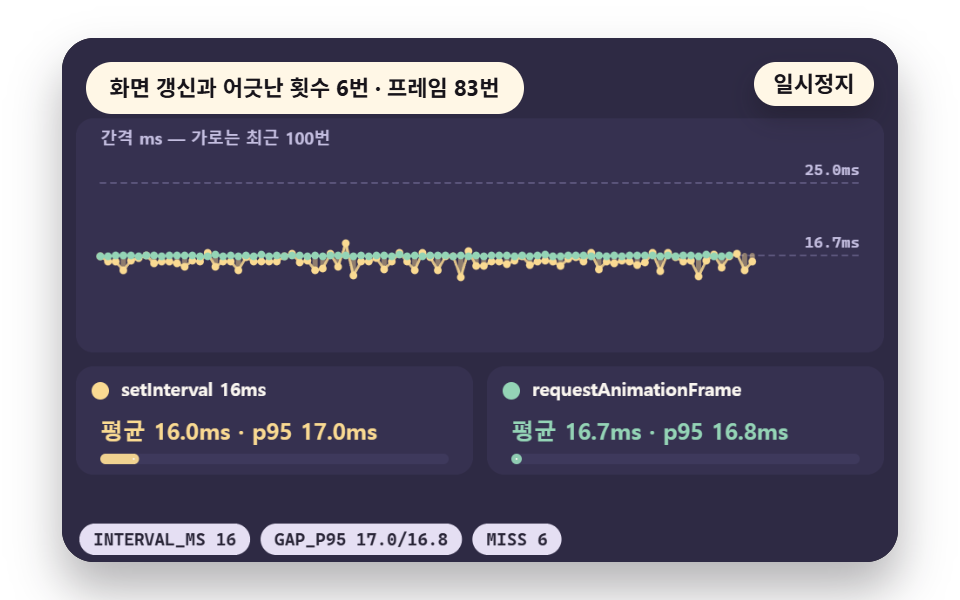
One scale carries the setInterval(16) gaps and the rAF callback gaps together, and miss counts frames where the timer fired zero times or twice or more between two screens. In headless Chrome pinned to 60Hz the rAF gap averaged 16.904ms against 16.001ms for the timer, and the live miss count was 3 to 10 out of 60 to 244 frames, so check that first when auditing code that animates with timers.
<main class="stage">
<div class="ez is-demo" id="ez">
  <div class="ez__pad" data-role="pad" tabindex="0" role="application" aria-label="Demo stage: Space or Enter pauses, R restarts">
    <canvas class="ez__canvas" data-role="canvas" width="480" height="300" role="img" aria-label="Gaps of setInterval 16ms and requestAnimationFrame on one scale with mean and p95 compared"></canvas>
  </div>
  <p class="ez__status" data-role="status" aria-live="off">Scene ready</p>
  <div class="ez__ctrl">
    <button class="ez__pause" data-role="pause" type="button" aria-pressed="false">Pause</button>
  </div>
  <p class="ez__done" data-role="done" role="status" aria-live="polite"></p>
</div>
</main>
@use "../../../../site/static/demo-tokens" as *;
@include stage($stage-paper);
.ez {
position: relative;
width: min(92vw, calc(160vh - 12.8vw));
aspect-ratio: 480 / 300;
margin: 0 auto;
border-radius: $r-card;
overflow: hidden;
box-shadow: $shadow-raised;
background: $subject-ink;
… (총 122줄 — 아래 「전체 코드」에서 원문 전체)html, body {
margin: 0;
overflow: hidden;
}
.stage {
box-sizing: border-box;
min-height: 100vh;
display: grid;
place-items: center;
margin: 0;
background: #ffffff;
… (총 134줄 — 아래 「전체 코드」에서 원문 전체)(function () {
const rootEl = document.getElementById("ez");
if (!rootEl) return;
main(rootEl);
function main(root) {
// 무대 좌표 — 캔버스 안 계산은 늘 480×300. 화면에 보이는 크기와 상관없다
const W = 480;
const H = 300;
const TAU = Math.PI * 2;
function clamp(v, lo, hi) { return v < lo ? lo : (v > hi ? hi : v); }
function lerp(a, b, k) { return a + (b - a) * k; }
// 파스텔 팔레트 — 바탕은 짙은 자두색, 상자는 연한 색, 글자는 연한 색 또는 짙은 잉크
… (총 488줄 — 아래 「전체 코드」에서 원문 전체)// TimerDrift - 같은 항목 vanilla index.html 의 React 판. 같은 계산을 useEffect 안에서 돌린다
import { useEffect, useRef } from "react";
import styles from "./TimerDrift.module.scss";
const cx = (s: string): string => s.split(" ").map((n) => styles[n] ?? n).join(" ");
function main(root: HTMLElement): () => void {
type RGB = [number, number, number];
// 무대 좌표 — 캔버스 안 계산은 늘 480×300. 화면에 보이는 크기와 상관없다
const W = 480;
const H = 300;
const TAU = Math.PI * 2;
… (총 460줄 — 아래 「전체 코드」에서 원문 전체)05 · Timer Drift: setInterval Ticks vs rAF Ticks — Measured area 4.587% · moving frames 23/23Original by GODRICH · SCSS and React ship in the zip · See the password
Where to Look in the Code
The ticksSince !== 1 condition counts the frames that fell out of step, and the timer callback elsewhere only raises ticksSince.
        if (rawGap > 0) {
            gapsR.push(rawGap);
            if (gapsR.length > N) {
                gapsR.shift();
            }
            frames += 1;
            // if the timer fired zero times or twice or more since the last frame, it is out of step with the screen
            if (frames > 2 && ticksSince !== 1) {
                miss += 1;
            }
        }
        ticksSince = 0;
06Frame Budget Bar: Holding 16.7ms as Work Grows
Demo and Explanation
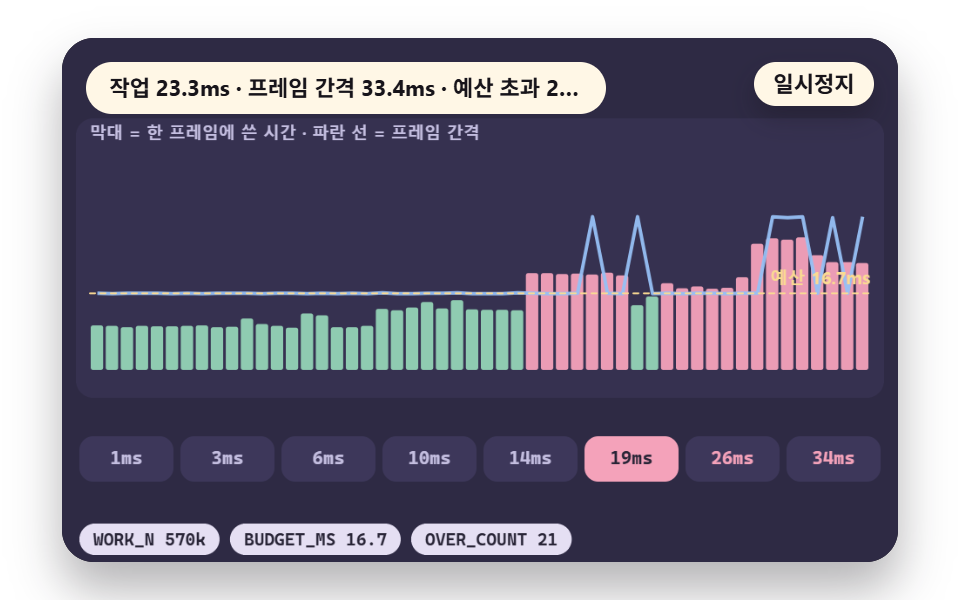
At start-up the demo times a loop of Math.sin and Math.cos to get this machine's perMs, then gives every frame real work sized to a target of 1, 3, 6, 10, 14, 19, 26 or 34ms and watches how the rAF gap reacts. With 9.4ms of work the count of frames over the BUDGET_MS 16.7ms line stayed at 0, at 18.3ms it reached 17, and at 40.9ms the gap grew to 49.9ms, which makes this the first step when hunting a bottleneck in a heavy screen.
<main class="stage">
<div class="ez is-demo" id="ez">
  <div class="ez__pad" data-role="pad" tabindex="0" role="application" aria-label="Demo stage: Space or Enter pauses, R restarts, Left and right arrows pick the work level">
    <canvas class="ez__canvas" data-role="canvas" width="480" height="300" role="img" aria-label="Per-frame work rising while the bar of time spent crosses the 16.7ms budget line"></canvas>
  </div>
  <p class="ez__status" data-role="status" aria-live="off">Scene ready</p>
  <div class="ez__ctrl">
    <button class="ez__pause" data-role="pause" type="button" aria-pressed="false">Pause</button>
  </div>
  <p class="ez__done" data-role="done" role="status" aria-live="polite"></p>
</div>
</main>
@use "../../../../site/static/demo-tokens" as *;
@include stage($stage-paper);
.ez {
position: relative;
width: min(92vw, calc(160vh - 12.8vw));
aspect-ratio: 480 / 300;
margin: 0 auto;
border-radius: $r-card;
overflow: hidden;
box-shadow: $shadow-raised;
background: $subject-ink;
… (총 122줄 — 아래 「전체 코드」에서 원문 전체)html, body {
margin: 0;
overflow: hidden;
}
.stage {
box-sizing: border-box;
min-height: 100vh;
display: grid;
place-items: center;
margin: 0;
background: #ffffff;
… (총 134줄 — 아래 「전체 코드」에서 원문 전체)(function () {
const rootEl = document.getElementById("ez");
if (!rootEl) return;
main(rootEl);
function main(root) {
// 무대 좌표 — 캔버스 안 계산은 늘 480×300. 화면에 보이는 크기와 상관없다
const W = 480;
const H = 300;
const TAU = Math.PI * 2;
function clamp(v, lo, hi) { return v < lo ? lo : (v > hi ? hi : v); }
function lerp(a, b, k) { return a + (b - a) * k; }
// 파스텔 팔레트 — 바탕은 짙은 자두색, 상자는 연한 색, 글자는 연한 색 또는 짙은 잉크
… (총 485줄 — 아래 「전체 코드」에서 원문 전체)// FrameBudget - 같은 항목 vanilla index.html 의 React 판. 같은 계산을 useEffect 안에서 돌린다
import { useEffect, useRef } from "react";
import styles from "./FrameBudget.module.scss";
const cx = (s: string): string => s.split(" ").map((n) => styles[n] ?? n).join(" ");
function main(root: HTMLElement): () => void {
type RGB = [number, number, number];
// 무대 좌표 — 캔버스 안 계산은 늘 480×300. 화면에 보이는 크기와 상관없다
const W = 480;
const H = 300;
const TAU = Math.PI * 2;
… (총 455줄 — 아래 「전체 코드」에서 원문 전체)06 · Frame Budget Bar: Holding 16.7ms as Work Grows — Measured area 27.918% · moving frames 23/23Original by GODRICH · SCSS and React ship in the zip · See the password
Where to Look in the Code
The else branch records the time w that busy(workN) really took together with the callback gap g, and the settling branch above it is a fixed value used only under reduced motion.
        else {
            workN = Math.round(LEVELS[level] * perMs);
            const t0 = performance.now();
            busy(workN);
            w = performance.now() - t0;
            g = rawGap > 0 ? rawGap : BUDGET_MS;
        }
        work.push(w);
        gap.push(g);
07Particle Loop: Where Element Count Meets the Limit
Demo and Explanation
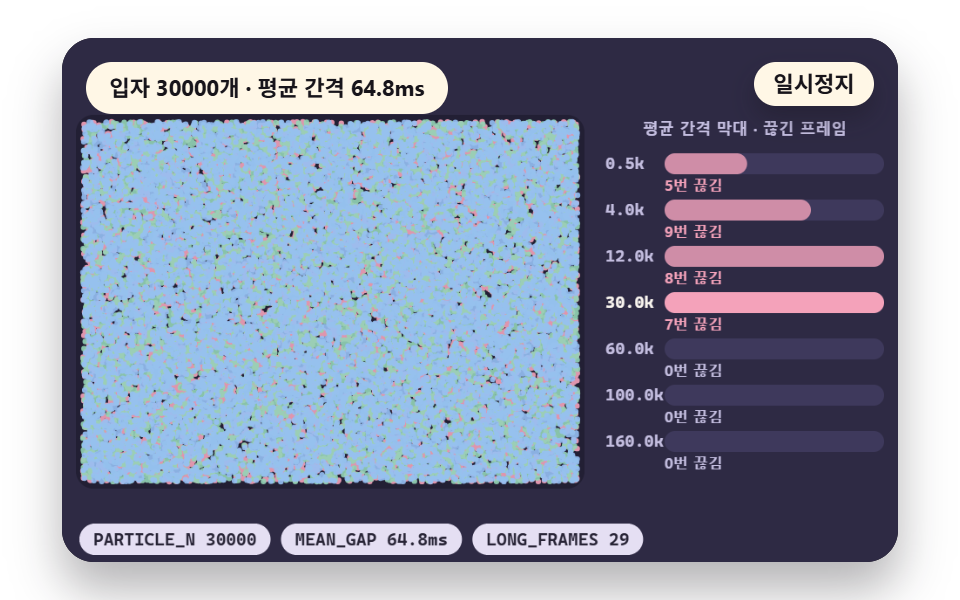
A preallocated Float32Array of particles climbs from 500 to 160000, each particle moves only by the time difference h so fall speed stays the same when gaps stretch, and bars show the mean gap and the frames over the LONG_MS 25ms mark. On this machine the gap held 16.7ms up to 30000, then averaged 20.8ms at 100000 and 33.5 to 48.8ms at 160000, and since other machines differ you read these as a relative comparison when picking a particle count for a background effect.
<main class="stage">
<div class="ez is-demo" id="ez">
  <div class="ez__pad" data-role="pad" tabindex="0" role="application" aria-label="Demo stage: Space or Enter pauses, R restarts, Left and right arrows pick the particle level">
    <canvas class="ez__canvas" data-role="canvas" width="480" height="300" role="img" aria-label="Particle count rising in steps with bars of mean frame gap and long-frame count per step"></canvas>
  </div>
  <p class="ez__status" data-role="status" aria-live="off">Scene ready</p>
  <div class="ez__ctrl">
    <button class="ez__pause" data-role="pause" type="button" aria-pressed="false">Pause</button>
  </div>
  <p class="ez__done" data-role="done" role="status" aria-live="polite"></p>
</div>
</main>
@use "../../../../site/static/demo-tokens" as *;
@include stage($stage-paper);
.ez {
position: relative;
width: min(92vw, calc(160vh - 12.8vw));
aspect-ratio: 480 / 300;
margin: 0 auto;
border-radius: $r-card;
overflow: hidden;
box-shadow: $shadow-raised;
background: $subject-ink;
… (총 122줄 — 아래 「전체 코드」에서 원문 전체)html, body {
margin: 0;
overflow: hidden;
}
.stage {
box-sizing: border-box;
min-height: 100vh;
display: grid;
place-items: center;
margin: 0;
background: #ffffff;
… (총 134줄 — 아래 「전체 코드」에서 원문 전체)(function () {
const rootEl = document.getElementById("ez");
if (!rootEl) return;
main(rootEl);
function main(root) {
// 무대 좌표 — 캔버스 안 계산은 늘 480×300. 화면에 보이는 크기와 상관없다
const W = 480;
const H = 300;
const TAU = Math.PI * 2;
function clamp(v, lo, hi) { return v < lo ? lo : (v > hi ? hi : v); }
function lerp(a, b, k) { return a + (b - a) * k; }
// 파스텔 팔레트 — 바탕은 짙은 자두색, 상자는 연한 색, 글자는 연한 색 또는 짙은 잉크
… (총 479줄 — 아래 「전체 코드」에서 원문 전체)// ParticleLimit - 같은 항목 vanilla index.html 의 React 판. 같은 계산을 useEffect 안에서 돌린다
import { useEffect, useRef } from "react";
import styles from "./ParticleLimit.module.scss";
const cx = (s: string): string => s.split(" ").map((n) => styles[n] ?? n).join(" ");
function main(root: HTMLElement): () => void {
type RGB = [number, number, number];
// 무대 좌표 — 캔버스 안 계산은 늘 480×300. 화면에 보이는 크기와 상관없다
const W = 480;
const H = 300;
const TAU = Math.PI * 2;
… (총 452줄 — 아래 「전체 코드」에서 원문 전체)07 · Particle Loop: Where Element Count Meets the Limit — Measured area 38.51% · moving frames 23/23Original by GODRICH · SCSS and React ship in the zip · See the password
Where to Look in the Code
The h line is the frame gap clamped at 0.1 seconds, and the for loop below moves n particles and wraps any that leave the screen.
        const h = settling ? 1 / 60 : Math.min(rawGap > 0 ? rawGap / 1000 : dt, 0.1);
        for (let i = 0; i < n; i += 1) {
            py[i] += pv[i] * h;
            px[i] += pd[i] * h;
            if (py[i] > FH) {
                py[i] -= FH;
            }
            if (px[i] < 0) {
                px[i] += FW;
            }
            else if (px[i] > FW) {
                px[i] -= FW;
            }
        }
08Pause and Speed Clock: Handling Time With timeScale
Demo and Explanation
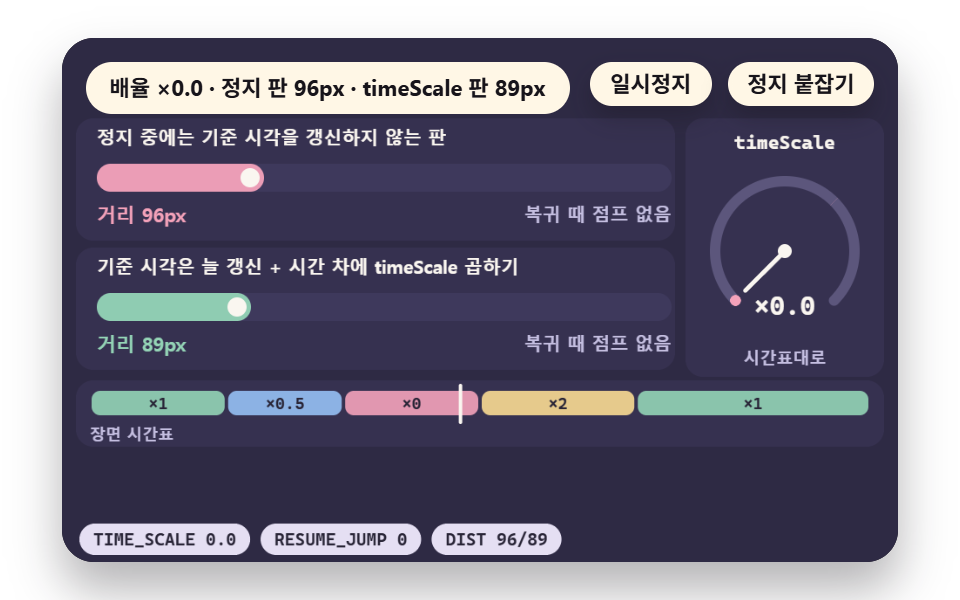
A scaleAt timetable runs 1x, 0.5x, stop, 2x and 1x, and the timeScale version multiplies each gap by the scale to move at SP 90px a second while the stop version never refreshes its base time during the pause. When the pause ends the stop version spends the stored 0.7 seconds in one frame and leaps 129px (330px against 323px at the end of the timetable), while the timeScale version does not jump, so it fits games and tutorials with a pause button.
<main class="stage">
<div class="ez is-demo" id="ez">
  <div class="ez__pad" data-role="pad" tabindex="0" role="application" aria-label="Demo stage: Space or Enter pauses, R restarts, The A key holds or releases the scale at 0">
    <canvas class="ez__canvas" data-role="canvas" width="480" height="300" role="img" aria-label="Distance of a version that jumps on resume and one that does not as the scale changes through 1x, 0.5x, paused and 2x"></canvas>
  </div>
  <p class="ez__status" data-role="status" aria-live="off">Scene ready</p>
  <div class="ez__ctrl">
    <button class="ez__pause" data-role="pause" type="button" aria-pressed="false">Pause</button>
    <button class="ez__pause" data-role="act" type="button">Hold paused</button>
  </div>
  <p class="ez__done" data-role="done" role="status" aria-live="polite"></p>
</div>
… (총 13줄 — 아래 「전체 코드」에서 원문 전체)
@use "../../../../site/static/demo-tokens" as *;
@include stage($stage-paper);
.ez {
position: relative;
width: min(92vw, calc(160vh - 12.8vw));
aspect-ratio: 480 / 300;
margin: 0 auto;
border-radius: $r-card;
overflow: hidden;
box-shadow: $shadow-raised;
background: $subject-ink;
… (총 122줄 — 아래 「전체 코드」에서 원문 전체)html, body {
margin: 0;
overflow: hidden;
}
.stage {
box-sizing: border-box;
min-height: 100vh;
display: grid;
place-items: center;
margin: 0;
background: #ffffff;
… (총 134줄 — 아래 「전체 코드」에서 원문 전체)(function () {
const rootEl = document.getElementById("ez");
if (!rootEl) return;
main(rootEl);
function main(root) {
// 무대 좌표 — 캔버스 안 계산은 늘 480×300. 화면에 보이는 크기와 상관없다
const W = 480;
const H = 300;
const TAU = Math.PI * 2;
function clamp(v, lo, hi) { return v < lo ? lo : (v > hi ? hi : v); }
function lerp(a, b, k) { return a + (b - a) * k; }
// 파스텔 팔레트 — 바탕은 짙은 자두색, 상자는 연한 색, 글자는 연한 색 또는 짙은 잉크
… (총 471줄 — 아래 「전체 코드」에서 원문 전체)// TimeScale - 같은 항목 vanilla index.html 의 React 판. 같은 계산을 useEffect 안에서 돌린다
import { useEffect, useRef } from "react";
import styles from "./TimeScale.module.scss";
const cx = (s: string): string => s.split(" ").map((n) => styles[n] ?? n).join(" ");
function main(root: HTMLElement): () => void {
type RGB = [number, number, number];
// 무대 좌표 — 캔버스 안 계산은 늘 480×300. 화면에 보이는 크기와 상관없다
const W = 480;
const H = 300;
const TAU = Math.PI * 2;
… (총 459줄 — 아래 「전체 코드」에서 원문 전체)08 · Pause and Speed Clock: Handling Time With timeScale — Measured area 10.905% · moving frames 23/23Original by GODRICH · SCSS and React ship in the zip · See the password
Where to Look in the Code
The curScale > 0 condition freezes the base time of the stop version, and the scaled version above it ends in one line that multiplies dB by curScale.
        // timeScale version: always refresh the base time and multiply the gap by the scale
        const dB = Math.min((ts - scaled.last) / 1000, DT_MAX);
        scaled.last = ts;
        scaled.x = Math.min(TW, scaled.x + SP * curScale * dB);
        // pause version: while paused, do not refresh the base time, just skip
        if (curScale > 0) {
            const dA = (ts - naive.last) / 1000;
            naive.last = ts;
            const before = naive.x;
            naive.x = Math.min(TW, naive.x + SP * curScale * dA);
            if (dA > 0.3) {
                naive.jump = naive.x - before;
                resumeJump = Math.max(resumeJump, naive.jump);
            }
        }
09Frame-Independent Decay: Correcting Scroll Inertia Lerp
Demo and Explanation
After the last target move, a version that chases with the same K_FRAME 0.12 every frame needs 1533ms to get within 1px at 30Hz and only 319ms at 144Hz. A coefficient built as 1 - Math.exp(-LERP_K * gap / 1000) takes 833ms and 840ms, so smooth scrolling and pointer following feel the same on any monitor.
<main class="stage">
<div class="ez is-demo" id="ez">
  <div class="ez__pad" data-role="pad" tabindex="0" role="application" aria-label="Demo stage: Space or Enter pauses, R restarts">
    <canvas class="ez__canvas" data-role="canvas" width="480" height="300" role="img" aria-label="Four rows comparing how long a fixed-coefficient lerp and a corrected one take to converge at 30Hz and 144Hz"></canvas>
  </div>
  <p class="ez__status" data-role="status" aria-live="off">Scene ready</p>
  <div class="ez__ctrl">
    <button class="ez__pause" data-role="pause" type="button" aria-pressed="false">Pause</button>
  </div>
  <p class="ez__done" data-role="done" role="status" aria-live="polite"></p>
</div>
</main>
@use "../../../../site/static/demo-tokens" as *;
@include stage($stage-paper);
.ez {
position: relative;
width: min(92vw, calc(160vh - 12.8vw));
aspect-ratio: 480 / 300;
margin: 0 auto;
border-radius: $r-card;
overflow: hidden;
box-shadow: $shadow-raised;
background: $subject-ink;
… (총 122줄 — 아래 「전체 코드」에서 원문 전체)html, body {
margin: 0;
overflow: hidden;
}
.stage {
box-sizing: border-box;
min-height: 100vh;
display: grid;
place-items: center;
margin: 0;
background: #ffffff;
… (총 134줄 — 아래 「전체 코드」에서 원문 전체)(function () {
const rootEl = document.getElementById("ez");
if (!rootEl) return;
main(rootEl);
function main(root) {
// 무대 좌표 — 캔버스 안 계산은 늘 480×300. 화면에 보이는 크기와 상관없다
const W = 480;
const H = 300;
const TAU = Math.PI * 2;
function clamp(v, lo, hi) { return v < lo ? lo : (v > hi ? hi : v); }
function lerp(a, b, k) { return a + (b - a) * k; }
// 파스텔 팔레트 — 바탕은 짙은 자두색, 상자는 연한 색, 글자는 연한 색 또는 짙은 잉크
… (총 417줄 — 아래 「전체 코드」에서 원문 전체)// LerpDecay - 같은 항목 vanilla index.html 의 React 판. 같은 계산을 useEffect 안에서 돌린다
import { useEffect, useRef } from "react";
import styles from "./LerpDecay.module.scss";
const cx = (s: string): string => s.split(" ").map((n) => styles[n] ?? n).join(" ");
function main(root: HTMLElement): () => void {
type RGB = [number, number, number];
// 무대 좌표 — 캔버스 안 계산은 늘 480×300. 화면에 보이는 크기와 상관없다
const W = 480;
const H = 300;
const TAU = Math.PI * 2;
… (총 412줄 — 아래 「전체 코드」에서 원문 전체)09 · Frame-Independent Decay: Correcting Scroll Inertia Lerp — Measured area 17.401% · moving frames 22/23Original by GODRICH · SCSS and React ship in the zip · See the password
Where to Look in the Code
The ternary on the const k line splits the two versions: the corrected one builds its coefficient from gap and the fixed one uses the constant K_FRAME as it is.
                }
                // the corrected version builds its coefficient from the frame gap (seconds); the fixed version uses the same coefficient every frame
                const k = c.corr ? 1 - Math.exp(-LERP_K * gap / 1000) : K_FRAME;
                c.x += (c.target - c.x) * k;
                if (!c.done && Math.abs(c.x - c.target) < 1) {
                    c.done = true;
                    c.convMs = vtm - c.t0;
Fixed Step vs Variable Step: Where They Differ
The Variable Step Uses the Gap As It Is
A variable step feeds the whole frame gap into one calculation. It is the shortest to write and good enough when position comes out of a single multiplication, but once speed feeds back into position through integration, a longer gap piles up a bigger error.
The GAPS table in scene 02 includes a 130ms frame, and the moment that one frame enters as a single step the orbit lands farthest from where time says it should be.
The Fixed Step Divides With an Accumulator
A fixed step piles the gap into an accumulator and updates the state each time one unit fills. With 1/120 second units, a 16ms frame updates once or twice and a 130ms frame updates around fifteen times, so each step stays the same size however long the frame was.
The leftover time stays in the accumulator and alpha blends the previous and current state for drawing. The drawn position sits slightly behind the latest update, which keeps the screen from stuttering at the update unit.
Which One to Pick
If a closed form exists, solve it with the time difference in one go as scene 03 does. If the physics has no such formula, put interpolation on a fixed step as scene 02 does, and finish plain movement with the multiplication of scene 01 (the smallest requestanimationframe example here), since the accumulator and interpolation code only pay for themselves when you need that accuracy.
What Happens to the Loop When the Tab Is Hidden
Callbacks Stop in a Hidden Tab
When a tab is covered the browser stops calling rAF callbacks. That helps the battery, but the clock keeps running, so the first timestamp after the return is larger by the whole time spent hidden.
Two Guards for the First Frame Back
There are two guards. One caps the time difference and the other resets the last timestamp to now when the loop resumes, and in scene 04 the cap of 0.05 seconds limits a bar moving at 100px a second to 5px in one frame.
You learn about hiding and returning from the visibilitychange event. The demo stops the loop when the tab hides, and on return startLoop sets lastTs back to -1 so the first gap becomes 0.
    document.addEventListener('visibilitychange', function () {
        if (document.hidden) {
            stopLoop();
        }
        else if (!paused && !still) {
            startLoop();
        }
    }, { signal: off.signal });
A Pause Button Has the Same Bug
A pause the user presses is the same structure as a hidden tab. If the base time stays frozen while paused, everything arrives at once on release, which is why the stop version in scene 08 jumped 129px, and the same two guards fix it.
How It Differs From setTimeout, setInterval and CSS Animation
Timers Run Apart From Screen Updates
setTimeout and setInterval fire when a set time has passed and know nothing about when the screen paints. In scene 05, setInterval(16) fired every 16.001ms on average while the screen updated every 16.7ms, so some frames saw no timer call and some saw two.
On the requestanimationframe vs settimeout question, and the requestanimationframe vs setinterval one too, rAF is the one that fires with the screen update, so gathering the drawing work in the callback wastes no calls. The price is that it stops in hidden tabs, so logic that must keep running there belongs on a timer or on a clock difference.
Three Approaches in One Table
| Approach | When it fires | Hidden tab | Fits |
|---|---|---|---|
setTimeout and setInterval |
After the set time passes | Keeps firing, though the browser may lower the rate | Periodic work unrelated to drawing |
| requestAnimationFrame | Right before the next screen update | Stops | Canvas and physics that compute a value every frame |
| CSS animation and transition | The browser advances it itself | Handled by the browser without script | UI moving between two states |
Which One to Reach For First
If the value only travels between two states, CSS is enough and a script loop has no reason to exist. Compositing cost and the effect of will-change are covered scene by scene in the CSS Animation Performance Guide.
When input or computation enters every frame, use rAF, and for a soft start and end lay a curve from the CSS Easing Functions Guide over the same time difference.
How to Spend the 16.7ms Frame Budget
16.7ms Is One Slot at 60Hz
One second divided by 60 is 16.7ms, the length of one frame on a 60Hz screen, and your script plus the browser's style, layout and paint all have to fit inside it. If one callback eats all 16.7ms, the browser has no time left for its own work.
| Refresh rate | Length of one frame |
|---|---|
| 30Hz | 33.33ms |
| 60Hz | 16.67ms |
| 144Hz | 6.94ms |
Over Budget, the Gap Grows in Steps
Going over budget does not stretch the gap a little at a time. As scene 06 shows, drawing waits for the next screen update, so the gap jumps in multiples of the slot, from 16.7 to 33.3 to 49.9ms.
That is why a bar crossing the budget line once cuts the felt frame rate in half. You do not lose a little, you drop one whole step.
Count Elements on This Machine
For repeated elements like particles, raise the count as scene 07 does and stop just before the mean gap crosses a slot. The same number is not guaranteed to give the same gap elsewhere, so measure at start-up or keep a lower tier for weak devices rather than hardcoding it.
Because the time difference is multiplied in, fall speed holds even when the count passes the limit and only stutter remains. Showing these two separately is why scene 07 exists.
Where Loops Leak or Overlap: Traps and Drift
A Second Loop Doubles the Speed
The most common break is overlapping loops. If a start function runs again while a loop is already running, frame is requested twice every time and movement happens twice per frame, so the demo keeps the request id in rafId and returns early when one exists.
    function startLoop() {
        if (rafId || holdFlag) {
            return;
        }
        // do not hand the time spent stopped to the first frame as its gap
        lastTs = -1;
        rafId = window.requestAnimationFrame(frame);
    }
    function stopLoop() {
        if (rafId) {
            window.cancelAnimationFrame(rafId);
            rafId = 0;
        }
    }
If you do not cancel the request when stopping, one more frame still fires, and after a component disappears the callback keeps touching elements that no longer exist. The rule is to store the request id and call cancelAnimationFrame in the cleanup step.
The Same Coefficient Every Frame Gives Each Machine Its Own Speed
In a lerp that chases a value step by step, a constant coefficient turns the refresh rate into speed. Scene 09 showed the same 0.12 opening a convergence-time gap of nearly five times between 30Hz and 144Hz, and the assumed version in 03 has the same flaw, so any coefficient or acceleration should pass through the time difference first.
What Changed When One Value Moved
The table below changes one value at a time and sets before and after side by side. Numbers already used above are not repeated in full.
| Name | Changed value | Effect |
|---|---|---|
| A faster second lane | 01 arrow keys, 144 to 240Hz | The frame-count speed rises from 432px to 720px a second and arrival moves from 0.79 to 0.48 seconds, while the delta-time version stays at 3.10 seconds |
| A corrected coefficient | 09 K_FRAME 0.12 to LERP_K 7 |
The 4.8-times gap between 144Hz at 319ms and 30Hz at 1533ms shrinks to 840ms against 833ms, a 1% gap |
| More work per frame | 06 arrow keys, 10ms to 34ms | Once work passes the 16.7ms budget the gap climbs from 16.7ms to 33.3 to 49.9ms |
Because only one value changes, you can read which one changed the feel. The version that multiplies in the time difference does not move when values change, and only the version that skips it wobbles, which is the point of this post.
Download the nine scenes as HTML, CSS and JS, plus the React version and sample files, from the card below, and unzip it with the password 68sk3uyw.
Browser Compatibility and Accessibility With Reduced Motion
Which Browser Version Supports It
On caniuse, requestAnimationFrame and the Page Visibility API both show 97.57% global support. The first unprefixed versions are Chrome 24, Firefox 23, Safari 6.1, Edge 12 and IE 10, and prefixed support starts at Chrome 10 and Firefox 4.
| Feature | Chrome | Firefox | Safari | Edge |
|---|---|---|---|---|
| requestAnimationFrame (unprefixed) | 24 | 23 | 6.1 | 12 |
| requestAnimationFrame (prefixed start) | 10 | 4 | Not checked | Not checked |
Page Visibility visibilitychange |
14 | 10 | 6.1 | 12 |
Footnote: caniuse notes that some older versions lack cancelAnimationFrame and only have webkitCancelRequestAnimationFrame, so they count as partial support. The Safari and Edge cells for prefixed support were not checked in this post and stay marked as not checked.
Source: MDN requestAnimationFrame · MDN cancelAnimationFrame · MDN visibilitychange · caniuse requestAnimationFrame
Which Row to Watch
The latest cells in the table are Safari 6.1 and Firefox 23. Few projects need anything older, and only then is it worth checking the prefixed webkitRequestAnimationFrame name or adding a fallback that calls setTimeout instead.
Global support of 97.57% means the function is missing or unchecked in the other 2.43%. Look at that share in your own visitor logs before deciding whether one fallback line earns its place.
With Reduction On, No Loop Is Created
When the reduce setting is on, frame in every demo returns at once and never asks for rAF. Instead finalState computes the end of the timetable in 1/60 second steps and draws it as one picture, and a change listener reads the setting again when it flips.
Your own code can follow the same shape. The block below is a paste-ready frame rather than demo source: when the setting is on it requests nothing and draws only the end shape once.
const reduce = window.matchMedia('(prefers-reduced-motion: reduce)');

function start() {
    if (reduce.matches) {
        drawFinal();
        return;
    }
    requestAnimationFrame(tick);
}
reduce.addEventListener('change', start);
CSS animation on the same page needs the two rules below to stop under the same setting.
@media (prefers-reduced-motion: reduce) {
    .scene {
        animation: none;
        transition: none;
    }
}
For picking how to treat the setting scene by scene, see the prefers-reduced-motion Guide.
How Long One Auto Pass Takes
Each scene plays a timetable once and starts over when it ends. One pass lasts 4.6 seconds in 01, 6 in 02, 5.4 in 03, 4.4 in 04, 5 in 05, 3.6 in 06 and 07, 4 in 08 and 5.4 in 09.
So a visitor who cannot use a keyboard still sees every value without input, and the keys below are only extra help.
Pause and Keyboard
Every scene has a pause button that reports its state through aria-pressed. Space, Enter and P pause, R restarts, the A key is the action button in 04 and 08, and the arrow keys pick a value in 01, 06 and 07.
The spoken line lives in a role="status" region with aria-live="polite" and is written only when the mode changes, so it is not read every frame during the demo. Stopping the loop in a hidden tab also helps accessibility.
requestAnimationFrame FAQ: How Often Is It Called, and Is It Safe in React
How many times per second does requestAnimationFrame run?
It follows the screen refresh rate: about 60 times a second on 60Hz and about 144 on 144Hz, and the gap between calls is the delta time. The headless Chrome used here was pinned to 60Hz with gaps near 16.7ms, and real 30Hz and 144Hz hardware values were not checked.
requestanimationframe get delta time: which two values do I subtract?
Subtract the previous timestamp from the current one and divide by 1000 for seconds. Store the previous value outside the callback, set it to -1 or to the current value after a pause, and cap the result as DT_MAX does so one long gap cannot throw the object across the screen.
Where does the loop live in React?
Start the request inside useEffect and cut it with cancelAnimationFrame in the cleanup function. Keep the request id and any value that changes every frame in useRef, because calling setState every frame re-renders the component each time and costs far more. The React version in the zip follows this structure.
You might also like
 UX principlesCSS Easing Functions: Choosing a Curve in 9 Scenes
 UX principlesprefers-reduced-motion: Adapting Motion, 9 Scenes
 UX principlesCSS Animation Performance: Frame Cost in 9 Scenes
 UX principlesCSS Animation Delay Between Iterations: 9 Scenes
 UX principlesHover on Mobile: Mouse vs Touch, 9 Scenes
 GalleriesPortfolio Gallery HTML CSS: 9 UI Patterns
 Embeds9 Social Share Button Design Embed Widgets
 Interactions3D Hover Effect CSS: 9 Pointer-Following Scenes
 Creative UIAudio Visualizer JavaScript: 9 Parts, No Library
 Creative UICSS Background Pattern Generator: 9 Seeded Scenes