Star Rating UI: 9 Interactive Rating Patterns
One fill value follows the finger's position value in real time, one overlays an average's decimal part on a star, and one shrinks to zero with a
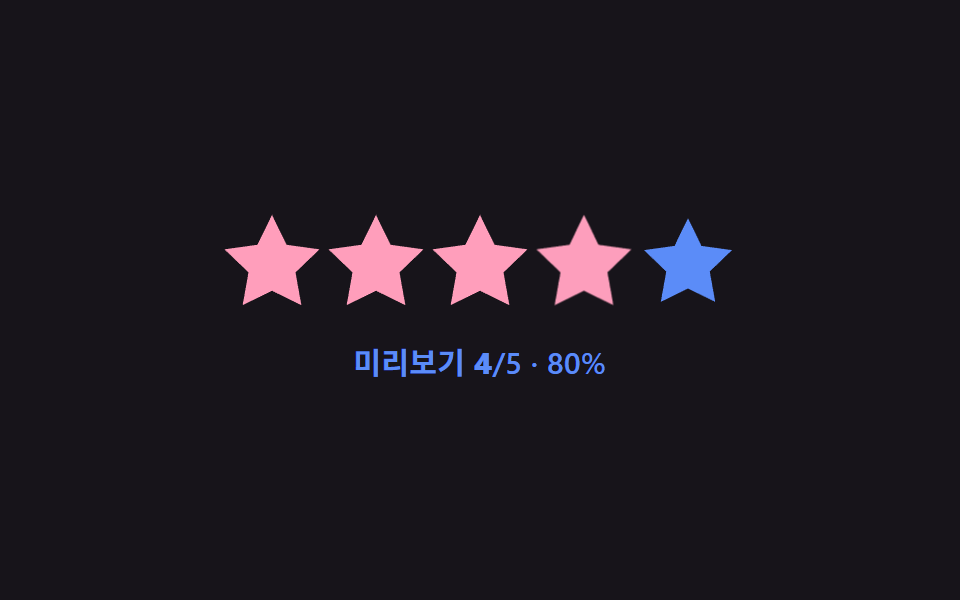 01 star-rating-hover-preview-fill
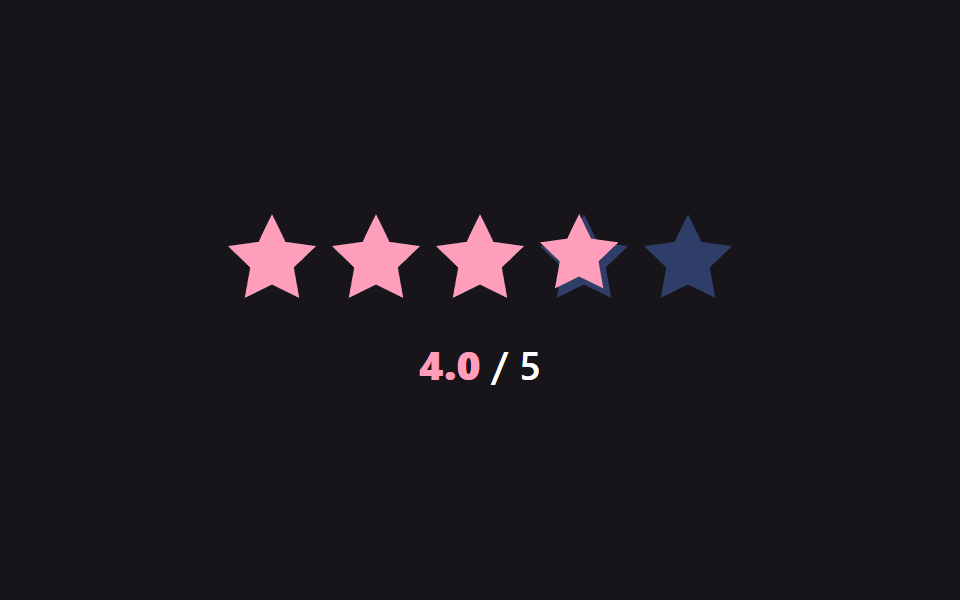 02 star-rating-half-step-precision
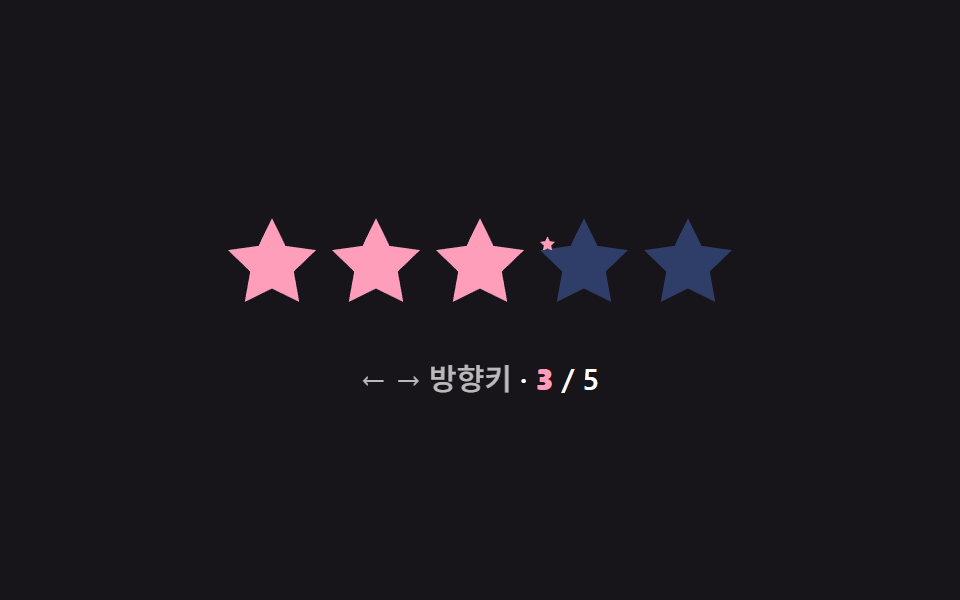 03 star-rating-keyboard-arrow-select
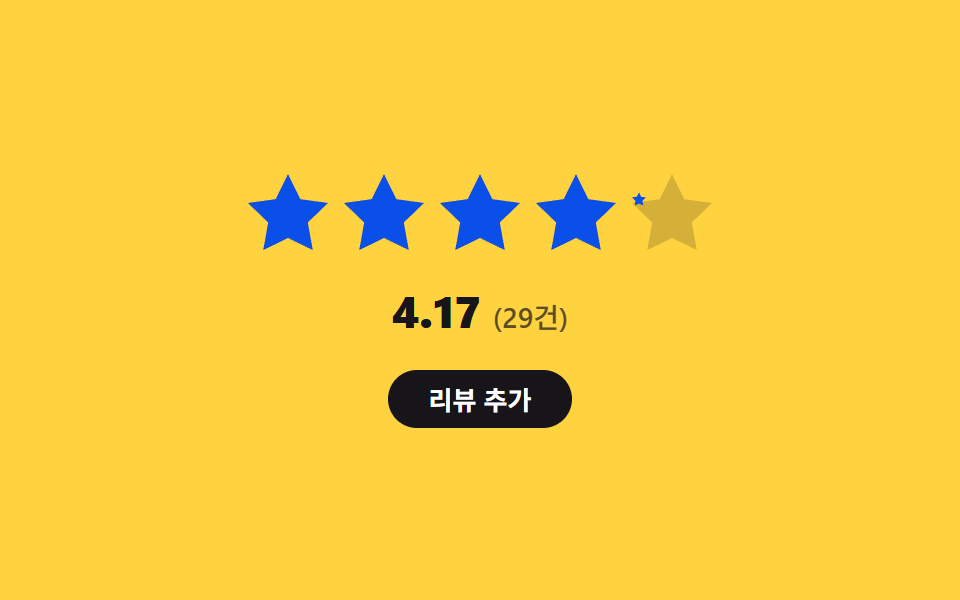 04 star-rating-average-fill-overlay
 05 star-rating-count-breakdown-bars
 06 star-rating-tooltip-label-swap
 07 star-rating-value-color-shift
 08 star-rating-reset-clear-spring
 09 star-rating-touch-drag-scrub
Auto-plays · click a tile to jump to its section · all nine in one zip
- 01 Hover preview fill — the filled value previews up to the hovered star's order value, then reverts once the pointer leaves
- 02 Half-step precision fill — the filled value splits into a whole or half value depending on which half of a star's width the pointer falls in
- 03 Keyboard arrow select — the selected star's order value increases or decreases by one for each pressed direction value
- 04 Average fill overlay — the average value's decimal portion appears as a partial fill-width value overlaid on one star
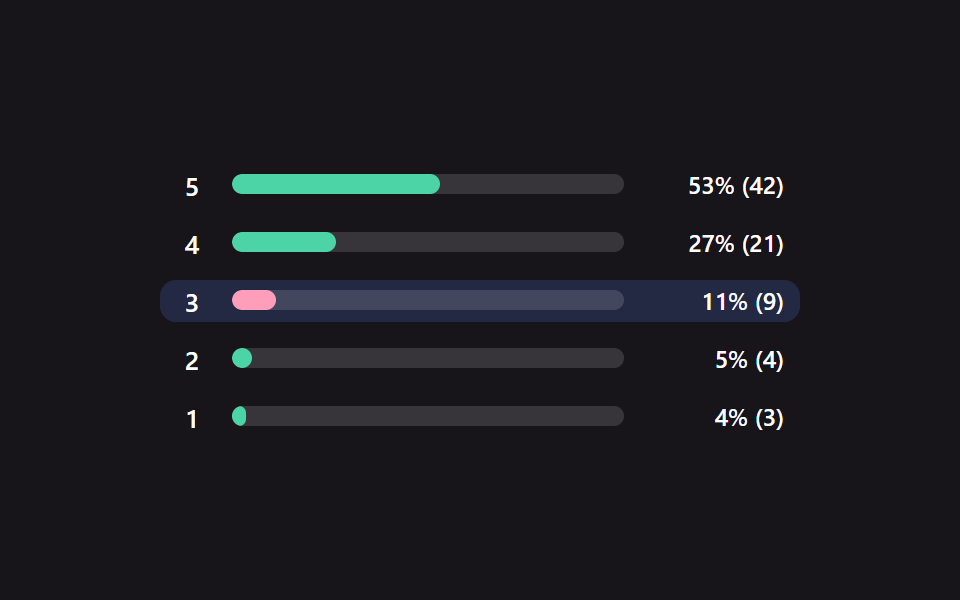
- 05 Count breakdown bars — each score's response count value splits into a horizontal bar length value
- 06 Tooltip label swap — the label text value beside the star changes to match the hovered star's order value
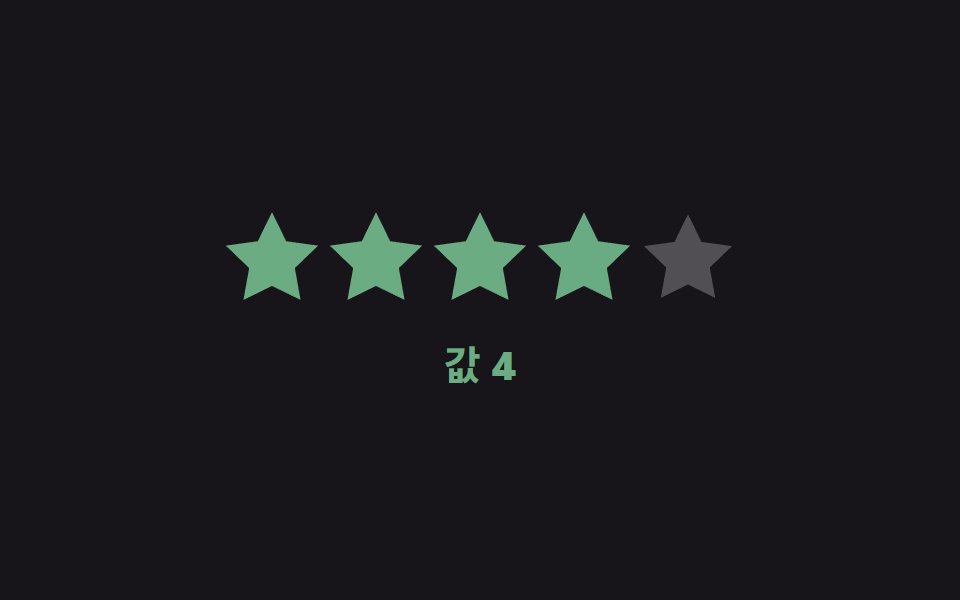
- 07 Value color shift — the star's color value changes in stages according to the size of the selected value
- 08 Reset clear spring — pressing the already-selected star again shrinks the filled value to zero with a bounced motion
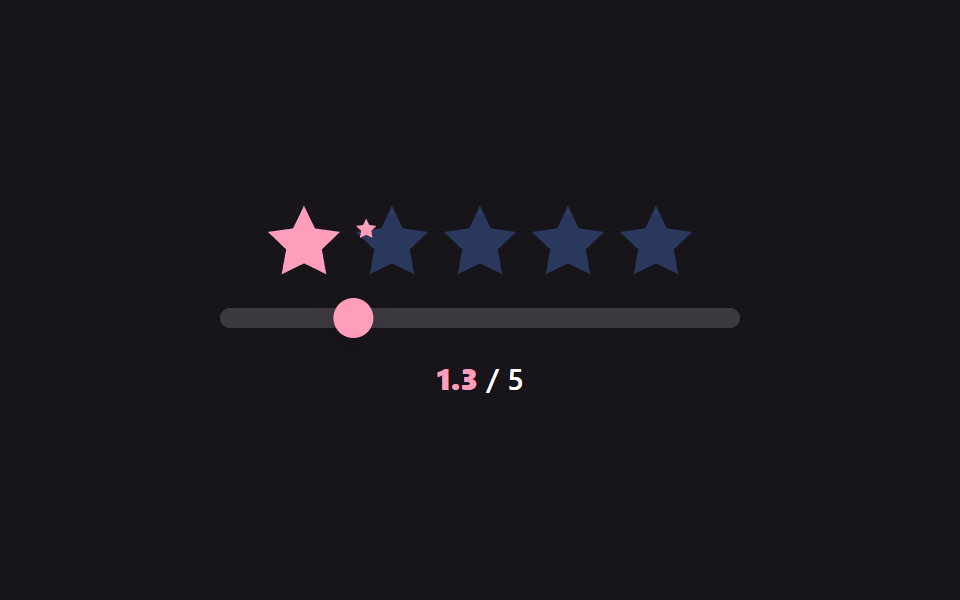
- 09 Touch drag scrub — the filled value updates in real time following the finger's horizontal position value
None of the nine touches a real backend — every rating and review count you see is a local number defined in the script, and no fetch call exists anywhere. All nine answer a genuine user input rather than running on autoplay alone: two respond to hover (pointerenter/pointerleave), two to pointer movement (pointermove, one with full drag capture through Pointer Events), one to keydown arrows, and four to click — two plus two plus one plus four, nine real triggers out of nine.
Anatomy of nine patterns — which value changes and when
Nine patterns split by which value the input actually writes — a hovered order value, a horizontal coordinate value, a keyboard target value, or a committed rating value — and that split is what keeps a star rating ui design collection from reading as nine identical rows of five stars.
Why two patterns write a preview value instead of the real one
01 and 06 both listen to pointerenter, but neither commits anything on entry — 01's previewTo() only paints a temporary fill up to the hovered star's order value, and revertToValue() snaps it back to the committed value on pointerleave. 06's requestSwap() goes further and holds even the label swap behind a 40ms setTimeout, so a cursor sweeping across the row never triggers the tooltip at all; only a hover that outlasts the delay gets a commit(). The click or the leave, not the hover, is what settles the final state in both.
Why two patterns turn a position value into the rating itself
02 and 09 both read a raw horizontal coordinate, but at opposite resolutions. 02's valueFromX() walks each star's getBoundingClientRect() and snaps the result to a whole or half star depending on which half of the width the pointer falls in, then paint() converts that value into per-star fill widths. 09's setPos() instead takes any pixel offset on the track, converts it into a continuous 0–5 value with one decimal, and keeps repainting on every pointermove while a finger is down — no snapping until the finger lifts.
Why five patterns commit a discrete value on a single event
03, 04, 05, 07, and 08 each change state exactly once per interaction. 03 moves a target value by one per arrow keypress and lets tick() ease the display toward it. 04's addReview() pushes one queued rating into counts and recomputes the weighted average. 05 converts one clicked row's count into a ratio against the total. 07 passes one clicked order value through mix() to derive a color. 08 compares the clicked star's order value against the current value and resets to zero on a match. One event in, one painted state out.
Code per pattern
01Hover preview fill — the filled value previews up to the hovered star's order value, then reverts once the pointer leaves
While the pointer stays over a star, the filled value previews up to that star's order value, and once the pointer leaves, the filled value reverts to the actually selected value. A product review form or a recipe card reads this way — the preview shows what a click would commit before it is clicked.
<main class="stage">
<div class="sr is-demo" id="sr">
  <div class="sr__row" id="srRow" role="radiogroup" aria-label="Star rating">
    <button class="sr__star" type="button" role="radio" aria-checked="false" data-i="1">
      <svg viewBox="0 0 24 24"><path d="M12 .587l3.668 7.568 8.332 1.151-6.064 5.828 1.48 8.279L12 19.771l-7.416 3.642 1.48-8.279-6.064-5.828 8.332-1.151z"/></svg>
    </button>
    <button class="sr__star" type="button" role="radio" aria-checked="false" data-i="2">
      <svg viewBox="0 0 24 24"><path d="M12 .587l3.668 7.568 8.332 1.151-6.064 5.828 1.48 8.279L12 19.771l-7.416 3.642 1.48-8.279-6.064-5.828 8.332-1.151z"/></svg>
    </button>
    <button class="sr__star" type="button" role="radio" aria-checked="false" data-i="3">
      <svg viewBox="0 0 24 24"><path d="M12 .587l3.668 7.568 8.332 1.151-6.064 5.828 1.48 8.279L12 19.771l-7.416 3.642 1.48-8.279-6.064-5.828 8.332-1.151z"/></svg>
    </button>
    <button class="sr__star" type="button" role="radio" aria-checked="false" data-i="4">
      <svg viewBox="0 0 24 24"><path d="M12 .587l3.668 7.568 8.332 1.151-6.064 5.828 1.48 8.279L12 19.771l-7.416 3.642 1.48-8.279-6.064-5.828 8.332-1.151z"/></svg>
    </button>
    <button class="sr__star" type="button" role="radio" aria-checked="false" data-i="5">
      <svg viewBox="0 0 24 24"><path d="M12 .587l3.668 7.568 8.332 1.151-6.064 5.828 1.48 8.279L12 19.771l-7.416 3.642 1.48-8.279-6.064-5.828 8.332-1.151z"/></svg>
    </button>
  </div>
  <div class="sr__readout" id="srReadout">Selected <b id="srNum">3</b>/5 · <span id="srPct">60</span>%</div>
</div>
</main>
@use "../../../../site/static/demo-tokens" as *;
// 계산 겹: 채움 개수를 전체 별 개수로 나눈 비율(ratioOf())을 정수로 그대로 화면에 보여준다 —
// 채움 클래스와 별개로 숫자 자체가 계산 결과다.
@include stage($stage-ink);
.sr {
display: grid;
gap: $sp-5;
place-items: center;
}
.sr__row {
display: flex;
gap: $sp-2;
}
.sr__star {
width: 44px;
height: 44px;
padding: 0;
border: 0;
background: none;
cursor: pointer;
color: $subject-blue-light;
transition: transform $dur-quick $ease-out, color $dur-quick $ease-out;
svg { display: block; width: 100%; height: 100%; fill: currentColor; }
&--filled {
color: $subject-pink;
transform: scale(1.08);
}
}
.sr__readout {
font: 600 15px/1.3 -apple-system, "Segoe UI", "Noto Sans KR", sans-serif;
color: $stage-paper;
letter-spacing: .01em;
b { color: $subject-pink; }
&--preview { color: $subject-blue-light; b { color: $subject-blue-light; } }
}
@media (max-width: 340px) {
.sr__star { width: 34px; height: 34px; }
.sr__row { gap: $sp-1; }
.sr__readout { font-size: 13px; }
}
@media (prefers-reduced-motion: reduce) {
.sr__star { transition: none; }
}html, body {
margin: 0;
overflow: hidden;
}
.stage {
box-sizing: border-box;
min-height: 100vh;
display: grid;
place-items: center;
margin: 0;
background: #17141a;
font-family: -apple-system, "Segoe UI", "Noto Sans KR", sans-serif;
padding: clamp(8px, 4vw, 24px);
}
.sr {
display: grid;
gap: 20px;
place-items: center;
}
.sr__row {
display: flex;
gap: 8px;
}
.sr__star {
width: 44px;
height: 44px;
padding: 0;
border: 0;
background: none;
cursor: pointer;
color: #5b8cf8;
transition: transform 220ms ease-out, color 220ms ease-out;
}
.sr__star svg {
display: block;
width: 100%;
height: 100%;
fill: currentColor;
}
.sr__star--filled {
color: #ff9ebb;
transform: scale(1.08);
}
.sr__readout {
font: 600 15px/1.3 -apple-system, "Segoe UI", "Noto Sans KR", sans-serif;
color: #ffffff;
letter-spacing: 0.01em;
}
.sr__readout b {
color: #ff9ebb;
}
.sr__readout--preview {
color: #5b8cf8;
}
.sr__readout--preview b {
color: #5b8cf8;
}
@media (max-width: 340px) {
.sr__star {
width: 34px;
height: 34px;
}
.sr__row {
gap: 4px;
}
.sr__readout {
font-size: 13px;
}
}
@media (prefers-reduced-motion: reduce) {
.sr__star {
transition: none;
}
}(function () {
var root = document.getElementById('sr');
var row = document.getElementById('srRow');
var stars = Array.prototype.slice.call(row.querySelectorAll('.sr__star'));
var numEl = document.getElementById('srNum');
var pctEl = document.getElementById('srPct');
var readout = document.getElementById('srReadout');
var TOTAL = stars.length;
var value = 3;
// 계산 겹: 채움 개수 n 을 전체 별 개수로 나눈 비율(산술)을 그대로 화면 숫자로 보여준다 —
// 채움은 CSS 클래스가 아니라 이 비율 계산에서 나온 정수를 그대로 쓴다.
function ratioOf(n) { return Math.round((n / TOTAL) * 100); }
function paint(n, isPreview) {
stars.forEach(function (s, idx) {
s.classList.toggle('sr__star--filled', idx < n);
});
numEl.textContent = String(n);
pctEl.textContent = String(ratioOf(n));
readout.classList.toggle('sr__readout--preview', !!isPreview);
readout.firstChild.textContent = isPreview ? 'Preview ' : 'Selected ';
}
function previewTo(i) { paint(i, true); }
function revertToValue() { paint(value, false); }
function commit(i) {
value = i;
stars.forEach(function (s, idx) { s.setAttribute('aria-checked', String(idx < value)); });
paint(value, false);
}
stars.forEach(function (s) {
var i = Number(s.getAttribute('data-i'));
s.addEventListener('pointerenter', function () { root.classList.remove('is-demo'); stopAutoplay(); previewTo(i); });
s.addEventListener('click', function () { commit(i); });
});
row.addEventListener('pointerleave', function () { revertToValue(); });
paint(value, false);
// 자동 루프: 별 순서대로 Preview 값을 올렸다 원래 값으로 되돌리는 것을 반복해 보여준다.
var step = 0;
var autoTimer = null;
function autoTick() {
if (step < TOTAL) { previewTo(step + 1); }
else { revertToValue(); }
step = (step + 1) % (TOTAL + 2);
}
var reduce = window.matchMedia('(prefers-reduced-motion: reduce)').matches;
function stopAutoplay() { if (autoTimer) { clearInterval(autoTimer); autoTimer = null; } }
if (!reduce) { autoTimer = setInterval(autoTick, 280); autoTick(); }
})();import { useEffect, useRef } from "react";
import styles from "./HoverPreviewFill.module.scss";
const STAR_PATH =
"M12 .587l3.668 7.568 8.332 1.151-6.064 5.828 1.48 8.279L12 19.771l-7.416 3.642 1.48-8.279-6.064-5.828 8.332-1.151z";
export default function HoverPreviewFill() {
const rootRef = useRef<HTMLDivElement | null>(null);
useEffect(() => {
const root = rootRef.current;
if (!root) return;
const row = root.querySelector<HTMLDivElement>(`.${styles.row}`);
const readout = root.querySelector<HTMLDivElement>(`.${styles.readout}`);
const numEl = root.querySelector<HTMLElement>(`.${styles.num}`);
const pctEl = root.querySelector<HTMLElement>(`.${styles.pct}`);
if (!row || !readout || !numEl || !pctEl) return;
const stars = Array.prototype.slice.call(
row.querySelectorAll(`.${styles.star}`)
) as HTMLElement[];
const TOTAL = stars.length;
let value = 3;
// 계산 겹: 채움 개수 n 을 전체 별 개수로 나눈 비율(산술)을 그대로 화면 숫자로 보여준다 —
// 채움은 CSS 클래스가 아니라 이 비율 계산에서 나온 정수를 그대로 쓴다.
function ratioOf(n: number) {
return Math.round((n / TOTAL) * 100);
}
function paint(n: number, isPreview?: boolean) {
stars.forEach((s, idx) => {
s.classList.toggle(styles.filled, idx < n);
});
numEl!.textContent = String(n);
pctEl!.textContent = String(ratioOf(n));
readout!.classList.toggle(styles.preview, !!isPreview);
readout!.firstChild!.textContent = isPreview ? "미리보기 " : "선택 ";
}
function previewTo(i: number) { paint(i, true); }
function revertToValue() { paint(value, false); }
function commit(i: number) {
value = i;
stars.forEach((s, idx) => s.setAttribute("aria-checked", String(idx < value)));
paint(value, false);
}
function onEnter(i: number) {
return () => { stopAutoplay(); previewTo(i); };
}
function onClick(i: number) {
return () => commit(i);
}
const enterHandlers: Array<() => void> = [];
const clickHandlers: Array<() => void> = [];
stars.forEach((s, idx) => {
const i = idx + 1;
const eh = onEnter(i);
const ch = onClick(i);
enterHandlers.push(eh);
clickHandlers.push(ch);
s.addEventListener("pointerenter", eh);
s.addEventListener("click", ch);
});
function onLeave() { revertToValue(); }
row.addEventListener("pointerleave", onLeave);
paint(value, false);
// 자동 루프: 별 순서대로 미리보기 값을 올렸다 원래 값으로 되돌리는 것을 반복해 보여준다.
let step = 0;
let autoTimer: number | null = null;
function autoTick() {
if (step < TOTAL) { previewTo(step + 1); }
else { revertToValue(); }
step = (step + 1) % (TOTAL + 2);
}
function stopAutoplay() { if (autoTimer !== null) { window.clearInterval(autoTimer); autoTimer = null; } }
const reduce = window.matchMedia("(prefers-reduced-motion: reduce)").matches;
if (!reduce) { autoTimer = window.setInterval(autoTick, 280); autoTick(); }
return () => {
stopAutoplay();
stars.forEach((s, idx) => {
s.removeEventListener("pointerenter", enterHandlers[idx]);
s.removeEventListener("click", clickHandlers[idx]);
});
row.removeEventListener("pointerleave", onLeave);
};
}, []);
return (
<div ref={rootRef} className={styles.stage}>
<div className={styles.sr}>
<div className={styles.row} role="radiogroup" aria-label="별점">
{[1, 2, 3, 4, 5].map((i) => (
<button key={i} type="button" className={styles.star} role="radio" aria-checked="false">
<svg viewBox="0 0 24 24"><path d={STAR_PATH} /></svg>
</button>
))}
</div>
<div className={styles.readout}>
선택 <b className={styles.num}>3</b>/5 · <span className={styles.pct}>60</span>%
</div>
</div>
</div>
);
}01 · Hover preview fill — the filled value previews up to the hovered star's order value, then reverts once the pointer leaves — Measured area 3.944% · moving frames 21/23Original by GODRICH · SCSS and React ship in the zip · See the password
What the numbers say
Across 23 tracked frames, 01 moves on 21 of them, covering a 3.94% cumulative area at a 75.6 average intensity — near-maximum frame coverage with minimal area, because the autoplay loop sweeps the preview across the whole row so something is always in motion, yet a five-star row simply doesn't occupy much of the 480×300 stage.
  // Calculation layer: the fill count n divided by the total star count gives the
  // percentage shown on screen — the fill comes from this arithmetic, not a lookup.
  function ratioOf(n) { return Math.round((n / TOTAL) * 100); }

  function paint(n, isPreview) {
    stars.forEach(function (s, idx) {
      s.classList.toggle('sr__star--filled', idx < n);
    });
    numEl.textContent = String(n);
    pctEl.textContent = String(ratioOf(n));
    readout.classList.toggle('sr__readout--preview', !!isPreview);
    readout.firstChild.textContent = isPreview ? 'Preview ' : 'Selected ';
  }
02Half-step precision fill — the filled value splits into a whole or half value depending on which half of a star's width the pointer falls in
The pointer's horizontal position value determines which half of a single star's width value it falls in, and the filled value is set to either a whole number value or a half-step value accordingly. A hotel detail page or a book review widget uses this precision when a 3.5 matters.
<main class="stage">
<div class="sr is-demo" id="sr">
  <div class="sr__row" id="srRow">
    <span class="sr__star" data-i="0"><svg class="sr__base" viewBox="0 0 24 24"><path d="M12 .587l3.668 7.568 8.332 1.151-6.064 5.828 1.48 8.279L12 19.771l-7.416 3.642 1.48-8.279-6.064-5.828 8.332-1.151z"/></svg><span class="sr__fillclip" id="fc0"><svg class="sr__fill" viewBox="0 0 24 24"><path d="M12 .587l3.668 7.568 8.332 1.151-6.064 5.828 1.48 8.279L12 19.771l-7.416 3.642 1.48-8.279-6.064-5.828 8.332-1.151z"/></svg></span></span>
    <span class="sr__star" data-i="1"><svg class="sr__base" viewBox="0 0 24 24"><path d="M12 .587l3.668 7.568 8.332 1.151-6.064 5.828 1.48 8.279L12 19.771l-7.416 3.642 1.48-8.279-6.064-5.828 8.332-1.151z"/></svg><span class="sr__fillclip" id="fc1"><svg class="sr__fill" viewBox="0 0 24 24"><path d="M12 .587l3.668 7.568 8.332 1.151-6.064 5.828 1.48 8.279L12 19.771l-7.416 3.642 1.48-8.279-6.064-5.828 8.332-1.151z"/></svg></span></span>
    <span class="sr__star" data-i="2"><svg class="sr__base" viewBox="0 0 24 24"><path d="M12 .587l3.668 7.568 8.332 1.151-6.064 5.828 1.48 8.279L12 19.771l-7.416 3.642 1.48-8.279-6.064-5.828 8.332-1.151z"/></svg><span class="sr__fillclip" id="fc2"><svg class="sr__fill" viewBox="0 0 24 24"><path d="M12 .587l3.668 7.568 8.332 1.151-6.064 5.828 1.48 8.279L12 19.771l-7.416 3.642 1.48-8.279-6.064-5.828 8.332-1.151z"/></svg></span></span>
    <span class="sr__star" data-i="3"><svg class="sr__base" viewBox="0 0 24 24"><path d="M12 .587l3.668 7.568 8.332 1.151-6.064 5.828 1.48 8.279L12 19.771l-7.416 3.642 1.48-8.279-6.064-5.828 8.332-1.151z"/></svg><span class="sr__fillclip" id="fc3"><svg class="sr__fill" viewBox="0 0 24 24"><path d="M12 .587l3.668 7.568 8.332 1.151-6.064 5.828 1.48 8.279L12 19.771l-7.416 3.642 1.48-8.279-6.064-5.828 8.332-1.151z"/></svg></span></span>
    <span class="sr__star" data-i="4"><svg class="sr__base" viewBox="0 0 24 24"><path d="M12 .587l3.668 7.568 8.332 1.151-6.064 5.828 1.48 8.279L12 19.771l-7.416 3.642 1.48-8.279-6.064-5.828 8.332-1.151z"/></svg><span class="sr__fillclip" id="fc4"><svg class="sr__fill" viewBox="0 0 24 24"><path d="M12 .587l3.668 7.568 8.332 1.151-6.064 5.828 1.48 8.279L12 19.771l-7.416 3.642 1.48-8.279-6.064-5.828 8.332-1.151z"/></svg></span></span>
  </div>
  <div class="sr__readout" id="srReadout"><b id="srNum">0.0</b> / 5</div>
</div>
</main>
@use "../../../../site/static/demo-tokens" as *;
// 계산 겹: 별의 실제 렌더 폭(getBoundingClientRect)을 기준으로 포인터 위치가 왼쪽/오른쪽 절반
// 어디에 있는지를 나눠 정수 또는 .5 단위로만 값을 스냅한다 (valueFromX()).
@include stage($stage-ink);
.sr {
display: grid;
gap: $sp-5;
place-items: center;
}
.sr__row {
display: flex;
gap: $sp-2;
cursor: pointer;
}
.sr__star {
position: relative;
width: 44px;
height: 44px;
}
.sr__base,
.sr__fill svg {
position: absolute;
inset: 0;
width: 100%;
height: 100%;
}
.sr__base { fill: $subject-blue-light; opacity: .35; }
.sr__fillclip {
position: absolute;
inset: 0;
width: 0%;
overflow: hidden;
transition: width $dur-instant $ease-out;
}
.sr__fill { fill: $subject-pink; }
.sr__readout {
font: 600 20px/1.2 -apple-system, "Segoe UI", "Noto Sans KR", sans-serif;
color: $stage-paper;
b { color: $subject-pink; font-variant-numeric: tabular-nums; }
}
@media (max-width: 340px) {
.sr__star { width: 34px; height: 34px; }
.sr__row { gap: $sp-1; }
.sr__readout { font-size: 16px; }
}
@media (prefers-reduced-motion: reduce) {
.sr__fillclip { transition: none; }
}html, body {
margin: 0;
overflow: hidden;
}
.stage {
box-sizing: border-box;
min-height: 100vh;
display: grid;
place-items: center;
margin: 0;
background: #17141a;
font-family: -apple-system, "Segoe UI", "Noto Sans KR", sans-serif;
padding: clamp(8px, 4vw, 24px);
}
.sr {
display: grid;
gap: 20px;
place-items: center;
}
.sr__row {
display: flex;
gap: 8px;
cursor: pointer;
}
.sr__star {
position: relative;
width: 44px;
height: 44px;
}
.sr__base,
.sr__fill svg {
position: absolute;
inset: 0;
width: 100%;
height: 100%;
}
.sr__base {
fill: #5b8cf8;
opacity: 0.35;
}
.sr__fillclip {
position: absolute;
inset: 0;
width: 0%;
overflow: hidden;
transition: width 140ms ease-out;
}
.sr__fill {
fill: #ff9ebb;
}
.sr__readout {
font: 600 20px/1.2 -apple-system, "Segoe UI", "Noto Sans KR", sans-serif;
color: #ffffff;
}
.sr__readout b {
color: #ff9ebb;
font-variant-numeric: tabular-nums;
}
@media (max-width: 340px) {
.sr__star {
width: 34px;
height: 34px;
}
.sr__row {
gap: 4px;
}
.sr__readout {
font-size: 16px;
}
}
@media (prefers-reduced-motion: reduce) {
.sr__fillclip {
transition: none;
}
}(function () {
var root = document.getElementById('sr');
var row = document.getElementById('srRow');
var stars = Array.prototype.slice.call(row.querySelectorAll('.sr__star'));
var clips = stars.map(function (s) { return s.querySelector('.sr__fillclip'); });
var numEl = document.getElementById('srNum');
var STAR_W = 44;
var value = 0;
// 계산 겹: 각 별의 실제 렌더 폭(getBoundingClientRect)을 기준으로 포인터가 왼쪽 절반에 있는지
// 오른쪽 절반에 있는지를 나눠, 정수 또는 .5 단위로만 값을 스냅한다.
function valueFromX(clientX) {
for (var i = 0; i < stars.length; i++) {
var r = stars[i].getBoundingClientRect();
if (clientX < r.left) return i;
if (clientX <= r.right) {
var half = r.left + r.width / 2;
return clientX < half ? i + 0.5 : i + 1;
}
}
return stars.length;
}
function paint(v) {
stars.forEach(function (s, idx) {
var starVal = Math.max(0, Math.min(1, v - idx));
clips[idx].style.width = (starVal * 100).toFixed(0) + '%';
});
numEl.textContent = v.toFixed(1);
}
function setFromPointer(clientX) {
value = valueFromX(clientX);
paint(value);
}
row.addEventListener('pointermove', function (e) {
root.classList.remove('is-demo'); stopAutoplay();
setFromPointer(e.clientX);
});
row.addEventListener('click', function (e) { setFromPointer(e.clientX); });
paint(value);
// 자동 루프: 반 칸 단위(0.5)로 값을 끝까지 올렸다 처음으로 되돌리는 것을 반복한다.
var steps = [0.5, 1, 1.5, 2, 2.5, 3, 3.5, 4, 4.5, 5];
var step = 0;
var autoTimer = null;
function autoTick() { paint(steps[step]); value = steps[step]; step = (step + 1) % steps.length; }
var reduce = window.matchMedia('(prefers-reduced-motion: reduce)').matches;
function stopAutoplay() { if (autoTimer) { clearInterval(autoTimer); autoTimer = null; } }
if (!reduce) { autoTimer = setInterval(autoTick, 260); autoTick(); }
})();import { useEffect, useRef } from "react";
import styles from "./HalfStepPrecision.module.scss";
const STAR_PATH =
"M12 .587l3.668 7.568 8.332 1.151-6.064 5.828 1.48 8.279L12 19.771l-7.416 3.642 1.48-8.279-6.064-5.828 8.332-1.151z";
export default function HalfStepPrecision() {
const rootRef = useRef<HTMLDivElement | null>(null);
useEffect(() => {
const root = rootRef.current;
if (!root) return;
const row = root.querySelector<HTMLDivElement>(`.${styles.row}`);
const numEl = root.querySelector<HTMLElement>(`.${styles.num}`);
if (!row || !numEl) return;
const stars = Array.prototype.slice.call(
row.querySelectorAll(`.${styles.star}`)
) as HTMLElement[];
const clips = stars.map((s) => s.querySelector<HTMLElement>(`.${styles.fillclip}`)!);
let value = 0;
// 계산 겹: 각 별의 실제 렌더 폭(getBoundingClientRect)을 기준으로 포인터가 왼쪽 절반에 있는지
// 오른쪽 절반에 있는지를 나눠, 정수 또는 .5 단위로만 값을 스냅한다.
function valueFromX(clientX: number) {
for (let i = 0; i < stars.length; i++) {
const r = stars[i].getBoundingClientRect();
if (clientX < r.left) return i;
if (clientX <= r.right) {
const half = r.left + r.width / 2;
return clientX < half ? i + 0.5 : i + 1;
}
}
return stars.length;
}
function paint(v: number) {
stars.forEach((_s, idx) => {
const starVal = Math.max(0, Math.min(1, v - idx));
clips[idx].style.width = (starVal * 100).toFixed(0) + "%";
});
numEl!.textContent = v.toFixed(1);
}
function setFromPointer(clientX: number) {
value = valueFromX(clientX);
paint(value);
}
function onMove(e: PointerEvent) {
stopAutoplay();
setFromPointer(e.clientX);
}
function onClick(e: MouseEvent) { setFromPointer(e.clientX); }
row.addEventListener("pointermove", onMove);
row.addEventListener("click", onClick);
paint(value);
// 자동 루프: 반 칸 단위(0.5)로 값을 끝까지 올렸다 처음으로 되돌리는 것을 반복한다.
const steps = [0.5, 1, 1.5, 2, 2.5, 3, 3.5, 4, 4.5, 5];
let step = 0;
let autoTimer: number | null = null;
function autoTick() { paint(steps[step]); value = steps[step]; step = (step + 1) % steps.length; }
function stopAutoplay() { if (autoTimer !== null) { window.clearInterval(autoTimer); autoTimer = null; } }
const reduce = window.matchMedia("(prefers-reduced-motion: reduce)").matches;
if (!reduce) { autoTimer = window.setInterval(autoTick, 260); autoTick(); }
return () => {
stopAutoplay();
row.removeEventListener("pointermove", onMove);
row.removeEventListener("click", onClick);
};
}, []);
return (
<div ref={rootRef} className={styles.stage}>
<div className={styles.sr}>
<div className={styles.row}>
{[0, 1, 2, 3, 4].map((i) => (
<span key={i} className={styles.star}>
<svg className={styles.base} viewBox="0 0 24 24"><path d={STAR_PATH} /></svg>
<span className={styles.fillclip}>
<svg className={styles.fill} viewBox="0 0 24 24"><path d={STAR_PATH} /></svg>
</span>
</span>
))}
</div>
<div className={styles.readout}><b className={styles.num}>0.0</b> / 5</div>
</div>
</div>
);
}02 · Half-step precision fill — the filled value splits into a whole or half value depending on which half of a star's width the pointer falls in — Measured area 4.027% · moving frames 23/23Original by GODRICH · SCSS and React ship in the zip · See the password
What the numbers say
Across 23 tracked frames, 02 moves on all 23, covering a 4.03% cumulative area at a 153.2 average intensity — full frame coverage and the second-highest intensity of the nine, because the fill edge can land anywhere inside a star's width rather than only at its boundary, so every pixel of pointer travel repaints the clip width.
  // Calculation layer: using each star's actual rendered width (getBoundingClientRect),
  // decide whether the pointer sits in the left half or the right half, and snap the
  // value to whole or half steps only.
  function valueFromX(clientX) {
    for (var i = 0; i < stars.length; i++) {
      var r = stars[i].getBoundingClientRect();
      if (clientX < r.left) return i;
      if (clientX <= r.right) {
        var half = r.left + r.width / 2;
        return clientX < half ? i + 0.5 : i + 1;
      }
    }
    return stars.length;
  }

  function paint(v) {
    stars.forEach(function (s, idx) {
      var starVal = Math.max(0, Math.min(1, v - idx));
      clips[idx].style.width = (starVal * 100).toFixed(0) + '%';
    });
    numEl.textContent = v.toFixed(1);
  }
03Keyboard arrow select — the selected star's order value increases or decreases by one for each pressed direction value
Each right or left arrow keypress increases or decreases the selected star's order value by one, and once that value passes either end of the range it stops at the end value. A checkout flow that must stay mouse-free runs on this pattern alone.
<main class="stage">
<div class="sr is-demo" id="sr">
  <div class="sr__row" id="srRow" role="slider" tabindex="0" aria-label="Star rating" aria-valuemin="0" aria-valuemax="5" aria-valuenow="3">
    <span class="sr__star"><svg class="sr__base" viewBox="0 0 24 24"><path d="M12 .587l3.668 7.568 8.332 1.151-6.064 5.828 1.48 8.279L12 19.771l-7.416 3.642 1.48-8.279-6.064-5.828 8.332-1.151z"/></svg><span class="sr__fillclip" data-fc><svg class="sr__fill" viewBox="0 0 24 24"><path d="M12 .587l3.668 7.568 8.332 1.151-6.064 5.828 1.48 8.279L12 19.771l-7.416 3.642 1.48-8.279-6.064-5.828 8.332-1.151z"/></svg></span></span>
    <span class="sr__star"><svg class="sr__base" viewBox="0 0 24 24"><path d="M12 .587l3.668 7.568 8.332 1.151-6.064 5.828 1.48 8.279L12 19.771l-7.416 3.642 1.48-8.279-6.064-5.828 8.332-1.151z"/></svg><span class="sr__fillclip" data-fc><svg class="sr__fill" viewBox="0 0 24 24"><path d="M12 .587l3.668 7.568 8.332 1.151-6.064 5.828 1.48 8.279L12 19.771l-7.416 3.642 1.48-8.279-6.064-5.828 8.332-1.151z"/></svg></span></span>
    <span class="sr__star"><svg class="sr__base" viewBox="0 0 24 24"><path d="M12 .587l3.668 7.568 8.332 1.151-6.064 5.828 1.48 8.279L12 19.771l-7.416 3.642 1.48-8.279-6.064-5.828 8.332-1.151z"/></svg><span class="sr__fillclip" data-fc><svg class="sr__fill" viewBox="0 0 24 24"><path d="M12 .587l3.668 7.568 8.332 1.151-6.064 5.828 1.48 8.279L12 19.771l-7.416 3.642 1.48-8.279-6.064-5.828 8.332-1.151z"/></svg></span></span>
    <span class="sr__star"><svg class="sr__base" viewBox="0 0 24 24"><path d="M12 .587l3.668 7.568 8.332 1.151-6.064 5.828 1.48 8.279L12 19.771l-7.416 3.642 1.48-8.279-6.064-5.828 8.332-1.151z"/></svg><span class="sr__fillclip" data-fc><svg class="sr__fill" viewBox="0 0 24 24"><path d="M12 .587l3.668 7.568 8.332 1.151-6.064 5.828 1.48 8.279L12 19.771l-7.416 3.642 1.48-8.279-6.064-5.828 8.332-1.151z"/></svg></span></span>
    <span class="sr__star"><svg class="sr__base" viewBox="0 0 24 24"><path d="M12 .587l3.668 7.568 8.332 1.151-6.064 5.828 1.48 8.279L12 19.771l-7.416 3.642 1.48-8.279-6.064-5.828 8.332-1.151z"/></svg><span class="sr__fillclip" data-fc><svg class="sr__fill" viewBox="0 0 24 24"><path d="M12 .587l3.668 7.568 8.332 1.151-6.064 5.828 1.48 8.279L12 19.771l-7.416 3.642 1.48-8.279-6.064-5.828 8.332-1.151z"/></svg></span></span>
  </div>
  <div class="sr__readout"><span class="sr__hint">← → Arrow keys</span> · <b id="srNum">3</b> / 5</div>
</div>
</main>
@use "../../../../site/static/demo-tokens" as *;
// 계산 겹: 방향키가 바뀔 때마다 목표 값을 갱신하고, 화면 값은 매 프레임 목표 쪽으로 20%씩만
// 다가가는 선형보간(lerp)으로 따라가 즉시 스냅이 아니라 관성 있는 곡선으로 채워진다.
@include stage($stage-ink);
.sr {
display: grid;
gap: $sp-5;
place-items: center;
}
.sr__row {
display: flex;
gap: $sp-2;
border-radius: $r-sm;
padding: $sp-2;
outline: none;
&:focus-visible { box-shadow: 0 0 0 3px $subject-blue-light; }
}
.sr__star {
position: relative;
width: 44px;
height: 44px;
}
.sr__base,
.sr__fill svg {
position: absolute;
inset: 0;
width: 100%;
height: 100%;
}
.sr__base { fill: $subject-blue-light; opacity: .35; }
.sr__fillclip {
position: absolute;
inset: 0;
width: 0%;
overflow: hidden;
}
.sr__fill { fill: $subject-pink; }
.sr__readout {
font: 600 15px/1.3 -apple-system, "Segoe UI", "Noto Sans KR", sans-serif;
color: $stage-paper;
b { color: $subject-pink; font-variant-numeric: tabular-nums; }
}
.sr__hint { opacity: .7; font-weight: 500; }
@media (max-width: 340px) {
.sr__star { width: 34px; height: 34px; }
.sr__row { gap: $sp-1; }
.sr__readout { font-size: 13px; }
}
@media (prefers-reduced-motion: reduce) {
.sr__row { transition: none; }
}html, body {
margin: 0;
overflow: hidden;
}
.stage {
box-sizing: border-box;
min-height: 100vh;
display: grid;
place-items: center;
margin: 0;
background: #17141a;
font-family: -apple-system, "Segoe UI", "Noto Sans KR", sans-serif;
padding: clamp(8px, 4vw, 24px);
}
.sr {
display: grid;
gap: 20px;
place-items: center;
}
.sr__row {
display: flex;
gap: 8px;
border-radius: 8px;
padding: 8px;
outline: none;
}
.sr__row:focus-visible {
box-shadow: 0 0 0 3px #5b8cf8;
}
.sr__star {
position: relative;
width: 44px;
height: 44px;
}
.sr__base,
.sr__fill svg {
position: absolute;
inset: 0;
width: 100%;
height: 100%;
}
.sr__base {
fill: #5b8cf8;
opacity: 0.35;
}
.sr__fillclip {
position: absolute;
inset: 0;
width: 0%;
overflow: hidden;
}
.sr__fill {
fill: #ff9ebb;
}
.sr__readout {
font: 600 15px/1.3 -apple-system, "Segoe UI", "Noto Sans KR", sans-serif;
color: #ffffff;
}
.sr__readout b {
color: #ff9ebb;
font-variant-numeric: tabular-nums;
}
.sr__hint {
opacity: 0.7;
font-weight: 500;
}
@media (max-width: 340px) {
.sr__star {
width: 34px;
height: 34px;
}
.sr__row {
gap: 4px;
}
.sr__readout {
font-size: 13px;
}
}
@media (prefers-reduced-motion: reduce) {
.sr__row {
transition: none;
}
}(function () {
var root = document.getElementById('sr');
var row = document.getElementById('srRow');
var clips = Array.prototype.slice.call(row.querySelectorAll('[data-fc]'));
var numEl = document.getElementById('srNum');
var TOTAL = clips.length;
var target = 3;
var display = 3;
var raf = null;
function paint(v) {
clips.forEach(function (el, idx) {
var starVal = Math.max(0, Math.min(1, v - idx));
el.style.width = (starVal * 100).toFixed(1) + '%';
});
}
// 계산 겹: 매 프레임 display 값을 target Value 쪽으로 20% 씩만 이동시키는 선형보간(lerp) —
// 방향키를 눌러도 값이 즉시 튀지 않고 관성 있는 곡선으로 따라간다.
function tick() {
display += (target - display) * 0.2;
if (Math.abs(target - display) < 0.01) {
display = target;
paint(display);
raf = null;
return;
}
paint(display);
raf = requestAnimationFrame(tick);
}
function animateTo(t) {
target = Math.max(0, Math.min(TOTAL, t));
row.setAttribute('aria-valuenow', String(target));
numEl.textContent = String(target);
if (raf === null) raf = requestAnimationFrame(tick);
}
row.addEventListener('keydown', function (e) {
if (e.key === 'ArrowRight') { e.preventDefault(); root.classList.remove('is-demo'); stopAutoplay(); animateTo(target + 1); }
else if (e.key === 'ArrowLeft') { e.preventDefault(); root.classList.remove('is-demo'); stopAutoplay(); animateTo(target - 1); }
});
paint(display);
// 자동 루프: 방향키 입력을 흉내내 값을 0→5→0 으로 오가며 lerp 이동을 보여준다.
var seq = [4, 5, 3, 1, 0, 2, 3];
var seqI = 0;
var autoTimer = null;
function autoTick() { animateTo(seq[seqI]); seqI = (seqI + 1) % seq.length; }
var reduce = window.matchMedia('(prefers-reduced-motion: reduce)').matches;
function stopAutoplay() { if (autoTimer) { clearInterval(autoTimer); autoTimer = null; } }
if (!reduce) { autoTimer = setInterval(autoTick, 620); autoTick(); }
})();import { useEffect, useRef } from "react";
import styles from "./KeyboardArrowSelect.module.scss";
const STAR_PATH =
"M12 .587l3.668 7.568 8.332 1.151-6.064 5.828 1.48 8.279L12 19.771l-7.416 3.642 1.48-8.279-6.064-5.828 8.332-1.151z";
export default function KeyboardArrowSelect() {
const rootRef = useRef<HTMLDivElement | null>(null);
useEffect(() => {
const root = rootRef.current;
if (!root) return;
const row = root.querySelector<HTMLDivElement>(`.${styles.row}`);
const numEl = root.querySelector<HTMLElement>(`.${styles.num}`);
if (!row || !numEl) return;
const clips = Array.prototype.slice.call(
row.querySelectorAll(`.${styles.fillclip}`)
) as HTMLElement[];
const TOTAL = clips.length;
let target = 3;
let display = 3;
let raf: number | null = null;
function paint(v: number) {
clips.forEach((el, idx) => {
const starVal = Math.max(0, Math.min(1, v - idx));
el.style.width = (starVal * 100).toFixed(1) + "%";
});
}
// 계산 겹: 매 프레임 display 값을 target 값 쪽으로 20% 씩만 이동시키는 선형보간(lerp) —
// 방향키를 눌러도 값이 즉시 튀지 않고 관성 있는 곡선으로 따라간다.
function tick() {
display += (target - display) * 0.2;
if (Math.abs(target - display) < 0.01) {
display = target;
paint(display);
raf = null;
return;
}
paint(display);
raf = requestAnimationFrame(tick);
}
function animateTo(t: number) {
target = Math.max(0, Math.min(TOTAL, t));
row!.setAttribute("aria-valuenow", String(target));
numEl!.textContent = String(target);
if (raf === null) raf = requestAnimationFrame(tick);
}
function onKeyDown(e: KeyboardEvent) {
if (e.key === "ArrowRight") { e.preventDefault(); stopAutoplay(); animateTo(target + 1); }
else if (e.key === "ArrowLeft") { e.preventDefault(); stopAutoplay(); animateTo(target - 1); }
}
row.addEventListener("keydown", onKeyDown);
paint(display);
// 자동 루프: 방향키 입력을 흉내내 값을 0→5→0 으로 오가며 lerp 이동을 보여준다.
const seq = [4, 5, 3, 1, 0, 2, 3];
let seqI = 0;
let autoTimer: number | null = null;
function autoTick() { animateTo(seq[seqI]); seqI = (seqI + 1) % seq.length; }
function stopAutoplay() { if (autoTimer !== null) { window.clearInterval(autoTimer); autoTimer = null; } }
const reduce = window.matchMedia("(prefers-reduced-motion: reduce)").matches;
if (!reduce) { autoTimer = window.setInterval(autoTick, 620); autoTick(); }
return () => {
stopAutoplay();
if (raf !== null) cancelAnimationFrame(raf);
row.removeEventListener("keydown", onKeyDown);
};
}, []);
return (
<div ref={rootRef} className={styles.stage}>
<div className={styles.sr}>
<div
className={styles.row}
role="slider"
tabIndex={0}
aria-label="별점"
aria-valuemin={0}
aria-valuemax={5}
aria-valuenow={3}
>
{[0, 1, 2, 3, 4].map((i) => (
<span key={i} className={styles.star}>
<svg className={styles.base} viewBox="0 0 24 24"><path d={STAR_PATH} /></svg>
<span className={styles.fillclip}>
<svg className={styles.fill} viewBox="0 0 24 24"><path d={STAR_PATH} /></svg>
</span>
</span>
))}
</div>
<div className={styles.readout}>
<span className={styles.hint}>← → 방향키</span> · <b className={styles.num}>3</b> / 5
</div>
</div>
</div>
);
}03 · Keyboard arrow select — the selected star's order value increases or decreases by one for each pressed direction value — Measured area 3.694% · moving frames 16/23Original by GODRICH · SCSS and React ship in the zip · See the password
What the numbers say
Across 23 tracked frames, 03 moves on 16 of them, covering a 3.69% cumulative area at a 127.6 average intensity — the ease shows up as a run of consecutive moving frames after each keypress rather than a single jump, since tick() keeps the display value chasing the target across several frames before settling.
  // Calculation layer: linear interpolation (lerp) that moves the display value only
  // 20% of the way toward the target each frame — the value never jumps, it curves.
  function tick() {
    display += (target - display) * 0.2;
    if (Math.abs(target - display) < 0.01) {
      display = target;
      paint(display);
      raf = null;
      return;
    }
    paint(display);
    raf = requestAnimationFrame(tick);
  }
  function animateTo(t) {
    target = Math.max(0, Math.min(TOTAL, t));
    row.setAttribute('aria-valuenow', String(target));
    numEl.textContent = String(target);
    if (raf === null) raf = requestAnimationFrame(tick);
  }
04Average fill overlay — the average value's decimal portion appears as a partial fill-width value overlaid on one star
Stars fill up to the average value's whole-number portion, and the remaining decimal portion value appears as a partial fill-width value overlaid on the next star. This is the read-only end state a review summary reaches after enough people have rated — a store listing or an app detail page shows exactly this shape.
<main class="stage">
<div class="sr is-demo" id="sr">
  <div class="sr__row" id="srRow">
    <span class="sr__star"><svg class="sr__base" viewBox="0 0 24 24"><path d="M12 .587l3.668 7.568 8.332 1.151-6.064 5.828 1.48 8.279L12 19.771l-7.416 3.642 1.48-8.279-6.064-5.828 8.332-1.151z"/></svg><span class="sr__fillclip" data-fc><svg class="sr__fill" viewBox="0 0 24 24"><path d="M12 .587l3.668 7.568 8.332 1.151-6.064 5.828 1.48 8.279L12 19.771l-7.416 3.642 1.48-8.279-6.064-5.828 8.332-1.151z"/></svg></span></span>
    <span class="sr__star"><svg class="sr__base" viewBox="0 0 24 24"><path d="M12 .587l3.668 7.568 8.332 1.151-6.064 5.828 1.48 8.279L12 19.771l-7.416 3.642 1.48-8.279-6.064-5.828 8.332-1.151z"/></svg><span class="sr__fillclip" data-fc><svg class="sr__fill" viewBox="0 0 24 24"><path d="M12 .587l3.668 7.568 8.332 1.151-6.064 5.828 1.48 8.279L12 19.771l-7.416 3.642 1.48-8.279-6.064-5.828 8.332-1.151z"/></svg></span></span>
    <span class="sr__star"><svg class="sr__base" viewBox="0 0 24 24"><path d="M12 .587l3.668 7.568 8.332 1.151-6.064 5.828 1.48 8.279L12 19.771l-7.416 3.642 1.48-8.279-6.064-5.828 8.332-1.151z"/></svg><span class="sr__fillclip" data-fc><svg class="sr__fill" viewBox="0 0 24 24"><path d="M12 .587l3.668 7.568 8.332 1.151-6.064 5.828 1.48 8.279L12 19.771l-7.416 3.642 1.48-8.279-6.064-5.828 8.332-1.151z"/></svg></span></span>
    <span class="sr__star"><svg class="sr__base" viewBox="0 0 24 24"><path d="M12 .587l3.668 7.568 8.332 1.151-6.064 5.828 1.48 8.279L12 19.771l-7.416 3.642 1.48-8.279-6.064-5.828 8.332-1.151z"/></svg><span class="sr__fillclip" data-fc><svg class="sr__fill" viewBox="0 0 24 24"><path d="M12 .587l3.668 7.568 8.332 1.151-6.064 5.828 1.48 8.279L12 19.771l-7.416 3.642 1.48-8.279-6.064-5.828 8.332-1.151z"/></svg></span></span>
    <span class="sr__star"><svg class="sr__base" viewBox="0 0 24 24"><path d="M12 .587l3.668 7.568 8.332 1.151-6.064 5.828 1.48 8.279L12 19.771l-7.416 3.642 1.48-8.279-6.064-5.828 8.332-1.151z"/></svg><span class="sr__fillclip" data-fc><svg class="sr__fill" viewBox="0 0 24 24"><path d="M12 .587l3.668 7.568 8.332 1.151-6.064 5.828 1.48 8.279L12 19.771l-7.416 3.642 1.48-8.279-6.064-5.828 8.332-1.151z"/></svg></span></span>
  </div>
  <div class="sr__readout"><b id="srAvg">4.16</b> <span class="sr__count">(<span id="srN">25</span>reviews)</span></div>
  <button class="sr__btn" type="button" id="srAdd">Add review</button>
</div>
</main>
@use "../../../../site/static/demo-tokens" as *;
// 계산 겹: 별점별 응답 개수 합을 전체 개수로 나눈 가중 평균을 구해, 정수 부분만큼 별을 채우고
// 남은 소수점 부분을 다음 별 하나의 채움 너비 값으로 겹쳐 그린다 (average()).
@include stage($stage-yellow);
.sr {
display: grid;
gap: $sp-4;
place-items: center;
}
.sr__row { display: flex; gap: $sp-2; }
.sr__star {
position: relative;
width: 40px;
height: 40px;
}
.sr__base,
.sr__fill svg {
position: absolute;
inset: 0;
width: 100%;
height: 100%;
}
.sr__base { fill: $subject-ink; opacity: .18; }
.sr__fillclip {
position: absolute;
inset: 0;
width: 0%;
overflow: hidden;
transition: width $dur-base $ease-out;
}
.sr__fill { fill: $subject-blue-deep; }
.sr__readout {
font: 700 22px/1.2 -apple-system, "Segoe UI", "Noto Sans KR", sans-serif;
color: $subject-ink;
b { font-variant-numeric: tabular-nums; }
}
.sr__count {
font-size: 14px;
font-weight: 500;
opacity: .7;
}
.sr__btn {
border: 0;
border-radius: $r-pill;
padding: $sp-2 $sp-5;
background: $subject-ink;
color: $stage-paper;
font: 600 13px/1 -apple-system, "Segoe UI", "Noto Sans KR", sans-serif;
cursor: pointer;
transition: transform $dur-instant $ease-out;
&:active { transform: scale(.94); }
}
@media (max-width: 340px) {
.sr__star { width: 30px; height: 30px; }
.sr__row { gap: $sp-1; }
.sr__readout { font-size: 18px; }
}
@media (prefers-reduced-motion: reduce) {
.sr__fillclip, .sr__btn { transition: none; }
}html, body {
margin: 0;
overflow: hidden;
}
.stage {
box-sizing: border-box;
min-height: 100vh;
display: grid;
place-items: center;
margin: 0;
background: #ffd23f;
font-family: -apple-system, "Segoe UI", "Noto Sans KR", sans-serif;
padding: clamp(8px, 4vw, 24px);
}
.sr {
display: grid;
gap: 16px;
place-items: center;
}
.sr__row {
display: flex;
gap: 8px;
}
.sr__star {
position: relative;
width: 40px;
height: 40px;
}
.sr__base,
.sr__fill svg {
position: absolute;
inset: 0;
width: 100%;
height: 100%;
}
.sr__base {
fill: #17141a;
opacity: 0.18;
}
.sr__fillclip {
position: absolute;
inset: 0;
width: 0%;
overflow: hidden;
transition: width 300ms ease-out;
}
.sr__fill {
fill: #0a4fe8;
}
.sr__readout {
font: 700 22px/1.2 -apple-system, "Segoe UI", "Noto Sans KR", sans-serif;
color: #17141a;
}
.sr__readout b {
font-variant-numeric: tabular-nums;
}
.sr__count {
font-size: 14px;
font-weight: 500;
opacity: 0.7;
}
.sr__btn {
border: 0;
border-radius: 999px;
padding: 8px 20px;
background: #17141a;
color: #ffffff;
font: 600 13px/1 -apple-system, "Segoe UI", "Noto Sans KR", sans-serif;
cursor: pointer;
transition: transform 140ms ease-out;
}
.sr__btn:active {
transform: scale(0.94);
}
@media (max-width: 340px) {
.sr__star {
width: 30px;
height: 30px;
}
.sr__row {
gap: 4px;
}
.sr__readout {
font-size: 18px;
}
}
@media (prefers-reduced-motion: reduce) {
.sr__fillclip, .sr__btn {
transition: none;
}
}(function () {
var root = document.getElementById('sr');
var clips = Array.prototype.slice.call(document.querySelectorAll('[data-fc]'));
var avgEl = document.getElementById('srAvg');
var nEl = document.getElementById('srN');
var btn = document.getElementById('srAdd');
// 계산 겹: 별점별 응답 개수(counts)로 가중 평균(합 / 개수)을 구하고, 정수 부분만큼 별을 채운 뒤
// 남은 소수점 부분을 다음 별 하나의 채움 너비 값으로 겹쳐 그린다.
var counts = { 5: 12, 4: 8, 3: 3, 2: 1, 1: 1 };
var queue = [5, 3, 5, 4, 2, 5, 4, 3, 5, 1];
var qi = 0;
function average() {
var sum = 0, n = 0;
for (var k in counts) { sum += Number(k) * counts[k]; n += counts[k]; }
return { avg: sum / n, n: n };
}
function paint() {
var r = average();
clips.forEach(function (el, idx) {
var starVal = Math.max(0, Math.min(1, r.avg - idx));
el.style.width = (starVal * 100).toFixed(1) + '%';
});
avgEl.textContent = r.avg.toFixed(2);
nEl.textContent = String(r.n);
}
function addReview() {
var v = queue[qi % queue.length];
qi++;
counts[v] = (counts[v] || 0) + 1;
paint();
}
btn.addEventListener('click', function () { root.classList.remove('is-demo'); stopAutoplay(); addReview(); });
paint();
// 자동 루프: 대기열의 다음 평점을 하나씩 추가해 평균 값이 실시간으로 옮겨가는 것을 반복해 보여준다.
var autoTimer = null;
function autoTick() { addReview(); if (qi % queue.length === 0) { counts = { 5: 12, 4: 8, 3: 3, 2: 1, 1: 1 }; } }
var reduce = window.matchMedia('(prefers-reduced-motion: reduce)').matches;
function stopAutoplay() { if (autoTimer) { clearInterval(autoTimer); autoTimer = null; } }
if (!reduce) { autoTimer = setInterval(autoTick, 480); }
})();import { useEffect, useRef } from "react";
import styles from "./AverageFillOverlay.module.scss";
const STAR_PATH =
"M12 .587l3.668 7.568 8.332 1.151-6.064 5.828 1.48 8.279L12 19.771l-7.416 3.642 1.48-8.279-6.064-5.828 8.332-1.151z";
export default function AverageFillOverlay() {
const rootRef = useRef<HTMLDivElement | null>(null);
useEffect(() => {
const root = rootRef.current;
if (!root) return;
const clips = Array.prototype.slice.call(
root.querySelectorAll(`.${styles.fillclip}`)
) as HTMLElement[];
const avgEl = root.querySelector<HTMLElement>(`.${styles.avg}`);
const nEl = root.querySelector<HTMLElement>(`.${styles.n}`);
const btn = root.querySelector<HTMLButtonElement>(`.${styles.btn}`);
if (!avgEl || !nEl || !btn) return;
// 계산 겹: 별점별 응답 개수(counts)로 가중 평균(합 / 개수)을 구하고, 정수 부분만큼 별을 채운 뒤
// 남은 소수점 부분을 다음 별 하나의 채움 너비 값으로 겹쳐 그린다.
let counts: Record<number, number> = { 5: 12, 4: 8, 3: 3, 2: 1, 1: 1 };
const queue = [5, 3, 5, 4, 2, 5, 4, 3, 5, 1];
let qi = 0;
function average() {
let sum = 0, n = 0;
for (const k in counts) { sum += Number(k) * counts[Number(k)]; n += counts[Number(k)]; }
return { avg: sum / n, n };
}
function paint() {
const r = average();
clips.forEach((el, idx) => {
const starVal = Math.max(0, Math.min(1, r.avg - idx));
el.style.width = (starVal * 100).toFixed(1) + "%";
});
avgEl!.textContent = r.avg.toFixed(2);
nEl!.textContent = String(r.n);
}
function addReview() {
const v = queue[qi % queue.length];
qi++;
counts[v] = (counts[v] || 0) + 1;
paint();
}
function onClick() { stopAutoplay(); addReview(); }
btn.addEventListener("click", onClick);
paint();
// 자동 루프: 대기열의 다음 평점을 하나씩 추가해 평균 값이 실시간으로 옮겨가는 것을 반복해 보여준다.
let autoTimer: number | null = null;
function autoTick() {
addReview();
if (qi % queue.length === 0) { counts = { 5: 12, 4: 8, 3: 3, 2: 1, 1: 1 }; }
}
function stopAutoplay() { if (autoTimer !== null) { window.clearInterval(autoTimer); autoTimer = null; } }
const reduce = window.matchMedia("(prefers-reduced-motion: reduce)").matches;
if (!reduce) { autoTimer = window.setInterval(autoTick, 480); }
return () => {
stopAutoplay();
btn.removeEventListener("click", onClick);
};
}, []);
return (
<div ref={rootRef} className={styles.stage}>
<div className={styles.sr}>
<div className={styles.row}>
{[0, 1, 2, 3, 4].map((i) => (
<span key={i} className={styles.star}>
<svg className={styles.base} viewBox="0 0 24 24"><path d={STAR_PATH} /></svg>
<span className={styles.fillclip}>
<svg className={styles.fill} viewBox="0 0 24 24"><path d={STAR_PATH} /></svg>
</span>
</span>
))}
</div>
<div className={styles.readout}>
<b className={styles.avg}>4.16</b> <span className={styles.count}>(<span className={styles.n}>25</span>건)</span>
</div>
<button className={styles.btn} type="button">리뷰 추가</button>
</div>
</div>
);
}04 · Average fill overlay — the average value's decimal portion appears as a partial fill-width value overlaid on one star — Measured area 0.5% · moving frames 18/23Original by GODRICH · SCSS and React ship in the zip · See the password
What the numbers say
Across 23 tracked frames, 04 moves on 18 of them, covering a 0.50% cumulative area at a 73.1 average intensity — the smallest area of the nine by far, because each added review nudges the average by a shrinking fraction, so a bar that already sits at 4.1x repaints a sliver of one star's clip width and almost nothing else.
  // Calculation layer: compute the weighted average (sum / count) from the per-score
  // response counts, fill stars for the whole-number part, then overlay the leftover
  // decimal part as the fill width of the next single star.
  var counts = { 5: 12, 4: 8, 3: 3, 2: 1, 1: 1 };
  var queue = [5, 3, 5, 4, 2, 5, 4, 3, 5, 1];
  var qi = 0;

  function average() {
    var sum = 0, n = 0;
    for (var k in counts) { sum += Number(k) * counts[k]; n += counts[k]; }
    return { avg: sum / n, n: n };
  }

  function paint() {
    var r = average();
    clips.forEach(function (el, idx) {
      var starVal = Math.max(0, Math.min(1, r.avg - idx));
      el.style.width = (starVal * 100).toFixed(1) + '%';
    });
    avgEl.textContent = r.avg.toFixed(2);
    nEl.textContent = String(r.n);
  }
05Count breakdown bars — each score's response count value splits into a horizontal bar length value
Each score from five stars down to one has its response count value converted into a ratio value against the total response count value, becoming that row's bar length value. A ratings distribution block on a product page sits beside the average the way this row list sits beside the star row.
<main class="stage">
<div class="sr is-demo" id="sr">
  <div class="sr__list" id="srList" role="list">
    <button class="sr__row" type="button" role="listitem" data-star="5" aria-pressed="false">
      <span class="sr__label">5</span>
      <span class="sr__track"><span class="sr__bar" data-bar></span></span>
      <span class="sr__pct" data-pct>0%</span>
    </button>
    <button class="sr__row" type="button" role="listitem" data-star="4" aria-pressed="false">
      <span class="sr__label">4</span>
      <span class="sr__track"><span class="sr__bar" data-bar></span></span>
      <span class="sr__pct" data-pct>0%</span>
    </button>
    <button class="sr__row" type="button" role="listitem" data-star="3" aria-pressed="false">
      <span class="sr__label">3</span>
      <span class="sr__track"><span class="sr__bar" data-bar></span></span>
      <span class="sr__pct" data-pct>0%</span>
    </button>
    <button class="sr__row" type="button" role="listitem" data-star="2" aria-pressed="false">
      <span class="sr__label">2</span>
      <span class="sr__track"><span class="sr__bar" data-bar></span></span>
      <span class="sr__pct" data-pct>0%</span>
    </button>
    <button class="sr__row" type="button" role="listitem" data-star="1" aria-pressed="false">
      <span class="sr__label">1</span>
      <span class="sr__track"><span class="sr__bar" data-bar></span></span>
      <span class="sr__pct" data-pct>0%</span>
    </button>
  </div>
</div>
</main>@use "../../../../site/static/demo-tokens" as *;
// 계산 겹: 별점별 응답 개수를 전체 응답 개수 합으로 나눈 비율(%)을 막대 길이 값으로 쓴다 (paint()).
@include stage($stage-ink);
.sr__list {
display: grid;
gap: $sp-2;
width: clamp(220px, 70vw, 320px);
}
.sr__row {
display: grid;
grid-template-columns: 16px 1fr 68px;
align-items: center;
gap: $sp-3;
border: 0;
background: none;
padding: $sp-1 $sp-2;
border-radius: $r-sm;
cursor: pointer;
transition: background $dur-quick $ease-out;
&--on { background: rgba($subject-blue-light, .18); }
}
.sr__label {
color: $stage-paper;
font: 600 13px/1 -apple-system, "Segoe UI", "Noto Sans KR", sans-serif;
text-align: center;
}
.sr__track {
height: 10px;
border-radius: $r-pill;
background: rgba($stage-paper, .14);
overflow: hidden;
}
.sr__bar {
display: block;
height: 100%;
width: 0%;
border-radius: $r-pill;
background: $subject-mint;
transition: width $dur-base $ease-out;
}
.sr__row--on .sr__bar { background: $subject-pink; }
.sr__pct {
color: $stage-paper;
font: 500 12px/1 -apple-system, "Segoe UI", "Noto Sans KR", sans-serif;
text-align: right;
font-variant-numeric: tabular-nums;
}
@media (max-width: 340px) {
.sr__list { width: 100%; gap: $sp-1; }
.sr__row { grid-template-columns: 14px 1fr 56px; gap: $sp-2; }
.sr__pct { font-size: 11px; }
}
@media (prefers-reduced-motion: reduce) {
.sr__row, .sr__bar { transition: none; }
}html, body {
margin: 0;
overflow: hidden;
}
.stage {
box-sizing: border-box;
min-height: 100vh;
display: grid;
place-items: center;
margin: 0;
background: #17141a;
font-family: -apple-system, "Segoe UI", "Noto Sans KR", sans-serif;
padding: clamp(8px, 4vw, 24px);
}
.sr__list {
display: grid;
gap: 8px;
width: clamp(220px, 70vw, 320px);
}
.sr__row {
display: grid;
grid-template-columns: 16px 1fr 68px;
align-items: center;
gap: 12px;
border: 0;
background: none;
padding: 4px 8px;
border-radius: 8px;
cursor: pointer;
transition: background 220ms ease-out;
}
.sr__row--on {
background: rgba(91, 140, 248, 0.18);
}
.sr__label {
color: #ffffff;
font: 600 13px/1 -apple-system, "Segoe UI", "Noto Sans KR", sans-serif;
text-align: center;
}
.sr__track {
height: 10px;
border-radius: 999px;
background: rgba(255, 255, 255, 0.14);
overflow: hidden;
}
.sr__bar {
display: block;
height: 100%;
width: 0%;
border-radius: 999px;
background: #4cd4a6;
transition: width 300ms ease-out;
}
.sr__row--on .sr__bar {
background: #ff9ebb;
}
.sr__pct {
color: #ffffff;
font: 500 12px/1 -apple-system, "Segoe UI", "Noto Sans KR", sans-serif;
text-align: right;
font-variant-numeric: tabular-nums;
}
@media (max-width: 340px) {
.sr__list {
width: 100%;
gap: 4px;
}
.sr__row {
grid-template-columns: 14px 1fr 56px;
gap: 8px;
}
.sr__pct {
font-size: 11px;
}
}
@media (prefers-reduced-motion: reduce) {
.sr__row, .sr__bar {
transition: none;
}
}(function () {
var root = document.getElementById('sr');
var rows = Array.prototype.slice.call(document.querySelectorAll('.sr__row'));
var counts = { 5: 42, 4: 21, 3: 9, 2: 4, 1: 3 };
var selected = null;
// 계산 겹: 각 별점의 응답 개수를 전체 응답 개수 합으로 나눈 비율(%)을 막대 길이 값으로 쓴다.
function total() {
var t = 0;
for (var k in counts) t += counts[k];
return t;
}
function paint() {
var t = total();
rows.forEach(function (row) {
var star = Number(row.getAttribute('data-star'));
var pct = t ? (counts[star] / t) * 100 : 0;
row.querySelector('[data-bar]').style.width = pct.toFixed(1) + '%';
row.querySelector('[data-pct]').textContent = Math.round(pct) + '% (' + counts[star] + ')';
row.classList.toggle('sr__row--on', star === selected);
row.setAttribute('aria-pressed', String(star === selected));
});
}
rows.forEach(function (row) {
row.addEventListener('click', function () {
root.classList.remove('is-demo'); stopAutoplay();
var star = Number(row.getAttribute('data-star'));
selected = selected === star ? null : star;
paint();
});
});
paint();
// 자동 루프: Star rating 5→1 순서로 한 줄씩 Selected 상태를 옮기고, 한 바퀴마다 응답 개수 하나를
// 늘려 막대 길이 비율이 실시간으로 바뀌는 것을 보여준다.
var order = [5, 4, 3, 2, 1];
var oi = 0;
var bump = [5, 3, 4, 5, 2, 5, 1, 4, 5, 3];
var bi = 0;
var autoTimer = null;
function autoTick() {
selected = order[oi];
oi = (oi + 1) % order.length;
if (oi === 0) { var v = bump[bi % bump.length]; bi++; counts[v] = counts[v] + 1; }
paint();
}
var reduce = window.matchMedia('(prefers-reduced-motion: reduce)').matches;
function stopAutoplay() { if (autoTimer) { clearInterval(autoTimer); autoTimer = null; } }
if (!reduce) { autoTimer = setInterval(autoTick, 380); autoTick(); }
})();import { useEffect, useRef } from "react";
import styles from "./CountBreakdownBars.module.scss";
const STARS = [5, 4, 3, 2, 1];
export default function CountBreakdownBars() {
const rootRef = useRef<HTMLDivElement | null>(null);
useEffect(() => {
const root = rootRef.current;
if (!root) return;
const rows = Array.prototype.slice.call(
root.querySelectorAll(`.${styles.row}`)
) as HTMLElement[];
let counts: Record<number, number> = { 5: 42, 4: 21, 3: 9, 2: 4, 1: 3 };
let selected: number | null = null;
// 계산 겹: 각 별점의 응답 개수를 전체 응답 개수 합으로 나눈 비율(%)을 막대 길이 값으로 쓴다.
function total() {
let t = 0;
for (const k in counts) t += counts[Number(k)];
return t;
}
function paint() {
const t = total();
rows.forEach((row, idx) => {
const star = STARS[idx];
const pct = t ? (counts[star] / t) * 100 : 0;
row.querySelector<HTMLElement>(`.${styles.bar}`)!.style.width = pct.toFixed(1) + "%";
row.querySelector<HTMLElement>(`.${styles.pct}`)!.textContent =
Math.round(pct) + "% (" + counts[star] + ")";
row.classList.toggle(styles.on, star === selected);
row.setAttribute("aria-pressed", String(star === selected));
});
}
const clickHandlers: Array<() => void> = [];
rows.forEach((row, idx) => {
const handler = () => {
stopAutoplay();
const star = STARS[idx];
selected = selected === star ? null : star;
paint();
};
clickHandlers.push(handler);
row.addEventListener("click", handler);
});
paint();
// 자동 루프: 별점 5→1 순서로 한 줄씩 선택 상태를 옮기고, 한 바퀴마다 응답 개수 하나를
// 늘려 막대 길이 비율이 실시간으로 바뀌는 것을 보여준다.
const order = [5, 4, 3, 2, 1];
let oi = 0;
const bump = [5, 3, 4, 5, 2, 5, 1, 4, 5, 3];
let bi = 0;
let autoTimer: number | null = null;
function autoTick() {
selected = order[oi];
oi = (oi + 1) % order.length;
if (oi === 0) { const v = bump[bi % bump.length]; bi++; counts[v] = counts[v] + 1; }
paint();
}
function stopAutoplay() { if (autoTimer !== null) { window.clearInterval(autoTimer); autoTimer = null; } }
const reduce = window.matchMedia("(prefers-reduced-motion: reduce)").matches;
if (!reduce) { autoTimer = window.setInterval(autoTick, 380); autoTick(); }
return () => {
stopAutoplay();
rows.forEach((row, idx) => row.removeEventListener("click", clickHandlers[idx]));
};
}, []);
return (
<div ref={rootRef} className={styles.stage}>
<div className={styles.list} role="list">
{STARS.map((star) => (
<button key={star} type="button" className={styles.row} role="listitem" aria-pressed="false">
<span className={styles.label}>{star}</span>
<span className={styles.track}><span className={styles.bar} /></span>
<span className={styles.pct}>0%</span>
</button>
))}
</div>
</div>
);
}05 · Count breakdown bars — each score's response count value splits into a horizontal bar length value — Measured area 22.699% · moving frames 15/23Original by GODRICH · SCSS and React ship in the zip · See the password
What the numbers say
Across 23 tracked frames, 05 moves on 15 of them, covering a 22.70% cumulative area at a 34.0 average intensity — the largest area of the nine by a wide margin, because five separate bars spread across the full stage width all grow on every repaint, and the lowest intensity with it: the same event repaints many pixels gently rather than a few pixels sharply.
  var counts = { 5: 42, 4: 21, 3: 9, 2: 4, 1: 3 };
  var selected = null;

  // Calculation layer: each score's response count divided by the total response
  // count becomes that row's bar length value, in percent.
  function total() {
    var t = 0;
    for (var k in counts) t += counts[k];
    return t;
  }

  function paint() {
    var t = total();
    rows.forEach(function (row) {
      var star = Number(row.getAttribute('data-star'));
      var pct = t ? (counts[star] / t) * 100 : 0;
      row.querySelector('[data-bar]').style.width = pct.toFixed(1) + '%';
      row.querySelector('[data-pct]').textContent = Math.round(pct) + '% (' + counts[star] + ')';
      row.classList.toggle('sr__row--on', star === selected);
      row.setAttribute('aria-pressed', String(star === selected));
    });
  }
06Tooltip label swap — the label text value beside the star changes to match the hovered star's order value
Each time the hovered star's order value changes, the label text value mapped to that value changes together and appears beside the star, and it disappears once the pointer leaves. A rating prompt that says "Average" or "Excellent" instead of a bare 3 or 5 keeps the meaning attached to the number.
<main class="stage">
<div class="sr is-demo" id="sr">
  <div class="sr__tip" id="srTip">Average</div>
  <div class="sr__row" id="srRow">
    <span class="sr__star" data-i="1"><svg viewBox="0 0 24 24"><path d="M12 .587l3.668 7.568 8.332 1.151-6.064 5.828 1.48 8.279L12 19.771l-7.416 3.642 1.48-8.279-6.064-5.828 8.332-1.151z"/></svg></span>
    <span class="sr__star" data-i="2"><svg viewBox="0 0 24 24"><path d="M12 .587l3.668 7.568 8.332 1.151-6.064 5.828 1.48 8.279L12 19.771l-7.416 3.642 1.48-8.279-6.064-5.828 8.332-1.151z"/></svg></span>
    <span class="sr__star" data-i="3"><svg viewBox="0 0 24 24"><path d="M12 .587l3.668 7.568 8.332 1.151-6.064 5.828 1.48 8.279L12 19.771l-7.416 3.642 1.48-8.279-6.064-5.828 8.332-1.151z"/></svg></span>
    <span class="sr__star" data-i="4"><svg viewBox="0 0 24 24"><path d="M12 .587l3.668 7.568 8.332 1.151-6.064 5.828 1.48 8.279L12 19.771l-7.416 3.642 1.48-8.279-6.064-5.828 8.332-1.151z"/></svg></span>
    <span class="sr__star" data-i="5"><svg viewBox="0 0 24 24"><path d="M12 .587l3.668 7.568 8.332 1.151-6.064 5.828 1.48 8.279L12 19.771l-7.416 3.642 1.48-8.279-6.064-5.828 8.332-1.151z"/></svg></span>
  </div>
</div>
</main>
@use "../../../../site/static/demo-tokens" as *;
// 계산 겹: 별의 실제 렌더 중심 좌표(getBoundingClientRect)를 말풍선 translateX 값으로 옮기고,
// 인덱스 변경은 40ms 지연(debounce) 뒤에만 문구를 바꿔 스쳐 지나갈 때의 깜빡임을 막는다.
@include stage($stage-orange);
.sr {
position: relative;
display: grid;
place-items: center;
gap: $sp-8;
}
.sr__tip {
position: absolute;
top: 2px;
left: 0;
transform: translateX(0) translateX(-50%);
background: $subject-ink;
color: $stage-paper;
padding: $sp-1 $sp-3;
border-radius: $r-sm;
font: 600 13px/1 -apple-system, "Segoe UI", "Noto Sans KR", sans-serif;
white-space: nowrap;
opacity: 0;
transition: opacity $dur-instant $ease-out, transform $dur-quick $ease-out;
&::after {
content: "";
position: absolute;
top: 100%;
left: 50%;
transform: translateX(-50%);
border: 5px solid transparent;
border-top-color: $subject-ink;
}
&--show { opacity: 1; }
}
.sr__row { display: flex; gap: $sp-2; margin-top: 40px; }
.sr__star {
width: 40px;
height: 40px;
color: $subject-orange-deep;
opacity: .45;
transition: color $dur-quick $ease-out, opacity $dur-quick $ease-out;
svg { display: block; width: 100%; height: 100%; fill: currentColor; }
&--filled { color: $subject-blue-deep; opacity: 1; }
}
@media (max-width: 340px) {
.sr__star { width: 32px; height: 32px; }
.sr__row { gap: $sp-1; }
.sr__tip { font-size: 12px; top: 0; }
}
@media (prefers-reduced-motion: reduce) {
.sr__tip, .sr__star { transition: none; }
}html, body {
margin: 0;
overflow: hidden;
}
.stage {
box-sizing: border-box;
min-height: 100vh;
display: grid;
place-items: center;
margin: 0;
background: #ff4d1f;
font-family: -apple-system, "Segoe UI", "Noto Sans KR", sans-serif;
padding: clamp(8px, 4vw, 24px);
}
.sr {
position: relative;
display: grid;
place-items: center;
gap: 32px;
}
.sr__tip {
position: absolute;
top: 2px;
left: 0;
transform: translateX(0) translateX(-50%);
background: #17141a;
color: #ffffff;
padding: 4px 12px;
border-radius: 8px;
font: 600 13px/1 -apple-system, "Segoe UI", "Noto Sans KR", sans-serif;
white-space: nowrap;
opacity: 0;
transition: opacity 140ms ease-out, transform 220ms ease-out;
}
.sr__tip::after {
content: "";
position: absolute;
top: 100%;
left: 50%;
transform: translateX(-50%);
border: 5px solid transparent;
border-top-color: #17141a;
}
.sr__tip--show {
opacity: 1;
}
.sr__row {
display: flex;
gap: 8px;
margin-top: 40px;
}
.sr__star {
width: 40px;
height: 40px;
color: #c93000;
opacity: 0.45;
transition: color 220ms ease-out, opacity 220ms ease-out;
}
.sr__star svg {
display: block;
width: 100%;
height: 100%;
fill: currentColor;
}
.sr__star--filled {
color: #0a4fe8;
opacity: 1;
}
@media (max-width: 340px) {
.sr__star {
width: 32px;
height: 32px;
}
.sr__row {
gap: 4px;
}
.sr__tip {
font-size: 12px;
top: 32px;
}
}
@media (prefers-reduced-motion: reduce) {
.sr__tip, .sr__star {
transition: none;
}
}(function () {
var root = document.getElementById('sr');
var row = document.getElementById('srRow');
var tip = document.getElementById('srTip');
var stars = Array.prototype.slice.call(row.querySelectorAll('.sr__star'));
var LABELS = { 1: 'Very poor', 2: 'Poor', 3: 'Average', 4: 'Good', 5: 'Excellent' };
var pendingTimer = null;
var shownIndex = 0;
// 계산 겹: 별의 실제 렌더 위치(getBoundingClientRect 중심 x)를 말풍선의 translateX 값으로
// 그대로 옮기고, 인덱스 변경은 짧은 지연(debounce)을 거친 뒤에만 이름표 문구를 바꾼다 —
// 빠르게 스쳐 지나갈 때 문구가 매 별마다 깜빡이지 않게 하는 타이밍 계산이다.
function positionTip(i) {
var star = stars[i - 1];
var sr = star.getBoundingClientRect();
var rr = row.getBoundingClientRect();
var cx = sr.left + sr.width / 2 - rr.left;
tip.style.transform = 'translateX(' + cx.toFixed(1) + 'px) translateX(-50%)';
}
function commit(i) {
shownIndex = i;
tip.textContent = LABELS[i];
positionTip(i);
tip.classList.add('sr__tip--show');
stars.forEach(function (s, idx) { s.classList.toggle('sr__star--filled', idx < i); });
}
function requestSwap(i) {
if (pendingTimer) clearTimeout(pendingTimer);
pendingTimer = setTimeout(function () { commit(i); }, 40);
}
function hide() {
if (pendingTimer) { clearTimeout(pendingTimer); pendingTimer = null; }
tip.classList.remove('sr__tip--show');
stars.forEach(function (s) { s.classList.remove('sr__star--filled'); });
}
stars.forEach(function (s) {
var i = Number(s.getAttribute('data-i'));
s.addEventListener('pointerenter', function () { root.classList.remove('is-demo'); stopAutoplay(); requestSwap(i); });
});
row.addEventListener('pointerleave', hide);
// 자동 루프: 1부터 5까지 순서대로 머무르며 이름표 문구가 바뀌는 것을 보여주고 끝에서 감춘다.
var step = 0;
var autoTimer = null;
function autoTick() {
if (step < 5) { commit(step + 1); } else { hide(); }
step = (step + 1) % 7;
}
var reduce = window.matchMedia('(prefers-reduced-motion: reduce)').matches;
function stopAutoplay() { if (autoTimer) { clearInterval(autoTimer); autoTimer = null; } }
if (!reduce) { autoTimer = setInterval(autoTick, 340); autoTick(); }
})();import { useEffect, useRef } from "react";
import styles from "./TooltipLabelSwap.module.scss";
const STAR_PATH =
"M12 .587l3.668 7.568 8.332 1.151-6.064 5.828 1.48 8.279L12 19.771l-7.416 3.642 1.48-8.279-6.064-5.828 8.332-1.151z";
const LABELS: Record<number, string> = { 1: "매우 별로", 2: "별로", 3: "보통", 4: "좋음", 5: "최고" };
export default function TooltipLabelSwap() {
const rootRef = useRef<HTMLDivElement | null>(null);
useEffect(() => {
const root = rootRef.current;
if (!root) return;
const row = root.querySelector<HTMLDivElement>(`.${styles.row}`);
const tip = root.querySelector<HTMLDivElement>(`.${styles.tip}`);
if (!row || !tip) return;
const stars = Array.prototype.slice.call(
row.querySelectorAll(`.${styles.star}`)
) as HTMLElement[];
let pendingTimer: number | null = null;
// 계산 겹: 별의 실제 렌더 위치(getBoundingClientRect 중심 x)를 말풍선의 translateX 값으로
// 그대로 옮기고, 인덱스 변경은 짧은 지연(debounce)을 거친 뒤에만 이름표 문구를 바꾼다 —
// 빠르게 스쳐 지나갈 때 문구가 매 별마다 깜빡이지 않게 하는 타이밍 계산이다.
function positionTip(i: number) {
const star = stars[i - 1];
const sr = star.getBoundingClientRect();
const rr = row!.getBoundingClientRect();
const cx = sr.left + sr.width / 2 - rr.left;
tip!.style.transform = "translateX(" + cx.toFixed(1) + "px) translateX(-50%)";
}
function commit(i: number) {
tip!.textContent = LABELS[i];
positionTip(i);
tip!.classList.add(styles.show);
stars.forEach((s, idx) => s.classList.toggle(styles.filled, idx < i));
}
function requestSwap(i: number) {
if (pendingTimer !== null) window.clearTimeout(pendingTimer);
pendingTimer = window.setTimeout(() => commit(i), 40);
}
function hide() {
if (pendingTimer !== null) { window.clearTimeout(pendingTimer); pendingTimer = null; }
tip!.classList.remove(styles.show);
stars.forEach((s) => s.classList.remove(styles.filled));
}
const enterHandlers: Array<() => void> = [];
stars.forEach((s, idx) => {
const i = idx + 1;
const handler = () => { stopAutoplay(); requestSwap(i); };
enterHandlers.push(handler);
s.addEventListener("pointerenter", handler);
});
row.addEventListener("pointerleave", hide);
// 자동 루프: 1부터 5까지 순서대로 머무르며 이름표 문구가 바뀌는 것을 보여주고 끝에서 감춘다.
let step = 0;
let autoTimer: number | null = null;
function autoTick() {
if (step < 5) { commit(step + 1); } else { hide(); }
step = (step + 1) % 7;
}
function stopAutoplay() { if (autoTimer !== null) { window.clearInterval(autoTimer); autoTimer = null; } }
const reduce = window.matchMedia("(prefers-reduced-motion: reduce)").matches;
if (!reduce) { autoTimer = window.setInterval(autoTick, 340); autoTick(); }
return () => {
stopAutoplay();
if (pendingTimer !== null) window.clearTimeout(pendingTimer);
stars.forEach((s, idx) => s.removeEventListener("pointerenter", enterHandlers[idx]));
row.removeEventListener("pointerleave", hide);
};
}, []);
return (
<div ref={rootRef} className={styles.stage}>
<div className={styles.sr}>
<div className={styles.tip}>보통</div>
<div className={styles.row}>
{[1, 2, 3, 4, 5].map((i) => (
<span key={i} className={styles.star}>
<svg viewBox="0 0 24 24"><path d={STAR_PATH} /></svg>
</span>
))}
</div>
</div>
</div>
);
}06 · Tooltip label swap — the label text value beside the star changes to match the hovered star's order value — Measured area 6.522% · moving frames 9/23Original by GODRICH · SCSS and React ship in the zip · See the password
What the numbers say
Across 23 tracked frames, 06 moves on 9 of them, covering a 6.52% cumulative area at a 143.6 average intensity — few moving frames but sharp ones, because the 40ms debounce skips every star the cursor merely crosses, so only the stars where the tooltip actually commits repaint, and the tooltip pop itself is a high-contrast change.
  // Calculation layer: move the star's actual rendered center x
  // (getBoundingClientRect) into the tooltip's translateX value, and pass index
  // changes through a short delay (debounce) before swapping the label text —
  // a timing calculation that stops the text flickering star by star when the
  // cursor sweeps across quickly.
  function positionTip(i) {
    var star = stars[i - 1];
    var sr = star.getBoundingClientRect();
    var rr = row.getBoundingClientRect();
    var cx = sr.left + sr.width / 2 - rr.left;
    tip.style.transform = 'translateX(' + cx.toFixed(1) + 'px) translateX(-50%)';
  }

  function commit(i) {
    shownIndex = i;
    tip.textContent = LABELS[i];
    positionTip(i);
    tip.classList.add('sr__tip--show');
    stars.forEach(function (s, idx) { s.classList.toggle('sr__star--filled', idx < i); });
  }

  function requestSwap(i) {
    if (pendingTimer) clearTimeout(pendingTimer);
    pendingTimer = setTimeout(function () { commit(i); }, 40);
  }
07Value color shift — the star's color value changes in stages according to the size of the selected value
When the selected star's order value sits in a lower range the color value leans one way, in a higher range it leans the other way, and values in between blend continuously between the two colors. A satisfaction survey or a service rating can carry tone in the color itself, not just the count.
<main class="stage">
<div class="sr is-demo" id="sr">
  <div class="sr__row" id="srRow">
    <button class="sr__star" type="button" data-i="1"><svg viewBox="0 0 24 24"><path d="M12 .587l3.668 7.568 8.332 1.151-6.064 5.828 1.48 8.279L12 19.771l-7.416 3.642 1.48-8.279-6.064-5.828 8.332-1.151z"/></svg></button>
    <button class="sr__star" type="button" data-i="2"><svg viewBox="0 0 24 24"><path d="M12 .587l3.668 7.568 8.332 1.151-6.064 5.828 1.48 8.279L12 19.771l-7.416 3.642 1.48-8.279-6.064-5.828 8.332-1.151z"/></svg></button>
    <button class="sr__star" type="button" data-i="3"><svg viewBox="0 0 24 24"><path d="M12 .587l3.668 7.568 8.332 1.151-6.064 5.828 1.48 8.279L12 19.771l-7.416 3.642 1.48-8.279-6.064-5.828 8.332-1.151z"/></svg></button>
    <button class="sr__star" type="button" data-i="4"><svg viewBox="0 0 24 24"><path d="M12 .587l3.668 7.568 8.332 1.151-6.064 5.828 1.48 8.279L12 19.771l-7.416 3.642 1.48-8.279-6.064-5.828 8.332-1.151z"/></svg></button>
    <button class="sr__star" type="button" data-i="5"><svg viewBox="0 0 24 24"><path d="M12 .587l3.668 7.568 8.332 1.151-6.064 5.828 1.48 8.279L12 19.771l-7.416 3.642 1.48-8.279-6.064-5.828 8.332-1.151z"/></svg></button>
  </div>
  <div class="sr__readout" id="srReadout">Value <b id="srNum">3</b></div>
</div>
</main>
@use "../../../../site/static/demo-tokens" as *;
// 계산 겹: 선택된 값(1~5)을 0~1 비율로 바꾼 뒤 두 토큰 색의 R·G·B 채널을 각각 그 비율만큼
// 선형보간(mix())해 중간 색을 만든다 — HSL 회전이 아니라 채널별 산술 혼합이다.
@include stage($stage-ink);
.sr {
display: grid;
gap: $sp-5;
place-items: center;
}
.sr__row { display: flex; gap: $sp-2; }
.sr__star {
width: 44px;
height: 44px;
padding: 0;
border: 0;
background: none;
cursor: pointer;
color: rgba($stage-paper, .25);
transition: color $dur-base $ease-out, transform $dur-quick $ease-out;
svg { display: block; width: 100%; height: 100%; fill: currentColor; }
&--filled { transform: scale(1.05); }
}
.sr__readout {
font: 700 20px/1.2 -apple-system, "Segoe UI", "Noto Sans KR", sans-serif;
color: $stage-paper;
transition: color $dur-base $ease-out;
b { font-variant-numeric: tabular-nums; }
}
@media (max-width: 340px) {
.sr__star { width: 34px; height: 34px; }
.sr__row { gap: $sp-1; }
.sr__readout { font-size: 16px; }
}
@media (prefers-reduced-motion: reduce) {
.sr__star, .sr__readout { transition: none; }
}html, body {
margin: 0;
overflow: hidden;
}
.stage {
box-sizing: border-box;
min-height: 100vh;
display: grid;
place-items: center;
margin: 0;
background: #17141a;
font-family: -apple-system, "Segoe UI", "Noto Sans KR", sans-serif;
padding: clamp(8px, 4vw, 24px);
}
.sr {
display: grid;
gap: 20px;
place-items: center;
}
.sr__row {
display: flex;
gap: 8px;
}
.sr__star {
width: 44px;
height: 44px;
padding: 0;
border: 0;
background: none;
cursor: pointer;
color: rgba(255, 255, 255, 0.25);
transition: color 300ms ease-out, transform 220ms ease-out;
}
.sr__star svg {
display: block;
width: 100%;
height: 100%;
fill: currentColor;
}
.sr__star--filled {
transform: scale(1.05);
}
.sr__readout {
font: 700 20px/1.2 -apple-system, "Segoe UI", "Noto Sans KR", sans-serif;
color: #ffffff;
transition: color 300ms ease-out;
}
.sr__readout b {
font-variant-numeric: tabular-nums;
}
@media (max-width: 340px) {
.sr__star {
width: 34px;
height: 34px;
}
.sr__row {
gap: 4px;
}
.sr__readout {
font-size: 16px;
}
}
@media (prefers-reduced-motion: reduce) {
.sr__star, .sr__readout {
transition: none;
}
}(function () {
var root = document.getElementById('sr');
var stars = Array.prototype.slice.call(document.querySelectorAll('.sr__star'));
var numEl = document.getElementById('srNum');
var readout = document.getElementById('srReadout');
// 토큰 사이 보간 — demo-tokens 의 $error(낮은 Value)와 $subject-mint(높은 Value) hex 를 그대로 두 끝점으로 쓴다.
var LOW = [0xc2, 0x36, 0x1a];
var HIGH = [0x4c, 0xd4, 0xa6];
// 계산 겹: 선택된 Value(1~5)을 0~1 비율 t 로 바꾼 뒤, 두 토큰 색의 R·G·B 채널을 각각
// t 만큼 선형보간(mix)해 중간 색을 만든다 — HSL 회전이 아니라 채널별 산술 혼합이다.
function mix(t) {
var c = LOW.map(function (v, i) { return Math.round(v + (HIGH[i] - v) * t); });
return 'rgb(' + c.join(',') + ')';
}
function paint(value) {
var t = (value - 1) / 4;
var color = mix(t);
stars.forEach(function (s, idx) {
s.style.color = idx < value ? color : '';
s.classList.toggle('sr__star--filled', idx < value);
});
numEl.textContent = String(value);
readout.style.color = color;
}
stars.forEach(function (s) {
var i = Number(s.getAttribute('data-i'));
s.addEventListener('click', function () { root.classList.remove('is-demo'); stopAutoplay(); paint(i); });
});
paint(3);
// 자동 루프: 값을 1→5→1 로 오가며 두 토큰 색 사이를 잇는 보간 색을 보여준다.
var seq = [1, 2, 3, 4, 5, 4, 3, 2];
var si = 0;
var autoTimer = null;
function autoTick() { paint(seq[si]); si = (si + 1) % seq.length; }
var reduce = window.matchMedia('(prefers-reduced-motion: reduce)').matches;
function stopAutoplay() { if (autoTimer) { clearInterval(autoTimer); autoTimer = null; } }
if (!reduce) { autoTimer = setInterval(autoTick, 340); autoTick(); }
})();import { useEffect, useRef } from "react";
import styles from "./ValueColorShift.module.scss";
const STAR_PATH =
"M12 .587l3.668 7.568 8.332 1.151-6.064 5.828 1.48 8.279L12 19.771l-7.416 3.642 1.48-8.279-6.064-5.828 8.332-1.151z";
export default function ValueColorShift() {
const rootRef = useRef<HTMLDivElement | null>(null);
useEffect(() => {
const root = rootRef.current;
if (!root) return;
const stars = Array.prototype.slice.call(
root.querySelectorAll(`.${styles.star}`)
) as HTMLElement[];
const numEl = root.querySelector<HTMLElement>(`.${styles.num}`);
const readout = root.querySelector<HTMLElement>(`.${styles.readout}`);
if (!numEl || !readout) return;
// 토큰 사이 보간 — demo-tokens 의 $error(낮은 값)와 $subject-mint(높은 값) hex 를 그대로 두 끝점으로 쓴다.
const LOW = [0xc2, 0x36, 0x1a];
const HIGH = [0x4c, 0xd4, 0xa6];
// 계산 겹: 선택된 값(1~5)을 0~1 비율 t 로 바꾼 뒤, 두 토큰 색의 R·G·B 채널을 각각
// t 만큼 선형보간(mix)해 중간 색을 만든다 — HSL 회전이 아니라 채널별 산술 혼합이다.
function mix(t: number) {
const c = LOW.map((v, i) => Math.round(v + (HIGH[i] - v) * t));
return "rgb(" + c.join(",") + ")";
}
function paint(value: number) {
const t = (value - 1) / 4;
const color = mix(t);
stars.forEach((s, idx) => {
s.style.color = idx < value ? color : "";
s.classList.toggle(styles.filled, idx < value);
});
numEl!.textContent = String(value);
readout!.style.color = color;
}
const clickHandlers: Array<() => void> = [];
stars.forEach((s, idx) => {
const i = idx + 1;
const handler = () => { stopAutoplay(); paint(i); };
clickHandlers.push(handler);
s.addEventListener("click", handler);
});
paint(3);
// 자동 루프: 값을 1→5→1 로 오가며 두 토큰 색 사이를 잇는 보간 색을 보여준다.
const seq = [1, 2, 3, 4, 5, 4, 3, 2];
let si = 0;
let autoTimer: number | null = null;
function autoTick() { paint(seq[si]); si = (si + 1) % seq.length; }
function stopAutoplay() { if (autoTimer !== null) { window.clearInterval(autoTimer); autoTimer = null; } }
const reduce = window.matchMedia("(prefers-reduced-motion: reduce)").matches;
if (!reduce) { autoTimer = window.setInterval(autoTick, 340); autoTick(); }
return () => {
stopAutoplay();
stars.forEach((s, idx) => s.removeEventListener("click", clickHandlers[idx]));
};
}, []);
return (
<div ref={rootRef} className={styles.stage}>
<div className={styles.sr}>
<div className={styles.row}>
{[1, 2, 3, 4, 5].map((i) => (
<button key={i} type="button" className={styles.star}>
<svg viewBox="0 0 24 24"><path d={STAR_PATH} /></svg>
</button>
))}
</div>
<div className={styles.readout}>값 <b className={styles.num}>3</b></div>
</div>
</div>
);
}07 · Value color shift — the star's color value changes in stages according to the size of the selected value — Measured area 3.591% · moving frames 23/23Original by GODRICH · SCSS and React ship in the zip · See the password
What the numbers say
Across 23 tracked frames, 07 moves on all 23, covering a 3.59% cumulative area at a 25.7 average intensity — the lowest intensity of the nine, because a color shift between two fixed endpoints changes each pixel only slightly per step, where a position or width change redraws a whole edge at full contrast.
  // Calculation layer: turn the selected value (1–5) into a 0–1 ratio t, then
  // linearly interpolate (mix) each R·G·B channel of the two token colors by t —
  // channel-wise arithmetic blending, not an HSL rotation.
  var LOW = [0xc2, 0x36, 0x1a];
  var HIGH = [0x4c, 0xd4, 0xa6];

  function mix(t) {
    var c = LOW.map(function (v, i) { return Math.round(v + (HIGH[i] - v) * t); });
    return 'rgb(' + c.join(',') + ')';
  }

  function paint(value) {
    var t = (value - 1) / 4;
    var color = mix(t);
    stars.forEach(function (s, idx) {
      s.style.color = idx < value ? color : '';
      s.classList.toggle('sr__star--filled', idx < value);
    });
    numEl.textContent = String(value);
    readout.style.color = color;
  }
08Reset clear spring — pressing the already-selected star again shrinks the filled value to zero with a bounced motion
When the star matching the already-selected value is pressed again, the filled value shrinks toward zero through a bounced motion value, and the selected value clears along with it. A "clear my rating" affordance that needs no separate button lives inside the same row of stars.
<main class="stage">
<div class="sr is-demo" id="sr">
  <div class="sr__row" id="srRow">
    <button class="sr__star" type="button" data-i="1"><svg class="sr__base" viewBox="0 0 24 24"><path d="M12 .587l3.668 7.568 8.332 1.151-6.064 5.828 1.48 8.279L12 19.771l-7.416 3.642 1.48-8.279-6.064-5.828 8.332-1.151z"/></svg><span class="sr__fillclip" data-fc><svg class="sr__fill" viewBox="0 0 24 24"><path d="M12 .587l3.668 7.568 8.332 1.151-6.064 5.828 1.48 8.279L12 19.771l-7.416 3.642 1.48-8.279-6.064-5.828 8.332-1.151z"/></svg></span></button>
    <button class="sr__star" type="button" data-i="2"><svg class="sr__base" viewBox="0 0 24 24"><path d="M12 .587l3.668 7.568 8.332 1.151-6.064 5.828 1.48 8.279L12 19.771l-7.416 3.642 1.48-8.279-6.064-5.828 8.332-1.151z"/></svg><span class="sr__fillclip" data-fc><svg class="sr__fill" viewBox="0 0 24 24"><path d="M12 .587l3.668 7.568 8.332 1.151-6.064 5.828 1.48 8.279L12 19.771l-7.416 3.642 1.48-8.279-6.064-5.828 8.332-1.151z"/></svg></span></button>
    <button class="sr__star" type="button" data-i="3"><svg class="sr__base" viewBox="0 0 24 24"><path d="M12 .587l3.668 7.568 8.332 1.151-6.064 5.828 1.48 8.279L12 19.771l-7.416 3.642 1.48-8.279-6.064-5.828 8.332-1.151z"/></svg><span class="sr__fillclip" data-fc><svg class="sr__fill" viewBox="0 0 24 24"><path d="M12 .587l3.668 7.568 8.332 1.151-6.064 5.828 1.48 8.279L12 19.771l-7.416 3.642 1.48-8.279-6.064-5.828 8.332-1.151z"/></svg></span></button>
    <button class="sr__star" type="button" data-i="4"><svg class="sr__base" viewBox="0 0 24 24"><path d="M12 .587l3.668 7.568 8.332 1.151-6.064 5.828 1.48 8.279L12 19.771l-7.416 3.642 1.48-8.279-6.064-5.828 8.332-1.151z"/></svg><span class="sr__fillclip" data-fc><svg class="sr__fill" viewBox="0 0 24 24"><path d="M12 .587l3.668 7.568 8.332 1.151-6.064 5.828 1.48 8.279L12 19.771l-7.416 3.642 1.48-8.279-6.064-5.828 8.332-1.151z"/></svg></span></button>
    <button class="sr__star" type="button" data-i="5"><svg class="sr__base" viewBox="0 0 24 24"><path d="M12 .587l3.668 7.568 8.332 1.151-6.064 5.828 1.48 8.279L12 19.771l-7.416 3.642 1.48-8.279-6.064-5.828 8.332-1.151z"/></svg><span class="sr__fillclip" data-fc><svg class="sr__fill" viewBox="0 0 24 24"><path d="M12 .587l3.668 7.568 8.332 1.151-6.064 5.828 1.48 8.279L12 19.771l-7.416 3.642 1.48-8.279-6.064-5.828 8.332-1.151z"/></svg></span></button>
  </div>
  <div class="sr__readout"><span id="srHint">Click the same star again → reset</span></div>
</div>
</main>
@use "../../../../site/static/demo-tokens" as *;
// 계산 겹: 초기화 순간 이미 채워져 있던 별에만 스프링 이징($ease-elastic, 목표를 넘겼다가
// 되돌아오는 오버슛 곡선)으로 팝 애니메이션을 걸어 "튕기며 사라지는" 느낌을 만든다.
@include stage($stage-paper);
.sr {
display: grid;
gap: $sp-5;
place-items: center;
}
.sr__row { display: flex; gap: $sp-2; }
.sr__star {
position: relative;
width: 44px;
height: 44px;
padding: 0;
border: 0;
background: none;
cursor: pointer;
&--bounce { animation: srBounce $dur-enter $ease-elastic; }
}
.sr__base,
.sr__fill svg {
position: absolute;
inset: 0;
width: 100%;
height: 100%;
}
.sr__base { fill: $subject-ink; opacity: .18; }
.sr__fillclip {
position: absolute;
inset: 0;
width: 0%;
overflow: hidden;
transition: width $dur-base $ease-out;
}
.sr__fill { fill: $subject-blue-deep; }
.sr__readout {
font: 500 13px/1.3 -apple-system, "Segoe UI", "Noto Sans KR", sans-serif;
color: $subject-ink;
opacity: .7;
}
@keyframes srBounce {
0% { transform: scale(1); }
35% { transform: scale(1.3); }
100% { transform: scale(.85); opacity: 0; }
}
@media (max-width: 340px) {
.sr__star { width: 34px; height: 34px; }
.sr__row { gap: $sp-1; }
.sr__readout { font-size: 11px; }
}
@media (prefers-reduced-motion: reduce) {
.sr__fillclip { transition: none; }
.sr__star--bounce { animation: none; }
}html, body {
margin: 0;
overflow: hidden;
}
.stage {
box-sizing: border-box;
min-height: 100vh;
display: grid;
place-items: center;
margin: 0;
background: #ffffff;
font-family: -apple-system, "Segoe UI", "Noto Sans KR", sans-serif;
padding: clamp(8px, 4vw, 24px);
}
.sr {
display: grid;
gap: 20px;
place-items: center;
}
.sr__row {
display: flex;
gap: 8px;
}
.sr__star {
position: relative;
width: 44px;
height: 44px;
padding: 0;
border: 0;
background: none;
cursor: pointer;
}
.sr__star--bounce {
animation: srBounce 600ms cubic-bezier(0.34, 1.56, 0.64, 1);
}
.sr__base,
.sr__fill svg {
position: absolute;
inset: 0;
width: 100%;
height: 100%;
}
.sr__base {
fill: #17141a;
opacity: 0.18;
}
.sr__fillclip {
position: absolute;
inset: 0;
width: 0%;
overflow: hidden;
transition: width 300ms ease-out;
}
.sr__fill {
fill: #0a4fe8;
}
.sr__readout {
font: 500 13px/1.3 -apple-system, "Segoe UI", "Noto Sans KR", sans-serif;
color: #17141a;
opacity: 0.7;
}
@keyframes srBounce {
0% {
transform: scale(1);
}
35% {
transform: scale(1.3);
}
100% {
transform: scale(0.85);
opacity: 0;
}
}
@media (max-width: 340px) {
.sr__star {
width: 34px;
height: 34px;
}
.sr__row {
gap: 4px;
}
.sr__readout {
font-size: 11px;
}
}
@media (prefers-reduced-motion: reduce) {
.sr__fillclip {
transition: none;
}
.sr__star--bounce {
animation: none;
}
}(function () {
var root = document.getElementById('sr');
var stars = Array.prototype.slice.call(document.querySelectorAll('.sr__star'));
var value = 4;
function paint(v) {
stars.forEach(function (s, idx) {
var starVal = Math.max(0, Math.min(1, v - idx));
s.querySelector('[data-fc]').style.width = (starVal * 100).toFixed(1) + '%';
});
}
// 계산 겹: 초기화가 일어나면 채움 값을 0으로 보내는 동시에, 이미 채워졌던 별에만
// 스프링 이징(퇴장 전 오버슛)이 걸린 팝 애니메이션 클래스를 씌운다.
function reset() {
var wasFilled = stars.filter(function (s, idx) { return idx < value; });
value = 0;
paint(value);
wasFilled.forEach(function (s) { s.classList.add('sr__star--bounce'); });
setTimeout(function () {
wasFilled.forEach(function (s) { s.classList.remove('sr__star--bounce'); });
}, 620);
}
stars.forEach(function (s) {
var i = Number(s.getAttribute('data-i'));
s.addEventListener('click', function () {
root.classList.remove('is-demo'); stopAutoplay();
if (i === value) reset(); else { value = i; paint(value); }
});
});
paint(value);
// 자동 루프: 값을 채운 뒤 같은 별을 다시 누른 상태를 흉내내 스프링 초기화를 반복해 보여준다.
var phase = 0;
var autoTimer = null;
function autoTick() {
if (phase === 0) { value = 4; paint(value); }
else if (phase === 1) { reset(); }
phase = (phase + 1) % 3;
}
var reduce = window.matchMedia('(prefers-reduced-motion: reduce)').matches;
function stopAutoplay() { if (autoTimer) { clearInterval(autoTimer); autoTimer = null; } }
if (!reduce) { autoTimer = setInterval(autoTick, 700); autoTick(); }
})();import { useEffect, useRef } from "react";
import styles from "./ResetClearSpring.module.scss";
const STAR_PATH =
"M12 .587l3.668 7.568 8.332 1.151-6.064 5.828 1.48 8.279L12 19.771l-7.416 3.642 1.48-8.279-6.064-5.828 8.332-1.151z";
export default function ResetClearSpring() {
const rootRef = useRef<HTMLDivElement | null>(null);
useEffect(() => {
const root = rootRef.current;
if (!root) return;
const stars = Array.prototype.slice.call(
root.querySelectorAll(`.${styles.star}`)
) as HTMLElement[];
let value = 4;
function paint(v: number) {
stars.forEach((s, idx) => {
const starVal = Math.max(0, Math.min(1, v - idx));
s.querySelector<HTMLElement>(`.${styles.fillclip}`)!.style.width = (starVal * 100).toFixed(1) + "%";
});
}
// 계산 겹: 초기화가 일어나면 채움 값을 0으로 보내는 동시에, 이미 채워졌던 별에만
// 스프링 이징(퇴장 전 오버슛)이 걸린 팝 애니메이션 클래스를 씌운다.
function reset() {
const wasFilled = stars.filter((_s, idx) => idx < value);
value = 0;
paint(value);
wasFilled.forEach((s) => s.classList.add(styles.bounce));
window.setTimeout(() => {
wasFilled.forEach((s) => s.classList.remove(styles.bounce));
}, 620);
}
const clickHandlers: Array<() => void> = [];
stars.forEach((s, idx) => {
const i = idx + 1;
const handler = () => {
stopAutoplay();
if (i === value) reset(); else { value = i; paint(value); }
};
clickHandlers.push(handler);
s.addEventListener("click", handler);
});
paint(value);
// 자동 루프: 값을 채운 뒤 같은 별을 다시 누른 상태를 흉내내 스프링 초기화를 반복해 보여준다.
let phase = 0;
let autoTimer: number | null = null;
function autoTick() {
if (phase === 0) { value = 4; paint(value); }
else if (phase === 1) { reset(); }
phase = (phase + 1) % 3;
}
function stopAutoplay() { if (autoTimer !== null) { window.clearInterval(autoTimer); autoTimer = null; } }
const reduce = window.matchMedia("(prefers-reduced-motion: reduce)").matches;
if (!reduce) { autoTimer = window.setInterval(autoTick, 700); autoTick(); }
return () => {
stopAutoplay();
stars.forEach((s, idx) => s.removeEventListener("click", clickHandlers[idx]));
};
}, []);
return (
<div ref={rootRef} className={styles.stage}>
<div className={styles.sr}>
<div className={styles.row}>
{[1, 2, 3, 4, 5].map((i) => (
<button key={i} type="button" className={styles.star}>
<svg className={styles.base} viewBox="0 0 24 24"><path d={STAR_PATH} /></svg>
<span className={styles.fillclip}>
<svg className={styles.fill} viewBox="0 0 24 24"><path d={STAR_PATH} /></svg>
</span>
</button>
))}
</div>
<div className={styles.readout}>같은 별 다시 클릭 → 초기화</div>
</div>
</div>
);
}08 · Reset clear spring — pressing the already-selected star again shrinks the filled value to zero with a bounced motion — Measured area 4.791% · moving frames 9/23Original by GODRICH · SCSS and React ship in the zip · See the password
What the numbers say
Across 23 tracked frames, 08 moves on 9 of them, covering a 4.79% cumulative area at a 108.7 average intensity — the motion is bursty rather than continuous, since the bounce keyframes only fire on the reset instant and hold steady the rest of the cycle, but the scale-and-fade of a full row of filled stars is a strong change when it does land.
  // Calculation layer: on reset, send the fill value to zero while adding a pop
  // animation class with spring easing (an overshoot before exit) only to the
  // stars that were already filled.
  function reset() {
    var wasFilled = stars.filter(function (s, idx) { return idx < value; });
    value = 0;
    paint(value);
    wasFilled.forEach(function (s) { s.classList.add('sr__star--bounce'); });
    setTimeout(function () {
      wasFilled.forEach(function (s) { s.classList.remove('sr__star--bounce'); });
    }, 620);
  }
09Touch drag scrub — the filled value updates in real time following the finger's horizontal position value
While a finger stays pressed and moves across the star row, the filled value follows that changing horizontal position value on the same screen, and once the finger lifts, the value locks in as the selected value. A mobile rating step in a one-thumb flow prefers this over five separate tap targets.
<main class="stage">
<div class="sr is-demo" id="sr">
  <div class="sr__row" id="srRow">
    <span class="sr__star"><svg class="sr__base" viewBox="0 0 24 24"><path d="M12 .587l3.668 7.568 8.332 1.151-6.064 5.828 1.48 8.279L12 19.771l-7.416 3.642 1.48-8.279-6.064-5.828 8.332-1.151z"/></svg><span class="sr__fillclip" data-fc><svg class="sr__fill" viewBox="0 0 24 24"><path d="M12 .587l3.668 7.568 8.332 1.151-6.064 5.828 1.48 8.279L12 19.771l-7.416 3.642 1.48-8.279-6.064-5.828 8.332-1.151z"/></svg></span></span>
    <span class="sr__star"><svg class="sr__base" viewBox="0 0 24 24"><path d="M12 .587l3.668 7.568 8.332 1.151-6.064 5.828 1.48 8.279L12 19.771l-7.416 3.642 1.48-8.279-6.064-5.828 8.332-1.151z"/></svg><span class="sr__fillclip" data-fc><svg class="sr__fill" viewBox="0 0 24 24"><path d="M12 .587l3.668 7.568 8.332 1.151-6.064 5.828 1.48 8.279L12 19.771l-7.416 3.642 1.48-8.279-6.064-5.828 8.332-1.151z"/></svg></span></span>
    <span class="sr__star"><svg class="sr__base" viewBox="0 0 24 24"><path d="M12 .587l3.668 7.568 8.332 1.151-6.064 5.828 1.48 8.279L12 19.771l-7.416 3.642 1.48-8.279-6.064-5.828 8.332-1.151z"/></svg><span class="sr__fillclip" data-fc><svg class="sr__fill" viewBox="0 0 24 24"><path d="M12 .587l3.668 7.568 8.332 1.151-6.064 5.828 1.48 8.279L12 19.771l-7.416 3.642 1.48-8.279-6.064-5.828 8.332-1.151z"/></svg></span></span>
    <span class="sr__star"><svg class="sr__base" viewBox="0 0 24 24"><path d="M12 .587l3.668 7.568 8.332 1.151-6.064 5.828 1.48 8.279L12 19.771l-7.416 3.642 1.48-8.279-6.064-5.828 8.332-1.151z"/></svg><span class="sr__fillclip" data-fc><svg class="sr__fill" viewBox="0 0 24 24"><path d="M12 .587l3.668 7.568 8.332 1.151-6.064 5.828 1.48 8.279L12 19.771l-7.416 3.642 1.48-8.279-6.064-5.828 8.332-1.151z"/></svg></span></span>
    <span class="sr__star"><svg class="sr__base" viewBox="0 0 24 24"><path d="M12 .587l3.668 7.568 8.332 1.151-6.064 5.828 1.48 8.279L12 19.771l-7.416 3.642 1.48-8.279-6.064-5.828 8.332-1.151z"/></svg><span class="sr__fillclip" data-fc><svg class="sr__fill" viewBox="0 0 24 24"><path d="M12 .587l3.668 7.568 8.332 1.151-6.064 5.828 1.48 8.279L12 19.771l-7.416 3.642 1.48-8.279-6.064-5.828 8.332-1.151z"/></svg></span></span>
  </div>
  <div class="sr__track" id="srTrack"><span class="sr__thumb" id="srThumb"></span></div>
  <div class="sr__readout"><b id="srNum">0.0</b> / 5</div>
</div>
</main>
@use "../../../../site/static/demo-tokens" as *;
// 계산 겹: 손을 뗀 시점의 속도(px/ms)를 매 프레임 0.92배로 감쇠시키며 위치를 계속 옮기는
// 관성(runInertia()) — 드래그가 끝나도 값이 즉시 멈추지 않고 흐르다 멈춘다.
@include stage($stage-ink);
.sr {
display: grid;
gap: $sp-4;
place-items: center;
width: 100%;
}
.sr__row { display: flex; gap: $sp-2; }
.sr__star {
position: relative;
width: 36px;
height: 36px;
}
.sr__base,
.sr__fill svg {
position: absolute;
inset: 0;
width: 100%;
height: 100%;
}
.sr__base { fill: $subject-blue-light; opacity: .3; }
.sr__fillclip {
position: absolute;
inset: 0;
width: 0%;
overflow: hidden;
}
.sr__fill { fill: $subject-pink; }
.sr__track {
position: relative;
width: clamp(200px, 60vw, 260px);
height: 10px;
border-radius: $r-pill;
background: rgba($stage-paper, .16);
touch-action: none;
cursor: grab;
}
.sr__thumb {
position: absolute;
top: 50%;
left: 0;
width: 20px;
height: 20px;
margin-top: -10px;
margin-left: -10px;
border-radius: 50%;
background: $subject-pink;
box-shadow: $shadow-press;
}
.sr__readout {
font: 600 15px/1.2 -apple-system, "Segoe UI", "Noto Sans KR", sans-serif;
color: $stage-paper;
b { color: $subject-pink; font-variant-numeric: tabular-nums; }
}
@media (max-width: 340px) {
.sr__star { width: 28px; height: 28px; }
.sr__row { gap: $sp-1; }
.sr__track { width: 84vw; }
}
@media (prefers-reduced-motion: reduce) {
.sr__thumb { transition: none; }
}html, body {
margin: 0;
overflow: hidden;
}
.stage {
box-sizing: border-box;
min-height: 100vh;
display: grid;
place-items: center;
margin: 0;
background: #17141a;
font-family: -apple-system, "Segoe UI", "Noto Sans KR", sans-serif;
padding: clamp(8px, 4vw, 24px);
}
.sr {
display: grid;
gap: 16px;
place-items: center;
width: 100%;
}
.sr__row {
display: flex;
gap: 8px;
}
.sr__star {
position: relative;
width: 36px;
height: 36px;
}
.sr__base,
.sr__fill svg {
position: absolute;
inset: 0;
width: 100%;
height: 100%;
}
.sr__base {
fill: #5b8cf8;
opacity: 0.3;
}
.sr__fillclip {
position: absolute;
inset: 0;
width: 0%;
overflow: hidden;
}
.sr__fill {
fill: #ff9ebb;
}
.sr__track {
position: relative;
width: clamp(200px, 60vw, 260px);
height: 10px;
border-radius: 999px;
background: rgba(255, 255, 255, 0.16);
touch-action: none;
cursor: grab;
}
.sr__thumb {
position: absolute;
top: 50%;
left: 0;
width: 20px;
height: 20px;
margin-top: -10px;
margin-left: -10px;
border-radius: 50%;
background: #ff9ebb;
box-shadow: 0 6px 12px rgba(23, 20, 26, 0.32);
}
.sr__readout {
font: 600 15px/1.2 -apple-system, "Segoe UI", "Noto Sans KR", sans-serif;
color: #ffffff;
}
.sr__readout b {
color: #ff9ebb;
font-variant-numeric: tabular-nums;
}
@media (max-width: 340px) {
.sr__star {
width: 28px;
height: 28px;
}
.sr__row {
gap: 4px;
}
.sr__track {
width: 84vw;
}
}
@media (prefers-reduced-motion: reduce) {
.sr__thumb {
transition: none;
}
}(function () {
var root = document.getElementById('sr');
var track = document.getElementById('srTrack');
var thumb = document.getElementById('srThumb');
var clips = Array.prototype.slice.call(document.querySelectorAll('[data-fc]'));
var numEl = document.getElementById('srNum');
var pos = 0;
var velocity = 0;
var lastX = 0, lastT = 0;
var dragging = false;
var inertiaRaf = null;
function width() { return track.getBoundingClientRect().width; }
function paintFromPos(p) {
var w = width();
var v = Math.max(0, Math.min(5, (p / w) * 5));
clips.forEach(function (el, idx) {
var starVal = Math.max(0, Math.min(1, v - idx));
el.style.width = (starVal * 100).toFixed(1) + '%';
});
numEl.textContent = v.toFixed(1);
thumb.style.transform = 'translateX(' + p.toFixed(1) + 'px)';
}
function setPos(p) { pos = Math.max(0, Math.min(width(), p)); paintFromPos(pos); }
function onDown(e) {
root.classList.remove('is-demo'); stopAutoplay();
if (inertiaRaf) { cancelAnimationFrame(inertiaRaf); inertiaRaf = null; }
dragging = true;
track.setPointerCapture(e.pointerId);
lastX = e.clientX; lastT = performance.now();
var r = track.getBoundingClientRect();
setPos(e.clientX - r.left);
}
function onMove(e) {
if (!dragging) return;
var now = performance.now();
var dt = Math.max(1, now - lastT);
velocity = (e.clientX - lastX) / dt;
lastX = e.clientX; lastT = now;
var r = track.getBoundingClientRect();
setPos(e.clientX - r.left);
}
// 계산 겹: 손을 뗀 시점의 속도(px/ms)를 그대로 이어받아 매 프레임 감쇠(마찰 0.945배)시키며
// 위치를 계속 옮기는 관성 스크럽 — 손을 뗀 순간 값이 뚝 멈추지 않고 흐르다 멈춘다.
function onUp() {
if (!dragging) return;
dragging = false;
runInertia();
}
function runInertia() {
velocity *= 0.945;
setPos(pos + velocity * 16);
if (Math.abs(velocity) > 0.015 && pos > 0 && pos < width()) {
inertiaRaf = requestAnimationFrame(runInertia);
} else {
inertiaRaf = null;
}
}
track.addEventListener('pointerdown', onDown);
track.addEventListener('pointermove', onMove);
track.addEventListener('pointerup', onUp);
setPos(0);
// 자동 루프: 드래그로 오른쪽까지 훑은 뒤 손을 뗀 상태를 흉내내 관성으로 더 흐르다 멈추는 것을
// 반복한다 — 매 구간마다 방향을 바꿔 찔러 넣어(impulse) 감쇠 구간이 항상 겹쳐 흐르게 한다.
var phase = 0;
var autoTimer = null;
function autoTick() {
if (phase === 0) { setPos(width() * 0.08); velocity = 0.85; }
else if (phase === 1) { velocity = 0.7; }
else if (phase === 2) { velocity = -0.75; }
else if (phase === 3) { velocity = -0.4; }
runInertia();
phase = (phase + 1) % 4;
}
var reduce = window.matchMedia('(prefers-reduced-motion: reduce)').matches;
function stopAutoplay() { if (autoTimer) { clearInterval(autoTimer); autoTimer = null; } }
if (!reduce) { autoTimer = setInterval(autoTick, 460); autoTick(); }
})();import { useEffect, useRef } from "react";
import styles from "./TouchDragScrub.module.scss";
const STAR_PATH =
"M12 .587l3.668 7.568 8.332 1.151-6.064 5.828 1.48 8.279L12 19.771l-7.416 3.642 1.48-8.279-6.064-5.828 8.332-1.151z";
export default function TouchDragScrub() {
const rootRef = useRef<HTMLDivElement | null>(null);
useEffect(() => {
const root = rootRef.current;
if (!root) return;
const track = root.querySelector<HTMLDivElement>(`.${styles.track}`);
const thumb = root.querySelector<HTMLElement>(`.${styles.thumb}`);
const numEl = root.querySelector<HTMLElement>(`.${styles.num}`);
if (!track || !thumb || !numEl) return;
const clips = Array.prototype.slice.call(
root.querySelectorAll(`.${styles.fillclip}`)
) as HTMLElement[];
let pos = 0;
let velocity = 0;
let lastX = 0, lastT = 0;
let dragging = false;
let inertiaRaf: number | null = null;
function width() { return track!.getBoundingClientRect().width; }
function paintFromPos(p: number) {
const w = width();
const v = Math.max(0, Math.min(5, (p / w) * 5));
clips.forEach((el, idx) => {
const starVal = Math.max(0, Math.min(1, v - idx));
el.style.width = (starVal * 100).toFixed(1) + "%";
});
numEl!.textContent = v.toFixed(1);
thumb!.style.transform = "translateX(" + p.toFixed(1) + "px)";
}
function setPos(p: number) { pos = Math.max(0, Math.min(width(), p)); paintFromPos(pos); }
function onDown(e: PointerEvent) {
stopAutoplay();
if (inertiaRaf !== null) { cancelAnimationFrame(inertiaRaf); inertiaRaf = null; }
dragging = true;
track!.setPointerCapture(e.pointerId);
lastX = e.clientX; lastT = performance.now();
const r = track!.getBoundingClientRect();
setPos(e.clientX - r.left);
}
function onMove(e: PointerEvent) {
if (!dragging) return;
const now = performance.now();
const dt = Math.max(1, now - lastT);
velocity = (e.clientX - lastX) / dt;
lastX = e.clientX; lastT = now;
const r = track!.getBoundingClientRect();
setPos(e.clientX - r.left);
}
// 계산 겹: 손을 뗀 시점의 속도(px/ms)를 그대로 이어받아 매 프레임 감쇠(마찰 0.945배)시키며
// 위치를 계속 옮기는 관성 스크럽 — 손을 뗀 순간 값이 뚝 멈추지 않고 흐르다 멈춘다.
function onUp() {
if (!dragging) return;
dragging = false;
runInertia();
}
function runInertia() {
velocity *= 0.945;
setPos(pos + velocity * 16);
if (Math.abs(velocity) > 0.015 && pos > 0 && pos < width()) {
inertiaRaf = requestAnimationFrame(runInertia);
} else {
inertiaRaf = null;
}
}
track.addEventListener("pointerdown", onDown);
track.addEventListener("pointermove", onMove);
track.addEventListener("pointerup", onUp);
setPos(0);
// 자동 루프: 드래그로 오른쪽까지 훑은 뒤 손을 뗀 상태를 흉내내 관성으로 더 흐르다 멈추는 것을
// 반복한다 — 매 구간마다 방향을 바꿔 찔러 넣어(impulse) 감쇠 구간이 항상 겹쳐 흐르게 한다.
let phase = 0;
let autoTimer: number | null = null;
function autoTick() {
if (phase === 0) { setPos(width() * 0.08); velocity = 0.85; }
else if (phase === 1) { velocity = 0.7; }
else if (phase === 2) { velocity = -0.75; }
else if (phase === 3) { velocity = -0.4; }
runInertia();
phase = (phase + 1) % 4;
}
function stopAutoplay() { if (autoTimer !== null) { window.clearInterval(autoTimer); autoTimer = null; } }
const reduce = window.matchMedia("(prefers-reduced-motion: reduce)").matches;
if (!reduce) { autoTimer = window.setInterval(autoTick, 460); autoTick(); }
return () => {
stopAutoplay();
if (inertiaRaf !== null) cancelAnimationFrame(inertiaRaf);
track.removeEventListener("pointerdown", onDown);
track.removeEventListener("pointermove", onMove);
track.removeEventListener("pointerup", onUp);
};
}, []);
return (
<div ref={rootRef} className={styles.stage}>
<div className={styles.sr}>
<div className={styles.row}>
{[0, 1, 2, 3, 4].map((i) => (
<span key={i} className={styles.star}>
<svg className={styles.base} viewBox="0 0 24 24"><path d={STAR_PATH} /></svg>
<span className={styles.fillclip}>
<svg className={styles.fill} viewBox="0 0 24 24"><path d={STAR_PATH} /></svg>
</span>
</span>
))}
</div>
<div className={styles.track}><span className={styles.thumb} /></div>
<div className={styles.readout}><b className={styles.num}>0.0</b> / 5</div>
</div>
</div>
);
}09 · Touch drag scrub — the filled value updates in real time following the finger's horizontal position value — Measured area 4.96% · moving frames 17/23Original by GODRICH · SCSS and React ship in the zip · See the password
What the numbers say
Across 23 tracked frames, 09 moves on 17 of them, covering a 4.96% cumulative area at a 173.2 average intensity — the highest intensity of the nine, because inertia keeps the value drifting after the finger lifts, and each drift step repaints the fill edge and the track thumb together at full contrast.
  function onUp() {
    if (!dragging) return;
    dragging = false;
    runInertia();
  }
  // Calculation layer: inherit the velocity (px/ms) at the moment the finger lifts
  // and keep decaying it (friction) every frame while the position keeps moving —
  // an inertia scrub so the value flows to a stop instead of freezing on release.
  function runInertia() {
    velocity *= 0.945;
    setPos(pos + velocity * 16);
    if (Math.abs(velocity) > 0.015 && pos > 0 && pos < width()) {
      inertiaRaf = requestAnimationFrame(runInertia);
    } else {
      inertiaRaf = null;
    }
  }
Where values reshape a pattern — position, ratio, and time boundaries
Why 03's lerp coefficient decides how the value travels, not where it lands
The 0.2 in display += (target - display) * 0.2 never changes what the target is — animateTo() still clamps to the same 0–5 range and writes the same aria-valuenow either way. At 0.2 the displayed value eases toward the target over several frames, so a direction reversal reads as a smooth curve; at 0.4 the same arrow keypress snaps the value most of the way in one frame, which feels immediate but shortens the visible inertia to a flicker. The landing point never moves.
Why 06's 40ms debounce decides which hovers exist at all, not how the tooltip looks
The delay sits entirely inside requestSwap() — a hover that lasts less than 40ms is cancelled by the next clearTimeout before commit() ever runs, so its tooltip simply never exists. At 90ms even more brushes vanish, at the cost of a deliberate hover waiting a beat longer for its label. The tooltip's position math (positionTip()) and its text are untouched by the number.
Why 09's 0.945 friction decides how far the value drifts, not where it stops
velocity *= 0.945 multiplies what remains of the release velocity each frame — it never edits the position the finger actually reached, only how much further the value coasts past it. At 0.975 the same release speed glides for many more frames, so the locked-in value can land well beyond where the finger lifted; at 0.945 the drift dies within a short run and the value settles close to the release point.
Where it breaks — rapid clicks, narrow screens, mixed touch and mouse input
What happens on rapid clicks while the bounce is still running
08's reset() schedules a setTimeout that removes sr__star--bounce after 620ms, but nothing cancels it when a new click re-fills the stars first — the pending timer still fires mid-fill and strips the class from stars that are supposed to be filling, cutting the bounce short. 09 guards its own animation better: onDown() cancels any pending inertiaRaf before a new drag starts, so rapid re-presses never stack two inertia loops on the same value.
What happens when the row sits near a narrow screen's edge
Every one of the nine ships an @media (max-width: 340px) block that shrinks the stars, and the value math adapts because 02, 06, and 09 all measure with getBoundingClientRect() at event time rather than trusting a cached width — except 06's tooltip, whose translateX position is never clamped against the row's bounds, so on a narrow screen the label can extend past the row's edge rather than staying centered over the end stars.
What happens when touch and mouse input mix on the same element
01 and 06 are hover-driven (pointerenter/pointerleave), and a finger that taps a star on a touch screen can fire a stray enter-leave pair, leaving a preview or tooltip state behind that only a second tap clears. 02 listens to pointermove on the row without setPointerCapture, so a touch drag that slips off the row stops updating mid-gesture. 09 handles this deliberately — track.setPointerCapture(e.pointerId) in onDown() keeps every move routed to the track until the finger lifts, which is exactly the unification Pointer Events exists for.
Where this set differs from 9 CSS Heart Animations — One Line, Copy-Paste, 9 Segmented Control UI Patterns — Copy-Paste, and 9 time picker ui patterns, from a point to a span is which value the interaction writes. The heart set animates a like button's own state change, so the only value is on-or-off and the craft is in the easing. The segmented control set moves a single selection across a fixed row of options — closest in shape to this set, but the position value belongs to the segment, never a fractional fill. The time picker set turns a dragged or typed point into a span value, so the value has two ends to resolve where a rating has one. All nine source files behind this star rating set, unlocked with the password haq93vzh, drop straight into a real review form once the demo's autoplay loop is removed.
Three variants and accessibility
Only three of these nine star rating ui component patterns expose a constant worth turning into a shipped variant — not because the other six lack tunable numbers, but because the lerp coefficient, the debounce delay, and the friction multiplier are the three where a single value change most visibly reshapes how forgiving, deliberate, or fluid the interaction feels.
| Variant | What changes | What it trades off |
|---|---|---|
| 03's lerp coefficient from 0.2 to 0.4 | How fast the displayed value closes in on the arrow-key target | At 0.2 a reversal draws a visible eased curve; at 0.4 the value arrives almost instantly, reading as snappier but spending the inertia that made the motion feel physical |
| 06's swap delay from 40ms to 90ms | Which hovers are long enough to swap the tooltip label at all | At 40ms a quick brush across a star still shows its label; at 90ms accidental brushes stay silent, but a deliberate hover waits a beat longer before its label appears |
| 09's inertia friction from 0.945 to 0.975 | How far the value coasts after the finger lifts | At 0.945 the drift dies shortly after release and the value settles near the lift point; at 0.975 the same release glides far past it, feeling fluid but locking in a value the finger never touched |
Accessibility here is uneven by design of the demo, and the source says exactly where. 01 is the most complete: role="radiogroup" with aria-label on the row, role="radio" and aria-checked per star, kept in sync inside commit(). 03 is second: role="slider" with tabindex="0", aria-valuemin/aria-valuemax, and an aria-valuenow written on every animateTo(). 05 carries role="list" with role="listitem" and aria-pressed per row. The remaining six set no ARIA roles or states at all — 02, 04, 06, 07, 08, and 09 paint visual state only. Each item's @media (prefers-reduced-motion: reduce) query turns off its CSS transitions (08 additionally zeroes the bounce animation), while each script's own reduce check gates only the autoplay setInterval — real input keeps working identically either way.
FAQ
Does a css star rating percentage display need JavaScript at all?
The percentage readout in 01 comes from ratioOf() — Math.round((n / TOTAL) * 100) — and stays in sync with the fill because both come from the same count value. A pure css star rating bar can hard-code a fixed width, but the moment the value must change from input, something has to recompute it, and here that is four lines of script.
Can the half-star pattern and the drag pattern share one value scale?
They already do — 02 snaps to 0.5 steps through valueFromX() while 09 keeps one decimal through paintFromPos(), and both clamp inside 0–5 with the same Math.max/Math.min shape. The difference is resolution, not range: swapping 09's continuous scale into 02's row only means rounding each drag position to the nearer half.
Do any of these nine send the rating anywhere?
No — every rating, count, and average is a number declared in the script, the "Add review" button in 04 only pushes the next value from a local queue array into counts, and no fetch, XHR, or form submission exists in any of the nine. A star rating ui component built this way is meant to be wired to a real endpoint after pasting it in, not before.
Sources: MDN — Element.getBoundingClientRect() · MDN — Pointer events · MDN — requestAnimationFrame() · MDN — prefers-reduced-motion · MDN — ARIA slider role
You might also like
 Pickers9 Segmented Control UI Patterns — Copy-Paste
 Pickers9 Date Range Picker UI Patterns — Copy-Paste
 Pickers9 time picker ui patterns, from a point to a span
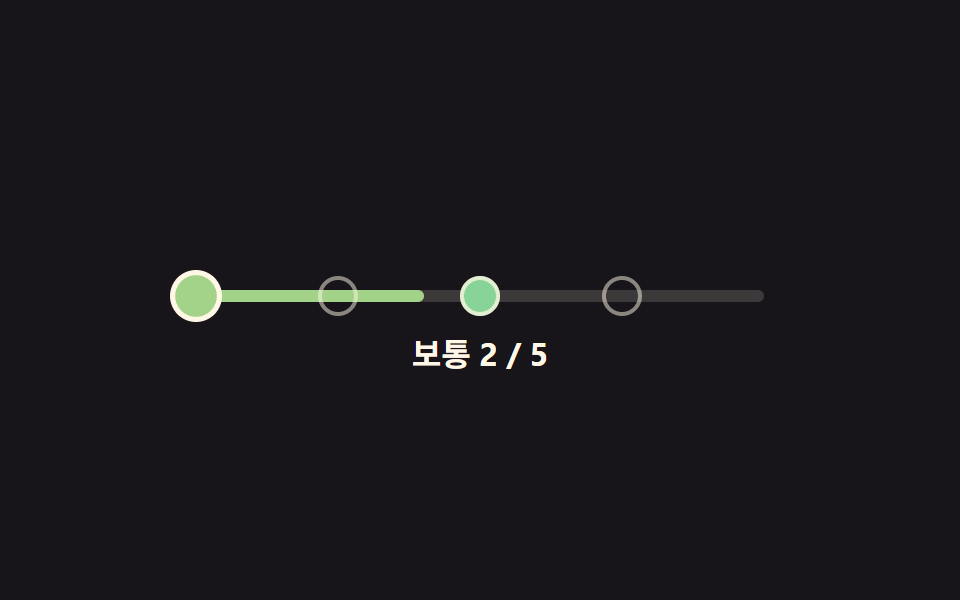 PickersDifficulty Selector UI — 9 Computed Patterns
 Pickers9 Map UI Design Patterns — Click-to-Drop Pickers
 PickersCustom Color Picker: 9 JS Parts, No Library
 PickersCSS Range Slider: 9 Physics-Grade Custom Sliders
 PickersDate Picker UI: 9 Popover & Calendar Patterns
 Pickers9 CSS Tab Panel Transition Patterns to Copy
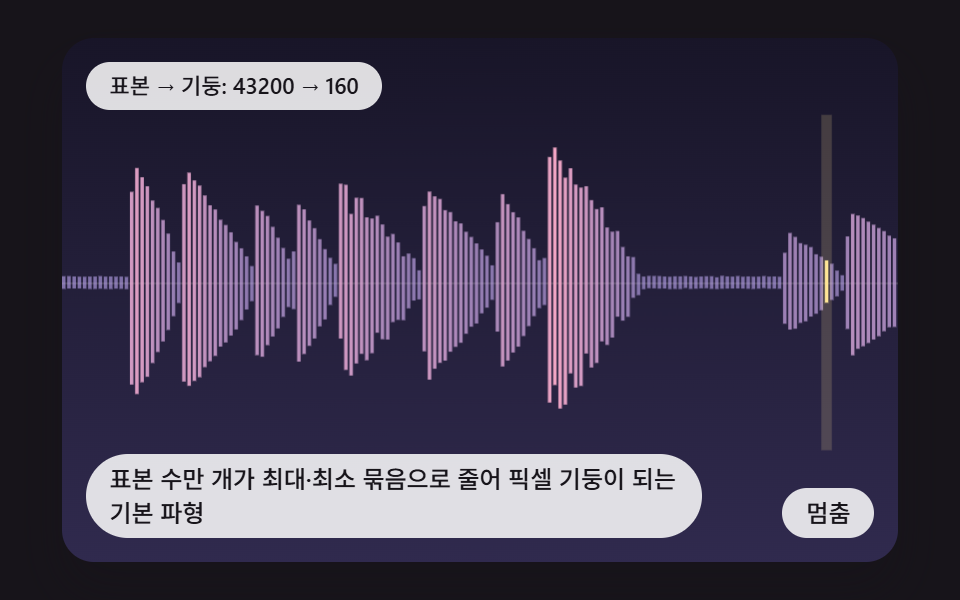 PickersCSS Waveform: 9 Peak Columns and Trim Pickers