CSS Radial Menu: 9 Circular Control Patterns
Nine css radial menu style controls: one decays a dragged angle with inertia, one turns a value into a conic-gradient ring gauge, one snaps to the nearest
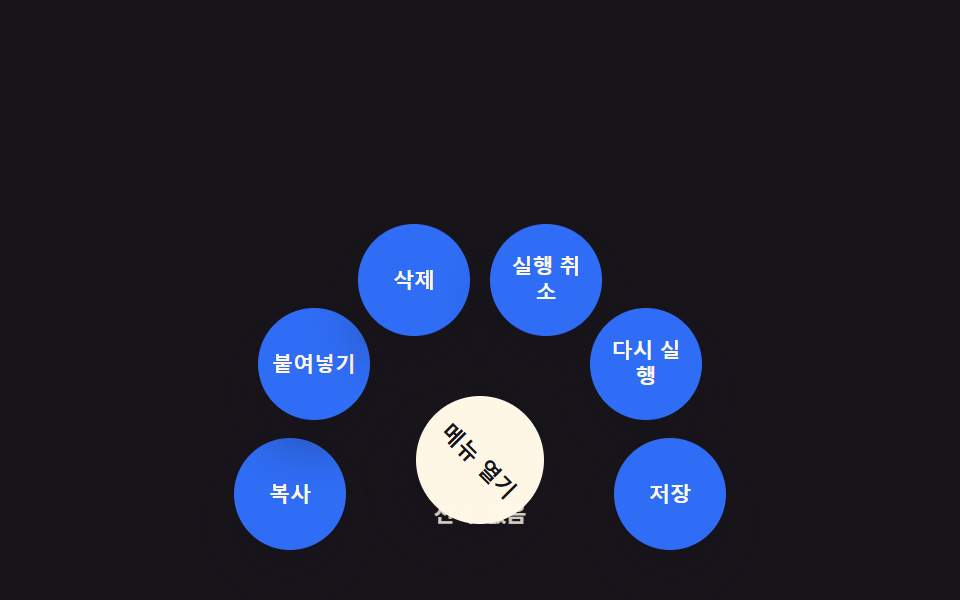 01 arc-radial-menu
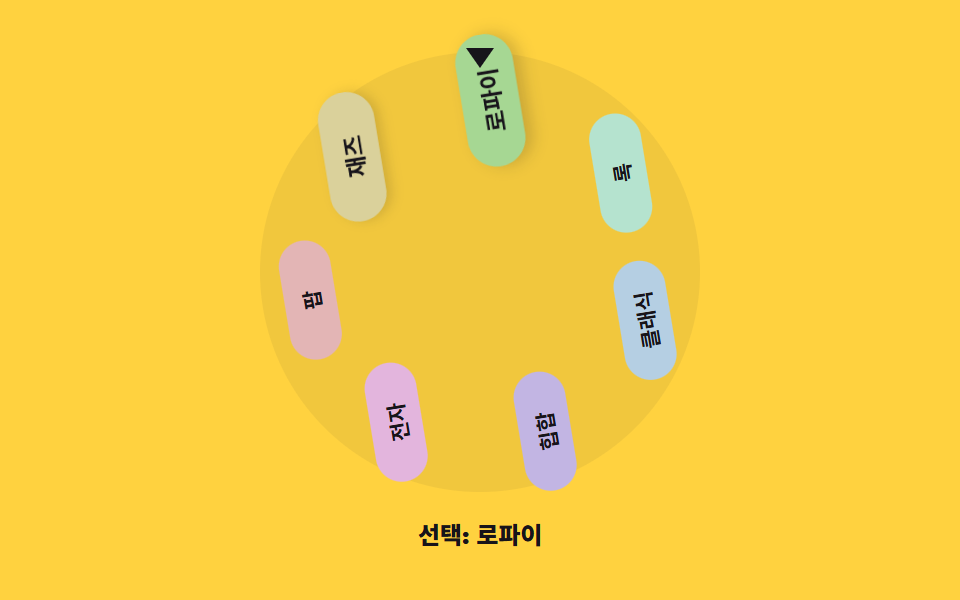 02 arc-genre-wheel
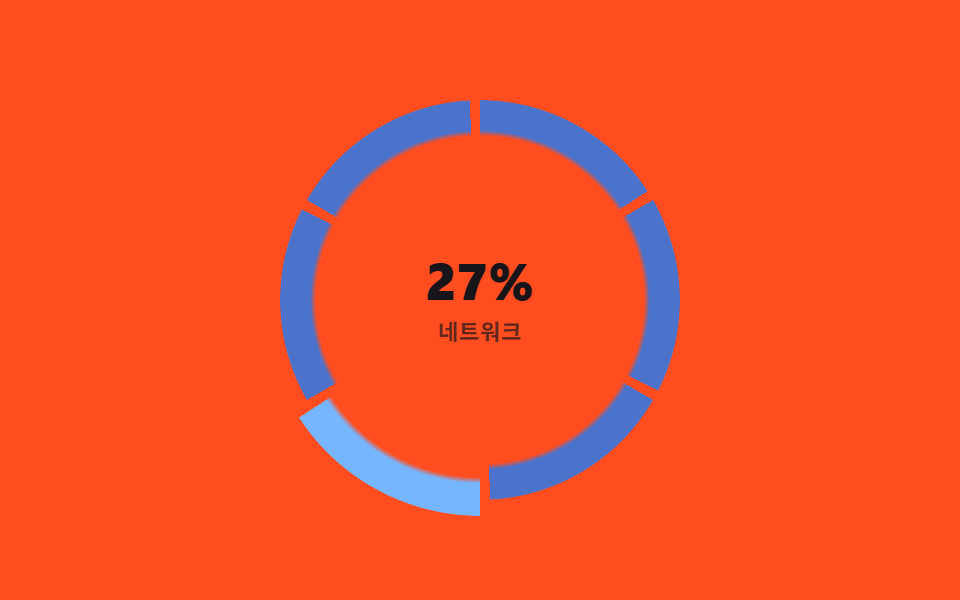 03 arc-segment-hover
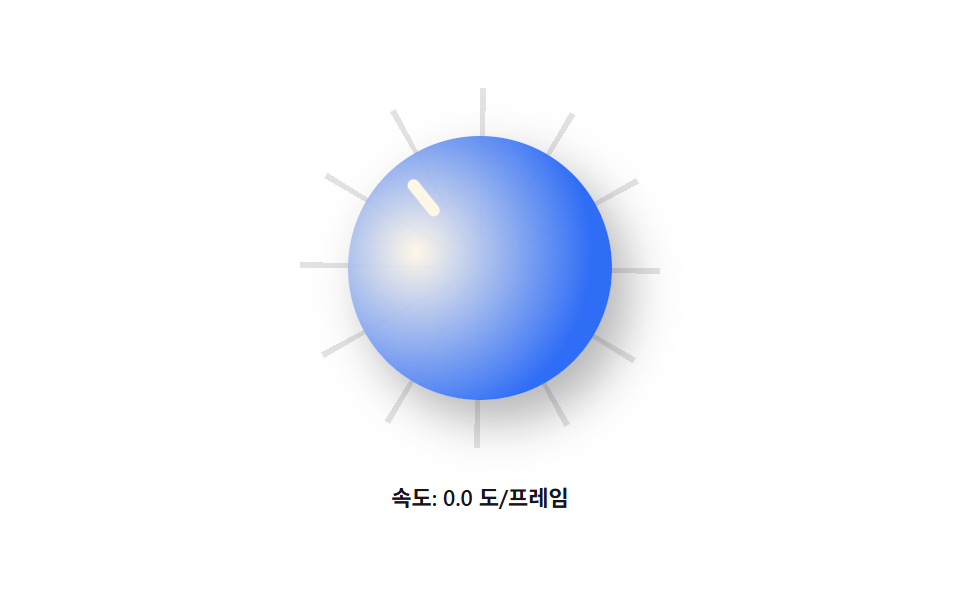 04 arc-drag-rotate
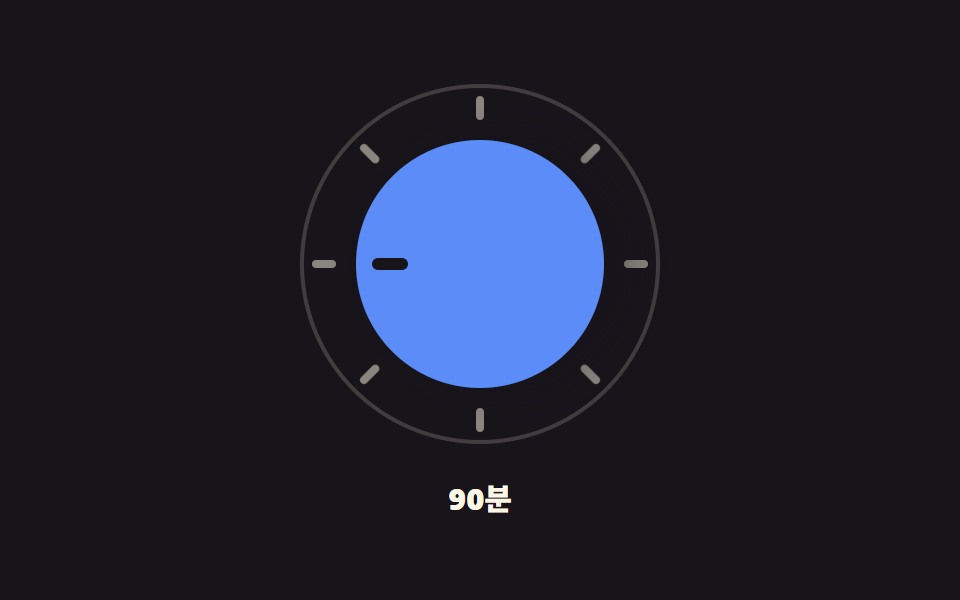 05 arc-snap-select
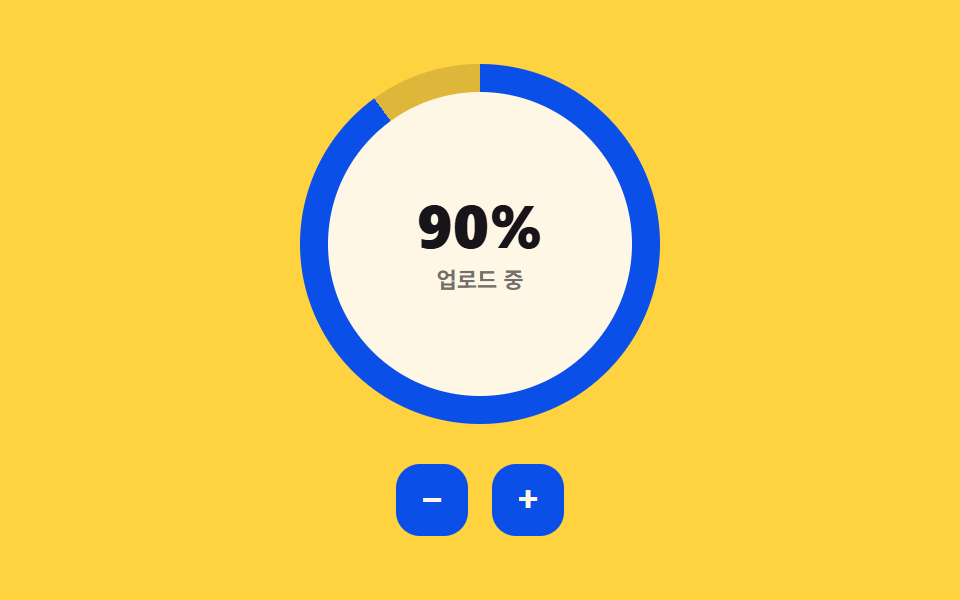 06 arc-conic-progress
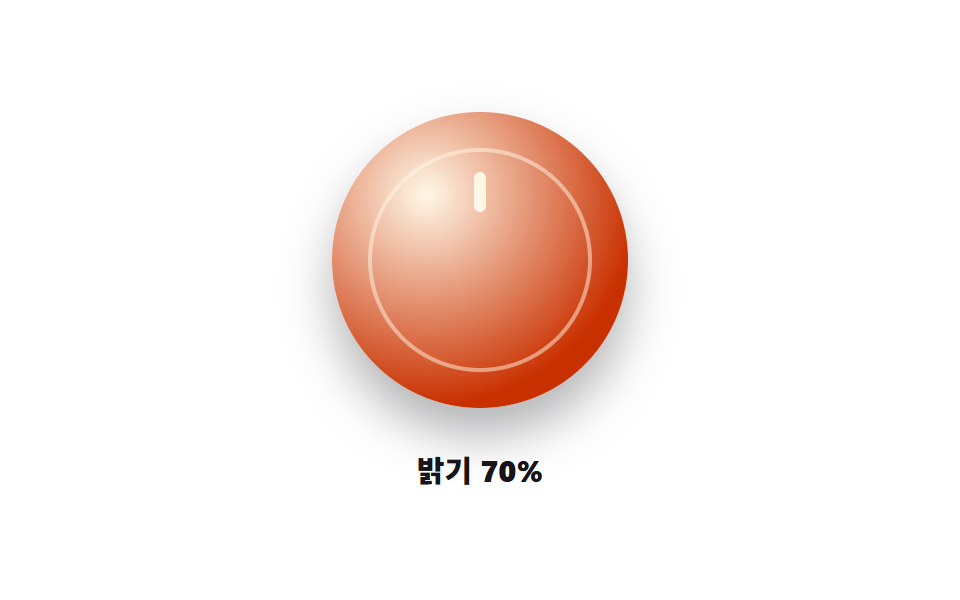 07 arc-knob-dial
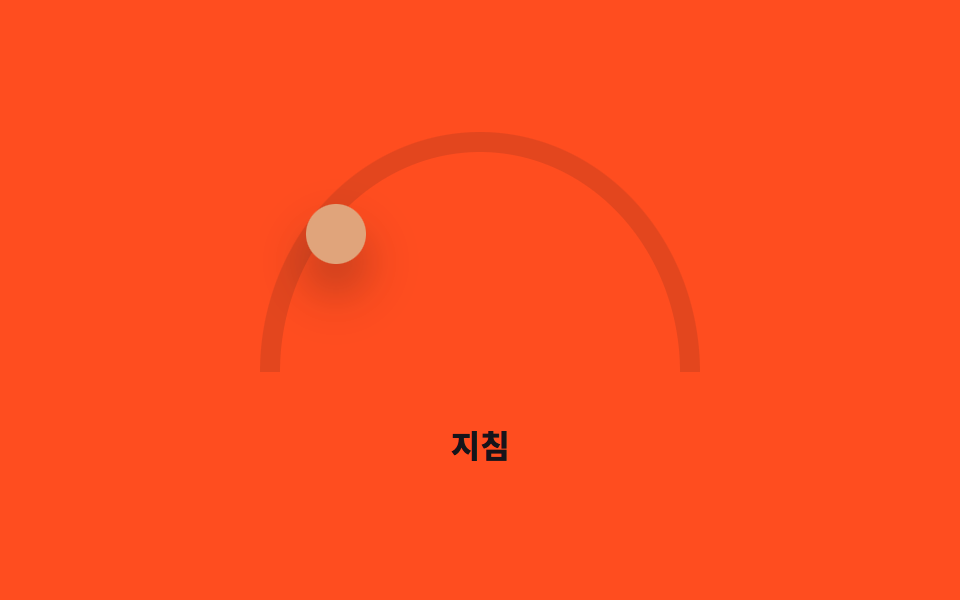 08 arc-mood-slider
 09 arc-keyboard-a11y
Auto-plays · click a tile to jump to its section · all nine in one zip
- 01 Radial menu — a circular menu fanning out from a center point
- 02 Genre wheel — spinning a disc of categories to pick one
- 03 Segment-hover ring — only the arc under the pointer stands out
- 04 Drag-inertia knob — a rotating handle that eases to a stop after release
- 05 Snap-select dial — settling onto the nearest notch with a small snap
- 06 Circular gauge bar — an angle that fills in proportion to a value
- 07 Physical-feel knob — a dial handle that presses and rebounds with weight
- 08 Arc mood slider — a handle traveling a half-circle to set intensity
- 09 Keyboard-driven circular control — arrow keys step the dial for accessibility
Every demo below waits for a real interaction before anything permanent happens: a pointerdown, a click, or an arrow key flips isDemo to false through the same human() guard, and the automatic preview stops for good. Four of the nine — 02, 04, 05, and 08 — call setPointerCapture so a drag keeps tracking even after the pointer leaves the handle, and 09 is driven by the arrow keys, Home, and End alone, with aria-valuenow kept in sync on every change. None of the nine calls Math.random anywhere; every loop step is a fixed formula over elapsed time or a stored angle. All nine read prefers-reduced-motion, but only four of them — 04, 05, 06, and 07 — branch on it again after a real interaction; the other five rest at a fixed preview position only inside the automatic loop, and hand reduced motion for anything a visitor actually does over to a media query in the SCSS.
Anatomy of nine patterns — which calculation moves the control
The table holds three measured values per item: how much of the frame the moving control filled cumulatively, how strong the per-pixel change was on average, and in how many of 23 sampled frames the pixels actually moved.
| Item | Cumulative area | Avg intensity | Moving frames |
|---|---|---|---|
| 01 | 11.25% | 98.5 | 12/23 |
| 02 | 23.78% | 120.2 | 23/23 |
| 03 | 11.20% | 75.6 | 22/23 |
| 04 | 17.07% | 55.4 | 17/23 |
| 05 | 1.66% | 153.9 | 18/23 |
| 06 | 5.93% | 181.2 | 23/23 |
| 07 | 18.51% | 54.2 | 12/23 |
| 08 | 8.37% | 88.8 | 23/23 |
| 09 | 2.96% | 150.8 | 15/23 |
The widest cumulative area belongs to item 02 alone at 23.78%, because spinning the whole genre disc repaints nearly every slot's size and glow each frame as it enlarges whichever label crosses the center. The narrowest is item 05 at 1.66%, since only the thin handle and a short arc redraw while the dial itself stays still between drags. Item 06 crosses the highest intensity in the set at 181.2 — the conic-gradient ring repaints in a hard-edged step every time GAUGE_STEP_DEG rounds to a new angle, unlike a smooth fade — while item 07's 54.2 is the lowest, its spring settling changing the handle's scale by only a few percent per frame. The most moving frames sit with items 02, 06, and 08 at 23 of 23, the fewest with items 01 and 07 at 12 of 23, and that gap mirrors how often each pattern actually has something new to draw rather than resting between steps.
Grouped by what math actually spins the handle, the nine split into four families.
01 — a fixed layout computed once, not a live pointer
Item 01 never reads a pointer position at all: each item's placement is a one-time polar-to-Cartesian conversion — an angle from its index over ARC_SPAN_DEG, then Math.cos and Math.sin times RADIUS — computed once when the menu builds and left untouched by opening or closing.
02 · 03 · 08 — an angle read live from the pointer
Item 02 turns a drag into a rotation value and finds the active slot with a modulo of STEP_DEG; item 03 converts the pointer position to a bearing with atan2 and floors it into one of N segments; item 08 also uses atan2, but clamps the result to a half circle and turns that same 0–1 position into both a coordinate and a hue.
04 · 05 · 07 — physics that keeps moving after release
Item 04 keeps spinning on a velocity that shrinks by DRAG_DECAY every frame until it drops under MIN_VELOCITY; item 05 compares the release angle against the nearest notch and, inside SNAP_THRESHOLD_DEG, eases past it and back with an overshoot curve; item 07 drives a scale value with a spring — force toward the target times SPRING_K, damped by SPRING_DAMP — so the handle presses in and rebounds instead of snapping straight to size.
06 · 09 — a value quantized straight into an angle
Item 06 turns a percentage into degrees and rounds down to the nearest GAUGE_STEP_DEG, filling the ring in visible steps rather than a smooth sweep; item 09 turns a percentage into degrees across RANGE_DEG and moves it only in fixed STEP_DEG increments from the arrow keys, with aria-valuenow announcing the exact number at every step.
Code per pattern
01Radial menu — a circular menu fanning out from a center point
Every item's spot is fixed by a single calculation at build time: the angle spreads item i evenly across ARC_SPAN_DEG (200) centered above the fab, then Math.cos and Math.sin at that angle times RADIUS (96) place it in pixels through the --x and --y custom properties. The fab's click toggles an rm--open class and each item's tabIndex between 0 and -1, and Escape closes the menu the same way a second click does.
What the numbers say
Item 01 sits at the low end of the nine for moving frames, 12 of 23, with an 11.25% cumulative area and 98.5 average intensity — the layout math runs once, so what actually repaints is only the open/close stagger, not a per-frame recalculation.
<main class="stage">
<div class="rm is-demo" id="rm">
  <div class="rm__field" id="rmField">
    <ul class="rm__items" id="rmItems" role="menu" aria-hidden="true"></ul>
    <button class="rm__fab" id="rmFab" type="button" aria-haspopup="true" aria-expanded="false">Open menu</button>
  </div>
  <p class="rm__status" id="rmStatus">Selected: none</p>
</div>
</main>
@use "../../../../site/static/demo-tokens" as *;
// 방사형 메뉴 — 계산 겹은 index.html 의 극좌표→데카르트 변환(cos·sin, ARC_SPAN_DEG·RADIUS)에 있다.
// 여기서는 그 결과(--x·--y, 단위 없는 px 수)를 transform 으로 옮기기만 한다.
// 열림 여부는 .rm--open 클래스 하나 — 항목마다 --stagger 로 늦게 열리게 transition-delay 를 준다.
$duration: $dur-base;
$easing: $ease-spring;
$color: $subject-blue;
@include stage($stage-ink);
.rm { display: flex; flex-direction: column; align-items: center; gap: $sp-3; }
.rm__field {
position: relative;
width: 280px;
height: 200px;
--field-scale: 1;
}
.rm__items {
position: absolute;
left: 50%;
bottom: 6px;
margin: 0;
padding: 0;
list-style: none;
width: 0;
height: 0;
}
.rm__item {
position: absolute;
left: 0;
top: 0;
transform: translate(-50%, -50%)
translate(calc(var(--x) * 1px * var(--field-scale, 1)), calc(var(--y) * 1px * var(--field-scale, 1)))
scale(0);
opacity: 0;
transition: transform $duration $easing, opacity $duration $easing;
transition-delay: 0s;
}
.rm--open .rm__item {
transform: translate(-50%, -50%)
translate(calc(var(--x) * 1px * var(--field-scale, 1)), calc(var(--y) * 1px * var(--field-scale, 1)))
scale(1);
opacity: 1;
transition-delay: calc(var(--stagger, 0) * 28ms);
}
.rm__itemBtn {
appearance: none;
border: none;
width: 56px;
height: 56px;
border-radius: 50%;
background: $color;
color: $subject-cream;
font-weight: 700;
font-size: 10.5px;
line-height: 1.2;
cursor: pointer;
box-shadow: $shadow-raised;
}
.rm__itemBtn:focus-visible { outline: 2px solid $subject-blue-light; outline-offset: 2px; }
.rm__itemBtn:hover { background: $subject-blue-deep; }
.rm__fab {
position: absolute;
left: 50%;
bottom: 6px;
transform: translate(-50%, 50%);
appearance: none;
border: none;
width: 64px;
height: 64px;
border-radius: 50%;
background: $subject-cream;
color: $subject-ink;
font-weight: 800;
font-size: 11px;
cursor: pointer;
box-shadow: $shadow-raised;
transition: transform $dur-instant $ease-out;
}
.rm__fab:hover { transform: translate(-50%, 50%) scale(1.06); }
.rm--open .rm__fab { transform: translate(-50%, 50%) rotate(45deg); }
.rm__fab:focus-visible { outline: 2px solid $subject-blue-light; outline-offset: 3px; }
.rm__status {
margin: 0;
color: $subject-cream;
font-size: 11px;
font-weight: 600;
opacity: .8;
}
@media (max-width: 340px) {
.rm { gap: $sp-1; }
.rm__field { width: 220px; height: 144px; --field-scale: .64; }
.rm__itemBtn { width: 42px; height: 42px; font-size: 9px; }
.rm__fab { width: 48px; height: 48px; font-size: 10px; }
}
@media (prefers-reduced-motion: reduce) {
.rm__item, .rm__fab { transition: none; }
}html, body {
margin: 0;
overflow: hidden;
}
.stage {
box-sizing: border-box;
min-height: 100vh;
display: grid;
place-items: center;
margin: 0;
background: #17141a;
font-family: -apple-system, "Segoe UI", "Noto Sans KR", sans-serif;
padding: clamp(8px, 4vw, 24px);
}
.rm {
display: flex;
flex-direction: column;
align-items: center;
gap: 12px;
}
.rm__field {
position: relative;
width: 280px;
height: 200px;
--field-scale: 1;
}
.rm__items {
position: absolute;
left: 50%;
bottom: 6px;
margin: 0;
padding: 0;
list-style: none;
width: 0;
height: 0;
}
.rm__item {
position: absolute;
left: 0;
top: 0;
transform: translate(-50%, -50%) translate(calc(var(--x) * 1px * var(--field-scale, 1)), calc(var(--y) * 1px * var(--field-scale, 1))) scale(0);
opacity: 0;
transition: transform 300ms cubic-bezier(0.2, 0.8, 0.2, 1), opacity 300ms cubic-bezier(0.2, 0.8, 0.2, 1);
transition-delay: 0s;
}
.rm--open .rm__item {
transform: translate(-50%, -50%) translate(calc(var(--x) * 1px * var(--field-scale, 1)), calc(var(--y) * 1px * var(--field-scale, 1))) scale(1);
opacity: 1;
transition-delay: calc(var(--stagger, 0) * 28ms);
}
.rm__itemBtn {
appearance: none;
border: none;
width: 56px;
height: 56px;
border-radius: 50%;
background: #2f6df6;
color: #fff7e6;
font-weight: 700;
font-size: 10.5px;
line-height: 1.2;
cursor: pointer;
box-shadow: 0 14px 24px rgba(23, 20, 26, 0.32);
}
.rm__itemBtn:focus-visible {
outline: 2px solid #5b8cf8;
outline-offset: 2px;
}
.rm__itemBtn:hover {
background: #0a4fe8;
}
.rm__fab {
position: absolute;
left: 50%;
bottom: 6px;
transform: translate(-50%, 50%);
appearance: none;
border: none;
width: 64px;
height: 64px;
border-radius: 50%;
background: #fff7e6;
color: #17141a;
font-weight: 800;
font-size: 11px;
cursor: pointer;
box-shadow: 0 14px 24px rgba(23, 20, 26, 0.32);
transition: transform 140ms ease-out;
}
.rm__fab:hover {
transform: translate(-50%, 50%) scale(1.06);
}
.rm--open .rm__fab {
transform: translate(-50%, 50%) rotate(45deg);
}
.rm__fab:focus-visible {
outline: 2px solid #5b8cf8;
outline-offset: 3px;
}
.rm__status {
margin: 0;
color: #fff7e6;
font-size: 11px;
font-weight: 600;
opacity: 0.8;
}
@media (max-width: 340px) {
.rm {
gap: 4px;
}
.rm__field {
width: 220px;
height: 144px;
--field-scale: .64;
}
.rm__itemBtn {
width: 42px;
height: 42px;
font-size: 9px;
}
.rm__fab {
width: 48px;
height: 48px;
font-size: 10px;
}
}
@media (prefers-reduced-motion: reduce) {
.rm__item, .rm__fab {
transition: none;
}
}(function () {
var ACTIONS = ['Copy', 'Paste', 'Delete', 'Undo', 'Redo', 'Save'];
var ARC_SPAN_DEG = 200; // 부채꼴이 펼쳐지는 총 각도
var RADIUS = 96; // 중심에서 항목까지 거리(px)
var LOOP_MS = 2000; // 블로그설정.json 데모.초 와 같다
var reduce = window.matchMedia('(prefers-reduced-motion: reduce)').matches;
var root = document.getElementById('rm');
var field = document.getElementById('rmField');
var list = document.getElementById('rmItems');
var fab = document.getElementById('rmFab');
var status = document.getElementById('rmStatus');
var isDemo = true;
var open = false;
// 계산 겹: 극좌표 → 데카르트 좌표. 항목 i 는 위쪽(-90도)을 중심으로 ARC_SPAN_DEG 를 균등 분할한
// 각도에서 RADIUS 만큼 떨어진 자리를 차지한다. 이 좌표는 열림 여부와 무관하게 한 번만 계산한다.
var items = ACTIONS.map(function (label, i) {
var li = document.createElement('li');
li.className = 'rm__item';
li.setAttribute('role', 'none');
var btn = document.createElement('button');
btn.type = 'button';
btn.className = 'rm__itemBtn';
btn.setAttribute('role', 'menuitem');
btn.tabIndex = -1;
btn.textContent = label;
var angleDeg = -90 - ARC_SPAN_DEG / 2 + i * (ARC_SPAN_DEG / (ACTIONS.length - 1));
var rad = angleDeg * Math.PI / 180;
var x = Math.round(Math.cos(rad) * RADIUS);
var y = Math.round(Math.sin(rad) * RADIUS);
li.style.setProperty('--x', x);
li.style.setProperty('--y', y);
li.style.setProperty('--stagger', i);
li.appendChild(btn);
list.appendChild(li);
btn.addEventListener('click', function () {
human();
status.textContent = 'Selected: ' + label;
setOpen(false);
});
return { li: li, btn: btn, label: label };
});
function human() { if (isDemo) { root.classList.remove('is-demo'); isDemo = false; } }
function setOpen(next) {
open = next;
root.classList.toggle('rm--open', open);
fab.setAttribute('aria-expanded', String(open));
list.setAttribute('aria-hidden', String(!open));
items.forEach(function (it) { it.btn.tabIndex = open ? 0 : -1; });
}
fab.addEventListener('click', function () { human(); setOpen(!open); });
document.addEventListener('keydown', function (e) {
if (e.key === 'Escape' && open) { human(); setOpen(false); fab.focus({ preventScroll: true }); }
});
// 자동 루프: 열림 구간(0.12~0.62)에서 항목마다 --stagger 만큼 늦게 열리고, 그 뒤 닫힌다
function loop(ts) {
if (isDemo && !reduce) {
var phase = (ts % LOOP_MS) / LOOP_MS;
var shouldOpen = phase > 0.12 && phase < 0.62;
if (shouldOpen !== open) { open = shouldOpen; root.classList.toggle('rm--open', open); }
} else if (reduce && isDemo) {
root.classList.add('rm--open');
}
requestAnimationFrame(loop);
}
requestAnimationFrame(loop);
})();// RadialMenu — vanilla 판(run/374/demo/01-arc-radial-menu/index.html) 의 React 포트.
// 계산 겹은 각 항목의 극좌표 배치(각도→x,y)에 있다 — 부채꼴로 펼친 각도를 라디안으로 바꿔 cos/sin 으로 좌표를 구한다.
import { useEffect, useRef, useState } from "react";
import styles from "./RadialMenu.module.scss";
type Box<T> = { current: T };
const ACTIONS = ["복사", "붙여넣기", "삭제", "실행 취소", "다시 실행", "저장"];
const ARC_SPAN_DEG = 200;
const RADIUS = 96;
const LOOP_MS = 2000;
export default function RadialMenu() {
const rootRef = useRef(null) as unknown as Box<HTMLDivElement>;
const listRef = useRef(null) as unknown as Box<HTMLUListElement>;
const fabRef = useRef(null) as unknown as Box<HTMLButtonElement>;
const rafRef = useRef(0) as unknown as Box<number>;
const [status, setStatus] = useState("선택: 없음");
const [open, setOpenState] = useState(false);
useEffect(() => {
const reduce = window.matchMedia("(prefers-reduced-motion: reduce)").matches;
const root = rootRef.current;
const list = listRef.current;
const fab = fabRef.current;
if (!root || !list || !fab) return;
let isDemo = true;
let open = false;
const buttons: HTMLButtonElement[] = Array.prototype.slice.call(list.querySelectorAll("button"));
const items: HTMLLIElement[] = Array.prototype.slice.call(list.querySelectorAll("li"));
items.forEach(function (li, i) {
const angleDeg = -90 - ARC_SPAN_DEG / 2 + i * (ARC_SPAN_DEG / (ACTIONS.length - 1));
const rad = (angleDeg * Math.PI) / 180;
const x = Math.round(Math.cos(rad) * RADIUS);
const y = Math.round(Math.sin(rad) * RADIUS);
li.style.setProperty("--x", String(x));
li.style.setProperty("--y", String(y));
li.style.setProperty("--stagger", String(i));
});
function human() { if (isDemo) { root!.classList.remove(styles.isDemo); isDemo = false; } }
function setOpen(next: boolean) {
open = next;
root!.classList.toggle(styles.rmOpen, open);
fab!.setAttribute("aria-expanded", String(open));
list!.setAttribute("aria-hidden", String(!open));
buttons.forEach(function (b) { b.tabIndex = open ? 0 : -1; });
setOpenState(open);
}
function onFabClick() { human(); setOpen(!open); }
fab.addEventListener("click", onFabClick);
const onItemClicks: Array<() => void> = [];
buttons.forEach(function (btn, i) {
const handler = function () {
human();
setStatus("선택: " + ACTIONS[i]);
setOpen(false);
};
onItemClicks.push(handler);
btn.addEventListener("click", handler);
});
function onKeydown(e: KeyboardEvent) {
if (e.key === "Escape" && open) { human(); setOpen(false); fab!.focus({ preventScroll: true }); }
}
document.addEventListener("keydown", onKeydown);
function loop(ts: number) {
if (isDemo && !reduce) {
const phase = (ts % LOOP_MS) / LOOP_MS;
const shouldOpen = phase > 0.12 && phase < 0.62;
if (shouldOpen !== open) { open = shouldOpen; root!.classList.toggle(styles.rmOpen, open); setOpenState(open); }
} else if (reduce && isDemo) {
root!.classList.add(styles.rmOpen);
}
rafRef.current = requestAnimationFrame(loop);
}
rafRef.current = requestAnimationFrame(loop);
return () => {
fab.removeEventListener("click", onFabClick);
buttons.forEach(function (btn, i) { btn.removeEventListener("click", onItemClicks[i]); });
document.removeEventListener("keydown", onKeydown);
cancelAnimationFrame(rafRef.current);
};
}, []);
return (
<main className={styles.stage}>
<div className={styles.rm + " " + styles.isDemo} ref={rootRef}>
<div className={styles.field}>
<ul className={styles.items} ref={listRef} role="menu" aria-hidden="true">
{ACTIONS.map(function (label) {
return (
<li key={label} className={styles.item} role="none">
<button className={styles.itemBtn} type="button" role="menuitem" tabIndex={-1}>{label}</button>
</li>
);
})}
</ul>
<button className={styles.fab} ref={fabRef} type="button" aria-haspopup="true" aria-expanded={open}>메뉴 열기</button>
</div>
<p className={styles.status}>{status}</p>
</div>
</main>
);
}01 · Radial menu — a circular menu fanning out from a center point — Measured area 11.25% · moving frames 12/23Original by GODRICH · SCSS and React ship in the zip · See the password
  // Calculation layer: polar to Cartesian. Item i's slot sits centered on the top (-90deg), evenly split across ARC_SPAN_DEG
  // at that angle, RADIUS px out from the center. This coordinate is computed once, regardless of open state.
  var items = ACTIONS.map(function (label, i) {
    var li = document.createElement('li');
    li.className = 'rm__item';
    li.setAttribute('role', 'none');
    var btn = document.createElement('button');
    btn.type = 'button';
    btn.className = 'rm__itemBtn';
    btn.setAttribute('role', 'menuitem');
    btn.tabIndex = -1;
    btn.textContent = label;
    var angleDeg = -90 - ARC_SPAN_DEG / 2 + i * (ARC_SPAN_DEG / (ACTIONS.length - 1));
    var rad = angleDeg * Math.PI / 180;
    var x = Math.round(Math.cos(rad) * RADIUS);
    var y = Math.round(Math.sin(rad) * RADIUS);
    li.style.setProperty('--x', x);
    li.style.setProperty('--y', y);
    li.style.setProperty('--stagger', i);
02Genre wheel — spinning a disc of categories to pick one
Dragging rotates the whole disc by the pointer's angle delta, and activeIndex() finds which slot last crossed the center by taking the negated rotation modulo 360 and dividing it by STEP_DEG. Every apply() call updates the picked label to the active genre's name, whether a drag or the automatic loop moved the disc.
What the numbers say
Item 02 has both the widest cumulative area in the set, 23.78%, and ties for the most moving frames at 23 of 23, since spinning the disc constantly changes which slot is enlarged and repaints the ring's rotation every frame.
<main class="stage">
<div class="gw is-demo" id="gw">
  <div class="gw__wheel" id="gwWheel" tabindex="0" role="listbox" aria-label="Genre picker wheel">
    <ul class="gw__ring" id="gwRing"></ul>
  </div>
  <div class="gw__pointer" aria-hidden="true"></div>
  <p class="gw__picked" id="gwPicked">Selected: Pop</p>
</div>
</main>
@use "../../../../site/static/demo-tokens" as *;
// 장르 선택 휠 — 계산 겹은 index.html 의 두 곳: ① 회전각을 STEP_DEG(360/7)로 나눈 나머지로
// "지금 중앙을 지나는 인덱스"를 구하는 나머지 연산 ② 인덱스를 색상환 각도로 그대로 쓰는 색상 각도 매핑(--hue).
// 슬롯 하나의 배치 각도(51.4286deg = 360/7)는 항목 수가 고정이라 SCSS 에 그대로 적는다.
$duration: $dur-quick;
$easing: $ease-spring;
$color: $subject-ink;
@include stage($stage-yellow);
.gw { position: relative; display: flex; flex-direction: column; align-items: center; gap: $sp-3; }
.gw__wheel {
position: relative;
width: 220px;
height: 220px;
border-radius: 50%;
background: rgba($subject-ink, .06);
touch-action: none;
cursor: grab;
}
.gw__wheel:active { cursor: grabbing; }
.gw__wheel:focus-visible { outline: 2px solid $subject-ink; outline-offset: 3px; }
.gw__ring {
position: absolute;
inset: 0;
margin: 0;
padding: 0;
list-style: none;
transform: rotate(calc(var(--rotation, 0) * 1deg));
}
.gw__slot {
position: absolute;
left: 50%;
top: 50%;
width: 60px;
height: 26px;
margin-left: -30px;
margin-top: -13px;
display: flex;
align-items: center;
justify-content: center;
border-radius: $r-pill;
font-weight: 700;
font-size: 10.5px;
color: $subject-ink;
background: hsl(calc(var(--hue, 0) * 1deg) 46% 80%);
transform: rotate(calc(var(--i, 0) * 51.4286deg)) translateY(-86px) rotate(calc(var(--i, 0) * -51.4286deg));
transition: transform $duration $easing, background-color $duration $easing, box-shadow $duration $easing;
}
.gw__slot--active {
background: hsl(calc(var(--hue, 0) * 1deg) 46% 64%);
box-shadow: $shadow-press;
transform: rotate(calc(var(--i, 0) * 51.4286deg)) translateY(-86px) rotate(calc(var(--i, 0) * -51.4286deg)) scale(1.2);
}
.gw__pointer {
position: absolute;
top: -2px;
left: 50%;
width: 0;
height: 0;
transform: translateX(-50%);
border-left: 7px solid transparent;
border-right: 7px solid transparent;
border-top: 10px solid $subject-ink;
}
.gw__picked {
margin: 0;
color: $subject-ink;
font-weight: 800;
font-size: 12px;
}
@media (max-width: 340px) {
.gw { gap: $sp-1; }
.gw__wheel { width: 148px; height: 148px; }
.gw__slot { width: 44px; height: 20px; margin-left: -22px; margin-top: -10px; font-size: 8.5px;
transform: rotate(calc(var(--i, 0) * 51.4286deg)) translateY(-58px) rotate(calc(var(--i, 0) * -51.4286deg)); }
.gw__slot--active { transform: rotate(calc(var(--i, 0) * 51.4286deg)) translateY(-58px) rotate(calc(var(--i, 0) * -51.4286deg)) scale(1.2); }
}
@media (prefers-reduced-motion: reduce) {
.gw__ring, .gw__slot { transition: none; }
}html, body {
margin: 0;
overflow: hidden;
}
.stage {
box-sizing: border-box;
min-height: 100vh;
display: grid;
place-items: center;
margin: 0;
background: #ffd23f;
font-family: -apple-system, "Segoe UI", "Noto Sans KR", sans-serif;
padding: clamp(8px, 4vw, 24px);
}
.gw {
position: relative;
display: flex;
flex-direction: column;
align-items: center;
gap: 12px;
}
.gw__wheel {
position: relative;
width: 220px;
height: 220px;
border-radius: 50%;
background: rgba(23, 20, 26, 0.06);
touch-action: none;
cursor: grab;
}
.gw__wheel:active {
cursor: grabbing;
}
.gw__wheel:focus-visible {
outline: 2px solid #17141a;
outline-offset: 3px;
}
.gw__ring {
position: absolute;
inset: 0;
margin: 0;
padding: 0;
list-style: none;
transform: rotate(calc(var(--rotation, 0) * 1deg));
}
.gw__slot {
position: absolute;
left: 50%;
top: 50%;
width: 60px;
height: 26px;
margin-left: -30px;
margin-top: -13px;
display: flex;
align-items: center;
justify-content: center;
border-radius: 999px;
font-weight: 700;
font-size: 10.5px;
color: #17141a;
background: hsl(calc(var(--hue, 0) * 1deg), 46%, 80%);
transform: rotate(calc(var(--i, 0) * 51.4286deg)) translateY(-86px) rotate(calc(var(--i, 0) * -51.4286deg));
transition: transform 220ms cubic-bezier(0.2, 0.8, 0.2, 1), background-color 220ms cubic-bezier(0.2, 0.8, 0.2, 1), box-shadow 220ms cubic-bezier(0.2, 0.8, 0.2, 1);
}
.gw__slot--active {
background: hsl(calc(var(--hue, 0) * 1deg), 46%, 64%);
box-shadow: 0 6px 12px rgba(23, 20, 26, 0.32);
transform: rotate(calc(var(--i, 0) * 51.4286deg)) translateY(-86px) rotate(calc(var(--i, 0) * -51.4286deg)) scale(1.2);
}
.gw__pointer {
position: absolute;
top: -2px;
left: 50%;
width: 0;
height: 0;
transform: translateX(-50%);
border-left: 7px solid transparent;
border-right: 7px solid transparent;
border-top: 10px solid #17141a;
}
.gw__picked {
margin: 0;
color: #17141a;
font-weight: 800;
font-size: 12px;
}
@media (max-width: 340px) {
.gw {
gap: 4px;
}
.gw__wheel {
width: 148px;
height: 148px;
}
.gw__slot {
width: 44px;
height: 20px;
margin-left: -22px;
margin-top: -10px;
font-size: 8.5px;
transform: rotate(calc(var(--i, 0) * 51.4286deg)) translateY(-58px) rotate(calc(var(--i, 0) * -51.4286deg));
}
.gw__slot--active {
transform: rotate(calc(var(--i, 0) * 51.4286deg)) translateY(-58px) rotate(calc(var(--i, 0) * -51.4286deg)) scale(1.2);
}
}
@media (prefers-reduced-motion: reduce) {
.gw__ring, .gw__slot {
transition: none;
}
}(function () {
var GENRES = ['Pop', 'Jazz', 'Lo-fi', 'Rock', 'Classical', 'Hip-hop', 'Electronic'];
var N = GENRES.length;
var STEP_DEG = 360 / N; // 장르 하나가 차지하는 각도
var HUE_STEP_DEG = 360 / N; // 색상 각도 매핑 — 장르 인덱스를 색상환 각도로 그대로 쓴다
var LOOP_MS = 2000;
var reduce = window.matchMedia('(prefers-reduced-motion: reduce)').matches;
var root = document.getElementById('gw');
var wheel = document.getElementById('gwWheel');
var ring = document.getElementById('gwRing');
var picked = document.getElementById('gwPicked');
var isDemo = true;
var rotation = 0; // 원판이 돌아간 각도
var dragging = false;
var startX = 0, startRotation = 0;
var lis = GENRES.map(function (g, i) {
var li = document.createElement('li');
li.className = 'gw__slot';
li.textContent = g;
li.style.setProperty('--i', i);
// 계산 겹: 색상 각도 매핑. 채도·명도는 토큰 범위 안에서 고정하고 색상각만 인덱스로 돈다.
li.style.setProperty('--hue', i * HUE_STEP_DEG);
ring.appendChild(li);
return li;
});
function human() { if (isDemo) { root.classList.remove('is-demo'); isDemo = false; } }
// 계산 겹: 회전각을 STEP_DEG 로 나눈 나머지로 "지금 중앙을 지나는 인덱스"를 구한다.
function activeIndex() {
var norm = ((-rotation % 360) + 360) % 360;
return Math.round(norm / STEP_DEG) % N;
}
function apply() {
ring.style.setProperty('--rotation', rotation);
var idx = activeIndex();
lis.forEach(function (li, i) { li.classList.toggle('gw__slot--active', i === idx); });
picked.textContent = 'Selected: ' + GENRES[idx];
}
wheel.addEventListener('pointerdown', function (e) {
human();
dragging = true;
startX = e.clientX;
startRotation = rotation;
wheel.setPointerCapture(e.pointerId);
});
wheel.addEventListener('pointermove', function (e) {
if (!dragging) return;
rotation = startRotation + (e.clientX - startX) * 0.6;
apply();
});
wheel.addEventListener('pointerup', function () {
dragging = false;
// 계산 겹: 놓은 각도를 가장 가까운 STEP_DEG 배수로 붙여 항상 한 장르가 정중앙에 오게 한다.
rotation = Math.round(rotation / STEP_DEG) * STEP_DEG;
apply();
});
wheel.addEventListener('keydown', function (e) {
if (e.key === 'ArrowRight' || e.key === 'ArrowDown') { human(); rotation -= STEP_DEG; apply(); e.preventDefault(); }
else if (e.key === 'ArrowLeft' || e.key === 'ArrowUp') { human(); rotation += STEP_DEG; apply(); e.preventDefault(); }
});
function loop(ts) {
if (isDemo) {
if (!reduce) {
var phase = (ts % LOOP_MS) / LOOP_MS;
rotation = -phase * 360 * 2; // 두 바퀴를 도는 연속 회전
} else {
rotation = 0;
}
apply();
}
requestAnimationFrame(loop);
}
apply();
requestAnimationFrame(loop);
})();// GenreWheel — vanilla 판(run/374/demo/02-arc-genre-wheel/index.html) 의 React 포트.
// 계산 겹 ① 회전각을 STEP_DEG(360/7) 로 나눈 나머지로 "지금 중앙을 지나는 인덱스"를 구한다
// ② 인덱스를 색상환 각도로 그대로 쓰는 색상 각도 매핑(hsl, hex 리터럴 없음).
import { useEffect, useRef, useState } from "react";
import styles from "./GenreWheel.module.scss";
type Box<T> = { current: T };
const GENRES = ["팝", "재즈", "로파이", "록", "클래식", "힙합", "전자"];
const N = GENRES.length;
const STEP_DEG = 360 / N;
const HUE_STEP_DEG = 360 / N;
const LOOP_MS = 2000;
export default function GenreWheel() {
const rootRef = useRef(null) as unknown as Box<HTMLDivElement>;
const wheelRef = useRef(null) as unknown as Box<HTMLDivElement>;
const ringRef = useRef(null) as unknown as Box<HTMLUListElement>;
const rafRef = useRef(0) as unknown as Box<number>;
const [picked, setPicked] = useState(GENRES[0]);
useEffect(() => {
const reduce = window.matchMedia("(prefers-reduced-motion: reduce)").matches;
const root = rootRef.current;
const wheel = wheelRef.current;
const ring = ringRef.current;
if (!root || !wheel || !ring) return;
const lis: HTMLLIElement[] = Array.prototype.slice.call(ring.querySelectorAll("li"));
lis.forEach(function (li, i) { li.style.setProperty("--hue", String(i * HUE_STEP_DEG)); });
let isDemo = true;
let rotation = 0;
let dragging = false;
let startX = 0;
let startRotation = 0;
function human() { if (isDemo) { root!.classList.remove(styles.isDemo); isDemo = false; } }
function activeIndex() {
const norm = (((-rotation) % 360) + 360) % 360;
return Math.round(norm / STEP_DEG) % N;
}
function apply() {
ring!.style.setProperty("--rotation", String(rotation));
const idx = activeIndex();
lis.forEach(function (li, i) { li.classList.toggle(styles.slotActive, i === idx); });
setPicked(GENRES[idx]);
}
function onPointerDown(e: PointerEvent) {
human();
dragging = true;
startX = e.clientX;
startRotation = rotation;
wheel!.setPointerCapture(e.pointerId);
}
function onPointerMove(e: PointerEvent) {
if (!dragging) return;
rotation = startRotation + (e.clientX - startX) * 0.6;
apply();
}
function onPointerUp() {
dragging = false;
rotation = Math.round(rotation / STEP_DEG) * STEP_DEG;
apply();
}
function onKeydown(e: KeyboardEvent) {
if (e.key === "ArrowRight" || e.key === "ArrowDown") { human(); rotation -= STEP_DEG; apply(); e.preventDefault(); }
else if (e.key === "ArrowLeft" || e.key === "ArrowUp") { human(); rotation += STEP_DEG; apply(); e.preventDefault(); }
}
wheel.addEventListener("pointerdown", onPointerDown);
wheel.addEventListener("pointermove", onPointerMove);
wheel.addEventListener("pointerup", onPointerUp);
wheel.addEventListener("keydown", onKeydown);
function loop(ts: number) {
if (isDemo) {
if (!reduce) {
const phase = (ts % LOOP_MS) / LOOP_MS;
rotation = -phase * 360 * 2;
} else {
rotation = 0;
}
apply();
}
rafRef.current = requestAnimationFrame(loop);
}
apply();
rafRef.current = requestAnimationFrame(loop);
return () => {
wheel.removeEventListener("pointerdown", onPointerDown);
wheel.removeEventListener("pointermove", onPointerMove);
wheel.removeEventListener("pointerup", onPointerUp);
wheel.removeEventListener("keydown", onKeydown);
cancelAnimationFrame(rafRef.current);
};
}, []);
return (
<main className={styles.stage}>
<div className={styles.gw + " " + styles.isDemo} ref={rootRef}>
<div className={styles.wheel} ref={wheelRef} tabIndex={0} role="listbox" aria-label="장르 선택 휠">
<ul className={styles.ring} ref={ringRef}>
{GENRES.map(function (g, i) {
return <li key={g} className={styles.slot} style={{ ["--i" as string]: i }}>{g}</li>;
})}
</ul>
</div>
<div className={styles.pointer} aria-hidden="true" />
<p className={styles.picked}>선택: {picked}</p>
</div>
</main>
);
}02 · Genre wheel — spinning a disc of categories to pick one — Measured area 23.781% · moving frames 23/23Original by GODRICH · SCSS and React ship in the zip · See the password
  // Calculation layer: the rotation angle modulo STEP_DEG gives "the index currently passing the center."
  function activeIndex() {
    var norm = ((-rotation % 360) + 360) % 360;
    return Math.round(norm / STEP_DEG) % N;
  }

  function apply() {
    ring.style.setProperty('--rotation', rotation);
    var idx = activeIndex();
    lis.forEach(function (li, i) { li.classList.toggle('gw__slot--active', i === idx); });
    picked.textContent = 'Selected: ' + GENRES[idx];
  }
03Segment-hover ring — only the arc under the pointer stands out
angleAt() converts the pointer position to a bearing with atan2, shifted so 12 o'clock reads as zero, and segmentIndexAt() floors that angle by 360/N to find which of the N segments the pointer sits over. Only that one segment's thickness and brightness change through a single active class, and moving the pointer away clears it.
What the numbers say
Item 03 ties near the top for moving frames at 22 of 23 with a 75.6 average intensity and an 11.20% cumulative area — nearly the same footprint as item 01 despite tracking the pointer continuously rather than computing once.
<main class="stage">
<div class="sh is-demo" id="sh">
  <div class="sh__ring" id="shRing">
    <div class="sh__center">
      <b class="sh__pct" id="shPct">0%</b>
      <span class="sh__label" id="shLabel">CPU</span>
    </div>
  </div>
</div>
</main>
@use "../../../../site/static/demo-tokens" as *;
// 구간 호버 링 — 계산 겹은 index.html 의 atan2 각도 계산과 360/N 구간 판정(segmentIndexAt)에 있다.
// 여기서는 구간마다 conic-gradient 로 자기 몫의 호만 칠하고 mask-image 로 도넛 모양을 낸 뒤,
// 활성 구간만 scale·filter 로 두께·밝기를 바꾼다.
$duration: $dur-quick;
$easing: $ease-spring;
$color: $subject-blue-light;
@include stage($stage-orange);
.sh { display: flex; align-items: center; justify-content: center; }
.sh__ring {
position: relative;
width: 200px;
height: 200px;
display: grid;
place-items: center;
touch-action: none;
}
.sh__seg {
position: absolute;
inset: 0;
border-radius: 50%;
background: conic-gradient(from calc(var(--start, 0) * 1deg),
$color 0deg calc(var(--span, 0) * 1deg), transparent calc(var(--span, 0) * 1deg) 360deg);
mask-image: radial-gradient(circle, transparent 58%, black 60%, black 84%, transparent 86%);
-webkit-mask-image: radial-gradient(circle, transparent 58%, black 60%, black 84%, transparent 86%);
transform: scale(1);
filter: brightness(.82);
transition: transform $duration $easing, filter $duration $easing;
}
.sh__seg--active {
transform: scale(1.08);
filter: brightness(1.3);
}
.sh__center {
display: flex;
flex-direction: column;
align-items: center;
gap: 4px;
pointer-events: none;
}
.sh__pct { font-size: 26px; font-weight: 800; color: $subject-ink; line-height: 1; }
.sh__label { font-size: 11px; font-weight: 700; color: rgba($subject-ink, .68); letter-spacing: .04em; }
@media (max-width: 340px) {
.sh__ring { width: 150px; height: 150px; }
.sh__pct { font-size: 20px; }
.sh__label { font-size: 9px; }
}
@media (prefers-reduced-motion: reduce) {
.sh__seg { transition: none; }
}html, body {
margin: 0;
overflow: hidden;
}
.stage {
box-sizing: border-box;
min-height: 100vh;
display: grid;
place-items: center;
margin: 0;
background: #ff4d1f;
font-family: -apple-system, "Segoe UI", "Noto Sans KR", sans-serif;
padding: clamp(8px, 4vw, 24px);
}
.sh {
display: flex;
align-items: center;
justify-content: center;
}
.sh__ring {
position: relative;
width: 200px;
height: 200px;
display: grid;
place-items: center;
touch-action: none;
}
.sh__seg {
position: absolute;
inset: 0;
border-radius: 50%;
background: conic-gradient(from calc(var(--start, 0) * 1deg), #5b8cf8 0deg calc(var(--span, 0) * 1deg), transparent calc(var(--span, 0) * 1deg) 360deg);
mask-image: radial-gradient(circle, transparent 58%, black 60%, black 84%, transparent 86%);
-webkit-mask-image: radial-gradient(circle, transparent 58%, black 60%, black 84%, transparent 86%);
transform: scale(1);
filter: brightness(0.82);
transition: transform 220ms cubic-bezier(0.2, 0.8, 0.2, 1), filter 220ms cubic-bezier(0.2, 0.8, 0.2, 1);
}
.sh__seg--active {
transform: scale(1.08);
filter: brightness(1.3);
}
.sh__center {
display: flex;
flex-direction: column;
align-items: center;
gap: 4px;
pointer-events: none;
}
.sh__pct {
font-size: 26px;
font-weight: 800;
color: #17141a;
line-height: 1;
}
.sh__label {
font-size: 11px;
font-weight: 700;
color: rgba(23, 20, 26, 0.68);
letter-spacing: 0.04em;
}
@media (max-width: 340px) {
.sh__ring {
width: 150px;
height: 150px;
}
.sh__pct {
font-size: 20px;
}
.sh__label {
font-size: 9px;
}
}
@media (prefers-reduced-motion: reduce) {
.sh__seg {
transition: none;
}
}(function () {
var SEGMENTS = [
{ label: 'CPU', pct: 42 },
{ label: 'GPU', pct: 68 },
{ label: 'RAM', pct: 55 },
{ label: 'Network', pct: 27 },
{ label: 'Disk', pct: 81 },
{ label: 'Power', pct: 34 }
];
var N = SEGMENTS.length;
var GAP_DEG = 3; // 구간 사이 틈
var SEG_DEG = 360 / N - GAP_DEG; // 구간 하나의 실제 폭
var LOOP_MS = 2000;
var reduce = window.matchMedia('(prefers-reduced-motion: reduce)').matches;
var root = document.getElementById('sh');
var ring = document.getElementById('shRing');
var pctEl = document.getElementById('shPct');
var labelEl = document.getElementById('shLabel');
var isDemo = true;
var segs = SEGMENTS.map(function (s, i) {
var start = i * 360 / N;
var el = document.createElement('div');
el.className = 'sh__seg';
el.style.setProperty('--start', start);
el.style.setProperty('--span', SEG_DEG);
el.setAttribute('aria-hidden', 'true');
ring.appendChild(el);
return { el: el, start: start, data: s };
});
function human() { if (isDemo) { root.classList.remove('is-demo'); isDemo = false; } }
// 계산 겹: 포인터 좌표를 링 중심 기준 각도로 바꾼 뒤(atan2), 어느 구간(360/N 폭)에 속하는지 판정한다.
function angleAt(clientX, clientY) {
var r = ring.getBoundingClientRect();
var cx = r.left + r.width / 2, cy = r.top + r.height / 2;
var deg = Math.atan2(clientY - cy, clientX - cx) * 180 / Math.PI + 90; // 12시를 0도로
return ((deg % 360) + 360) % 360;
}
function segmentIndexAt(deg) {
return Math.floor(deg / (360 / N)) % N;
}
function setActive(idx) {
segs.forEach(function (s, i) { s.el.classList.toggle('sh__seg--active', i === idx); });
var d = SEGMENTS[idx];
pctEl.textContent = d.pct + '%';
labelEl.textContent = d.label;
}
ring.addEventListener('pointermove', function (e) {
human();
setActive(segmentIndexAt(angleAt(e.clientX, e.clientY)));
});
ring.addEventListener('pointerleave', function () { human(); });
// 자동 루프: 가상 포인터가 원을 한 바퀴 도는 것처럼 각도를 연속으로 흘려 같은 판정 함수를 태운다
function loop(ts) {
if (isDemo) {
if (!reduce) {
var phase = (ts % LOOP_MS) / LOOP_MS;
setActive(segmentIndexAt(phase * 360));
} else {
setActive(0);
}
}
requestAnimationFrame(loop);
}
setActive(0);
requestAnimationFrame(loop);
})();// SegmentHoverRing — vanilla 판(run/374/demo/03-arc-segment-hover/index.html) 의 React 포트.
// 계산 겹: 포인터 좌표를 링 중심 기준 atan2 각도로 바꾼 뒤(12시를 0도로), 360/N 폭 구간 중 어디에 속하는지 판정한다.
import { useEffect, useRef, useState } from "react";
import styles from "./SegmentHoverRing.module.scss";
type Box<T> = { current: T };
type Segment = { label: string; pct: number };
const SEGMENTS: Segment[] = [
{ label: "CPU", pct: 42 },
{ label: "GPU", pct: 68 },
{ label: "RAM", pct: 55 },
{ label: "네트워크", pct: 27 },
{ label: "디스크", pct: 81 },
{ label: "전원", pct: 34 },
];
const N = SEGMENTS.length;
const GAP_DEG = 3;
const SEG_DEG = 360 / N - GAP_DEG;
const LOOP_MS = 2000;
export default function SegmentHoverRing() {
const rootRef = useRef(null) as unknown as Box<HTMLDivElement>;
const ringRef = useRef(null) as unknown as Box<HTMLDivElement>;
const rafRef = useRef(0) as unknown as Box<number>;
const [active, setActiveState] = useState(0);
useEffect(() => {
const reduce = window.matchMedia("(prefers-reduced-motion: reduce)").matches;
const root = rootRef.current;
const ring = ringRef.current;
if (!root || !ring) return;
const segEls: HTMLDivElement[] = Array.prototype.slice.call(ring.querySelectorAll("[data-seg]"));
segEls.forEach(function (el, i) {
el.style.setProperty("--start", String((i * 360) / N));
el.style.setProperty("--span", String(SEG_DEG));
});
let isDemo = true;
function human() { if (isDemo) { root!.classList.remove(styles.isDemo); isDemo = false; } }
function angleAt(clientX: number, clientY: number) {
const r = ring!.getBoundingClientRect();
const cx = r.left + r.width / 2;
const cy = r.top + r.height / 2;
const deg = (Math.atan2(clientY - cy, clientX - cx) * 180) / Math.PI + 90;
return ((deg % 360) + 360) % 360;
}
function segmentIndexAt(deg: number) {
return Math.floor(deg / (360 / N)) % N;
}
function setActive(idx: number) {
segEls.forEach(function (el, i) { el.classList.toggle(styles.segActive, i === idx); });
setActiveState(idx);
}
function onMove(e: PointerEvent) { human(); setActive(segmentIndexAt(angleAt(e.clientX, e.clientY))); }
function onLeave() { human(); }
ring.addEventListener("pointermove", onMove);
ring.addEventListener("pointerleave", onLeave);
function loop(ts: number) {
if (isDemo) {
if (!reduce) {
const phase = (ts % LOOP_MS) / LOOP_MS;
setActive(segmentIndexAt(phase * 360));
} else {
setActive(0);
}
}
rafRef.current = requestAnimationFrame(loop);
}
setActive(0);
rafRef.current = requestAnimationFrame(loop);
return () => {
ring.removeEventListener("pointermove", onMove);
ring.removeEventListener("pointerleave", onLeave);
cancelAnimationFrame(rafRef.current);
};
}, []);
const activeData = SEGMENTS[active];
return (
<main className={styles.stage}>
<div className={styles.sh + " " + styles.isDemo} ref={rootRef}>
<div className={styles.ring} ref={ringRef}>
{SEGMENTS.map(function (s, i) {
return <div key={s.label} data-seg className={styles.seg} aria-hidden="true" />;
})}
<div className={styles.center}>
<b className={styles.pct}>{activeData.pct}%</b>
<span className={styles.label}>{activeData.label}</span>
</div>
</div>
</div>
</main>
);
}03 · Segment-hover ring — only the arc under the pointer stands out — Measured area 11.2% · moving frames 22/23Original by GODRICH · SCSS and React ship in the zip · See the password
  // Calculation layer: convert the pointer position to an angle from the ring's center (atan2), then find which segment (360/N wide) it falls in.
  function angleAt(clientX, clientY) {
    var r = ring.getBoundingClientRect();
    var cx = r.left + r.width / 2, cy = r.top + r.height / 2;
    var deg = Math.atan2(clientY - cy, clientX - cx) * 180 / Math.PI + 90; // 12 o'clock reads as 0 degrees
    return ((deg % 360) + 360) % 360;
  }
  function segmentIndexAt(deg) {
    return Math.floor(deg / (360 / N)) % N;
  }
04Drag-inertia knob — a rotating handle that eases to a stop after release
Releasing the knob does not stop it: decayStep() multiplies the last velocity by DRAG_DECAY every frame and keeps adding it to the angle until the speed falls under MIN_VELOCITY, so the handle keeps turning on its own momentum. Under reduced motion the same function snaps velocity to zero immediately, skipping the coast entirely even after a visitor has taken over.
What the numbers say
Item 04 shows the second-widest cumulative area at 17.07% with a middling 55.4 intensity and 17 of 23 moving frames — the decay curve keeps repainting for several frames after release instead of resting right away.
<main class="stage">
<div class="dr is-demo" id="dr">
  <div class="dr__ring" id="drRing">
    <button class="dr__knob" id="drKnob" type="button" aria-label="Drag to turn the volume knob"></button>
  </div>
  <p class="dr__hint" id="drHint">Speed: 0.0 deg/frame</p>
</div>
</main>
@use "../../../../site/static/demo-tokens" as *;
// 드래그 관성 손잡이 — 계산 겹은 index.html 의 감쇠 함수(decayStep)에 있다: 놓는 순간의 속도가
// 매 프레임 DRAG_DECAY 배씩 줄며 각도에 계속 더해진다. 여기는 손잡이·바늘·눈금만 그린다.
$duration: $dur-instant;
$easing: $ease-out;
$color: $subject-blue;
@include stage($stage-paper);
.dr { display: flex; flex-direction: column; align-items: center; gap: $sp-4; }
.dr__ring {
position: relative;
width: 180px;
height: 180px;
border-radius: 50%;
background: repeating-conic-gradient(rgba($subject-ink, .12) 0 2deg, transparent 2deg 30deg);
touch-action: none;
}
.dr__knob {
position: absolute;
inset: 24px;
appearance: none;
border: none;
border-radius: 50%;
cursor: grab;
background: radial-gradient(circle at 35% 30%, rgba($subject-cream, .9), $color 70%);
box-shadow: $shadow-raised;
transform: rotate(calc(var(--angle, 0) * 1deg));
}
.dr__knob:active { cursor: grabbing; }
.dr__knob:focus-visible { outline: 2px solid $subject-blue-deep; outline-offset: 3px; }
.dr__knob::after {
content: "";
position: absolute;
top: 10px;
left: calc(50% - 3px);
width: 6px;
height: 22px;
border-radius: $r-pill;
background: $subject-cream;
}
.dr__hint {
margin: 0;
color: $subject-ink;
font-size: 11px;
font-weight: 600;
font-variant-numeric: tabular-nums;
}
@media (max-width: 340px) {
.dr__ring { width: 132px; height: 132px; }
.dr__knob { inset: 16px; }
.dr__knob::after { height: 16px; top: 8px; }
}
@media (prefers-reduced-motion: reduce) {
.dr__knob { transition: none; }
}html, body {
margin: 0;
overflow: hidden;
}
.stage {
box-sizing: border-box;
min-height: 100vh;
display: grid;
place-items: center;
margin: 0;
background: #ffffff;
font-family: -apple-system, "Segoe UI", "Noto Sans KR", sans-serif;
padding: clamp(8px, 4vw, 24px);
}
.dr {
display: flex;
flex-direction: column;
align-items: center;
gap: 16px;
}
.dr__ring {
position: relative;
width: 180px;
height: 180px;
border-radius: 50%;
background: repeating-conic-gradient(rgba(23, 20, 26, 0.12) 0 2deg, transparent 2deg 30deg);
touch-action: none;
}
.dr__knob {
position: absolute;
inset: 24px;
appearance: none;
border: none;
border-radius: 50%;
cursor: grab;
background: radial-gradient(circle at 35% 30%, rgba(255, 247, 230, 0.9), #2f6df6 70%);
box-shadow: 0 14px 24px rgba(23, 20, 26, 0.32);
transform: rotate(calc(var(--angle, 0) * 1deg));
}
.dr__knob:active {
cursor: grabbing;
}
.dr__knob:focus-visible {
outline: 2px solid #0a4fe8;
outline-offset: 3px;
}
.dr__knob::after {
content: "";
position: absolute;
top: 10px;
left: calc(50% - 3px);
width: 6px;
height: 22px;
border-radius: 999px;
background: #fff7e6;
}
.dr__hint {
margin: 0;
color: #17141a;
font-size: 11px;
font-weight: 600;
font-variant-numeric: tabular-nums;
}
@media (max-width: 340px) {
.dr__ring {
width: 132px;
height: 132px;
}
.dr__knob {
inset: 16px;
}
.dr__knob::after {
height: 16px;
top: 8px;
}
}
@media (prefers-reduced-motion: reduce) {
.dr__knob {
transition: none;
}
}(function () {
var DRAG_DECAY = 0.92; // 손을 뗀 뒤 매 프레임 속도에 곱하는 감쇠율 — 1에 가까울수록 오래 돈다
var MIN_VELOCITY = 0.15; // 이 아래로 떨어지면 정지로 본다(deg/frame)
var LOOP_MS = 2000;
var reduce = window.matchMedia('(prefers-reduced-motion: reduce)').matches;
var root = document.getElementById('dr');
var ring = document.getElementById('drRing');
var knob = document.getElementById('drKnob');
var hint = document.getElementById('drHint');
var isDemo = true;
var angle = 0;
var velocity = 0; // deg/frame — 드래그 중엔 포인터 이동에서, 놓은 뒤엔 감쇠식에서 갱신
var dragging = false;
var lastAngle = 0;
function human() { if (isDemo) { root.classList.remove('is-demo'); isDemo = false; } }
function angleAt(clientX, clientY) {
var r = ring.getBoundingClientRect();
var cx = r.left + r.width / 2, cy = r.top + r.height / 2;
return Math.atan2(clientY - cy, clientX - cx) * 180 / Math.PI;
}
function apply() {
knob.style.setProperty('--angle', angle);
hint.textContent = 'Speed: ' + Math.abs(velocity).toFixed(1) + ' deg/frame';
}
knob.addEventListener('pointerdown', function (e) {
human();
dragging = true;
velocity = 0;
lastAngle = angleAt(e.clientX, e.clientY);
knob.setPointerCapture(e.pointerId);
});
knob.addEventListener('pointermove', function (e) {
if (!dragging) return;
var a = angleAt(e.clientX, e.clientY);
var delta = a - lastAngle;
if (delta > 180) delta -= 360; else if (delta < -180) delta += 360;
angle += delta;
velocity = reduce ? 0 : delta; // 이동량 자체를 프레임당 속도로 기록
lastAngle = a;
apply();
});
knob.addEventListener('pointerup', function () { dragging = false; });
knob.addEventListener('pointercancel', function () { dragging = false; });
// 계산 겹: 관성 감쇠. 놓은 순간의 속도가 매 프레임 DRAG_DECAY 배로 줄며 각도에 계속 더해진다.
// reduce 에서는(실사용 포함) 감쇠 구간을 건너뛰고 즉시 멈춘다 — human() 뒤에도 이 분기는 그대로 적용된다.
function decayStep() {
if (dragging) return;
if (reduce) { velocity = 0; return; }
if (Math.abs(velocity) < MIN_VELOCITY) { velocity = 0; return; }
velocity *= DRAG_DECAY;
angle += velocity;
}
// 자동 루프: Great 속도로 "튕긴" 상태를 반복해 감쇠 곡선 전체를 계속 보여준다
var demoVelocity = 26;
function loop(ts) {
if (isDemo) {
if (!reduce) {
var phase = (ts % LOOP_MS) / LOOP_MS;
if (phase < 0.02) { velocity = demoVelocity; }
decayStep();
} else {
angle = 0; velocity = 0;
}
apply();
} else {
decayStep();
apply();
}
requestAnimationFrame(loop);
}
apply();
requestAnimationFrame(loop);
})();// DragRotateKnob — vanilla 판(run/374/demo/04-arc-drag-rotate/index.html) 의 React 포트.
// 계산 겹: 관성 감쇠(decayStep) — 놓은 순간의 속도가 매 프레임 DRAG_DECAY 배로 줄며 각도에 계속 더해진다.
// reduce 체크는 decayStep 안에 있어 isDemo 분기 밖에서도(실사용에서도) 그대로 적용된다.
import { useEffect, useRef, useState } from "react";
import styles from "./DragRotateKnob.module.scss";
type Box<T> = { current: T };
const DRAG_DECAY = 0.92;
const MIN_VELOCITY = 0.15;
const LOOP_MS = 2000;
export default function DragRotateKnob() {
const rootRef = useRef(null) as unknown as Box<HTMLDivElement>;
const ringRef = useRef(null) as unknown as Box<HTMLDivElement>;
const knobRef = useRef(null) as unknown as Box<HTMLButtonElement>;
const rafRef = useRef(0) as unknown as Box<number>;
const [speedLabel, setSpeedLabel] = useState("속도: 0.0 도/프레임");
useEffect(() => {
const reduce = window.matchMedia("(prefers-reduced-motion: reduce)").matches;
const root = rootRef.current;
const ring = ringRef.current;
const knob = knobRef.current;
if (!root || !ring || !knob) return;
let isDemo = true;
let angle = 0;
let velocity = 0;
let dragging = false;
let lastAngle = 0;
function human() { if (isDemo) { root!.classList.remove(styles.isDemo); isDemo = false; } }
function angleAt(clientX: number, clientY: number) {
const r = ring!.getBoundingClientRect();
const cx = r.left + r.width / 2;
const cy = r.top + r.height / 2;
return (Math.atan2(clientY - cy, clientX - cx) * 180) / Math.PI;
}
function apply() {
knob!.style.setProperty("--angle", String(angle));
setSpeedLabel("속도: " + Math.abs(velocity).toFixed(1) + " 도/프레임");
}
function onDown(e: PointerEvent) {
human();
dragging = true;
velocity = 0;
lastAngle = angleAt(e.clientX, e.clientY);
knob!.setPointerCapture(e.pointerId);
}
function onMove(e: PointerEvent) {
if (!dragging) return;
const a = angleAt(e.clientX, e.clientY);
let delta = a - lastAngle;
if (delta > 180) delta -= 360; else if (delta < -180) delta += 360;
angle += delta;
velocity = reduce ? 0 : delta;
lastAngle = a;
apply();
}
function onUp() { dragging = false; }
knob.addEventListener("pointerdown", onDown);
knob.addEventListener("pointermove", onMove);
knob.addEventListener("pointerup", onUp);
knob.addEventListener("pointercancel", onUp);
function decayStep() {
if (dragging) return;
if (reduce) { velocity = 0; return; }
if (Math.abs(velocity) < MIN_VELOCITY) { velocity = 0; return; }
velocity *= DRAG_DECAY;
angle += velocity;
}
const demoVelocity = 26;
function loop(ts: number) {
if (isDemo) {
if (!reduce) {
const phase = (ts % LOOP_MS) / LOOP_MS;
if (phase < 0.02) { velocity = demoVelocity; }
decayStep();
} else {
angle = 0; velocity = 0;
}
apply();
} else {
decayStep();
apply();
}
rafRef.current = requestAnimationFrame(loop);
}
apply();
rafRef.current = requestAnimationFrame(loop);
return () => {
knob.removeEventListener("pointerdown", onDown);
knob.removeEventListener("pointermove", onMove);
knob.removeEventListener("pointerup", onUp);
knob.removeEventListener("pointercancel", onUp);
cancelAnimationFrame(rafRef.current);
};
}, []);
return (
<main className={styles.stage}>
<div className={styles.dr + " " + styles.isDemo} ref={rootRef}>
<div className={styles.ring} ref={ringRef}>
<button className={styles.knob} ref={knobRef} type="button" aria-label="드래그해서 볼륨 손잡이 돌리기" />
</div>
<p className={styles.hint}>{speedLabel}</p>
</div>
</main>
);
}04 · Drag-inertia knob — a rotating handle that eases to a stop after release — Measured area 17.067% · moving frames 17/23Original by GODRICH · SCSS and React ship in the zip · See the password
  // Calculation layer: inertial decay. The velocity at release shrinks by DRAG_DECAY every frame while it keeps adding onto the angle.
  // Under reduce (including after a real interaction), the decay stretch is skipped and motion stops at once — this branch still applies even after human().
  function decayStep() {
    if (dragging) return;
    if (reduce) { velocity = 0; return; }
    if (Math.abs(velocity) < MIN_VELOCITY) { velocity = 0; return; }
    velocity *= DRAG_DECAY;
    angle += velocity;
  }
05Snap-select dial — settling onto the nearest notch with a small snap
On release, nearestNotch() measures the shortest angular distance between the drop angle and each of the N notches, and if that distance is within SNAP_THRESHOLD_DEG the dial eases toward the notch with an overshoot curve that passes it slightly before settling back. The same easeOvershoot() curve also drives the automatic demo loop's drag-then-settle cycle.
What the numbers say
Item 05 has the second-highest average intensity in the set, 153.9, with the smallest cumulative area of the nine at 1.66% and 18 of 23 moving frames — the handle itself makes a sharp, high-contrast move but only across a small patch of the dial.
<main class="stage">
<div class="ss is-demo" id="ss">
  <div class="ss__ring" id="ssRing">
    <div class="ss__ticks" id="ssTicks"></div>
    <button class="ss__handle" id="ssHandle" type="button" aria-label="Timer duration dial"></button>
  </div>
  <p class="ss__value" id="ssValue">15 min</p>
</div>
</main>
@use "../../../../site/static/demo-tokens" as *;
// 스냅 선택 다이얼 — 계산 겹은 index.html 의 nearestNotch(최단 각거리) 와 easeOutBack 정착 곡선에 있다.
// 여기는 눈금·손잡이만 그린다. 손잡이 각도는 --angle 하나로 전부 구동한다.
$duration: $dur-instant;
$easing: $ease-out;
$color: $subject-ink;
@include stage($stage-ink);
.ss { display: flex; flex-direction: column; align-items: center; gap: $sp-4; }
.ss__ring {
position: relative;
width: 176px;
height: 176px;
border-radius: 50%;
border: 2px solid rgba($subject-cream, .18);
}
.ss__ticks { position: absolute; inset: 0; }
.ss__tick {
position: absolute;
left: calc(50% - 2px);
top: 4px;
width: 4px;
height: 12px;
border-radius: $r-pill;
background: $subject-cream;
opacity: .5;
transform-origin: 2px 84px;
transform: rotate(calc(var(--i, 0) * 45deg));
}
.ss__handle {
position: absolute;
inset: 26px;
appearance: none;
border: none;
border-radius: 50%;
cursor: grab;
background: $subject-blue-light;
box-shadow: $shadow-raised;
transform: rotate(calc(var(--angle, 0) * 1deg));
touch-action: none;
}
.ss__handle:active { cursor: grabbing; }
.ss__handle:focus-visible { outline: 2px solid $subject-cream; outline-offset: 3px; }
.ss__handle::after {
content: "";
position: absolute;
top: 8px;
left: calc(50% - 3px);
width: 6px;
height: 18px;
border-radius: $r-pill;
background: $subject-ink;
}
.ss__value {
margin: 0;
color: $subject-cream;
font-weight: 800;
font-size: 15px;
font-variant-numeric: tabular-nums;
}
@media (max-width: 340px) {
.ss__ring { width: 130px; height: 130px; }
.ss__handle { inset: 18px; }
.ss__tick { transform-origin: 2px 61px; }
}
@media (prefers-reduced-motion: reduce) {
.ss__handle { transition: none; }
}html, body {
margin: 0;
overflow: hidden;
}
.stage {
box-sizing: border-box;
min-height: 100vh;
display: grid;
place-items: center;
margin: 0;
background: #17141a;
font-family: -apple-system, "Segoe UI", "Noto Sans KR", sans-serif;
padding: clamp(8px, 4vw, 24px);
}
.ss {
display: flex;
flex-direction: column;
align-items: center;
gap: 16px;
}
.ss__ring {
position: relative;
width: 176px;
height: 176px;
border-radius: 50%;
border: 2px solid rgba(255, 247, 230, 0.18);
}
.ss__ticks {
position: absolute;
inset: 0;
}
.ss__tick {
position: absolute;
left: calc(50% - 2px);
top: 4px;
width: 4px;
height: 12px;
border-radius: 999px;
background: #fff7e6;
opacity: 0.5;
transform-origin: 2px 84px;
transform: rotate(calc(var(--i, 0) * 45deg));
}
.ss__handle {
position: absolute;
inset: 26px;
appearance: none;
border: none;
border-radius: 50%;
cursor: grab;
background: #5b8cf8;
box-shadow: 0 14px 24px rgba(23, 20, 26, 0.32);
transform: rotate(calc(var(--angle, 0) * 1deg));
touch-action: none;
}
.ss__handle:active {
cursor: grabbing;
}
.ss__handle:focus-visible {
outline: 2px solid #fff7e6;
outline-offset: 3px;
}
.ss__handle::after {
content: "";
position: absolute;
top: 8px;
left: calc(50% - 3px);
width: 6px;
height: 18px;
border-radius: 999px;
background: #17141a;
}
.ss__value {
margin: 0;
color: #fff7e6;
font-weight: 800;
font-size: 15px;
font-variant-numeric: tabular-nums;
}
@media (max-width: 340px) {
.ss__ring {
width: 130px;
height: 130px;
}
.ss__handle {
inset: 18px;
}
.ss__tick {
transform-origin: 2px 61px;
}
}
@media (prefers-reduced-motion: reduce) {
.ss__handle {
transition: none;
}
}(function () {
var NOTCHES = [0, 15, 30, 45, 60, 75, 90, 105]; // min 단위 눈금 값
var N = NOTCHES.length;
var NOTCH_DEG = 360 / N;
var SNAP_THRESHOLD_DEG = 20; // 놓은 각도가 눈금에서 이 안이면 스냅한다
var LOOP_MS = 2000;
var reduce = window.matchMedia('(prefers-reduced-motion: reduce)').matches;
var root = document.getElementById('ss');
var ring = document.getElementById('ssRing');
var ticks = document.getElementById('ssTicks');
var handle = document.getElementById('ssHandle');
var valueEl = document.getElementById('ssValue');
var isDemo = true;
var angle = 0;
var dragging = false;
var settling = false;
var settleFrom = 0, settleTo = 0, settleStart = 0;
var SETTLE_MS = reduce ? 0 : 260;
for (var i = 0; i < N; i++) {
var t = document.createElement('span');
t.className = 'ss__tick';
t.style.setProperty('--i', i);
t.setAttribute('aria-hidden', 'true');
ticks.appendChild(t);
}
function human() { if (isDemo) { root.classList.remove('is-demo'); isDemo = false; } }
function angleAt(clientX, clientY) {
var r = ring.getBoundingClientRect();
var cx = r.left + r.width / 2, cy = r.top + r.height / 2;
return Math.atan2(clientY - cy, clientX - cx) * 180 / Math.PI + 90;
}
function norm360(d) { return ((d % 360) + 360) % 360; }
// 계산 겹: 놓은 각도와 가장 가까운 눈금(N 등분) 사이의 최단 각거리를 구해, 문턱 안이면 그 눈금으로 스냅한다.
function nearestNotch(deg) {
var idx = Math.round(deg / NOTCH_DEG) % N;
var notchDeg = idx * NOTCH_DEG;
var dist = Math.abs(((deg - notchDeg + 540) % 360) - 180);
return { idx: idx, notchDeg: notchDeg, dist: dist };
}
function apply(a) {
ring.style.setProperty('--angle', a);
}
function startSettle(target) {
settling = true;
settleFrom = angle;
settleTo = target;
settleStart = performance.now();
}
function easeOvershoot(t) {
// 목표를 살짝 넘겼다 되돌아오는 튕김(easeOutBack) — cubic-bezier 로는 못 만드는 부호 반전 곡선
var c1 = 1.70158, c3 = c1 + 1;
var t1 = t - 1;
return 1 + c3 * t1 * t1 * t1 + c1 * t1 * t1;
}
function tickSettle(nowTs) {
if (!settling) return;
if (SETTLE_MS === 0) { angle = settleTo; settling = false; valueEl.textContent = readout(); return; }
var t = Math.min(1, (nowTs - settleStart) / SETTLE_MS);
angle = settleFrom + (settleTo - settleFrom) * easeOvershoot(t);
if (t >= 1) { settling = false; angle = settleTo; }
}
function readout() {
var idx = Math.round(norm360(angle) / NOTCH_DEG) % N;
return NOTCHES[idx] + 'min';
}
handle.addEventListener('pointerdown', function (e) {
human();
dragging = true; settling = false;
handle.setPointerCapture(e.pointerId);
angle = angleAt(e.clientX, e.clientY);
apply(angle);
});
handle.addEventListener('pointermove', function (e) {
if (!dragging) return;
angle = angleAt(e.clientX, e.clientY);
apply(angle);
valueEl.textContent = readout();
});
handle.addEventListener('pointerup', function () {
dragging = false;
var n = nearestNotch(norm360(angle));
if (n.dist <= SNAP_THRESHOLD_DEG) { startSettle(angle + (n.notchDeg - norm360(angle))); }
valueEl.textContent = NOTCHES[n.idx] + 'min';
});
// 자동 루프: 드래그 → 놓기 → 스냅 정착을 반복해 계산 흐름 전체를 보여준다
function loop(ts) {
if (isDemo) {
if (!reduce) {
var phase = (ts % LOOP_MS) / LOOP_MS;
if (phase < 0.45) {
angle = phase / 0.45 * 250; // 자유 회전 구간
apply(angle);
valueEl.textContent = readout();
} else if (phase < 0.5) {
if (!settling) {
var n = nearestNotch(norm360(angle));
startSettle(angle + (n.notchDeg - norm360(angle)));
}
} else {
tickSettle(ts);
apply(angle);
valueEl.textContent = readout();
}
} else {
apply(0);
}
} else {
tickSettle(ts);
apply(angle);
}
requestAnimationFrame(loop);
}
apply(0);
requestAnimationFrame(loop);
})();// SnapSelectDial — vanilla 판(run/374/demo/05-arc-snap-select/index.html) 의 React 포트.
// 계산 겹: nearestNotch 가 놓은 각도와 가장 가까운 눈금(N 등분) 사이의 최단 각거리를 구해
// SNAP_THRESHOLD_DEG 안이면 그 눈금으로 스냅하고, easeOutBack 정착 곡선으로 튕기며 멈춘다.
import { useEffect, useRef, useState } from "react";
import styles from "./SnapSelectDial.module.scss";
type Box<T> = { current: T };
const NOTCHES = [0, 15, 30, 45, 60, 75, 90, 105];
const N = NOTCHES.length;
const NOTCH_DEG = 360 / N;
const SNAP_THRESHOLD_DEG = 20;
const LOOP_MS = 2000;
export default function SnapSelectDial() {
const rootRef = useRef(null) as unknown as Box<HTMLDivElement>;
const ringRef = useRef(null) as unknown as Box<HTMLDivElement>;
const handleRef = useRef(null) as unknown as Box<HTMLButtonElement>;
const rafRef = useRef(0) as unknown as Box<number>;
const [value, setValue] = useState(NOTCHES[1] + "분");
useEffect(() => {
const reduce = window.matchMedia("(prefers-reduced-motion: reduce)").matches;
const root = rootRef.current;
const ring = ringRef.current;
const handle = handleRef.current;
if (!root || !ring || !handle) return;
let isDemo = true;
let angle = 0;
let dragging = false;
let settling = false;
let settleFrom = 0;
let settleTo = 0;
let settleStart = 0;
const SETTLE_MS = reduce ? 0 : 260;
function human() { if (isDemo) { root!.classList.remove(styles.isDemo); isDemo = false; } }
function angleAt(clientX: number, clientY: number) {
const r = ring!.getBoundingClientRect();
const cx = r.left + r.width / 2;
const cy = r.top + r.height / 2;
return (Math.atan2(clientY - cy, clientX - cx) * 180) / Math.PI + 90;
}
function norm360(d: number) { return ((d % 360) + 360) % 360; }
function nearestNotch(deg: number) {
const idx = Math.round(deg / NOTCH_DEG) % N;
const notchDeg = idx * NOTCH_DEG;
const dist = Math.abs(((deg - notchDeg + 540) % 360) - 180);
return { idx, notchDeg, dist };
}
function apply(a: number) { ring!.style.setProperty("--angle", String(a)); }
function startSettle(target: number) {
settling = true;
settleFrom = angle;
settleTo = target;
settleStart = performance.now();
}
function easeOvershoot(t: number) {
const c1 = 1.70158;
const c3 = c1 + 1;
const t1 = t - 1;
return 1 + c3 * t1 * t1 * t1 + c1 * t1 * t1;
}
function readout() {
const idx = Math.round(norm360(angle) / NOTCH_DEG) % N;
return NOTCHES[idx] + "분";
}
function tickSettle(nowTs: number) {
if (!settling) return;
if (SETTLE_MS === 0) { angle = settleTo; settling = false; setValue(readout()); return; }
const t = Math.min(1, (nowTs - settleStart) / SETTLE_MS);
angle = settleFrom + (settleTo - settleFrom) * easeOvershoot(t);
if (t >= 1) { settling = false; angle = settleTo; }
}
function onDown(e: PointerEvent) {
human();
dragging = true; settling = false;
handle!.setPointerCapture(e.pointerId);
angle = angleAt(e.clientX, e.clientY);
apply(angle);
}
function onMove(e: PointerEvent) {
if (!dragging) return;
angle = angleAt(e.clientX, e.clientY);
apply(angle);
setValue(readout());
}
function onUp() {
dragging = false;
const n = nearestNotch(norm360(angle));
if (n.dist <= SNAP_THRESHOLD_DEG) { startSettle(angle + (n.notchDeg - norm360(angle))); }
setValue(NOTCHES[n.idx] + "분");
}
handle.addEventListener("pointerdown", onDown);
handle.addEventListener("pointermove", onMove);
handle.addEventListener("pointerup", onUp);
function loop(ts: number) {
if (isDemo) {
if (!reduce) {
const phase = (ts % LOOP_MS) / LOOP_MS;
if (phase < 0.45) {
angle = (phase / 0.45) * 250;
apply(angle);
setValue(readout());
} else if (phase < 0.5) {
if (!settling) {
const n = nearestNotch(norm360(angle));
startSettle(angle + (n.notchDeg - norm360(angle)));
}
} else {
tickSettle(ts);
apply(angle);
setValue(readout());
}
} else {
apply(0);
}
} else {
tickSettle(ts);
apply(angle);
}
rafRef.current = requestAnimationFrame(loop);
}
apply(0);
rafRef.current = requestAnimationFrame(loop);
return () => {
handle.removeEventListener("pointerdown", onDown);
handle.removeEventListener("pointermove", onMove);
handle.removeEventListener("pointerup", onUp);
cancelAnimationFrame(rafRef.current);
};
}, []);
return (
<main className={styles.stage}>
<div className={styles.ss + " " + styles.isDemo} ref={rootRef}>
<div className={styles.ring} ref={ringRef}>
<div className={styles.ticks}>
{NOTCHES.map(function (n, i) {
return <span key={n} className={styles.tick} style={{ ["--i" as string]: i }} aria-hidden="true" />;
})}
</div>
<button className={styles.handle} ref={handleRef} type="button" aria-label="타이머 시간 다이얼" />
</div>
<p className={styles.value}>{value}</p>
</div>
</main>
);
}05 · Snap-select dial — settling onto the nearest notch with a small snap — Measured area 1.661% · moving frames 18/23Original by GODRICH · SCSS and React ship in the zip · See the password
  // Calculation layer: find the shortest angular distance between the release angle and the nearest notch (N-way split), and snap to it if that distance is inside the threshold.
  function nearestNotch(deg) {
    var idx = Math.round(deg / NOTCH_DEG) % N;
    var notchDeg = idx * NOTCH_DEG;
    var dist = Math.abs(((deg - notchDeg + 540) % 360) - 180);
    return { idx: idx, notchDeg: notchDeg, dist: dist };
  }

  function apply(a) {
    ring.style.setProperty('--angle', a);
  }

  function startSettle(target) {
    settling = true;
    settleFrom = angle;
    settleTo = target;
    settleStart = performance.now();
  }

  function easeOvershoot(t) {
    // A bounce that overshoots the target slightly before returning (easeOutBack style) — a sign-flipping curve cubic-bezier can't produce
    var c1 = 1.70158, c3 = c1 + 1;
    var t1 = t - 1;
    return 1 + c3 * t1 * t1 * t1 + c1 * t1 * t1;
  }
06Circular gauge bar — an angle that fills in proportion to a value
quantizedDeg() turns the value into degrees and floors it to the nearest GAUGE_STEP_DEG, so the conic-gradient ring fills in visible steps rather than a smooth sweep — a separate 0.16 easing factor on the displayed value controls how quickly it approaches the target, entirely independent of that stepping unit. Two buttons nudge the target value by STEP_PCT (10) in either direction, and the automatic loop fills the ring from 0 to 100 before starting over.
What the numbers say
Item 06 has both the highest average intensity in the set, 181.2, and ties for the most moving frames at 23 of 23, since every hard-edged step of the fill repaints a fresh wedge of the ring rather than blending into the last one.
<main class="stage">
<div class="cp is-demo" id="cp">
  <div class="cp__ring" id="cpRing" role="img" aria-label="Upload progress circular gauge">
    <div class="cp__center">
      <p class="cp__pct" id="cpPct">0%</p>
      <p class="cp__label">Uploading</p>
    </div>
  </div>
  <div class="cp__btns">
    <button class="cp__btn" id="cpMinus" type="button" aria-label="Decrease 10%">−</button>
    <button class="cp__btn" id="cpPlus" type="button" aria-label="Increase 10%">+</button>
  </div>
</div>
</main>
@use "../../../../site/static/demo-tokens" as *;
// 단계형 원형 게이지 — 계산 겹은 index.html 의 quantizedDeg(GAUGE_STEP_DEG 배수로 각도 끊어내림)에 있다.
// 여기는 conic-gradient 로 그 각도까지만 색을 칠한다.
$duration: $dur-base;
$easing: $ease-out;
$color: $subject-blue-deep;
@include stage($stage-yellow);
.cp { display: flex; flex-direction: column; align-items: center; gap: $sp-5; }
.cp__ring {
position: relative;
width: 180px;
height: 180px;
border-radius: 50%;
background: conic-gradient($color 0deg calc(var(--deg, 0) * 1deg), rgba($subject-ink, .14) calc(var(--deg, 0) * 1deg) 360deg);
display: grid;
place-items: center;
}
.cp__ring::before {
content: "";
position: absolute;
inset: 14px;
border-radius: 50%;
background: $subject-cream;
}
.cp__center { position: relative; display: flex; flex-direction: column; align-items: center; gap: 4px; }
.cp__pct { margin: 0; font-size: 30px; font-weight: 800; color: $subject-ink; line-height: 1; font-variant-numeric: tabular-nums; }
.cp__label { margin: 0; font-size: 11px; font-weight: 700; color: rgba($subject-ink, .6); }
.cp__btns { display: flex; gap: $sp-3; }
.cp__btn {
appearance: none;
border: none;
border-radius: $r-control;
width: 36px;
height: 36px;
font-size: 18px;
font-weight: 700;
color: $subject-cream;
background: $color;
cursor: pointer;
transition: transform $duration $easing;
}
.cp__btn:active { transform: scale(.92); }
.cp__btn:focus-visible { outline: 2px solid $subject-blue; outline-offset: 2px; }
@media (max-width: 340px) {
.cp { gap: $sp-3; }
.cp__ring { width: 118px; height: 118px; }
.cp__ring::before { inset: 11px; }
.cp__pct { font-size: 20px; }
.cp__btn { width: 32px; height: 32px; font-size: 16px; }
}
@media (prefers-reduced-motion: reduce) {
.cp__btn { transition: none; }
}html, body {
margin: 0;
overflow: hidden;
}
.stage {
box-sizing: border-box;
min-height: 100vh;
display: grid;
place-items: center;
margin: 0;
background: #ffd23f;
font-family: -apple-system, "Segoe UI", "Noto Sans KR", sans-serif;
padding: clamp(8px, 4vw, 24px);
}
.cp {
display: flex;
flex-direction: column;
align-items: center;
gap: 20px;
}
.cp__ring {
position: relative;
width: 180px;
height: 180px;
border-radius: 50%;
background: conic-gradient(#0a4fe8 0deg calc(var(--deg, 0) * 1deg), rgba(23, 20, 26, 0.14) calc(var(--deg, 0) * 1deg) 360deg);
display: grid;
place-items: center;
}
.cp__ring::before {
content: "";
position: absolute;
inset: 14px;
border-radius: 50%;
background: #fff7e6;
}
.cp__center {
position: relative;
display: flex;
flex-direction: column;
align-items: center;
gap: 4px;
}
.cp__pct {
margin: 0;
font-size: 30px;
font-weight: 800;
color: #17141a;
line-height: 1;
font-variant-numeric: tabular-nums;
}
.cp__label {
margin: 0;
font-size: 11px;
font-weight: 700;
color: rgba(23, 20, 26, 0.6);
}
.cp__btns {
display: flex;
gap: 12px;
}
.cp__btn {
appearance: none;
border: none;
border-radius: 12px;
width: 36px;
height: 36px;
font-size: 18px;
font-weight: 700;
color: #fff7e6;
background: #0a4fe8;
cursor: pointer;
transition: transform 300ms ease-out;
}
.cp__btn:active {
transform: scale(0.92);
}
.cp__btn:focus-visible {
outline: 2px solid #2f6df6;
outline-offset: 2px;
}
@media (max-width: 340px) {
.cp {
gap: 12px;
}
.cp__ring {
width: 118px;
height: 118px;
}
.cp__ring::before {
inset: 11px;
}
.cp__pct {
font-size: 20px;
}
.cp__btn {
width: 32px;
height: 32px;
font-size: 16px;
}
}
@media (prefers-reduced-motion: reduce) {
.cp__btn {
transition: none;
}
}(function () {
var GAUGE_STEP_DEG = 6; // 고리 채움의 각도 해상도 — 값이 이 배수로만 끊겨 채워진다(매끈한 보간이 아니라 계단식)
var STEP_PCT = 10;
var LOOP_MS = 2000;
var reduce = window.matchMedia('(prefers-reduced-motion: reduce)').matches;
var root = document.getElementById('cp');
var ring = document.getElementById('cpRing');
var pctEl = document.getElementById('cpPct');
var minusBtn = document.getElementById('cpMinus');
var plusBtn = document.getElementById('cpPlus');
var isDemo = true;
var value = 0; // 0~100, 실제 목표값
var shown = 0; // 화면에 서서히 다가가는 값(서서히 메워지는 연출)
function human() { if (isDemo) { root.classList.remove('is-demo'); isDemo = false; } }
// 계산 겹: 퍼센트를 각도로 바꾼 뒤 GAUGE_STEP_DEG 배수로 끊어 내림한다.
// 매끈한 360*value/100 대신 계단형으로 보여 "단계형" 게이지가 된다.
function quantizedDeg(v) {
var raw = Math.min(100, Math.max(0, v)) * 3.6;
return Math.floor(raw / GAUGE_STEP_DEG) * GAUGE_STEP_DEG;
}
function apply() {
ring.style.setProperty('--deg', quantizedDeg(shown));
pctEl.textContent = Math.round(shown) + '%';
}
function setValue(v) { value = Math.min(100, Math.max(0, v)); }
minusBtn.addEventListener('click', function () { human(); setValue(value - STEP_PCT); });
plusBtn.addEventListener('click', function () { human(); setValue(value + STEP_PCT); });
// 자동 루프: 0 → 100 을 서서히 채웠다가 다시 시작한다. 사람 조작과 같은 apply()/quantizedDeg() 를 쓴다.
function loop(ts) {
if (isDemo) {
if (!reduce) {
var phase = (ts % LOOP_MS) / LOOP_MS;
value = phase < 0.82 ? Math.min(100, (phase / 0.82) * 100) : 100;
} else {
value = 62;
}
}
shown += (value - shown) * (reduce ? 1 : 0.16);
if (Math.abs(value - shown) < 0.05) shown = value;
apply();
requestAnimationFrame(loop);
}
apply();
requestAnimationFrame(loop);
})();// ConicProgressGauge — vanilla 판(run/374/demo/06-arc-conic-progress/index.html) 의 React 포트.
// 계산 겹: quantizedDeg — 퍼센트를 각도로 바꾼 뒤 GAUGE_STEP_DEG 배수로 끊어 내려 매끈한 보간 대신
// 계단형으로 채운다.
import { useEffect, useRef, useState } from "react";
import styles from "./ConicProgressGauge.module.scss";
type Box<T> = { current: T };
const GAUGE_STEP_DEG = 6;
const STEP_PCT = 10;
const LOOP_MS = 2000;
export default function ConicProgressGauge() {
const rootRef = useRef(null) as unknown as Box<HTMLDivElement>;
const ringRef = useRef(null) as unknown as Box<HTMLDivElement>;
const rafRef = useRef(0) as unknown as Box<number>;
const [pct, setPct] = useState(0);
useEffect(() => {
const reduce = window.matchMedia("(prefers-reduced-motion: reduce)").matches;
const root = rootRef.current;
const ring = ringRef.current;
if (!root || !ring) return;
let isDemo = true;
let value = 0;
let shown = 0;
function human() { if (isDemo) { root!.classList.remove(styles.isDemo); isDemo = false; } }
function quantizedDeg(v: number) {
const raw = Math.min(100, Math.max(0, v)) * 3.6;
return Math.floor(raw / GAUGE_STEP_DEG) * GAUGE_STEP_DEG;
}
function apply() {
ring!.style.setProperty("--deg", String(quantizedDeg(shown)));
setPct(Math.round(shown));
}
function setValue(v: number) { value = Math.min(100, Math.max(0, v)); }
function onMinus() { human(); setValue(value - STEP_PCT); }
function onPlus() { human(); setValue(value + STEP_PCT); }
const minusBtn = root!.querySelector<HTMLButtonElement>("[data-minus]");
const plusBtn = root!.querySelector<HTMLButtonElement>("[data-plus]");
minusBtn?.addEventListener("click", onMinus);
plusBtn?.addEventListener("click", onPlus);
function loop(ts: number) {
if (isDemo) {
if (!reduce) {
const phase = (ts % LOOP_MS) / LOOP_MS;
value = phase < 0.82 ? Math.min(100, (phase / 0.82) * 100) : 100;
} else {
value = 62;
}
}
shown += (value - shown) * (reduce ? 1 : 0.16);
if (Math.abs(value - shown) < 0.05) shown = value;
apply();
rafRef.current = requestAnimationFrame(loop);
}
apply();
rafRef.current = requestAnimationFrame(loop);
return () => {
minusBtn?.removeEventListener("click", onMinus);
plusBtn?.removeEventListener("click", onPlus);
cancelAnimationFrame(rafRef.current);
};
}, []);
return (
<main className={styles.stage}>
<div className={styles.cp + " " + styles.isDemo} ref={rootRef}>
<div className={styles.ring} ref={ringRef} role="img" aria-label="업로드 진행 원형 게이지">
<div className={styles.center}>
<p className={styles.pct}>{pct}%</p>
<p className={styles.label}>업로드 중</p>
</div>
</div>
<div className={styles.btns}>
<button className={styles.btn} data-minus type="button" aria-label="10% 줄이기">−</button>
<button className={styles.btn} data-plus type="button" aria-label="10% 늘리기">+</button>
</div>
</div>
</main>
);
}06 · Circular gauge bar — an angle that fills in proportion to a value — Measured area 5.931% · moving frames 23/23Original by GODRICH · SCSS and React ship in the zip · See the password
  // Calculation layer: convert the percentage to degrees, then floor it down to a multiple of GAUGE_STEP_DEG.
  // Shown stepped instead of a smooth 360*value/100, making this a "stepped" gauge.
  function quantizedDeg(v) {
    var raw = Math.min(100, Math.max(0, v)) * 3.6;
    return Math.floor(raw / GAUGE_STEP_DEG) * GAUGE_STEP_DEG;
  }

  function apply() {
    ring.style.setProperty('--deg', quantizedDeg(shown));
    pctEl.textContent = Math.round(shown) + '%';
  }

  function setValue(v) { value = Math.min(100, Math.max(0, v)); }
07Physical-feel knob — a dial handle that presses and rebounds with weight
springStep() pushes a scale value toward its target by a force equal to the distance times SPRING_K, then damps the accumulated velocity by SPRING_DAMP every frame, so the handle overshoots its rest size and rebounds instead of snapping straight to it. Pressing sets the target below 1 and releasing sets it above 1 before the spring settles back to a scale of exactly 1.
What the numbers say
Item 07 has the lowest average intensity in the set at 54.2 despite an 18.51% cumulative area, the widest outside items 02 and 04, because the spring only changes the handle's scale by a few percent per frame even while it keeps recalculating for 12 of 23 sampled frames.
<main class="stage">
<div class="kd is-demo" id="kd">
  <button class="kd__knob" id="kdKnob" type="button" aria-label="Press to spring the brightness dial">
    <span class="kd__face"></span>
  </button>
  <p class="kd__value" id="kdValue">Brightness 40%</p>
</div>
</main>
@use "../../../../site/static/demo-tokens" as *;
// 스프링 오버슛 다이얼 — 계산 겹은 index.html 의 감쇠 스프링(springStep)에 있다.
// 여기는 원형 손잡이 하나만 그리고 --scale 하나로 눌림·튕김을 전부 구동한다.
$duration: $dur-instant;
$easing: $ease-spring;
$color: $subject-orange-deep;
@include stage($stage-paper);
.kd { display: flex; flex-direction: column; align-items: center; gap: $sp-5; }
.kd__knob {
position: relative;
appearance: none;
border: none;
border-radius: 50%;
width: 148px;
height: 148px;
cursor: pointer;
background: radial-gradient(circle at 32% 28%, rgba($subject-cream, .95), $color 72%);
box-shadow: $shadow-raised;
transform: scale(var(--scale, 1));
transform-origin: center;
}
.kd__knob:focus-visible { outline: 2px solid $subject-blue-deep; outline-offset: 4px; }
.kd__face {
position: absolute;
inset: 18px;
border-radius: 50%;
border: 2px solid rgba($subject-cream, .5);
}
.kd__face::after {
content: "";
position: absolute;
top: 10px;
left: calc(50% - 3px);
width: 6px;
height: 20px;
border-radius: $r-pill;
background: $subject-cream;
}
.kd__value {
margin: 0;
color: $subject-ink;
font-weight: 800;
font-size: 15px;
font-variant-numeric: tabular-nums;
}
@media (max-width: 340px) {
.kd__knob { width: 108px; height: 108px; }
.kd__face { inset: 12px; }
}
@media (prefers-reduced-motion: reduce) {
.kd__knob { transition: none; }
}html, body {
margin: 0;
overflow: hidden;
}
.stage {
box-sizing: border-box;
min-height: 100vh;
display: grid;
place-items: center;
margin: 0;
background: #ffffff;
font-family: -apple-system, "Segoe UI", "Noto Sans KR", sans-serif;
padding: clamp(8px, 4vw, 24px);
}
.kd {
display: flex;
flex-direction: column;
align-items: center;
gap: 20px;
}
.kd__knob {
position: relative;
appearance: none;
border: none;
border-radius: 50%;
width: 148px;
height: 148px;
cursor: pointer;
background: radial-gradient(circle at 32% 28%, rgba(255, 247, 230, 0.95), #c93000 72%);
box-shadow: 0 14px 24px rgba(23, 20, 26, 0.32);
transform: scale(var(--scale, 1));
transform-origin: center;
}
.kd__knob:focus-visible {
outline: 2px solid #0a4fe8;
outline-offset: 4px;
}
.kd__face {
position: absolute;
inset: 18px;
border-radius: 50%;
border: 2px solid rgba(255, 247, 230, 0.5);
}
.kd__face::after {
content: "";
position: absolute;
top: 10px;
left: calc(50% - 3px);
width: 6px;
height: 20px;
border-radius: 999px;
background: #fff7e6;
}
.kd__value {
margin: 0;
color: #17141a;
font-weight: 800;
font-size: 15px;
font-variant-numeric: tabular-nums;
}
@media (max-width: 340px) {
.kd__knob {
width: 108px;
height: 108px;
}
.kd__face {
inset: 12px;
}
}
@media (prefers-reduced-motion: reduce) {
.kd__knob {
transition: none;
}
}(function () {
var SPRING_K = 0.18; // 용수철 상수 — 클수록 목표로 더 빨리 당겨진다
var SPRING_DAMP = 0.72; // 감쇠 — 1에 가까울수록 오래 흔들린다
var LOOP_MS = 2000;
var reduce = window.matchMedia('(prefers-reduced-motion: reduce)').matches;
var root = document.getElementById('kd');
var knob = document.getElementById('kdKnob');
var valueEl = document.getElementById('kdValue');
var isDemo = true;
var LEVELS = [10, 40, 70, 100];
var levelIdx = 1;
var scaleCur = 1;
var scaleVel = 0;
var scaleTarget = 1;
var pressed = false;
function human() { if (isDemo) { root.classList.remove('is-demo'); isDemo = false; } }
// 계산 겹: 감쇠 스프링. 매 프레임 목표까지의 거리에 SPRING_K 를 곱해 가속하고,
// 누적 속도에 SPRING_DAMP 를 곱해 서서히 잦아들게 한다(단순 lerp 와 달리 목표를 넘겨 튕긴다).
function springStep() {
if (reduce) { scaleCur = scaleTarget; scaleVel = 0; return; }
var force = (scaleTarget - scaleCur) * SPRING_K;
scaleVel = (scaleVel + force) * SPRING_DAMP;
scaleCur += scaleVel;
}
function apply() {
knob.style.setProperty('--scale', scaleCur.toFixed(4));
valueEl.textContent = 'Brightness ' + LEVELS[levelIdx] + '%';
}
function press() {
human();
pressed = true;
scaleTarget = 0.86;
}
function release() {
if (!pressed) return;
pressed = false;
levelIdx = (levelIdx + 1) % LEVELS.length;
scaleTarget = 1.12;
scaleVel += reduce ? 0 : 0.03;
setTimeout(function () { scaleTarget = 1; }, reduce ? 0 : 90);
}
knob.addEventListener('pointerdown', press);
knob.addEventListener('pointerup', release);
knob.addEventListener('pointerleave', function () { if (pressed) release(); });
knob.addEventListener('keydown', function (e) {
if (e.key === 'Enter' || e.key === ' ') { e.preventDefault(); press(); release(); }
});
// 자동 루프: 누름 → 뗌 → 스프링 정착을 반복한다. 사람 조작과 같은 springStep()/apply() 를 쓴다.
function loop(ts) {
if (isDemo && !reduce) {
var phase = (ts % LOOP_MS) / LOOP_MS;
if (phase < 0.06) { scaleTarget = 0.86; }
else if (phase < 0.12 && scaleTarget !== 1.12) {
levelIdx = (levelIdx + 1) % LEVELS.length;
scaleTarget = 1.12;
} else if (phase >= 0.12 && phase < 0.2) { scaleTarget = 1; }
} else if (isDemo && reduce) {
scaleTarget = 1;
}
springStep();
apply();
requestAnimationFrame(loop);
}
apply();
requestAnimationFrame(loop);
})();// SpringKnobDial — vanilla 판(run/374/demo/07-arc-knob-dial/index.html) 의 React 포트.
// 계산 겹: 감쇠 스프링(springStep) — 매 프레임 목표까지의 거리에 SPRING_K 를 곱해 가속하고
// 누적 속도에 SPRING_DAMP 를 곱해 서서히 잦아들게 해 목표를 넘겨 튕기게 한다.
import { useEffect, useRef, useState } from "react";
import styles from "./SpringKnobDial.module.scss";
type Box<T> = { current: T };
const SPRING_K = 0.18;
const SPRING_DAMP = 0.72;
const LOOP_MS = 2000;
const LEVELS = [10, 40, 70, 100];
export default function SpringKnobDial() {
const rootRef = useRef(null) as unknown as Box<HTMLDivElement>;
const knobRef = useRef(null) as unknown as Box<HTMLButtonElement>;
const rafRef = useRef(0) as unknown as Box<number>;
const [level, setLevel] = useState(LEVELS[1]);
useEffect(() => {
const reduce = window.matchMedia("(prefers-reduced-motion: reduce)").matches;
const root = rootRef.current;
const knob = knobRef.current;
if (!root || !knob) return;
let isDemo = true;
let levelIdx = 1;
let scaleCur = 1;
let scaleVel = 0;
let scaleTarget = 1;
let pressed = false;
let releaseTimer = 0;
function human() { if (isDemo) { root!.classList.remove(styles.isDemo); isDemo = false; } }
function springStep() {
if (reduce) { scaleCur = scaleTarget; scaleVel = 0; return; }
const force = (scaleTarget - scaleCur) * SPRING_K;
scaleVel = (scaleVel + force) * SPRING_DAMP;
scaleCur += scaleVel;
}
function apply() {
knob!.style.setProperty("--scale", scaleCur.toFixed(4));
setLevel(LEVELS[levelIdx]);
}
function press() { human(); pressed = true; scaleTarget = 0.86; }
function release() {
if (!pressed) return;
pressed = false;
levelIdx = (levelIdx + 1) % LEVELS.length;
scaleTarget = 1.12;
scaleVel += reduce ? 0 : 0.03;
releaseTimer = window.setTimeout(function () { scaleTarget = 1; }, reduce ? 0 : 90);
}
function onDown() { press(); }
function onUp() { release(); }
function onLeave() { if (pressed) release(); }
function onKeydown(e: KeyboardEvent) {
if (e.key === "Enter" || e.key === " ") { e.preventDefault(); press(); release(); }
}
knob.addEventListener("pointerdown", onDown);
knob.addEventListener("pointerup", onUp);
knob.addEventListener("pointerleave", onLeave);
knob.addEventListener("keydown", onKeydown);
function loop(ts: number) {
if (isDemo && !reduce) {
const phase = (ts % LOOP_MS) / LOOP_MS;
if (phase < 0.06) { scaleTarget = 0.86; }
else if (phase < 0.12 && scaleTarget !== 1.12) {
levelIdx = (levelIdx + 1) % LEVELS.length;
scaleTarget = 1.12;
} else if (phase >= 0.12 && phase < 0.2) { scaleTarget = 1; }
} else if (isDemo && reduce) {
scaleTarget = 1;
}
springStep();
apply();
rafRef.current = requestAnimationFrame(loop);
}
apply();
rafRef.current = requestAnimationFrame(loop);
return () => {
knob.removeEventListener("pointerdown", onDown);
knob.removeEventListener("pointerup", onUp);
knob.removeEventListener("pointerleave", onLeave);
knob.removeEventListener("keydown", onKeydown);
window.clearTimeout(releaseTimer);
cancelAnimationFrame(rafRef.current);
};
}, []);
return (
<main className={styles.stage}>
<div className={styles.kd + " " + styles.isDemo} ref={rootRef}>
<button className={styles.knob} ref={knobRef} type="button" aria-label="눌러서 밝기 다이얼 튕기기">
<span className={styles.face} />
</button>
<p className={styles.value}>밝기 {level}%</p>
</div>
</main>
);
}07 · Physical-feel knob — a dial handle that presses and rebounds with weight — Measured area 18.514% · moving frames 12/23Original by GODRICH · SCSS and React ship in the zip · See the password
  // Calculation layer: a damped spring. Every frame, the distance to the target is multiplied by SPRING_K to accelerate,
  // and the accumulated velocity is multiplied by SPRING_DAMP to settle gradually (unlike a plain lerp, it overshoots the target and rebounds).
  function springStep() {
    if (reduce) { scaleCur = scaleTarget; scaleVel = 0; return; }
    var force = (scaleTarget - scaleCur) * SPRING_K;
    scaleVel = (scaleVel + force) * SPRING_DAMP;
    scaleCur += scaleVel;
  }

  function apply() {
    knob.style.setProperty('--scale', scaleCur.toFixed(4));
    valueEl.textContent = 'Brightness ' + LEVELS[levelIdx] + '%';
  }
08Arc mood slider — a handle traveling a half-circle to set intensity
angleToT() converts the pointer position to a bearing with atan2, clamps it to the upper half circle, and normalizes it to a 0–1 position along the arc; apply() then reads that same position into a coordinate for the handle, a hue for its color, and an index into the mood labels. Arrow keys move the position by a fixed 1/(N-1) step in either direction, keeping the keyboard path in sync with dragging.
What the numbers say
Item 08 ties for the most moving frames at 23 of 23 with an 8.37% cumulative area and 88.8 average intensity — the handle's position, color, and label all update together on every frame the pointer or a key moves it.
<main class="stage">
<div class="ms is-demo" id="ms">
  <div class="ms__arc" id="msArc">
    <button class="ms__handle" id="msHandle" type="button" aria-label="Drag along the arc to pick a mood"></button>
  </div>
  <p class="ms__label" id="msLabel">Okay</p>
</div>
</main>
@use "../../../../site/static/demo-tokens" as *;
// 반원 무드 슬라이더 — 계산 겹은 index.html 의 atan2 각도→진행률(angleToT) 과 진행률→색상(hue) 매핑에 있다.
// 여기는 반원 트랙과 손잡이만 그리고 --x/--y/--hue 세 변수로 위치·색을 구동한다.
$duration: $dur-quick;
$easing: $ease-out;
$color: $subject-pink;
@include stage($stage-orange);
.ms { display: flex; flex-direction: column; align-items: center; gap: $sp-6; }
.ms__arc {
position: relative;
width: 220px;
height: 120px;
overflow: hidden;
touch-action: none;
}
.ms__arc::before {
content: "";
position: absolute;
inset: 0 0 auto 0;
height: 220px;
border-radius: 50%;
border: 10px solid rgba($subject-ink, .12);
clip-path: inset(0 0 50% 0);
}
.ms__handle {
position: absolute;
left: calc(50% + var(--x, 0) * 100px - 15px);
bottom: calc(var(--y, -1) * -100px - 15px);
width: 30px;
height: 30px;
border-radius: 50%;
border: none;
cursor: grab;
background: hsl(calc(var(--hue, 60) * 1deg) 62% 68%);
box-shadow: $shadow-raised;
transition: background $duration $easing;
}
.ms__handle:active { cursor: grabbing; }
.ms__handle:focus-visible { outline: 2px solid $subject-ink; outline-offset: 3px; }
.ms__label {
margin: 0;
color: $subject-ink;
font-weight: 800;
font-size: 16px;
}
@media (max-width: 340px) {
.ms__arc { width: 168px; height: 92px; overflow: hidden; }
.ms__arc::before { height: 168px; }
.ms__handle {
left: calc(50% + var(--x, 0) * 76px - 12px);
bottom: calc(var(--y, -1) * -76px - 12px);
width: 24px;
height: 24px;
}
}
@media (prefers-reduced-motion: reduce) {
.ms__handle { transition: none; }
}html, body {
margin: 0;
overflow: hidden;
}
.stage {
box-sizing: border-box;
min-height: 100vh;
display: grid;
place-items: center;
margin: 0;
background: #ff4d1f;
font-family: -apple-system, "Segoe UI", "Noto Sans KR", sans-serif;
padding: clamp(8px, 4vw, 24px);
}
.ms {
display: flex;
flex-direction: column;
align-items: center;
gap: 24px;
}
.ms__arc {
position: relative;
width: 220px;
height: 120px;
overflow: hidden;
touch-action: none;
}
.ms__arc::before {
content: "";
position: absolute;
inset: 0 0 auto 0;
height: 220px;
border-radius: 50%;
border: 10px solid rgba(23, 20, 26, 0.12);
clip-path: inset(0 0 50% 0);
}
.ms__handle {
position: absolute;
left: calc(50% + var(--x, 0) * 100px - 15px);
bottom: calc(var(--y, -1) * -100px - 15px);
width: 30px;
height: 30px;
border-radius: 50%;
border: none;
cursor: grab;
background: hsl(calc(var(--hue, 60) * 1deg), 62%, 68%);
box-shadow: 0 14px 24px rgba(23, 20, 26, 0.32);
transition: background 220ms ease-out;
}
.ms__handle:active {
cursor: grabbing;
}
.ms__handle:focus-visible {
outline: 2px solid #17141a;
outline-offset: 3px;
}
.ms__label {
margin: 0;
color: #17141a;
font-weight: 800;
font-size: 16px;
}
@media (max-width: 340px) {
.ms__arc {
width: 168px;
height: 92px;
overflow: hidden;
}
.ms__arc::before {
height: 168px;
}
.ms__handle {
left: calc(50% + var(--x, 0) * 76px - 12px);
bottom: calc(var(--y, -1) * -76px - 12px);
width: 24px;
height: 24px;
}
}
@media (prefers-reduced-motion: reduce) {
.ms__handle {
transition: none;
}
}(function () {
var MOODS = ['Down', 'Tired', 'Okay', 'Good', 'Great'];
var N = MOODS.length;
var LOOP_MS = 2000;
var reduce = window.matchMedia('(prefers-reduced-motion: reduce)').matches;
var root = document.getElementById('ms');
var arc = document.getElementById('msArc');
var handle = document.getElementById('msHandle');
var labelEl = document.getElementById('msLabel');
var isDemo = true;
var dragging = false;
var t = 0.5; // 0~1, 반원을 따라 진행한 위치
function human() { if (isDemo) { root.classList.remove('is-demo'); isDemo = false; } }
// 계산 겹: 포인터 좌표를 atan2 로 반원(180~360deg, 왼쪽 끝~오른쪽 끝) 각도로 바꾸고 0~1 로 정규화한다.
function angleToT(clientX, clientY) {
var r = arc.getBoundingClientRect();
var cx = r.left + r.width / 2, cy = r.bottom;
var deg = Math.atan2(clientY - cy, clientX - cx) * 180 / Math.PI; // -180 ~ 0 (위쪽 반원)
var clamped = Math.min(0, Math.max(-180, deg));
return 1 - (clamped + 180) / 180;
}
function apply() {
var deg = -180 + t * 180;
var x = Math.cos(deg * Math.PI / 180);
var y = Math.sin(deg * Math.PI / 180);
handle.style.setProperty('--x', x.toFixed(4));
handle.style.setProperty('--y', y.toFixed(4));
handle.style.setProperty('--hue', Math.round(t * 130));
var idx = Math.min(N - 1, Math.floor(t * N));
labelEl.textContent = MOODS[idx];
}
handle.addEventListener('pointerdown', function (e) {
human();
dragging = true;
handle.setPointerCapture(e.pointerId);
t = angleToT(e.clientX, e.clientY);
apply();
});
handle.addEventListener('pointermove', function (e) {
if (!dragging) return;
t = angleToT(e.clientX, e.clientY);
apply();
});
handle.addEventListener('pointerup', function () { dragging = false; });
handle.addEventListener('keydown', function (e) {
if (e.key === 'ArrowRight' || e.key === 'ArrowUp') { human(); t = Math.min(1, t + 1 / (N - 1)); apply(); }
if (e.key === 'ArrowLeft' || e.key === 'ArrowDown') { human(); t = Math.max(0, t - 1 / (N - 1)); apply(); }
});
// 자동 루프: 반원 끝에서 끝까지 왕복하며 같은 angleToT 대응 함수(t) 로 apply() 를 구동한다.
function loop(ts) {
if (isDemo) {
if (!reduce) {
var phase = (ts % LOOP_MS) / LOOP_MS;
t = phase < 0.5 ? phase * 2 : 2 - phase * 2;
} else {
t = 0.5;
}
apply();
}
requestAnimationFrame(loop);
}
apply();
requestAnimationFrame(loop);
})();// MoodArcSlider — vanilla 판(run/374/demo/08-arc-mood-slider/index.html) 의 React 포트.
// 계산 겹: 포인터 좌표를 atan2 로 반원 각도로 바꾼 뒤(angleToT) 0~1 진행률로 정규화하고,
// 그 진행률을 hue 로 그대로 매핑해 색이 기분과 함께 바뀐다.
import { useEffect, useRef, useState } from "react";
import styles from "./MoodArcSlider.module.scss";
type Box<T> = { current: T };
const MOODS = ["우울", "지침", "보통", "좋음", "최고"];
const N = MOODS.length;
const LOOP_MS = 2000;
export default function MoodArcSlider() {
const rootRef = useRef(null) as unknown as Box<HTMLDivElement>;
const arcRef = useRef(null) as unknown as Box<HTMLDivElement>;
const handleRef = useRef(null) as unknown as Box<HTMLButtonElement>;
const rafRef = useRef(0) as unknown as Box<number>;
const [label, setLabel] = useState(MOODS[2]);
useEffect(() => {
const reduce = window.matchMedia("(prefers-reduced-motion: reduce)").matches;
const root = rootRef.current;
const arc = arcRef.current;
const handle = handleRef.current;
if (!root || !arc || !handle) return;
let isDemo = true;
let dragging = false;
let t = 0.5;
function human() { if (isDemo) { root!.classList.remove(styles.isDemo); isDemo = false; } }
function angleToT(clientX: number, clientY: number) {
const r = arc!.getBoundingClientRect();
const cx = r.left + r.width / 2;
const cy = r.bottom;
const deg = (Math.atan2(clientY - cy, clientX - cx) * 180) / Math.PI;
const clamped = Math.min(0, Math.max(-180, deg));
return 1 - (clamped + 180) / 180;
}
function apply() {
const deg = -180 + t * 180;
const x = Math.cos((deg * Math.PI) / 180);
const y = Math.sin((deg * Math.PI) / 180);
handle!.style.setProperty("--x", x.toFixed(4));
handle!.style.setProperty("--y", y.toFixed(4));
handle!.style.setProperty("--hue", String(Math.round(t * 130)));
const idx = Math.min(N - 1, Math.floor(t * N));
setLabel(MOODS[idx]);
}
function onDown(e: PointerEvent) {
human();
dragging = true;
handle!.setPointerCapture(e.pointerId);
t = angleToT(e.clientX, e.clientY);
apply();
}
function onMove(e: PointerEvent) { if (!dragging) return; t = angleToT(e.clientX, e.clientY); apply(); }
function onUp() { dragging = false; }
function onKeydown(e: KeyboardEvent) {
if (e.key === "ArrowRight" || e.key === "ArrowUp") { human(); t = Math.min(1, t + 1 / (N - 1)); apply(); }
if (e.key === "ArrowLeft" || e.key === "ArrowDown") { human(); t = Math.max(0, t - 1 / (N - 1)); apply(); }
}
handle.addEventListener("pointerdown", onDown);
handle.addEventListener("pointermove", onMove);
handle.addEventListener("pointerup", onUp);
handle.addEventListener("keydown", onKeydown);
function loop(ts: number) {
if (isDemo) {
if (!reduce) {
const phase = (ts % LOOP_MS) / LOOP_MS;
t = phase < 0.5 ? phase * 2 : 2 - phase * 2;
} else {
t = 0.5;
}
apply();
}
rafRef.current = requestAnimationFrame(loop);
}
apply();
rafRef.current = requestAnimationFrame(loop);
return () => {
handle.removeEventListener("pointerdown", onDown);
handle.removeEventListener("pointermove", onMove);
handle.removeEventListener("pointerup", onUp);
handle.removeEventListener("keydown", onKeydown);
cancelAnimationFrame(rafRef.current);
};
}, []);
return (
<main className={styles.stage}>
<div className={styles.ms + " " + styles.isDemo} ref={rootRef}>
<div className={styles.arc} ref={arcRef}>
<button className={styles.handle} ref={handleRef} type="button" aria-label="반원을 따라 드래그해서 기분 고르기" />
</div>
<p className={styles.label}>{label}</p>
</div>
</main>
);
}08 · Arc mood slider — a handle traveling a half-circle to set intensity — Measured area 8.369% · moving frames 23/23Original by GODRICH · SCSS and React ship in the zip · See the password
  // Calculation layer: convert the pointer position to a half-circle angle (180-360deg, left end to right end) with atan2, then normalize to 0-1.
  function angleToT(clientX, clientY) {
    var r = arc.getBoundingClientRect();
    var cx = r.left + r.width / 2, cy = r.bottom;
    var deg = Math.atan2(clientY - cy, clientX - cx) * 180 / Math.PI; // -180 to 0 (the upper half-circle)
    var clamped = Math.min(0, Math.max(-180, deg));
    return 1 - (clamped + 180) / 180;
  }

  function apply() {
    var deg = -180 + t * 180;
    var x = Math.cos(deg * Math.PI / 180);
    var y = Math.sin(deg * Math.PI / 180);
    handle.style.setProperty('--x', x.toFixed(4));
    handle.style.setProperty('--y', y.toFixed(4));
    handle.style.setProperty('--hue', Math.round(t * 130));
    var idx = Math.min(N - 1, Math.floor(t * N));
    labelEl.textContent = MOODS[idx];
  }
09Keyboard-driven circular control — arrow keys step the dial for accessibility
valueToDeg() maps a 0–100 value onto RANGE_DEG (300) degrees of the ring, and every arrow-key press moves the value by stepPct — the fixed ratio of STEP_DEG (12) to RANGE_DEG — while aria-valuenow and aria-valuetext stay in sync with the exact percentage on every change. The automatic loop steps the value the same way a key press would, just on a timer instead of a keydown event.
What the numbers say
Item 09 has the third-highest average intensity in the set, 150.8, with a small 2.96% cumulative area and 15 of 23 moving frames — each step redraws only the thin handle at its new angle, not the whole ring.
<main class="stage">
<div class="ka is-demo" id="ka">
  <div class="ka__ring" id="kaRing">
    <div class="ka__handle"
      id="kaHandle"
      role="slider"
      tabindex="0"
      aria-label="Playback volume adjusted with arrow keys"
      aria-valuemin="0"
      aria-valuemax="100"
      aria-valuenow="40"
      aria-valuetext="40%"></div>
  </div>
  <p class="ka__hint">Adjust volume with ← →</p>
</div>
</main>
@use "../../../../site/static/demo-tokens" as *;
// 키보드 원형 슬라이더 — 계산 겹은 index.html 의 valueToDeg(값→각도)·stepPct(각도 한 걸음→퍼센트)에 있다.
// 여기는 트랙 호와 손잡이만 그리고 --deg 하나로 위치를 구동한다.
$duration: $dur-quick;
$easing: $ease-out;
$color: $subject-sky;
@include stage($stage-ink);
.ka { display: flex; flex-direction: column; align-items: center; gap: $sp-4; }
.ka__ring {
position: relative;
width: 180px;
height: 180px;
border-radius: 50%;
background: conic-gradient(from -150deg, rgba($subject-cream, .16) 0deg 300deg, transparent 300deg 360deg);
}
.ka__handle {
position: absolute;
top: 50%;
left: 50%;
width: 26px;
height: 26px;
border-radius: 50%;
background: $color;
box-shadow: $shadow-raised;
cursor: pointer;
transform: rotate(calc(var(--deg, -150) * 1deg)) translate(76px) rotate(calc(var(--deg, -150) * -1deg)) translate(-50%, -50%);
transition: transform $duration $easing;
}
.ka__handle:focus-visible { outline: 3px solid $subject-cream; outline-offset: 2px; }
.ka__hint {
margin: 0;
color: $subject-cream;
font-size: 11px;
font-weight: 600;
opacity: .78;
}
@media (max-width: 340px) {
.ka__ring { width: 132px; height: 132px; }
.ka__handle { transform: rotate(calc(var(--deg, -150) * 1deg)) translate(54px) rotate(calc(var(--deg, -150) * -1deg)) translate(-50%, -50%); }
}
@media (prefers-reduced-motion: reduce) {
.ka__handle { transition: none; }
}html, body {
margin: 0;
overflow: hidden;
}
.stage {
box-sizing: border-box;
min-height: 100vh;
display: grid;
place-items: center;
margin: 0;
background: #17141a;
font-family: -apple-system, "Segoe UI", "Noto Sans KR", sans-serif;
padding: clamp(8px, 4vw, 24px);
}
.ka {
display: flex;
flex-direction: column;
align-items: center;
gap: 16px;
}
.ka__ring {
position: relative;
width: 180px;
height: 180px;
border-radius: 50%;
background: conic-gradient(from -150deg, rgba(255, 247, 230, 0.16) 0deg 300deg, transparent 300deg 360deg);
}
.ka__handle {
position: absolute;
top: 50%;
left: 50%;
width: 26px;
height: 26px;
border-radius: 50%;
background: #6ec8ff;
box-shadow: 0 14px 24px rgba(23, 20, 26, 0.32);
cursor: pointer;
transform: rotate(calc(var(--deg, -150) * 1deg)) translate(76px) rotate(calc(var(--deg, -150) * -1deg)) translate(-50%, -50%);
transition: transform 220ms ease-out;
}
.ka__handle:focus-visible {
outline: 3px solid #fff7e6;
outline-offset: 2px;
}
.ka__hint {
margin: 0;
color: #fff7e6;
font-size: 11px;
font-weight: 600;
opacity: 0.78;
}
@media (max-width: 340px) {
.ka__ring {
width: 132px;
height: 132px;
}
.ka__handle {
transform: rotate(calc(var(--deg, -150) * 1deg)) translate(54px) rotate(calc(var(--deg, -150) * -1deg)) translate(-50%, -50%);
}
}
@media (prefers-reduced-motion: reduce) {
.ka__handle {
transition: none;
}
}(function () {
var STEP_DEG = 12; // 화살표 키 한 번에 움직이는 각도 — 100% = 300deg 범위이므로 STEP_DEG 만큼이 값 한 걸음
var RANGE_DEG = 300; // 슬라이더가 쓰는 전체 각도(위쪽 60deg 는 비움)
var LOOP_MS = 2000;
var reduce = window.matchMedia('(prefers-reduced-motion: reduce)').matches;
var root = document.getElementById('ka');
var handle = document.getElementById('kaHandle');
var isDemo = true;
var value = 40; // 0~100
function human() { if (isDemo) { root.classList.remove('is-demo'); isDemo = false; } }
// 계산 겹: 값(%) 을 각도로 바꾼다. RANGE_DEG 범위 안에서 0%→시작각, 100%→끝각.
function valueToDeg(v) {
return -RANGE_DEG / 2 + (Math.min(100, Math.max(0, v)) / 100) * RANGE_DEG;
}
function apply() {
handle.style.setProperty('--deg', valueToDeg(value));
handle.setAttribute('aria-valuenow', String(Math.round(value)));
handle.setAttribute('aria-valuetext', Math.round(value) + '%');
}
function setValue(v) { value = Math.min(100, Math.max(0, v)); apply(); }
// 계산 겹: 키 입력 한 번 = STEP_DEG 만큼의 각도 = RANGE_DEG 대비 그 비율만큼의 퍼센트.
var stepPct = (STEP_DEG / RANGE_DEG) * 100;
handle.addEventListener('keydown', function (e) {
if (e.key === 'ArrowRight' || e.key === 'ArrowUp') { e.preventDefault(); human(); setValue(value + stepPct); }
else if (e.key === 'ArrowLeft' || e.key === 'ArrowDown') { e.preventDefault(); human(); setValue(value - stepPct); }
else if (e.key === 'Home') { e.preventDefault(); human(); setValue(0); }
else if (e.key === 'End') { e.preventDefault(); human(); setValue(100); }
});
handle.addEventListener('pointerdown', function () { human(); handle.focus({ preventScroll: true }); });
// 자동 루프: 화살표 키를 누른 것과 똑같이 stepPct 만큼씩 값을 올렸다 끝에서 되돌린다.
var dir = 1;
var acc = 0;
function loop(ts) {
if (isDemo && !reduce) {
acc += 16.7;
if (acc >= LOOP_MS / 12) {
acc = 0;
value += dir * stepPct;
if (value >= 100) { value = 100; dir = -1; }
if (value <= 0) { value = 0; dir = 1; }
apply();
}
} else if (isDemo && reduce) {
value = 40;
apply();
}
requestAnimationFrame(loop);
}
apply();
requestAnimationFrame(loop);
})();// KeyboardArcSlider — vanilla 판(run/374/demo/09-arc-keyboard-a11y/index.html) 의 React 포트.
// 계산 겹: valueToDeg(값→각도)와 stepPct(화살표 키 한 걸음의 각도를 퍼센트로 환산). 실제 role="slider" +
// aria-valuenow 를 쓰고 화살표 키가 진짜로 값을 움직인다.
import { useEffect, useRef, useState } from "react";
import styles from "./KeyboardArcSlider.module.scss";
type Box<T> = { current: T };
const STEP_DEG = 12;
const RANGE_DEG = 300;
const LOOP_MS = 2000;
export default function KeyboardArcSlider() {
const rootRef = useRef(null) as unknown as Box<HTMLDivElement>;
const handleRef = useRef(null) as unknown as Box<HTMLDivElement>;
const rafRef = useRef(0) as unknown as Box<number>;
const [value, setValueState] = useState(40);
useEffect(() => {
const reduce = window.matchMedia("(prefers-reduced-motion: reduce)").matches;
const root = rootRef.current;
const handle = handleRef.current;
if (!root || !handle) return;
let isDemo = true;
let value = 40;
function human() { if (isDemo) { root!.classList.remove(styles.isDemo); isDemo = false; } }
function valueToDeg(v: number) {
return -RANGE_DEG / 2 + (Math.min(100, Math.max(0, v)) / 100) * RANGE_DEG;
}
function apply() {
handle!.style.setProperty("--deg", String(valueToDeg(value)));
handle!.setAttribute("aria-valuenow", String(Math.round(value)));
handle!.setAttribute("aria-valuetext", Math.round(value) + "%");
setValueState(Math.round(value));
}
function setValue(v: number) { value = Math.min(100, Math.max(0, v)); apply(); }
const stepPct = (STEP_DEG / RANGE_DEG) * 100;
function onKeydown(e: KeyboardEvent) {
if (e.key === "ArrowRight" || e.key === "ArrowUp") { e.preventDefault(); human(); setValue(value + stepPct); }
else if (e.key === "ArrowLeft" || e.key === "ArrowDown") { e.preventDefault(); human(); setValue(value - stepPct); }
else if (e.key === "Home") { e.preventDefault(); human(); setValue(0); }
else if (e.key === "End") { e.preventDefault(); human(); setValue(100); }
}
function onDown() { human(); handle!.focus({ preventScroll: true }); }
handle.addEventListener("keydown", onKeydown);
handle.addEventListener("pointerdown", onDown);
let dir = 1;
let acc = 0;
function loop(ts: number) {
if (isDemo && !reduce) {
acc += 16.7;
if (acc >= LOOP_MS / 12) {
acc = 0;
value += dir * stepPct;
if (value >= 100) { value = 100; dir = -1; }
if (value <= 0) { value = 0; dir = 1; }
apply();
}
} else if (isDemo && reduce) {
value = 40;
apply();
}
rafRef.current = requestAnimationFrame(loop);
}
apply();
rafRef.current = requestAnimationFrame(loop);
return () => {
handle.removeEventListener("keydown", onKeydown);
handle.removeEventListener("pointerdown", onDown);
cancelAnimationFrame(rafRef.current);
};
}, []);
return (
<main className={styles.stage}>
<div className={styles.ka + " " + styles.isDemo} ref={rootRef}>
<div className={styles.ring}>
<div
className={styles.handle}
ref={handleRef}
role="slider"
tabIndex={0}
aria-label="화살표 키로 조절하는 재생 볼륨"
aria-valuemin={0}
aria-valuemax={100}
aria-valuenow={value}
aria-valuetext={value + "%"}
/>
</div>
<p className={styles.hint}>← → 로 볼륨 조절</p>
</div>
</main>
);
}09 · Keyboard-driven circular control — arrow keys step the dial for accessibility — Measured area 2.96% · moving frames 15/23Original by GODRICH · SCSS and React ship in the zip · See the password
  // Calculation layer: convert the value (%) to an angle. Within RANGE_DEG, 0% is the start angle and 100% is the end angle.
  function valueToDeg(v) {
    return -RANGE_DEG / 2 + (Math.min(100, Math.max(0, v)) / 100) * RANGE_DEG;
  }

  function apply() {
    handle.style.setProperty('--deg', valueToDeg(value));
    handle.setAttribute('aria-valuenow', String(Math.round(value)));
    handle.setAttribute('aria-valuetext', Math.round(value) + '%');
  }

  function setValue(v) { value = Math.min(100, Math.max(0, v)); apply(); }

  // Calculation layer: one key press = STEP_DEG worth of angle = that same ratio of percent against RANGE_DEG.
  var stepPct = (STEP_DEG / RANGE_DEG) * 100;
Where values change the handle — angle, inertia, snap, and focus basis
The constants that set one step
Each item's response is set by named constants — ARC_SPAN_DEG (200) and RADIUS (96) in 01, STEP_DEG in 02, N segments in 03, DRAG_DECAY (0.92) and MIN_VELOCITY in 04, NOTCH_DEG and SNAP_THRESHOLD_DEG (20) in 05, GAUGE_STEP_DEG (6) and STEP_PCT (10) in 06, SPRING_K (0.18) and SPRING_DAMP (0.72) in 07, N moods in 08, STEP_DEG (12) and RANGE_DEG (300) in 09. A search for css radial menu usually means the fanned-open list in item 01, but the values worth tuning across this set are these per-pattern constants, not the fan angle alone. For reference, item 06's fill-speed factor (0.16) and LOOP_MS are entirely separate from GAUGE_STEP_DEG — lowering the step makes the stair-stepped fill look smoother at the same speed, it does not change how fast the ring fills.
Neighbor shoots — where a radial control sits next to gauges and sliders
A straight percentage without the fan-out layout is the subject of 9 CSS Progress Bar Circle Gauges, Copy-Paste Ready — item 06 here is close to that family, but every other item adds a handle a pointer or a key can move, not just a filling ring. Readers arriving from a css circular menu example that spins on canvas should see Spin Wheel: 9 Canvas Roulettes, Flick to Stop instead — item 02 here turns a DOM disc by angle math on a fixed axis, while 332's wheel is a canvas physics simulation with friction and a launch velocity, a different rendering layer entirely. Linear drag and snap belongs to CSS Range Slider: 9 Physics-Grade Custom Sliders, whose inertia and notch math items 04 and 05 here echo, only bent around a circle instead of a straight track.
Where it breaks — touch and keyboard support, fallback, reduced motion
Pointer Events cover mouse, touch, and pen in one listener set, but only four items — 02, 04, 05, and 08 — call setPointerCapture so a drag keeps tracking past the handle's own edges; the rest either read a single click, like 01 and 06, or only respond to focus and arrow keys, like 09. Keyboard support is not uniform either: 09 is fully operable from the keyboard alone with Home and End jumping to the ends, 01 closes on Escape, 02 and 08 accept arrow keys as an alternative to dragging, 07 triggers its press-and-release with Enter or Space, and 03, 04, and 05 currently have no dedicated key handler beyond receiving focus. Anyone searching for a radial menu css codepen usually wants exactly this: copy-pasteable html, css, and js with no build step and no external library, which is why the code fences above and the zip below both carry the full source rather than a trimmed demo.
Every one of the nine dials, its markup, styling, and script together, sits behind the password ydmj5nha in the zip below, unlocked and ready to tune constant by constant.
What reduced motion leaves behind
Four items keep honoring the reduce flag after a visitor has actually taken over: 04 cuts velocity to zero the instant a drag ends, skipping the coast entirely; 05 sets its settle duration to zero so it snaps straight to the notch with no overshoot; 06 fixes its easing factor at 1 so the displayed fill jumps straight to the target instead of creeping toward it; 07 resolves its scale immediately and zeroes the press-release timeout, so no spring cycle plays. The other five — 01, 02, 03, 08, and 09 — only branch on reduce inside the automatic preview loop: with reduce on and before any interaction, 01 stays open instead of cycling through its 0.12–0.62 open phase, 02 rests at rotation zero, 03 keeps the first segment active, 08 parks its handle at the arc's midpoint, and 09 holds the value at 40% — but once a visitor drags, clicks, or presses a key on one of these five, the JavaScript no longer checks reduce at all, and it is the reduced-motion media query in each item's own SCSS block that strips the transition their real interaction would otherwise animate.
Putting all nine on one page means nine requestAnimationFrame loops running at once, which can drag frames on low-end devices — when you mount these in production, keeping just the one control you need is the safer call.
Three variants and accessibility
| Variant | What changes | What stays |
|---|---|---|
| Extend the drag inertia | 04 DRAG_DECAY 0.92 → 0.98 | MIN_VELOCITY, the coast-to-stop pattern, reduced motion's instant stop |
| Make the gauge fill smoother | 06 GAUGE_STEP_DEG 6 → 3 | the 0.16 fill-speed factor, LOOP_MS, STEP_PCT |
| Tighten the snap threshold | 05 SNAP_THRESHOLD_DEG 20 → 10 | NOTCH_DEG, the overshoot curve, SETTLE_MS |
Raising 04's DRAG_DECAY from 0.92 closer to 1 increases the per-frame decay multiplier applied to velocity inside decayStep(), so speed falls off more slowly after release and the coast lasts longer — the direction and the MIN_VELOCITY cutoff stay exactly the same. Lowering 06's GAUGE_STEP_DEG from 6 to 3 only changes the rounding unit quantizedDeg() snaps the displayed angle to; it has nothing to do with how fast the ring fills, since that speed comes from a separate 0.16 lerp factor and LOOP_MS untouched by this constant — a smaller step just makes the same stair-stepped fill look smoother. Tightening 05's SNAP_THRESHOLD_DEG from 20 to 10 shrinks the distance nearestNotch() will accept before triggering a snap (n.dist <= SNAP_THRESHOLD_DEG), so the release point has to land closer to a notch before the dial pulls it in, making the snap less forgiving.
Full keyboard control belongs to items 02, 06, 07, 08, and 09: 02's arrow keys rotate the wheel by one STEP_DEG at a time, 06's two buttons are native and need no extra script, 07's Enter and Space trigger the same press-and-release the pointer does, 08's arrow keys move the arc position by a fixed step, and 09 is a full role="slider" with arrow keys, Home, and End all wired to setValue(). Item 01 closes on Escape but has no way to move between items by keyboard alone, and 03, 04, and 05 currently only receive focus without a dedicated key handler, so dragging is the only way to change their value. aria-live is not used anywhere in the set; state reaches assistive technology only through the aria-valuenow/aria-valuetext pair on 09 and the aria-expanded/aria-hidden pair on 01, so a screen reader user gets the clearest feedback from those two.
FAQ
Is a css pie menu the same as this radial menu?
Not quite — a pie menu usually gives every slice an equal hit area shaped like the slice itself, while item 01 here fans out individual round buttons along an arc and leaves the space between them inert. If you want slice-shaped hit targets instead of discrete buttons, you would replace 01's button list with conic-gradient-cut wedge elements, keeping the same angle math that places them.
Why do some of the nine snap or spring back instead of just stopping where the pointer let go?
Three items — 04, 05, and 07 — keep changing after the pointer lifts because their state lives in a physics loop (decay, snap-and-overshoot, or spring), not just in the last pointer position; 04 is a pure momentum sim while 05 and 07 aim for a specific target value and use different curves to get there. Items without this behavior, like 02, 06, and 09, hold their value exactly where the interaction leaves it, since there is nothing left for the loop to resolve.
Which pattern here handles the most calculation per frame?
By moving-frame count, items 02, 06, and 08 lead at 23 of 23 sampled frames, since a wheel that is always mid-spin, a gauge that recalculates its fill every tick, and a slider whose color and position are coupled all have something new to compute almost constantly. By average intensity, item 06 leads at 181.2, because its hard-edged GAUGE_STEP_DEG steps produce a bigger per-pixel jump than a smooth transition would; the actual math behind any of the nine is light enough to run on the browser's main thread without a worker.
Sources: MDN — conic-gradient() · MDN — Pointer events · MDN — menu role · MDN — Web Animations API
You might also like
 Creative UILiquid Glass Effect CSS: 9 Refraction Patterns
 Creative UINode Based UI Design: 9 Patterns, No Library
 Creative UISignature Pad JavaScript: 9 Canvas Drawing UIs
 Creative UIAudio Visualizer JavaScript: 9 Parts, No Library
 Creative UIJavaScript Physics Simulation: 9 Demos, No Library
 Creative UICSS Background Pattern Generator: 9 Seeded Scenes
 Creative UIImage Crop JavaScript: 9 Canvas Editor UIs
 Creative UICanvas Particle Animation: 9 Engine Patterns
 Creative UICSS Generator: 9 Sliders That Write the Code
 Creative UIHTML5 Canvas Animation: 9 Warp & Droplet Effects