Image Crop JavaScript: 9 Canvas Editor UIs
An image crop JavaScript widget picks out the part of a photo worth keeping and throws the rest away.
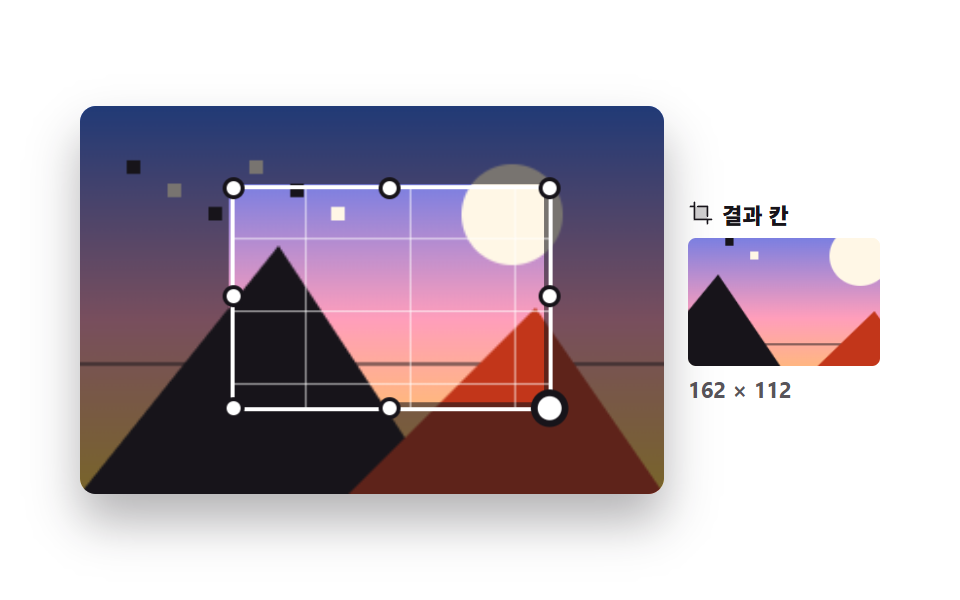 01 image-edit-free-crop-box
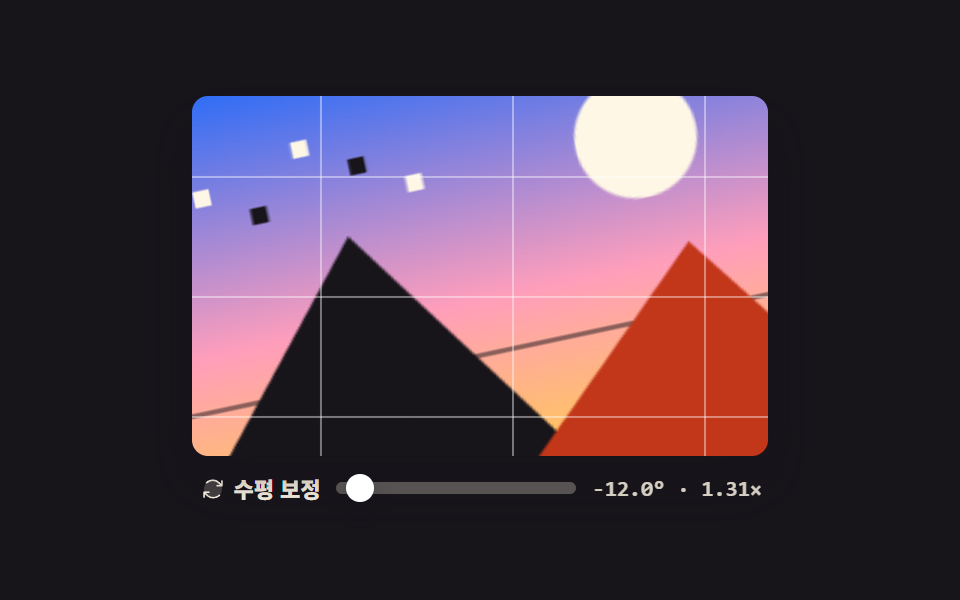 02 image-edit-rotate-straighten
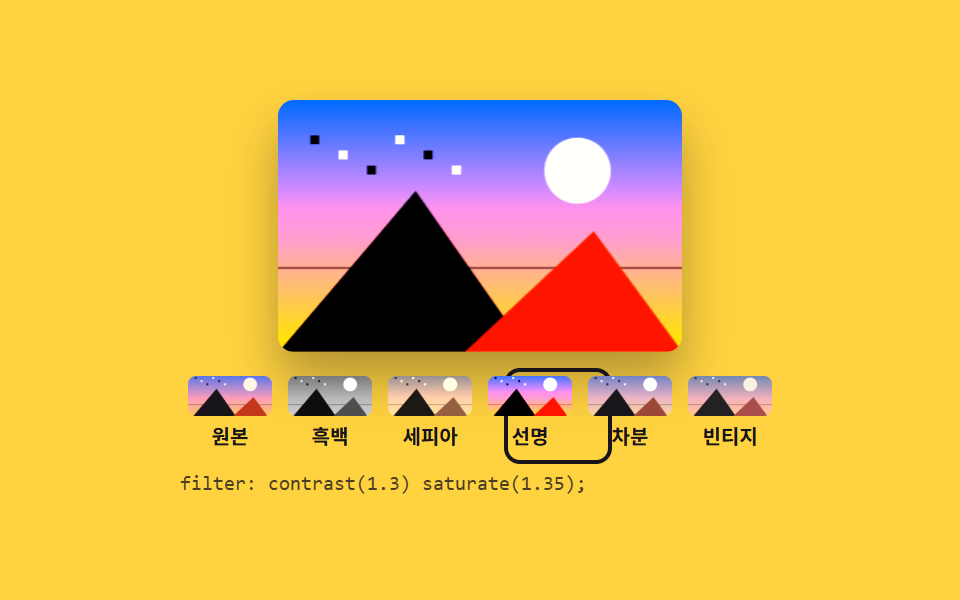 03 image-edit-filter-presets
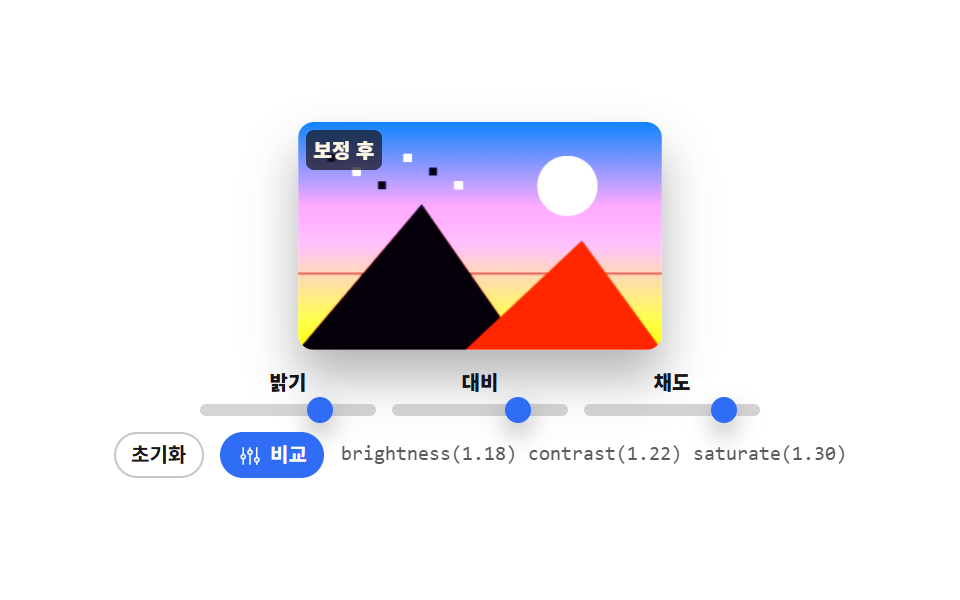 04 image-edit-adjust-sliders
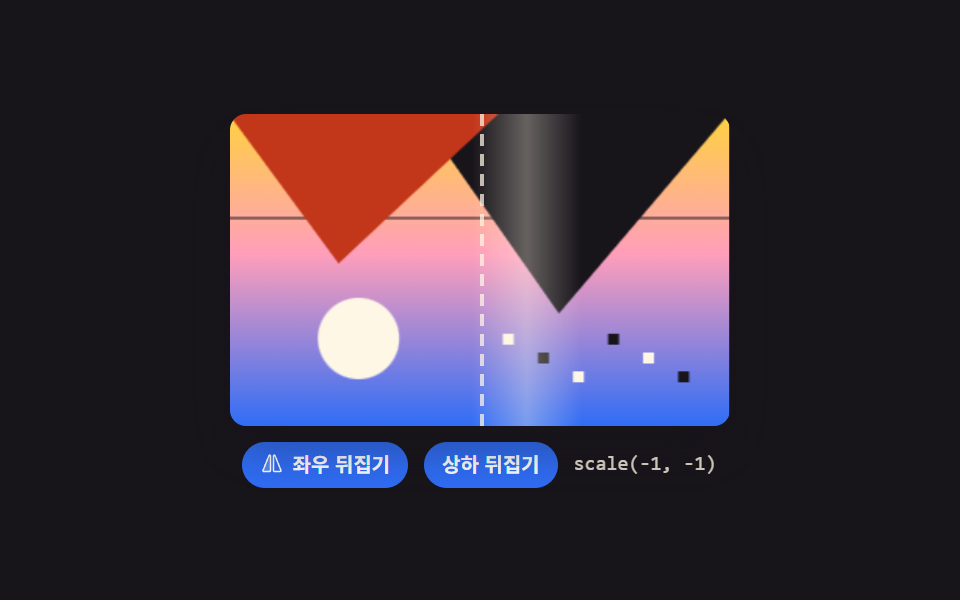 05 image-edit-flip-mirror
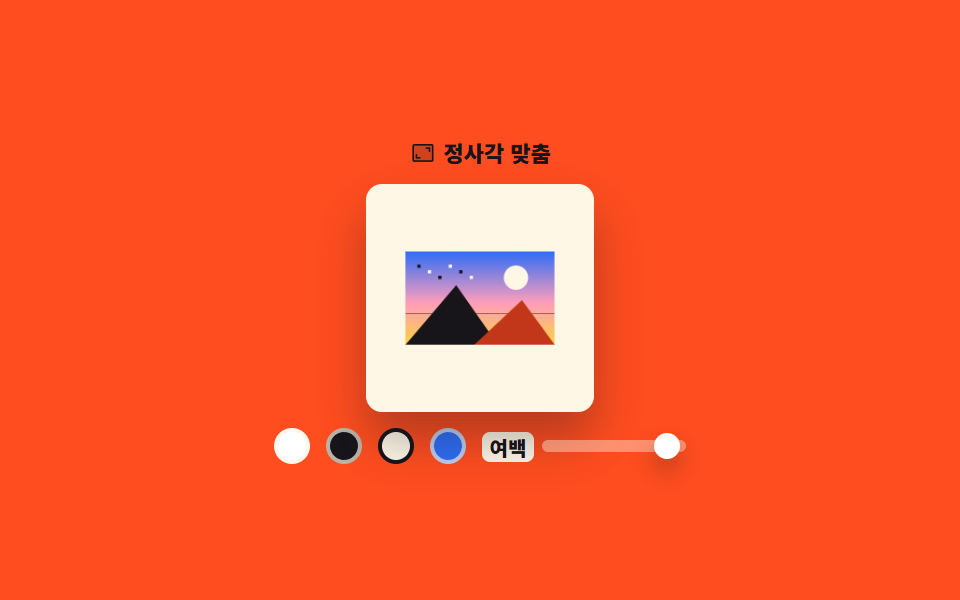 06 image-edit-bg-pad-square
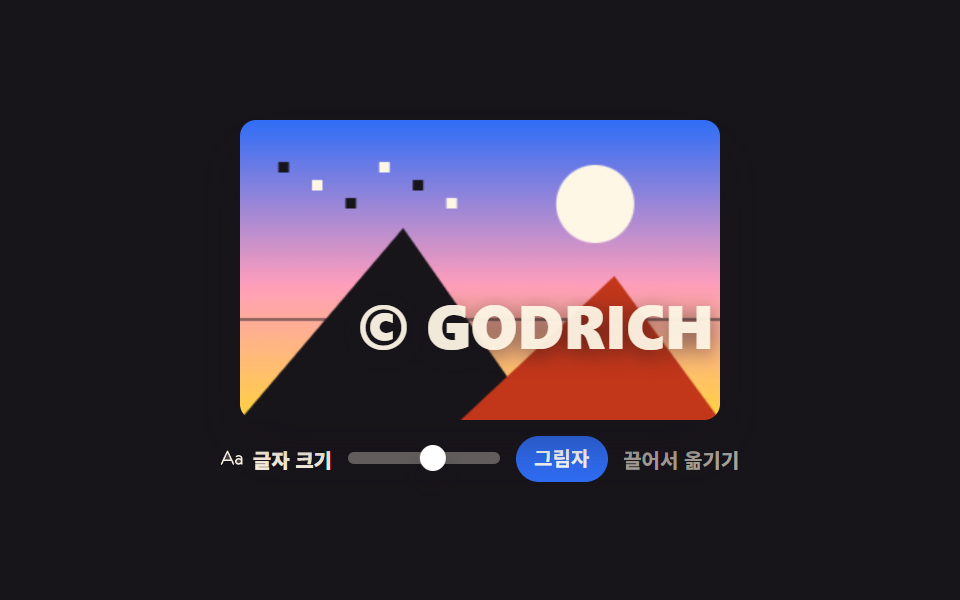 07 image-edit-text-watermark
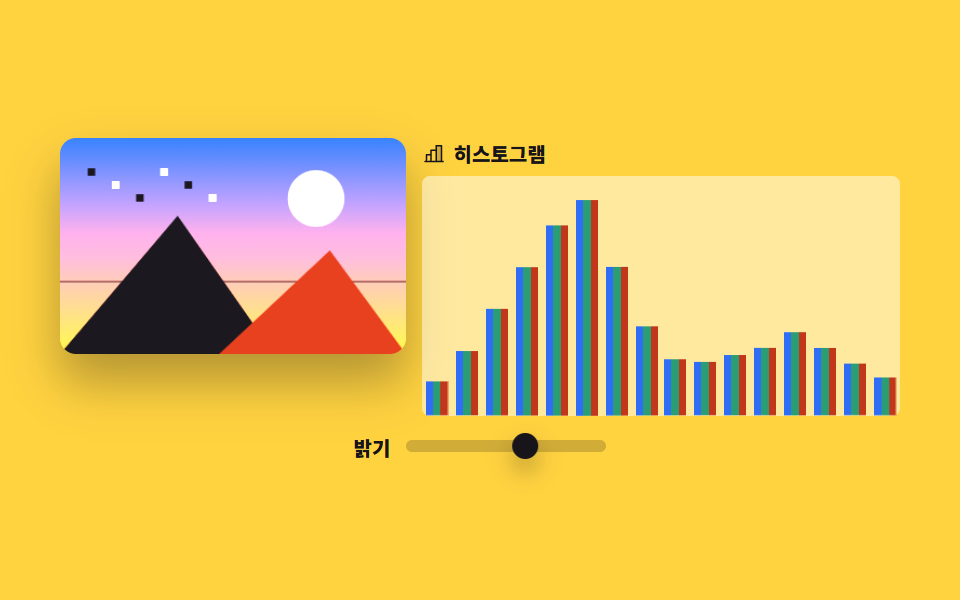 08 image-edit-histogram-rgb
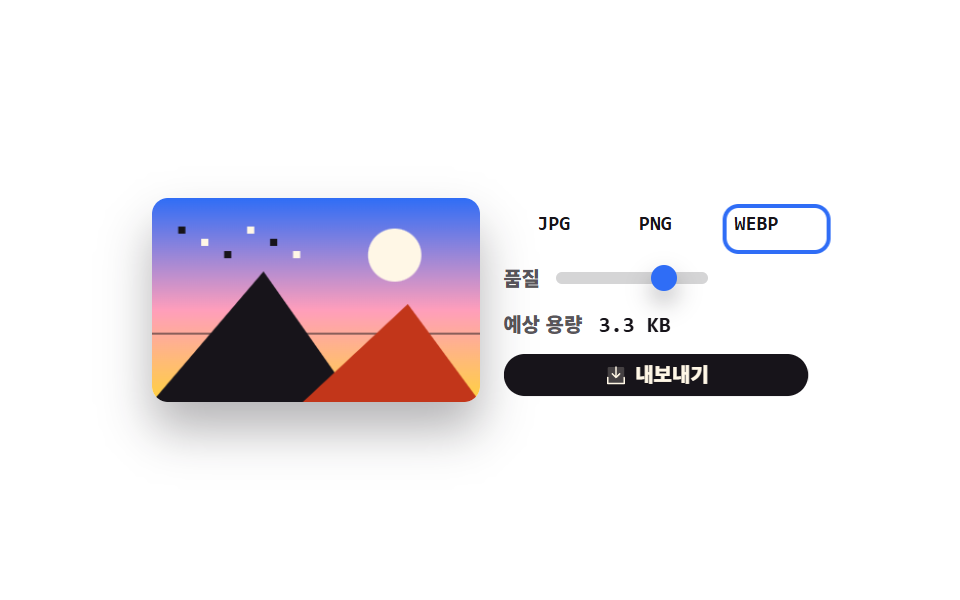 09 image-edit-export-panel
Auto-plays · click a tile to jump to its section · all nine in one zip
- 01 Free crop box
- 02 Rotate and straighten
- 03 Six filter presets
- 04 Brightness, contrast and saturation sliders
- 05 Flip and mirror
- 06 Square padding fill
- 07 Text watermark
- 08 RGB histogram
- 09 Export panel
Cropping, rotating, filtering, watermarking, and exporting are all here, and the order follows the path a single photo takes through an image editor javascript build rather than how flashy each part is. The first three shape it: eight handles frame what stays (01), a crooked horizon comes back to level (02), then one tap swaps the whole tone (03). The next three tune the numbers: brightness, contrast, and saturation pull apart (04), an axis flips (05), and the frame pads out to a fixed ratio (06). The last three are what happens right before saving: type goes over the photo (07), the pixel spread shows whether you pushed too far (08), and a format and a quality build the file (09). No external image is loaded anywhere — the photo is composited on canvas from a gradient and a few shapes. For the hand-drawn side of canvas, see Signature Pad JavaScript: 9 Canvas Drawing UIs; for picking colors, see Custom Color Picker: 9 JS Parts, No Library. Two more from the same "nothing to upload" axis: CSS Background Pattern Generator draws its imagery from a seed instead of a photo, and 9 n8n Workflow Examples runs the same trick on JSON.
01Free crop box
What you see
Four corners plus four edges give eight handles for framing what survives the cut. The dark surround is a single ten-point clip-path polygon that walks the outer rectangle and then traces the inner hole backward, and the result panel redraws only the rectangle that nine-argument drawImage carved out.
<main class="stage">
<div class="cb is-demo" id="cb">
  <div class="cb__work" id="work">
    <canvas class="cb__photo" id="photo" width="300" height="200" role="img" aria-label="Sample photo"></canvas>
    <div class="cb__shade" id="shade" aria-hidden="true"></div>
    <div class="cb__box" id="box">
      <span class="cb__grid" aria-hidden="true"></span>
      <button type="button" class="cb__h cb__h--nw" data-h="nw" aria-label="Top-left handle"></button>
      <button type="button" class="cb__h cb__h--n" data-h="n" aria-label="Top handle"></button>
      <button type="button" class="cb__h cb__h--ne" data-h="ne" aria-label="Top-right handle"></button>
      <button type="button" class="cb__h cb__h--w" data-h="w" aria-label="Left handle"></button>
      <button type="button" class="cb__h cb__h--e" data-h="e" aria-label="Right handle"></button>
      <button type="button" class="cb__h cb__h--sw" data-h="sw" aria-label="Bottom-left handle"></button>
      <button type="button" class="cb__h cb__h--s" data-h="s" aria-label="Bottom handle"></button>
      <button type="button" class="cb__h cb__h--se" data-h="se" aria-label="Bottom-right handle"></button>
    </div>
  </div>
  <div class="cb__side">
    <p class="cb__cap"><svg xmlns="http://www.w3.org/2000/svg" viewBox="0 0 256 256" class="cb__ico" aria-hidden="true"><g fill="currentColor"><path d="M192 64v128H64V64Z" opacity=".2"/><path d="M240 192a8 8 0 0 1-8 8h-32v32a8 8 0 0 1-16 0v-32H64a8 8 0 0 1-8-8V72H24a8 8 0 0 1 0-16h32V24a8 8 0 0 1 16 0v160h160a8 8 0 0 1 8 8M96 72h88v88a8 8 0 0 0 16 0V64a8 8 0 0 0-8-8H96a8 8 0 0 0 0 16"/></g></svg><span>Result</span></p>
    <div class="cb__frame">
      <canvas class="cb__out" id="out" width="120" height="120" role="img" aria-label="Cropped result preview"></canvas>
      <span class="cb__ghost" aria-hidden="true"></span>
    </div>
    <p class="cb__size" id="size">162 × 112</p>
  </div>
</div>
</main>@use "../../../../site/static/demo-tokens" as *;
// 자유 크롭 박스 — 실제 자르기는 canvas 2D 의 drawImage 아홉 인자가 한다(오려낼 사각형 + 그려 넣을 사각형).
// 격자 미리보기(.is-demo)는 캔버스를 건드리지 않고 그늘의 clip-path 와 틀의 transform 만 움직인다.
// demo.py 는 CSS 애니메이션 시계로 프레임을 뽑으므로 캔버스에 그린 결과는 24장이 전부 같기 때문이다.
$duration: $dur-loop;
$easing: $ease-spring;
$color: $subject-blue;
@include stage($stage-paper);
.cb { display: flex; align-items: center; gap: $sp-3; width: 100%; max-width: 400px; }
.cb__work {
position: relative; flex: 1 1 auto; aspect-ratio: 3 / 2;
border-radius: $r-sm; overflow: hidden; box-shadow: $shadow-raised; touch-action: none;
}
.cb__photo { display: block; width: 100%; height: 100%; }
.cb__shade { position: absolute; inset: 0; background: rgba(23, 20, 26, .58); pointer-events: none; }
.cb__box { position: absolute; border: 2px solid $stage-paper; cursor: move; }
.cb__grid {
position: absolute; inset: 0;
background-image:
linear-gradient(to right, rgba(255, 255, 255, .5) 1px, transparent 1px),
linear-gradient(to bottom, rgba(255, 255, 255, .5) 1px, transparent 1px);
background-size: 33.34% 33.34%;
background-position: 33.33% 33.33%;
}
.cb__h {
position: absolute; width: 11px; height: 11px; padding: 0; cursor: pointer;
border: 2px solid $subject-ink; border-radius: 50%; background: $stage-paper;
}
.cb__h:focus-visible { outline: 3px solid $color; outline-offset: 2px; }
.cb__h--nw { left: -6px; top: -6px; }
.cb__h--n { left: calc(50% - 6px); top: -6px; }
.cb__h--ne { right: -6px; top: -6px; }
.cb__h--w { left: -6px; top: calc(50% - 6px); }
.cb__h--e { right: -6px; top: calc(50% - 6px); }
.cb__h--sw { left: -6px; bottom: -6px; }
.cb__h--s { left: calc(50% - 6px); bottom: -6px; }
.cb__h--se { right: -6px; bottom: -6px; }
.cb__side { flex: 0 0 auto; width: 96px; }
.cb__cap {
display: flex; align-items: center; gap: $sp-1; margin: 0 0 $sp-1;
font-weight: 800; font-size: clamp(9px, 2.4vw, 11px); color: $subject-ink;
}
.cb__ico { width: 13px; height: 13px; flex: 0 0 auto; }
.cb__frame {
position: relative; width: 100%; aspect-ratio: 3 / 2; display: grid; place-items: center;
border-radius: $r-xs; overflow: hidden; background: $subject-cream;
}
.cb__out { display: block; max-width: 100%; max-height: 100%; }
.cb__ghost {
display: none; position: absolute; inset: 0;
background-image: var(--photo); background-size: 185% 179%; background-position: 39% 36%;
}
.cb__size {
margin: $sp-1 0 0; font-weight: 700; font-size: clamp(9px, 2.4vw, 11px);
color: rgba(23, 20, 26, .72);
}
// ── 미리보기 루프: 크롭 틀을 오른쪽 아래로 끌었다가 제자리로 돌려놓는다.
// 틀은 transform 으로만 움직이고, 그늘의 구멍과 결과 칸은 같은 시각표로 따라간다.
// 복귀는 86% 에 끝난다 — 24장 표본의 마지막은 2초의 95.8% 지점이라 그 뒤는 안 찍힌다.
.cb.is-demo .cb__box {
animation-name: cbMove; animation-duration: $duration;
animation-timing-function: $easing; animation-iteration-count: infinite;
}
@keyframes cbMove {
0%, 8% { transform: translate(0, 0); }
40%, 56% { transform: translate(25.9%, 14.3%); }
86%, 100% { transform: translate(0, 0); }
}
.cb.is-demo .cb__shade {
animation-name: cbShade; animation-duration: $duration;
animation-timing-function: $easing; animation-iteration-count: infinite;
}
@keyframes cbShade {
0%, 8% { clip-path: polygon(0% 0%, 100% 0%, 100% 100%, 0% 100%, 0% 0%, 18% 16%, 18% 72%, 72% 72%, 72% 16%, 18% 16%); }
40%, 56% { clip-path: polygon(0% 0%, 100% 0%, 100% 100%, 0% 100%, 0% 0%, 32% 24%, 32% 80%, 86% 80%, 86% 24%, 32% 24%); }
86%, 100% { clip-path: polygon(0% 0%, 100% 0%, 100% 100%, 0% 100%, 0% 0%, 18% 16%, 18% 72%, 72% 72%, 72% 16%, 18% 16%); }
}
.cb.is-demo .cb__out { visibility: hidden; }
.cb.is-demo .cb__ghost {
display: block;
animation-name: cbGhost; animation-duration: $duration;
animation-timing-function: $easing; animation-iteration-count: infinite;
}
@keyframes cbGhost {
0%, 8% { background-position: 39% 36%; }
40%, 56% { background-position: 70% 54%; }
86%, 100% { background-position: 39% 36%; }
}
// 손잡이는 자기 중심에서 커진다 — 모서리에 원점을 두면 커지는 게 아니라 옆으로 밀려 보인다
.cb.is-demo .cb__h--se {
animation-name: cbPop; animation-duration: $duration;
animation-timing-function: $ease-pop; animation-iteration-count: infinite;
}
@keyframes cbPop {
0%, 6% { transform: scale(1); }
14%, 46% { transform: scale(1.7); }
60%, 100% { transform: scale(1); }
}
@media (max-width: 340px) {
.cb { gap: $sp-2; }
.cb__side { width: 76px; }
}
@media (prefers-reduced-motion: reduce) {
.cb.is-demo .cb__box,
.cb.is-demo .cb__shade,
.cb.is-demo .cb__ghost,
.cb.is-demo .cb__h--se { animation: none !important; }
// 움직임 없이 끌어다 놓은 자리에 세워 둔다
.cb.is-demo .cb__box { transform: translate(25.9%, 14.3%) !important; }
.cb.is-demo .cb__shade { clip-path: polygon(0% 0%, 100% 0%, 100% 100%, 0% 100%, 0% 0%, 32% 24%, 32% 80%, 86% 80%, 86% 24%, 32% 24%) !important; }
.cb.is-demo .cb__ghost { background-position: 70% 54% !important; }
}html, body {
margin: 0;
overflow: hidden;
}
.stage {
box-sizing: border-box;
min-height: 100vh;
display: grid;
place-items: center;
margin: 0;
background: #ffffff;
font-family: -apple-system, "Segoe UI", "Noto Sans KR", sans-serif;
padding: clamp(8px, 4vw, 24px);
}
.cb {
display: flex;
align-items: center;
gap: 12px;
width: 100%;
max-width: 400px;
}
.cb__work {
position: relative;
flex: 1 1 auto;
aspect-ratio: 3/2;
border-radius: 8px;
overflow: hidden;
box-shadow: 0 14px 24px rgba(23, 20, 26, 0.32);
touch-action: none;
}
.cb__photo {
display: block;
width: 100%;
height: 100%;
}
.cb__shade {
position: absolute;
inset: 0;
background: rgba(23, 20, 26, 0.58);
pointer-events: none;
}
.cb__box {
position: absolute;
border: 2px solid #ffffff;
cursor: move;
}
.cb__grid {
position: absolute;
inset: 0;
background-image: linear-gradient(to right, rgba(255, 255, 255, 0.5) 1px, transparent 1px), linear-gradient(to bottom, rgba(255, 255, 255, 0.5) 1px, transparent 1px);
background-size: 33.34% 33.34%;
background-position: 33.33% 33.33%;
}
.cb__h {
position: absolute;
width: 11px;
height: 11px;
padding: 0;
cursor: pointer;
border: 2px solid #17141a;
border-radius: 50%;
background: #ffffff;
}
.cb__h:focus-visible {
outline: 3px solid #2f6df6;
outline-offset: 2px;
}
.cb__h--nw {
left: -6px;
top: -6px;
}
.cb__h--n {
left: calc(50% - 6px);
top: -6px;
}
.cb__h--ne {
right: -6px;
top: -6px;
}
.cb__h--w {
left: -6px;
top: calc(50% - 6px);
}
.cb__h--e {
right: -6px;
top: calc(50% - 6px);
}
.cb__h--sw {
left: -6px;
bottom: -6px;
}
.cb__h--s {
left: calc(50% - 6px);
bottom: -6px;
}
.cb__h--se {
right: -6px;
bottom: -6px;
}
.cb__side {
flex: 0 0 auto;
width: 96px;
}
.cb__cap {
display: flex;
align-items: center;
gap: 4px;
margin: 0 0 4px;
font-weight: 800;
font-size: clamp(9px, 2.4vw, 11px);
color: #17141a;
}
.cb__ico {
width: 13px;
height: 13px;
flex: 0 0 auto;
}
.cb__frame {
position: relative;
width: 100%;
aspect-ratio: 3/2;
display: grid;
place-items: center;
border-radius: 4px;
overflow: hidden;
background: #fff7e6;
}
.cb__out {
display: block;
max-width: 100%;
max-height: 100%;
}
.cb__ghost {
display: none;
position: absolute;
inset: 0;
background-image: var(--photo);
background-size: 185% 179%;
background-position: 39% 36%;
}
.cb__size {
margin: 4px 0 0;
font-weight: 700;
font-size: clamp(9px, 2.4vw, 11px);
color: rgba(23, 20, 26, 0.72);
}
.cb.is-demo .cb__box {
animation-name: cbMove;
animation-duration: 2s;
animation-timing-function: cubic-bezier(0.2, 0.8, 0.2, 1);
animation-iteration-count: infinite;
}
@keyframes cbMove {
0%, 8% {
transform: translate(0, 0);
}
40%, 56% {
transform: translate(25.9%, 14.3%);
}
86%, 100% {
transform: translate(0, 0);
}
}
.cb.is-demo .cb__shade {
animation-name: cbShade;
animation-duration: 2s;
animation-timing-function: cubic-bezier(0.2, 0.8, 0.2, 1);
animation-iteration-count: infinite;
}
@keyframes cbShade {
0%, 8% {
clip-path: polygon(0% 0%, 100% 0%, 100% 100%, 0% 100%, 0% 0%, 18% 16%, 18% 72%, 72% 72%, 72% 16%, 18% 16%);
}
40%, 56% {
clip-path: polygon(0% 0%, 100% 0%, 100% 100%, 0% 100%, 0% 0%, 32% 24%, 32% 80%, 86% 80%, 86% 24%, 32% 24%);
}
86%, 100% {
clip-path: polygon(0% 0%, 100% 0%, 100% 100%, 0% 100%, 0% 0%, 18% 16%, 18% 72%, 72% 72%, 72% 16%, 18% 16%);
}
}
.cb.is-demo .cb__out {
visibility: hidden;
}
.cb.is-demo .cb__ghost {
display: block;
animation-name: cbGhost;
animation-duration: 2s;
animation-timing-function: cubic-bezier(0.2, 0.8, 0.2, 1);
animation-iteration-count: infinite;
}
@keyframes cbGhost {
0%, 8% {
background-position: 39% 36%;
}
40%, 56% {
background-position: 70% 54%;
}
86%, 100% {
background-position: 39% 36%;
}
}
.cb.is-demo .cb__h--se {
animation-name: cbPop;
animation-duration: 2s;
animation-timing-function: cubic-bezier(0.2, 1.4, 0.4, 1);
animation-iteration-count: infinite;
}
@keyframes cbPop {
0%, 6% {
transform: scale(1);
}
14%, 46% {
transform: scale(1.7);
}
60%, 100% {
transform: scale(1);
}
}
@media (max-width: 340px) {
.cb {
gap: 8px;
}
.cb__side {
width: 76px;
}
}
@media (prefers-reduced-motion: reduce) {
.cb.is-demo .cb__box,
.cb.is-demo .cb__shade,
.cb.is-demo .cb__ghost,
.cb.is-demo .cb__h--se {
animation: none !important;
}
.cb.is-demo .cb__box {
transform: translate(25.9%, 14.3%) !important;
}
.cb.is-demo .cb__shade {
clip-path: polygon(0% 0%, 100% 0%, 100% 100%, 0% 100%, 0% 0%, 32% 24%, 32% 80%, 86% 80%, 86% 24%, 32% 24%) !important;
}
.cb.is-demo .cb__ghost {
background-position: 70% 54% !important;
}
}var cb = document.getElementById('cb');
var work = document.getElementById('work');
var photo = document.getElementById('photo');
var shade = document.getElementById('shade');
var boxEl = document.getElementById('box');
var out = document.getElementById('out');
var sizeEl = document.getElementById('size');
var ctx = photo.getContext('2d');
var octx = out.getContext('2d');
var box = { x: 18, y: 16, w: 54, h: 56 };
var SIZE_LABEL = '%w × %h';
var OUT_LABEL = 'Crop %w × %h pixels';
// 가짜 사진 — 외부 파일 없이 그라디언트와 도형으로 합성한다. 필터·히스토그램이 보이도록 대비를 세게 준다
function paintPhoto(c, w, h) {
var sky = c.createLinearGradient(0, 0, 0, h);
sky.addColorStop(0, '#2f6df6'); sky.addColorStop(0.55, '#ff9ebb'); sky.addColorStop(1, '#ffd23f');
c.fillStyle = sky; c.fillRect(0, 0, w, h);
c.fillStyle = '#fff7e6';
c.beginPath(); c.arc(w * 0.74, h * 0.28, h * 0.13, 0, Math.PI * 2); c.fill();
// 곧은 수평선 하나 — 기울기 보정이 눈에 보이려면 비교할 직선이 있어야 한다
c.fillStyle = 'rgba(23, 20, 26, 0.5)'; c.fillRect(0, Math.round(h * 0.66), w, 2);
c.fillStyle = '#17141a';
c.beginPath(); c.moveTo(0, h); c.lineTo(w * 0.34, h * 0.36); c.lineTo(w * 0.62, h); c.closePath(); c.fill();
c.fillStyle = '#c2361a';
c.beginPath(); c.moveTo(w * 0.46, h); c.lineTo(w * 0.78, h * 0.52); c.lineTo(w, h); c.closePath(); c.fill();
for (var i = 0; i < 6; i++) { c.fillStyle = i % 2 ? '#fff7e6' : '#17141a'; c.fillRect(w * (0.08 + i * 0.07), h * (0.14 + (i % 3) * 0.06), 7, 7); }
}
function apply() {
var x = box.x, y = box.y, w = box.w, h = box.h;
boxEl.style.left = x + '%'; boxEl.style.top = y + '%';
boxEl.style.width = w + '%'; boxEl.style.height = h + '%';
// 바깥을 어둡게 덮는 그늘. 겉 사각형을 한 바퀴 돌고 안쪽 구멍을 거꾸로 도는 열 점짜리 다각형이다
shade.style.clipPath = 'polygon(0% 0%, 100% 0%, 100% 100%, 0% 100%, 0% 0%, ' +
x + '% ' + y + '%, ' + x + '% ' + (y + h) + '%, ' + (x + w) + '% ' + (y + h) + '%, ' +
(x + w) + '% ' + y + '%, ' + x + '% ' + y + '%)';
var sx = photo.width * x / 100, sy = photo.height * y / 100;
var sw = photo.width * w / 100, sh = photo.height * h / 100;
var pw = Math.round(sw), ph = Math.round(sh);
// 결과 칸은 잘린 크기 unchanged 만든다 — 고정 정사각에 그리면 비율이 눌린다
out.width = pw; out.height = ph;
// 아홉 인자 drawImage — 원본에서 오려낼 사각형과 그려 넣을 사각형을 따로 준다
octx.drawImage(photo, sx, sy, sw, sh, 0, 0, pw, ph);
sizeEl.textContent = SIZE_LABEL.replace('%w', pw).replace('%h', ph);
out.setAttribute('aria-label', OUT_LABEL.replace('%w', pw).replace('%h', ph));
}
function clampBox() {
box.w = Math.max(18, Math.min(100, box.w)); box.h = Math.max(18, Math.min(100, box.h));
box.x = Math.max(0, Math.min(100 - box.w, box.x)); box.y = Math.max(0, Math.min(100 - box.h, box.y));
}
function nudge(dir, dx, dy) {
if (dir.indexOf('w') > -1) { box.x += dx; box.w -= dx; }
if (dir.indexOf('e') > -1) { box.w += dx; }
if (dir.indexOf('n') > -1) { box.y += dy; box.h -= dy; }
if (dir.indexOf('s') > -1) { box.h += dy; }
clampBox(); apply();
}
function unit() { var r = work.getBoundingClientRect(); return { x: 100 / r.width, y: 100 / r.height }; }
function startDrag(e, dir) {
cb.classList.remove('is-demo');
var u = unit(), px = e.clientX, py = e.clientY;
e.target.setPointerCapture(e.pointerId);
function move(ev) {
var dx = (ev.clientX - px) * u.x, dy = (ev.clientY - py) * u.y;
px = ev.clientX; py = ev.clientY;
if (dir) { nudge(dir, dx, dy); } else { box.x += dx; box.y += dy; clampBox(); apply(); }
}
function stop() { e.target.removeEventListener('pointermove', move); e.target.removeEventListener('pointerup', stop); }
e.target.addEventListener('pointermove', move);
e.target.addEventListener('pointerup', stop);
}
boxEl.addEventListener('pointerdown', function (e) { if (e.target === boxEl) { startDrag(e, ''); } });
var handles = boxEl.querySelectorAll('.cb__h');
for (var i = 0; i < handles.length; i++) {
(function (el) {
var dir = el.getAttribute('data-h');
el.addEventListener('pointerdown', function (e) { e.stopPropagation(); startDrag(e, dir); });
// 화살표 1px, Shift 와 함께면 10px — 손이 아니라 키보드로도 같은 조작이 된다
el.addEventListener('keydown', function (e) {
var step = e.shiftKey ? 10 : 1, u = unit(), dx = 0, dy = 0;
if (e.key === 'ArrowLeft') { dx = -step * u.x; } else if (e.key === 'ArrowRight') { dx = step * u.x; }
else if (e.key === 'ArrowUp') { dy = -step * u.y; } else if (e.key === 'ArrowDown') { dy = step * u.y; }
else { return; }
e.preventDefault(); cb.classList.remove('is-demo'); nudge(dir, dx, dy);
});
})(handles[i]);
}
paintPhoto(ctx, photo.width, photo.height);
document.documentElement.style.setProperty('--photo', 'url(' + photo.toDataURL() + ')');
apply();// FreeCropBox — vanilla 판(run/295/demo/01-image-edit-free-crop-box/index.html) 의 React 포트.
// 크롭 틀은 퍼센트로만 들고 있다가(x·y·w·h), 자를 때 원본 픽셀로 환산해 drawImage 아홉 인자에 넘긴다.
// 손잡이는 포인터(setPointerCapture)와 키보드(화살표 1px · Shift 10px) 둘 다로 끌 수 있다. 값·수치는 vanilla 와 같다.
import { useCallback, useEffect, useRef, useState } from "react";
import type { CSSProperties, PointerEvent as ReactPointerEvent } from "react";
import styles from "./FreeCropBox.module.scss";
export type FreeCropBoxProps = {
duration?: number;
easing?: string;
color?: string;
};
type Vars = CSSProperties & {
"--duration"?: string;
"--easing"?: string;
"--color"?: string;
"--photo"?: string;
};
type Rect = { x: number; y: number; w: number; h: number };
// useRef 는 T | null 을 돌려준다. 처음부터 값이 있고 절대 비지 않는 상자는 이렇게 좁혀 쓴다
type Box<T> = { current: T };
// 끌기 한 번의 상태 — 방향(빈 문자열이면 틀 전체 이동)과 직전 포인터 자리, 픽셀→퍼센트 환산 비율
type Drag = { dir: string; px: number; py: number; ux: number; uy: number };
// ambient 타입에는 KeyboardEvent 가 없다 — 키 핸들러가 실제로 쓰는 것만 지역 타입으로 적는다
type KeyEvt = { key: string; shiftKey: boolean; preventDefault(): void };
const SIZE_LABEL = "%w × %h";
const OUT_LABEL = "잘라낸 범위 %w × %h 픽셀";
const PHOTO_W = 300;
const PHOTO_H = 200;
const HANDLES: { dir: string; cls: string; label: string }[] = [
{ dir: "nw", cls: "handleNw", label: "왼쪽 위 손잡이" },
{ dir: "n", cls: "handleN", label: "위쪽 손잡이" },
{ dir: "ne", cls: "handleNe", label: "오른쪽 위 손잡이" },
{ dir: "w", cls: "handleW", label: "왼쪽 손잡이" },
{ dir: "e", cls: "handleE", label: "오른쪽 손잡이" },
{ dir: "sw", cls: "handleSw", label: "왼쪽 아래 손잡이" },
{ dir: "s", cls: "handleS", label: "아래쪽 손잡이" },
{ dir: "se", cls: "handleSe", label: "오른쪽 아래 손잡이" },
];
// 가짜 사진 — 외부 파일 없이 그라디언트와 도형으로 합성한다. 필터·히스토그램이 보이도록 대비를 세게 준다
function paintPhoto(c: CanvasRenderingContext2D, w: number, h: number): void {
const sky = c.createLinearGradient(0, 0, 0, h);
sky.addColorStop(0, "#2f6df6"); sky.addColorStop(0.55, "#ff9ebb"); sky.addColorStop(1, "#ffd23f");
c.fillStyle = sky; c.fillRect(0, 0, w, h);
c.fillStyle = "#fff7e6";
c.beginPath(); c.arc(w * 0.74, h * 0.28, h * 0.13, 0, Math.PI * 2); c.fill();
// 곧은 수평선 하나 — 기울기 보정이 눈에 보이려면 비교할 직선이 있어야 한다
c.fillStyle = "rgba(23, 20, 26, 0.5)"; c.fillRect(0, Math.round(h * 0.66), w, 2);
c.fillStyle = "#17141a";
c.beginPath(); c.moveTo(0, h); c.lineTo(w * 0.34, h * 0.36); c.lineTo(w * 0.62, h); c.closePath(); c.fill();
c.fillStyle = "#c2361a";
c.beginPath(); c.moveTo(w * 0.46, h); c.lineTo(w * 0.78, h * 0.52); c.lineTo(w, h); c.closePath(); c.fill();
for (let i = 0; i < 6; i++) { c.fillStyle = i % 2 ? "#fff7e6" : "#17141a"; c.fillRect(w * (0.08 + i * 0.07), h * (0.14 + (i % 3) * 0.06), 7, 7); }
}
function clampBox(box: Rect): void {
box.w = Math.max(18, Math.min(100, box.w)); box.h = Math.max(18, Math.min(100, box.h));
box.x = Math.max(0, Math.min(100 - box.w, box.x)); box.y = Math.max(0, Math.min(100 - box.h, box.y));
}
// 바깥을 어둡게 덮는 그늘. 겉 사각형을 한 바퀴 돌고 안쪽 구멍을 거꾸로 도는 열 점짜리 다각형이다
function shadeOf(box: Rect): string {
const x = box.x, y = box.y, w = box.w, h = box.h;
return "polygon(0% 0%, 100% 0%, 100% 100%, 0% 100%, 0% 0%, " +
x + "% " + y + "%, " + x + "% " + (y + h) + "%, " + (x + w) + "% " + (y + h) + "%, " +
(x + w) + "% " + y + "%, " + x + "% " + y + "%)";
}
export default function FreeCropBox({
duration = 2000,
easing = "cubic-bezier(.2, .8, .2, 1)",
color = "#2f6df6",
}: FreeCropBoxProps) {
const workRef = useRef<HTMLDivElement | null>(null);
const photoRef = useRef<HTMLCanvasElement | null>(null);
const outRef = useRef<HTMLCanvasElement | null>(null);
const rectRef = useRef<Rect>({ x: 18, y: 16, w: 54, h: 56 }) as Box<Rect>;
const dragRef = useRef<Drag | null>(null);
const [box, setBox] = useState<Rect>({ x: 18, y: 16, w: 54, h: 56 });
const [demo, setDemo] = useState(true);
const [photo, setPhoto] = useState("");
const vars: Vars = { "--duration": `${duration}ms`, "--easing": easing, "--color": color };
if (photo) vars["--photo"] = `url(${photo})`;
// 결과 칸은 잘린 크기 그대로 만든다 — 고정 정사각에 그리면 비율이 눌린다
const pw = Math.round(PHOTO_W * box.w / 100);
const ph = Math.round(PHOTO_H * box.h / 100);
const commit = useCallback(() => {
clampBox(rectRef.current);
setBox({ x: rectRef.current.x, y: rectRef.current.y, w: rectRef.current.w, h: rectRef.current.h });
}, []);
useEffect(() => {
const canvas = photoRef.current;
if (!canvas) return;
const ctx = canvas.getContext("2d");
if (!ctx) return;
paintPhoto(ctx, canvas.width, canvas.height);
setPhoto(canvas.toDataURL());
}, []);
// 실제 자르기 — 원본에서 오려낼 사각형과 그려 넣을 사각형을 따로 주는 아홉 인자 drawImage
useEffect(() => {
const source = photoRef.current;
const out = outRef.current;
if (!source || !out) return;
const octx = out.getContext("2d");
if (!octx) return;
const sx = source.width * box.x / 100, sy = source.height * box.y / 100;
const sw = source.width * box.w / 100, sh = source.height * box.h / 100;
out.width = Math.round(sw); out.height = Math.round(sh);
octx.drawImage(source, sx, sy, sw, sh, 0, 0, out.width, out.height);
}, [box, photo]);
function unit(): { x: number; y: number } {
const work = workRef.current;
if (!work) return { x: 0, y: 0 };
const r = work.getBoundingClientRect();
return { x: 100 / r.width, y: 100 / r.height };
}
function nudge(dir: string, dx: number, dy: number): void {
const rect = rectRef.current;
if (dir.indexOf("w") > -1) { rect.x += dx; rect.w -= dx; }
if (dir.indexOf("e") > -1) { rect.w += dx; }
if (dir.indexOf("n") > -1) { rect.y += dy; rect.h -= dy; }
if (dir.indexOf("s") > -1) { rect.h += dy; }
commit();
}
function startDrag(event: ReactPointerEvent<HTMLElement>, dir: string): void {
setDemo(false);
const u = unit();
dragRef.current = { dir: dir, px: event.clientX, py: event.clientY, ux: u.x, uy: u.y };
event.currentTarget.setPointerCapture(event.pointerId);
}
function onMove(event: ReactPointerEvent<HTMLElement>): void {
const drag = dragRef.current;
if (!drag) return;
const dx = (event.clientX - drag.px) * drag.ux, dy = (event.clientY - drag.py) * drag.uy;
drag.px = event.clientX; drag.py = event.clientY;
if (drag.dir) {
nudge(drag.dir, dx, dy);
} else {
rectRef.current.x += dx; rectRef.current.y += dy; commit();
}
}
function onStop(): void {
dragRef.current = null;
}
function onBoxDown(event: ReactPointerEvent<HTMLDivElement>): void {
if (event.target !== event.currentTarget) return;
startDrag(event, "");
}
function onHandleDown(event: ReactPointerEvent<HTMLButtonElement>, dir: string): void {
event.stopPropagation();
startDrag(event, dir);
}
// 화살표 1px, Shift 와 함께면 10px — 손이 아니라 키보드로도 같은 조작이 된다
function onHandleKey(event: KeyEvt, dir: string): void {
const step = event.shiftKey ? 10 : 1, u = unit();
let dx = 0, dy = 0;
if (event.key === "ArrowLeft") { dx = -step * u.x; } else if (event.key === "ArrowRight") { dx = step * u.x; }
else if (event.key === "ArrowUp") { dy = -step * u.y; } else if (event.key === "ArrowDown") { dy = step * u.y; }
else { return; }
event.preventDefault(); setDemo(false); nudge(dir, dx, dy);
}
const cls = [styles.root, demo ? styles.isDemo : ""].filter(Boolean).join(" ");
return (
<main className={styles.stage}>
<div className={cls} style={vars}>
<div className={styles.work} ref={workRef}>
<canvas className={styles.photo} ref={photoRef} width={PHOTO_W} height={PHOTO_H} role="img" aria-label="샘플 사진"></canvas>
<div className={styles.shade} style={{ clipPath: shadeOf(box) }} aria-hidden="true"></div>
<div
className={styles.box}
style={{ left: `${box.x}%`, top: `${box.y}%`, width: `${box.w}%`, height: `${box.h}%` }}
onPointerDown={onBoxDown}
onPointerMove={onMove}
onPointerUp={onStop}
>
<span className={styles.grid} aria-hidden="true"></span>
{HANDLES.map((handle) => (
<button
key={handle.dir}
type="button"
className={`${styles.handle} ${styles[handle.cls]}`}
aria-label={handle.label}
onPointerDown={(event: ReactPointerEvent<HTMLButtonElement>) => onHandleDown(event, handle.dir)}
onPointerMove={onMove}
onPointerUp={onStop}
onKeyDown={(event: KeyEvt) => onHandleKey(event, handle.dir)}
></button>
))}
</div>
</div>
<div className={styles.side}>
<p className={styles.cap}>
<svg xmlns="http://www.w3.org/2000/svg" viewBox="0 0 256 256" className={styles.ico} aria-hidden="true"><g fill="currentColor"><path d="M192 64v128H64V64Z" opacity=".2"/><path d="M240 192a8 8 0 0 1-8 8h-32v32a8 8 0 0 1-16 0v-32H64a8 8 0 0 1-8-8V72H24a8 8 0 0 1 0-16h32V24a8 8 0 0 1 16 0v160h160a8 8 0 0 1 8 8M96 72h88v88a8 8 0 0 0 16 0V64a8 8 0 0 0-8-8H96a8 8 0 0 0 0 16"/></g></svg>
<span>결과 칸</span>
</p>
<div className={styles.frame}>
<canvas className={styles.out} ref={outRef} width={120} height={120} role="img" aria-label={OUT_LABEL.replace("%w", String(pw)).replace("%h", String(ph))}></canvas>
<span className={styles.ghost} aria-hidden="true"></span>
</div>
<p className={styles.size}>{SIZE_LABEL.replace("%w", String(pw)).replace("%h", String(ph))}</p>
</div>
</div>
</main>
);
}01 · Free crop box — Measured area 18.917% · moving frames 19/23Original by GODRICH · SCSS and React ship in the zip · See the password
Where to look in the code
Dragging the bottom-right handle in Playwright pulled the region from 162 × 112 down to 111 × 72, and the preview measured 18.917% changed area with 19 of its 23 frames moving.
// The shade that darkens everything outside. Ten points: once around the outer box,
// then backwards around the inner hole, which leaves a rectangular gap
shade.style.clipPath = 'polygon(0% 0%, 100% 0%, 100% 100%, 0% 100%, 0% 0%, ' +
  x + '% ' + y + '%, ' + x + '% ' + (y + h) + '%, ' + (x + w) + '% ' + (y + h) + '%, ' +
  (x + w) + '% ' + y + '%, ' + x + '% ' + y + '%)';
var sx = photo.width * x / 100, sy = photo.height * y / 100;
var sw = photo.width * w / 100, sh = photo.height * h / 100;
var pw = Math.round(sw), ph = Math.round(sh);
// Size the result canvas to the crop itself — a fixed square would squash the ratio
out.width = pw; out.height = ph;
// Nine-argument drawImage: the rectangle to cut out and the rectangle to draw into
octx.drawImage(photo, sx, sy, sw, sh, 0, 0, pw, ph);
02Rotate and straighten
Where crop image using javascript fixes the angle
Sliding the angle tilts the photo, and the zoom needed to keep the corners covered is worked out in the same pass. At 12 degrees that zoom comes to 1.31, and the number is no guess — it falls straight out of how much the tilted rectangle's two sides grow.
<main class="stage">
<div class="rs is-demo" id="rs">
  <div class="rs__frame">
    <canvas class="rs__view" id="view" width="320" height="200" role="img" aria-label="Sample photo"></canvas>
    <span class="rs__ghost" aria-hidden="true"></span>
    <span class="rs__grid" aria-hidden="true"></span>
  </div>
  <div class="rs__ctl">
    <span class="rs__lab"><svg xmlns="http://www.w3.org/2000/svg" viewBox="0 0 256 256" class="rs__ico" aria-hidden="true"><g fill="currentColor"><path d="M216 128a88 88 0 1 1-88-88a88 88 0 0 1 88 88" opacity=".2"/><path d="M224 48v48a8 8 0 0 1-8 8h-48a8 8 0 0 1 0-16h28.69l-14.63-14.63a79.56 79.56 0 0 0-56.13-23.43h-.45a79.52 79.52 0 0 0-55.89 22.77a8 8 0 0 1-11.18-11.44a96 96 0 0 1 135 .79L208 76.69V48a8 8 0 0 1 16 0m-37.59 135.29a80 80 0 0 1-112.47-.66L59.31 168H88a8 8 0 0 0 0-16H40a8 8 0 0 0-8 8v48a8 8 0 0 0 16 0v-28.69l14.63 14.63A95.43 95.43 0 0 0 130 222.06h.53a95.36 95.36 0 0 0 67.07-27.33a8 8 0 0 0-11.18-11.44Z"/></g></svg><span>Straighten</span></span>
    <div class="rs__track" id="track" role="slider" tabindex="0" aria-label="Tilt angle control" aria-valuemin="-15" aria-valuemax="15" aria-valuenow="0">
      <span class="rs__thumb" id="thumb"></span>
    </div>
    <span class="rs__vals">
      <span class="rs__real" id="val">0.0° · 1.00×</span>
      <span class="rs__demo rs__demo--a" aria-hidden="true">-12.0° · 1.31×</span>
      <span class="rs__demo rs__demo--b" aria-hidden="true">0.0° · 1.00×</span>
    </span>
  </div>
</div>
</main>
@use "../../../../site/static/demo-tokens" as *;
// 회전과 수평 보정 — 실제 보정은 canvas 2D 가 한다(translate → rotate → scale → drawImage).
// 격자 미리보기(.is-demo)는 캔버스를 감추고 같은 사진을 배경으로 깐 유령 판을 CSS 로 돌린다.
// demo.py 는 CSS 애니메이션 시계로 프레임을 뽑으므로 캔버스에 그린 그림은 24장이 전부 같기 때문이다.
$duration: $dur-loop;
$easing: $ease-out;
$color: $subject-cream;
@include stage($stage-ink);
.rs { display: flex; flex-direction: column; align-items: center; gap: $sp-2; width: 100%; }
.rs__frame {
position: relative; height: clamp(110px, 60vh, 196px); aspect-ratio: 16 / 10; max-width: 100%;
border-radius: $r-sm; overflow: hidden; box-shadow: $shadow-raised;
}
.rs__view { display: block; width: 100%; height: 100%; }
.rs__ghost {
display: none; position: absolute; inset: 0;
background-image: var(--photo); background-size: cover;
}
.rs__grid {
position: absolute; inset: 0;
background-image:
linear-gradient(to right, rgba(255, 255, 255, .42) 1px, transparent 1px),
linear-gradient(to bottom, rgba(255, 255, 255, .42) 1px, transparent 1px);
background-size: 33.34% 33.34%;
background-position: 33.33% 33.33%;
}
.rs__ctl { display: flex; align-items: center; gap: $sp-2; color: $color; }
.rs__lab {
display: flex; align-items: center; gap: $sp-1;
font-weight: 800; font-size: clamp(9px, 2.4vw, 11px);
}
.rs__ico { width: 13px; height: 13px; flex: 0 0 auto; }
.rs__track {
position: relative; flex: 0 0 auto; width: 120px; height: 6px; cursor: pointer;
border-radius: $r-pill; background: rgba(255, 247, 230, .28);
}
.rs__track:focus-visible { outline: 3px solid $subject-blue; outline-offset: 4px; }
.rs__thumb {
position: absolute; top: 50%; left: 50%; width: 14px; height: 14px;
border-radius: 50%; background: $stage-paper; box-shadow: $shadow-press;
transform: translate(-50%, -50%);
}
.rs__vals {
position: relative; flex: 0 0 auto; display: inline-block; min-width: 84px;
font-weight: 700; font-size: clamp(9px, 2.4vw, 11px);
font-family: ui-monospace, "Consolas", monospace; color: rgba(255, 247, 230, .82);
}
.rs__demo { display: none; position: absolute; left: 0; top: 0; white-space: nowrap; }
// ── 미리보기 루프: 기울어진 사진에서 시작해 천천히 수평을 맞추고, 76~78% 에 한 번에 다시 기운다.
// poster 는 앞 장과 가장 크게 달라진 장이 뽑히므로, 가장 빠른 구간 바로 뒤가 대표 이미지가 된다 —
// 그래서 되돌아가는 쪽을 빠르게 두어 「기울어진 사진」이 카드에 걸리게 했다 (실측: 반대로 두면 수평 장면이 뽑혔다).
// 배율은 zoomFor 로 미리 계산한 값 그대로다 — 12도는 1.31배, 0도는 1.00배
.rs.is-demo .rs__view { visibility: hidden; }
.rs.is-demo .rs__ghost {
display: block;
animation-name: rsTilt; animation-duration: $duration;
animation-timing-function: ease-in-out; animation-iteration-count: infinite;
}
@keyframes rsTilt {
0%, 26% { transform: rotate(-12deg) scale(1.31); }
56%, 76% { transform: rotate(0deg) scale(1); }
78%, 100% { transform: rotate(-12deg) scale(1.31); }
}
.rs.is-demo .rs__thumb {
animation-name: rsSlide; animation-duration: $duration;
animation-timing-function: ease-in-out; animation-iteration-count: infinite;
}
@keyframes rsSlide {
0%, 26% { transform: translate(-50%, -50%) translateX(-48px); }
56%, 76% { transform: translate(-50%, -50%); }
78%, 100% { transform: translate(-50%, -50%) translateX(-48px); }
}
// 값은 보간할 수 없으니 두 칸을 steps(1, end) 로 갈아 끼운다. 천천히 수평을 맞추는 구간의
// 한가운데(40%)에서 바꿔 앞뒤 어긋남을 반으로 줄였다 — 가장 크게 변하는 장면은 값과 기울기가 맞는 자리다
.rs.is-demo .rs__real { color: transparent; }
.rs.is-demo .rs__demo {
display: block;
animation-duration: $duration;
animation-timing-function: steps(1, end); animation-iteration-count: infinite;
}
.rs.is-demo .rs__demo--a { animation-name: rsValA; }
.rs.is-demo .rs__demo--b { animation-name: rsValB; }
@keyframes rsValA { 0%, 40% { opacity: 1; } 41%, 76% { opacity: 0; } 77%, 100% { opacity: 1; } }
@keyframes rsValB { 0%, 40% { opacity: 0; } 41%, 76% { opacity: 1; } 77%, 100% { opacity: 0; } }
@media (max-width: 340px) {
.rs__track { width: 84px; }
.rs__ctl { gap: $sp-1; }
}
@media (prefers-reduced-motion: reduce) {
.rs.is-demo .rs__ghost,
.rs.is-demo .rs__thumb,
.rs.is-demo .rs__demo { animation: none !important; }
// 움직임 없이 왼쪽으로 기울여 둔 상태로 세운다
.rs.is-demo .rs__ghost { transform: rotate(-12deg) scale(1.31) !important; }
.rs.is-demo .rs__thumb { transform: translate(-50%, -50%) translateX(-48px) !important; }
.rs.is-demo .rs__demo--b { opacity: 0 !important; }
.rs.is-demo .rs__demo--a { opacity: 1 !important; }
}html, body {
margin: 0;
overflow: hidden;
}
.stage {
box-sizing: border-box;
min-height: 100vh;
display: grid;
place-items: center;
margin: 0;
background: #17141a;
font-family: -apple-system, "Segoe UI", "Noto Sans KR", sans-serif;
padding: clamp(8px, 4vw, 24px);
}
.rs {
display: flex;
flex-direction: column;
align-items: center;
gap: 8px;
width: 100%;
}
.rs__frame {
position: relative;
height: clamp(110px, 60vh, 196px);
aspect-ratio: 16/10;
max-width: 100%;
border-radius: 8px;
overflow: hidden;
box-shadow: 0 14px 24px rgba(23, 20, 26, 0.32);
}
.rs__view {
display: block;
width: 100%;
height: 100%;
}
.rs__ghost {
display: none;
position: absolute;
inset: 0;
background-image: var(--photo);
background-size: cover;
}
.rs__grid {
position: absolute;
inset: 0;
background-image: linear-gradient(to right, rgba(255, 255, 255, 0.42) 1px, transparent 1px), linear-gradient(to bottom, rgba(255, 255, 255, 0.42) 1px, transparent 1px);
background-size: 33.34% 33.34%;
background-position: 33.33% 33.33%;
}
.rs__ctl {
display: flex;
align-items: center;
gap: 8px;
color: #fff7e6;
}
.rs__lab {
display: flex;
align-items: center;
gap: 4px;
font-weight: 800;
font-size: clamp(9px, 2.4vw, 11px);
}
.rs__ico {
width: 13px;
height: 13px;
flex: 0 0 auto;
}
.rs__track {
position: relative;
flex: 0 0 auto;
width: 120px;
height: 6px;
cursor: pointer;
border-radius: 999px;
background: rgba(255, 247, 230, 0.28);
}
.rs__track:focus-visible {
outline: 3px solid #2f6df6;
outline-offset: 4px;
}
.rs__thumb {
position: absolute;
top: 50%;
left: 50%;
width: 14px;
height: 14px;
border-radius: 50%;
background: #ffffff;
box-shadow: 0 6px 12px rgba(23, 20, 26, 0.32);
transform: translate(-50%, -50%);
}
.rs__vals {
position: relative;
flex: 0 0 auto;
display: inline-block;
min-width: 84px;
font-weight: 700;
font-size: clamp(9px, 2.4vw, 11px);
font-family: ui-monospace, "Consolas", monospace;
color: rgba(255, 247, 230, 0.82);
}
.rs__demo {
display: none;
position: absolute;
left: 0;
top: 0;
white-space: nowrap;
}
.rs.is-demo .rs__view {
visibility: hidden;
}
.rs.is-demo .rs__ghost {
display: block;
animation-name: rsTilt;
animation-duration: 2s;
animation-timing-function: ease-in-out;
animation-iteration-count: infinite;
}
@keyframes rsTilt {
0%, 26% {
transform: rotate(-12deg) scale(1.31);
}
56%, 76% {
transform: rotate(0deg) scale(1);
}
78%, 100% {
transform: rotate(-12deg) scale(1.31);
}
}
.rs.is-demo .rs__thumb {
animation-name: rsSlide;
animation-duration: 2s;
animation-timing-function: ease-in-out;
animation-iteration-count: infinite;
}
@keyframes rsSlide {
0%, 26% {
transform: translate(-50%, -50%) translateX(-48px);
}
56%, 76% {
transform: translate(-50%, -50%);
}
78%, 100% {
transform: translate(-50%, -50%) translateX(-48px);
}
}
.rs.is-demo .rs__real {
color: transparent;
}
.rs.is-demo .rs__demo {
display: block;
animation-duration: 2s;
animation-timing-function: steps(1, end);
animation-iteration-count: infinite;
}
.rs.is-demo .rs__demo--a {
animation-name: rsValA;
}
.rs.is-demo .rs__demo--b {
animation-name: rsValB;
}
@keyframes rsValA {
0%, 40% {
opacity: 1;
}
41%, 76% {
opacity: 0;
}
77%, 100% {
opacity: 1;
}
}
@keyframes rsValB {
0%, 40% {
opacity: 0;
}
41%, 76% {
opacity: 1;
}
77%, 100% {
opacity: 0;
}
}
@media (max-width: 340px) {
.rs__track {
width: 84px;
}
.rs__ctl {
gap: 4px;
}
}
@media (prefers-reduced-motion: reduce) {
.rs.is-demo .rs__ghost,
.rs.is-demo .rs__thumb,
.rs.is-demo .rs__demo {
animation: none !important;
}
.rs.is-demo .rs__ghost {
transform: rotate(-12deg) scale(1.31) !important;
}
.rs.is-demo .rs__thumb {
transform: translate(-50%, -50%) translateX(-48px) !important;
}
.rs.is-demo .rs__demo--b {
opacity: 0 !important;
}
.rs.is-demo .rs__demo--a {
opacity: 1 !important;
}
}var rs = document.getElementById('rs');
var view = document.getElementById('view');
var track = document.getElementById('track');
var thumb = document.getElementById('thumb');
var val = document.getElementById('val');
var vctx = view.getContext('2d');
var src = document.createElement('canvas');
var angle = 0;
var VOICE = 'Tilt %a degrees, zoom %k times';
// 가짜 사진 — 외부 파일 없이 그라디언트와 도형으로 합성한다. 필터·히스토그램이 보이도록 대비를 세게 준다
function paintPhoto(c, w, h) {
var sky = c.createLinearGradient(0, 0, 0, h);
sky.addColorStop(0, '#2f6df6'); sky.addColorStop(0.55, '#ff9ebb'); sky.addColorStop(1, '#ffd23f');
c.fillStyle = sky; c.fillRect(0, 0, w, h);
c.fillStyle = '#fff7e6';
c.beginPath(); c.arc(w * 0.74, h * 0.28, h * 0.13, 0, Math.PI * 2); c.fill();
// 곧은 수평선 하나 — 기울기 보정이 눈에 보이려면 비교할 직선이 있어야 한다
c.fillStyle = 'rgba(23, 20, 26, 0.5)'; c.fillRect(0, Math.round(h * 0.66), w, 2);
c.fillStyle = '#17141a';
c.beginPath(); c.moveTo(0, h); c.lineTo(w * 0.34, h * 0.36); c.lineTo(w * 0.62, h); c.closePath(); c.fill();
c.fillStyle = '#c2361a';
c.beginPath(); c.moveTo(w * 0.46, h); c.lineTo(w * 0.78, h * 0.52); c.lineTo(w, h); c.closePath(); c.fill();
for (var i = 0; i < 6; i++) { c.fillStyle = i % 2 ? '#fff7e6' : '#17141a'; c.fillRect(w * (0.08 + i * 0.07), h * (0.14 + (i % 3) * 0.06), 7, 7); }
}
// 기운 사각형이 원래 칸을 끝까지 덮으려면 얼마나 키워야 하는가.
// 가로변은 w·|cos| + h·|sin| 로 늘어나고 세로변은 w·|sin| + h·|cos| 로 늘어난다 — 둘 중 큰 쪽이 배율이다
function zoomFor(rad, w, h) {
var c = Math.abs(Math.cos(rad)), s = Math.abs(Math.sin(rad));
return Math.max((w * c + h * s) / w, (w * s + h * c) / h);
}
function render() {
var w = view.width, h = view.height, rad = angle * Math.PI / 180, k = zoomFor(rad, w, h);
vctx.setTransform(1, 0, 0, 1, 0, 0);
vctx.clearRect(0, 0, w, h);
vctx.translate(w / 2, h / 2);
vctx.rotate(rad);
vctx.scale(k, k);
vctx.drawImage(src, -w / 2, -h / 2, w, h);
thumb.style.left = ((angle + 15) / 30 * 100) + '%';
val.textContent = angle.toFixed(1) + '° · ' + k.toFixed(2) + '×';
track.setAttribute('aria-valuenow', angle.toFixed(1));
track.setAttribute('aria-valuetext', VOICE.replace('%a', angle.toFixed(1)).replace('%k', k.toFixed(2)));
}
function setAngle(next) {
angle = Math.max(-15, Math.min(15, next));
rs.classList.remove('is-demo');
render();
}
function fromPointer(e) {
var r = track.getBoundingClientRect();
setAngle(Math.round(((e.clientX - r.left) / r.width * 30 - 15) * 10) / 10);
}
track.addEventListener('pointerdown', function (e) {
track.setPointerCapture(e.pointerId);
fromPointer(e);
track.addEventListener('pointermove', drag);
});
function drag(e) { if (e.buttons) { fromPointer(e); } }
track.addEventListener('pointerup', function () { track.removeEventListener('pointermove', drag); });
// 화살표 0.5도, Shift 와 함께면 5도 — 미세 보정은 손보다 키보드가 정확하다
track.addEventListener('keydown', function (e) {
var step = e.shiftKey ? 5 : 0.5;
if (e.key === 'ArrowLeft' || e.key === 'ArrowDown') { e.preventDefault(); setAngle(angle - step); }
else if (e.key === 'ArrowRight' || e.key === 'ArrowUp') { e.preventDefault(); setAngle(angle + step); }
else if (e.key === 'Home') { e.preventDefault(); setAngle(0); }
});
src.width = 320; src.height = 200;
paintPhoto(src.getContext('2d'), src.width, src.height);
document.documentElement.style.setProperty('--photo', 'url(' + src.toDataURL() + ')');
render();// AngleStraighten — vanilla 판(run/295/demo/02-image-edit-rotate-straighten/index.html) 의 React 포트.
// 보정은 canvas 2D 한 번에 한다 — 가운데로 옮기고(translate) 돌리고(rotate) 빈 귀퉁이가 안 생길 만큼 키운다(scale).
// 얼마나 키워야 하는지는 zoomFor 가 삼각함수로 계산한다. 값·수치는 vanilla 와 같다.
import { useEffect, useRef, useState } from "react";
import type { CSSProperties, PointerEvent as ReactPointerEvent } from "react";
import styles from "./AngleStraighten.module.scss";
export type AngleStraightenProps = {
duration?: number;
easing?: string;
color?: string;
};
type Vars = CSSProperties & {
"--duration"?: string;
"--easing"?: string;
"--color"?: string;
"--photo"?: string;
};
// ambient 타입에는 KeyboardEvent 가 없다 — 키 핸들러가 실제로 쓰는 것만 지역 타입으로 적는다
type KeyEvt = { key: string; shiftKey: boolean; preventDefault(): void };
const VOICE = "기운 각도 %a도, 배율 %k배";
const VIEW_W = 320;
const VIEW_H = 200;
// 가짜 사진 — 외부 파일 없이 그라디언트와 도형으로 합성한다. 필터·히스토그램이 보이도록 대비를 세게 준다
function paintPhoto(c: CanvasRenderingContext2D, w: number, h: number): void {
const sky = c.createLinearGradient(0, 0, 0, h);
sky.addColorStop(0, "#2f6df6"); sky.addColorStop(0.55, "#ff9ebb"); sky.addColorStop(1, "#ffd23f");
c.fillStyle = sky; c.fillRect(0, 0, w, h);
c.fillStyle = "#fff7e6";
c.beginPath(); c.arc(w * 0.74, h * 0.28, h * 0.13, 0, Math.PI * 2); c.fill();
// 곧은 수평선 하나 — 기울기 보정이 눈에 보이려면 비교할 직선이 있어야 한다
c.fillStyle = "rgba(23, 20, 26, 0.5)"; c.fillRect(0, Math.round(h * 0.66), w, 2);
c.fillStyle = "#17141a";
c.beginPath(); c.moveTo(0, h); c.lineTo(w * 0.34, h * 0.36); c.lineTo(w * 0.62, h); c.closePath(); c.fill();
c.fillStyle = "#c2361a";
c.beginPath(); c.moveTo(w * 0.46, h); c.lineTo(w * 0.78, h * 0.52); c.lineTo(w, h); c.closePath(); c.fill();
for (let i = 0; i < 6; i++) { c.fillStyle = i % 2 ? "#fff7e6" : "#17141a"; c.fillRect(w * (0.08 + i * 0.07), h * (0.14 + (i % 3) * 0.06), 7, 7); }
}
// 기운 사각형이 원래 칸을 끝까지 덮으려면 얼마나 키워야 하는가.
// 가로변은 w·|cos| + h·|sin| 로 늘어나고 세로변은 w·|sin| + h·|cos| 로 늘어난다 — 둘 중 큰 쪽이 배율이다
function zoomFor(rad: number, w: number, h: number): number {
const c = Math.abs(Math.cos(rad)), s = Math.abs(Math.sin(rad));
return Math.max((w * c + h * s) / w, (w * s + h * c) / h);
}
export default function AngleStraighten({
duration = 2000,
easing = "ease-in-out",
color = "#fff7e6",
}: AngleStraightenProps) {
const viewRef = useRef<HTMLCanvasElement | null>(null);
const srcRef = useRef<HTMLCanvasElement | null>(null);
const trackRef = useRef<HTMLDivElement | null>(null);
const dragRef = useRef<boolean | null>(false);
const [angle, setAngle] = useState(0);
const [demo, setDemo] = useState(true);
const [photo, setPhoto] = useState("");
const vars: Vars = { "--duration": `${duration}ms`, "--easing": easing, "--color": color };
if (photo) vars["--photo"] = `url(${photo})`;
const rad = angle * Math.PI / 180;
const zoom = zoomFor(rad, VIEW_W, VIEW_H);
const shown = `${angle.toFixed(1)}° · ${zoom.toFixed(2)}×`;
// 원본은 화면에 없는 캔버스에 한 번만 그려 두고, 보정할 때마다 거기서 가져다 쓴다
useEffect(() => {
const src = document.createElement("canvas");
src.width = VIEW_W; src.height = VIEW_H;
const sctx = src.getContext("2d");
if (!sctx) return;
paintPhoto(sctx, src.width, src.height);
srcRef.current = src;
setPhoto(src.toDataURL());
}, []);
useEffect(() => {
const view = viewRef.current, src = srcRef.current;
if (!view || !src) return;
const vctx = view.getContext("2d");
if (!vctx) return;
const w = view.width, h = view.height, k = zoomFor(angle * Math.PI / 180, w, h);
vctx.setTransform(1, 0, 0, 1, 0, 0);
vctx.clearRect(0, 0, w, h);
vctx.translate(w / 2, h / 2);
vctx.rotate(angle * Math.PI / 180);
vctx.scale(k, k);
vctx.drawImage(src, -w / 2, -h / 2, w, h);
}, [angle, photo]);
function applyAngle(next: number): void {
setAngle(Math.max(-15, Math.min(15, next)));
setDemo(false);
}
function fromPointer(event: ReactPointerEvent<HTMLDivElement>): void {
const track = trackRef.current;
if (!track) return;
const r = track.getBoundingClientRect();
applyAngle(Math.round(((event.clientX - r.left) / r.width * 30 - 15) * 10) / 10);
}
function onPointerDown(event: ReactPointerEvent<HTMLDivElement>): void {
event.currentTarget.setPointerCapture(event.pointerId);
dragRef.current = true;
fromPointer(event);
}
function onPointerMove(event: ReactPointerEvent<HTMLDivElement>): void {
if (!dragRef.current || !event.buttons) return;
fromPointer(event);
}
function onPointerUp(): void {
dragRef.current = false;
}
// 화살표 0.5도, Shift 와 함께면 5도 — 미세 보정은 손보다 키보드가 정확하다
function onKeyDown(event: KeyEvt): void {
const step = event.shiftKey ? 5 : 0.5;
if (event.key === "ArrowLeft" || event.key === "ArrowDown") { event.preventDefault(); applyAngle(angle - step); }
else if (event.key === "ArrowRight" || event.key === "ArrowUp") { event.preventDefault(); applyAngle(angle + step); }
else if (event.key === "Home") { event.preventDefault(); applyAngle(0); }
}
const cls = [styles.root, demo ? styles.isDemo : ""].filter(Boolean).join(" ");
return (
<main className={styles.stage}>
<div className={cls} style={vars}>
<div className={styles.frame}>
<canvas className={styles.view} ref={viewRef} width={VIEW_W} height={VIEW_H} role="img" aria-label="샘플 사진"></canvas>
<span className={styles.ghost} aria-hidden="true"></span>
<span className={styles.grid} aria-hidden="true"></span>
</div>
<div className={styles.ctl}>
<span className={styles.lab}>
<svg xmlns="http://www.w3.org/2000/svg" viewBox="0 0 256 256" className={styles.ico} aria-hidden="true"><g fill="currentColor"><path d="M216 128a88 88 0 1 1-88-88a88 88 0 0 1 88 88" opacity=".2"/><path d="M224 48v48a8 8 0 0 1-8 8h-48a8 8 0 0 1 0-16h28.69l-14.63-14.63a79.56 79.56 0 0 0-56.13-23.43h-.45a79.52 79.52 0 0 0-55.89 22.77a8 8 0 0 1-11.18-11.44a96 96 0 0 1 135 .79L208 76.69V48a8 8 0 0 1 16 0m-37.59 135.29a80 80 0 0 1-112.47-.66L59.31 168H88a8 8 0 0 0 0-16H40a8 8 0 0 0-8 8v48a8 8 0 0 0 16 0v-28.69l14.63 14.63A95.43 95.43 0 0 0 130 222.06h.53a95.36 95.36 0 0 0 67.07-27.33a8 8 0 0 0-11.18-11.44Z"/></g></svg>
<span>수평 보정</span>
</span>
<div
className={styles.track}
ref={trackRef}
role="slider"
tabIndex={0}
aria-label="기운 각도 조절"
aria-valuemin={-15}
aria-valuemax={15}
aria-valuenow={angle.toFixed(1)}
aria-valuetext={VOICE.replace("%a", angle.toFixed(1)).replace("%k", zoom.toFixed(2))}
onPointerDown={onPointerDown}
onPointerMove={onPointerMove}
onPointerUp={onPointerUp}
onKeyDown={onKeyDown}
>
<span className={styles.thumb} style={{ left: `${(angle + 15) / 30 * 100}%` }}></span>
</div>
<span className={styles.vals}>
<span className={styles.real}>{shown}</span>
<span className={`${styles.valDemo} ${styles.valA}`} aria-hidden="true">-12.0° · 1.31×</span>
<span className={`${styles.valDemo} ${styles.valB}`} aria-hidden="true">0.0° · 1.00×</span>
</span>
</div>
</div>
</main>
);
}02 · Rotate and straighten — Measured area 22.342% · moving frames 9/23Original by GODRICH · SCSS and React ship in the zip · See the password
How to read the code
The grid preview starts tilted, straightens, then tips over again, measuring 22.342% changed area at an average intensity of 65.5.
// How far must a tilted rectangle grow to still cover the original box?
// The horizontal side stretches to w·|cos| + h·|sin| and the vertical one to w·|sin| + h·|cos| — take the larger
function zoomFor(rad, w, h) {
  var c = Math.abs(Math.cos(rad)), s = Math.abs(Math.sin(rad));
  return Math.max((w * c + h * s) / w, (w * s + h * c) / h);
}
vctx.setTransform(1, 0, 0, 1, 0, 0);
vctx.clearRect(0, 0, w, h);
vctx.translate(w / 2, h / 2);
vctx.rotate(rad);
vctx.scale(k, k);
vctx.drawImage(src, -w / 2, -h / 2, w, h);
03Six filter presets
What moves
Original, mono, sepia, vivid, muted, and vintage are each defined by exactly one filter string, and pressing one changes the big photo and the printed value together. Only the grid preview cycles through all six, and there every keyframe is padded out to the same six filter functions.
<main class="stage">
<div class="fp is-demo" id="fp">
  <div class="fp__frame">
    <canvas class="fp__view" id="view" width="320" height="200" role="img" aria-label="Preview photo, no filter"></canvas>
    <span class="fp__ghost" aria-hidden="true"></span>
  </div>
  <div class="fp__row" id="row">
    <span class="fp__ring" aria-hidden="true"></span>
    <button type="button" class="fp__p" data-f="none" aria-pressed="true"><span class="fp__sw fp__sw--a" aria-hidden="true"></span><span class="fp__name">Original</span></button>
    <button type="button" class="fp__p" data-f="grayscale(1) contrast(1.08)" aria-pressed="false"><span class="fp__sw fp__sw--b" aria-hidden="true"></span><span class="fp__name">Mono</span></button>
    <button type="button" class="fp__p" data-f="sepia(0.75) saturate(1.2)" aria-pressed="false"><span class="fp__sw fp__sw--c" aria-hidden="true"></span><span class="fp__name">Sepia</span></button>
    <button type="button" class="fp__p" data-f="contrast(1.3) saturate(1.35)" aria-pressed="false"><span class="fp__sw fp__sw--d" aria-hidden="true"></span><span class="fp__name">Vivid</span></button>
    <button type="button" class="fp__p" data-f="saturate(0.55) brightness(1.08)" aria-pressed="false"><span class="fp__sw fp__sw--e" aria-hidden="true"></span><span class="fp__name">Muted</span></button>
    <button type="button" class="fp__p" data-f="sepia(0.4) contrast(0.9) hue-rotate(-14deg)" aria-pressed="false"><span class="fp__sw fp__sw--f" aria-hidden="true"></span><span class="fp__name">Vintage</span></button>
  </div>
  <p class="fp__code">
    <code class="fp__real" id="code">filter: none;</code>
    <code class="fp__demo fp__demo--a" aria-hidden="true">filter: none;</code>
    <code class="fp__demo fp__demo--b" aria-hidden="true">filter: grayscale(1) contrast(1.08);</code>
    <code class="fp__demo fp__demo--c" aria-hidden="true">filter: sepia(0.75) saturate(1.2);</code>
    <code class="fp__demo fp__demo--d" aria-hidden="true">filter: contrast(1.3) saturate(1.35);</code>
    <code class="fp__demo fp__demo--e" aria-hidden="true">filter: saturate(0.55) brightness(1.08);</code>
    <code class="fp__demo fp__demo--f" aria-hidden="true">filter: sepia(0.4) contrast(0.9) hue-rotate(-14deg);</code>
  </p>
</div>
</main>@use "../../../../site/static/demo-tokens" as *;
// 필터 프리셋 여섯 개 — 누르면 큰 사진과 아래 글자가 같이 바뀐다. 프리셋 값은 index.html 의 data-f 하나뿐이다.
// 격자 미리보기(.is-demo)는 유령 판의 filter 를 여섯 상태로 이어 돌린다. 이때만 함수 목록을
// grayscale sepia saturate contrast brightness hue-rotate 여섯 개로 통일해 적는다 —
// 함수 목록이 서로 다르면 브라우저가 보간을 포기하고 툭 끊기기 때문이다. 계산 결과는 프리셋과 같다.
$duration: $dur-loop;
$easing: $ease-out;
$color: $subject-ink;
@include stage($stage-yellow);
.fp { display: flex; flex-direction: column; align-items: center; gap: $sp-2; width: 100%; }
.fp__frame {
position: relative; height: clamp(84px, 42vh, 148px); aspect-ratio: 16 / 10; max-width: 100%;
border-radius: $r-sm; overflow: hidden; box-shadow: $shadow-raised;
}
.fp__view { display: block; width: 100%; height: 100%; }
.fp__ghost {
display: none; position: absolute; inset: 0;
background-image: var(--photo); background-size: cover;
}
.fp__row {
position: relative; display: grid; grid-template-columns: repeat(6, 1fr);
width: min(100%, 300px);
}
.fp__ring {
position: absolute; top: 0; left: 0; width: calc(100% / 6); height: 100%;
border: 2px solid $color; border-radius: $r-sm; pointer-events: none;
}
.fp__p {
display: grid; justify-items: center; gap: $sp-1; width: 100%; cursor: pointer;
padding: $sp-1; border: 0; background: transparent; color: $color;
font-family: inherit; font-weight: 700;
}
.fp__p:focus-visible { outline: 3px solid $subject-blue; outline-offset: 2px; }
.fp__sw {
width: 100%; height: 20px; border-radius: $r-xs;
background-image: var(--photo); background-size: cover; background-position: center;
}
.fp__sw--b { filter: grayscale(1) contrast(1.08); }
.fp__sw--c { filter: sepia(0.75) saturate(1.2); }
.fp__sw--d { filter: contrast(1.3) saturate(1.35); }
.fp__sw--e { filter: saturate(0.55) brightness(1.08); }
.fp__sw--f { filter: sepia(0.4) contrast(0.9) hue-rotate(-14deg); }
.fp__name { font-size: clamp(8px, 2.2vw, 10px); line-height: 1.2; }
.fp__code {
position: relative; margin: 0; width: min(100%, 300px); height: 14px;
font-family: ui-monospace, "Consolas", monospace; font-size: clamp(8px, 2.1vw, 10px);
color: rgba(23, 20, 26, .78); white-space: nowrap; overflow: hidden;
}
.fp__demo { display: none; position: absolute; left: 0; top: 0; }
// ── 미리보기 루프: 원본 → 흑백 → 세피아 → 선명 → 차분 → 빈티지 → 원본.
// 복귀는 88% 에 끝난다. 24장 표본의 마지막 장이 2초의 95.8% 지점이라 그 뒤는 안 찍힌다
.fp.is-demo .fp__view { visibility: hidden; }
.fp.is-demo .fp__ghost {
display: block;
animation-name: fpChain; animation-duration: $duration;
animation-timing-function: $easing; animation-iteration-count: infinite;
}
@keyframes fpChain {
0%, 10% { filter: grayscale(0) sepia(0) saturate(1) contrast(1) brightness(1) hue-rotate(0deg); }
14%, 24% { filter: grayscale(1) sepia(0) saturate(1) contrast(1.08) brightness(1) hue-rotate(0deg); }
28%, 38% { filter: grayscale(0) sepia(0.75) saturate(1.2) contrast(1) brightness(1) hue-rotate(0deg); }
42%, 52% { filter: grayscale(0) sepia(0) saturate(1.35) contrast(1.3) brightness(1) hue-rotate(0deg); }
56%, 66% { filter: grayscale(0) sepia(0) saturate(0.55) contrast(1) brightness(1.08) hue-rotate(0deg); }
70%, 85% { filter: grayscale(0) sepia(0.4) saturate(1) contrast(0.9) brightness(1) hue-rotate(-14deg); }
89%, 100% { filter: grayscale(0) sepia(0) saturate(1) contrast(1) brightness(1) hue-rotate(0deg); }
}
// 테두리는 글자와 **같은 순간에** 끊어야 한다 — 부드럽게 밀면 테두리가 먼저 도착한 프레임이
// poster 로 뽑혀 「선명 칸에 테두리, 아래는 세피아 값」 같은 어긋난 대표 이미지가 나온다 (실측)
.fp.is-demo .fp__ring {
animation-name: fpRing; animation-duration: $duration;
animation-timing-function: steps(1, end); animation-iteration-count: infinite;
}
@keyframes fpRing {
0%, 11% { transform: translateX(0); }
12%, 25% { transform: translateX(100%); }
26%, 39% { transform: translateX(200%); }
40%, 53% { transform: translateX(300%); }
54%, 67% { transform: translateX(400%); }
68%, 86% { transform: translateX(500%); }
87%, 100% { transform: translateX(0); }
}
// 글자는 보간할 수 없으니 여섯 칸을 steps(1, end) 로 갈아 끼운다 — 반투명하게 겹치는 장면이 없다
.fp.is-demo .fp__real { color: transparent; }
.fp.is-demo .fp__demo {
display: block;
animation-duration: $duration;
animation-timing-function: steps(1, end);
animation-iteration-count: infinite;
}
.fp.is-demo .fp__demo--a { animation-name: fpTextA; }
.fp.is-demo .fp__demo--b { animation-name: fpTextB; }
.fp.is-demo .fp__demo--c { animation-name: fpTextC; }
.fp.is-demo .fp__demo--d { animation-name: fpTextD; }
.fp.is-demo .fp__demo--e { animation-name: fpTextE; }
.fp.is-demo .fp__demo--f { animation-name: fpTextF; }
@keyframes fpTextA { 0%, 11% { opacity: 1; } 12%, 86% { opacity: 0; } 87%, 100% { opacity: 1; } }
@keyframes fpTextB { 0%, 11% { opacity: 0; } 12%, 25% { opacity: 1; } 26%, 100% { opacity: 0; } }
@keyframes fpTextC { 0%, 25% { opacity: 0; } 26%, 39% { opacity: 1; } 40%, 100% { opacity: 0; } }
@keyframes fpTextD { 0%, 39% { opacity: 0; } 40%, 53% { opacity: 1; } 54%, 100% { opacity: 0; } }
@keyframes fpTextE { 0%, 53% { opacity: 0; } 54%, 67% { opacity: 1; } 68%, 100% { opacity: 0; } }
@keyframes fpTextF { 0%, 67% { opacity: 0; } 68%, 86% { opacity: 1; } 87%, 100% { opacity: 0; } }
@media (max-width: 340px) {
.fp { gap: $sp-1; }
.fp__sw { height: 16px; }
}
@media (prefers-reduced-motion: reduce) {
.fp.is-demo .fp__ghost,
.fp.is-demo .fp__ring,
.fp.is-demo .fp__demo { animation: none !important; }
// 움직임 없이 세피아를 고른 상태로 세운다
.fp.is-demo .fp__ghost { filter: grayscale(0) sepia(0.75) saturate(1.2) contrast(1) brightness(1) hue-rotate(0deg) !important; }
.fp.is-demo .fp__ring { transform: translateX(200%) !important; }
.fp.is-demo .fp__demo--a,
.fp.is-demo .fp__demo--b,
.fp.is-demo .fp__demo--d,
.fp.is-demo .fp__demo--e,
.fp.is-demo .fp__demo--f { opacity: 0 !important; }
.fp.is-demo .fp__demo--c { opacity: 1 !important; }
}html, body {
margin: 0;
overflow: hidden;
}
.stage {
box-sizing: border-box;
min-height: 100vh;
display: grid;
place-items: center;
margin: 0;
background: #ffd23f;
font-family: -apple-system, "Segoe UI", "Noto Sans KR", sans-serif;
padding: clamp(8px, 4vw, 24px);
}
.fp {
display: flex;
flex-direction: column;
align-items: center;
gap: 8px;
width: 100%;
}
.fp__frame {
position: relative;
height: clamp(84px, 42vh, 148px);
aspect-ratio: 16/10;
max-width: 100%;
border-radius: 8px;
overflow: hidden;
box-shadow: 0 14px 24px rgba(23, 20, 26, 0.32);
}
.fp__view {
display: block;
width: 100%;
height: 100%;
}
.fp__ghost {
display: none;
position: absolute;
inset: 0;
background-image: var(--photo);
background-size: cover;
}
.fp__row {
position: relative;
display: grid;
grid-template-columns: repeat(6, 1fr);
width: min(100%, 300px);
}
.fp__ring {
position: absolute;
top: 0;
left: 0;
width: 16.6666666667%;
height: 100%;
border: 2px solid #17141a;
border-radius: 8px;
pointer-events: none;
}
.fp__p {
display: grid;
justify-items: center;
gap: 4px;
width: 100%;
cursor: pointer;
padding: 4px;
border: 0;
background: transparent;
color: #17141a;
font-family: inherit;
font-weight: 700;
}
.fp__p:focus-visible {
outline: 3px solid #2f6df6;
outline-offset: 2px;
}
.fp__sw {
width: 100%;
height: 20px;
border-radius: 4px;
background-image: var(--photo);
background-size: cover;
background-position: center;
}
.fp__sw--b {
filter: grayscale(1) contrast(1.08);
}
.fp__sw--c {
filter: sepia(0.75) saturate(1.2);
}
.fp__sw--d {
filter: contrast(1.3) saturate(1.35);
}
.fp__sw--e {
filter: saturate(0.55) brightness(1.08);
}
.fp__sw--f {
filter: sepia(0.4) contrast(0.9) hue-rotate(-14deg);
}
.fp__name {
font-size: clamp(8px, 2.2vw, 10px);
line-height: 1.2;
}
.fp__code {
position: relative;
margin: 0;
width: min(100%, 300px);
height: 14px;
font-family: ui-monospace, "Consolas", monospace;
font-size: clamp(8px, 2.1vw, 10px);
color: rgba(23, 20, 26, 0.78);
white-space: nowrap;
overflow: hidden;
}
.fp__demo {
display: none;
position: absolute;
left: 0;
top: 0;
}
.fp.is-demo .fp__view {
visibility: hidden;
}
.fp.is-demo .fp__ghost {
display: block;
animation-name: fpChain;
animation-duration: 2s;
animation-timing-function: ease-out;
animation-iteration-count: infinite;
}
@keyframes fpChain {
0%, 10% {
filter: grayscale(0) sepia(0) saturate(1) contrast(1) brightness(1) hue-rotate(0deg);
}
14%, 24% {
filter: grayscale(1) sepia(0) saturate(1) contrast(1.08) brightness(1) hue-rotate(0deg);
}
28%, 38% {
filter: grayscale(0) sepia(0.75) saturate(1.2) contrast(1) brightness(1) hue-rotate(0deg);
}
42%, 52% {
filter: grayscale(0) sepia(0) saturate(1.35) contrast(1.3) brightness(1) hue-rotate(0deg);
}
56%, 66% {
filter: grayscale(0) sepia(0) saturate(0.55) contrast(1) brightness(1.08) hue-rotate(0deg);
}
70%, 85% {
filter: grayscale(0) sepia(0.4) saturate(1) contrast(0.9) brightness(1) hue-rotate(-14deg);
}
89%, 100% {
filter: grayscale(0) sepia(0) saturate(1) contrast(1) brightness(1) hue-rotate(0deg);
}
}
.fp.is-demo .fp__ring {
animation-name: fpRing;
animation-duration: 2s;
animation-timing-function: steps(1, end);
animation-iteration-count: infinite;
}
@keyframes fpRing {
0%, 11% {
transform: translateX(0);
}
12%, 25% {
transform: translateX(100%);
}
26%, 39% {
transform: translateX(200%);
}
40%, 53% {
transform: translateX(300%);
}
54%, 67% {
transform: translateX(400%);
}
68%, 86% {
transform: translateX(500%);
}
87%, 100% {
transform: translateX(0);
}
}
.fp.is-demo .fp__real {
color: transparent;
}
.fp.is-demo .fp__demo {
display: block;
animation-duration: 2s;
animation-timing-function: steps(1, end);
animation-iteration-count: infinite;
}
.fp.is-demo .fp__demo--a {
animation-name: fpTextA;
}
.fp.is-demo .fp__demo--b {
animation-name: fpTextB;
}
.fp.is-demo .fp__demo--c {
animation-name: fpTextC;
}
.fp.is-demo .fp__demo--d {
animation-name: fpTextD;
}
.fp.is-demo .fp__demo--e {
animation-name: fpTextE;
}
.fp.is-demo .fp__demo--f {
animation-name: fpTextF;
}
@keyframes fpTextA {
0%, 11% {
opacity: 1;
}
12%, 86% {
opacity: 0;
}
87%, 100% {
opacity: 1;
}
}
@keyframes fpTextB {
0%, 11% {
opacity: 0;
}
12%, 25% {
opacity: 1;
}
26%, 100% {
opacity: 0;
}
}
@keyframes fpTextC {
0%, 25% {
opacity: 0;
}
26%, 39% {
opacity: 1;
}
40%, 100% {
opacity: 0;
}
}
@keyframes fpTextD {
0%, 39% {
opacity: 0;
}
40%, 53% {
opacity: 1;
}
54%, 100% {
opacity: 0;
}
}
@keyframes fpTextE {
0%, 53% {
opacity: 0;
}
54%, 67% {
opacity: 1;
}
68%, 100% {
opacity: 0;
}
}
@keyframes fpTextF {
0%, 67% {
opacity: 0;
}
68%, 86% {
opacity: 1;
}
87%, 100% {
opacity: 0;
}
}
@media (max-width: 340px) {
.fp {
gap: 4px;
}
.fp__sw {
height: 16px;
}
}
@media (prefers-reduced-motion: reduce) {
.fp.is-demo .fp__ghost,
.fp.is-demo .fp__ring,
.fp.is-demo .fp__demo {
animation: none !important;
}
.fp.is-demo .fp__ghost {
filter: grayscale(0) sepia(0.75) saturate(1.2) contrast(1) brightness(1) hue-rotate(0deg) !important;
}
.fp.is-demo .fp__ring {
transform: translateX(200%) !important;
}
.fp.is-demo .fp__demo--a,
.fp.is-demo .fp__demo--b,
.fp.is-demo .fp__demo--d,
.fp.is-demo .fp__demo--e,
.fp.is-demo .fp__demo--f {
opacity: 0 !important;
}
.fp.is-demo .fp__demo--c {
opacity: 1 !important;
}
}var fp = document.getElementById('fp');
var view = document.getElementById('view');
var code = document.getElementById('code');
var ring = document.querySelector('.fp__ring');
var presets = document.querySelectorAll('.fp__p');
var VIEW_LABEL = 'Preview photo, filter %n';
// 가짜 사진 — 외부 파일 없이 그라디언트와 도형으로 합성한다. 필터·히스토그램이 보이도록 대비를 세게 준다
function paintPhoto(c, w, h) {
var sky = c.createLinearGradient(0, 0, 0, h);
sky.addColorStop(0, '#2f6df6'); sky.addColorStop(0.55, '#ff9ebb'); sky.addColorStop(1, '#ffd23f');
c.fillStyle = sky; c.fillRect(0, 0, w, h);
c.fillStyle = '#fff7e6';
c.beginPath(); c.arc(w * 0.74, h * 0.28, h * 0.13, 0, Math.PI * 2); c.fill();
// 곧은 수평선 하나 — 기울기 보정이 눈에 보이려면 비교할 직선이 있어야 한다
c.fillStyle = 'rgba(23, 20, 26, 0.5)'; c.fillRect(0, Math.round(h * 0.66), w, 2);
c.fillStyle = '#17141a';
c.beginPath(); c.moveTo(0, h); c.lineTo(w * 0.34, h * 0.36); c.lineTo(w * 0.62, h); c.closePath(); c.fill();
c.fillStyle = '#c2361a';
c.beginPath(); c.moveTo(w * 0.46, h); c.lineTo(w * 0.78, h * 0.52); c.lineTo(w, h); c.closePath(); c.fill();
for (var i = 0; i < 6; i++) { c.fillStyle = i % 2 ? '#fff7e6' : '#17141a'; c.fillRect(w * (0.08 + i * 0.07), h * (0.14 + (i % 3) * 0.06), 7, 7); }
}
function pick(index) {
var el = presets[index], chain = el.getAttribute('data-f');
fp.classList.remove('is-demo');
for (var i = 0; i < presets.length; i++) { presets[i].setAttribute('aria-pressed', i === index ? 'true' : 'false'); }
// 사진에는 CSS filter 를 unchanged 걸고, 같은 문자열을 아래 칸에 글자로 내보낸다
view.style.filter = chain;
code.textContent = 'filter: ' + chain + ';';
ring.style.transform = 'translateX(' + index * 100 + '%)';
view.setAttribute('aria-label', VIEW_LABEL.replace('%n', el.querySelector('.fp__name').textContent));
}
for (var i = 0; i < presets.length; i++) {
(function (index) { presets[index].addEventListener('click', function () { pick(index); }); })(i);
}
paintPhoto(view.getContext('2d'), view.width, view.height);
document.documentElement.style.setProperty('--photo', 'url(' + view.toDataURL() + ')');// FilterPresets — vanilla 판(run/295/demo/03-image-edit-filter-presets/index.html) 의 React 포트.
// 프리셋 여섯 개의 값은 PRESETS 배열 하나뿐이다 — 사진에 거는 CSS filter 와 아래 칸에 찍는 글자가 같은 문자열이다.
// 누른 칸은 aria-pressed 로 알리고, 테두리는 인덱스 × 100% 만큼 옆으로 민다. 값·수치는 vanilla 와 같다.
import { useEffect, useRef, useState } from "react";
import type { CSSProperties } from "react";
import styles from "./FilterPresets.module.scss";
export type FilterPresetsProps = {
duration?: number;
easing?: string;
color?: string;
};
type Vars = CSSProperties & {
"--duration"?: string;
"--easing"?: string;
"--color"?: string;
"--photo"?: string;
};
type Preset = { name: string; chain: string; sw: string };
const VIEW_LABEL = "미리보기 사진, 필터 %n";
// 첫 화면의 대체텍스트는 통째로 사전에 든 문자열이다 — 「없음」만 따로 떼면 언어팩이 그 조각을 못 바꾼다
const VIEW_LABEL_NONE = "미리보기 사진, 필터 없음";
const VIEW_W = 320;
const VIEW_H = 200;
const PRESETS: Preset[] = [
{ name: "원본", chain: "none", sw: "swA" },
{ name: "흑백", chain: "grayscale(1) contrast(1.08)", sw: "swB" },
{ name: "세피아", chain: "sepia(0.75) saturate(1.2)", sw: "swC" },
{ name: "선명", chain: "contrast(1.3) saturate(1.35)", sw: "swD" },
{ name: "차분", chain: "saturate(0.55) brightness(1.08)", sw: "swE" },
{ name: "빈티지", chain: "sepia(0.4) contrast(0.9) hue-rotate(-14deg)", sw: "swF" },
];
// 가짜 사진 — 외부 파일 없이 그라디언트와 도형으로 합성한다. 필터·히스토그램이 보이도록 대비를 세게 준다
function paintPhoto(c: CanvasRenderingContext2D, w: number, h: number): void {
const sky = c.createLinearGradient(0, 0, 0, h);
sky.addColorStop(0, "#2f6df6"); sky.addColorStop(0.55, "#ff9ebb"); sky.addColorStop(1, "#ffd23f");
c.fillStyle = sky; c.fillRect(0, 0, w, h);
c.fillStyle = "#fff7e6";
c.beginPath(); c.arc(w * 0.74, h * 0.28, h * 0.13, 0, Math.PI * 2); c.fill();
// 곧은 수평선 하나 — 기울기 보정이 눈에 보이려면 비교할 직선이 있어야 한다
c.fillStyle = "rgba(23, 20, 26, 0.5)"; c.fillRect(0, Math.round(h * 0.66), w, 2);
c.fillStyle = "#17141a";
c.beginPath(); c.moveTo(0, h); c.lineTo(w * 0.34, h * 0.36); c.lineTo(w * 0.62, h); c.closePath(); c.fill();
c.fillStyle = "#c2361a";
c.beginPath(); c.moveTo(w * 0.46, h); c.lineTo(w * 0.78, h * 0.52); c.lineTo(w, h); c.closePath(); c.fill();
for (let i = 0; i < 6; i++) { c.fillStyle = i % 2 ? "#fff7e6" : "#17141a"; c.fillRect(w * (0.08 + i * 0.07), h * (0.14 + (i % 3) * 0.06), 7, 7); }
}
export default function FilterPresets({
duration = 2000,
easing = "ease-out",
color = "#17141a",
}: FilterPresetsProps) {
const viewRef = useRef<HTMLCanvasElement | null>(null);
const [picked, setPicked] = useState(-1);
const [demo, setDemo] = useState(true);
const [photo, setPhoto] = useState("");
const vars: Vars = { "--duration": `${duration}ms`, "--easing": easing, "--color": color };
if (photo) vars["--photo"] = `url(${photo})`;
// 아직 아무것도 안 누른 첫 화면은 원본 그대로다 — 그때의 대체텍스트만 「필터 없음」이다
const index = picked < 0 ? 0 : picked;
const chain = PRESETS[index].chain;
const label = picked < 0 ? VIEW_LABEL_NONE : VIEW_LABEL.replace("%n", PRESETS[index].name);
useEffect(() => {
const view = viewRef.current;
if (!view) return;
const ctx = view.getContext("2d");
if (!ctx) return;
paintPhoto(ctx, view.width, view.height);
setPhoto(view.toDataURL());
}, []);
// 사진에는 CSS filter 를 그대로 걸고, 같은 문자열을 아래 칸에 글자로 내보낸다
function pick(next: number): void {
setDemo(false);
setPicked(next);
}
const cls = [styles.root, demo ? styles.isDemo : ""].filter(Boolean).join(" ");
return (
<main className={styles.stage}>
<div className={cls} style={vars}>
<div className={styles.frame}>
<canvas className={styles.view} ref={viewRef} width={VIEW_W} height={VIEW_H} role="img" aria-label={label} style={{ filter: chain }}></canvas>
<span className={styles.ghost} aria-hidden="true"></span>
</div>
<div className={styles.row}>
<span className={styles.ring} style={{ transform: `translateX(${index * 100}%)` }} aria-hidden="true"></span>
{PRESETS.map((preset, i) => (
<button
key={preset.name}
type="button"
className={styles.preset}
aria-pressed={picked < 0 ? i === 0 : i === picked}
onClick={() => pick(i)}
>
<span className={[styles.sw, styles[preset.sw]].filter(Boolean).join(" ")} aria-hidden="true"></span>
<span className={styles.name}>{preset.name}</span>
</button>
))}
</div>
<p className={styles.code}>
<code className={styles.real}>{`filter: ${chain};`}</code>
<code className={`${styles.codeDemo} ${styles.codeA}`} aria-hidden="true">filter: none;</code>
<code className={`${styles.codeDemo} ${styles.codeB}`} aria-hidden="true">filter: grayscale(1) contrast(1.08);</code>
<code className={`${styles.codeDemo} ${styles.codeC}`} aria-hidden="true">filter: sepia(0.75) saturate(1.2);</code>
<code className={`${styles.codeDemo} ${styles.codeD}`} aria-hidden="true">filter: contrast(1.3) saturate(1.35);</code>
<code className={`${styles.codeDemo} ${styles.codeE}`} aria-hidden="true">filter: saturate(0.55) brightness(1.08);</code>
<code className={`${styles.codeDemo} ${styles.codeF}`} aria-hidden="true">filter: sepia(0.4) contrast(0.9) hue-rotate(-14deg);</code>
</p>
</div>
</main>
);
}03 · Six filter presets — Measured area 19.97% · moving frames 10/23Original by GODRICH · SCSS and React ship in the zip · See the password
What to change
Those identity values change nothing about the result, but without matching function lists the browser gives up on interpolating and the tone jumps in hard steps (19.97% changed area, 10 of 23 frames moving).
// Mismatched function lists make the browser give up on interpolation. Pad the gaps with identity values
@keyframes fpChain {
  0%, 10% { filter: grayscale(0) sepia(0) saturate(1) contrast(1) brightness(1) hue-rotate(0deg); }
  14%, 24% { filter: grayscale(1) sepia(0) saturate(1) contrast(1.08) brightness(1) hue-rotate(0deg); }
  28%, 38% { filter: grayscale(0) sepia(0.75) saturate(1.2) contrast(1) brightness(1) hue-rotate(0deg); }
  42%, 52% { filter: grayscale(0) sepia(0) saturate(1.35) contrast(1.3) brightness(1) hue-rotate(0deg); }
  56%, 66% { filter: grayscale(0) sepia(0) saturate(0.55) contrast(1) brightness(1.08) hue-rotate(0deg); }
  70%, 85% { filter: grayscale(0) sepia(0.4) saturate(1) contrast(0.9) brightness(1) hue-rotate(-14deg); }
  89%, 100% { filter: grayscale(0) sepia(0) saturate(1) contrast(1) brightness(1) hue-rotate(0deg); }
}
04Brightness, contrast and saturation sliders
What you see
The three values never travel separately: they fold into a single filter string, so the order you write them in is the order they apply. The compare button swaps that string for none to show the original in the very same spot, and the corner tag flips with it.
<main class="stage">
<div class="ad is-demo" id="ad">
  <div class="ad__frame">
    <canvas class="ad__view" id="view" width="320" height="200" role="img" aria-label="Sample photo"></canvas>
    <span class="ad__ghost" aria-hidden="true"></span>
    <span class="ad__orig" aria-hidden="true"></span>
    <span class="ad__tag">
      <span class="ad__real" id="tag">Edited</span>
      <span class="ad__tagDemo ad__tagDemo--edit" aria-hidden="true">Edited</span>
      <span class="ad__tagDemo ad__tagDemo--orig" aria-hidden="true">Original</span>
    </span>
  </div>
  <div class="ad__ctl">
    <div class="ad__s">
      <span class="ad__lab" id="labB">Brightness</span>
      <div class="ad__track" data-k="b" role="slider" tabindex="0" aria-labelledby="labB" aria-valuemin="0.5" aria-valuemax="1.5" aria-valuenow="1"><span class="ad__thumb" id="thB"></span></div>
    </div>
    <div class="ad__s">
      <span class="ad__lab" id="labC">Contrast</span>
      <div class="ad__track" data-k="c" role="slider" tabindex="0" aria-labelledby="labC" aria-valuemin="0.5" aria-valuemax="1.5" aria-valuenow="1"><span class="ad__thumb" id="thC"></span></div>
    </div>
    <div class="ad__s">
      <span class="ad__lab" id="labS">Saturation</span>
      <div class="ad__track" data-k="s" role="slider" tabindex="0" aria-labelledby="labS" aria-valuemin="0.5" aria-valuemax="1.5" aria-valuenow="1"><span class="ad__thumb" id="thS"></span></div>
    </div>
  </div>
  <div class="ad__foot">
    <button type="button" class="ad__btn" id="resetBtn">Reset</button>
    <button type="button" class="ad__btn ad__btn--ab" id="abBtn" aria-pressed="false"><svg xmlns="http://www.w3.org/2000/svg" viewBox="0 0 256 256" class="ad__ico" aria-hidden="true"><g fill="currentColor"><path d="M80 136a24 24 0 1 1-24-24a24 24 0 0 1 24 24m48-72a24 24 0 1 0 24 24a24 24 0 0 0-24-24m72 80a24 24 0 1 0 24 24a24 24 0 0 0-24-24" opacity=".2"/><path d="M64 105V40a8 8 0 0 0-16 0v65a32 32 0 0 0 0 62v49a8 8 0 0 0 16 0v-49a32 32 0 0 0 0-62m-8 47a16 16 0 1 1 16-16a16 16 0 0 1-16 16m80-95V40a8 8 0 0 0-16 0v17a32 32 0 0 0 0 62v97a8 8 0 0 0 16 0v-97a32 32 0 0 0 0-62m-8 47a16 16 0 1 1 16-16a16 16 0 0 1-16 16m104 64a32.06 32.06 0 0 0-24-31V40a8 8 0 0 0-16 0v97a32 32 0 0 0 0 62v17a8 8 0 0 0 16 0v-17a32.06 32.06 0 0 0 24-31m-32 16a16 16 0 1 1 16-16a16 16 0 0 1-16 16"/></g></svg><span>Compare</span></button>
    <span class="ad__codes">
      <code class="ad__realCode" id="code">brightness(1.00) contrast(1.00) saturate(1.00)</code>
      <code class="ad__demoCode ad__demoCode--a" aria-hidden="true">brightness(1.00) contrast(1.00) saturate(1.00)</code>
      <code class="ad__demoCode ad__demoCode--b" aria-hidden="true">brightness(1.18) contrast(1.22) saturate(1.30)</code>
    </span>
  </div>
</div>
</main>@use "../../../../site/static/demo-tokens" as *;
// 밝기 대비 채도 슬라이더 — 값 셋이 filter 문자열 하나로 합쳐지고, 비교 버튼이 원본과 번갈아 보여준다.
// 격자 미리보기(.is-demo)는 유령 판 두 장을 겹쳐 쓴다. 아래 판은 filter 를 부드럽게 보간하고,
// 위의 원본 판은 steps(1, end) 로 한 프레임에 덮는다 — 교차 페이드로 하면 두 장이 반투명하게 겹친다.
$duration: $dur-loop;
$easing: $ease-out;
$color: $subject-ink;
@include stage($stage-paper);
.ad { display: flex; flex-direction: column; align-items: center; gap: $sp-2; width: 100%; }
.ad__frame {
position: relative; height: clamp(76px, 38vh, 132px); aspect-ratio: 16 / 10; max-width: 100%;
border-radius: $r-sm; overflow: hidden; box-shadow: $shadow-raised;
}
.ad__view { display: block; width: 100%; height: 100%; }
.ad__ghost, .ad__orig {
display: none; position: absolute; inset: 0;
background-image: var(--photo); background-size: cover;
}
.ad__tag {
position: absolute; left: $sp-1; top: $sp-1; padding: 0 $sp-1;
border-radius: $r-xs; background: rgba(23, 20, 26, .72); color: $subject-cream;
// 세로 여백은 4px 격자에 안 맞는 2px 이었다 — 0 으로 내리고 행간으로 높이를 만든다
font-weight: 800; font-size: clamp(8px, 2.1vw, 10px); line-height: 2;
}
.ad__tagDemo { display: none; position: absolute; left: $sp-1; top: 0; }
.ad__ctl { display: flex; justify-content: center; gap: $sp-2; }
.ad__s { display: grid; justify-items: center; gap: $sp-1; width: 88px; }
.ad__lab { font-weight: 800; font-size: clamp(8px, 2.1vw, 10px); color: $color; }
.ad__track {
position: relative; width: 100%; height: 6px; cursor: pointer;
border-radius: $r-pill; background: rgba(23, 20, 26, .18);
}
.ad__track:focus-visible { outline: 3px solid $subject-blue; outline-offset: 4px; }
.ad__thumb {
position: absolute; top: 50%; left: 50%; width: 13px; height: 13px;
border-radius: 50%; background: $subject-blue; box-shadow: $shadow-press;
transform: translate(-50%, -50%);
}
.ad__foot { display: flex; align-items: center; gap: $sp-2; flex-wrap: wrap; justify-content: center; }
.ad__btn {
display: inline-flex; align-items: center; gap: $sp-1; cursor: pointer;
border: 1px solid rgba(23, 20, 26, .24); background: $stage-paper; color: $color;
border-radius: $r-pill; font-family: inherit; font-weight: 700; line-height: 1.3;
font-size: clamp(8px, 2.2vw, 10px); padding: $sp-1 $sp-2;
}
.ad__btn--ab { background: $subject-blue; border-color: $subject-blue; color: $stage-paper; }
.ad__btn:focus-visible { outline: 3px solid $subject-blue; outline-offset: 2px; }
.ad__ico { width: 12px; height: 12px; flex: 0 0 auto; }
.ad__codes {
position: relative; display: inline-block; min-width: 200px; height: 14px;
font-family: ui-monospace, "Consolas", monospace; font-size: clamp(8px, 2.1vw, 10px);
color: rgba(23, 20, 26, .7);
}
.ad__demoCode { display: none; position: absolute; left: 0; top: 0; white-space: nowrap; }
// ── 미리보기 루프: 슬라이더 셋이 8~12% 에 올라가고, 47~66% 에 원본이 한 프레임 덮었다 물러나고,
// 82~86% 에 처음 값으로 내려온다. 24장 표본의 마지막 장이 2초의 95.8% 지점이라 복귀는 그 앞에 끝낸다
.ad.is-demo .ad__view { visibility: hidden; }
.ad.is-demo .ad__ghost {
display: block;
animation-name: adTone; animation-duration: $duration;
animation-timing-function: $easing; animation-iteration-count: infinite;
}
@keyframes adTone {
0%, 8% { filter: brightness(1) contrast(1) saturate(1); }
12%, 82% { filter: brightness(1.18) contrast(1.22) saturate(1.3); }
86%, 100% { filter: brightness(1) contrast(1) saturate(1); }
}
.ad.is-demo .ad__orig {
display: block;
animation-name: adCompare; animation-duration: $duration;
animation-timing-function: steps(1, end); animation-iteration-count: infinite;
}
@keyframes adCompare {
0%, 46% { opacity: 0; }
47%, 66% { opacity: 1; }
67%, 100% { opacity: 0; }
}
.ad.is-demo .ad__real { color: transparent; }
.ad.is-demo .ad__tagDemo {
display: block;
animation-duration: $duration;
animation-timing-function: steps(1, end); animation-iteration-count: infinite;
}
.ad.is-demo .ad__tagDemo--edit { animation-name: adTagEdit; }
.ad.is-demo .ad__tagDemo--orig { animation-name: adTagOrig; }
@keyframes adTagEdit { 0%, 46% { opacity: 1; } 47%, 66% { opacity: 0; } 67%, 100% { opacity: 1; } }
@keyframes adTagOrig { 0%, 46% { opacity: 0; } 47%, 66% { opacity: 1; } 67%, 100% { opacity: 0; } }
.ad.is-demo .ad__thumb {
animation-duration: $duration;
animation-timing-function: $easing; animation-iteration-count: infinite;
}
.ad.is-demo #thB { animation-name: adThumbB; }
.ad.is-demo #thC { animation-name: adThumbC; }
.ad.is-demo #thS { animation-name: adThumbS; }
@keyframes adThumbB {
0%, 8% { transform: translate(-50%, -50%); }
12%, 82% { transform: translate(-50%, -50%) translateX(16px); }
86%, 100% { transform: translate(-50%, -50%); }
}
@keyframes adThumbC {
0%, 8% { transform: translate(-50%, -50%); }
12%, 82% { transform: translate(-50%, -50%) translateX(19px); }
86%, 100% { transform: translate(-50%, -50%); }
}
@keyframes adThumbS {
0%, 8% { transform: translate(-50%, -50%); }
12%, 82% { transform: translate(-50%, -50%) translateX(26px); }
86%, 100% { transform: translate(-50%, -50%); }
}
// 비교 버튼은 자기 중심에서 눌린다 — 원점을 모서리에 두면 눌리는 게 아니라 옆으로 밀려 보인다
.ad.is-demo .ad__btn--ab {
animation-name: adPress; animation-duration: $duration;
animation-timing-function: $ease-pop; animation-iteration-count: infinite;
}
@keyframes adPress {
0%, 42% { transform: scale(1); }
47% { transform: scale(0.88); }
54%, 62% { transform: scale(1); }
67% { transform: scale(0.88); }
74%, 100% { transform: scale(1); }
}
// 값 글자는 보간할 수 없으니 두 칸을 steps(1, end) 로 갈아 끼우고, 슬라이더가 옮겨 가는 구간을
// 한 프레임 안(8~12%)으로 끊는다 — 그래야 어느 장면을 잘라도 글자와 사진이 같은 값을 말한다
.ad.is-demo .ad__realCode { color: transparent; }
.ad.is-demo .ad__demoCode {
display: block;
animation-duration: $duration;
animation-timing-function: steps(1, end); animation-iteration-count: infinite;
}
.ad.is-demo .ad__demoCode--a { animation-name: adCodeA; }
.ad.is-demo .ad__demoCode--b { animation-name: adCodeB; }
@keyframes adCodeA { 0%, 9% { opacity: 1; } 10%, 83% { opacity: 0; } 84%, 100% { opacity: 1; } }
@keyframes adCodeB { 0%, 9% { opacity: 0; } 10%, 83% { opacity: 1; } 84%, 100% { opacity: 0; } }
@media (max-width: 340px) {
.ad { gap: $sp-1; }
.ad__ctl { gap: $sp-1; }
.ad__s { width: 88px; }
}
@media (prefers-reduced-motion: reduce) {
.ad.is-demo .ad__ghost,
.ad.is-demo .ad__orig,
.ad.is-demo .ad__tagDemo,
.ad.is-demo .ad__thumb,
.ad.is-demo .ad__btn--ab,
.ad.is-demo .ad__demoCode { animation: none !important; }
// 움직임 없이 보정을 올린 상태로 세운다
.ad.is-demo .ad__ghost { filter: brightness(1.18) contrast(1.22) saturate(1.3) !important; }
.ad.is-demo .ad__orig { opacity: 0 !important; }
.ad.is-demo .ad__tagDemo--edit { opacity: 1 !important; }
.ad.is-demo .ad__tagDemo--orig { opacity: 0 !important; }
.ad.is-demo #thB { transform: translate(-50%, -50%) translateX(16px) !important; }
.ad.is-demo #thC { transform: translate(-50%, -50%) translateX(19px) !important; }
.ad.is-demo #thS { transform: translate(-50%, -50%) translateX(26px) !important; }
.ad.is-demo .ad__demoCode--a { opacity: 0 !important; }
.ad.is-demo .ad__demoCode--b { opacity: 1 !important; }
}html, body {
margin: 0;
overflow: hidden;
}
.stage {
box-sizing: border-box;
min-height: 100vh;
display: grid;
place-items: center;
margin: 0;
background: #ffffff;
font-family: -apple-system, "Segoe UI", "Noto Sans KR", sans-serif;
padding: clamp(8px, 4vw, 24px);
}
.ad {
display: flex;
flex-direction: column;
align-items: center;
gap: 8px;
width: 100%;
}
.ad__frame {
position: relative;
height: clamp(76px, 38vh, 132px);
aspect-ratio: 16/10;
max-width: 100%;
border-radius: 8px;
overflow: hidden;
box-shadow: 0 14px 24px rgba(23, 20, 26, 0.32);
}
.ad__view {
display: block;
width: 100%;
height: 100%;
}
.ad__ghost, .ad__orig {
display: none;
position: absolute;
inset: 0;
background-image: var(--photo);
background-size: cover;
}
.ad__tag {
position: absolute;
left: 4px;
top: 4px;
padding: 0 4px;
border-radius: 4px;
background: rgba(23, 20, 26, 0.72);
color: #fff7e6;
font-weight: 800;
font-size: clamp(8px, 2.1vw, 10px);
line-height: 2;
}
.ad__tagDemo {
display: none;
position: absolute;
left: 4px;
top: 0;
}
.ad__ctl {
display: flex;
justify-content: center;
gap: 8px;
}
.ad__s {
display: grid;
justify-items: center;
gap: 4px;
width: 88px;
}
.ad__lab {
font-weight: 800;
font-size: clamp(8px, 2.1vw, 10px);
color: #17141a;
}
.ad__track {
position: relative;
width: 100%;
height: 6px;
cursor: pointer;
border-radius: 999px;
background: rgba(23, 20, 26, 0.18);
}
.ad__track:focus-visible {
outline: 3px solid #2f6df6;
outline-offset: 4px;
}
.ad__thumb {
position: absolute;
top: 50%;
left: 50%;
width: 13px;
height: 13px;
border-radius: 50%;
background: #2f6df6;
box-shadow: 0 6px 12px rgba(23, 20, 26, 0.32);
transform: translate(-50%, -50%);
}
.ad__foot {
display: flex;
align-items: center;
gap: 8px;
flex-wrap: wrap;
justify-content: center;
}
.ad__btn {
display: inline-flex;
align-items: center;
gap: 4px;
cursor: pointer;
border: 1px solid rgba(23, 20, 26, 0.24);
background: #ffffff;
color: #17141a;
border-radius: 999px;
font-family: inherit;
font-weight: 700;
line-height: 1.3;
font-size: clamp(8px, 2.2vw, 10px);
padding: 4px 8px;
}
.ad__btn--ab {
background: #2f6df6;
border-color: #2f6df6;
color: #ffffff;
}
.ad__btn:focus-visible {
outline: 3px solid #2f6df6;
outline-offset: 2px;
}
.ad__ico {
width: 12px;
height: 12px;
flex: 0 0 auto;
}
.ad__codes {
position: relative;
display: inline-block;
min-width: 200px;
height: 14px;
font-family: ui-monospace, "Consolas", monospace;
font-size: clamp(8px, 2.1vw, 10px);
color: rgba(23, 20, 26, 0.7);
}
.ad__demoCode {
display: none;
position: absolute;
left: 0;
top: 0;
white-space: nowrap;
}
.ad.is-demo .ad__view {
visibility: hidden;
}
.ad.is-demo .ad__ghost {
display: block;
animation-name: adTone;
animation-duration: 2s;
animation-timing-function: ease-out;
animation-iteration-count: infinite;
}
@keyframes adTone {
0%, 8% {
filter: brightness(1) contrast(1) saturate(1);
}
12%, 82% {
filter: brightness(1.18) contrast(1.22) saturate(1.3);
}
86%, 100% {
filter: brightness(1) contrast(1) saturate(1);
}
}
.ad.is-demo .ad__orig {
display: block;
animation-name: adCompare;
animation-duration: 2s;
animation-timing-function: steps(1, end);
animation-iteration-count: infinite;
}
@keyframes adCompare {
0%, 46% {
opacity: 0;
}
47%, 66% {
opacity: 1;
}
67%, 100% {
opacity: 0;
}
}
.ad.is-demo .ad__real {
color: transparent;
}
.ad.is-demo .ad__tagDemo {
display: block;
animation-duration: 2s;
animation-timing-function: steps(1, end);
animation-iteration-count: infinite;
}
.ad.is-demo .ad__tagDemo--edit {
animation-name: adTagEdit;
}
.ad.is-demo .ad__tagDemo--orig {
animation-name: adTagOrig;
}
@keyframes adTagEdit {
0%, 46% {
opacity: 1;
}
47%, 66% {
opacity: 0;
}
67%, 100% {
opacity: 1;
}
}
@keyframes adTagOrig {
0%, 46% {
opacity: 0;
}
47%, 66% {
opacity: 1;
}
67%, 100% {
opacity: 0;
}
}
.ad.is-demo .ad__thumb {
animation-duration: 2s;
animation-timing-function: ease-out;
animation-iteration-count: infinite;
}
.ad.is-demo #thB {
animation-name: adThumbB;
}
.ad.is-demo #thC {
animation-name: adThumbC;
}
.ad.is-demo #thS {
animation-name: adThumbS;
}
@keyframes adThumbB {
0%, 8% {
transform: translate(-50%, -50%);
}
12%, 82% {
transform: translate(-50%, -50%) translateX(16px);
}
86%, 100% {
transform: translate(-50%, -50%);
}
}
@keyframes adThumbC {
0%, 8% {
transform: translate(-50%, -50%);
}
12%, 82% {
transform: translate(-50%, -50%) translateX(19px);
}
86%, 100% {
transform: translate(-50%, -50%);
}
}
@keyframes adThumbS {
0%, 8% {
transform: translate(-50%, -50%);
}
12%, 82% {
transform: translate(-50%, -50%) translateX(26px);
}
86%, 100% {
transform: translate(-50%, -50%);
}
}
.ad.is-demo .ad__btn--ab {
animation-name: adPress;
animation-duration: 2s;
animation-timing-function: cubic-bezier(0.2, 1.4, 0.4, 1);
animation-iteration-count: infinite;
}
@keyframes adPress {
0%, 42% {
transform: scale(1);
}
47% {
transform: scale(0.88);
}
54%, 62% {
transform: scale(1);
}
67% {
transform: scale(0.88);
}
74%, 100% {
transform: scale(1);
}
}
.ad.is-demo .ad__realCode {
color: transparent;
}
.ad.is-demo .ad__demoCode {
display: block;
animation-duration: 2s;
animation-timing-function: steps(1, end);
animation-iteration-count: infinite;
}
.ad.is-demo .ad__demoCode--a {
animation-name: adCodeA;
}
.ad.is-demo .ad__demoCode--b {
animation-name: adCodeB;
}
@keyframes adCodeA {
0%, 9% {
opacity: 1;
}
10%, 83% {
opacity: 0;
}
84%, 100% {
opacity: 1;
}
}
@keyframes adCodeB {
0%, 9% {
opacity: 0;
}
10%, 83% {
opacity: 1;
}
84%, 100% {
opacity: 0;
}
}
@media (max-width: 340px) {
.ad {
gap: 4px;
}
.ad__ctl {
gap: 4px;
}
.ad__s {
width: 88px;
}
}
@media (prefers-reduced-motion: reduce) {
.ad.is-demo .ad__ghost,
.ad.is-demo .ad__orig,
.ad.is-demo .ad__tagDemo,
.ad.is-demo .ad__thumb,
.ad.is-demo .ad__btn--ab,
.ad.is-demo .ad__demoCode {
animation: none !important;
}
.ad.is-demo .ad__ghost {
filter: brightness(1.18) contrast(1.22) saturate(1.3) !important;
}
.ad.is-demo .ad__orig {
opacity: 0 !important;
}
.ad.is-demo .ad__tagDemo--edit {
opacity: 1 !important;
}
.ad.is-demo .ad__tagDemo--orig {
opacity: 0 !important;
}
.ad.is-demo #thB {
transform: translate(-50%, -50%) translateX(16px) !important;
}
.ad.is-demo #thC {
transform: translate(-50%, -50%) translateX(19px) !important;
}
.ad.is-demo #thS {
transform: translate(-50%, -50%) translateX(26px) !important;
}
.ad.is-demo .ad__demoCode--a {
opacity: 0 !important;
}
.ad.is-demo .ad__demoCode--b {
opacity: 1 !important;
}
}var ad = document.getElementById('ad');
var view = document.getElementById('view');
var tag = document.getElementById('tag');
var code = document.getElementById('code');
var abBtn = document.getElementById('abBtn');
var tracks = document.querySelectorAll('.ad__track');
var thumbs = { b: document.getElementById('thB'), c: document.getElementById('thC'), s: document.getElementById('thS') };
var value = { b: 1, c: 1, s: 1 };
var showOriginal = false;
var VOICE = '%v times';
var TAG_EDIT = 'Edited';
var TAG_ORIG = 'Original';
// 가짜 사진 — 외부 파일 없이 그라디언트와 도형으로 합성한다. 필터·히스토그램이 보이도록 대비를 세게 준다
function paintPhoto(c, w, h) {
var sky = c.createLinearGradient(0, 0, 0, h);
sky.addColorStop(0, '#2f6df6'); sky.addColorStop(0.55, '#ff9ebb'); sky.addColorStop(1, '#ffd23f');
c.fillStyle = sky; c.fillRect(0, 0, w, h);
c.fillStyle = '#fff7e6';
c.beginPath(); c.arc(w * 0.74, h * 0.28, h * 0.13, 0, Math.PI * 2); c.fill();
// 곧은 수평선 하나 — 기울기 보정이 눈에 보이려면 비교할 직선이 있어야 한다
c.fillStyle = 'rgba(23, 20, 26, 0.5)'; c.fillRect(0, Math.round(h * 0.66), w, 2);
c.fillStyle = '#17141a';
c.beginPath(); c.moveTo(0, h); c.lineTo(w * 0.34, h * 0.36); c.lineTo(w * 0.62, h); c.closePath(); c.fill();
c.fillStyle = '#c2361a';
c.beginPath(); c.moveTo(w * 0.46, h); c.lineTo(w * 0.78, h * 0.52); c.lineTo(w, h); c.closePath(); c.fill();
for (var i = 0; i < 6; i++) { c.fillStyle = i % 2 ? '#fff7e6' : '#17141a'; c.fillRect(w * (0.08 + i * 0.07), h * (0.14 + (i % 3) * 0.06), 7, 7); }
}
function render() {
// 슬라이더 셋이 filter 문자열 하나로 합쳐진다 — 순서가 곧 적용 순서다
var chain = 'brightness(' + value.b.toFixed(2) + ') contrast(' + value.c.toFixed(2) + ') saturate(' + value.s.toFixed(2) + ')';
view.style.filter = showOriginal ? 'none' : chain;
code.textContent = chain;
tag.textContent = showOriginal ? TAG_ORIG : TAG_EDIT;
for (var i = 0; i < tracks.length; i++) {
var key = tracks[i].getAttribute('data-k'), v = value[key];
thumbs[key].style.left = ((v - 0.5) * 100) + '%';
tracks[i].setAttribute('aria-valuenow', v.toFixed(2));
tracks[i].setAttribute('aria-valuetext', VOICE.replace('%v', v.toFixed(2)));
}
}
function setValue(key, next) {
value[key] = Math.max(0.5, Math.min(1.5, Math.round(next * 100) / 100));
ad.classList.remove('is-demo');
render();
}
for (var i = 0; i < tracks.length; i++) {
(function (el) {
var key = el.getAttribute('data-k');
function fromPointer(e) {
var r = el.getBoundingClientRect();
setValue(key, (e.clientX - r.left) / r.width + 0.5);
}
el.addEventListener('pointerdown', function (e) { el.setPointerCapture(e.pointerId); fromPointer(e); });
el.addEventListener('pointermove', function (e) { if (e.buttons) { fromPointer(e); } });
// 화살표 0.02, Shift 와 함께면 0.1 — 눈으로 맞추기 어려운 미세 보정은 키보드가 낫다
el.addEventListener('keydown', function (e) {
var step = e.shiftKey ? 0.1 : 0.02;
if (e.key === 'ArrowLeft' || e.key === 'ArrowDown') { e.preventDefault(); setValue(key, value[key] - step); }
else if (e.key === 'ArrowRight' || e.key === 'ArrowUp') { e.preventDefault(); setValue(key, value[key] + step); }
});
})(tracks[i]);
}
document.getElementById('resetBtn').addEventListener('click', function () {
value.b = 1; value.c = 1; value.s = 1; showOriginal = false;
abBtn.setAttribute('aria-pressed', 'false');
ad.classList.remove('is-demo'); render();
});
abBtn.addEventListener('click', function () {
showOriginal = !showOriginal;
abBtn.setAttribute('aria-pressed', showOriginal ? 'true' : 'false');
ad.classList.remove('is-demo'); render();
});
paintPhoto(view.getContext('2d'), view.width, view.height);
document.documentElement.style.setProperty('--photo', 'url(' + view.toDataURL() + ')');
render();// ToneSliders — vanilla 판(run/295/demo/04-image-edit-adjust-sliders/index.html) 의 React 포트.
// 밝기·대비·채도 세 값이 filter 문자열 하나로 합쳐져 canvas 에 걸리고, 비교 버튼은 filter 를 none 으로
// 돌려 원본을 보여준다. 가짜 사진은 paintPhoto 가 그려 넣고, 그 toDataURL 을 --photo 로 내려
// 미리보기 유령 판 두 장이 같은 그림을 쓴다. 값·수치·키프레임은 vanilla 와 같다.
import { useEffect, useRef, useState } from "react";
import type { CSSProperties, PointerEvent as ReactPointerEvent } from "react";
import styles from "./ToneSliders.module.scss";
export type ToneSlidersProps = {
duration?: number;
easing?: string;
color?: string;
};
type Vars = CSSProperties & {
"--duration"?: string;
"--easing"?: string;
"--color"?: string;
"--photo"?: string;
};
type ToneKey = "b" | "c" | "s";
type Tone = { b: number; c: number; s: number };
// react 앰비언트에 KeyboardEvent 가 없다 — 키 핸들러가 실제로 쓰는 것만 지역 타입으로 선언한다
type KeyEvt = { key: string; shiftKey: boolean; preventDefault(): void };
const VOICE = "%v배";
const TAG_EDIT = "보정 후";
const TAG_ORIG = "원본";
const SLIDERS: { key: ToneKey; label: string; labelId: string; thumb: string }[] = [
{ key: "b", label: "밝기", labelId: "labB", thumb: styles.thumbB },
{ key: "c", label: "대비", labelId: "labC", thumb: styles.thumbC },
{ key: "s", label: "채도", labelId: "labS", thumb: styles.thumbS },
];
// 가짜 사진 — 외부 파일 없이 그라디언트와 도형으로 합성한다. 필터·히스토그램이 보이도록 대비를 세게 준다
function paintPhoto(c: CanvasRenderingContext2D, w: number, h: number): void {
const sky = c.createLinearGradient(0, 0, 0, h);
sky.addColorStop(0, "#2f6df6"); sky.addColorStop(0.55, "#ff9ebb"); sky.addColorStop(1, "#ffd23f");
c.fillStyle = sky; c.fillRect(0, 0, w, h);
c.fillStyle = "#fff7e6";
c.beginPath(); c.arc(w * 0.74, h * 0.28, h * 0.13, 0, Math.PI * 2); c.fill();
// 곧은 수평선 하나 — 기울기 보정이 눈에 보이려면 비교할 직선이 있어야 한다
c.fillStyle = "rgba(23, 20, 26, 0.5)"; c.fillRect(0, Math.round(h * 0.66), w, 2);
c.fillStyle = "#17141a";
c.beginPath(); c.moveTo(0, h); c.lineTo(w * 0.34, h * 0.36); c.lineTo(w * 0.62, h); c.closePath(); c.fill();
c.fillStyle = "#c2361a";
c.beginPath(); c.moveTo(w * 0.46, h); c.lineTo(w * 0.78, h * 0.52); c.lineTo(w, h); c.closePath(); c.fill();
for (let i = 0; i < 6; i++) { c.fillStyle = i % 2 ? "#fff7e6" : "#17141a"; c.fillRect(w * (0.08 + i * 0.07), h * (0.14 + (i % 3) * 0.06), 7, 7); }
}
export default function ToneSliders({
duration = 2000,
easing = "ease-out",
color = "#17141a",
}: ToneSlidersProps) {
const viewRef = useRef<HTMLCanvasElement | null>(null);
const [tone, setTone] = useState<Tone>({ b: 1, c: 1, s: 1 });
const [showOriginal, setShowOriginal] = useState(false);
const [demo, setDemo] = useState(true);
const [photo, setPhoto] = useState("");
const vars: Vars = { "--duration": `${duration}ms`, "--easing": easing, "--color": color };
if (photo) vars["--photo"] = `url(${photo})`;
useEffect(() => {
const canvas = viewRef.current;
if (!canvas) return;
const ctx = canvas.getContext("2d");
if (!ctx) return;
paintPhoto(ctx, canvas.width, canvas.height);
setPhoto(canvas.toDataURL());
}, []);
// 슬라이더 셋이 filter 문자열 하나로 합쳐진다 — 순서가 곧 적용 순서다
const chain = `brightness(${tone.b.toFixed(2)}) contrast(${tone.c.toFixed(2)}) saturate(${tone.s.toFixed(2)})`;
function setValue(key: ToneKey, nextRaw: number): void {
const v = Math.max(0.5, Math.min(1.5, Math.round(nextRaw * 100) / 100));
setTone((prev) => {
const next: Tone = { b: prev.b, c: prev.c, s: prev.s };
next[key] = v;
return next;
});
setDemo(false);
}
function fromPointer(key: ToneKey, event: ReactPointerEvent<HTMLDivElement>): void {
const r = event.currentTarget.getBoundingClientRect();
setValue(key, (event.clientX - r.left) / r.width + 0.5);
}
function onPointerDown(key: ToneKey, event: ReactPointerEvent<HTMLDivElement>): void {
event.currentTarget.setPointerCapture(event.pointerId);
fromPointer(key, event);
}
function onPointerMove(key: ToneKey, event: ReactPointerEvent<HTMLDivElement>): void {
if (event.buttons) { fromPointer(key, event); }
}
// 화살표 0.02, Shift 와 함께면 0.1 — 눈으로 맞추기 어려운 미세 보정은 키보드가 낫다
function onKeyDown(key: ToneKey, event: KeyEvt): void {
const step = event.shiftKey ? 0.1 : 0.02;
if (event.key === "ArrowLeft" || event.key === "ArrowDown") { event.preventDefault(); setValue(key, tone[key] - step); }
else if (event.key === "ArrowRight" || event.key === "ArrowUp") { event.preventDefault(); setValue(key, tone[key] + step); }
}
function onReset(): void {
setTone({ b: 1, c: 1, s: 1 });
setShowOriginal(false);
setDemo(false);
}
function onCompare(): void {
setShowOriginal(!showOriginal);
setDemo(false);
}
const cls = [styles.root, demo ? styles.isDemo : ""].filter(Boolean).join(" ");
return (
<main className={styles.stage}>
<div className={cls} style={vars}>
<div className={styles.frame}>
<canvas className={styles.view} ref={viewRef} width={320} height={200} role="img" aria-label="샘플 사진" style={{ filter: showOriginal ? "none" : chain }}></canvas>
<span className={styles.ghost} aria-hidden="true"></span>
<span className={styles.orig} aria-hidden="true"></span>
<span className={styles.tag}>
<span className={styles.real}>{showOriginal ? TAG_ORIG : TAG_EDIT}</span>
<span className={`${styles.tagDemo} ${styles.tagDemoEdit}`} aria-hidden="true">보정 후</span>
<span className={`${styles.tagDemo} ${styles.tagDemoOrig}`} aria-hidden="true">원본</span>
</span>
</div>
<div className={styles.ctl}>
{SLIDERS.map((s) => (
<div className={styles.slider} key={s.key}>
<span className={styles.lab} id={s.labelId}>{s.label}</span>
<div
className={styles.track}
role="slider"
tabIndex={0}
aria-labelledby={s.labelId}
aria-valuemin={0.5}
aria-valuemax={1.5}
aria-valuenow={Number(tone[s.key].toFixed(2))}
aria-valuetext={VOICE.replace("%v", tone[s.key].toFixed(2))}
onPointerDown={(e: ReactPointerEvent<HTMLDivElement>) => onPointerDown(s.key, e)}
onPointerMove={(e: ReactPointerEvent<HTMLDivElement>) => onPointerMove(s.key, e)}
onKeyDown={(e: KeyEvt) => onKeyDown(s.key, e)}
>
<span className={`${styles.thumb} ${s.thumb}`} style={{ left: `${(tone[s.key] - 0.5) * 100}%` }}></span>
</div>
</div>
))}
</div>
<div className={styles.foot}>
<button type="button" className={styles.btn} onClick={onReset}>초기화</button>
<button type="button" className={`${styles.btn} ${styles.btnAb}`} aria-pressed={showOriginal} onClick={onCompare}><svg xmlns="http://www.w3.org/2000/svg" viewBox="0 0 256 256" className={styles.ico} aria-hidden="true"><g fill="currentColor"><path d="M80 136a24 24 0 1 1-24-24a24 24 0 0 1 24 24m48-72a24 24 0 1 0 24 24a24 24 0 0 0-24-24m72 80a24 24 0 1 0 24 24a24 24 0 0 0-24-24" opacity=".2"/><path d="M64 105V40a8 8 0 0 0-16 0v65a32 32 0 0 0 0 62v49a8 8 0 0 0 16 0v-49a32 32 0 0 0 0-62m-8 47a16 16 0 1 1 16-16a16 16 0 0 1-16 16m80-95V40a8 8 0 0 0-16 0v17a32 32 0 0 0 0 62v97a8 8 0 0 0 16 0v-97a32 32 0 0 0 0-62m-8 47a16 16 0 1 1 16-16a16 16 0 0 1-16 16m104 64a32.06 32.06 0 0 0-24-31V40a8 8 0 0 0-16 0v97a32 32 0 0 0 0 62v17a8 8 0 0 0 16 0v-17a32.06 32.06 0 0 0 24-31m-32 16a16 16 0 1 1 16-16a16 16 0 0 1-16 16"/></g></svg><span>비교</span></button>
<span className={styles.codes}>
<code className={styles.realCode}>{chain}</code>
<code className={`${styles.demoCode} ${styles.demoCodeA}`} aria-hidden="true">brightness(1.00) contrast(1.00) saturate(1.00)</code>
<code className={`${styles.demoCode} ${styles.demoCodeB}`} aria-hidden="true">brightness(1.18) contrast(1.22) saturate(1.30)</code>
</span>
</div>
</div>
</main>
);
}04 · Brightness, contrast and saturation sliders — Measured area 13.291% · moving frames 11/23Original by GODRICH · SCSS and React ship in the zip · See the password
Where to look in the code
Dragging the brightness track to the right updated brightness(1.35) and the spoken value "1.35 times" together in the measurement run (15.922% changed area, average intensity 56.2).
// Three sliders fold into a single filter string — the order written is the order applied
var chain = 'brightness(' + value.b.toFixed(2) + ') contrast(' + value.c.toFixed(2) + ') saturate(' + value.s.toFixed(2) + ')';
view.style.filter = showOriginal ? 'none' : chain;
code.textContent = chain;
tag.textContent = showOriginal ? TAG_ORIG : TAG_EDIT;
for (var i = 0; i < tracks.length; i++) {
  var key = tracks[i].getAttribute('data-k'), v = value[key];
  thumbs[key].style.left = ((v - 0.5) * 100) + '%';
  tracks[i].setAttribute('aria-valuenow', v.toFixed(2));
  tracks[i].setAttribute('aria-valuetext', VOICE.replace('%v', v.toFixed(2)));
}
05Flip and mirror
What happens on screen
Turning one axis negative is the whole trick, except that the drawing then lands off-canvas, so it has to be shifted over by that side's length first. The preview cuts between four states with steps(1, end), because interpolating from 1 to -1 passes through a width of zero and would leave the card image as a single line.
<main class="stage">
<div class="fm is-demo" id="fm">
  <div class="fm__frame">
    <canvas class="fm__view" id="view" width="320" height="200" role="img" aria-label="Sample photo"></canvas>
    <span class="fm__ghost" aria-hidden="true"></span>
    <span class="fm__axis" aria-hidden="true"></span>
    <span class="fm__sweep" aria-hidden="true"></span>
  </div>
  <div class="fm__foot">
    <button type="button" class="fm__btn fm__btn--x" id="xBtn" aria-pressed="false"><svg xmlns="http://www.w3.org/2000/svg" viewBox="0 0 256 256" class="fm__ico" aria-hidden="true"><g fill="currentColor"><path d="M112 40v160a8 8 0 0 1-8 8H40a8 8 0 0 1-7.37-11.12l64-160C100 28.86 112 31.29 112 40" opacity=".2"/><path d="M107.18 24.33a15.86 15.86 0 0 0-17.92 9.45l-.06.14l-64 159.93A16 16 0 0 0 40 216h64a16 16 0 0 0 16-16V40a15.85 15.85 0 0 0-12.82-15.67M104 200H40l.06-.15L104 40Zm126.77-6.15l-64-159.93l-.06-.14A16 16 0 0 0 136 40v160a16 16 0 0 0 16 16h64a16 16 0 0 0 14.78-22.15ZM152 200V40l63.93 159.84l.06.15Z"/></g></svg><span>Flip horizontal</span></button>
    <button type="button" class="fm__btn fm__btn--y" id="yBtn" aria-pressed="false"><span>Flip vertical</span></button>
    <span class="fm__codes">
      <code class="fm__real" id="code">scale(1, 1)</code>
      <code class="fm__demo fm__demo--a" aria-hidden="true">scale(1, 1)</code>
      <code class="fm__demo fm__demo--b" aria-hidden="true">scale(-1, 1)</code>
      <code class="fm__demo fm__demo--c" aria-hidden="true">scale(-1, -1)</code>
      <code class="fm__demo fm__demo--d" aria-hidden="true">scale(1, -1)</code>
    </span>
  </div>
</div>
</main>
@use "../../../../site/static/demo-tokens" as *;
// 좌우와 상하 뒤집기 — 실제 뒤집기는 canvas 2D 가 한다(translate 로 밀고 scale 을 음수로).
// 격자 미리보기(.is-demo)는 유령 판을 steps(1, end) 로 한 프레임에 뒤집는다 —
// scale 을 1 에서 -1 로 이어서 보간하면 중간에 폭이 0 이 되는 장면이 생겨 대표 이미지가 선 한 줄이 된다.
// 프레임 수를 채우는 몫은 따로 흐르는 빛줄기가 맡는다.
$duration: $dur-loop;
$easing: $ease-out;
$color: $subject-cream;
@include stage($stage-ink);
.fm { display: flex; flex-direction: column; align-items: center; gap: $sp-2; width: 100%; }
.fm__frame {
position: relative; height: clamp(100px, 52vh, 176px); aspect-ratio: 16 / 10; max-width: 100%;
border-radius: $r-sm; overflow: hidden; box-shadow: $shadow-raised;
}
.fm__view { display: block; width: 100%; height: 100%; }
.fm__ghost {
display: none; position: absolute; inset: 0;
background-image: var(--photo); background-size: cover;
}
.fm__axis {
position: absolute; left: 50%; top: 0; bottom: 0; width: 0;
border-left: 2px dashed rgba(255, 247, 230, .72);
}
.fm__sweep {
position: absolute; top: 0; bottom: 0; left: 0; width: 22%;
background: linear-gradient(90deg, rgba(255, 247, 230, 0) 0%, rgba(255, 247, 230, .34) 50%, rgba(255, 247, 230, 0) 100%);
transform: translateX(-120%);
}
.fm__foot { display: flex; align-items: center; gap: $sp-2; flex-wrap: wrap; justify-content: center; }
.fm__btn {
display: inline-flex; align-items: center; gap: $sp-1; cursor: pointer;
border: 1px solid rgba(255, 247, 230, .34); background: transparent; color: $color;
border-radius: $r-pill; font-family: inherit; font-weight: 700; line-height: 1.3;
font-size: clamp(8px, 2.2vw, 10px); padding: $sp-1 $sp-2;
}
.fm__btn:focus-visible { outline: 3px solid $subject-blue; outline-offset: 2px; }
// 눌린 알약의 글자는 크림이 아니라 흰색이다 — 파랑 위 크림은 4.25:1 로 AA 미달이다
.fm__btn[aria-pressed="true"] { background: $subject-blue; border-color: $subject-blue; color: $stage-paper; }
.fm__ico { width: 12px; height: 12px; flex: 0 0 auto; }
.fm__codes {
position: relative; display: inline-block; min-width: 72px;
font-family: ui-monospace, "Consolas", monospace; font-size: clamp(8px, 2.1vw, 10px);
color: rgba(255, 247, 230, .78);
}
.fm__demo { display: none; position: absolute; left: 0; top: 0; white-space: nowrap; }
// ── 미리보기 루프: 원본 → 좌우 → 좌우와 상하 → 상하 → 원본. 네 번 다 한 프레임에 끊는다.
// 복귀는 89% 에 끝난다 — 24장 표본의 마지막 장이 2초의 95.8% 지점이라 그 뒤는 안 찍힌다
.fm.is-demo .fm__view { visibility: hidden; }
.fm.is-demo .fm__ghost {
display: block;
animation-name: fmFlip; animation-duration: $duration;
animation-timing-function: steps(1, end); animation-iteration-count: infinite;
}
@keyframes fmFlip {
0%, 24% { transform: scaleX(1) scaleY(1); }
25%, 49% { transform: scaleX(-1) scaleY(1); }
50%, 74% { transform: scaleX(-1) scaleY(-1); }
75%, 88% { transform: scaleX(1) scaleY(-1); }
89%, 100% { transform: scaleX(1) scaleY(1); }
}
// 빛줄기는 한 번에 다 건너간다 — 끊기는 뒤집기 사이를 이 움직임이 메운다
.fm.is-demo .fm__sweep {
animation-name: fmSweep; animation-duration: $duration;
animation-timing-function: linear; animation-iteration-count: infinite;
}
@keyframes fmSweep {
0% { transform: translateX(-120%); }
100% { transform: translateX(560%); }
}
.fm.is-demo .fm__btn--x {
animation-name: fmOnX; animation-duration: $duration;
animation-timing-function: steps(1, end); animation-iteration-count: infinite;
}
.fm.is-demo .fm__btn--y {
animation-name: fmOnY; animation-duration: $duration;
animation-timing-function: steps(1, end); animation-iteration-count: infinite;
}
@keyframes fmOnX {
0%, 24% { background: transparent; border-color: rgba(255, 247, 230, .34); color: $color; }
25%, 74% { background: $subject-blue; border-color: $subject-blue; color: $stage-paper; }
75%, 100% { background: transparent; border-color: rgba(255, 247, 230, .34); color: $color; }
}
@keyframes fmOnY {
0%, 49% { background: transparent; border-color: rgba(255, 247, 230, .34); color: $color; }
50%, 88% { background: $subject-blue; border-color: $subject-blue; color: $stage-paper; }
89%, 100% { background: transparent; border-color: rgba(255, 247, 230, .34); color: $color; }
}
// 글자는 보간할 수 없으니 네 칸을 steps(1, end) 로 갈아 끼운다 — 뒤집기와 같은 순간에 바뀐다
.fm.is-demo .fm__real { color: transparent; }
.fm.is-demo .fm__demo {
display: block;
animation-duration: $duration;
animation-timing-function: steps(1, end); animation-iteration-count: infinite;
}
.fm.is-demo .fm__demo--a { animation-name: fmCodeA; }
.fm.is-demo .fm__demo--b { animation-name: fmCodeB; }
.fm.is-demo .fm__demo--c { animation-name: fmCodeC; }
.fm.is-demo .fm__demo--d { animation-name: fmCodeD; }
@keyframes fmCodeA { 0%, 24% { opacity: 1; } 25%, 88% { opacity: 0; } 89%, 100% { opacity: 1; } }
@keyframes fmCodeB { 0%, 24% { opacity: 0; } 25%, 49% { opacity: 1; } 50%, 100% { opacity: 0; } }
@keyframes fmCodeC { 0%, 49% { opacity: 0; } 50%, 74% { opacity: 1; } 75%, 100% { opacity: 0; } }
@keyframes fmCodeD { 0%, 74% { opacity: 0; } 75%, 88% { opacity: 1; } 89%, 100% { opacity: 0; } }
@media (max-width: 340px) {
.fm__foot { gap: $sp-1; }
}
@media (prefers-reduced-motion: reduce) {
.fm.is-demo .fm__ghost,
.fm.is-demo .fm__sweep,
.fm.is-demo .fm__btn--x,
.fm.is-demo .fm__btn--y,
.fm.is-demo .fm__demo { animation: none !important; }
// 움직임 없이 좌우를 뒤집어 둔 상태로 세운다
.fm.is-demo .fm__ghost { transform: scaleX(-1) scaleY(1) !important; }
.fm.is-demo .fm__sweep { opacity: 0 !important; }
.fm.is-demo .fm__demo--a,
.fm.is-demo .fm__demo--c,
.fm.is-demo .fm__demo--d { opacity: 0 !important; }
.fm.is-demo .fm__demo--b { opacity: 1 !important; }
.fm.is-demo .fm__btn--x { background: $subject-blue !important; border-color: $subject-blue !important; color: $stage-paper !important; }
}html, body {
margin: 0;
overflow: hidden;
}
.stage {
box-sizing: border-box;
min-height: 100vh;
display: grid;
place-items: center;
margin: 0;
background: #17141a;
font-family: -apple-system, "Segoe UI", "Noto Sans KR", sans-serif;
padding: clamp(8px, 4vw, 24px);
}
.fm {
display: flex;
flex-direction: column;
align-items: center;
gap: 8px;
width: 100%;
}
.fm__frame {
position: relative;
height: clamp(100px, 52vh, 176px);
aspect-ratio: 16/10;
max-width: 100%;
border-radius: 8px;
overflow: hidden;
box-shadow: 0 14px 24px rgba(23, 20, 26, 0.32);
}
.fm__view {
display: block;
width: 100%;
height: 100%;
}
.fm__ghost {
display: none;
position: absolute;
inset: 0;
background-image: var(--photo);
background-size: cover;
}
.fm__axis {
position: absolute;
left: 50%;
top: 0;
bottom: 0;
width: 0;
border-left: 2px dashed rgba(255, 247, 230, 0.72);
}
.fm__sweep {
position: absolute;
top: 0;
bottom: 0;
left: 0;
width: 22%;
background: linear-gradient(90deg, rgba(255, 247, 230, 0) 0%, rgba(255, 247, 230, 0.34) 50%, rgba(255, 247, 230, 0) 100%);
transform: translateX(-120%);
}
.fm__foot {
display: flex;
align-items: center;
gap: 8px;
flex-wrap: wrap;
justify-content: center;
}
.fm__btn {
display: inline-flex;
align-items: center;
gap: 4px;
cursor: pointer;
border: 1px solid rgba(255, 247, 230, 0.34);
background: transparent;
color: #fff7e6;
border-radius: 999px;
font-family: inherit;
font-weight: 700;
line-height: 1.3;
font-size: clamp(8px, 2.2vw, 10px);
padding: 4px 8px;
}
.fm__btn:focus-visible {
outline: 3px solid #2f6df6;
outline-offset: 2px;
}
.fm__btn[aria-pressed=true] {
background: #2f6df6;
border-color: #2f6df6;
color: #ffffff;
}
.fm__ico {
width: 12px;
height: 12px;
flex: 0 0 auto;
}
.fm__codes {
position: relative;
display: inline-block;
min-width: 72px;
font-family: ui-monospace, "Consolas", monospace;
font-size: clamp(8px, 2.1vw, 10px);
color: rgba(255, 247, 230, 0.78);
}
.fm__demo {
display: none;
position: absolute;
left: 0;
top: 0;
white-space: nowrap;
}
.fm.is-demo .fm__view {
visibility: hidden;
}
.fm.is-demo .fm__ghost {
display: block;
animation-name: fmFlip;
animation-duration: 2s;
animation-timing-function: steps(1, end);
animation-iteration-count: infinite;
}
@keyframes fmFlip {
0%, 24% {
transform: scaleX(1) scaleY(1);
}
25%, 49% {
transform: scaleX(-1) scaleY(1);
}
50%, 74% {
transform: scaleX(-1) scaleY(-1);
}
75%, 88% {
transform: scaleX(1) scaleY(-1);
}
89%, 100% {
transform: scaleX(1) scaleY(1);
}
}
.fm.is-demo .fm__sweep {
animation-name: fmSweep;
animation-duration: 2s;
animation-timing-function: linear;
animation-iteration-count: infinite;
}
@keyframes fmSweep {
0% {
transform: translateX(-120%);
}
100% {
transform: translateX(560%);
}
}
.fm.is-demo .fm__btn--x {
animation-name: fmOnX;
animation-duration: 2s;
animation-timing-function: steps(1, end);
animation-iteration-count: infinite;
}
.fm.is-demo .fm__btn--y {
animation-name: fmOnY;
animation-duration: 2s;
animation-timing-function: steps(1, end);
animation-iteration-count: infinite;
}
@keyframes fmOnX {
0%, 24% {
background: transparent;
border-color: rgba(255, 247, 230, 0.34);
color: #fff7e6;
}
25%, 74% {
background: #2f6df6;
border-color: #2f6df6;
color: #ffffff;
}
75%, 100% {
background: transparent;
border-color: rgba(255, 247, 230, 0.34);
color: #fff7e6;
}
}
@keyframes fmOnY {
0%, 49% {
background: transparent;
border-color: rgba(255, 247, 230, 0.34);
color: #fff7e6;
}
50%, 88% {
background: #2f6df6;
border-color: #2f6df6;
color: #ffffff;
}
89%, 100% {
background: transparent;
border-color: rgba(255, 247, 230, 0.34);
color: #fff7e6;
}
}
.fm.is-demo .fm__real {
color: transparent;
}
.fm.is-demo .fm__demo {
display: block;
animation-duration: 2s;
animation-timing-function: steps(1, end);
animation-iteration-count: infinite;
}
.fm.is-demo .fm__demo--a {
animation-name: fmCodeA;
}
.fm.is-demo .fm__demo--b {
animation-name: fmCodeB;
}
.fm.is-demo .fm__demo--c {
animation-name: fmCodeC;
}
.fm.is-demo .fm__demo--d {
animation-name: fmCodeD;
}
@keyframes fmCodeA {
0%, 24% {
opacity: 1;
}
25%, 88% {
opacity: 0;
}
89%, 100% {
opacity: 1;
}
}
@keyframes fmCodeB {
0%, 24% {
opacity: 0;
}
25%, 49% {
opacity: 1;
}
50%, 100% {
opacity: 0;
}
}
@keyframes fmCodeC {
0%, 49% {
opacity: 0;
}
50%, 74% {
opacity: 1;
}
75%, 100% {
opacity: 0;
}
}
@keyframes fmCodeD {
0%, 74% {
opacity: 0;
}
75%, 88% {
opacity: 1;
}
89%, 100% {
opacity: 0;
}
}
@media (max-width: 340px) {
.fm__foot {
gap: 4px;
}
}
@media (prefers-reduced-motion: reduce) {
.fm.is-demo .fm__ghost,
.fm.is-demo .fm__sweep,
.fm.is-demo .fm__btn--x,
.fm.is-demo .fm__btn--y,
.fm.is-demo .fm__demo {
animation: none !important;
}
.fm.is-demo .fm__ghost {
transform: scaleX(-1) scaleY(1) !important;
}
.fm.is-demo .fm__sweep {
opacity: 0 !important;
}
.fm.is-demo .fm__demo--a,
.fm.is-demo .fm__demo--c,
.fm.is-demo .fm__demo--d {
opacity: 0 !important;
}
.fm.is-demo .fm__demo--b {
opacity: 1 !important;
}
.fm.is-demo .fm__btn--x {
background: #2f6df6 !important;
border-color: #2f6df6 !important;
color: #ffffff !important;
}
}var fm = document.getElementById('fm');
var view = document.getElementById('view');
var code = document.getElementById('code');
var xBtn = document.getElementById('xBtn');
var yBtn = document.getElementById('yBtn');
var vctx = view.getContext('2d');
var src = document.createElement('canvas');
var flipX = false, flipY = false;
var VIEW_LABEL = 'Preview, horizontal %x, vertical %y';
var ON = 'flipped';
var OFF = 'unchanged';
// 가짜 사진 — 외부 파일 없이 그라디언트와 도형으로 합성한다. 필터·히스토그램이 보이도록 대비를 세게 준다
function paintPhoto(c, w, h) {
var sky = c.createLinearGradient(0, 0, 0, h);
sky.addColorStop(0, '#2f6df6'); sky.addColorStop(0.55, '#ff9ebb'); sky.addColorStop(1, '#ffd23f');
c.fillStyle = sky; c.fillRect(0, 0, w, h);
c.fillStyle = '#fff7e6';
c.beginPath(); c.arc(w * 0.74, h * 0.28, h * 0.13, 0, Math.PI * 2); c.fill();
// 곧은 수평선 하나 — 기울기 보정이 눈에 보이려면 비교할 직선이 있어야 한다
c.fillStyle = 'rgba(23, 20, 26, 0.5)'; c.fillRect(0, Math.round(h * 0.66), w, 2);
c.fillStyle = '#17141a';
c.beginPath(); c.moveTo(0, h); c.lineTo(w * 0.34, h * 0.36); c.lineTo(w * 0.62, h); c.closePath(); c.fill();
c.fillStyle = '#c2361a';
c.beginPath(); c.moveTo(w * 0.46, h); c.lineTo(w * 0.78, h * 0.52); c.lineTo(w, h); c.closePath(); c.fill();
for (var i = 0; i < 6; i++) { c.fillStyle = i % 2 ? '#fff7e6' : '#17141a'; c.fillRect(w * (0.08 + i * 0.07), h * (0.14 + (i % 3) * 0.06), 7, 7); }
}
function render() {
var w = view.width, h = view.height;
vctx.setTransform(1, 0, 0, 1, 0, 0);
vctx.clearRect(0, 0, w, h);
// 축을 음수로 뒤집으면 그림이 화면 밖으로 나가므로 그만큼 먼저 밀어 놓는다
vctx.translate(flipX ? w : 0, flipY ? h : 0);
vctx.scale(flipX ? -1 : 1, flipY ? -1 : 1);
vctx.drawImage(src, 0, 0, w, h);
code.textContent = 'scale(' + (flipX ? -1 : 1) + ', ' + (flipY ? -1 : 1) + ')';
xBtn.setAttribute('aria-pressed', flipX ? 'true' : 'false');
yBtn.setAttribute('aria-pressed', flipY ? 'true' : 'false');
view.setAttribute('aria-label', VIEW_LABEL.replace('%x', flipX ? ON : OFF).replace('%y', flipY ? ON : OFF));
}
xBtn.addEventListener('click', function () { flipX = !flipX; fm.classList.remove('is-demo'); render(); });
yBtn.addEventListener('click', function () { flipY = !flipY; fm.classList.remove('is-demo'); render(); });
src.width = 320; src.height = 200;
paintPhoto(src.getContext('2d'), src.width, src.height);
document.documentElement.style.setProperty('--photo', 'url(' + src.toDataURL() + ')');
render();// ImageFlip — vanilla 판(run/295/demo/05-image-edit-flip-mirror/index.html) 의 React 포트.
// 실제 뒤집기는 canvas 2D 가 한다 — 축을 음수로 세우면 그림이 화면 밖으로 나가므로 translate 로
// 그만큼 먼저 밀어 놓고 scale 을 음수로 준다. 원본 그림은 화면에 없는 보조 canvas 에 한 번만 그려
// 두고(src), 뒤집을 때마다 그것을 다시 drawImage 한다. 값·수치·키프레임은 vanilla 와 같다.
import { useEffect, useRef, useState } from "react";
import type { CSSProperties } from "react";
import styles from "./ImageFlip.module.scss";
export type ImageFlipProps = {
duration?: number;
easing?: string;
color?: string;
};
type Vars = CSSProperties & {
"--duration"?: string;
"--easing"?: string;
"--color"?: string;
"--photo"?: string;
};
const VIEW_LABEL = "미리보기, 가로 %x 세로 %y";
const ON = "뒤집음";
const OFF = "그대로";
// 가짜 사진 — 외부 파일 없이 그라디언트와 도형으로 합성한다. 필터·히스토그램이 보이도록 대비를 세게 준다
function paintPhoto(c: CanvasRenderingContext2D, w: number, h: number): void {
const sky = c.createLinearGradient(0, 0, 0, h);
sky.addColorStop(0, "#2f6df6"); sky.addColorStop(0.55, "#ff9ebb"); sky.addColorStop(1, "#ffd23f");
c.fillStyle = sky; c.fillRect(0, 0, w, h);
c.fillStyle = "#fff7e6";
c.beginPath(); c.arc(w * 0.74, h * 0.28, h * 0.13, 0, Math.PI * 2); c.fill();
// 곧은 수평선 하나 — 기울기 보정이 눈에 보이려면 비교할 직선이 있어야 한다
c.fillStyle = "rgba(23, 20, 26, 0.5)"; c.fillRect(0, Math.round(h * 0.66), w, 2);
c.fillStyle = "#17141a";
c.beginPath(); c.moveTo(0, h); c.lineTo(w * 0.34, h * 0.36); c.lineTo(w * 0.62, h); c.closePath(); c.fill();
c.fillStyle = "#c2361a";
c.beginPath(); c.moveTo(w * 0.46, h); c.lineTo(w * 0.78, h * 0.52); c.lineTo(w, h); c.closePath(); c.fill();
for (let i = 0; i < 6; i++) { c.fillStyle = i % 2 ? "#fff7e6" : "#17141a"; c.fillRect(w * (0.08 + i * 0.07), h * (0.14 + (i % 3) * 0.06), 7, 7); }
}
export default function ImageFlip({
duration = 2000,
easing = "ease-out",
color = "#fff7e6",
}: ImageFlipProps) {
const viewRef = useRef<HTMLCanvasElement | null>(null);
const srcRef = useRef<HTMLCanvasElement | null>(null);
const [flipX, setFlipX] = useState(false);
const [flipY, setFlipY] = useState(false);
const [demo, setDemo] = useState(true);
const [photo, setPhoto] = useState("");
const vars: Vars = { "--duration": `${duration}ms`, "--easing": easing, "--color": color };
if (photo) vars["--photo"] = `url(${photo})`;
useEffect(() => {
const src = document.createElement("canvas");
src.width = 320; src.height = 200;
const ctx = src.getContext("2d");
if (!ctx) return;
paintPhoto(ctx, src.width, src.height);
srcRef.current = src;
setPhoto(src.toDataURL());
}, []);
useEffect(() => {
const view = viewRef.current;
const src = srcRef.current;
if (!view || !src) return;
const ctx = view.getContext("2d");
if (!ctx) return;
const w = view.width, h = view.height;
ctx.setTransform(1, 0, 0, 1, 0, 0);
ctx.clearRect(0, 0, w, h);
// 축을 음수로 뒤집으면 그림이 화면 밖으로 나가므로 그만큼 먼저 밀어 놓는다
ctx.translate(flipX ? w : 0, flipY ? h : 0);
ctx.scale(flipX ? -1 : 1, flipY ? -1 : 1);
ctx.drawImage(src, 0, 0, w, h);
}, [flipX, flipY, photo]);
function onFlipX(): void {
setFlipX(!flipX);
setDemo(false);
}
function onFlipY(): void {
setFlipY(!flipY);
setDemo(false);
}
const code = `scale(${flipX ? -1 : 1}, ${flipY ? -1 : 1})`;
const label = VIEW_LABEL.replace("%x", flipX ? ON : OFF).replace("%y", flipY ? ON : OFF);
const cls = [styles.root, demo ? styles.isDemo : ""].filter(Boolean).join(" ");
return (
<main className={styles.stage}>
<div className={cls} style={vars}>
<div className={styles.frame}>
<canvas className={styles.view} ref={viewRef} width={320} height={200} role="img" aria-label={label}></canvas>
<span className={styles.ghost} aria-hidden="true"></span>
<span className={styles.axis} aria-hidden="true"></span>
<span className={styles.sweep} aria-hidden="true"></span>
</div>
<div className={styles.foot}>
<button type="button" className={`${styles.btn} ${styles.btnX}`} aria-pressed={flipX} onClick={onFlipX}><svg xmlns="http://www.w3.org/2000/svg" viewBox="0 0 256 256" className={styles.ico} aria-hidden="true"><g fill="currentColor"><path d="M112 40v160a8 8 0 0 1-8 8H40a8 8 0 0 1-7.37-11.12l64-160C100 28.86 112 31.29 112 40" opacity=".2"/><path d="M107.18 24.33a15.86 15.86 0 0 0-17.92 9.45l-.06.14l-64 159.93A16 16 0 0 0 40 216h64a16 16 0 0 0 16-16V40a15.85 15.85 0 0 0-12.82-15.67M104 200H40l.06-.15L104 40Zm126.77-6.15l-64-159.93l-.06-.14A16 16 0 0 0 136 40v160a16 16 0 0 0 16 16h64a16 16 0 0 0 14.78-22.15ZM152 200V40l63.93 159.84l.06.15Z"/></g></svg><span>좌우 뒤집기</span></button>
<button type="button" className={`${styles.btn} ${styles.btnY}`} aria-pressed={flipY} onClick={onFlipY}><span>상하 뒤집기</span></button>
<span className={styles.codes}>
<code className={styles.real}>{code}</code>
<code className={`${styles.demoCode} ${styles.demoCodeA}`} aria-hidden="true">scale(1, 1)</code>
<code className={`${styles.demoCode} ${styles.demoCodeB}`} aria-hidden="true">scale(-1, 1)</code>
<code className={`${styles.demoCode} ${styles.demoCodeC}`} aria-hidden="true">scale(-1, -1)</code>
<code className={`${styles.demoCode} ${styles.demoCodeD}`} aria-hidden="true">scale(1, -1)</code>
</span>
</div>
</div>
</main>
);
}05 · Flip and mirror — Measured area 29.441% · moving frames 20/23Original by GODRICH · SCSS and React ship in the zip · See the password
How to read the code
Cuts alone don't fill enough frames, so one light sweep runs across to reach 20 of 23 (29.441% changed area).
var w = view.width, h = view.height;
vctx.setTransform(1, 0, 0, 1, 0, 0);
vctx.clearRect(0, 0, w, h);
// A negative axis throws the drawing off-canvas, so shift it over by that side first
vctx.translate(flipX ? w : 0, flipY ? h : 0);
vctx.scale(flipX ? -1 : 1, flipY ? -1 : 1);
vctx.drawImage(src, 0, 0, w, h);
06Square padding fill
What moves
When a wide photo has to meet a square spec, this pads the leftover space instead of cutting content away. The scale factor is the smaller of the inner size divided by the photo's width and by its height, so the long side touches first and nothing is lost.
<main class="stage">
<div class="sq is-demo" id="sq">
  <p class="sq__cap"><svg xmlns="http://www.w3.org/2000/svg" viewBox="0 0 256 256" class="sq__ico" aria-hidden="true"><g fill="currentColor"><path d="M224 56v144a8 8 0 0 1-8 8H40a8 8 0 0 1-8-8V56a8 8 0 0 1 8-8h176a8 8 0 0 1 8 8" opacity=".2"/><path d="M200 80v32a8 8 0 0 1-16 0V88h-24a8 8 0 0 1 0-16h32a8 8 0 0 1 8 8M96 168H72v-24a8 8 0 0 0-16 0v32a8 8 0 0 0 8 8h32a8 8 0 0 0 0-16M232 56v144a16 16 0 0 1-16 16H40a16 16 0 0 1-16-16V56a16 16 0 0 1 16-16h176a16 16 0 0 1 16 16m-16 144V56H40v144z"/></g></svg><span>Fit to square</span></p>
  <div class="sq__frame">
    <canvas class="sq__out" id="out" width="240" height="240" role="img" aria-label="Square result"></canvas>
    <span class="sq__ghost" aria-hidden="true"><span class="sq__ghostImg"></span></span>
  </div>
  <div class="sq__row">
    <button type="button" class="sq__c sq__c--paper" data-bg="#ffffff" aria-label="White background" aria-pressed="true"></button>
    <button type="button" class="sq__c sq__c--ink" data-bg="#17141a" aria-label="Ink background" aria-pressed="false"></button>
    <button type="button" class="sq__c sq__c--cream" data-bg="#fff7e6" aria-label="Cream background" aria-pressed="false"></button>
    <button type="button" class="sq__c sq__c--blue" data-bg="#2f6df6" aria-label="Blue background" aria-pressed="false"></button>
    <span class="sq__pad">
      <span class="sq__lab" id="padLab">Padding</span>
      <span class="sq__track" id="track" role="slider" tabindex="0" aria-labelledby="padLab" aria-valuemin="0" aria-valuemax="20" aria-valuenow="8"><span class="sq__thumb" id="thumb"></span></span>
    </span>
  </div>
</div>
</main>
@use "../../../../site/static/demo-tokens" as *;
// 정사각 여백 채우기 — 실제 결과는 canvas 2D 가 만든다(fillRect 로 바탕을 칠하고 drawImage 로 가운데 앉힌다).
// 격자 미리보기(.is-demo)는 유령 판의 배경색을 steps(1, end) 로 갈아 끼우고 사진 판만 계속 줄였다 키운다.
// 색은 한 프레임에 끊어야 두 색이 반투명하게 겹친 장면이 대표 이미지로 뽑히지 않는다.
$duration: $dur-loop;
$easing: $ease-out;
// 오렌지 무대 위 크림 글자는 3.11:1 로 AA 미달이었다 — 잉크로 바꿔 5.50:1 (run/295/_probe_contrast)
$color: $subject-ink;
@include stage($stage-orange);
.sq { display: flex; flex-direction: column; align-items: center; gap: $sp-2; width: 100%; }
.sq__cap {
display: flex; align-items: center; gap: $sp-1; margin: 0;
font-weight: 800; font-size: clamp(9px, 2.4vw, 11px); color: $color;
}
.sq__ico { width: 13px; height: 13px; flex: 0 0 auto; }
.sq__frame {
position: relative; height: clamp(80px, 38vh, 130px); aspect-ratio: 1;
border-radius: $r-sm; overflow: hidden; box-shadow: $shadow-raised;
}
.sq__out { display: block; width: 100%; height: 100%; }
.sq__ghost { display: none; position: absolute; inset: 0; background: $stage-paper; }
.sq__ghostImg {
position: absolute; left: 8%; right: 8%; top: 50%; aspect-ratio: 16 / 10;
background-image: var(--photo); background-size: cover;
transform: translateY(-50%);
}
.sq__row { display: flex; align-items: center; gap: $sp-2; flex-wrap: wrap; justify-content: center; }
.sq__c {
width: 18px; height: 18px; padding: 0; cursor: pointer;
border: 2px solid rgba(255, 247, 230, .7); border-radius: 50%;
}
.sq__c:focus-visible { outline: 3px solid $subject-blue; outline-offset: 2px; }
.sq__c[aria-pressed="true"] { border-color: $subject-ink; }
.sq__c--paper { background: $stage-paper; }
.sq__c--ink { background: $subject-ink; }
.sq__c--cream { background: $subject-cream; }
.sq__c--blue { background: $subject-blue; }
.sq__pad { display: inline-flex; align-items: center; gap: $sp-1; }
.sq__lab { font-weight: 800; font-size: clamp(8px, 2.2vw, 10px); color: $color; background: $subject-cream; padding: 0 $sp-1; border-radius: $r-xs; } // 액자 그림자가 깔린 주황 위에선 잉크도 4.09:1 — 크림 알약 면 위 17.11:1
.sq__track {
position: relative; display: block; width: 72px; height: 6px; cursor: pointer;
border-radius: $r-pill; background: rgba(255, 247, 230, .4);
}
.sq__track:focus-visible { outline: 3px solid $subject-blue; outline-offset: 4px; }
.sq__thumb {
position: absolute; top: 50%; left: 40%; width: 13px; height: 13px;
border-radius: 50%; background: $stage-paper; box-shadow: $shadow-press;
transform: translate(-50%, -50%);
}
// ── 미리보기 루프: 바탕색 넷을 차례로 끊어 보여주고, 사진은 여백 8퍼센트와 18퍼센트 사이를 오간다.
// 복귀는 88% 에 끝난다 — 24장 표본의 마지막 장이 2초의 95.8% 지점이라 그 뒤는 안 찍힌다
.sq.is-demo .sq__out { visibility: hidden; }
.sq.is-demo .sq__ghost {
display: block;
animation-name: sqBg; animation-duration: $duration;
animation-timing-function: steps(1, end); animation-iteration-count: infinite;
}
@keyframes sqBg {
0%, 18% { background: $stage-paper; }
20%, 40% { background: $subject-ink; }
42%, 62% { background: $subject-cream; }
64%, 86% { background: $subject-blue; }
88%, 100% { background: $stage-paper; }
}
.sq.is-demo .sq__ghostImg {
animation-name: sqPad; animation-duration: $duration;
animation-timing-function: $easing; animation-iteration-count: infinite;
}
@keyframes sqPad {
0% { transform: translateY(-50%) scale(1); }
44% { transform: translateY(-50%) scale(0.76); }
88%, 100% { transform: translateY(-50%) scale(1); }
}
.sq.is-demo .sq__thumb {
animation-name: sqThumb; animation-duration: $duration;
animation-timing-function: $easing; animation-iteration-count: infinite;
}
@keyframes sqThumb {
0% { transform: translate(-50%, -50%); }
44% { transform: translate(-50%, -50%) translateX(36px); }
88%, 100% { transform: translate(-50%, -50%); }
}
// 고른 색 표시도 바탕색과 **같은 순간에** 옮긴다 — 정지한 채 두면 「흰색이 눌린 상태인데 바탕은 크림」
// 같은 어긋난 장면이 대표 이미지로 뽑힌다 (실측)
.sq.is-demo .sq__c {
animation-duration: $duration;
animation-timing-function: steps(1, end); animation-iteration-count: infinite;
}
.sq.is-demo .sq__c--paper { animation-name: sqPickA; }
.sq.is-demo .sq__c--ink { animation-name: sqPickB; }
.sq.is-demo .sq__c--cream { animation-name: sqPickC; }
.sq.is-demo .sq__c--blue { animation-name: sqPickD; }
@keyframes sqPickA { 0%, 19% { border-color: $subject-ink; } 20%, 87% { border-color: rgba(255, 247, 230, .7); } 88%, 100% { border-color: $subject-ink; } }
@keyframes sqPickB { 0%, 19% { border-color: rgba(255, 247, 230, .7); } 20%, 41% { border-color: $subject-ink; } 42%, 100% { border-color: rgba(255, 247, 230, .7); } }
@keyframes sqPickC { 0%, 41% { border-color: rgba(255, 247, 230, .7); } 42%, 63% { border-color: $subject-ink; } 64%, 100% { border-color: rgba(255, 247, 230, .7); } }
@keyframes sqPickD { 0%, 63% { border-color: rgba(255, 247, 230, .7); } 64%, 87% { border-color: $subject-ink; } 88%, 100% { border-color: rgba(255, 247, 230, .7); } }
@media (max-width: 340px) {
.sq__row { gap: $sp-1; }
}
@media (prefers-reduced-motion: reduce) {
.sq.is-demo .sq__ghost,
.sq.is-demo .sq__ghostImg,
.sq.is-demo .sq__thumb,
.sq.is-demo .sq__c { animation: none !important; }
// 움직임 없이 먹색 바탕에 여백을 넓힌 상태로 세운다
.sq.is-demo .sq__ghost { background: $subject-ink !important; }
.sq.is-demo .sq__ghostImg { transform: translateY(-50%) scale(0.76) !important; }
.sq.is-demo .sq__thumb { transform: translate(-50%, -50%) translateX(36px) !important; }
.sq.is-demo .sq__c--ink { border-color: $subject-ink !important; }
.sq.is-demo .sq__c--paper { border-color: rgba(255, 247, 230, .7) !important; }
}html, body {
margin: 0;
overflow: hidden;
}
.stage {
box-sizing: border-box;
min-height: 100vh;
display: grid;
place-items: center;
margin: 0;
background: #ff4d1f;
font-family: -apple-system, "Segoe UI", "Noto Sans KR", sans-serif;
padding: clamp(8px, 4vw, 24px);
}
.sq {
display: flex;
flex-direction: column;
align-items: center;
gap: 8px;
width: 100%;
}
.sq__cap {
display: flex;
align-items: center;
gap: 4px;
margin: 0;
font-weight: 800;
font-size: clamp(9px, 2.4vw, 11px);
color: #17141a;
}
.sq__ico {
width: 13px;
height: 13px;
flex: 0 0 auto;
}
.sq__frame {
position: relative;
height: clamp(80px, 38vh, 130px);
aspect-ratio: 1;
border-radius: 8px;
overflow: hidden;
box-shadow: 0 14px 24px rgba(23, 20, 26, 0.32);
}
.sq__out {
display: block;
width: 100%;
height: 100%;
}
.sq__ghost {
display: none;
position: absolute;
inset: 0;
background: #ffffff;
}
.sq__ghostImg {
position: absolute;
left: 8%;
right: 8%;
top: 50%;
aspect-ratio: 16/10;
background-image: var(--photo);
background-size: cover;
transform: translateY(-50%);
}
.sq__row {
display: flex;
align-items: center;
gap: 8px;
flex-wrap: wrap;
justify-content: center;
}
.sq__c {
width: 18px;
height: 18px;
padding: 0;
cursor: pointer;
border: 2px solid rgba(255, 247, 230, 0.7);
border-radius: 50%;
}
.sq__c:focus-visible {
outline: 3px solid #2f6df6;
outline-offset: 2px;
}
.sq__c[aria-pressed=true] {
border-color: #17141a;
}
.sq__c--paper {
background: #ffffff;
}
.sq__c--ink {
background: #17141a;
}
.sq__c--cream {
background: #fff7e6;
}
.sq__c--blue {
background: #2f6df6;
}
.sq__pad {
display: inline-flex;
align-items: center;
gap: 4px;
}
.sq__lab {
font-weight: 800;
font-size: clamp(8px, 2.2vw, 10px);
color: #17141a;
background: #fff7e6;
padding: 0 4px;
border-radius: 4px;
}
.sq__track {
position: relative;
display: block;
width: 72px;
height: 6px;
cursor: pointer;
border-radius: 999px;
background: rgba(255, 247, 230, 0.4);
}
.sq__track:focus-visible {
outline: 3px solid #2f6df6;
outline-offset: 4px;
}
.sq__thumb {
position: absolute;
top: 50%;
left: 40%;
width: 13px;
height: 13px;
border-radius: 50%;
background: #ffffff;
box-shadow: 0 6px 12px rgba(23, 20, 26, 0.32);
transform: translate(-50%, -50%);
}
.sq.is-demo .sq__out {
visibility: hidden;
}
.sq.is-demo .sq__ghost {
display: block;
animation-name: sqBg;
animation-duration: 2s;
animation-timing-function: steps(1, end);
animation-iteration-count: infinite;
}
@keyframes sqBg {
0%, 18% {
background: #ffffff;
}
20%, 40% {
background: #17141a;
}
42%, 62% {
background: #fff7e6;
}
64%, 86% {
background: #2f6df6;
}
88%, 100% {
background: #ffffff;
}
}
.sq.is-demo .sq__ghostImg {
animation-name: sqPad;
animation-duration: 2s;
animation-timing-function: ease-out;
animation-iteration-count: infinite;
}
@keyframes sqPad {
0% {
transform: translateY(-50%) scale(1);
}
44% {
transform: translateY(-50%) scale(0.76);
}
88%, 100% {
transform: translateY(-50%) scale(1);
}
}
.sq.is-demo .sq__thumb {
animation-name: sqThumb;
animation-duration: 2s;
animation-timing-function: ease-out;
animation-iteration-count: infinite;
}
@keyframes sqThumb {
0% {
transform: translate(-50%, -50%);
}
44% {
transform: translate(-50%, -50%) translateX(36px);
}
88%, 100% {
transform: translate(-50%, -50%);
}
}
.sq.is-demo .sq__c {
animation-duration: 2s;
animation-timing-function: steps(1, end);
animation-iteration-count: infinite;
}
.sq.is-demo .sq__c--paper {
animation-name: sqPickA;
}
.sq.is-demo .sq__c--ink {
animation-name: sqPickB;
}
.sq.is-demo .sq__c--cream {
animation-name: sqPickC;
}
.sq.is-demo .sq__c--blue {
animation-name: sqPickD;
}
@keyframes sqPickA {
0%, 19% {
border-color: #17141a;
}
20%, 87% {
border-color: rgba(255, 247, 230, 0.7);
}
88%, 100% {
border-color: #17141a;
}
}
@keyframes sqPickB {
0%, 19% {
border-color: rgba(255, 247, 230, 0.7);
}
20%, 41% {
border-color: #17141a;
}
42%, 100% {
border-color: rgba(255, 247, 230, 0.7);
}
}
@keyframes sqPickC {
0%, 41% {
border-color: rgba(255, 247, 230, 0.7);
}
42%, 63% {
border-color: #17141a;
}
64%, 100% {
border-color: rgba(255, 247, 230, 0.7);
}
}
@keyframes sqPickD {
0%, 63% {
border-color: rgba(255, 247, 230, 0.7);
}
64%, 87% {
border-color: #17141a;
}
88%, 100% {
border-color: rgba(255, 247, 230, 0.7);
}
}
@media (max-width: 340px) {
.sq__row {
gap: 4px;
}
}
@media (prefers-reduced-motion: reduce) {
.sq.is-demo .sq__ghost,
.sq.is-demo .sq__ghostImg,
.sq.is-demo .sq__thumb,
.sq.is-demo .sq__c {
animation: none !important;
}
.sq.is-demo .sq__ghost {
background: #17141a !important;
}
.sq.is-demo .sq__ghostImg {
transform: translateY(-50%) scale(0.76) !important;
}
.sq.is-demo .sq__thumb {
transform: translate(-50%, -50%) translateX(36px) !important;
}
.sq.is-demo .sq__c--ink {
border-color: #17141a !important;
}
.sq.is-demo .sq__c--paper {
border-color: rgba(255, 247, 230, 0.7) !important;
}
}var sq = document.getElementById('sq');
var out = document.getElementById('out');
var track = document.getElementById('track');
var thumb = document.getElementById('thumb');
var octx = out.getContext('2d');
var src = document.createElement('canvas');
var swatches = document.querySelectorAll('.sq__c');
var bg = '#ffffff', pad = 0.08;
var VOICE = '%p percent';
// 가짜 사진 — 외부 파일 없이 그라디언트와 도형으로 합성한다. 필터·히스토그램이 보이도록 대비를 세게 준다
function paintPhoto(c, w, h) {
var sky = c.createLinearGradient(0, 0, 0, h);
sky.addColorStop(0, '#2f6df6'); sky.addColorStop(0.55, '#ff9ebb'); sky.addColorStop(1, '#ffd23f');
c.fillStyle = sky; c.fillRect(0, 0, w, h);
c.fillStyle = '#fff7e6';
c.beginPath(); c.arc(w * 0.74, h * 0.28, h * 0.13, 0, Math.PI * 2); c.fill();
// 곧은 수평선 하나 — 기울기 보정이 눈에 보이려면 비교할 직선이 있어야 한다
c.fillStyle = 'rgba(23, 20, 26, 0.5)'; c.fillRect(0, Math.round(h * 0.66), w, 2);
c.fillStyle = '#17141a';
c.beginPath(); c.moveTo(0, h); c.lineTo(w * 0.34, h * 0.36); c.lineTo(w * 0.62, h); c.closePath(); c.fill();
c.fillStyle = '#c2361a';
c.beginPath(); c.moveTo(w * 0.46, h); c.lineTo(w * 0.78, h * 0.52); c.lineTo(w, h); c.closePath(); c.fill();
for (var i = 0; i < 6; i++) { c.fillStyle = i % 2 ? '#fff7e6' : '#17141a'; c.fillRect(w * (0.08 + i * 0.07), h * (0.14 + (i % 3) * 0.06), 7, 7); }
}
function render() {
var s = out.width;
// 먼저 정사각 전체를 고른 색으로 칠하고, 그 위에 사진을 가운데로 앉힌다
octx.fillStyle = bg;
octx.fillRect(0, 0, s, s);
var inner = s * (1 - pad * 2);
var k = Math.min(inner / src.width, inner / src.height);
var dw = src.width * k, dh = src.height * k;
octx.drawImage(src, (s - dw) / 2, (s - dh) / 2, dw, dh);
thumb.style.left = (pad / 0.2 * 100) + '%';
track.setAttribute('aria-valuenow', Math.round(pad * 100));
track.setAttribute('aria-valuetext', VOICE.replace('%p', Math.round(pad * 100)));
}
function setPad(next) {
pad = Math.max(0, Math.min(0.2, next));
sq.classList.remove('is-demo');
render();
}
for (var i = 0; i < swatches.length; i++) {
(function (el) {
el.addEventListener('click', function () {
bg = el.getAttribute('data-bg');
for (var j = 0; j < swatches.length; j++) { swatches[j].setAttribute('aria-pressed', swatches[j] === el ? 'true' : 'false'); }
sq.classList.remove('is-demo'); render();
});
})(swatches[i]);
}
function fromPointer(e) {
var r = track.getBoundingClientRect();
setPad(Math.round((e.clientX - r.left) / r.width * 20) / 100);
}
track.addEventListener('pointerdown', function (e) { track.setPointerCapture(e.pointerId); fromPointer(e); });
track.addEventListener('pointermove', function (e) { if (e.buttons) { fromPointer(e); } });
// 화살표 1퍼센트, Shift 와 함께면 5퍼센트
track.addEventListener('keydown', function (e) {
var step = e.shiftKey ? 0.05 : 0.01;
if (e.key === 'ArrowLeft' || e.key === 'ArrowDown') { e.preventDefault(); setPad(pad - step); }
else if (e.key === 'ArrowRight' || e.key === 'ArrowUp') { e.preventDefault(); setPad(pad + step); }
});
src.width = 320; src.height = 200;
paintPhoto(src.getContext('2d'), src.width, src.height);
document.documentElement.style.setProperty('--photo', 'url(' + src.toDataURL() + ')');
render();// SquarePad — vanilla 판(run/295/demo/06-image-edit-bg-pad-square/index.html) 의 React 포트.
// 정사각 캔버스를 고른 색으로 먼저 fillRect 한 뒤, 여백을 뺀 안쪽에 맞춰 줄인 사진을 drawImage 로
// 가운데 앉힌다 — 가로세로 어느 쪽도 넘지 않도록 배율은 두 비율 중 작은 쪽을 쓴다.
// 원본 그림은 화면에 없는 보조 canvas(src)에 한 번만 그려 두고 다시 쓴다. 값·수치·키프레임은 vanilla 와 같다.
import { useEffect, useRef, useState } from "react";
import type { CSSProperties, PointerEvent as ReactPointerEvent } from "react";
import styles from "./SquarePad.module.scss";
export type SquarePadProps = {
duration?: number;
easing?: string;
color?: string;
};
type Vars = CSSProperties & {
"--duration"?: string;
"--easing"?: string;
"--color"?: string;
"--photo"?: string;
};
// react 앰비언트에 KeyboardEvent 가 없다 — 키 핸들러가 실제로 쓰는 것만 지역 타입으로 선언한다
type KeyEvt = { key: string; shiftKey: boolean; preventDefault(): void };
const VOICE = "%p 퍼센트";
const SWATCHES: { bg: string; label: string; cls: string }[] = [
{ bg: "#ffffff", label: "배경 흰색", cls: styles.swatchPaper },
{ bg: "#17141a", label: "배경 먹색", cls: styles.swatchInk },
{ bg: "#fff7e6", label: "배경 크림", cls: styles.swatchCream },
{ bg: "#2f6df6", label: "배경 파랑", cls: styles.swatchBlue },
];
// 가짜 사진 — 외부 파일 없이 그라디언트와 도형으로 합성한다. 필터·히스토그램이 보이도록 대비를 세게 준다
function paintPhoto(c: CanvasRenderingContext2D, w: number, h: number): void {
const sky = c.createLinearGradient(0, 0, 0, h);
sky.addColorStop(0, "#2f6df6"); sky.addColorStop(0.55, "#ff9ebb"); sky.addColorStop(1, "#ffd23f");
c.fillStyle = sky; c.fillRect(0, 0, w, h);
c.fillStyle = "#fff7e6";
c.beginPath(); c.arc(w * 0.74, h * 0.28, h * 0.13, 0, Math.PI * 2); c.fill();
// 곧은 수평선 하나 — 기울기 보정이 눈에 보이려면 비교할 직선이 있어야 한다
c.fillStyle = "rgba(23, 20, 26, 0.5)"; c.fillRect(0, Math.round(h * 0.66), w, 2);
c.fillStyle = "#17141a";
c.beginPath(); c.moveTo(0, h); c.lineTo(w * 0.34, h * 0.36); c.lineTo(w * 0.62, h); c.closePath(); c.fill();
c.fillStyle = "#c2361a";
c.beginPath(); c.moveTo(w * 0.46, h); c.lineTo(w * 0.78, h * 0.52); c.lineTo(w, h); c.closePath(); c.fill();
for (let i = 0; i < 6; i++) { c.fillStyle = i % 2 ? "#fff7e6" : "#17141a"; c.fillRect(w * (0.08 + i * 0.07), h * (0.14 + (i % 3) * 0.06), 7, 7); }
}
export default function SquarePad({
duration = 2000,
easing = "ease-out",
color = "#17141a",
}: SquarePadProps) {
const outRef = useRef<HTMLCanvasElement | null>(null);
const srcRef = useRef<HTMLCanvasElement | null>(null);
const [bg, setBg] = useState("#ffffff");
const [pad, setPad] = useState(0.08);
const [demo, setDemo] = useState(true);
const [photo, setPhoto] = useState("");
const vars: Vars = { "--duration": `${duration}ms`, "--easing": easing, "--color": color };
if (photo) vars["--photo"] = `url(${photo})`;
useEffect(() => {
const src = document.createElement("canvas");
src.width = 320; src.height = 200;
const ctx = src.getContext("2d");
if (!ctx) return;
paintPhoto(ctx, src.width, src.height);
srcRef.current = src;
setPhoto(src.toDataURL());
}, []);
useEffect(() => {
const out = outRef.current;
const src = srcRef.current;
if (!out || !src) return;
const ctx = out.getContext("2d");
if (!ctx) return;
const s = out.width;
// 먼저 정사각 전체를 고른 색으로 칠하고, 그 위에 사진을 가운데로 앉힌다
ctx.fillStyle = bg;
ctx.fillRect(0, 0, s, s);
const inner = s * (1 - pad * 2);
const k = Math.min(inner / src.width, inner / src.height);
const dw = src.width * k, dh = src.height * k;
ctx.drawImage(src, (s - dw) / 2, (s - dh) / 2, dw, dh);
}, [bg, pad, photo]);
function applyPad(next: number): void {
setPad(Math.max(0, Math.min(0.2, next)));
setDemo(false);
}
function onPick(next: string): void {
setBg(next);
setDemo(false);
}
function fromPointer(event: ReactPointerEvent<HTMLSpanElement>): void {
const r = event.currentTarget.getBoundingClientRect();
applyPad(Math.round((event.clientX - r.left) / r.width * 20) / 100);
}
function onPointerDown(event: ReactPointerEvent<HTMLSpanElement>): void {
event.currentTarget.setPointerCapture(event.pointerId);
fromPointer(event);
}
function onPointerMove(event: ReactPointerEvent<HTMLSpanElement>): void {
if (event.buttons) { fromPointer(event); }
}
// 화살표 1퍼센트, Shift 와 함께면 5퍼센트
function onKeyDown(event: KeyEvt): void {
const step = event.shiftKey ? 0.05 : 0.01;
if (event.key === "ArrowLeft" || event.key === "ArrowDown") { event.preventDefault(); applyPad(pad - step); }
else if (event.key === "ArrowRight" || event.key === "ArrowUp") { event.preventDefault(); applyPad(pad + step); }
}
const percent = Math.round(pad * 100);
const cls = [styles.root, demo ? styles.isDemo : ""].filter(Boolean).join(" ");
return (
<main className={styles.stage}>
<div className={cls} style={vars}>
<p className={styles.cap}><svg xmlns="http://www.w3.org/2000/svg" viewBox="0 0 256 256" className={styles.ico} aria-hidden="true"><g fill="currentColor"><path d="M224 56v144a8 8 0 0 1-8 8H40a8 8 0 0 1-8-8V56a8 8 0 0 1 8-8h176a8 8 0 0 1 8 8" opacity=".2"/><path d="M200 80v32a8 8 0 0 1-16 0V88h-24a8 8 0 0 1 0-16h32a8 8 0 0 1 8 8M96 168H72v-24a8 8 0 0 0-16 0v32a8 8 0 0 0 8 8h32a8 8 0 0 0 0-16M232 56v144a16 16 0 0 1-16 16H40a16 16 0 0 1-16-16V56a16 16 0 0 1 16-16h176a16 16 0 0 1 16 16m-16 144V56H40v144z"/></g></svg><span>정사각 맞춤</span></p>
<div className={styles.frame}>
<canvas className={styles.out} ref={outRef} width={240} height={240} role="img" aria-label="정사각 결과"></canvas>
<span className={styles.ghost} aria-hidden="true"><span className={styles.ghostImg}></span></span>
</div>
<div className={styles.row}>
{SWATCHES.map((s) => (
<button
type="button"
key={s.bg}
className={`${styles.swatch} ${s.cls}`}
aria-label={s.label}
aria-pressed={bg === s.bg}
onClick={() => onPick(s.bg)}
></button>
))}
<span className={styles.pad}>
<span className={styles.lab} id="padLab">여백</span>
<span
className={styles.track}
role="slider"
tabIndex={0}
aria-labelledby="padLab"
aria-valuemin={0}
aria-valuemax={20}
aria-valuenow={percent}
aria-valuetext={VOICE.replace("%p", String(percent))}
onPointerDown={onPointerDown}
onPointerMove={onPointerMove}
onKeyDown={onKeyDown}
>
<span className={styles.thumb} style={{ left: `${pad / 0.2 * 100}%` }}></span>
</span>
</span>
</div>
</div>
</main>
);
}06 · Square padding fill — Measured area 9.137% · moving frames 22/23Original by GODRICH · SCSS and React ship in the zip · See the password
What to change
Four background colors swap in a single frame each while the padding keeps moving, which kept 22 of the 23 frames moving at an average intensity of 99.5.
var s = out.width;
// Paint the whole square in the chosen color first, then seat the photo in the middle
octx.fillStyle = bg;
octx.fillRect(0, 0, s, s);
var inner = s * (1 - pad * 2);
var k = Math.min(inner / src.width, inner / src.height);
var dw = src.width * k, dh = src.height * k;
octx.drawImage(src, (s - dw) / 2, (s - dh) / 2, dw, dh);
07Text watermark
What you see
Drag the type where it belongs, tune its size and shadow, and the canvas bakes it in. A pale sky swallows white letters, so shadowBlur and a vertical offset have to ride along for the mark to stay readable; switching the toggle off drops both to zero.
<main class="stage">
<div class="wm is-demo" id="wm">
  <div class="wm__frame" id="frame">
    <canvas class="wm__view" id="view" width="320" height="200" role="img" aria-label="Photo with a watermark"></canvas>
    <span class="wm__ghost" aria-hidden="true"><span class="wm__mark">© GODRICH</span></span>
  </div>
  <div class="wm__foot">
    <span class="wm__lab" id="sizeLab"><svg xmlns="http://www.w3.org/2000/svg" viewBox="0 0 256 256" class="wm__ico" aria-hidden="true"><g fill="currentColor"><path d="M232 164c0 15.46-14.33 28-32 28s-32-12.54-32-28s14.33-28 32-28s32 12.54 32 28M34.82 152h90.36L80 56Z" opacity=".2"/><path d="M87.24 52.59a8 8 0 0 0-14.48 0l-64 136a8 8 0 1 0 14.48 6.81L39.9 160h80.2l16.66 35.4a8 8 0 1 0 14.48-6.81ZM47.43 144L80 74.79L112.57 144ZM200 96c-12.76 0-22.73 3.47-29.63 10.32a8 8 0 0 0 11.26 11.36c3.8-3.77 10-5.68 18.37-5.68c13.23 0 24 9 24 20v3.22a42.76 42.76 0 0 0-24-7.22c-22.06 0-40 16.15-40 36s17.94 36 40 36a42.73 42.73 0 0 0 24-7.25a8 8 0 0 0 16-.75v-60c0-19.85-17.94-36-40-36m0 88c-13.23 0-24-9-24-20s10.77-20 24-20s24 9 24 20s-10.77 20-24 20"/></g></svg><span>Text size</span></span>
    <span class="wm__track" id="track" role="slider" tabindex="0" aria-labelledby="sizeLab" aria-valuemin="14" aria-valuemax="42" aria-valuenow="24"><span class="wm__thumb" id="thumb"></span></span>
    <button type="button" class="wm__btn" id="shadowBtn" aria-pressed="true">Shadow</button>
    <span class="wm__hint">Drag to move</span>
  </div>
</div>
</main>
@use "../../../../site/static/demo-tokens" as *;
// 텍스트 워터마크 — 실제 글자는 canvas 2D 의 fillText 가 굽는다(shadowBlur 로 밝은 하늘 위에서도 읽히게).
// 격자 미리보기(.is-demo)에서는 캔버스가 사진만 그리고 글자 몫을 유령 판이 맡는다 —
// 한 번 구운 캔버스 글자는 CSS 로 움직일 수 없어 끌어 옮기는 장면을 보여줄 수가 없기 때문이다.
$duration: $dur-loop;
$easing: $ease-spring;
$color: $subject-cream;
@include stage($stage-ink);
.wm { display: flex; flex-direction: column; align-items: center; gap: $sp-2; width: 100%; }
.wm__frame {
position: relative; height: clamp(96px, 50vh, 170px); aspect-ratio: 16 / 10; max-width: 100%;
border-radius: $r-sm; overflow: hidden; box-shadow: $shadow-raised;
cursor: grab; touch-action: none;
}
.wm__view { display: block; width: 100%; height: 100%; }
// 유령 판은 무대 전체를 덮는 층이다 — 층을 퍼센트로 옮기면 그 퍼센트가 사진 크기 기준이 되어
// 폭이 달라져도 글자가 같은 자리에 떨어진다. 글자 자체는 제자리에서 커지기만 한다
.wm__ghost { display: none; position: absolute; inset: 0; }
.wm__mark {
position: absolute; left: 50%; top: 78%;
font-weight: 800; font-size: 24px; line-height: 1;
color: rgba(255, 247, 230, .94); text-shadow: 0 2px 9px rgba(23, 20, 26, .62);
white-space: nowrap; transform: translate(-50%, -50%);
}
.wm__foot { display: flex; align-items: center; gap: $sp-2; flex-wrap: wrap; justify-content: center; color: $color; }
.wm__lab {
display: inline-flex; align-items: center; gap: $sp-1;
font-weight: 800; font-size: clamp(8px, 2.2vw, 10px);
}
.wm__ico { width: 12px; height: 12px; flex: 0 0 auto; }
.wm__track {
position: relative; display: block; width: 76px; height: 6px; cursor: pointer;
border-radius: $r-pill; background: rgba(255, 247, 230, .32);
}
.wm__track:focus-visible { outline: 3px solid $subject-blue; outline-offset: 4px; }
.wm__thumb {
position: absolute; top: 50%; left: 36%; width: 13px; height: 13px;
border-radius: 50%; background: $stage-paper; box-shadow: $shadow-press;
transform: translate(-50%, -50%);
}
.wm__btn {
cursor: pointer; border: 1px solid rgba(255, 247, 230, .34); background: transparent; color: $color;
border-radius: $r-pill; font-family: inherit; font-weight: 700; line-height: 1.3;
font-size: clamp(8px, 2.2vw, 10px); padding: $sp-1 $sp-2;
}
// 눌린 알약의 글자는 크림이 아니라 흰색이다 — 파랑 위 크림은 4.25:1 로 AA 미달이다
.wm__btn[aria-pressed="true"] { background: $subject-blue; border-color: $subject-blue; color: $stage-paper; }
.wm__btn:focus-visible { outline: 3px solid $subject-blue; outline-offset: 2px; }
.wm__hint { font-weight: 700; font-size: clamp(8px, 2.1vw, 10px); color: rgba(255, 247, 230, .64); }
// ── 미리보기 루프: 워터마크를 오른쪽 아래 모서리로 끌어다 놓고 글자를 키웠다가 제자리로 돌아온다.
// 글자는 늘 화면 안에 남는다 — 사라지는 장면이 poster 로 뽑히면 대표 이미지가 빈 사진이 된다.
// 복귀는 88% 에 끝난다. 24장 표본의 마지막 장이 2초의 95.8% 지점이라 그 뒤는 안 찍힌다
.wm.is-demo .wm__ghost {
display: block;
animation-name: wmMove; animation-duration: $duration;
animation-timing-function: $easing; animation-iteration-count: infinite;
}
@keyframes wmMove {
0%, 6% { transform: translate(0, 0); }
36%, 60% { transform: translate(18%, -16%); }
88%, 100% { transform: translate(0, 0); }
}
.wm.is-demo .wm__mark {
animation-name: wmGrow; animation-duration: $duration;
animation-timing-function: $easing; animation-iteration-count: infinite;
}
@keyframes wmGrow {
0%, 6% { transform: translate(-50%, -50%) scale(1); }
36%, 60% { transform: translate(-50%, -50%) scale(1.42); }
88%, 100% { transform: translate(-50%, -50%) scale(1); }
}
.wm.is-demo .wm__thumb {
animation-name: wmThumb; animation-duration: $duration;
animation-timing-function: $easing; animation-iteration-count: infinite;
}
@keyframes wmThumb {
0%, 6% { transform: translate(-50%, -50%); }
36%, 60% { transform: translate(-50%, -50%) translateX(24px); }
88%, 100% { transform: translate(-50%, -50%); }
}
@media (max-width: 340px) {
.wm__foot { gap: $sp-1; }
.wm__hint { display: none; }
}
@media (prefers-reduced-motion: reduce) {
.wm.is-demo .wm__ghost,
.wm.is-demo .wm__mark,
.wm.is-demo .wm__thumb { animation: none !important; }
// 움직임 없이 오른쪽 위로 옮겨 키운 상태로 세운다
.wm.is-demo .wm__ghost { transform: translate(18%, -16%) !important; }
.wm.is-demo .wm__mark { transform: translate(-50%, -50%) scale(1.42) !important; }
.wm.is-demo .wm__thumb { transform: translate(-50%, -50%) translateX(24px) !important; }
}html, body {
margin: 0;
overflow: hidden;
}
.stage {
box-sizing: border-box;
min-height: 100vh;
display: grid;
place-items: center;
margin: 0;
background: #17141a;
font-family: -apple-system, "Segoe UI", "Noto Sans KR", sans-serif;
padding: clamp(8px, 4vw, 24px);
}
.wm {
display: flex;
flex-direction: column;
align-items: center;
gap: 8px;
width: 100%;
}
.wm__frame {
position: relative;
height: clamp(96px, 50vh, 170px);
aspect-ratio: 16/10;
max-width: 100%;
border-radius: 8px;
overflow: hidden;
box-shadow: 0 14px 24px rgba(23, 20, 26, 0.32);
cursor: grab;
touch-action: none;
}
.wm__view {
display: block;
width: 100%;
height: 100%;
}
.wm__ghost {
display: none;
position: absolute;
inset: 0;
}
.wm__mark {
position: absolute;
left: 50%;
top: 78%;
font-weight: 800;
font-size: 24px;
line-height: 1;
color: rgba(255, 247, 230, 0.94);
text-shadow: 0 2px 9px rgba(23, 20, 26, 0.62);
white-space: nowrap;
transform: translate(-50%, -50%);
}
.wm__foot {
display: flex;
align-items: center;
gap: 8px;
flex-wrap: wrap;
justify-content: center;
color: #fff7e6;
}
.wm__lab {
display: inline-flex;
align-items: center;
gap: 4px;
font-weight: 800;
font-size: clamp(8px, 2.2vw, 10px);
}
.wm__ico {
width: 12px;
height: 12px;
flex: 0 0 auto;
}
.wm__track {
position: relative;
display: block;
width: 76px;
height: 6px;
cursor: pointer;
border-radius: 999px;
background: rgba(255, 247, 230, 0.32);
}
.wm__track:focus-visible {
outline: 3px solid #2f6df6;
outline-offset: 4px;
}
.wm__thumb {
position: absolute;
top: 50%;
left: 36%;
width: 13px;
height: 13px;
border-radius: 50%;
background: #ffffff;
box-shadow: 0 6px 12px rgba(23, 20, 26, 0.32);
transform: translate(-50%, -50%);
}
.wm__btn {
cursor: pointer;
border: 1px solid rgba(255, 247, 230, 0.34);
background: transparent;
color: #fff7e6;
border-radius: 999px;
font-family: inherit;
font-weight: 700;
line-height: 1.3;
font-size: clamp(8px, 2.2vw, 10px);
padding: 4px 8px;
}
.wm__btn[aria-pressed=true] {
background: #2f6df6;
border-color: #2f6df6;
color: #ffffff;
}
.wm__btn:focus-visible {
outline: 3px solid #2f6df6;
outline-offset: 2px;
}
.wm__hint {
font-weight: 700;
font-size: clamp(8px, 2.1vw, 10px);
color: rgba(255, 247, 230, 0.64);
}
.wm.is-demo .wm__ghost {
display: block;
animation-name: wmMove;
animation-duration: 2s;
animation-timing-function: cubic-bezier(0.2, 0.8, 0.2, 1);
animation-iteration-count: infinite;
}
@keyframes wmMove {
0%, 6% {
transform: translate(0, 0);
}
36%, 60% {
transform: translate(18%, -16%);
}
88%, 100% {
transform: translate(0, 0);
}
}
.wm.is-demo .wm__mark {
animation-name: wmGrow;
animation-duration: 2s;
animation-timing-function: cubic-bezier(0.2, 0.8, 0.2, 1);
animation-iteration-count: infinite;
}
@keyframes wmGrow {
0%, 6% {
transform: translate(-50%, -50%) scale(1);
}
36%, 60% {
transform: translate(-50%, -50%) scale(1.42);
}
88%, 100% {
transform: translate(-50%, -50%) scale(1);
}
}
.wm.is-demo .wm__thumb {
animation-name: wmThumb;
animation-duration: 2s;
animation-timing-function: cubic-bezier(0.2, 0.8, 0.2, 1);
animation-iteration-count: infinite;
}
@keyframes wmThumb {
0%, 6% {
transform: translate(-50%, -50%);
}
36%, 60% {
transform: translate(-50%, -50%) translateX(24px);
}
88%, 100% {
transform: translate(-50%, -50%);
}
}
@media (max-width: 340px) {
.wm__foot {
gap: 4px;
}
.wm__hint {
display: none;
}
}
@media (prefers-reduced-motion: reduce) {
.wm.is-demo .wm__ghost,
.wm.is-demo .wm__mark,
.wm.is-demo .wm__thumb {
animation: none !important;
}
.wm.is-demo .wm__ghost {
transform: translate(18%, -16%) !important;
}
.wm.is-demo .wm__mark {
transform: translate(-50%, -50%) scale(1.42) !important;
}
.wm.is-demo .wm__thumb {
transform: translate(-50%, -50%) translateX(24px) !important;
}
}var wm = document.getElementById('wm');
var frame = document.getElementById('frame');
var view = document.getElementById('view');
var track = document.getElementById('track');
var thumb = document.getElementById('thumb');
var shadowBtn = document.getElementById('shadowBtn');
var vctx = view.getContext('2d');
var src = document.createElement('canvas');
var mark = '© GODRICH';
var spot = { x: 0.5, y: 0.78 };
var size = 24, shadowOn = true;
var VOICE = '%s pixels';
// 가짜 사진 — 외부 파일 없이 그라디언트와 도형으로 합성한다. 필터·히스토그램이 보이도록 대비를 세게 준다
function paintPhoto(c, w, h) {
var sky = c.createLinearGradient(0, 0, 0, h);
sky.addColorStop(0, '#2f6df6'); sky.addColorStop(0.55, '#ff9ebb'); sky.addColorStop(1, '#ffd23f');
c.fillStyle = sky; c.fillRect(0, 0, w, h);
c.fillStyle = '#fff7e6';
c.beginPath(); c.arc(w * 0.74, h * 0.28, h * 0.13, 0, Math.PI * 2); c.fill();
// 곧은 수평선 하나 — 기울기 보정이 눈에 보이려면 비교할 직선이 있어야 한다
c.fillStyle = 'rgba(23, 20, 26, 0.5)'; c.fillRect(0, Math.round(h * 0.66), w, 2);
c.fillStyle = '#17141a';
c.beginPath(); c.moveTo(0, h); c.lineTo(w * 0.34, h * 0.36); c.lineTo(w * 0.62, h); c.closePath(); c.fill();
c.fillStyle = '#c2361a';
c.beginPath(); c.moveTo(w * 0.46, h); c.lineTo(w * 0.78, h * 0.52); c.lineTo(w, h); c.closePath(); c.fill();
for (var i = 0; i < 6; i++) { c.fillStyle = i % 2 ? '#fff7e6' : '#17141a'; c.fillRect(w * (0.08 + i * 0.07), h * (0.14 + (i % 3) * 0.06), 7, 7); }
}
function render() {
var w = view.width, h = view.height;
vctx.setTransform(1, 0, 0, 1, 0, 0);
vctx.clearRect(0, 0, w, h);
vctx.drawImage(src, 0, 0, w, h);
thumb.style.left = ((size - 14) / 28 * 100) + '%';
track.setAttribute('aria-valuenow', size);
track.setAttribute('aria-valuetext', VOICE.replace('%s', size));
// 격자 미리보기 동안에는 글자를 유령 판이 맡는다 — 캔버스에 구운 글자는 CSS 로 못 움직인다
if (wm.classList.contains('is-demo')) { return; }
vctx.textAlign = 'center';
vctx.textBaseline = 'middle';
vctx.fillStyle = 'rgba(255, 247, 230, 0.94)';
vctx.shadowColor = 'rgba(23, 20, 26, 0.62)';
// 그림자는 글자 아래 번지는 정도만 — 0 이면 밝은 하늘 위에서 글자가 묻힌다
vctx.shadowBlur = shadowOn ? 9 : 0;
vctx.shadowOffsetY = shadowOn ? 2 : 0;
vctx.fillText(mark, spot.x * w, spot.y * h);
}
function setFont(px) {
size = Math.max(14, Math.min(42, Math.round(px)));
vctx.font = '800 ' + size + 'px system-ui, sans-serif';
wm.classList.remove('is-demo');
render();
}
frame.addEventListener('pointerdown', function (e) {
frame.setPointerCapture(e.pointerId);
wm.classList.remove('is-demo');
moveMark(e);
});
frame.addEventListener('pointermove', function (e) { if (e.buttons) { moveMark(e); } });
function moveMark(e) {
var r = frame.getBoundingClientRect();
spot.x = Math.max(0.12, Math.min(0.88, (e.clientX - r.left) / r.width));
spot.y = Math.max(0.12, Math.min(0.9, (e.clientY - r.top) / r.height));
render();
}
function fromPointer(e) {
var r = track.getBoundingClientRect();
setFont((e.clientX - r.left) / r.width * 28 + 14);
}
track.addEventListener('pointerdown', function (e) { track.setPointerCapture(e.pointerId); fromPointer(e); });
track.addEventListener('pointermove', function (e) { if (e.buttons) { fromPointer(e); } });
// 화살표 1픽셀, Shift 와 함께면 6픽셀
track.addEventListener('keydown', function (e) {
var step = e.shiftKey ? 6 : 1;
if (e.key === 'ArrowLeft' || e.key === 'ArrowDown') { e.preventDefault(); setFont(size - step); }
else if (e.key === 'ArrowRight' || e.key === 'ArrowUp') { e.preventDefault(); setFont(size + step); }
});
shadowBtn.addEventListener('click', function () {
shadowOn = !shadowOn;
shadowBtn.setAttribute('aria-pressed', shadowOn ? 'true' : 'false');
wm.classList.remove('is-demo'); render();
});
// 미리보기 클래스가 어떤 경로로 떨어지든 캔버스를 다시 그린다 —
// 손을 대지 않고 클래스만 벗겨진 상태에서 글자가 없는 사진만 남는 일이 없게
new MutationObserver(render).observe(wm, { attributes: true, attributeFilter: ['class'] });
src.width = 320; src.height = 200;
paintPhoto(src.getContext('2d'), src.width, src.height);
vctx.font = '800 ' + size + 'px system-ui, sans-serif';
render();// TextWatermark — vanilla 판(run/295/demo/07-image-edit-text-watermark/index.html) 의 React 포트.
// 실제 워터마크는 canvas 2D 의 fillText 가 굽는다(shadowBlur 로 밝은 하늘 위에서도 읽히게).
// 격자 미리보기(.isDemo) 동안에는 캔버스가 사진만 그리고 글자 몫을 유령 판이 맡는다 —
// 한 번 구운 캔버스 글자는 CSS 로 움직일 수 없어 끌어 옮기는 장면을 보여줄 수가 없기 때문이다.
// 값·수치는 vanilla 와 같다.
import { useCallback, useEffect, useRef, useState } from "react";
import type { CSSProperties, PointerEvent as ReactPointerEvent } from "react";
import styles from "./TextWatermark.module.scss";
export type TextWatermarkProps = {
duration?: number;
easing?: string;
color?: string;
};
type Vars = CSSProperties & { "--duration"?: string; "--easing"?: string; "--color"?: string };
type Spot = { x: number; y: number };
// ambient 타입에 KeyboardEvent 가 없다 — 화살표 조작에 쓰는 것만 지역 타입으로 선언한다
type KeyEvt = { key: string; shiftKey: boolean; preventDefault(): void };
const MARK = "© GODRICH";
const VOICE = "%s 픽셀";
// 가짜 사진 — 외부 파일 없이 그라디언트와 도형으로 합성한다. 필터·히스토그램이 보이도록 대비를 세게 준다
function paintPhoto(c: CanvasRenderingContext2D, w: number, h: number): void {
const sky = c.createLinearGradient(0, 0, 0, h);
sky.addColorStop(0, "#2f6df6");
sky.addColorStop(0.55, "#ff9ebb");
sky.addColorStop(1, "#ffd23f");
c.fillStyle = sky;
c.fillRect(0, 0, w, h);
c.fillStyle = "#fff7e6";
c.beginPath();
c.arc(w * 0.74, h * 0.28, h * 0.13, 0, Math.PI * 2);
c.fill();
// 곧은 수평선 하나 — 기울기 보정이 눈에 보이려면 비교할 직선이 있어야 한다
c.fillStyle = "rgba(23, 20, 26, 0.5)";
c.fillRect(0, Math.round(h * 0.66), w, 2);
c.fillStyle = "#17141a";
c.beginPath();
c.moveTo(0, h);
c.lineTo(w * 0.34, h * 0.36);
c.lineTo(w * 0.62, h);
c.closePath();
c.fill();
c.fillStyle = "#c2361a";
c.beginPath();
c.moveTo(w * 0.46, h);
c.lineTo(w * 0.78, h * 0.52);
c.lineTo(w, h);
c.closePath();
c.fill();
for (let i = 0; i < 6; i++) {
c.fillStyle = i % 2 ? "#fff7e6" : "#17141a";
c.fillRect(w * (0.08 + i * 0.07), h * (0.14 + (i % 3) * 0.06), 7, 7);
}
}
export default function TextWatermark({
duration = 2000,
easing = "cubic-bezier(.2, .8, .2, 1)",
color = "#fff7e6",
}: TextWatermarkProps) {
const frameRef = useRef<HTMLDivElement | null>(null);
const viewRef = useRef<HTMLCanvasElement | null>(null);
const trackRef = useRef<HTMLSpanElement | null>(null);
const srcRef = useRef<HTMLCanvasElement | null>(null);
const [demo, setDemo] = useState(true);
const [size, setSize] = useState(24);
const [shadowOn, setShadowOn] = useState(true);
const [spot, setSpot] = useState<Spot>({ x: 0.5, y: 0.78 });
const vars: Vars = { "--duration": `${duration}ms`, "--easing": easing, "--color": color };
// 사진은 한 번만 굽는다 — 보이는 캔버스는 이 판을 그대로 옮겨 그린 위에 글자를 얹는다
const ensureSrc = useCallback((): HTMLCanvasElement | null => {
if (!srcRef.current) {
const src = document.createElement("canvas");
src.width = 320;
src.height = 200;
const sctx = src.getContext("2d");
if (!sctx) return null;
paintPhoto(sctx, src.width, src.height);
srcRef.current = src;
}
return srcRef.current;
}, []);
const render = useCallback(() => {
const view = viewRef.current;
const src = ensureSrc();
if (!view || !src) return;
const vctx = view.getContext("2d");
if (!vctx) return;
const w = view.width;
const h = view.height;
vctx.setTransform(1, 0, 0, 1, 0, 0);
vctx.clearRect(0, 0, w, h);
vctx.drawImage(src, 0, 0, w, h);
// 격자 미리보기 동안에는 글자를 유령 판이 맡는다 — 캔버스에 구운 글자는 CSS 로 못 움직인다
if (demo) return;
vctx.font = "800 " + size + "px system-ui, sans-serif";
vctx.textAlign = "center";
vctx.textBaseline = "middle";
vctx.fillStyle = "rgba(255, 247, 230, 0.94)";
vctx.shadowColor = "rgba(23, 20, 26, 0.62)";
// 그림자는 글자 아래 번지는 정도만 — 0 이면 밝은 하늘 위에서 글자가 묻힌다
vctx.shadowBlur = shadowOn ? 9 : 0;
vctx.shadowOffsetY = shadowOn ? 2 : 0;
vctx.fillText(MARK, spot.x * w, spot.y * h);
}, [demo, ensureSrc, shadowOn, size, spot]);
useEffect(() => {
render();
}, [render]);
const setFont = useCallback((px: number) => {
setSize(Math.max(14, Math.min(42, Math.round(px))));
setDemo(false);
}, []);
function moveMark(event: ReactPointerEvent<HTMLDivElement>): void {
const frame = frameRef.current;
if (!frame) return;
const r = frame.getBoundingClientRect();
setSpot({
x: Math.max(0.12, Math.min(0.88, (event.clientX - r.left) / r.width)),
y: Math.max(0.12, Math.min(0.9, (event.clientY - r.top) / r.height)),
});
}
function onFrameDown(event: ReactPointerEvent<HTMLDivElement>): void {
const frame = frameRef.current;
if (!frame) return;
frame.setPointerCapture(event.pointerId);
setDemo(false);
moveMark(event);
}
function onFrameMove(event: ReactPointerEvent<HTMLDivElement>): void {
if (event.buttons) moveMark(event);
}
function fromPointer(event: ReactPointerEvent<HTMLSpanElement>): void {
const track = trackRef.current;
if (!track) return;
const r = track.getBoundingClientRect();
setFont(((event.clientX - r.left) / r.width) * 28 + 14);
}
function onTrackDown(event: ReactPointerEvent<HTMLSpanElement>): void {
const track = trackRef.current;
if (!track) return;
track.setPointerCapture(event.pointerId);
fromPointer(event);
}
function onTrackMove(event: ReactPointerEvent<HTMLSpanElement>): void {
if (event.buttons) fromPointer(event);
}
// 화살표 1픽셀, Shift 와 함께면 6픽셀
function onTrackKey(event: KeyEvt): void {
const step = event.shiftKey ? 6 : 1;
if (event.key === "ArrowLeft" || event.key === "ArrowDown") {
event.preventDefault();
setFont(size - step);
} else if (event.key === "ArrowRight" || event.key === "ArrowUp") {
event.preventDefault();
setFont(size + step);
}
}
function onShadow(): void {
setShadowOn(!shadowOn);
setDemo(false);
}
const cls = [styles.root, demo ? styles.isDemo : ""].filter(Boolean).join(" ");
return (
<main className={styles.stage}>
<div className={cls} style={vars}>
<div className={styles.frame} ref={frameRef} onPointerDown={onFrameDown} onPointerMove={onFrameMove}>
<canvas className={styles.view} ref={viewRef} width={320} height={200} role="img" aria-label="워터마크를 얹은 사진"></canvas>
<span className={styles.ghost} aria-hidden="true"><span className={styles.mark}>{MARK}</span></span>
</div>
<div className={styles.foot}>
<span className={styles.lab} id="sizeLab">
<svg xmlns="http://www.w3.org/2000/svg" viewBox="0 0 256 256" className={styles.ico} aria-hidden="true"><g fill="currentColor"><path d="M232 164c0 15.46-14.33 28-32 28s-32-12.54-32-28s14.33-28 32-28s32 12.54 32 28M34.82 152h90.36L80 56Z" opacity=".2"/><path d="M87.24 52.59a8 8 0 0 0-14.48 0l-64 136a8 8 0 1 0 14.48 6.81L39.9 160h80.2l16.66 35.4a8 8 0 1 0 14.48-6.81ZM47.43 144L80 74.79L112.57 144ZM200 96c-12.76 0-22.73 3.47-29.63 10.32a8 8 0 0 0 11.26 11.36c3.8-3.77 10-5.68 18.37-5.68c13.23 0 24 9 24 20v3.22a42.76 42.76 0 0 0-24-7.22c-22.06 0-40 16.15-40 36s17.94 36 40 36a42.73 42.73 0 0 0 24-7.25a8 8 0 0 0 16-.75v-60c0-19.85-17.94-36-40-36m0 88c-13.23 0-24-9-24-20s10.77-20 24-20s24 9 24 20s-10.77 20-24 20"/></g></svg>
<span>글자 크기</span>
</span>
<span
className={styles.track}
ref={trackRef}
role="slider"
tabIndex={0}
aria-labelledby="sizeLab"
aria-valuemin={14}
aria-valuemax={42}
aria-valuenow={size}
aria-valuetext={VOICE.replace("%s", String(size))}
onPointerDown={onTrackDown}
onPointerMove={onTrackMove}
onKeyDown={onTrackKey}
>
<span className={styles.thumb} style={{ left: `${((size - 14) / 28) * 100}%` }}></span>
</span>
<button type="button" className={styles.btn} aria-pressed={shadowOn} onClick={onShadow}>그림자</button>
<span className={styles.hint}>끌어서 옮기기</span>
</div>
</div>
</main>
);
}07 · Text watermark — Measured area 6.188% · moving frames 14/23Original by GODRICH · SCSS and React ship in the zip · See the password
Where to look in the code
During the preview the canvas draws only the photo while a DOM ghost carries the letters, because type already baked into a canvas can't be moved by CSS (6.148% changed area, average intensity 77.7).
vctx.textAlign = 'center';
vctx.textBaseline = 'middle';
vctx.fillStyle = 'rgba(255, 247, 230, 0.94)';
vctx.shadowColor = 'rgba(23, 20, 26, 0.62)';
// Just enough blur to lift the letters — at 0 they sink into the bright sky
vctx.shadowBlur = shadowOn ? 9 : 0;
vctx.shadowOffsetY = shadowOn ? 2 : 0;
vctx.fillText(mark, spot.x * w, spot.y * h);
08RGB histogram
What happens on screen
The adjusted photo is redrawn onto a small off-screen canvas, and getImageData reads its pixels straight through, counting each channel into sixteen bins. Shifting a byte four bits to the right gives the bin number for free, and counting all 256 levels would leave the bars too thin to read as a shape.
<main class="stage">
<div class="hg is-demo" id="hg">
  <div class="hg__top">
    <div class="hg__frame">
      <canvas class="hg__view" id="view" width="320" height="200" role="img" aria-label="Sample photo"></canvas>
    </div>
    <div class="hg__chart">
      <p class="hg__cap"><svg xmlns="http://www.w3.org/2000/svg" viewBox="0 0 256 256" class="hg__ico" aria-hidden="true"><g fill="currentColor"><path d="M208 40v168h-56V40Z" opacity=".2"/><path d="M224 200h-8V40a8 8 0 0 0-8-8h-56a8 8 0 0 0-8 8v40H96a8 8 0 0 0-8 8v40H48a8 8 0 0 0-8 8v64h-8a8 8 0 0 0 0 16h192a8 8 0 0 0 0-16M160 48h40v152h-40Zm-56 48h40v104h-40Zm-48 48h32v56H56Z"/></g></svg><span>Histogram</span></p>
      <div class="hg__plot">
        <canvas class="hg__hist" id="hist" width="240" height="120" role="img" aria-label="Per-channel distribution chart"></canvas>
        <span class="hg__bars" aria-hidden="true">
          <span class="hg__gb" style="--i:0; --h:.18"></span><span class="hg__gb" style="--i:1; --h:.3"></span><span class="hg__gb" style="--i:2; --h:.46"></span><span class="hg__gb" style="--i:3; --h:.62"></span>
          <span class="hg__gb" style="--i:4; --h:.8"></span><span class="hg__gb" style="--i:5; --h:.95"></span><span class="hg__gb" style="--i:6; --h:.72"></span><span class="hg__gb" style="--i:7; --h:.5"></span>
          <span class="hg__gb" style="--i:8; --h:.38"></span><span class="hg__gb" style="--i:9; --h:.44"></span><span class="hg__gb" style="--i:10; --h:.58"></span><span class="hg__gb" style="--i:11; --h:.7"></span>
          <span class="hg__gb" style="--i:12; --h:.85"></span><span class="hg__gb" style="--i:13; --h:.62"></span><span class="hg__gb" style="--i:14; --h:.4"></span><span class="hg__gb" style="--i:15; --h:.24"></span>
        </span>
      </div>
    </div>
  </div>
  <div class="hg__ctl">
    <span class="hg__lab" id="lab">Brightness</span>
    <span class="hg__track" id="track" role="slider" tabindex="0" aria-labelledby="lab" aria-valuemin="0.6" aria-valuemax="1.6" aria-valuenow="1"><span class="hg__thumb" id="thumb"></span></span>
  </div>
</div>
</main>@use "../../../../site/static/demo-tokens" as *;
// RGB 히스토그램 — 실제 막대는 canvas 2D 가 그린다(보정을 먹인 사진을 다시 그린 뒤 getImageData 로 픽셀을 센다).
// 격자 미리보기(.is-demo)는 그 캔버스를 감추고 DOM 막대 열여섯 개를 scaleY 로 물결처럼 오르내리게 한다.
// 사진 쪽은 유령 판이 필요 없다 — 캔버스 자체에 걸린 filter 를 CSS 애니메이션이 그대로 덮어쓴다.
$duration: $dur-loop;
$easing: $ease-out;
$color: $subject-ink;
@include stage($stage-yellow);
.hg { display: flex; flex-direction: column; align-items: center; gap: $sp-2; width: 100%; max-width: 420px; }
.hg__top { display: flex; align-items: stretch; gap: $sp-2; width: 100%; justify-content: center; }
.hg__frame {
position: relative; flex: 0 0 auto; height: clamp(76px, 36vh, 122px); aspect-ratio: 16 / 10;
border-radius: $r-sm; overflow: hidden; box-shadow: $shadow-raised;
}
.hg__view { display: block; width: 100%; height: 100%; }
.hg__chart { flex: 1 1 auto; min-width: 0; display: flex; flex-direction: column; gap: $sp-1; }
.hg__cap {
display: flex; align-items: center; gap: $sp-1; margin: 0;
font-weight: 800; font-size: clamp(8px, 2.2vw, 10px); color: $color;
}
.hg__ico { width: 12px; height: 12px; flex: 0 0 auto; }
.hg__plot {
position: relative; flex: 1 1 auto; min-height: 52px;
border-radius: $r-xs; background: rgba(255, 255, 255, .5);
}
.hg__hist { display: block; width: 100%; height: 100%; }
.hg__bars {
display: none; position: absolute; inset: 0;
grid-template-columns: repeat(16, 1fr); align-items: end;
}
.hg__gb {
width: 72%; height: 100%; justify-self: center;
// 실제 캔버스는 칸마다 R·G·B 막대 셋을 나란히 그린다 — 유령 막대도 같은 색 차례로 세 쪽을 낸다
background: linear-gradient(90deg, $chart-1 0 33.33%, $chart-3 33.33% 66.66%, $chart-2 66.66% 100%);
border-radius: 0;
transform-origin: bottom; transform: scaleY(var(--h));
}
.hg__ctl { display: flex; align-items: center; gap: $sp-2; }
.hg__lab { font-weight: 800; font-size: clamp(8px, 2.2vw, 10px); color: $color; }
.hg__track {
position: relative; display: block; width: 100px; height: 6px; cursor: pointer;
border-radius: $r-pill; background: rgba(23, 20, 26, .2);
}
.hg__track:focus-visible { outline: 3px solid $subject-blue; outline-offset: 4px; }
.hg__thumb {
position: absolute; top: 50%; left: 40%; width: 13px; height: 13px;
border-radius: 50%; background: $subject-ink; box-shadow: $shadow-press;
transform: translate(-50%, -50%);
}
// ── 미리보기 루프: 밝기를 1.42배까지 올렸다가 되돌린다. 막대는 음의 지연으로 한 칸씩 어긋나
// 물결처럼 오르내린다 — 지연을 음수로 주면 주기가 깨지지 않아 루프가 이어붙는 지점이 튀지 않는다.
// 복귀는 88% 에 끝난다. 24장 표본의 마지막 장이 2초의 95.8% 지점이라 그 뒤는 안 찍힌다
.hg.is-demo .hg__hist { visibility: hidden; }
.hg.is-demo .hg__bars { display: grid; }
.hg.is-demo .hg__gb {
animation-name: hgPulse; animation-duration: $duration;
animation-timing-function: ease-in-out; animation-iteration-count: infinite;
animation-delay: calc(var(--i) * -125ms);
}
@keyframes hgPulse {
0%, 100% { transform: scaleY(var(--h)); }
50% { transform: scaleY(calc(var(--h) * 0.4)); }
}
.hg.is-demo .hg__view {
animation-name: hgLift; animation-duration: $duration;
animation-timing-function: $easing; animation-iteration-count: infinite;
}
@keyframes hgLift {
0%, 6% { filter: brightness(1); }
40%, 74% { filter: brightness(1.42); }
88%, 100% { filter: brightness(1); }
}
.hg.is-demo .hg__thumb {
animation-name: hgThumb; animation-duration: $duration;
animation-timing-function: $easing; animation-iteration-count: infinite;
}
@keyframes hgThumb {
0%, 6% { transform: translate(-50%, -50%); }
40%, 74% { transform: translate(-50%, -50%) translateX(42px); }
88%, 100% { transform: translate(-50%, -50%); }
}
@media (max-width: 340px) {
.hg__top { gap: $sp-1; }
.hg__track { width: 84px; }
}
@media (prefers-reduced-motion: reduce) {
.hg.is-demo .hg__gb,
.hg.is-demo .hg__view,
.hg.is-demo .hg__thumb { animation: none !important; }
// 움직임 없이 밝기를 올린 상태로 세운다
.hg.is-demo .hg__view { filter: brightness(1.42) !important; }
.hg.is-demo .hg__thumb { transform: translate(-50%, -50%) translateX(42px) !important; }
}html, body {
margin: 0;
overflow: hidden;
}
.stage {
box-sizing: border-box;
min-height: 100vh;
display: grid;
place-items: center;
margin: 0;
background: #ffd23f;
font-family: -apple-system, "Segoe UI", "Noto Sans KR", sans-serif;
padding: clamp(8px, 4vw, 24px);
}
.hg {
display: flex;
flex-direction: column;
align-items: center;
gap: 8px;
width: 100%;
max-width: 420px;
}
.hg__top {
display: flex;
align-items: stretch;
gap: 8px;
width: 100%;
justify-content: center;
}
.hg__frame {
position: relative;
flex: 0 0 auto;
height: clamp(76px, 36vh, 122px);
aspect-ratio: 16/10;
border-radius: 8px;
overflow: hidden;
box-shadow: 0 14px 24px rgba(23, 20, 26, 0.32);
}
.hg__view {
display: block;
width: 100%;
height: 100%;
}
.hg__chart {
flex: 1 1 auto;
min-width: 0;
display: flex;
flex-direction: column;
gap: 4px;
}
.hg__cap {
display: flex;
align-items: center;
gap: 4px;
margin: 0;
font-weight: 800;
font-size: clamp(8px, 2.2vw, 10px);
color: #17141a;
}
.hg__ico {
width: 12px;
height: 12px;
flex: 0 0 auto;
}
.hg__plot {
position: relative;
flex: 1 1 auto;
min-height: 52px;
border-radius: 4px;
background: rgba(255, 255, 255, 0.5);
}
.hg__hist {
display: block;
width: 100%;
height: 100%;
}
.hg__bars {
display: none;
position: absolute;
inset: 0;
grid-template-columns: repeat(16, 1fr);
align-items: end;
}
.hg__gb {
width: 72%;
height: 100%;
justify-self: center;
background: linear-gradient(90deg, #2f6df6 0 33.33%, #2b9d74 33.33% 66.66%, #c2361a 66.66% 100%);
border-radius: 0;
transform-origin: bottom;
transform: scaleY(var(--h));
}
.hg__ctl {
display: flex;
align-items: center;
gap: 8px;
}
.hg__lab {
font-weight: 800;
font-size: clamp(8px, 2.2vw, 10px);
color: #17141a;
}
.hg__track {
position: relative;
display: block;
width: 100px;
height: 6px;
cursor: pointer;
border-radius: 999px;
background: rgba(23, 20, 26, 0.2);
}
.hg__track:focus-visible {
outline: 3px solid #2f6df6;
outline-offset: 4px;
}
.hg__thumb {
position: absolute;
top: 50%;
left: 40%;
width: 13px;
height: 13px;
border-radius: 50%;
background: #17141a;
box-shadow: 0 6px 12px rgba(23, 20, 26, 0.32);
transform: translate(-50%, -50%);
}
.hg.is-demo .hg__hist {
visibility: hidden;
}
.hg.is-demo .hg__bars {
display: grid;
}
.hg.is-demo .hg__gb {
animation-name: hgPulse;
animation-duration: 2s;
animation-timing-function: ease-in-out;
animation-iteration-count: infinite;
animation-delay: calc(var(--i) * -125ms);
}
@keyframes hgPulse {
0%, 100% {
transform: scaleY(var(--h));
}
50% {
transform: scaleY(calc(var(--h) * 0.4));
}
}
.hg.is-demo .hg__view {
animation-name: hgLift;
animation-duration: 2s;
animation-timing-function: ease-out;
animation-iteration-count: infinite;
}
@keyframes hgLift {
0%, 6% {
filter: brightness(1);
}
40%, 74% {
filter: brightness(1.42);
}
88%, 100% {
filter: brightness(1);
}
}
.hg.is-demo .hg__thumb {
animation-name: hgThumb;
animation-duration: 2s;
animation-timing-function: ease-out;
animation-iteration-count: infinite;
}
@keyframes hgThumb {
0%, 6% {
transform: translate(-50%, -50%);
}
40%, 74% {
transform: translate(-50%, -50%) translateX(42px);
}
88%, 100% {
transform: translate(-50%, -50%);
}
}
@media (max-width: 340px) {
.hg__top {
gap: 4px;
}
.hg__track {
width: 84px;
}
}
@media (prefers-reduced-motion: reduce) {
.hg.is-demo .hg__gb,
.hg.is-demo .hg__view,
.hg.is-demo .hg__thumb {
animation: none !important;
}
.hg.is-demo .hg__view {
filter: brightness(1.42) !important;
}
.hg.is-demo .hg__thumb {
transform: translate(-50%, -50%) translateX(42px) !important;
}
}var hg = document.getElementById('hg');
var view = document.getElementById('view');
var hist = document.getElementById('hist');
var track = document.getElementById('track');
var thumb = document.getElementById('thumb');
var vctx = view.getContext('2d');
var hctx = hist.getContext('2d');
var work = document.createElement('canvas');
var wctx = work.getContext('2d', { willReadFrequently: true });
var BINS = 16;
var CHANNEL = ['rgba(47, 109, 246, .85)', 'rgba(43, 157, 116, .85)', 'rgba(194, 54, 26, .85)'];
var level = 1, queued = 0;
var VOICE = '%v times';
// 가짜 사진 — 외부 파일 없이 그라디언트와 도형으로 합성한다. 필터·히스토그램이 보이도록 대비를 세게 준다
function paintPhoto(c, w, h) {
var sky = c.createLinearGradient(0, 0, 0, h);
sky.addColorStop(0, '#2f6df6'); sky.addColorStop(0.55, '#ff9ebb'); sky.addColorStop(1, '#ffd23f');
c.fillStyle = sky; c.fillRect(0, 0, w, h);
c.fillStyle = '#fff7e6';
c.beginPath(); c.arc(w * 0.74, h * 0.28, h * 0.13, 0, Math.PI * 2); c.fill();
// 곧은 수평선 하나 — 기울기 보정이 눈에 보이려면 비교할 직선이 있어야 한다
c.fillStyle = 'rgba(23, 20, 26, 0.5)'; c.fillRect(0, Math.round(h * 0.66), w, 2);
c.fillStyle = '#17141a';
c.beginPath(); c.moveTo(0, h); c.lineTo(w * 0.34, h * 0.36); c.lineTo(w * 0.62, h); c.closePath(); c.fill();
c.fillStyle = '#c2361a';
c.beginPath(); c.moveTo(w * 0.46, h); c.lineTo(w * 0.78, h * 0.52); c.lineTo(w, h); c.closePath(); c.fill();
for (var i = 0; i < 6; i++) { c.fillStyle = i % 2 ? '#fff7e6' : '#17141a'; c.fillRect(w * (0.08 + i * 0.07), h * (0.14 + (i % 3) * 0.06), 7, 7); }
}
// 보정을 먹인 사진을 작은 판에 다시 그린 다음 픽셀을 통째로 읽어 칸마다 센다.
// 한 칸은 Brightness 16단계 — 256 단계를 unchanged 세면 막대가 너무 잘아서 모양이 안 읽힌다.
// ctx.filter 는 Safari 에 아직 없다(caniuse 81.08%). 없으면 읽은 값에 직접 곱해 같은 결과를 만든다
var CAN_FILTER = typeof wctx.filter === 'string';
function countBins() {
if (CAN_FILTER) { wctx.filter = 'brightness(' + level.toFixed(2) + ')'; }
wctx.clearRect(0, 0, work.width, work.height);
wctx.drawImage(view, 0, 0, work.width, work.height);
var data = wctx.getImageData(0, 0, work.width, work.height).data;
var bins = [], i;
for (i = 0; i < BINS * 3; i++) { bins.push(0); }
for (var p = 0; p < data.length; p += 4) {
for (var ch = 0; ch < 3; ch++) {
var v = CAN_FILTER ? data[p + ch] : Math.min(255, Math.round(data[p + ch] * level));
bins[Math.min(BINS - 1, v >> 4) * 3 + ch] += 1;
}
}
return bins;
}
function drawHist(bins) {
var w = hist.width, h = hist.height, top = 1, i;
for (i = 0; i < bins.length; i++) { if (bins[i] > top) { top = bins[i]; } }
hctx.clearRect(0, 0, w, h);
var slot = w / BINS, bar = slot / 3;
for (i = 0; i < BINS; i++) {
for (var ch = 0; ch < 3; ch++) {
var tall = bins[i * 3 + ch] / top * h;
hctx.fillStyle = CHANNEL[ch];
hctx.fillRect(i * slot + ch * bar, h - tall, bar - 1, tall);
}
}
}
function refresh() {
view.style.filter = 'brightness(' + level.toFixed(2) + ')';
thumb.style.left = ((level - 0.6) * 100) + '%';
track.setAttribute('aria-valuenow', level.toFixed(2));
track.setAttribute('aria-valuetext', VOICE.replace('%v', level.toFixed(2)));
// 픽셀 세기는 무거우니 프레임마다 한 번으로 묶는다 — 슬라이더를 빠르게 끌어도 밀리지 않는다
if (queued) { return; }
queued = requestAnimationFrame(function () { queued = 0; drawHist(countBins()); });
}
function setLevel(next) {
level = Math.max(0.6, Math.min(1.6, Math.round(next * 100) / 100));
hg.classList.remove('is-demo');
refresh();
}
function fromPointer(e) {
var r = track.getBoundingClientRect();
setLevel((e.clientX - r.left) / r.width + 0.6);
}
track.addEventListener('pointerdown', function (e) { track.setPointerCapture(e.pointerId); fromPointer(e); });
track.addEventListener('pointermove', function (e) { if (e.buttons) { fromPointer(e); } });
// 화살표 0.02, Shift 와 함께면 0.1
track.addEventListener('keydown', function (e) {
var step = e.shiftKey ? 0.1 : 0.02;
if (e.key === 'ArrowLeft' || e.key === 'ArrowDown') { e.preventDefault(); setLevel(level - step); }
else if (e.key === 'ArrowRight' || e.key === 'ArrowUp') { e.preventDefault(); setLevel(level + step); }
});
work.width = 80; work.height = 50;
paintPhoto(vctx, view.width, view.height);
refresh();// RgbHistogram — vanilla 판(run/295/demo/08-image-edit-histogram-rgb/index.html) 의 React 포트.
// 보정을 먹인 사진을 작은 판에 다시 그린 뒤 getImageData 로 픽셀을 통째로 읽어 16칸 3채널을 센다.
// 격자 미리보기(.isDemo)는 그 캔버스를 감추고 DOM 막대 열여섯 개를 scaleY 로 오르내리게 한다.
// 값·수치는 vanilla 와 같다.
import { useCallback, useEffect, useRef, useState } from "react";
import type { CSSProperties, PointerEvent as ReactPointerEvent } from "react";
import styles from "./RgbHistogram.module.scss";
export type RgbHistogramProps = {
duration?: number;
easing?: string;
color?: string;
};
type Vars = CSSProperties & { "--duration"?: string; "--easing"?: string; "--color"?: string };
type BarVars = CSSProperties & { "--i"?: string; "--h"?: string };
// ambient 타입에 KeyboardEvent 가 없다 — 화살표 조작에 쓰는 것만 지역 타입으로 선언한다
type KeyEvt = { key: string; shiftKey: boolean; preventDefault(): void };
// useRef 는 T | null 을 돌려준다. 처음부터 값이 있고 절대 비지 않는 상자는 이렇게 좁혀 쓴다
type Box<T> = { current: T };
const BINS = 16;
const CHANNEL = ["rgba(47, 109, 246, .85)", "rgba(43, 157, 116, .85)", "rgba(194, 54, 26, .85)"];
const VOICE = "%v배";
// 미리보기 막대의 키 — 실제로 센 값이 아니라 모양만 보여주는 유령 판이다
const GHOST = [0.18, 0.3, 0.46, 0.62, 0.8, 0.95, 0.72, 0.5, 0.38, 0.44, 0.58, 0.7, 0.85, 0.62, 0.4, 0.24];
// 가짜 사진 — 외부 파일 없이 그라디언트와 도형으로 합성한다. 필터·히스토그램이 보이도록 대비를 세게 준다
function paintPhoto(c: CanvasRenderingContext2D, w: number, h: number): void {
const sky = c.createLinearGradient(0, 0, 0, h);
sky.addColorStop(0, "#2f6df6");
sky.addColorStop(0.55, "#ff9ebb");
sky.addColorStop(1, "#ffd23f");
c.fillStyle = sky;
c.fillRect(0, 0, w, h);
c.fillStyle = "#fff7e6";
c.beginPath();
c.arc(w * 0.74, h * 0.28, h * 0.13, 0, Math.PI * 2);
c.fill();
// 곧은 수평선 하나 — 기울기 보정이 눈에 보이려면 비교할 직선이 있어야 한다
c.fillStyle = "rgba(23, 20, 26, 0.5)";
c.fillRect(0, Math.round(h * 0.66), w, 2);
c.fillStyle = "#17141a";
c.beginPath();
c.moveTo(0, h);
c.lineTo(w * 0.34, h * 0.36);
c.lineTo(w * 0.62, h);
c.closePath();
c.fill();
c.fillStyle = "#c2361a";
c.beginPath();
c.moveTo(w * 0.46, h);
c.lineTo(w * 0.78, h * 0.52);
c.lineTo(w, h);
c.closePath();
c.fill();
for (let i = 0; i < 6; i++) {
c.fillStyle = i % 2 ? "#fff7e6" : "#17141a";
c.fillRect(w * (0.08 + i * 0.07), h * (0.14 + (i % 3) * 0.06), 7, 7);
}
}
// 보정을 먹인 사진을 작은 판에 다시 그린 다음 픽셀을 통째로 읽어 칸마다 센다.
// 한 칸은 밝기 16단계 — 256 단계를 그대로 세면 막대가 너무 잘아서 모양이 안 읽힌다
// ctx.filter 는 Safari 에 아직 없다(caniuse 81.08%). 없으면 읽은 값에 직접 곱해 같은 결과를 만든다
function countBins(wctx: CanvasRenderingContext2D, work: HTMLCanvasElement, view: HTMLCanvasElement, level: number): number[] {
const canFilter = typeof wctx.filter === "string";
if (canFilter) wctx.filter = "brightness(" + level.toFixed(2) + ")";
wctx.clearRect(0, 0, work.width, work.height);
wctx.drawImage(view, 0, 0, work.width, work.height);
const data = wctx.getImageData(0, 0, work.width, work.height).data;
const bins: number[] = [];
for (let i = 0; i < BINS * 3; i++) bins.push(0);
for (let p = 0; p < data.length; p += 4) {
for (let ch = 0; ch < 3; ch++) {
const v = canFilter ? data[p + ch] : Math.min(255, Math.round(data[p + ch] * level));
bins[Math.min(BINS - 1, v >> 4) * 3 + ch] += 1;
}
}
return bins;
}
function drawHist(hctx: CanvasRenderingContext2D, hist: HTMLCanvasElement, bins: number[]): void {
const w = hist.width;
const h = hist.height;
let top = 1;
for (let i = 0; i < bins.length; i++) {
if (bins[i] > top) top = bins[i];
}
hctx.clearRect(0, 0, w, h);
const slot = w / BINS;
const bar = slot / 3;
for (let i = 0; i < BINS; i++) {
for (let ch = 0; ch < 3; ch++) {
const tall = (bins[i * 3 + ch] / top) * h;
hctx.fillStyle = CHANNEL[ch];
hctx.fillRect(i * slot + ch * bar, h - tall, bar - 1, tall);
}
}
}
export default function RgbHistogram({
duration = 2000,
easing = "ease-out",
color = "#17141a",
}: RgbHistogramProps) {
const viewRef = useRef<HTMLCanvasElement | null>(null);
const histRef = useRef<HTMLCanvasElement | null>(null);
const trackRef = useRef<HTMLSpanElement | null>(null);
const workRef = useRef<HTMLCanvasElement | null>(null);
const wctxRef = useRef<CanvasRenderingContext2D | null>(null);
const queuedRef = useRef<number>(0) as Box<number>;
const levelRef = useRef<number>(1) as Box<number>;
const [demo, setDemo] = useState(true);
const [level, setLevel] = useState(1);
const vars: Vars = { "--duration": `${duration}ms`, "--easing": easing, "--color": color };
// 픽셀을 읽는 판은 한 번만 만든다 — willReadFrequently 는 만들 때 한 번만 먹는 옵션이다
const ensureWork = useCallback((): HTMLCanvasElement | null => {
if (!workRef.current) {
const work = document.createElement("canvas");
work.width = 80;
work.height = 50;
const wctx = work.getContext("2d", { willReadFrequently: true });
if (!wctx) return null;
workRef.current = work;
wctxRef.current = wctx;
}
return workRef.current;
}, []);
useEffect(() => {
const view = viewRef.current;
if (!view) return;
const vctx = view.getContext("2d");
if (vctx) paintPhoto(vctx, view.width, view.height);
}, []);
// 픽셀 세기는 무거우니 프레임마다 한 번으로 묶는다 — 슬라이더를 빠르게 끌어도 밀리지 않는다
useEffect(() => {
if (queuedRef.current) return;
queuedRef.current = requestAnimationFrame(() => {
queuedRef.current = 0;
const view = viewRef.current;
const hist = histRef.current;
const work = ensureWork();
const wctx = wctxRef.current;
if (!view || !hist || !work || !wctx) return;
const hctx = hist.getContext("2d");
if (!hctx) return;
drawHist(hctx, hist, countBins(wctx, work, view, levelRef.current));
});
}, [level, ensureWork]);
useEffect(() => {
return () => {
if (queuedRef.current) cancelAnimationFrame(queuedRef.current);
};
}, []);
const applyLevel = useCallback((next: number) => {
const value = Math.max(0.6, Math.min(1.6, Math.round(next * 100) / 100));
levelRef.current = value;
setLevel(value);
setDemo(false);
}, []);
function fromPointer(event: ReactPointerEvent<HTMLSpanElement>): void {
const track = trackRef.current;
if (!track) return;
const r = track.getBoundingClientRect();
applyLevel((event.clientX - r.left) / r.width + 0.6);
}
function onTrackDown(event: ReactPointerEvent<HTMLSpanElement>): void {
const track = trackRef.current;
if (!track) return;
track.setPointerCapture(event.pointerId);
fromPointer(event);
}
function onTrackMove(event: ReactPointerEvent<HTMLSpanElement>): void {
if (event.buttons) fromPointer(event);
}
// 화살표 0.02, Shift 와 함께면 0.1
function onTrackKey(event: KeyEvt): void {
const step = event.shiftKey ? 0.1 : 0.02;
if (event.key === "ArrowLeft" || event.key === "ArrowDown") {
event.preventDefault();
applyLevel(level - step);
} else if (event.key === "ArrowRight" || event.key === "ArrowUp") {
event.preventDefault();
applyLevel(level + step);
}
}
const cls = [styles.root, demo ? styles.isDemo : ""].filter(Boolean).join(" ");
return (
<main className={styles.stage}>
<div className={cls} style={vars}>
<div className={styles.top}>
<div className={styles.frame}>
<canvas
className={styles.view}
ref={viewRef}
width={320}
height={200}
role="img"
aria-label="샘플 사진"
style={{ filter: `brightness(${level.toFixed(2)})` }}
></canvas>
</div>
<div className={styles.chart}>
<p className={styles.cap}>
<svg xmlns="http://www.w3.org/2000/svg" viewBox="0 0 256 256" className={styles.ico} aria-hidden="true"><g fill="currentColor"><path d="M208 40v168h-56V40Z" opacity=".2"/><path d="M224 200h-8V40a8 8 0 0 0-8-8h-56a8 8 0 0 0-8 8v40H96a8 8 0 0 0-8 8v40H48a8 8 0 0 0-8 8v64h-8a8 8 0 0 0 0 16h192a8 8 0 0 0 0-16M160 48h40v152h-40Zm-56 48h40v104h-40Zm-48 48h32v56H56Z"/></g></svg>
<span>히스토그램</span>
</p>
<div className={styles.plot}>
<canvas className={styles.hist} ref={histRef} width={240} height={120} role="img" aria-label="채널별 분포 그래프"></canvas>
<span className={styles.bars} aria-hidden="true">
{GHOST.map((h, i) => {
const barVars: BarVars = { "--i": String(i), "--h": String(h) };
return <span key={i} className={styles.gb} style={barVars}></span>;
})}
</span>
</div>
</div>
</div>
<div className={styles.ctl}>
<span className={styles.lab} id="levelLab">밝기</span>
<span
className={styles.track}
ref={trackRef}
role="slider"
tabIndex={0}
aria-labelledby="levelLab"
aria-valuemin={0.6}
aria-valuemax={1.6}
aria-valuenow={level.toFixed(2)}
aria-valuetext={VOICE.replace("%v", level.toFixed(2))}
onPointerDown={onTrackDown}
onPointerMove={onTrackMove}
onKeyDown={onTrackKey}
>
<span className={styles.thumb} style={{ left: `${(level - 0.6) * 100}%` }}></span>
</span>
</div>
</div>
</main>
);
}08 · RGB histogram — Measured area 16.865% · moving frames 23/23Original by GODRICH · SCSS and React ship in the zip · See the password
How to read the code
Pushing brightness to 1.55 shrank the painted area of the chart from 16.44% to 8.65% in the measurement run (16.857% changed area, all 23 frames moving).
// ctx.filter is still missing in Safari (caniuse 81.08%). Without it, scale the bytes we read instead
var CAN_FILTER = typeof wctx.filter === 'string';

function countBins() {
  if (CAN_FILTER) { wctx.filter = 'brightness(' + level.toFixed(2) + ')'; }
  wctx.clearRect(0, 0, work.width, work.height);
  wctx.drawImage(view, 0, 0, work.width, work.height);
  var data = wctx.getImageData(0, 0, work.width, work.height).data;
  var bins = [], i;
  for (i = 0; i < BINS * 3; i++) { bins.push(0); }
  for (var p = 0; p < data.length; p += 4) {
    for (var ch = 0; ch < 3; ch++) {
      var v = CAN_FILTER ? data[p + ch] : Math.min(255, Math.round(data[p + ch] * level));
      bins[Math.min(BINS - 1, v >> 4) * 3 + ch] += 1;
    }
  }
  return bins;
}
09Export panel
What moves
Rather than estimating file size from a formula, toBlob builds the file and the panel reads its length. The same 320 × 200 photo came to 12.4 KB as PNG, 5.8 KB as JPG at quality 0.8, 3.3 KB as WEBP at 0.8, and 2.4 KB once quality dropped to 0.5.
<main class="stage">
<div class="ep is-demo" id="ep">
  <div class="ep__frame">
    <canvas class="ep__view" id="view" width="320" height="200" role="img" aria-label="Photo to export"></canvas>
  </div>
  <div class="ep__panel">
    <div class="ep__fmts" id="fmts">
      <span class="ep__ring" aria-hidden="true"></span>
      <button type="button" class="ep__f" data-m="image/jpeg" aria-pressed="true">JPG</button>
      <button type="button" class="ep__f" data-m="image/png" aria-pressed="false">PNG</button>
      <button type="button" class="ep__f" data-m="image/webp" aria-pressed="false">WEBP</button>
    </div>
    <div class="ep__q">
      <span class="ep__lab" id="qLab">Quality</span>
      <span class="ep__track" id="track" role="slider" tabindex="0" aria-labelledby="qLab" aria-valuemin="0.3" aria-valuemax="1" aria-valuenow="0.8"><span class="ep__thumb" id="thumb"></span></span>
    </div>
    <p class="ep__size">
      <span class="ep__lab">Estimated size</span>
      <span class="ep__num">
        <span class="ep__real" id="size">— KB</span>
        <span class="ep__demo ep__demo--a" aria-hidden="true">5.8 KB</span>
        <span class="ep__demo ep__demo--b" aria-hidden="true">12.4 KB</span>
        <span class="ep__demo ep__demo--c" aria-hidden="true">3.3 KB</span>
        <span class="ep__demo ep__demo--d" aria-hidden="true">2.4 KB</span>
      </span>
    </p>
    <button type="button" class="ep__go" id="goBtn"><svg xmlns="http://www.w3.org/2000/svg" viewBox="0 0 256 256" class="ep__ico" aria-hidden="true"><g fill="currentColor"><path d="M216 48v160H40V48a16 16 0 0 1 16-16h144a16 16 0 0 1 16 16" opacity=".2"/><path d="M224 144v64a8 8 0 0 1-8 8H40a8 8 0 0 1-8-8v-64a8 8 0 0 1 16 0v56h160v-56a8 8 0 0 1 16 0m-101.66 5.66a8 8 0 0 0 11.32 0l40-40a8 8 0 0 0-11.32-11.32L136 124.69V32a8 8 0 0 0-16 0v92.69L93.66 98.34a8 8 0 0 0-11.32 11.32Z"/></g></svg><span>Export</span></button>
    <p class="ep__done" id="done">File ready</p>
  </div>
</div>
</main>@use "../../../../site/static/demo-tokens" as *;
// 내보내기 패널 — 용량은 canvas 2D 의 toBlob 이 실제로 만든 파일 길이다(짐작한 값이 아니다).
// 격자 미리보기(.is-demo)는 형식 테두리를 밀고 용량 칸 넷을 steps(1, end) 로 갈아 끼운다 —
// 글자는 보간할 수 없어 교차 페이드로 두면 두 숫자가 반투명하게 겹친 장면이 대표 이미지로 뽑힌다.
$duration: $dur-loop;
$easing: $ease-spring;
$color: $subject-ink;
@include stage($stage-paper);
.ep { display: flex; align-items: center; gap: $sp-3; width: 100%; max-width: 400px; justify-content: center; }
.ep__frame {
flex: 0 0 auto; height: clamp(72px, 34vh, 116px); aspect-ratio: 16 / 10;
border-radius: $r-sm; overflow: hidden; box-shadow: $shadow-raised;
}
.ep__view { display: block; width: 100%; height: 100%; }
.ep__panel { flex: 0 0 auto; display: flex; flex-direction: column; gap: $sp-2; width: 152px; }
.ep__fmts { position: relative; display: grid; grid-template-columns: repeat(3, 1fr); }
.ep__ring {
position: absolute; top: 0; left: 0; width: calc(100% / 3); height: 100%;
border: 2px solid $subject-blue; border-radius: $r-sm; pointer-events: none;
}
.ep__f {
width: 100%; cursor: pointer; padding: $sp-1 0; border: 0; background: transparent; color: $color;
font-family: ui-monospace, "Consolas", monospace; font-weight: 700;
font-size: clamp(8px, 2.2vw, 10px); line-height: 1.3;
}
.ep__f:focus-visible { outline: 3px solid $subject-blue; outline-offset: 2px; }
.ep__q { display: flex; align-items: center; gap: $sp-2; }
.ep__lab { font-weight: 800; font-size: clamp(8px, 2.2vw, 10px); color: rgba(23, 20, 26, .72); }
.ep__track {
position: relative; display: block; flex: 0 0 auto; width: 76px; height: 6px; cursor: pointer;
border-radius: $r-pill; background: rgba(23, 20, 26, .18);
}
.ep__track[aria-disabled="true"] { opacity: .42; }
.ep__track:focus-visible { outline: 3px solid $subject-blue; outline-offset: 4px; }
.ep__thumb {
position: absolute; top: 50%; left: 71.4%; width: 13px; height: 13px;
border-radius: 50%; background: $subject-blue; box-shadow: $shadow-press;
transform: translate(-50%, -50%);
}
.ep__size { display: flex; align-items: baseline; gap: $sp-2; margin: 0; }
.ep__num { position: relative; font-family: ui-monospace, "Consolas", monospace; font-weight: 700;
font-size: clamp(9px, 2.4vw, 11px); color: $color; }
.ep__demo { display: none; position: absolute; left: 0; top: 0; white-space: nowrap; }
.ep__go {
display: inline-flex; align-items: center; justify-content: center; gap: $sp-1; width: 100%;
cursor: pointer; border: 0; background: $subject-ink; color: $subject-cream;
border-radius: $r-control; font-family: inherit; font-weight: 800; line-height: 1.3;
font-size: clamp(8px, 2.2vw, 10px); padding: $sp-1 $sp-2;
}
.ep__go:focus-visible { outline: 3px solid $subject-blue; outline-offset: 2px; }
.ep__ico { width: 12px; height: 12px; flex: 0 0 auto; }
.ep__done { margin: 0; font-weight: 700; font-size: clamp(8px, 2.1vw, 10px); color: $subject-blue; }
// ── 미리보기 루프: JPG → PNG → WEBP 순으로 형식을 돌고, WEBP 에서 품질을 0.8 에서 0.5 로 내린다.
// 복귀는 86% 에 끝난다. 24장 표본의 마지막 장이 2초의 95.8% 지점이라 그 뒤는 안 찍힌다
.ep.is-demo .ep__ring {
animation-name: epRing; animation-duration: $duration;
animation-timing-function: $easing; animation-iteration-count: infinite;
}
@keyframes epRing {
0%, 24% { transform: translateX(0); }
26%, 48% { transform: translateX(100%); }
50%, 84% { transform: translateX(200%); }
86%, 100% { transform: translateX(0); }
}
.ep.is-demo .ep__thumb {
animation-name: epThumb; animation-duration: $duration;
animation-timing-function: $easing; animation-iteration-count: infinite;
}
@keyframes epThumb {
0%, 66% { transform: translate(-50%, -50%); }
70%, 84% { transform: translate(-50%, -50%) translateX(-33px); }
86%, 100% { transform: translate(-50%, -50%); }
}
.ep.is-demo .ep__real { color: transparent; }
.ep.is-demo .ep__demo {
display: block;
animation-duration: $duration;
animation-timing-function: steps(1, end); animation-iteration-count: infinite;
}
.ep.is-demo .ep__demo--a { animation-name: epSizeA; }
.ep.is-demo .ep__demo--b { animation-name: epSizeB; }
.ep.is-demo .ep__demo--c { animation-name: epSizeC; }
.ep.is-demo .ep__demo--d { animation-name: epSizeD; }
@keyframes epSizeA { 0%, 25% { opacity: 1; } 26%, 85% { opacity: 0; } 86%, 100% { opacity: 1; } }
@keyframes epSizeB { 0%, 25% { opacity: 0; } 26%, 49% { opacity: 1; } 50%, 100% { opacity: 0; } }
@keyframes epSizeC { 0%, 49% { opacity: 0; } 50%, 69% { opacity: 1; } 70%, 100% { opacity: 0; } }
@keyframes epSizeD { 0%, 69% { opacity: 0; } 70%, 85% { opacity: 1; } 86%, 100% { opacity: 0; } }
// 내보내기 단추는 자기 중심에서 눌린다 — 원점을 모서리에 두면 눌리는 게 아니라 옆으로 밀려 보인다
.ep.is-demo .ep__go {
animation-name: epPress; animation-duration: $duration;
animation-timing-function: $ease-pop; animation-iteration-count: infinite;
}
@keyframes epPress {
0%, 20% { transform: scale(1); }
24% { transform: scale(0.93); }
30%, 44% { transform: scale(1); }
48% { transform: scale(0.93); }
54%, 100% { transform: scale(1); }
}
@media (max-width: 340px) {
.ep { gap: $sp-2; }
.ep__panel { width: 132px; }
.ep__track { width: 60px; }
}
@media (prefers-reduced-motion: reduce) {
.ep.is-demo .ep__ring,
.ep.is-demo .ep__thumb,
.ep.is-demo .ep__demo,
.ep.is-demo .ep__go { animation: none !important; }
// 움직임 없이 WEBP 를 고른 상태로 세운다
.ep.is-demo .ep__ring { transform: translateX(200%) !important; }
.ep.is-demo .ep__demo--a,
.ep.is-demo .ep__demo--b,
.ep.is-demo .ep__demo--d { opacity: 0 !important; }
.ep.is-demo .ep__demo--c { opacity: 1 !important; }
}html, body {
margin: 0;
overflow: hidden;
}
.stage {
box-sizing: border-box;
min-height: 100vh;
display: grid;
place-items: center;
margin: 0;
background: #ffffff;
font-family: -apple-system, "Segoe UI", "Noto Sans KR", sans-serif;
padding: clamp(8px, 4vw, 24px);
}
.ep {
display: flex;
align-items: center;
gap: 12px;
width: 100%;
max-width: 400px;
justify-content: center;
}
.ep__frame {
flex: 0 0 auto;
height: clamp(72px, 34vh, 116px);
aspect-ratio: 16/10;
border-radius: 8px;
overflow: hidden;
box-shadow: 0 14px 24px rgba(23, 20, 26, 0.32);
}
.ep__view {
display: block;
width: 100%;
height: 100%;
}
.ep__panel {
flex: 0 0 auto;
display: flex;
flex-direction: column;
gap: 8px;
width: 152px;
}
.ep__fmts {
position: relative;
display: grid;
grid-template-columns: repeat(3, 1fr);
}
.ep__ring {
position: absolute;
top: 0;
left: 0;
width: 33.3333333333%;
height: 100%;
border: 2px solid #2f6df6;
border-radius: 8px;
pointer-events: none;
}
.ep__f {
width: 100%;
cursor: pointer;
padding: 4px 0;
border: 0;
background: transparent;
color: #17141a;
font-family: ui-monospace, "Consolas", monospace;
font-weight: 700;
font-size: clamp(8px, 2.2vw, 10px);
line-height: 1.3;
}
.ep__f:focus-visible {
outline: 3px solid #2f6df6;
outline-offset: 2px;
}
.ep__q {
display: flex;
align-items: center;
gap: 8px;
}
.ep__lab {
font-weight: 800;
font-size: clamp(8px, 2.2vw, 10px);
color: rgba(23, 20, 26, 0.72);
}
.ep__track {
position: relative;
display: block;
flex: 0 0 auto;
width: 76px;
height: 6px;
cursor: pointer;
border-radius: 999px;
background: rgba(23, 20, 26, 0.18);
}
.ep__track[aria-disabled=true] {
opacity: 0.42;
}
.ep__track:focus-visible {
outline: 3px solid #2f6df6;
outline-offset: 4px;
}
.ep__thumb {
position: absolute;
top: 50%;
left: 71.4%;
width: 13px;
height: 13px;
border-radius: 50%;
background: #2f6df6;
box-shadow: 0 6px 12px rgba(23, 20, 26, 0.32);
transform: translate(-50%, -50%);
}
.ep__size {
display: flex;
align-items: baseline;
gap: 8px;
margin: 0;
}
.ep__num {
position: relative;
font-family: ui-monospace, "Consolas", monospace;
font-weight: 700;
font-size: clamp(9px, 2.4vw, 11px);
color: #17141a;
}
.ep__demo {
display: none;
position: absolute;
left: 0;
top: 0;
white-space: nowrap;
}
.ep__go {
display: inline-flex;
align-items: center;
justify-content: center;
gap: 4px;
width: 100%;
cursor: pointer;
border: 0;
background: #17141a;
color: #fff7e6;
border-radius: 12px;
font-family: inherit;
font-weight: 800;
line-height: 1.3;
font-size: clamp(8px, 2.2vw, 10px);
padding: 4px 8px;
}
.ep__go:focus-visible {
outline: 3px solid #2f6df6;
outline-offset: 2px;
}
.ep__ico {
width: 12px;
height: 12px;
flex: 0 0 auto;
}
.ep__done {
margin: 0;
font-weight: 700;
font-size: clamp(8px, 2.1vw, 10px);
color: #2f6df6;
}
.ep.is-demo .ep__ring {
animation-name: epRing;
animation-duration: 2s;
animation-timing-function: cubic-bezier(0.2, 0.8, 0.2, 1);
animation-iteration-count: infinite;
}
@keyframes epRing {
0%, 24% {
transform: translateX(0);
}
26%, 48% {
transform: translateX(100%);
}
50%, 84% {
transform: translateX(200%);
}
86%, 100% {
transform: translateX(0);
}
}
.ep.is-demo .ep__thumb {
animation-name: epThumb;
animation-duration: 2s;
animation-timing-function: cubic-bezier(0.2, 0.8, 0.2, 1);
animation-iteration-count: infinite;
}
@keyframes epThumb {
0%, 66% {
transform: translate(-50%, -50%);
}
70%, 84% {
transform: translate(-50%, -50%) translateX(-33px);
}
86%, 100% {
transform: translate(-50%, -50%);
}
}
.ep.is-demo .ep__real {
color: transparent;
}
.ep.is-demo .ep__demo {
display: block;
animation-duration: 2s;
animation-timing-function: steps(1, end);
animation-iteration-count: infinite;
}
.ep.is-demo .ep__demo--a {
animation-name: epSizeA;
}
.ep.is-demo .ep__demo--b {
animation-name: epSizeB;
}
.ep.is-demo .ep__demo--c {
animation-name: epSizeC;
}
.ep.is-demo .ep__demo--d {
animation-name: epSizeD;
}
@keyframes epSizeA {
0%, 25% {
opacity: 1;
}
26%, 85% {
opacity: 0;
}
86%, 100% {
opacity: 1;
}
}
@keyframes epSizeB {
0%, 25% {
opacity: 0;
}
26%, 49% {
opacity: 1;
}
50%, 100% {
opacity: 0;
}
}
@keyframes epSizeC {
0%, 49% {
opacity: 0;
}
50%, 69% {
opacity: 1;
}
70%, 100% {
opacity: 0;
}
}
@keyframes epSizeD {
0%, 69% {
opacity: 0;
}
70%, 85% {
opacity: 1;
}
86%, 100% {
opacity: 0;
}
}
.ep.is-demo .ep__go {
animation-name: epPress;
animation-duration: 2s;
animation-timing-function: cubic-bezier(0.2, 1.4, 0.4, 1);
animation-iteration-count: infinite;
}
@keyframes epPress {
0%, 20% {
transform: scale(1);
}
24% {
transform: scale(0.93);
}
30%, 44% {
transform: scale(1);
}
48% {
transform: scale(0.93);
}
54%, 100% {
transform: scale(1);
}
}
@media (max-width: 340px) {
.ep {
gap: 8px;
}
.ep__panel {
width: 132px;
}
.ep__track {
width: 60px;
}
}
@media (prefers-reduced-motion: reduce) {
.ep.is-demo .ep__ring,
.ep.is-demo .ep__thumb,
.ep.is-demo .ep__demo,
.ep.is-demo .ep__go {
animation: none !important;
}
.ep.is-demo .ep__ring {
transform: translateX(200%) !important;
}
.ep.is-demo .ep__demo--a,
.ep.is-demo .ep__demo--b,
.ep.is-demo .ep__demo--d {
opacity: 0 !important;
}
.ep.is-demo .ep__demo--c {
opacity: 1 !important;
}
}var ep = document.getElementById('ep');
var view = document.getElementById('view');
var track = document.getElementById('track');
var thumb = document.getElementById('thumb');
var sizeEl = document.getElementById('size');
var doneEl = document.getElementById('done');
var ring = document.querySelector('.ep__ring');
var formats = document.querySelectorAll('.ep__f');
var mime = 'image/jpeg', quality = 0.8;
// 가짜 사진 — 외부 파일 없이 그라디언트와 도형으로 합성한다. 필터·히스토그램이 보이도록 대비를 세게 준다
function paintPhoto(c, w, h) {
var sky = c.createLinearGradient(0, 0, 0, h);
sky.addColorStop(0, '#2f6df6'); sky.addColorStop(0.55, '#ff9ebb'); sky.addColorStop(1, '#ffd23f');
c.fillStyle = sky; c.fillRect(0, 0, w, h);
c.fillStyle = '#fff7e6';
c.beginPath(); c.arc(w * 0.74, h * 0.28, h * 0.13, 0, Math.PI * 2); c.fill();
// 곧은 수평선 하나 — 기울기 보정이 눈에 보이려면 비교할 직선이 있어야 한다
c.fillStyle = 'rgba(23, 20, 26, 0.5)'; c.fillRect(0, Math.round(h * 0.66), w, 2);
c.fillStyle = '#17141a';
c.beginPath(); c.moveTo(0, h); c.lineTo(w * 0.34, h * 0.36); c.lineTo(w * 0.62, h); c.closePath(); c.fill();
c.fillStyle = '#c2361a';
c.beginPath(); c.moveTo(w * 0.46, h); c.lineTo(w * 0.78, h * 0.52); c.lineTo(w, h); c.closePath(); c.fill();
for (var i = 0; i < 6; i++) { c.fillStyle = i % 2 ? '#fff7e6' : '#17141a'; c.fillRect(w * (0.08 + i * 0.07), h * (0.14 + (i % 3) * 0.06), 7, 7); }
}
// 용량은 짐작하지 않는다 — 실제로 파일을 만들어 보고 그 길이를 읽는다.
// PNG 는 무손실이라 quality 인자를 아예 무시한다. 이 사진 320x200 기준 실측:
// JPG 0.8 은 5.8 KB, PNG 는 12.4 KB, WEBP 0.8 은 3.3 KB, WEBP 0.5 는 2.4 KB
// 고른 형식을 브라우저가 모르면 규격상 조용히 PNG 가 나온다 — image/webp 는 Safari 에 아직 없다
// (caniuse 81.11%). blob.type 을 견줘 다르면 실제로 나온 형식을 같이 적는다
function label(blob) {
if (!blob) { return '— KB'; }
return (blob.size / 1024).toFixed(1) + ' KB' + (blob.type === mime ? '' : ' · ' + blob.type);
}
function estimate() {
view.toBlob(function (blob) { sizeEl.textContent = label(blob); }, mime, quality);
}
function refresh() {
thumb.style.left = ((quality - 0.3) / 0.7 * 100) + '%';
track.setAttribute('aria-valuenow', quality.toFixed(2));
track.setAttribute('aria-valuetext', quality.toFixed(2));
track.setAttribute('aria-disabled', mime === 'image/png' ? 'true' : 'false');
estimate();
}
for (var i = 0; i < formats.length; i++) {
(function (index) {
formats[index].addEventListener('click', function () {
mime = formats[index].getAttribute('data-m');
for (var j = 0; j < formats.length; j++) { formats[j].setAttribute('aria-pressed', j === index ? 'true' : 'false'); }
ring.style.transform = 'translateX(' + index * 100 + '%)';
ep.classList.remove('is-demo');
doneEl.hidden = true;
refresh();
});
})(i);
}
function setQuality(next) {
quality = Math.max(0.3, Math.min(1, Math.round(next * 100) / 100));
ep.classList.remove('is-demo');
doneEl.hidden = true;
refresh();
}
function fromPointer(e) {
var r = track.getBoundingClientRect();
setQuality((e.clientX - r.left) / r.width * 0.7 + 0.3);
}
track.addEventListener('pointerdown', function (e) { track.setPointerCapture(e.pointerId); fromPointer(e); });
track.addEventListener('pointermove', function (e) { if (e.buttons) { fromPointer(e); } });
// 화살표 0.05, Shift 와 함께면 0.2
track.addEventListener('keydown', function (e) {
var step = e.shiftKey ? 0.2 : 0.05;
if (e.key === 'ArrowLeft' || e.key === 'ArrowDown') { e.preventDefault(); setQuality(quality - step); }
else if (e.key === 'ArrowRight' || e.key === 'ArrowUp') { e.preventDefault(); setQuality(quality + step); }
});
// 데모에서는 내려받기 대신 만들어진 파일의 길이만 보여준다
document.getElementById('goBtn').addEventListener('click', function () {
ep.classList.remove('is-demo');
view.toBlob(function (blob) {
sizeEl.textContent = label(blob);
doneEl.hidden = false;
}, mime, quality);
});
doneEl.hidden = true;
paintPhoto(view.getContext('2d'), view.width, view.height);
refresh();// ExportPanel — vanilla 판(run/295/demo/09-image-edit-export-panel/index.html) 의 React 포트.
// 용량은 짐작하지 않는다 — canvas 2D 의 toBlob 이 실제로 만든 파일 길이를 KB 로 읽는다(내려받지는 않는다).
// 격자 미리보기(.isDemo)는 형식 테두리를 밀고 용량 칸 넷을 steps(1, end) 로 갈아 끼운다.
// 값·수치는 vanilla 와 같다.
import { useCallback, useEffect, useRef, useState } from "react";
import type { CSSProperties, PointerEvent as ReactPointerEvent } from "react";
import styles from "./ExportPanel.module.scss";
export type ExportPanelProps = {
duration?: number;
easing?: string;
color?: string;
};
type Vars = CSSProperties & { "--duration"?: string; "--easing"?: string; "--color"?: string };
type Format = { mime: string; name: string };
// ambient 타입에 KeyboardEvent 가 없다 — 화살표 조작에 쓰는 것만 지역 타입으로 선언한다
type KeyEvt = { key: string; shiftKey: boolean; preventDefault(): void };
const FORMATS: Format[] = [
{ mime: "image/jpeg", name: "JPG" },
{ mime: "image/png", name: "PNG" },
{ mime: "image/webp", name: "WEBP" },
];
const EMPTY = "— KB";
// 가짜 사진 — 외부 파일 없이 그라디언트와 도형으로 합성한다. 필터·히스토그램이 보이도록 대비를 세게 준다
function paintPhoto(c: CanvasRenderingContext2D, w: number, h: number): void {
const sky = c.createLinearGradient(0, 0, 0, h);
sky.addColorStop(0, "#2f6df6");
sky.addColorStop(0.55, "#ff9ebb");
sky.addColorStop(1, "#ffd23f");
c.fillStyle = sky;
c.fillRect(0, 0, w, h);
c.fillStyle = "#fff7e6";
c.beginPath();
c.arc(w * 0.74, h * 0.28, h * 0.13, 0, Math.PI * 2);
c.fill();
// 곧은 수평선 하나 — 기울기 보정이 눈에 보이려면 비교할 직선이 있어야 한다
c.fillStyle = "rgba(23, 20, 26, 0.5)";
c.fillRect(0, Math.round(h * 0.66), w, 2);
c.fillStyle = "#17141a";
c.beginPath();
c.moveTo(0, h);
c.lineTo(w * 0.34, h * 0.36);
c.lineTo(w * 0.62, h);
c.closePath();
c.fill();
c.fillStyle = "#c2361a";
c.beginPath();
c.moveTo(w * 0.46, h);
c.lineTo(w * 0.78, h * 0.52);
c.lineTo(w, h);
c.closePath();
c.fill();
for (let i = 0; i < 6; i++) {
c.fillStyle = i % 2 ? "#fff7e6" : "#17141a";
c.fillRect(w * (0.08 + i * 0.07), h * (0.14 + (i % 3) * 0.06), 7, 7);
}
}
export default function ExportPanel({
duration = 2000,
easing = "cubic-bezier(.2, .8, .2, 1)",
color = "#17141a",
}: ExportPanelProps) {
const viewRef = useRef<HTMLCanvasElement | null>(null);
const trackRef = useRef<HTMLSpanElement | null>(null);
const [demo, setDemo] = useState(true);
const [picked, setPicked] = useState(0);
const [quality, setQuality] = useState(0.8);
const [sizeText, setSizeText] = useState(EMPTY);
const [done, setDone] = useState(false);
const vars: Vars = { "--duration": `${duration}ms`, "--easing": easing, "--color": color };
useEffect(() => {
const view = viewRef.current;
if (!view) return;
const vctx = view.getContext("2d");
if (vctx) paintPhoto(vctx, view.width, view.height);
}, []);
// 용량은 짐작하지 않는다 — 실제로 파일을 만들어 보고 그 길이를 읽는다.
// PNG 는 무손실이라 quality 인자를 아예 무시한다. 이 사진 320x200 기준 실측:
// JPG 0.8 은 5.8 KB, PNG 는 12.4 KB, WEBP 0.8 은 3.3 KB, WEBP 0.5 는 2.4 KB
const estimate = useCallback((finish: boolean) => {
const view = viewRef.current;
if (!view) return;
// 고른 형식을 브라우저가 모르면 규격상 조용히 PNG 가 나온다 — image/webp 는 Safari 에 아직 없다
// (caniuse 81.11%). blob.type 을 견줘 다르면 실제로 나온 형식을 같이 적는다
view.toBlob(
(blob: Blob | null) => {
const mime = FORMATS[picked].mime;
setSizeText(blob
? (blob.size / 1024).toFixed(1) + " KB" + (blob.type === mime ? "" : " · " + blob.type)
: EMPTY);
if (finish) setDone(true);
},
FORMATS[picked].mime,
quality
);
}, [picked, quality]);
useEffect(() => {
estimate(false);
}, [estimate]);
function onFormat(index: number): void {
setPicked(index);
setDemo(false);
setDone(false);
}
const applyQuality = useCallback((next: number) => {
setQuality(Math.max(0.3, Math.min(1, Math.round(next * 100) / 100)));
setDemo(false);
setDone(false);
}, []);
function fromPointer(event: ReactPointerEvent<HTMLSpanElement>): void {
const track = trackRef.current;
if (!track) return;
const r = track.getBoundingClientRect();
applyQuality(((event.clientX - r.left) / r.width) * 0.7 + 0.3);
}
function onTrackDown(event: ReactPointerEvent<HTMLSpanElement>): void {
const track = trackRef.current;
if (!track) return;
track.setPointerCapture(event.pointerId);
fromPointer(event);
}
function onTrackMove(event: ReactPointerEvent<HTMLSpanElement>): void {
if (event.buttons) fromPointer(event);
}
// 화살표 0.05, Shift 와 함께면 0.2
function onTrackKey(event: KeyEvt): void {
const step = event.shiftKey ? 0.2 : 0.05;
if (event.key === "ArrowLeft" || event.key === "ArrowDown") {
event.preventDefault();
applyQuality(quality - step);
} else if (event.key === "ArrowRight" || event.key === "ArrowUp") {
event.preventDefault();
applyQuality(quality + step);
}
}
// 데모에서는 내려받기 대신 만들어진 파일의 길이만 보여준다
function onExport(): void {
setDemo(false);
estimate(true);
}
const cls = [styles.root, demo ? styles.isDemo : ""].filter(Boolean).join(" ");
return (
<main className={styles.stage}>
<div className={cls} style={vars}>
<div className={styles.frame}>
<canvas className={styles.view} ref={viewRef} width={320} height={200} role="img" aria-label="내보낼 사진"></canvas>
</div>
<div className={styles.panel}>
<div className={styles.fmts}>
<span className={styles.ring} aria-hidden="true" style={{ transform: `translateX(${picked * 100}%)` }}></span>
{FORMATS.map((format, index) => (
<button
key={format.mime}
type="button"
className={styles.fmt}
aria-pressed={index === picked}
onClick={() => onFormat(index)}
>
{format.name}
</button>
))}
</div>
<div className={styles.q}>
<span className={styles.lab} id="qLab">품질</span>
<span
className={styles.track}
ref={trackRef}
role="slider"
tabIndex={0}
aria-labelledby="qLab"
aria-valuemin={0.3}
aria-valuemax={1}
aria-valuenow={quality.toFixed(2)}
aria-valuetext={quality.toFixed(2)}
aria-disabled={FORMATS[picked].mime === "image/png"}
onPointerDown={onTrackDown}
onPointerMove={onTrackMove}
onKeyDown={onTrackKey}
>
<span className={styles.thumb} style={{ left: `${((quality - 0.3) / 0.7) * 100}%` }}></span>
</span>
</div>
<p className={styles.size}>
<span className={styles.lab}>예상 용량</span>
<span className={styles.num}>
<span className={styles.real}>{sizeText}</span>
<span className={`${styles.demo} ${styles.demoA}`} aria-hidden="true">5.8 KB</span>
<span className={`${styles.demo} ${styles.demoB}`} aria-hidden="true">12.4 KB</span>
<span className={`${styles.demo} ${styles.demoC}`} aria-hidden="true">3.3 KB</span>
<span className={`${styles.demo} ${styles.demoD}`} aria-hidden="true">2.4 KB</span>
</span>
</p>
<button type="button" className={styles.go} onClick={onExport}>
<svg xmlns="http://www.w3.org/2000/svg" viewBox="0 0 256 256" className={styles.ico} aria-hidden="true"><g fill="currentColor"><path d="M216 48v160H40V48a16 16 0 0 1 16-16h144a16 16 0 0 1 16 16" opacity=".2"/><path d="M224 144v64a8 8 0 0 1-8 8H40a8 8 0 0 1-8-8v-64a8 8 0 0 1 16 0v56h160v-56a8 8 0 0 1 16 0m-101.66 5.66a8 8 0 0 0 11.32 0l40-40a8 8 0 0 0-11.32-11.32L136 124.69V32a8 8 0 0 0-16 0v92.69L93.66 98.34a8 8 0 0 0-11.32 11.32Z"/></g></svg>
<span>내보내기</span>
</button>
<p className={styles.done} hidden={!done}>파일 준비 완료</p>
</div>
</div>
</main>
);
}09 · Export panel — Measured area 2.169% · moving frames 9/23Original by GODRICH · SCSS and React ship in the zip · See the password
What to change
PNG is lossless and ignores the quality argument entirely, so the slider dims and aria-disabled goes on for that format (2.169% changed area, average intensity 108.0).
// A format the browser does not know quietly comes back as PNG per spec — image/webp is
// still missing in Safari (caniuse 81.11%). Compare blob.type and name what actually came out
function label(blob) {
  if (!blob) { return '— KB'; }
  return (blob.size / 1024).toFixed(1) + ' KB' + (blob.type === mime ? '' : ' · ' + blob.type);
}

function estimate() {
  view.toBlob(function (blob) { sizeEl.textContent = label(blob); }, mime, quality);
}
Where it breaks — the trap
The quietest breakage here is that two canvas features are missing in Safari alone. CanvasRenderingContext2D.filter sits at 81.08% globally and image/webp in toBlob at 81.11%, and both gaps are Safari-shaped — worse, neither one throws. Item 08 would count an unfiltered original and leave the bars motionless, while 09 would take a WEBP request and hand back a PNG exactly as the spec says, reporting 12.4 KB where the panel promised 3.3 KB. So 08 now checks typeof wctx.filter === 'string' and scales the bytes itself when the property is missing, and 09 compares blob.type against the chosen format and names whatever actually arrived. CSS filter, by contrast, is at 97.02%, so items 03 and 04 can use it as is.
| Feature | Global support | Missing in | What these nine do |
|---|---|---|---|
CSS filter |
97.02% | nothing | 03 and 04 use it directly |
ctx.filter |
81.08% | Safari (still off by default in 18) | 08 scales pixels itself |
image/webp in toBlob |
81.11% | every Safari version | 09 prints blob.type |
The second trap was the preview drifting out of sync with the words on screen. In 03 the selection ring slid smoothly, so the frame where the ring had already landed became the card image and read "ring on Vivid, sepia values underneath"; cutting the ring and the text at the same instant fixed it. The third is contrast. The cream heading over the orange stage in 06 measured 3.11:1 against #ff4d1f, short of AA, and switching it to ink brought it to 5.50:1 (and that ink label, sitting over the photo's shadowed orange at only 4.09:1, now rides a cream pill for 17.11:1); the pressed pills in 05 and 07 were cream over #2f6df6 at 4.25:1 and went white for 4.53:1. Losing track of where you are once the steps pile up is not an editor-only problem — 9 Breadcrumb UI Patterns hits the same wall as a path grows deeper (evidence: run/295/_수리전실측.json and run/295/_probe_contrast/_대비실측.json). The zip that bundles all nine editors is locked with z3y6mq2c, and inside it each numbered item carries a vanilla build and a React build side by side. Sources: MDN drawImage and caniuse.
Accessibility (reduced-motion)
A canvas is just a picture to a screen reader, so all nine carry role="img" with an aria-label, and in 01, 03, and 05 that label is rewritten every time the value changes (01 announces its crop as 111 × 72 pixels). The eight sliders use role="slider", take their name from aria-labelledby or aria-label, and keep aria-valuenow and aria-valuetext current, while the toggles are real buttons with aria-pressed. The keyboard reaches everything the pointer does: focus a handle in 01, press the right arrow ten times and the region goes from 162 × 112 to exactly 152 × 112, then one Shift plus left arrow puts it back at 162 × 112. Under prefers-reduced-motion all nine preview loops are switched off with !important and the finished edit stays on screen, so 02 holds its tilted photo at -12.0 degrees and 06 holds the ink-backed square with its wider padding.
FAQ
Can a photo really be cropped without sending the file to a server?
Yes. All nine run entirely inside the browser and make no network requests at all. A file the visitor picks can go through URL.createObjectURL into an <img>, and that image becomes the first argument to drawImage; these demos just put a canvas-composited stand-in photo there so they open without a file of your own.
How do I save a canvas crop image javascript result at the original resolution?
Do the arithmetic against the original pixels instead of the size on screen. Item 01 keeps its crop region purely as percentages and multiplies by photo.width only at draw time, so a 4000px source yields a rectangle at 4000px scale from those very same percentages. The trick is setting the result canvas width and height to that pixel size. Magnifying a source instead of cutting it is covered in 9 Image Zoom Viewer Interactions.
What about comparing before and after side by side?
Item 04 is an A/B toggle that swaps the two in one place. If you want the kind where a handle wipes between two images instead, 9 Before After Slider UIs — Drag to Compare covers that pattern, and since the two answer different questions they sit happily side by side.
You might also like
 Creative UINode Based UI Design: 9 Patterns, No Library
 Creative UISignature Pad JavaScript: 9 Canvas Drawing UIs
 Creative UICSS Generator: 9 Sliders That Write the Code
 Creative UIWave Interference Simulation: 9 Canvas Scenes
 Creative UIKaleidoscope Drawing: 9 Canvas Symmetry Tools
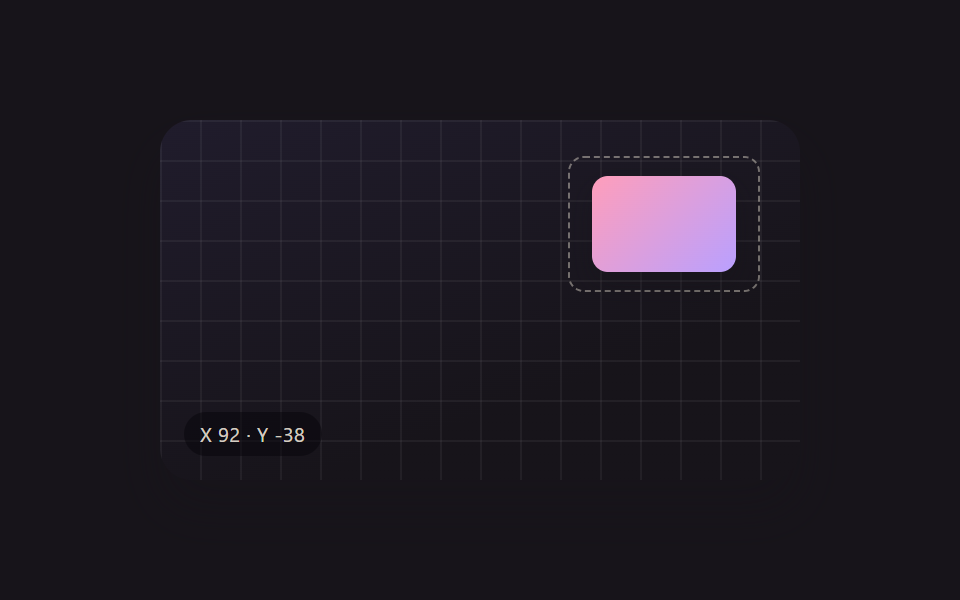 Creative UIResize Handle UI — 9 Free-Transform Patterns
 Creative UIAudio Visualizer JavaScript: 9 Parts, No Library
 Creative UICSS Background Pattern Generator: 9 Seeded Scenes
 Creative UIVerlet Physics 9 Demos: No Library, Just Canvas
 Creative UICanvas Fluid Simulation: 9 Grid Effects