Resize Handle UI — 9 Free-Transform Patterns
Among nine resize handle patterns, one spins an object as its rotate handle arcs, one snaps scattered icons into a grid on one click, and one grows its
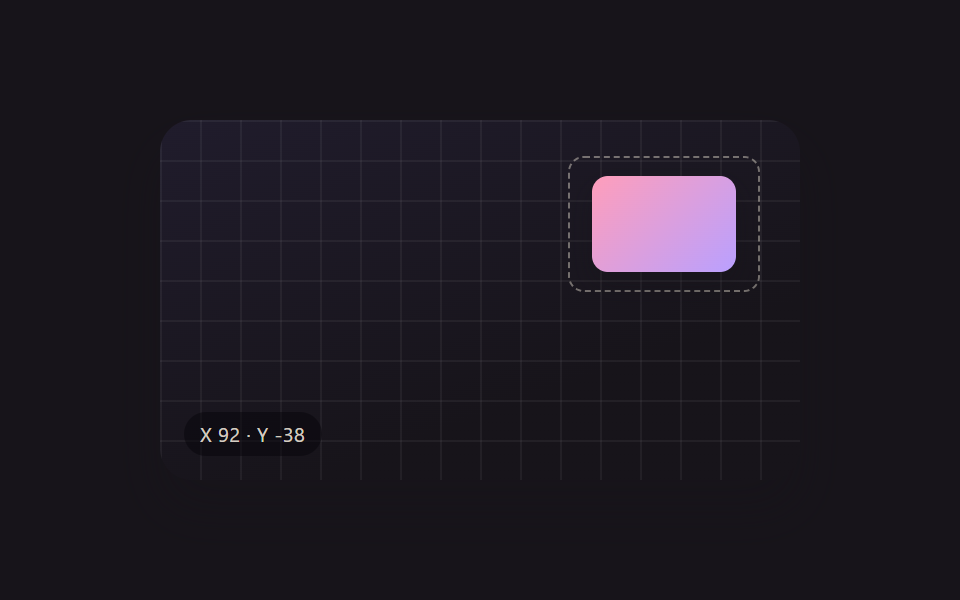 01 xf-drag-move
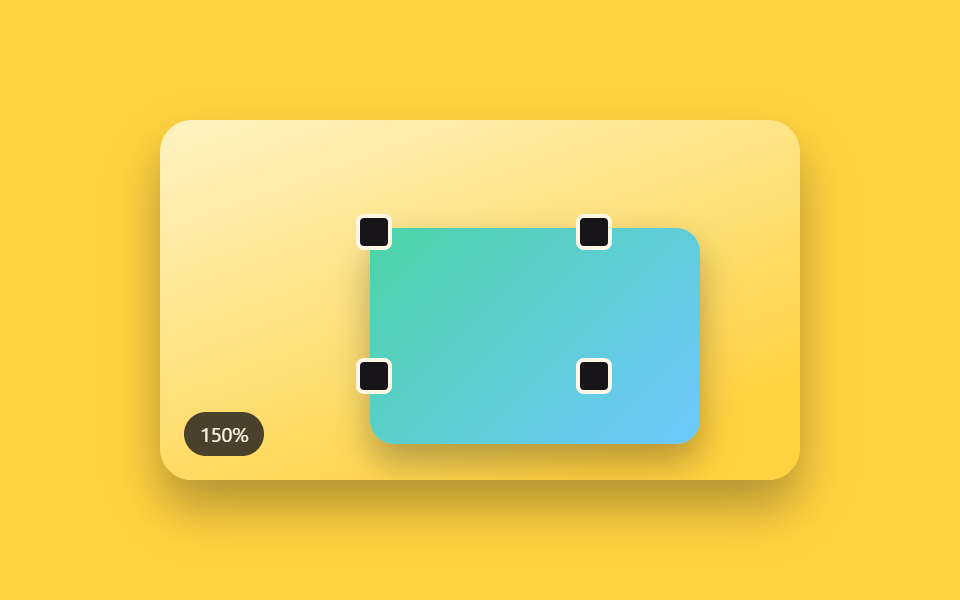 02 xf-corner-scale
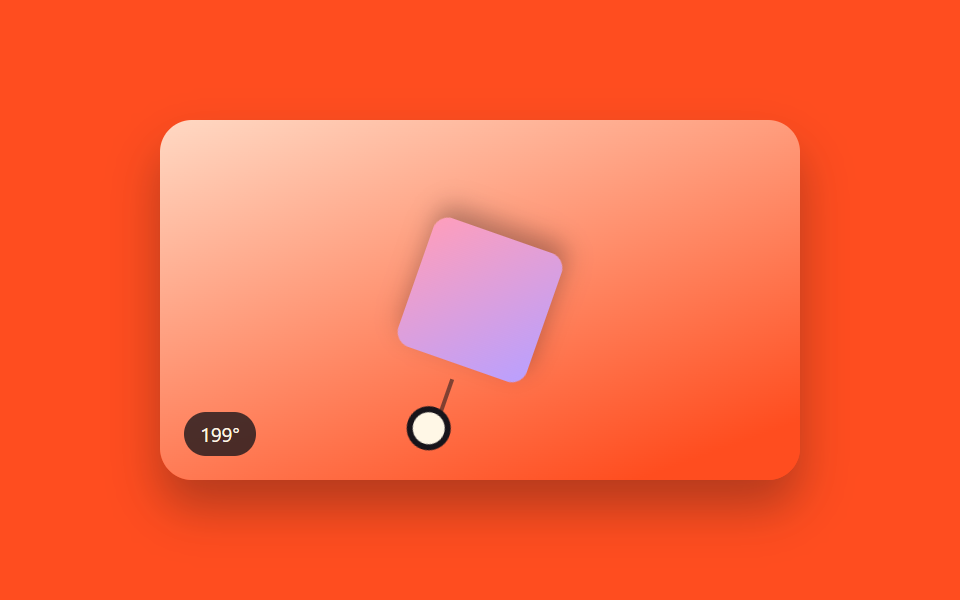 03 xf-rotate-handle
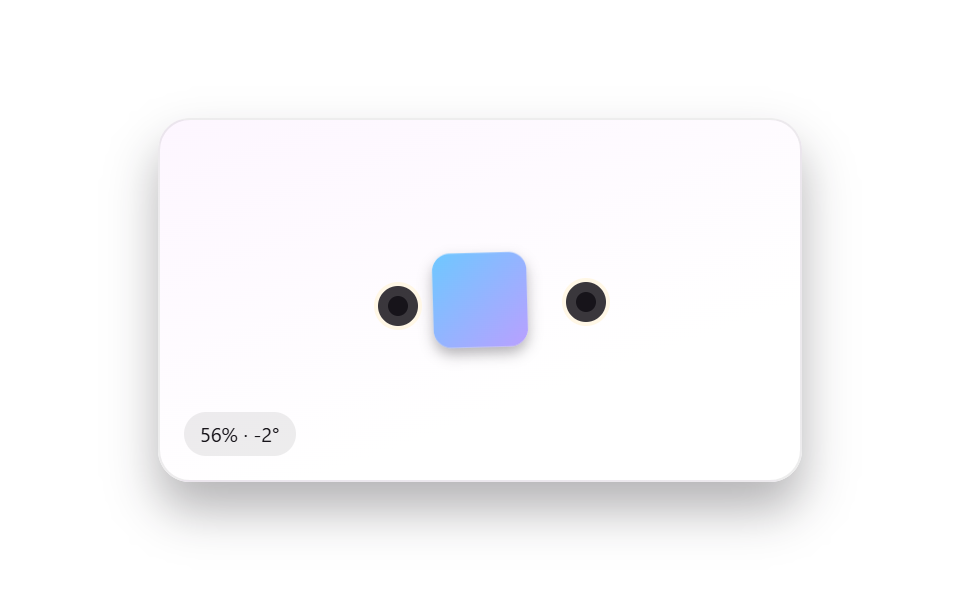 04 xf-pinch-zoom-touch
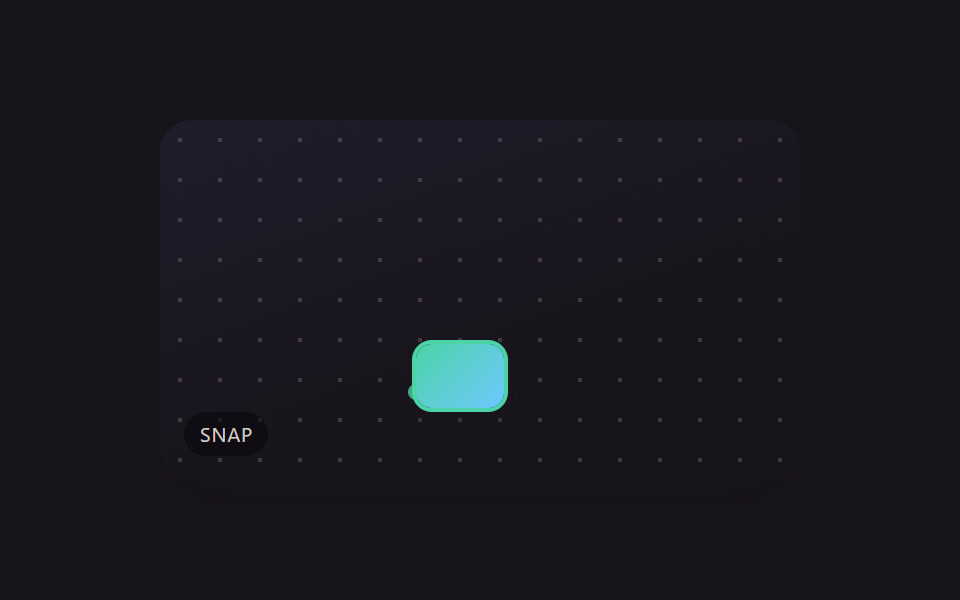 05 xf-grid-snap
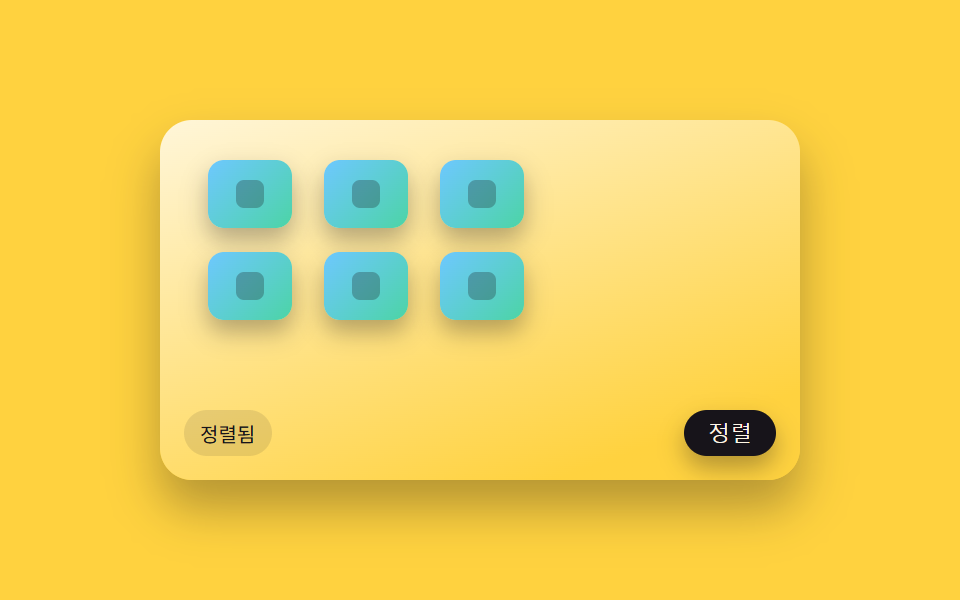 06 xf-icon-grid-arrange
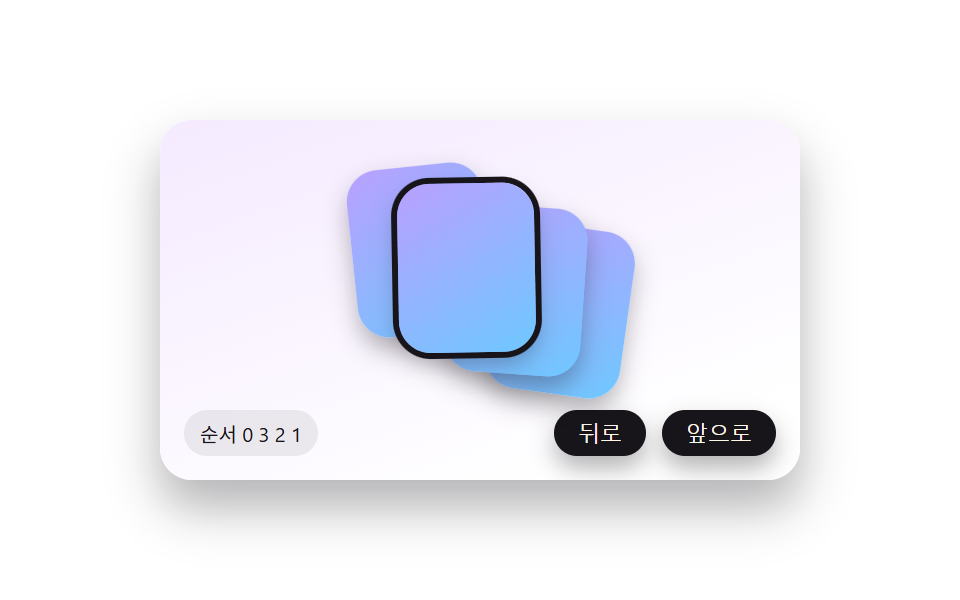 07 xf-z-order
 08 xf-keyboard-nudge
 09 xf-export-png
Auto-plays · click a tile to jump to its section · all nine in one zip
- 01 Whole-Object Drag Move, No Handle Needed
- 02 Aspect-Locked Resize From Four Corner Handles
- 03 Rotate Handle Stemming From the Selection Box's Top
- 04 Two-Finger Scale and Rotate on the Selected Object Only
- 05 Snap-to-Background-Grid While Dragging
- 06 One-Click Auto-Arrange of Scattered Objects Into a Grid
- 07 Sending Overlapping Objects Forward or Back One Step
- 08 One-Pixel Nudge Move With Arrow Keys
- 09 Export Panel That Crops Just the Selection to PNG
This toolkit gathers nine of them on one canvas scene: drag, a corner handle, rotate, two-finger touch, a background-grid snap, one-click auto-arrange, front/back ordering, arrow-key nudge, and a PNG export preview. Each one is a self-drawn CSS/SVG object — no external images, brand marks, or photographed people anywhere in the nine demos — driven by a small, named calculation function you can read start to finish in the code section below.
Demo
<main class="stage">
<div class="scene is-demo" id="scene">
  <div class="grid" aria-hidden="true"></div>
  <div class="draggable" id="draggable" tabindex="0" aria-label="Drag to move">
    <div class="selectBox">
      <div class="subjectShape"></div>
    </div>
  </div>
  <div class="readout" id="readout" aria-hidden="true">X <span id="rx">0</span> · Y <span id="ry">0</span></div>
</div>
</main>
@use "../../../../site/static/demo-tokens" as *;
// 변수 3개
$duration: $dur-enter;
$easing: $ease-out;
$color: $subject-lilac;
// 계산 겹: index.html 의 applyTransform() 이 포인터 델타를 matrix(1,0,0,1,tx,ty) 순수 이동 행렬로
// 그대로 굳혀 style.transform 에 넣는다 — CSS 트랜지션이 아니라 매 프레임 산술로 값을 만든다.
@include stage($stage-ink);
.scene {
position: relative;
width: 320px;
height: 180px;
border-radius: $r-card;
overflow: hidden;
box-shadow: $shadow-raised;
background: linear-gradient(160deg, #201c2c, $stage-ink 70%);
}
.grid {
position: absolute;
inset: 0;
background-image:
linear-gradient(rgba(255, 255, 255, .05) 1px, transparent 1px),
linear-gradient(90deg, rgba(255, 255, 255, .05) 1px, transparent 1px);
background-size: 20px 20px;
}
.draggable {
position: absolute;
top: 50%;
left: 50%;
margin-top: -34px;
margin-left: -48px;
width: 96px;
height: 68px;
cursor: grab;
touch-action: none;
will-change: transform;
&.isDragging { cursor: grabbing; }
&:focus-visible .selectBox { outline: 2px solid $color; outline-offset: 3px; }
}
.selectBox {
position: relative;
width: 100%;
height: 100%;
border: 1px dashed rgba($subject-cream, .4);
border-radius: $r-sm;
box-sizing: border-box;
display: grid;
place-items: center;
}
.subjectShape {
width: 72px;
height: 48px;
border-radius: $r-sm;
background: linear-gradient(135deg, $subject-pink, $subject-lilac);
box-shadow: $shadow-press;
}
.readout {
position: absolute;
left: $sp-3;
bottom: $sp-3;
padding: $sp-1 $sp-2;
border-radius: $r-pill;
background: rgba(#050409, .5);
color: rgba($subject-cream, .82);
font-size: 10px;
font-variant-numeric: tabular-nums;
letter-spacing: .02em;
}
@media (max-width: 340px) {
.scene { width: 220px; height: 124px; }
.draggable { width: 68px; height: 48px; margin-top: -24px; margin-left: -34px; }
.subjectShape { width: 52px; height: 34px; }
.readout { font-size: 9px; }
}
@media (prefers-reduced-motion: reduce) {
// 실사용 경로 적용 — 드래그·키보드 이동은 index.html 이 트윈 없이 즉시 반영한다.
// scss 만: 포커스 아웃라인 전환만 꺼서 잔여 트랜지션을 없앤다.
.draggable { transition: none; }
}html, body {
margin: 0;
overflow: hidden;
}
.stage {
box-sizing: border-box;
min-height: 100vh;
display: grid;
place-items: center;
margin: 0;
background: #17141a;
font-family: -apple-system, "Segoe UI", "Noto Sans KR", sans-serif;
padding: clamp(8px, 4vw, 24px);
}
.scene {
position: relative;
width: 320px;
height: 180px;
border-radius: 16px;
overflow: hidden;
box-shadow: 0 14px 24px rgba(23, 20, 26, 0.32);
background: linear-gradient(160deg, #201c2c, #17141a 70%);
}
.grid {
position: absolute;
inset: 0;
background-image: linear-gradient(rgba(255, 255, 255, 0.05) 1px, transparent 1px), linear-gradient(90deg, rgba(255, 255, 255, 0.05) 1px, transparent 1px);
background-size: 20px 20px;
}
.draggable {
position: absolute;
top: 50%;
left: 50%;
margin-top: -34px;
margin-left: -48px;
width: 96px;
height: 68px;
cursor: grab;
touch-action: none;
will-change: transform;
}
.draggable.isDragging {
cursor: grabbing;
}
.draggable:focus-visible .selectBox {
outline: 2px solid #b9a0ff;
outline-offset: 3px;
}
.selectBox {
position: relative;
width: 100%;
height: 100%;
border: 1px dashed rgba(255, 247, 230, 0.4);
border-radius: 8px;
box-sizing: border-box;
display: grid;
place-items: center;
}
.subjectShape {
width: 72px;
height: 48px;
border-radius: 8px;
background: linear-gradient(135deg, #ff9ebb, #b9a0ff);
box-shadow: 0 6px 12px rgba(23, 20, 26, 0.32);
}
.readout {
position: absolute;
left: 12px;
bottom: 12px;
padding: 4px 8px;
border-radius: 999px;
background: rgba(5, 4, 9, 0.5);
color: rgba(255, 247, 230, 0.82);
font-size: 10px;
font-variant-numeric: tabular-nums;
letter-spacing: 0.02em;
}
@media (max-width: 340px) {
.scene {
width: 220px;
height: 124px;
}
.draggable {
width: 68px;
height: 48px;
margin-top: -24px;
margin-left: -34px;
}
.subjectShape {
width: 52px;
height: 34px;
}
.readout {
font-size: 9px;
}
}
@media (prefers-reduced-motion: reduce) {
.draggable {
transition: none;
}
}(function () {
var WAYPOINTS = [
{ x: 0, y: 0 },
{ x: 92, y: -38 },
{ x: -70, y: 30 },
{ x: 0, y: 0 }
];
var HOP_MS = 640;
var HOLD_MS = 380;
var scene = document.getElementById('scene');
var el = document.getElementById('draggable');
var rx = document.getElementById('rx');
var ry = document.getElementById('ry');
var reduce = window.matchMedia('(prefers-reduced-motion: reduce)').matches;
var tx = 0, ty = 0;
var dragging = false;
var startX = 0, startY = 0, originTx = 0, originTy = 0;
var timers = [];
function clamp(v, lo, hi) { return Math.min(hi, Math.max(lo, v)); }
function easeOutCubic(t) { return 1 - Math.pow(1 - t, 3); }
// 포인터 델타 → translate 행렬. matrix(1,0,0,1,tx,ty) 가 곧 순수 이동 행렬이다.
function applyTransform(nx, ny) {
tx = nx; ty = ny;
el.style.transform = 'matrix(1,0,0,1,' + tx.toFixed(1) + ',' + ty.toFixed(1) + ')';
rx.textContent = Math.round(tx);
ry.textContent = Math.round(ty);
}
function human() {
if (scene.classList.contains('is-demo')) {
scene.classList.remove('is-demo');
timers.forEach(function (t) { clearTimeout(t); clearInterval(t); });
timers = [];
}
}
function onPointerDown(e) {
human();
dragging = true;
el.setPointerCapture(e.pointerId);
startX = e.clientX; startY = e.clientY;
originTx = tx; originTy = ty;
el.classList.add('isDragging');
}
function onPointerMove(e) {
if (!dragging) return;
var dx = e.clientX - startX;
var dy = e.clientY - startY;
applyTransform(clamp(originTx + dx, -110, 110), clamp(originTy + dy, -55, 55));
}
function onPointerUp(e) {
if (!dragging) return;
dragging = false;
el.classList.remove('isDragging');
try { el.releasePointerCapture(e.pointerId); } catch (err) {}
}
function onKeydown(e) {
var step = e.shiftKey ? 10 : 1;
if (e.key === 'ArrowLeft') { human(); applyTransform(clamp(tx - step, -110, 110), ty); e.preventDefault(); }
else if (e.key === 'ArrowRight') { human(); applyTransform(clamp(tx + step, -110, 110), ty); e.preventDefault(); }
else if (e.key === 'ArrowUp') { human(); applyTransform(tx, clamp(ty - step, -55, 55)); e.preventDefault(); }
else if (e.key === 'ArrowDown') { human(); applyTransform(tx, clamp(ty + step, -55, 55)); e.preventDefault(); }
}
el.addEventListener('pointerdown', onPointerDown);
el.addEventListener('pointermove', onPointerMove);
el.addEventListener('pointerup', onPointerUp);
el.addEventListener('pointercancel', onPointerUp);
el.addEventListener('keydown', onKeydown);
// reduce: 실사용 경로 적용 — 포인터·키보드 이동은 위 리스너가 그대로 처리한다(트윈 없이 즉시 반영).
// 아래 hopTo()·cycle() 은 시연 게이트만 — reduce 에서는 돌지 않는다.
function hopTo(target, onDone) {
var fromTx = tx, fromTy = ty;
var start = performance.now();
function frame(now) {
if (!scene.classList.contains('is-demo')) return;
var p = clamp((now - start) / HOP_MS, 0, 1);
var e = easeOutCubic(p);
applyTransform(fromTx + (target.x - fromTx) * e, fromTy + (target.y - fromTy) * e);
if (p < 1) requestAnimationFrame(frame);
else if (onDone) onDone();
}
requestAnimationFrame(frame);
}
function cycle(i) {
if (!scene.classList.contains('is-demo')) return;
var next = WAYPOINTS[i % WAYPOINTS.length];
hopTo(next, function () {
timers.push(setTimeout(function () { cycle(i + 1); }, HOLD_MS));
});
}
if (!reduce) {
cycle(1);
}
})();import { useEffect, useRef } from 'react';
import styles from './XfDragMove.module.scss';
const STEP_PX = 1; // 방향키 한 번의 기본 이동량
const STEP_PX_SHIFT = 10; // Shift + 방향키
const HOP_MS = 620;
const HOLD_MS = 360;
const WAYPOINTS = [
{ x: 0, y: 0 }, { x: 92, y: -38 }, { x: -70, y: 30 }, { x: 0, y: 0 }
];
export default function XfDragMove() {
const sceneRef = useRef<HTMLDivElement>(null);
useEffect(() => {
const scene0 = sceneRef.current;
if (!scene0) return undefined;
const scene = scene0;
const draggable0 = scene.querySelector<HTMLDivElement>('.' + styles.draggable);
const rx0 = scene.querySelector<HTMLSpanElement>('#rx');
const ry0 = scene.querySelector<HTMLSpanElement>('#ry');
if (!draggable0 || !rx0 || !ry0) return undefined;
const draggable = draggable0;
const rx = rx0;
const ry = ry0;
const reduce = window.matchMedia('(prefers-reduced-motion: reduce)').matches;
let tx = 0, ty = 0;
let dragging = false;
let startX = 0, startY = 0, originTx = 0, originTy = 0;
let rafId = 0;
let timers: number[] = [];
function clamp(v: number, lo: number, hi: number) { return Math.min(hi, Math.max(lo, v)); }
function easeOutCubic(t: number) { return 1 - Math.pow(1 - t, 3); }
// 포인터 델타 → translate 행렬. matrix(1,0,0,1,tx,ty) 가 곧 순수 이동 행렬이다.
function applyTransform(nx: number, ny: number) {
tx = nx; ty = ny;
draggable.style.transform = 'matrix(1,0,0,1,' + tx.toFixed(1) + ',' + ty.toFixed(1) + ')';
rx.textContent = String(Math.round(tx));
ry.textContent = String(Math.round(ty));
}
function human() {
if (scene.classList.contains(styles['is-demo'])) {
scene.classList.remove(styles['is-demo']);
timers.forEach((t) => window.clearTimeout(t));
timers = [];
}
}
function onPointerDown(e: PointerEvent) {
human();
dragging = true;
draggable.setPointerCapture(e.pointerId);
startX = e.clientX; startY = e.clientY;
originTx = tx; originTy = ty;
}
function onPointerMove(e: PointerEvent) {
if (!dragging) return;
applyTransform(originTx + (e.clientX - startX), originTy + (e.clientY - startY));
}
function endDrag(e: PointerEvent) {
if (!dragging) return;
dragging = false;
try { draggable.releasePointerCapture(e.pointerId); } catch { /* 캡처가 이미 풀린 경우 */ }
}
function onKeyDown(e: KeyboardEvent) {
const step = e.shiftKey ? STEP_PX_SHIFT : STEP_PX;
if (e.key === 'ArrowLeft') { human(); applyTransform(tx - step, ty); e.preventDefault(); }
else if (e.key === 'ArrowRight') { human(); applyTransform(tx + step, ty); e.preventDefault(); }
else if (e.key === 'ArrowUp') { human(); applyTransform(tx, ty - step); e.preventDefault(); }
else if (e.key === 'ArrowDown') { human(); applyTransform(tx, ty + step); e.preventDefault(); }
}
draggable.addEventListener('pointerdown', onPointerDown);
draggable.addEventListener('pointermove', onPointerMove);
draggable.addEventListener('pointerup', endDrag);
draggable.addEventListener('pointercancel', endDrag);
draggable.addEventListener('keydown', onKeyDown);
// reduce: 실사용 경로 적용 — 드래그·키보드는 위에서 즉시 반영한다.
// 아래 자동 루프는 시연 게이트만 — reduce 에서는 돌지 않는다.
function hopTo(target: { x: number; y: number }, onDone: () => void) {
const fromX = tx, fromY = ty;
const start = performance.now();
function frame(now: number) {
if (!scene.classList.contains(styles['is-demo'])) return;
const p = clamp((now - start) / HOP_MS, 0, 1);
const e = easeOutCubic(p);
applyTransform(fromX + (target.x - fromX) * e, fromY + (target.y - fromY) * e);
if (p < 1) rafId = requestAnimationFrame(frame);
else onDone();
}
rafId = requestAnimationFrame(frame);
}
function cycle(i: number) {
if (!scene.classList.contains(styles['is-demo'])) return;
const target = WAYPOINTS[i % WAYPOINTS.length];
hopTo(target, () => {
timers.push(window.setTimeout(() => cycle(i + 1), HOLD_MS));
});
}
applyTransform(0, 0);
if (!reduce) {
cycle(1);
}
return () => {
draggable.removeEventListener('pointerdown', onPointerDown);
draggable.removeEventListener('pointermove', onPointerMove);
draggable.removeEventListener('pointerup', endDrag);
draggable.removeEventListener('pointercancel', endDrag);
draggable.removeEventListener('keydown', onKeyDown);
timers.forEach((t) => window.clearTimeout(t));
cancelAnimationFrame(rafId);
};
}, []);
return (
<main className={styles.stage}>
<div className={styles.scene + ' ' + styles['is-demo']} ref={sceneRef}>
<div
className={styles.draggable}
tabIndex={0}
aria-label="드래그해서 이동"
>
<span className={styles.selectBox} aria-hidden="true"></span>
<span className={styles.subjectShape} aria-hidden="true"></span>
</div>
<div className={styles.readout} aria-hidden="true">X <span id="rx">0</span> · Y <span id="ry">0</span></div>
</div>
</main>
);
}01 · Whole-Object Drag Move, No Handle Needed — Measured area 11.417% · moving frames 14/23Original by GODRICH · SCSS and React ship in the zip · See the password
Pattern 01 above needs no handle at all — press anywhere on the object's body and it follows the pointer until release. The other eight sit further down, each next to its own code block.
Anatomy of nine patterns — where the one layer of calculation runs
| # | Pattern | Cumulative area | Avg. intensity | Frames moved |
|---|---|---|---|---|
| 01 | Whole-object drag | 11.42% | 126.0 | 14 of 23 |
| 02 | Corner resize handle | 14.39% | 75.6 | 16 of 23 |
| 03 | Rotate handle | 9.46% | 86.4 | 19 of 23 |
| 04 | Two-finger pinch/rotate | 9.61% | 82.8 | 23 of 23 |
| 05 | Grid snap | 6.41% | 136.0 | 10 of 23 |
| 06 | Auto-arrange | 14.91% | 85.8 | 8 of 23 |
| 07 | Z-order swap | 6.11% | 88.4 | 9 of 23 |
| 08 | Keyboard nudge | 1.34% | 158.8 | 15 of 23 |
| 09 | PNG export preview | 10.89% | 47.5 | 23 of 23 |
Auto-arrange (06) covers the most screen area of the nine; the keyboard nudge (08) covers the least, and its average pixel-change intensity of 158.8 is the highest of the set — a one-pixel step reads as a sharp, concentrated change rather than a soft one. Pattern 09 sits at the other end, with the lowest average intensity at 47.5. Patterns 04 and 09 each moved in all 23 of 23 measured frame pairs, while 06's auto-arrange finishes its move in as few as 8.
Live pointer-driven transform — 01, 02, 03
Patterns 01, 02, and 03 all track a single pointer continuously and recompute one transform value on every pointermove. applyTransform (01) clamps a translate pair against the frame edges, applyScale (02) clamps against MIN_SCALE/MAX_SCALE while anchoring at the opposite corner via cornerAnchorRect, and applyRotate (03) turns an atan2 angle from angleFromPointer into a mod360-wrapped rotation. None of these wait for pointerup to show the change — the transform commits mid-drag, frame by frame.
Two-input and snap geometry — 04, 05, 06
Patterns 04, 05, and 06 each compute a target from more than one raw coordinate before touching the DOM. computeFromFingers (04) turns two simulated pointer positions into a distance ratio and an angle difference in the same pass. nearestGrid (05) rounds a raw coordinate to the nearest multiple of CELL_PX, then compares the distance against CORNER_SNAP_RADIUS_PX. gridTarget (06) ranks every scattered chip into a row/column cell that animateTo eases toward with easeOutCubic.
Discrete stepped commits — 07, 08, 09
Patterns 07, 08, and 09 don't track a continuous path at all — each commits one discrete state change per interaction. swapNeighbor (07) moves an id one slot inside an order array and remaps z-index from that array's positions. computeStep (08) turns held time into an acceleration multiplier that moveBy applies as one fixed jump per key-repeat. generatePreview (09) redraws the selection through a roundedRectPath and encodes the result with canvas.toDataURL in one pass, with no animation loop involved.
Code per pattern
Every block below is copied straight out of its demo's own script — nothing retyped, nothing simplified.
01Whole-Object Drag Move, No Handle Needed
Pressing and dragging anywhere on a selected object's body moves it and its bounding selection box together along the pointer, stopping exactly where it's released. Reach for it when repositioning stickers or icons on a canvas, where a dedicated handle would only get in the way.
<main class="stage">
<div class="scene is-demo" id="scene">
  <div class="grid" aria-hidden="true"></div>
  <div class="draggable" id="draggable" tabindex="0" aria-label="Drag to move">
    <div class="selectBox">
      <div class="subjectShape"></div>
    </div>
  </div>
  <div class="readout" id="readout" aria-hidden="true">X <span id="rx">0</span> · Y <span id="ry">0</span></div>
</div>
</main>
@use "../../../../site/static/demo-tokens" as *;
// 변수 3개
$duration: $dur-enter;
$easing: $ease-out;
$color: $subject-lilac;
// 계산 겹: index.html 의 applyTransform() 이 포인터 델타를 matrix(1,0,0,1,tx,ty) 순수 이동 행렬로
// 그대로 굳혀 style.transform 에 넣는다 — CSS 트랜지션이 아니라 매 프레임 산술로 값을 만든다.
@include stage($stage-ink);
.scene {
position: relative;
width: 320px;
height: 180px;
border-radius: $r-card;
overflow: hidden;
box-shadow: $shadow-raised;
background: linear-gradient(160deg, #201c2c, $stage-ink 70%);
}
.grid {
position: absolute;
inset: 0;
background-image:
linear-gradient(rgba(255, 255, 255, .05) 1px, transparent 1px),
linear-gradient(90deg, rgba(255, 255, 255, .05) 1px, transparent 1px);
background-size: 20px 20px;
}
.draggable {
position: absolute;
top: 50%;
left: 50%;
margin-top: -34px;
margin-left: -48px;
width: 96px;
height: 68px;
cursor: grab;
touch-action: none;
will-change: transform;
&.isDragging { cursor: grabbing; }
&:focus-visible .selectBox { outline: 2px solid $color; outline-offset: 3px; }
}
.selectBox {
position: relative;
width: 100%;
height: 100%;
border: 1px dashed rgba($subject-cream, .4);
border-radius: $r-sm;
box-sizing: border-box;
display: grid;
place-items: center;
}
.subjectShape {
width: 72px;
height: 48px;
border-radius: $r-sm;
background: linear-gradient(135deg, $subject-pink, $subject-lilac);
box-shadow: $shadow-press;
}
.readout {
position: absolute;
left: $sp-3;
bottom: $sp-3;
padding: $sp-1 $sp-2;
border-radius: $r-pill;
background: rgba(#050409, .5);
color: rgba($subject-cream, .82);
font-size: 10px;
font-variant-numeric: tabular-nums;
letter-spacing: .02em;
}
@media (max-width: 340px) {
.scene { width: 220px; height: 124px; }
.draggable { width: 68px; height: 48px; margin-top: -24px; margin-left: -34px; }
.subjectShape { width: 52px; height: 34px; }
.readout { font-size: 9px; }
}
@media (prefers-reduced-motion: reduce) {
// 실사용 경로 적용 — 드래그·키보드 이동은 index.html 이 트윈 없이 즉시 반영한다.
// scss 만: 포커스 아웃라인 전환만 꺼서 잔여 트랜지션을 없앤다.
.draggable { transition: none; }
}html, body {
margin: 0;
overflow: hidden;
}
.stage {
box-sizing: border-box;
min-height: 100vh;
display: grid;
place-items: center;
margin: 0;
background: #17141a;
font-family: -apple-system, "Segoe UI", "Noto Sans KR", sans-serif;
padding: clamp(8px, 4vw, 24px);
}
.scene {
position: relative;
width: 320px;
height: 180px;
border-radius: 16px;
overflow: hidden;
box-shadow: 0 14px 24px rgba(23, 20, 26, 0.32);
background: linear-gradient(160deg, #201c2c, #17141a 70%);
}
.grid {
position: absolute;
inset: 0;
background-image: linear-gradient(rgba(255, 255, 255, 0.05) 1px, transparent 1px), linear-gradient(90deg, rgba(255, 255, 255, 0.05) 1px, transparent 1px);
background-size: 20px 20px;
}
.draggable {
position: absolute;
top: 50%;
left: 50%;
margin-top: -34px;
margin-left: -48px;
width: 96px;
height: 68px;
cursor: grab;
touch-action: none;
will-change: transform;
}
.draggable.isDragging {
cursor: grabbing;
}
.draggable:focus-visible .selectBox {
outline: 2px solid #b9a0ff;
outline-offset: 3px;
}
.selectBox {
position: relative;
width: 100%;
height: 100%;
border: 1px dashed rgba(255, 247, 230, 0.4);
border-radius: 8px;
box-sizing: border-box;
display: grid;
place-items: center;
}
.subjectShape {
width: 72px;
height: 48px;
border-radius: 8px;
background: linear-gradient(135deg, #ff9ebb, #b9a0ff);
box-shadow: 0 6px 12px rgba(23, 20, 26, 0.32);
}
.readout {
position: absolute;
left: 12px;
bottom: 12px;
padding: 4px 8px;
border-radius: 999px;
background: rgba(5, 4, 9, 0.5);
color: rgba(255, 247, 230, 0.82);
font-size: 10px;
font-variant-numeric: tabular-nums;
letter-spacing: 0.02em;
}
@media (max-width: 340px) {
.scene {
width: 220px;
height: 124px;
}
.draggable {
width: 68px;
height: 48px;
margin-top: -24px;
margin-left: -34px;
}
.subjectShape {
width: 52px;
height: 34px;
}
.readout {
font-size: 9px;
}
}
@media (prefers-reduced-motion: reduce) {
.draggable {
transition: none;
}
}(function () {
var WAYPOINTS = [
{ x: 0, y: 0 },
{ x: 92, y: -38 },
{ x: -70, y: 30 },
{ x: 0, y: 0 }
];
var HOP_MS = 640;
var HOLD_MS = 380;
var scene = document.getElementById('scene');
var el = document.getElementById('draggable');
var rx = document.getElementById('rx');
var ry = document.getElementById('ry');
var reduce = window.matchMedia('(prefers-reduced-motion: reduce)').matches;
var tx = 0, ty = 0;
var dragging = false;
var startX = 0, startY = 0, originTx = 0, originTy = 0;
var timers = [];
function clamp(v, lo, hi) { return Math.min(hi, Math.max(lo, v)); }
function easeOutCubic(t) { return 1 - Math.pow(1 - t, 3); }
// 포인터 델타 → translate 행렬. matrix(1,0,0,1,tx,ty) 가 곧 순수 이동 행렬이다.
function applyTransform(nx, ny) {
tx = nx; ty = ny;
el.style.transform = 'matrix(1,0,0,1,' + tx.toFixed(1) + ',' + ty.toFixed(1) + ')';
rx.textContent = Math.round(tx);
ry.textContent = Math.round(ty);
}
function human() {
if (scene.classList.contains('is-demo')) {
scene.classList.remove('is-demo');
timers.forEach(function (t) { clearTimeout(t); clearInterval(t); });
timers = [];
}
}
  function onPointerDown(e) {
    human();
    dragging = true;
    el.setPointerCapture(e.pointerId);
    startX = e.clientX; startY = e.clientY;
    originTx = tx; originTy = ty;
    el.classList.add('isDragging');
  }
  function onPointerMove(e) {
    if (!dragging) return;
    var dx = e.clientX - startX;
    var dy = e.clientY - startY;
    applyTransform(clamp(originTx + dx, -110, 110), clamp(originTy + dy, -55, 55));
  }
  function onPointerUp(e) {
    if (!dragging) return;
    dragging = false;
    el.classList.remove('isDragging');
    try { el.releasePointerCapture(e.pointerId); } catch (err) {}
  }
function onKeydown(e) {
var step = e.shiftKey ? 10 : 1;
if (e.key === 'ArrowLeft') { human(); applyTransform(clamp(tx - step, -110, 110), ty); e.preventDefault(); }
else if (e.key === 'ArrowRight') { human(); applyTransform(clamp(tx + step, -110, 110), ty); e.preventDefault(); }
else if (e.key === 'ArrowUp') { human(); applyTransform(tx, clamp(ty - step, -55, 55)); e.preventDefault(); }
else if (e.key === 'ArrowDown') { human(); applyTransform(tx, clamp(ty + step, -55, 55)); e.preventDefault(); }
}
el.addEventListener('pointerdown', onPointerDown);
el.addEventListener('pointermove', onPointerMove);
el.addEventListener('pointerup', onPointerUp);
el.addEventListener('pointercancel', onPointerUp);
el.addEventListener('keydown', onKeydown);
// reduce: 실사용 경로 적용 — 포인터·키보드 이동은 위 리스너가 그대로 처리한다(트윈 없이 즉시 반영).
// 아래 hopTo()·cycle() 은 시연 게이트만 — reduce 에서는 돌지 않는다.
function hopTo(target, onDone) {
var fromTx = tx, fromTy = ty;
var start = performance.now();
function frame(now) {
if (!scene.classList.contains('is-demo')) return;
var p = clamp((now - start) / HOP_MS, 0, 1);
var e = easeOutCubic(p);
applyTransform(fromTx + (target.x - fromTx) * e, fromTy + (target.y - fromTy) * e);
if (p < 1) requestAnimationFrame(frame);
else if (onDone) onDone();
}
requestAnimationFrame(frame);
}
function cycle(i) {
if (!scene.classList.contains('is-demo')) return;
var next = WAYPOINTS[i % WAYPOINTS.length];
hopTo(next, function () {
timers.push(setTimeout(function () { cycle(i + 1); }, HOLD_MS));
});
}
if (!reduce) {
cycle(1);
}
})();import { useEffect, useRef } from 'react';
import styles from './XfDragMove.module.scss';
const STEP_PX = 1; // 방향키 한 번의 기본 이동량
const STEP_PX_SHIFT = 10; // Shift + 방향키
const HOP_MS = 620;
const HOLD_MS = 360;
const WAYPOINTS = [
{ x: 0, y: 0 }, { x: 92, y: -38 }, { x: -70, y: 30 }, { x: 0, y: 0 }
];
export default function XfDragMove() {
const sceneRef = useRef<HTMLDivElement>(null);
useEffect(() => {
const scene0 = sceneRef.current;
if (!scene0) return undefined;
const scene = scene0;
const draggable0 = scene.querySelector<HTMLDivElement>('.' + styles.draggable);
const rx0 = scene.querySelector<HTMLSpanElement>('#rx');
const ry0 = scene.querySelector<HTMLSpanElement>('#ry');
if (!draggable0 || !rx0 || !ry0) return undefined;
const draggable = draggable0;
const rx = rx0;
const ry = ry0;
const reduce = window.matchMedia('(prefers-reduced-motion: reduce)').matches;
let tx = 0, ty = 0;
let dragging = false;
let startX = 0, startY = 0, originTx = 0, originTy = 0;
let rafId = 0;
let timers: number[] = [];
function clamp(v: number, lo: number, hi: number) { return Math.min(hi, Math.max(lo, v)); }
function easeOutCubic(t: number) { return 1 - Math.pow(1 - t, 3); }
// 포인터 델타 → translate 행렬. matrix(1,0,0,1,tx,ty) 가 곧 순수 이동 행렬이다.
function applyTransform(nx: number, ny: number) {
tx = nx; ty = ny;
draggable.style.transform = 'matrix(1,0,0,1,' + tx.toFixed(1) + ',' + ty.toFixed(1) + ')';
rx.textContent = String(Math.round(tx));
ry.textContent = String(Math.round(ty));
}
function human() {
if (scene.classList.contains(styles['is-demo'])) {
scene.classList.remove(styles['is-demo']);
timers.forEach((t) => window.clearTimeout(t));
timers = [];
}
}
function onPointerDown(e: PointerEvent) {
human();
dragging = true;
draggable.setPointerCapture(e.pointerId);
startX = e.clientX; startY = e.clientY;
originTx = tx; originTy = ty;
}
function onPointerMove(e: PointerEvent) {
if (!dragging) return;
applyTransform(originTx + (e.clientX - startX), originTy + (e.clientY - startY));
}
function endDrag(e: PointerEvent) {
if (!dragging) return;
dragging = false;
try { draggable.releasePointerCapture(e.pointerId); } catch { /* 캡처가 이미 풀린 경우 */ }
}
function onKeyDown(e: KeyboardEvent) {
const step = e.shiftKey ? STEP_PX_SHIFT : STEP_PX;
if (e.key === 'ArrowLeft') { human(); applyTransform(tx - step, ty); e.preventDefault(); }
else if (e.key === 'ArrowRight') { human(); applyTransform(tx + step, ty); e.preventDefault(); }
else if (e.key === 'ArrowUp') { human(); applyTransform(tx, ty - step); e.preventDefault(); }
else if (e.key === 'ArrowDown') { human(); applyTransform(tx, ty + step); e.preventDefault(); }
}
draggable.addEventListener('pointerdown', onPointerDown);
draggable.addEventListener('pointermove', onPointerMove);
draggable.addEventListener('pointerup', endDrag);
draggable.addEventListener('pointercancel', endDrag);
draggable.addEventListener('keydown', onKeyDown);
// reduce: 실사용 경로 적용 — 드래그·키보드는 위에서 즉시 반영한다.
// 아래 자동 루프는 시연 게이트만 — reduce 에서는 돌지 않는다.
function hopTo(target: { x: number; y: number }, onDone: () => void) {
const fromX = tx, fromY = ty;
const start = performance.now();
function frame(now: number) {
if (!scene.classList.contains(styles['is-demo'])) return;
const p = clamp((now - start) / HOP_MS, 0, 1);
const e = easeOutCubic(p);
applyTransform(fromX + (target.x - fromX) * e, fromY + (target.y - fromY) * e);
if (p < 1) rafId = requestAnimationFrame(frame);
else onDone();
}
rafId = requestAnimationFrame(frame);
}
function cycle(i: number) {
if (!scene.classList.contains(styles['is-demo'])) return;
const target = WAYPOINTS[i % WAYPOINTS.length];
hopTo(target, () => {
timers.push(window.setTimeout(() => cycle(i + 1), HOLD_MS));
});
}
applyTransform(0, 0);
if (!reduce) {
cycle(1);
}
return () => {
draggable.removeEventListener('pointerdown', onPointerDown);
draggable.removeEventListener('pointermove', onPointerMove);
draggable.removeEventListener('pointerup', endDrag);
draggable.removeEventListener('pointercancel', endDrag);
draggable.removeEventListener('keydown', onKeyDown);
timers.forEach((t) => window.clearTimeout(t));
cancelAnimationFrame(rafId);
};
}, []);
return (
<main className={styles.stage}>
<div className={styles.scene + ' ' + styles['is-demo']} ref={sceneRef}>
<div
className={styles.draggable}
tabIndex={0}
aria-label="드래그해서 이동"
>
<span className={styles.selectBox} aria-hidden="true"></span>
<span className={styles.subjectShape} aria-hidden="true"></span>
</div>
<div className={styles.readout} aria-hidden="true">X <span id="rx">0</span> · Y <span id="ry">0</span></div>
</div>
</main>
);
}01 · Whole-Object Drag Move, No Handle Needed — Measured area 11.417% · moving frames 14/23Original by GODRICH · SCSS and React ship in the zip · See the password
function onPointerDown(e) {
human();
dragging = true;
el.setPointerCapture(e.pointerId);
startX = e.clientX; startY = e.clientY;
originTx = tx; originTy = ty;
el.classList.add('isDragging');
}
function onPointerMove(e) {
if (!dragging) return;
var dx = e.clientX - startX;
var dy = e.clientY - startY;
applyTransform(clamp(originTx + dx, -110, 110), clamp(originTy + dy, -55, 55));
}
function onPointerUp(e) {
if (!dragging) return;
dragging = false;
el.classList.remove('isDragging');
try { el.releasePointerCapture(e.pointerId); } catch (err) {}
}
02Aspect-Locked Resize From Four Corner Handles
Small square handles sit on each of the selection box's four corners, and dragging one resizes the object larger or smaller while keeping its aspect ratio, anchored at the opposite corner. This corner resize handle is a different demo from 250's panel-corner-resize-grip, which resizes a layout panel's own width and height — this one is a border handle on a single canvas object, not a panel, and it's the pattern to reach for when sizing an image object on a moodboard or business-card mockup.
<main class="stage">
<div class="scene is-demo" id="scene">
  <div class="frame" id="frame" tabindex="0" aria-label="Resize frame — drag a corner handle to scale up or down while keeping the aspect ratio">
    <div class="subjectShape"></div>
    <div class="handle handle--tl" data-corner="tl" tabindex="0" role="slider" aria-label="Top-left corner handle" aria-valuemin="50" aria-valuemax="180" aria-valuenow="100"></div>
    <div class="handle handle--tr" data-corner="tr" tabindex="0" role="slider" aria-label="Top-right corner handle" aria-valuemin="50" aria-valuemax="180" aria-valuenow="100"></div>
    <div class="handle handle--bl" data-corner="bl" tabindex="0" role="slider" aria-label="Bottom-left corner handle" aria-valuemin="50" aria-valuemax="180" aria-valuenow="100"></div>
    <div class="handle handle--br" data-corner="br" tabindex="0" role="slider" aria-label="Bottom-right corner handle" aria-valuemin="50" aria-valuemax="180" aria-valuenow="100"></div>
  </div>
  <div class="readout" id="readout" aria-hidden="true"><span id="rp">100</span>%</div>
</div>
</main>
@use "../../../../site/static/demo-tokens" as *;
// 변수 3개
$duration: $dur-enter;
$easing: $ease-out;
$color: $subject-sky;
// 계산 겹: index.html 의 applyScale() 이 앵커(대각선 반대 모서리)→포인터 거리비로 균일 scale() 을
// 만들고 transform-origin 을 앵커 좌표에 둔다 — 앵커는 어떤 배율에서도 화면에서 움직이지 않는다.
@include stage($stage-yellow);
.scene {
position: relative;
width: 320px;
height: 180px;
border-radius: $r-card;
overflow: hidden;
box-shadow: $shadow-raised;
background: linear-gradient(160deg, #fff3c4, $stage-yellow 85%);
}
.frame {
position: absolute;
top: 50%;
left: 50%;
width: 110px;
height: 72px;
margin-top: -36px;
margin-left: -55px;
&:focus-visible { outline: 2px solid $color; outline-offset: 6px; }
}
.subjectShape {
width: 100%;
height: 100%;
border-radius: $r-sm;
background: linear-gradient(135deg, $subject-mint, $subject-sky);
box-shadow: $shadow-press;
will-change: transform;
}
.handle {
position: absolute;
width: 14px;
height: 14px;
margin: -7px;
border-radius: $r-xs;
background: $subject-ink;
border: 2px solid $subject-cream;
cursor: nwse-resize;
touch-action: none;
&--tl { top: 0; left: 0; }
&--tr { top: 0; left: 100%; cursor: nesw-resize; }
&--bl { top: 100%; left: 0; cursor: nesw-resize; }
&--br { top: 100%; left: 100%; }
&.isActive, &:focus-visible { background: $color; }
}
.readout {
position: absolute;
left: $sp-3;
bottom: $sp-3;
padding: $sp-1 $sp-2;
border-radius: $r-pill;
background: rgba($subject-ink, .78);
color: $subject-cream;
font-size: 10px;
font-variant-numeric: tabular-nums;
}
@media (max-width: 340px) {
.scene { width: 220px; height: 124px; }
.frame { width: 78px; height: 52px; margin-top: -26px; margin-left: -39px; }
.handle { width: 12px; height: 12px; margin: -6px; }
.readout { font-size: 9px; }
}
@media (prefers-reduced-motion: reduce) {
// 실사용 경로 적용 — 핸들 드래그·키보드는 index.html 이 트윈 없이 즉시 반영한다.
// scss 만: 핸들 색 전환만 꺼서 잔여 트랜지션을 없앤다.
.handle { transition: none; }
}html, body {
margin: 0;
overflow: hidden;
}
.stage {
box-sizing: border-box;
min-height: 100vh;
display: grid;
place-items: center;
margin: 0;
background: #ffd23f;
font-family: -apple-system, "Segoe UI", "Noto Sans KR", sans-serif;
padding: clamp(8px, 4vw, 24px);
}
.scene {
position: relative;
width: 320px;
height: 180px;
border-radius: 16px;
overflow: hidden;
box-shadow: 0 14px 24px rgba(23, 20, 26, 0.32);
background: linear-gradient(160deg, #fff3c4, #ffd23f 85%);
}
.frame {
position: absolute;
top: 50%;
left: 50%;
width: 110px;
height: 72px;
margin-top: -36px;
margin-left: -55px;
}
.frame:focus-visible {
outline: 2px solid #6ec8ff;
outline-offset: 6px;
}
.subjectShape {
width: 100%;
height: 100%;
border-radius: 8px;
background: linear-gradient(135deg, #4cd4a6, #6ec8ff);
box-shadow: 0 6px 12px rgba(23, 20, 26, 0.32);
will-change: transform;
}
.handle {
position: absolute;
width: 14px;
height: 14px;
margin: -7px;
border-radius: 4px;
background: #17141a;
border: 2px solid #fff7e6;
cursor: nwse-resize;
touch-action: none;
}
.handle--tl {
top: 0;
left: 0;
}
.handle--tr {
top: 0;
left: 100%;
cursor: nesw-resize;
}
.handle--bl {
top: 100%;
left: 0;
cursor: nesw-resize;
}
.handle--br {
top: 100%;
left: 100%;
}
.handle.isActive, .handle:focus-visible {
background: #6ec8ff;
}
.readout {
position: absolute;
left: 12px;
bottom: 12px;
padding: 4px 8px;
border-radius: 999px;
background: rgba(23, 20, 26, 0.78);
color: #fff7e6;
font-size: 10px;
font-variant-numeric: tabular-nums;
}
@media (max-width: 340px) {
.scene {
width: 220px;
height: 124px;
}
.frame {
width: 78px;
height: 52px;
margin-top: -26px;
margin-left: -39px;
}
.handle {
width: 12px;
height: 12px;
margin: -6px;
}
.readout {
font-size: 9px;
}
}
@media (prefers-reduced-motion: reduce) {
.handle {
transition: none;
}
}(function () {
var MIN_SCALE = 0.55;
var MAX_SCALE = 1.75;
var LOOP_SEQUENCE = [1.5, 0.7, 1];
var HOP_MS = 620;
var HOLD_MS = 340;
var scene = document.getElementById('scene');
var frame = document.getElementById('frame');
var subject = frame.querySelector('.subjectShape');
var handles = [].slice.call(frame.querySelectorAll('.handle'));
var rp = document.getElementById('rp');
var reduce = window.matchMedia('(prefers-reduced-motion: reduce)').matches;
// 앵커 고정 비율 산술: 드래그하는 모서리의 대각선 반대쪽을 앵커로 고정하고, 앵커→포인터 거리의
// 비로 균일 스케일을 만든다. transform-origin 을 앵커 좌표에 두면 그 점은 화면에서 움직이지 않는다.
var ORIGIN_BY_CORNER = {
tl: '100% 100%',
tr: '0% 100%',
bl: '100% 0%',
br: '0% 0%'
};
var scale = 1;
var dragCorner = null;
var anchorX = 0, anchorY = 0, d0 = 1, s0 = 1;
var timers = [];
function clamp(v, lo, hi) { return Math.min(hi, Math.max(lo, v)); }
function easeOutCubic(t) { return 1 - Math.pow(1 - t, 3); }
function dist(x1, y1, x2, y2) { return Math.hypot(x2 - x1, y2 - y1); }
  function applyScale(corner, s) {
    scale = clamp(s, MIN_SCALE, MAX_SCALE);
    subject.style.transformOrigin = ORIGIN_BY_CORNER[corner];
    subject.style.transform = 'scale(' + scale.toFixed(3) + ')';
    rp.textContent = Math.round(scale * 100);
    handles.forEach(function (h) { h.setAttribute('aria-valuenow', String(Math.round(scale * 100))); });
  }

  function human() {
    if (scene.classList.contains('is-demo')) {
      scene.classList.remove('is-demo');
      timers.forEach(function (t) { clearTimeout(t); clearInterval(t); });
      timers = [];
    }
  }

  function cornerAnchorRect(corner) {
    var r = frame.getBoundingClientRect();
    switch (corner) {
      case 'tl': return { x: r.right, y: r.bottom };
      case 'tr': return { x: r.left, y: r.bottom };
      case 'bl': return { x: r.right, y: r.top };
      default: return { x: r.left, y: r.top };
    }
  }
handles.forEach(function (h) {
h.addEventListener('pointerdown', function (e) {
human();
dragCorner = h.dataset.corner;
h.setPointerCapture(e.pointerId);
var a = cornerAnchorRect(dragCorner);
anchorX = a.x; anchorY = a.y;
d0 = Math.max(1, dist(anchorX, anchorY, e.clientX, e.clientY));
s0 = scale;
h.classList.add('isActive');
});
h.addEventListener('pointermove', function (e) {
if (dragCorner !== h.dataset.corner) return;
var d1 = dist(anchorX, anchorY, e.clientX, e.clientY);
applyScale(dragCorner, s0 * (d1 / d0));
});
function end(e) {
if (dragCorner !== h.dataset.corner) return;
dragCorner = null;
h.classList.remove('isActive');
try { h.releasePointerCapture(e.pointerId); } catch (err) {}
}
h.addEventListener('pointerup', end);
h.addEventListener('pointercancel', end);
h.addEventListener('keydown', function (e) {
var corner = h.dataset.corner;
if (e.key === 'ArrowUp' || e.key === 'ArrowRight') { human(); applyScale(corner, scale + 0.08); e.preventDefault(); }
else if (e.key === 'ArrowDown' || e.key === 'ArrowLeft') { human(); applyScale(corner, scale - 0.08); e.preventDefault(); }
});
});
// reduce: 실사용 경로 적용 — 핸들 pointer·keydown 은 위에서 트윈 없이 즉시 반영한다.
// 아래 hopScale()·cycle() 은 시연 게이트만 — reduce 에서는 돌지 않는다.
function hopScale(corner, target, onDone) {
var from = scale;
var start = performance.now();
function frame(now) {
if (!scene.classList.contains('is-demo')) return;
var p = clamp((now - start) / HOP_MS, 0, 1);
applyScale(corner, from + (target - from) * easeOutCubic(p));
if (p < 1) requestAnimationFrame(frame);
else if (onDone) onDone();
}
requestAnimationFrame(frame);
}
function cycle(i) {
if (!scene.classList.contains('is-demo')) return;
var target = LOOP_SEQUENCE[i % LOOP_SEQUENCE.length];
hopScale('br', target, function () {
timers.push(setTimeout(function () { cycle(i + 1); }, HOLD_MS));
});
}
if (!reduce) {
cycle(0);
}
})();import { useEffect, useRef } from 'react';
import styles from './XfCornerScale.module.scss';
const MIN_SCALE = 0.55;
const MAX_SCALE = 1.75;
const KEY_STEP = 0.08;
const HOP_MS = 560;
const HOLD_MS = 340;
const LOOP_SEQUENCE = [1.5, 0.7, 1];
const ORIGIN_BY_CORNER: Record<string, string> = {
tl: '100% 100%',
tr: '0% 100%',
bl: '100% 0%',
br: '0% 0%'
};
export default function XfCornerScale() {
const sceneRef = useRef<HTMLDivElement>(null);
useEffect(() => {
const scene0 = sceneRef.current;
if (!scene0) return undefined;
const scene = scene0;
const frame0 = scene.querySelector<HTMLDivElement>('.' + styles.frame);
const subject0 = scene.querySelector<HTMLDivElement>('#subject');
const rp0 = scene.querySelector<HTMLSpanElement>('#rp');
const handles = Array.from(scene.querySelectorAll<HTMLDivElement>('.' + styles.handle));
if (!frame0 || !subject0 || !rp0 || handles.length === 0) return undefined;
const frame = frame0;
const subject = subject0;
const rp = rp0;
const reduce = window.matchMedia('(prefers-reduced-motion: reduce)').matches;
let scale = 1;
let rafId = 0;
let timers: number[] = [];
const dragByCorner: Record<string, boolean> = {};
const originByCorner: Record<string, { x: number; y: number }> = {};
function clamp(v: number, lo: number, hi: number) { return Math.min(hi, Math.max(lo, v)); }
function easeOutCubic(t: number) { return 1 - Math.pow(1 - t, 3); }
// 앵커 고정 비율 산술: 드래그하는 모서리의 대각선 반대쪽을 앵커로 고정하고(transformOrigin),
// 앵커→포인터 거리의 비로 균일 스케일을 만든다.
function cornerAnchorRect(corner: string) {
const r = frame.getBoundingClientRect();
const ax = corner === 'tl' || corner === 'bl' ? r.right : r.left;
const ay = corner === 'tl' || corner === 'tr' ? r.bottom : r.top;
return { x: ax, y: ay };
}
function applyScale(corner: string, s: number) {
scale = clamp(s, MIN_SCALE, MAX_SCALE);
subject.style.transformOrigin = ORIGIN_BY_CORNER[corner] || '50% 50%';
subject.style.transform = 'scale(' + scale.toFixed(3) + ')';
rp.textContent = String(Math.round(scale * 100));
handles.forEach((h) => h.setAttribute('aria-valuenow', String(Math.round(scale * 100))));
}
function human() {
if (scene.classList.contains(styles['is-demo'])) {
scene.classList.remove(styles['is-demo']);
timers.forEach((t) => window.clearTimeout(t));
timers = [];
}
}
function bindHandle(handle: HTMLDivElement) {
const corner = handle.dataset.corner || 'br';
function onDown(e: PointerEvent) {
human();
dragByCorner[corner] = true;
handle.setPointerCapture(e.pointerId);
const anchor = cornerAnchorRect(corner);
originByCorner[corner] = { x: e.clientX - anchor.x, y: e.clientY - anchor.y };
}
function onMove(e: PointerEvent) {
if (!dragByCorner[corner]) return;
const anchor = cornerAnchorRect(corner);
const dx = e.clientX - anchor.x;
const dy = e.clientY - anchor.y;
const dNow = Math.hypot(dx, dy);
const d0 = Math.hypot(originByCorner[corner].x, originByCorner[corner].y);
if (d0 === 0) return;
applyScale(corner, scale * (dNow / d0));
originByCorner[corner] = { x: dx, y: dy };
}
function onUp(e: PointerEvent) {
if (!dragByCorner[corner]) return;
dragByCorner[corner] = false;
try { handle.releasePointerCapture(e.pointerId); } catch { /* 캡처가 이미 풀린 경우 */ }
}
function onKey(e: KeyboardEvent) {
if (e.key === 'ArrowUp' || e.key === 'ArrowRight') { human(); applyScale(corner, scale + KEY_STEP); e.preventDefault(); }
else if (e.key === 'ArrowDown' || e.key === 'ArrowLeft') { human(); applyScale(corner, scale - KEY_STEP); e.preventDefault(); }
}
handle.addEventListener('pointerdown', onDown);
handle.addEventListener('pointermove', onMove);
handle.addEventListener('pointerup', onUp);
handle.addEventListener('pointercancel', onUp);
handle.addEventListener('keydown', onKey);
cleanups.push(() => {
handle.removeEventListener('pointerdown', onDown);
handle.removeEventListener('pointermove', onMove);
handle.removeEventListener('pointerup', onUp);
handle.removeEventListener('pointercancel', onUp);
handle.removeEventListener('keydown', onKey);
});
}
const cleanups: Array<() => void> = [];
handles.forEach(bindHandle);
applyScale('br', 1);
// reduce: 실사용 경로 적용 — 핸들 드래그·키보드는 위에서 즉시 반영한다.
// 아래 자동 루프는 시연 게이트만 — reduce 에서는 돌지 않는다.
function hopScale(corner: string, target: number, onDone: () => void) {
const from = scale;
const start = performance.now();
function frame(now: number) {
if (!scene.classList.contains(styles['is-demo'])) return;
const p = clamp((now - start) / HOP_MS, 0, 1);
applyScale(corner, from + (target - from) * easeOutCubic(p));
if (p < 1) rafId = requestAnimationFrame(frame);
else onDone();
}
rafId = requestAnimationFrame(frame);
}
function cycle(i: number) {
if (!scene.classList.contains(styles['is-demo'])) return;
const target = LOOP_SEQUENCE[i % LOOP_SEQUENCE.length];
hopScale('br', target, () => {
timers.push(window.setTimeout(() => cycle(i + 1), HOLD_MS));
});
}
if (!reduce) {
cycle(0);
}
return () => {
cleanups.forEach((fn) => fn());
timers.forEach((t) => window.clearTimeout(t));
cancelAnimationFrame(rafId);
};
}, []);
return (
<main className={styles.stage}>
<div className={styles.scene + ' ' + styles['is-demo']} ref={sceneRef}>
<div className={styles.frame} tabIndex={0} aria-label="크기 조절 프레임, 모서리 핸들을 드래그">
<div id="subject" className={styles.subjectShape}></div>
<div className={styles.handle} data-corner="tl" role="slider" tabIndex={0} aria-label="왼쪽 위 모서리 핸들" aria-valuemin={50} aria-valuemax={180} aria-valuenow={100}></div>
<div className={styles.handle} data-corner="tr" role="slider" tabIndex={0} aria-label="오른쪽 위 모서리 핸들" aria-valuemin={50} aria-valuemax={180} aria-valuenow={100}></div>
<div className={styles.handle} data-corner="bl" role="slider" tabIndex={0} aria-label="왼쪽 아래 모서리 핸들" aria-valuemin={50} aria-valuemax={180} aria-valuenow={100}></div>
<div className={styles.handle} data-corner="br" role="slider" tabIndex={0} aria-label="오른쪽 아래 모서리 핸들" aria-valuemin={50} aria-valuemax={180} aria-valuenow={100}></div>
</div>
<div className={styles.readout} aria-hidden="true"><span id="rp">100</span>%</div>
</div>
</main>
);
}02 · Aspect-Locked Resize From Four Corner Handles — Measured area 14.389% · moving frames 16/23Original by GODRICH · SCSS and React ship in the zip · See the password
function applyScale(corner, s) {
scale = clamp(s, MIN_SCALE, MAX_SCALE);
subject.style.transformOrigin = ORIGIN_BY_CORNER[corner];
subject.style.transform = 'scale(' + scale.toFixed(3) + ')';
rp.textContent = Math.round(scale * 100);
handles.forEach(function (h) { h.setAttribute('aria-valuenow', String(Math.round(scale * 100))); });
}
function human() {
if (scene.classList.contains('is-demo')) {
scene.classList.remove('is-demo');
timers.forEach(function (t) { clearTimeout(t); clearInterval(t); });
timers = [];
}
}
function cornerAnchorRect(corner) {
var r = frame.getBoundingClientRect();
switch (corner) {
case 'tl': return { x: r.right, y: r.bottom };
case 'tr': return { x: r.left, y: r.bottom };
case 'bl': return { x: r.right, y: r.top };
default: return { x: r.left, y: r.top };
}
}
03Rotate Handle Stemming From the Selection Box's Top
A short line extends from the top-center of the selection box to a round handle, and dragging that handle along a circular path spins the object around the selection box's center by that angle. It's built for tilting a sticker or stamp-style object at an angle.
<main class="stage">
<div class="scene is-demo" id="scene">
  <div class="frame" id="frame">
    <div class="rotator" id="rotator">
      <div class="subjectShape"></div>
      <div class="stick" aria-hidden="true"></div>
      <div class="handle" id="handle" tabindex="0" role="slider" aria-label="Rotate handle, drag to rotate" aria-valuemin="0" aria-valuemax="360" aria-valuenow="0"></div>
    </div>
  </div>
  <div class="readout" id="readout" aria-hidden="true"><span id="rd">0</span>°</div>
</div>
</main>
@use "../../../../site/static/demo-tokens" as *;
// 변수 3개
$duration: $dur-enter;
$easing: $ease-out;
$color: $subject-pink;
// 계산 겹: index.html 의 angleFromPointer() 가 프레임 중심→포인터 벡터의 atan2 로 절대 각도를 구하고
// ROTATE_SNAP_DEG 배수로 반올림해 rotator 에 rotate() 로 준다 — 트윈이 아니라 매 프레임 산술.
@include stage($stage-orange);
.scene {
position: relative;
width: 320px;
height: 180px;
border-radius: $r-card;
overflow: hidden;
box-shadow: $shadow-raised;
background: linear-gradient(160deg, #ffd9c4, $stage-orange 90%);
}
.frame {
position: absolute;
top: 50%;
left: 50%;
width: 84px;
height: 84px;
margin: -42px;
}
.rotator {
position: relative;
width: 100%;
height: 100%;
transform-origin: 50% 50%;
will-change: transform;
}
.subjectShape {
position: absolute;
inset: 8px;
border-radius: $r-sm;
background: linear-gradient(135deg, $subject-lilac, $subject-pink);
box-shadow: $shadow-press;
}
.stick {
position: absolute;
left: 50%;
top: -22px;
width: 2px;
height: 22px;
margin-left: -1px;
background: rgba($subject-ink, .55);
}
.handle {
position: absolute;
left: 50%;
top: -30px;
width: 16px;
height: 16px;
margin: -8px 0 0 -8px;
border-radius: $r-pill;
background: $subject-cream;
border: 3px solid $subject-ink;
cursor: grab;
touch-action: none;
&:active { cursor: grabbing; }
&:focus-visible { outline: 2px solid $color; outline-offset: 3px; }
}
.readout {
position: absolute;
left: $sp-3;
bottom: $sp-3;
padding: $sp-1 $sp-2;
border-radius: $r-pill;
background: rgba($subject-ink, .78);
color: $subject-cream;
font-size: 10px;
font-variant-numeric: tabular-nums;
}
@media (max-width: 340px) {
.scene { width: 220px; height: 124px; }
.frame { width: 62px; height: 62px; margin: -31px; }
.stick { top: -16px; height: 16px; }
.handle { top: -22px; width: 13px; height: 13px; margin: -6px 0 0 -6px; }
.readout { font-size: 9px; }
}
@media (prefers-reduced-motion: reduce) {
// 실사용 경로 적용 — 핸들 드래그·키보드는 index.html 이 트윈 없이 즉시 반영한다.
// scss 만: 핸들 포커스 아웃라인 전환만 꺼서 잔여 트랜지션을 없앤다.
.handle { transition: none; }
}html, body {
margin: 0;
overflow: hidden;
}
.stage {
box-sizing: border-box;
min-height: 100vh;
display: grid;
place-items: center;
margin: 0;
background: #ff4d1f;
font-family: -apple-system, "Segoe UI", "Noto Sans KR", sans-serif;
padding: clamp(8px, 4vw, 24px);
}
.scene {
position: relative;
width: 320px;
height: 180px;
border-radius: 16px;
overflow: hidden;
box-shadow: 0 14px 24px rgba(23, 20, 26, 0.32);
background: linear-gradient(160deg, #ffd9c4, #ff4d1f 90%);
}
.frame {
position: absolute;
top: 50%;
left: 50%;
width: 84px;
height: 84px;
margin: -42px;
}
.rotator {
position: relative;
width: 100%;
height: 100%;
transform-origin: 50% 50%;
will-change: transform;
}
.subjectShape {
position: absolute;
inset: 8px;
border-radius: 8px;
background: linear-gradient(135deg, #b9a0ff, #ff9ebb);
box-shadow: 0 6px 12px rgba(23, 20, 26, 0.32);
}
.stick {
position: absolute;
left: 50%;
top: -22px;
width: 2px;
height: 22px;
margin-left: -1px;
background: rgba(23, 20, 26, 0.55);
}
.handle {
position: absolute;
left: 50%;
top: -30px;
width: 16px;
height: 16px;
margin: -8px 0 0 -8px;
border-radius: 999px;
background: #fff7e6;
border: 3px solid #17141a;
cursor: grab;
touch-action: none;
}
.handle:active {
cursor: grabbing;
}
.handle:focus-visible {
outline: 2px solid #ff9ebb;
outline-offset: 3px;
}
.readout {
position: absolute;
left: 12px;
bottom: 12px;
padding: 4px 8px;
border-radius: 999px;
background: rgba(23, 20, 26, 0.78);
color: #fff7e6;
font-size: 10px;
font-variant-numeric: tabular-nums;
}
@media (max-width: 340px) {
.scene {
width: 220px;
height: 124px;
}
.frame {
width: 62px;
height: 62px;
margin: -31px;
}
.stick {
top: -16px;
height: 16px;
}
.handle {
top: -22px;
width: 13px;
height: 13px;
margin: -6px 0 0 -6px;
}
.readout {
font-size: 9px;
}
}
@media (prefers-reduced-motion: reduce) {
.handle {
transition: none;
}
}(function () {
var ROTATE_SNAP_DEG = 15; // 변형 03 이 5 로 좁힌다
var LOOP_SEQUENCE = [70, 200, 320, 360];
var HOP_MS = 560;
var HOLD_MS = 260;
var scene = document.getElementById('scene');
var frame = document.getElementById('frame');
var rotator = document.getElementById('rotator');
var handle = document.getElementById('handle');
var rd = document.getElementById('rd');
var reduce = window.matchMedia('(prefers-reduced-motion: reduce)').matches;
var angle = 0;
var dragging = false;
var timers = [];
function clamp(v, lo, hi) { return Math.min(hi, Math.max(lo, v)); }
function easeOutCubic(t) { return 1 - Math.pow(1 - t, 3); }
function mod360(v) { return ((v % 360) + 360) % 360; }
function applyRotate(deg) {
angle = mod360(deg);
rotator.style.transform = 'rotate(' + angle.toFixed(1) + 'deg)';
rd.textContent = Math.round(angle);
handle.setAttribute('aria-valuenow', String(Math.round(angle)));
}
function human() {
if (scene.classList.contains('is-demo')) {
scene.classList.remove('is-demo');
timers.forEach(function (t) { clearTimeout(t); clearInterval(t); });
timers = [];
}
}
// 회전 핸들 = atan2 각 → rotate. 프레임 중심(회전하지 않는 고정 요소)에서 포인터까지의 벡터로
// 절대 각도를 매 프레임 구하고, ROTATE_SNAP_DEG 배수로 반올림해 스냅한다.
function angleFromPointer(e) {
var r = frame.getBoundingClientRect();
var cx = r.left + r.width / 2;
var cy = r.top + r.height / 2;
var raw = Math.atan2(e.clientY - cy, e.clientX - cx) * 180 / Math.PI;
return mod360(raw + 90);
}
handle.addEventListener('pointerdown', function (e) {
human();
dragging = true;
handle.setPointerCapture(e.pointerId);
});
handle.addEventListener('pointermove', function (e) {
if (!dragging) return;
var a = angleFromPointer(e);
var snapped = Math.round(a / ROTATE_SNAP_DEG) * ROTATE_SNAP_DEG;
applyRotate(snapped);
});
function end(e) {
if (!dragging) return;
dragging = false;
try { handle.releasePointerCapture(e.pointerId); } catch (err) {}
}
handle.addEventListener('pointerup', end);
handle.addEventListener('pointercancel', end);
handle.addEventListener('keydown', function (e) {
if (e.key === 'ArrowRight' || e.key === 'ArrowUp') { human(); applyRotate(angle + ROTATE_SNAP_DEG); e.preventDefault(); }
else if (e.key === 'ArrowLeft' || e.key === 'ArrowDown') { human(); applyRotate(angle - ROTATE_SNAP_DEG); e.preventDefault(); }
});
// reduce: 실사용 경로 적용 — 핸들 pointer·keydown 은 위에서 즉시 반영한다.
// 아래 hopRotate()·cycle() 은 시연 게이트만(연속 각도, 스냅 없이 부드럽게 돈다) — reduce 에서는 정지.
function hopRotate(target, onDone) {
var from = angle;
var start = performance.now();
function frame(now) {
if (!scene.classList.contains('is-demo')) return;
var p = clamp((now - start) / HOP_MS, 0, 1);
applyRotate(from + (target - from) * easeOutCubic(p));
if (p < 1) requestAnimationFrame(frame);
else if (onDone) onDone();
}
requestAnimationFrame(frame);
}
function cycle(i) {
if (!scene.classList.contains('is-demo')) return;
var target = LOOP_SEQUENCE[i % LOOP_SEQUENCE.length];
hopRotate(target, function () {
timers.push(setTimeout(function () { cycle(i + 1); }, HOLD_MS));
});
}
if (!reduce) {
cycle(0);
}
})();import { useEffect, useRef } from 'react';
import styles from './XfRotateHandle.module.scss';
const ROTATE_SNAP_DEG = 15; // 변형 03 이 5 로 좁힌다 — 드래그 중 붙는 회전 스냅 각도
const HOP_MS = 620;
const HOLD_MS = 340;
const LOOP_SEQUENCE = [70, 200, 320, 360];
export default function XfRotateHandle() {
const sceneRef = useRef<HTMLDivElement>(null);
useEffect(() => {
const scene0 = sceneRef.current;
if (!scene0) return undefined;
const scene = scene0;
const frame0 = scene.querySelector<HTMLDivElement>('#frame');
const rotator0 = scene.querySelector<HTMLDivElement>('#rotator');
const handle0 = scene.querySelector<HTMLDivElement>('#handle');
const rd0 = scene.querySelector<HTMLSpanElement>('#rd');
if (!frame0 || !rotator0 || !handle0 || !rd0) return undefined;
const frame = frame0;
const rotator = rotator0;
const handle = handle0;
const rd = rd0;
const reduce = window.matchMedia('(prefers-reduced-motion: reduce)').matches;
let deg = 0;
let dragging = false;
let rafId = 0;
let timers: number[] = [];
function clamp(v: number, lo: number, hi: number) { return Math.min(hi, Math.max(lo, v)); }
function easeOutCubic(t: number) { return 1 - Math.pow(1 - t, 3); }
function mod360(raw: number) { return ((raw % 360) + 360) % 360; }
// 프레임 중심→포인터 벡터의 atan2 로 절대 각도를 구한다 — 0° 가 위를 향하도록 +90 보정.
function angleFromPointer(e: PointerEvent) {
const r = frame.getBoundingClientRect();
const cx = r.left + r.width / 2;
const cy = r.top + r.height / 2;
const dx = e.clientX - cx;
const dy = e.clientY - cy;
return mod360((Math.atan2(dy, dx) * 180) / Math.PI + 90);
}
function applyRotate(a: number) {
deg = mod360(a);
rotator.style.transform = 'rotate(' + deg.toFixed(1) + 'deg)';
rd.textContent = String(Math.round(deg));
handle.setAttribute('aria-valuenow', String(Math.round(deg)));
}
function human() {
if (scene.classList.contains(styles['is-demo'])) {
scene.classList.remove(styles['is-demo']);
timers.forEach((t) => window.clearTimeout(t));
timers = [];
}
}
function onPointerDown(e: PointerEvent) {
human();
dragging = true;
handle.setPointerCapture(e.pointerId);
}
function onPointerMove(e: PointerEvent) {
if (!dragging) return;
// 실 드래그는 ROTATE_SNAP_DEG 배수로 반올림해 붙는다.
const a = angleFromPointer(e);
applyRotate(Math.round(a / ROTATE_SNAP_DEG) * ROTATE_SNAP_DEG);
}
function onPointerUp(e: PointerEvent) {
if (!dragging) return;
dragging = false;
try { handle.releasePointerCapture(e.pointerId); } catch { /* 캡처가 이미 풀린 경우 */ }
}
function onKeyDown(e: KeyboardEvent) {
if (e.key === 'ArrowLeft' || e.key === 'ArrowDown') { human(); applyRotate(deg - ROTATE_SNAP_DEG); e.preventDefault(); }
else if (e.key === 'ArrowRight' || e.key === 'ArrowUp') { human(); applyRotate(deg + ROTATE_SNAP_DEG); e.preventDefault(); }
}
handle.addEventListener('pointerdown', onPointerDown);
handle.addEventListener('pointermove', onPointerMove);
handle.addEventListener('pointerup', onPointerUp);
handle.addEventListener('pointercancel', onPointerUp);
handle.addEventListener('keydown', onKeyDown);
applyRotate(0);
// reduce: 실사용 경로 적용 — 핸들 드래그·키보드는 위에서 즉시 반영한다.
// 아래 자동 루프는 시연 게이트만 — 스냅 없이 연속 회전하며 reduce 에서는 돌지 않는다.
function hopRotate(target: number, onDone: () => void) {
const from = deg;
const delta = target - from;
const start = performance.now();
function frame(now: number) {
if (!scene.classList.contains(styles['is-demo'])) return;
const p = clamp((now - start) / HOP_MS, 0, 1);
applyRotate(from + delta * easeOutCubic(p));
if (p < 1) rafId = requestAnimationFrame(frame);
else onDone();
}
rafId = requestAnimationFrame(frame);
}
function cycle(i: number) {
if (!scene.classList.contains(styles['is-demo'])) return;
const target = LOOP_SEQUENCE[i % LOOP_SEQUENCE.length];
hopRotate(target, () => {
timers.push(window.setTimeout(() => cycle(i + 1), HOLD_MS));
});
}
if (!reduce) {
cycle(0);
}
return () => {
handle.removeEventListener('pointerdown', onPointerDown);
handle.removeEventListener('pointermove', onPointerMove);
handle.removeEventListener('pointerup', onPointerUp);
handle.removeEventListener('pointercancel', onPointerUp);
handle.removeEventListener('keydown', onKeyDown);
timers.forEach((t) => window.clearTimeout(t));
cancelAnimationFrame(rafId);
};
}, []);
return (
<main className={styles.stage}>
<div className={styles.scene + ' ' + styles['is-demo']} ref={sceneRef}>
<div id="frame" className={styles.frame}>
<div id="rotator" className={styles.rotator}>
<span className={styles.subjectShape} aria-hidden="true"></span>
<span className={styles.stick} aria-hidden="true"></span>
<div
id="handle"
className={styles.handle}
role="slider"
tabIndex={0}
aria-label="회전 핸들, 드래그하여 회전"
aria-valuemin={0}
aria-valuemax={360}
aria-valuenow={0}
></div>
</div>
</div>
<div className={styles.readout} aria-hidden="true"><span id="rd">0</span>°</div>
</div>
</main>
);
}03 · Rotate Handle Stemming From the Selection Box's Top — Measured area 9.46% · moving frames 19/23Original by GODRICH · SCSS and React ship in the zip · See the password
  function applyRotate(deg) {
    angle = mod360(deg);
    rotator.style.transform = 'rotate(' + angle.toFixed(1) + 'deg)';
    rd.textContent = Math.round(angle);
    handle.setAttribute('aria-valuenow', String(Math.round(angle)));
  }

  function human() {
    if (scene.classList.contains('is-demo')) {
      scene.classList.remove('is-demo');
      timers.forEach(function (t) { clearTimeout(t); clearInterval(t); });
      timers = [];
    }
  }

  // Rotate handle = atan2 angle → rotate. From the frame's center (a fixed, non-rotating element)
  // to the pointer, the absolute angle is recomputed every frame and snapped by rounding to a
  // multiple of ROTATE_SNAP_DEG.
  function angleFromPointer(e) {
    var r = frame.getBoundingClientRect();
    var cx = r.left + r.width / 2;
    var cy = r.top + r.height / 2;
    var raw = Math.atan2(e.clientY - cy, e.clientX - cx) * 180 / Math.PI;
    return mod360(raw + 90);
  }
04Two-Finger Scale and Rotate on the Selected Object Only
On a touchscreen, with one object selected, spreading or pinching two fingers over it scales just that object, and twisting the two fingers at the same time layers a rotation into the same gesture. This is a different demo from 247's gesture-pinch-zoom-pan, which zooms and pans the whole screen — this one applies only to the single selected object, not the viewport, which makes it the pattern for fine-tuning a collage object with fingertips on mobile.
<main class="stage">
<div class="scene is-demo" id="scene">
  <div class="frame" id="frame">
    <div class="subjectShape" id="subject"></div>
    <div class="finger finger--a" id="fingerA" tabindex="0" role="slider" aria-label="First finger point" aria-valuemin="0" aria-valuemax="100" aria-valuenow="50"></div>
    <div class="finger finger--b" id="fingerB" tabindex="0" role="slider" aria-label="Second finger point" aria-valuemin="0" aria-valuemax="100" aria-valuenow="50"></div>
  </div>
  <div class="readout" id="readout" aria-hidden="true"><span id="rp">100</span>% · <span id="rr">0</span>°</div>
</div>
</main>
@use "../../../../site/static/demo-tokens" as *;
// 변수 3개
$duration: $dur-enter;
$easing: $ease-out;
$color: $subject-ink;
// 계산 겹: index.html 의 computeFromFingers() 가 두 finger 포인트의 거리비(scale)·각도차(rotate) 를
// 매 프레임 산술로 구해 subjectShape 하나에만 적용한다 — 무대·배경은 고정.
@include stage($stage-paper);
.scene {
position: relative;
width: 320px;
height: 180px;
border-radius: $r-card;
overflow: hidden;
box-shadow: $shadow-raised;
background: linear-gradient(160deg, #fdf6ff, $stage-paper 70%);
border: 1px solid rgba($subject-ink, .08);
}
.frame {
position: absolute;
inset: 0;
}
.subjectShape {
position: absolute;
left: 50%;
top: 50%;
width: 84px;
height: 84px;
border-radius: $r-card;
background: linear-gradient(135deg, $subject-sky, $subject-lilac);
box-shadow: $shadow-press;
transform: translate(-50%, -50%);
will-change: transform;
}
.finger {
position: absolute;
width: 20px;
height: 20px;
margin: -10px;
border-radius: $r-pill;
background: rgba($subject-ink, .85);
border: 2px solid $subject-cream;
cursor: grab;
touch-action: none;
&::after {
content: '';
position: absolute;
inset: 5px;
border-radius: $r-pill;
background: $color;
}
&:active { cursor: grabbing; }
&:focus-visible { outline: 2px solid $color; outline-offset: 3px; }
}
.readout {
position: absolute;
left: $sp-3;
bottom: $sp-3;
padding: $sp-1 $sp-2;
border-radius: $r-pill;
background: rgba($subject-ink, .08);
color: $subject-ink;
font-size: 10px;
font-variant-numeric: tabular-nums;
}
@media (max-width: 340px) {
.scene { width: 220px; height: 124px; }
.subjectShape { width: 60px; height: 60px; }
.finger { width: 16px; height: 16px; margin: -8px; }
.readout { font-size: 9px; }
}
@media (prefers-reduced-motion: reduce) {
// 실사용 경로 적용 — 두 finger 의 드래그·키보드는 index.html 이 트윈 없이 즉시 반영한다.
// scss 만: 포커스 아웃라인 전환만 꺼서 잔여 트랜지션을 없앤다.
.finger { transition: none; }
}html, body {
margin: 0;
overflow: hidden;
}
.stage {
box-sizing: border-box;
min-height: 100vh;
display: grid;
place-items: center;
margin: 0;
background: #ffffff;
font-family: -apple-system, "Segoe UI", "Noto Sans KR", sans-serif;
padding: clamp(8px, 4vw, 24px);
}
.scene {
position: relative;
width: 320px;
height: 180px;
border-radius: 16px;
overflow: hidden;
box-shadow: 0 14px 24px rgba(23, 20, 26, 0.32);
background: linear-gradient(160deg, #fdf6ff, #ffffff 70%);
border: 1px solid rgba(23, 20, 26, 0.08);
}
.frame {
position: absolute;
inset: 0;
}
.subjectShape {
position: absolute;
left: 50%;
top: 50%;
width: 84px;
height: 84px;
border-radius: 16px;
background: linear-gradient(135deg, #6ec8ff, #b9a0ff);
box-shadow: 0 6px 12px rgba(23, 20, 26, 0.32);
transform: translate(-50%, -50%);
will-change: transform;
}
.finger {
position: absolute;
width: 20px;
height: 20px;
margin: -10px;
border-radius: 999px;
background: rgba(23, 20, 26, 0.85);
border: 2px solid #fff7e6;
cursor: grab;
touch-action: none;
}
.finger::after {
content: "";
position: absolute;
inset: 5px;
border-radius: 999px;
background: #17141a;
}
.finger:active {
cursor: grabbing;
}
.finger:focus-visible {
outline: 2px solid #17141a;
outline-offset: 3px;
}
.readout {
position: absolute;
left: 12px;
bottom: 12px;
padding: 4px 8px;
border-radius: 999px;
background: rgba(23, 20, 26, 0.08);
color: #17141a;
font-size: 10px;
font-variant-numeric: tabular-nums;
}
@media (max-width: 340px) {
.scene {
width: 220px;
height: 124px;
}
.subjectShape {
width: 60px;
height: 60px;
}
.finger {
width: 16px;
height: 16px;
margin: -8px;
}
.readout {
font-size: 9px;
}
}
@media (prefers-reduced-motion: reduce) {
.finger {
transition: none;
}
}(function () {
var MIN_SCALE = 0.55;
var MAX_SCALE = 1.9;
var LOOP_MS = 2000;
var scene = document.getElementById('scene');
var frame = document.getElementById('frame');
var subject = document.getElementById('subject');
var fingerA = document.getElementById('fingerA');
var fingerB = document.getElementById('fingerB');
var rp = document.getElementById('rp');
var rr = document.getElementById('rr');
var reduce = window.matchMedia('(prefers-reduced-motion: reduce)').matches;
// 이 데모는 선택된 오브젝트 하나에만 적용된다 — 247 의 gesture-pinch-zoom-pan(화면 전체를
// 확대·이동하는 손짓)과 달리 여기서는 무대·배경은 그대로고 subjectShape 만 scale·rotate 된다.
var posA = { x: 0.24, y: 0.5 };
var posB = { x: 0.76, y: 0.5 };
var baseDist = null;
var baseAngle = null;
var dragging = null;
var timers = [];
function clamp(v, lo, hi) { return Math.min(hi, Math.max(lo, v)); }
function placeFinger(el, pos) {
var r = frame.getBoundingClientRect();
el.style.left = (pos.x * r.width) + 'px';
el.style.top = (pos.y * r.height) + 'px';
}
// 두 포인터 거리/각 → scale·rotate. 실제 두 손가락 대신 포인터 이벤트 2개(finger A·B)를
// 각각 시뮬레이트해 그 사이 거리비·각도차를 subjectShape 에 그대로 반영한다.
function computeFromFingers() {
var r = frame.getBoundingClientRect();
var ax = posA.x * r.width, ay = posA.y * r.height;
var bx = posB.x * r.width, by = posB.y * r.height;
var d = Math.hypot(bx - ax, by - ay);
var a = Math.atan2(by - ay, bx - ax) * 180 / Math.PI;
if (baseDist === null) { baseDist = d; baseAngle = a; }
var scale = clamp(d / baseDist, MIN_SCALE, MAX_SCALE);
var rotate = a - baseAngle;
subject.style.transform = 'translate(-50%,-50%) rotate(' + rotate.toFixed(1) + 'deg) scale(' + scale.toFixed(3) + ')';
rp.textContent = Math.round(scale * 100);
rr.textContent = Math.round(rotate);
placeFinger(fingerA, posA);
placeFinger(fingerB, posB);
}
function human() {
if (scene.classList.contains('is-demo')) {
scene.classList.remove('is-demo');
timers.forEach(function (t) { clearTimeout(t); clearInterval(t); });
timers = [];
}
}
function bindFinger(el, posRef) {
el.addEventListener('pointerdown', function (e) {
human();
dragging = posRef;
el.setPointerCapture(e.pointerId);
});
el.addEventListener('pointermove', function (e) {
if (dragging !== posRef) return;
var r = frame.getBoundingClientRect();
posRef.x = clamp((e.clientX - r.left) / r.width, 0.05, 0.95);
posRef.y = clamp((e.clientY - r.top) / r.height, 0.05, 0.95);
computeFromFingers();
});
function end(e) {
if (dragging !== posRef) return;
dragging = null;
try { el.releasePointerCapture(e.pointerId); } catch (err) {}
}
el.addEventListener('pointerup', end);
el.addEventListener('pointercancel', end);
el.addEventListener('keydown', function (e) {
var step = 0.04;
if (e.key === 'ArrowLeft') { human(); posRef.x = clamp(posRef.x - step, 0.05, 0.95); computeFromFingers(); e.preventDefault(); }
else if (e.key === 'ArrowRight') { human(); posRef.x = clamp(posRef.x + step, 0.05, 0.95); computeFromFingers(); e.preventDefault(); }
else if (e.key === 'ArrowUp') { human(); posRef.y = clamp(posRef.y - step, 0.05, 0.95); computeFromFingers(); e.preventDefault(); }
else if (e.key === 'ArrowDown') { human(); posRef.y = clamp(posRef.y + step, 0.05, 0.95); computeFromFingers(); e.preventDefault(); }
});
}
bindFinger(fingerA, posA);
bindFinger(fingerB, posB);
computeFromFingers();
// reduce: 실사용 경로 적용 — 두 finger 의 pointer·keydown 은 위에서 즉시 반영한다.
// 아래 자동 루프(시연 게이트만)는 두 finger 를 동시에 벌리고 비틀며 reduce 에서는 돌지 않는다.
function loopStep() {
if (!scene.classList.contains('is-demo') || reduce) return;
var t = (performance.now() % LOOP_MS) / LOOP_MS;
var spread = 0.16 + Math.sin(t * Math.PI * 2) * 0.14;
var twist = Math.sin(t * Math.PI * 2) * 0.12;
posA.x = clamp(0.5 - spread - twist, 0.05, 0.95);
posA.y = clamp(0.5 - twist * 0.6, 0.05, 0.95);
posB.x = clamp(0.5 + spread - twist, 0.05, 0.95);
posB.y = clamp(0.5 + twist * 0.6, 0.05, 0.95);
computeFromFingers();
requestAnimationFrame(loopStep);
}
if (!reduce) {
requestAnimationFrame(loopStep);
}
})();import { useEffect, useRef } from 'react';
import styles from './XfPinchZoomTouch.module.scss';
const MIN_SCALE = 0.55;
const MAX_SCALE = 1.9;
const LOOP_MS = 2000;
export default function XfPinchZoomTouch() {
const sceneRef = useRef<HTMLDivElement>(null);
useEffect(() => {
const scene0 = sceneRef.current;
if (!scene0) return undefined;
const scene = scene0;
const frame0 = scene.querySelector<HTMLDivElement>('#frame');
const subject0 = scene.querySelector<HTMLDivElement>('#subject');
const fingerA0 = scene.querySelector<HTMLDivElement>('#fingerA');
const fingerB0 = scene.querySelector<HTMLDivElement>('#fingerB');
const rp0 = scene.querySelector<HTMLSpanElement>('#rp');
const rr0 = scene.querySelector<HTMLSpanElement>('#rr');
if (!frame0 || !subject0 || !fingerA0 || !fingerB0 || !rp0 || !rr0) return undefined;
const frame = frame0;
const subject = subject0;
const fingerA = fingerA0;
const fingerB = fingerB0;
const rp = rp0;
const rr = rr0;
const reduce = window.matchMedia('(prefers-reduced-motion: reduce)').matches;
// 이 데모는 선택된 오브젝트 하나에만 적용된다 — 247 의 gesture-pinch-zoom-pan(화면 전체를
// 확대·이동하는 손짓)과 달리 여기서는 무대·배경은 그대로고 subjectShape 만 scale·rotate 된다.
const posA = { x: 0.24, y: 0.5 };
const posB = { x: 0.76, y: 0.5 };
let baseDist: number | null = null;
let baseAngle: number | null = null;
let dragging: { x: number; y: number } | null = null;
let rafId = 0;
function clamp(v: number, lo: number, hi: number) { return Math.min(hi, Math.max(lo, v)); }
function placeFinger(el: HTMLDivElement, pos: { x: number; y: number }) {
const r = frame.getBoundingClientRect();
el.style.left = pos.x * r.width + 'px';
el.style.top = pos.y * r.height + 'px';
}
// 두 포인터 거리/각 → scale·rotate. 실제 두 손가락 대신 포인터 이벤트 2개(finger A·B)를
// 각각 시뮬레이트해 그 사이 거리비·각도차를 subjectShape 에 그대로 반영한다.
function computeFromFingers() {
const r = frame.getBoundingClientRect();
const ax = posA.x * r.width, ay = posA.y * r.height;
const bx = posB.x * r.width, by = posB.y * r.height;
const d = Math.hypot(bx - ax, by - ay);
const a = (Math.atan2(by - ay, bx - ax) * 180) / Math.PI;
if (baseDist === null) { baseDist = d; baseAngle = a; }
const scale = clamp(d / baseDist, MIN_SCALE, MAX_SCALE);
const rotate = a - (baseAngle as number);
subject.style.transform = 'translate(-50%,-50%) rotate(' + rotate.toFixed(1) + 'deg) scale(' + scale.toFixed(3) + ')';
rp.textContent = String(Math.round(scale * 100));
rr.textContent = String(Math.round(rotate));
placeFinger(fingerA, posA);
placeFinger(fingerB, posB);
}
function human() {
if (scene.classList.contains(styles['is-demo'])) {
scene.classList.remove(styles['is-demo']);
cancelAnimationFrame(rafId);
}
}
function bindFinger(el: HTMLDivElement, posRef: { x: number; y: number }) {
function onDown(e: PointerEvent) {
human();
dragging = posRef;
el.setPointerCapture(e.pointerId);
}
function onMove(e: PointerEvent) {
if (dragging !== posRef) return;
const r = frame.getBoundingClientRect();
posRef.x = clamp((e.clientX - r.left) / r.width, 0.05, 0.95);
posRef.y = clamp((e.clientY - r.top) / r.height, 0.05, 0.95);
computeFromFingers();
}
function onUp(e: PointerEvent) {
if (dragging !== posRef) return;
dragging = null;
try { el.releasePointerCapture(e.pointerId); } catch { /* 캡처가 이미 풀린 경우 */ }
}
function onKey(e: KeyboardEvent) {
const step = 0.04;
if (e.key === 'ArrowLeft') { human(); posRef.x = clamp(posRef.x - step, 0.05, 0.95); computeFromFingers(); e.preventDefault(); }
else if (e.key === 'ArrowRight') { human(); posRef.x = clamp(posRef.x + step, 0.05, 0.95); computeFromFingers(); e.preventDefault(); }
else if (e.key === 'ArrowUp') { human(); posRef.y = clamp(posRef.y - step, 0.05, 0.95); computeFromFingers(); e.preventDefault(); }
else if (e.key === 'ArrowDown') { human(); posRef.y = clamp(posRef.y + step, 0.05, 0.95); computeFromFingers(); e.preventDefault(); }
}
el.addEventListener('pointerdown', onDown);
el.addEventListener('pointermove', onMove);
el.addEventListener('pointerup', onUp);
el.addEventListener('pointercancel', onUp);
el.addEventListener('keydown', onKey);
cleanups.push(() => {
el.removeEventListener('pointerdown', onDown);
el.removeEventListener('pointermove', onMove);
el.removeEventListener('pointerup', onUp);
el.removeEventListener('pointercancel', onUp);
el.removeEventListener('keydown', onKey);
});
}
const cleanups: Array<() => void> = [];
bindFinger(fingerA, posA);
bindFinger(fingerB, posB);
computeFromFingers();
// reduce: 실사용 경로 적용 — 두 finger 의 pointer·keydown 은 위에서 즉시 반영한다.
// 아래 자동 루프(시연 게이트만)는 reduce 에서는 돌지 않는다.
function loopStep() {
if (!scene.classList.contains(styles['is-demo']) || reduce) return;
const t = (performance.now() % LOOP_MS) / LOOP_MS;
const spread = 0.16 + Math.sin(t * Math.PI * 2) * 0.14;
const twist = Math.sin(t * Math.PI * 2) * 0.12;
posA.x = clamp(0.5 - spread - twist, 0.05, 0.95);
posA.y = clamp(0.5 - twist * 0.6, 0.05, 0.95);
posB.x = clamp(0.5 + spread - twist, 0.05, 0.95);
posB.y = clamp(0.5 + twist * 0.6, 0.05, 0.95);
computeFromFingers();
rafId = requestAnimationFrame(loopStep);
}
if (!reduce) {
rafId = requestAnimationFrame(loopStep);
}
return () => {
cleanups.forEach((fn) => fn());
cancelAnimationFrame(rafId);
};
}, []);
return (
<main className={styles.stage}>
<div className={styles.scene + ' ' + styles['is-demo']} ref={sceneRef}>
<div id="frame" className={styles.frame}>
<div id="subject" className={styles.subjectShape}></div>
<div id="fingerA" className={styles.finger} tabIndex={0} role="slider" aria-label="첫 번째 손가락 포인트" aria-valuemin={0} aria-valuemax={100} aria-valuenow={50}></div>
<div id="fingerB" className={styles.finger} tabIndex={0} role="slider" aria-label="두 번째 손가락 포인트" aria-valuemin={0} aria-valuemax={100} aria-valuenow={50}></div>
</div>
<div className={styles.readout} aria-hidden="true"><span id="rp">100</span>% · <span id="rr">0</span>°</div>
</div>
</main>
);
}04 · Two-Finger Scale and Rotate on the Selected Object Only — Measured area 9.606% · moving frames 23/23Original by GODRICH · SCSS and React ship in the zip · See the password
  function placeFinger(el, pos) {
    var r = frame.getBoundingClientRect();
    el.style.left = (pos.x * r.width) + 'px';
    el.style.top = (pos.y * r.height) + 'px';
  }

  // Distance/angle between two pointers → scale and rotate. In place of two real fingers, two
  // simulated pointer events (finger A/B) drive the distance ratio and angle difference applied
  // straight to subjectShape.
  function computeFromFingers() {
    var r = frame.getBoundingClientRect();
    var ax = posA.x * r.width, ay = posA.y * r.height;
    var bx = posB.x * r.width, by = posB.y * r.height;
    var d = Math.hypot(bx - ax, by - ay);
    var a = Math.atan2(by - ay, bx - ax) * 180 / Math.PI;
    if (baseDist === null) { baseDist = d; baseAngle = a; }
    var scale = clamp(d / baseDist, MIN_SCALE, MAX_SCALE);
    var rotate = a - baseAngle;
    subject.style.transform = 'translate(-50%,-50%) rotate(' + rotate.toFixed(1) + 'deg) scale(' + scale.toFixed(3) + ')';
    rp.textContent = Math.round(scale * 100);
    rr.textContent = Math.round(rotate);
    placeFinger(fingerA, posA);
    placeFinger(fingerB, posB);
  }
05Snap-to-Background-Grid While Dragging
While an object is being dragged, once its edge comes within a set distance of an intersection on the faint background grid, it gets pulled the rest of the way onto that intersection before the pointer is even released. It's a different demo from 250's panel-snap-guides, which are fixed guide lines at the 25, 50, and 75 percent ratio marks inside a single split panel — this one snaps to intersections on a many-cell background grid instead of a ratio mark, and it's the fit for placing multiple icons at even spacing.
<main class="stage">
<div class="scene is-demo" id="scene">
  <div class="gridBg" aria-hidden="true"></div>
  <div class="frame" id="frame">
    <div class="guideDot" id="guideDot" aria-hidden="true"></div>
    <div class="draggable" id="draggable" tabindex="0" aria-label="Object that snaps to a background grid intersection while dragged"></div>
  </div>
  <div class="readout" id="readout" aria-hidden="true"><span id="rs">free</span></div>
</div>
</main>
@use "../../../../site/static/demo-tokens" as *;
// 변수 3개
$duration: $dur-enter;
$easing: $ease-out;
$color: $subject-mint;
// 계산 겹: index.html 의 nearestGrid()/applyPosition() 이 오브젝트 모서리 좌표를 CELL_PX 배수로
// 반올림해 거리를 재고, CORNER_SNAP_RADIUS_PX 안이면 스냅 좌표를, 아니면 원 좌표를 matrix() 로 굳힌다.
@include stage($stage-ink);
.scene {
position: relative;
width: 320px;
height: 180px;
border-radius: $r-card;
overflow: hidden;
box-shadow: $shadow-raised;
background: linear-gradient(160deg, #201c2c, $stage-ink 70%);
}
.gridBg {
position: absolute;
inset: 0;
background-image: radial-gradient(rgba($subject-cream, .16) 1.2px, transparent 1.2px);
background-size: 20px 20px;
}
.frame {
position: absolute;
left: 50%;
top: 50%;
width: 184px;
height: 108px;
margin-left: -92px;
margin-top: -54px;
}
.draggable {
position: absolute;
width: 44px;
height: 32px;
border-radius: $r-sm;
background: linear-gradient(135deg, $subject-mint, $subject-sky);
box-shadow: $shadow-press;
cursor: grab;
touch-action: none;
will-change: transform;
&:active, &.isSnapped { cursor: grabbing; }
&.isSnapped { box-shadow: 0 0 0 2px $color, $shadow-press; }
&:focus-visible { outline: 2px solid $color; outline-offset: 3px; }
}
.guideDot {
position: absolute;
width: 8px;
height: 8px;
margin: -4px;
border-radius: $r-pill;
background: $color;
opacity: 0;
will-change: transform;
&.isActive { opacity: .85; }
}
.readout {
position: absolute;
left: $sp-3;
bottom: $sp-3;
padding: $sp-1 $sp-2;
border-radius: $r-pill;
background: rgba(#050409, .5);
color: rgba($subject-cream, .82);
font-size: 10px;
text-transform: uppercase;
letter-spacing: .04em;
}
@media (max-width: 340px) {
.scene { width: 220px; height: 124px; }
.frame { width: 128px; height: 76px; margin-left: -64px; margin-top: -38px; }
.draggable { width: 34px; height: 24px; }
.readout { font-size: 9px; }
}
@media (prefers-reduced-motion: reduce) {
// 실사용 경로 적용 — 드래그·키보드는 index.html 이 트윈 없이 즉시 반영한다.
// scss 만: 스냅 표시(box-shadow)·아웃라인 전환만 꺼서 잔여 트랜지션을 없앤다.
.draggable, .guideDot { transition: none; }
}html, body {
margin: 0;
overflow: hidden;
}
.stage {
box-sizing: border-box;
min-height: 100vh;
display: grid;
place-items: center;
margin: 0;
background: #17141a;
font-family: -apple-system, "Segoe UI", "Noto Sans KR", sans-serif;
padding: clamp(8px, 4vw, 24px);
}
.scene {
position: relative;
width: 320px;
height: 180px;
border-radius: 16px;
overflow: hidden;
box-shadow: 0 14px 24px rgba(23, 20, 26, 0.32);
background: linear-gradient(160deg, #201c2c, #17141a 70%);
}
.gridBg {
position: absolute;
inset: 0;
background-image: radial-gradient(rgba(255, 247, 230, 0.16) 1.2px, transparent 1.2px);
background-size: 20px 20px;
}
.frame {
position: absolute;
left: 50%;
top: 50%;
width: 184px;
height: 108px;
margin-left: -92px;
margin-top: -54px;
}
.draggable {
position: absolute;
width: 44px;
height: 32px;
border-radius: 8px;
background: linear-gradient(135deg, #4cd4a6, #6ec8ff);
box-shadow: 0 6px 12px rgba(23, 20, 26, 0.32);
cursor: grab;
touch-action: none;
will-change: transform;
}
.draggable:active, .draggable.isSnapped {
cursor: grabbing;
}
.draggable.isSnapped {
box-shadow: 0 0 0 2px #4cd4a6, 0 6px 12px rgba(23, 20, 26, 0.32);
}
.draggable:focus-visible {
outline: 2px solid #4cd4a6;
outline-offset: 3px;
}
.guideDot {
position: absolute;
width: 8px;
height: 8px;
margin: -4px;
border-radius: 999px;
background: #4cd4a6;
opacity: 0;
will-change: transform;
}
.guideDot.isActive {
opacity: 0.85;
}
.readout {
position: absolute;
left: 12px;
bottom: 12px;
padding: 4px 8px;
border-radius: 999px;
background: rgba(5, 4, 9, 0.5);
color: rgba(255, 247, 230, 0.82);
font-size: 10px;
text-transform: uppercase;
letter-spacing: 0.04em;
}
@media (max-width: 340px) {
.scene {
width: 220px;
height: 124px;
}
.frame {
width: 128px;
height: 76px;
margin-left: -64px;
margin-top: -38px;
}
.draggable {
width: 34px;
height: 24px;
}
.readout {
font-size: 9px;
}
}
@media (prefers-reduced-motion: reduce) {
.draggable, .guideDot {
transition: none;
}
}(function () {
var CELL_PX = 20;
var CORNER_SNAP_RADIUS_PX = 6; // 변형 05 가 16 으로 넓힌다 — 오브젝트 모서리가 격자 교차점에 붙는 자석 반경
var WAYPOINTS = [
{ x: 20, y: 20 }, { x: 140, y: 60 }, { x: 63, y: 96 }, { x: 20, y: 20 }
];
var HOP_MS = 560;
var HOLD_MS = 320;
var scene = document.getElementById('scene');
var frame = document.getElementById('frame');
var draggable = document.getElementById('draggable');
var guideDot = document.getElementById('guideDot');
var rs = document.getElementById('rs');
var reduce = window.matchMedia('(prefers-reduced-motion: reduce)').matches;
var frameW = 184, frameH = 108;
var tx = 20, ty = 20;
var dragging = false;
var startX = 0, startY = 0, originTx = 0, originTy = 0;
var timers = [];
function clamp(v, lo, hi) { return Math.min(hi, Math.max(lo, v)); }
function easeOutCubic(t) { return 1 - Math.pow(1 - t, 3); }
// 오브젝트 모서리(좌상단)를 가장 가까운 격자 교차점(CELL_PX 배수)과 비교해, 그 거리가
// CORNER_SNAP_RADIUS_PX 안이면 손을 놓기 전에도 교차점으로 스냅한다 — 다른 오브젝트가 아니라
// 고정된 배경 격자 한 가지에만 붙는다(250 의 panel-snap-guides 와 다른 시연).
function nearestGrid(v) { return Math.round(v / CELL_PX) * CELL_PX; }
function applyPosition(rawX, rawY) {
var nx = nearestGrid(rawX);
var ny = nearestGrid(rawY);
var d = Math.hypot(rawX - nx, rawY - ny);
var snapped = d <= CORNER_SNAP_RADIUS_PX;
tx = clamp(snapped ? nx : rawX, 0, frameW - 44);
ty = clamp(snapped ? ny : rawY, 0, frameH - 32);
draggable.style.transform = 'matrix(1,0,0,1,' + tx.toFixed(1) + ',' + ty.toFixed(1) + ')';
if (snapped) {
guideDot.style.transform = 'matrix(1,0,0,1,' + nx.toFixed(1) + ',' + ny.toFixed(1) + ')';
guideDot.classList.add('isActive');
} else {
guideDot.classList.remove('isActive');
}
rs.textContent = snapped ? 'snap' : 'free';
draggable.classList.toggle('isSnapped', snapped);
}
function human() {
if (scene.classList.contains('is-demo')) {
scene.classList.remove('is-demo');
timers.forEach(function (t) { clearTimeout(t); clearInterval(t); });
timers = [];
}
}
draggable.addEventListener('pointerdown', function (e) {
human();
dragging = true;
draggable.setPointerCapture(e.pointerId);
startX = e.clientX; startY = e.clientY;
originTx = tx; originTy = ty;
});
draggable.addEventListener('pointermove', function (e) {
if (!dragging) return;
applyPosition(originTx + (e.clientX - startX), originTy + (e.clientY - startY));
});
function end(e) {
if (!dragging) return;
dragging = false;
try { draggable.releasePointerCapture(e.pointerId); } catch (err) {}
}
draggable.addEventListener('pointerup', end);
draggable.addEventListener('pointercancel', end);
draggable.addEventListener('keydown', function (e) {
var step = CELL_PX;
if (e.key === 'ArrowLeft') { human(); applyPosition(tx - step, ty); e.preventDefault(); }
else if (e.key === 'ArrowRight') { human(); applyPosition(tx + step, ty); e.preventDefault(); }
else if (e.key === 'ArrowUp') { human(); applyPosition(tx, ty - step); e.preventDefault(); }
else if (e.key === 'ArrowDown') { human(); applyPosition(tx, ty + step); e.preventDefault(); }
});
// reduce: 실사용 경로 적용 — 드래그·키보드는 위에서 같은 applyPosition() 으로 즉시 반영한다.
// 아래 hopTo()·cycle() 은 시연 게이트만 — reduce 에서는 돌지 않는다.
function hopTo(target, onDone) {
var fromX = tx, fromY = ty;
var start = performance.now();
function frame2(now) {
if (!scene.classList.contains('is-demo')) return;
var p = clamp((now - start) / HOP_MS, 0, 1);
var e = easeOutCubic(p);
applyPosition(fromX + (target.x - fromX) * e, fromY + (target.y - fromY) * e);
if (p < 1) requestAnimationFrame(frame2);
else if (onDone) onDone();
}
requestAnimationFrame(frame2);
}
function cycle(i) {
if (!scene.classList.contains('is-demo')) return;
var target = WAYPOINTS[i % WAYPOINTS.length];
hopTo(target, function () {
timers.push(setTimeout(function () { cycle(i + 1); }, HOLD_MS));
});
}
applyPosition(tx, ty);
if (!reduce) {
cycle(1);
}
})();import { useEffect, useRef } from 'react';
import styles from './XfGridSnap.module.scss';
const CELL_PX = 20;
const CORNER_SNAP_RADIUS_PX = 6; // 변형 05 가 16 으로 넓힌다 — 오브젝트 모서리가 격자 교차점에 붙는 자석 반경
const WAYPOINTS = [
{ x: 20, y: 20 }, { x: 140, y: 60 }, { x: 63, y: 96 }, { x: 20, y: 20 }
];
const HOP_MS = 560;
const HOLD_MS = 320;
export default function XfGridSnap() {
const sceneRef = useRef<HTMLDivElement>(null);
useEffect(() => {
const scene0 = sceneRef.current;
if (!scene0) return undefined;
const scene = scene0;
const draggable0 = scene.querySelector<HTMLDivElement>('.' + styles.draggable);
const guideDot0 = scene.querySelector<HTMLDivElement>('.' + styles.guideDot);
const rs0 = scene.querySelector<HTMLSpanElement>('#rs');
if (!draggable0 || !guideDot0 || !rs0) return undefined;
const draggable = draggable0;
const guideDot = guideDot0;
const rs = rs0;
const reduce = window.matchMedia('(prefers-reduced-motion: reduce)').matches;
const frameW = 184, frameH = 108;
let tx = 20, ty = 20;
let dragging = false;
let startX = 0, startY = 0, originTx = 0, originTy = 0;
let rafId = 0;
let timers: number[] = [];
function clamp(v: number, lo: number, hi: number) { return Math.min(hi, Math.max(lo, v)); }
function easeOutCubic(t: number) { return 1 - Math.pow(1 - t, 3); }
// 오브젝트 모서리(좌상단)를 가장 가까운 격자 교차점(CELL_PX 배수)과 비교해, 그 거리가
// CORNER_SNAP_RADIUS_PX 안이면 손을 놓기 전에도 교차점으로 스냅한다 — 다른 오브젝트가 아니라
// 고정된 배경 격자 한 가지에만 붙는다(250 의 panel-snap-guides 와 다른 시연).
function nearestGrid(v: number) { return Math.round(v / CELL_PX) * CELL_PX; }
function applyPosition(rawX: number, rawY: number) {
const nx = nearestGrid(rawX);
const ny = nearestGrid(rawY);
const d = Math.hypot(rawX - nx, rawY - ny);
const snapped = d <= CORNER_SNAP_RADIUS_PX;
tx = clamp(snapped ? nx : rawX, 0, frameW - 44);
ty = clamp(snapped ? ny : rawY, 0, frameH - 32);
draggable.style.transform = 'matrix(1,0,0,1,' + tx.toFixed(1) + ',' + ty.toFixed(1) + ')';
if (snapped) {
guideDot.style.transform = 'matrix(1,0,0,1,' + nx.toFixed(1) + ',' + ny.toFixed(1) + ')';
guideDot.classList.add(styles.isActive);
} else {
guideDot.classList.remove(styles.isActive);
}
rs.textContent = snapped ? 'snap' : 'free';
draggable.classList.toggle(styles.isSnapped, snapped);
}
function human() {
if (scene.classList.contains(styles['is-demo'])) {
scene.classList.remove(styles['is-demo']);
timers.forEach((t) => window.clearTimeout(t));
timers = [];
}
}
function onPointerDown(e: PointerEvent) {
human();
dragging = true;
draggable.setPointerCapture(e.pointerId);
startX = e.clientX; startY = e.clientY;
originTx = tx; originTy = ty;
}
function onPointerMove(e: PointerEvent) {
if (!dragging) return;
applyPosition(originTx + (e.clientX - startX), originTy + (e.clientY - startY));
}
function endDrag(e: PointerEvent) {
if (!dragging) return;
dragging = false;
try { draggable.releasePointerCapture(e.pointerId); } catch { /* 캡처가 이미 풀린 경우 */ }
}
function onKeyDown(e: KeyboardEvent) {
const step = CELL_PX;
if (e.key === 'ArrowLeft') { human(); applyPosition(tx - step, ty); e.preventDefault(); }
else if (e.key === 'ArrowRight') { human(); applyPosition(tx + step, ty); e.preventDefault(); }
else if (e.key === 'ArrowUp') { human(); applyPosition(tx, ty - step); e.preventDefault(); }
else if (e.key === 'ArrowDown') { human(); applyPosition(tx, ty + step); e.preventDefault(); }
}
draggable.addEventListener('pointerdown', onPointerDown);
draggable.addEventListener('pointermove', onPointerMove);
draggable.addEventListener('pointerup', endDrag);
draggable.addEventListener('pointercancel', endDrag);
draggable.addEventListener('keydown', onKeyDown);
// reduce: 실사용 경로 적용 — 드래그·키보드는 위에서 같은 applyPosition() 으로 즉시 반영한다.
// 아래 hopTo()·cycle() 은 시연 게이트만 — reduce 에서는 돌지 않는다.
function hopTo(target: { x: number; y: number }, onDone: () => void) {
const fromX = tx, fromY = ty;
const start = performance.now();
function frame(now: number) {
if (!scene.classList.contains(styles['is-demo'])) return;
const p = clamp((now - start) / HOP_MS, 0, 1);
const e = easeOutCubic(p);
applyPosition(fromX + (target.x - fromX) * e, fromY + (target.y - fromY) * e);
if (p < 1) rafId = requestAnimationFrame(frame);
else onDone();
}
rafId = requestAnimationFrame(frame);
}
function cycle(i: number) {
if (!scene.classList.contains(styles['is-demo'])) return;
const target = WAYPOINTS[i % WAYPOINTS.length];
hopTo(target, () => {
timers.push(window.setTimeout(() => cycle(i + 1), HOLD_MS));
});
}
applyPosition(tx, ty);
if (!reduce) {
cycle(1);
}
return () => {
draggable.removeEventListener('pointerdown', onPointerDown);
draggable.removeEventListener('pointermove', onPointerMove);
draggable.removeEventListener('pointerup', endDrag);
draggable.removeEventListener('pointercancel', endDrag);
draggable.removeEventListener('keydown', onKeyDown);
timers.forEach((t) => window.clearTimeout(t));
cancelAnimationFrame(rafId);
};
}, []);
return (
<main className={styles.stage}>
<div className={styles.scene + ' ' + styles['is-demo']} ref={sceneRef}>
<div className={styles.gridBg} aria-hidden="true"></div>
<div className={styles.frame}>
<div className={styles.guideDot} aria-hidden="true"></div>
<div
className={styles.draggable}
tabIndex={0}
aria-label="드래그하면 배경 격자 교차점에 달라붙는 오브젝트"
></div>
</div>
<div className={styles.readout} aria-hidden="true"><span id="rs">free</span></div>
</div>
</main>
);
}05 · Snap-to-Background-Grid While Dragging — Measured area 6.406% · moving frames 10/23Original by GODRICH · SCSS and React ship in the zip · See the password
  // Compares the object's corner (top-left) against the nearest grid intersection (a multiple of
  // CELL_PX); if that distance is within CORNER_SNAP_RADIUS_PX, it snaps to the intersection even
  // before the pointer is released — it latches onto one fixed background grid, not onto other
  // objects (a different demo from 250's panel-snap-guides).
  function nearestGrid(v) { return Math.round(v / CELL_PX) * CELL_PX; }

  function applyPosition(rawX, rawY) {
    var nx = nearestGrid(rawX);
    var ny = nearestGrid(rawY);
    var d = Math.hypot(rawX - nx, rawY - ny);
    var snapped = d <= CORNER_SNAP_RADIUS_PX;
    tx = clamp(snapped ? nx : rawX, 0, frameW - 44);
    ty = clamp(snapped ? ny : rawY, 0, frameH - 32);
    draggable.style.transform = 'matrix(1,0,0,1,' + tx.toFixed(1) + ',' + ty.toFixed(1) + ')';
    if (snapped) {
      guideDot.style.transform = 'matrix(1,0,0,1,' + nx.toFixed(1) + ',' + ny.toFixed(1) + ')';
      guideDot.classList.add('isActive');
    } else {
      guideDot.classList.remove('isActive');
    }
    rs.textContent = snapped ? 'snap' : 'free';
    draggable.classList.toggle('isSnapped', snapped);
  }
06One-Click Auto-Arrange of Scattered Objects Into a Grid
Clicking one button sends every scattered object gliding at once from wherever it sat into a properly ranked grid cell, all arriving lined up in rows and columns together. It's the pattern for tidying scattered moodboard icons right before a presentation.
<main class="stage">
<div class="scene is-demo" id="scene">
  <div class="frame" id="frame">
    <div class="chip" data-i="0"><span class="chipGlyph"></span></div>
    <div class="chip" data-i="1"><span class="chipGlyph"></span></div>
    <div class="chip" data-i="2"><span class="chipGlyph"></span></div>
    <div class="chip" data-i="3"><span class="chipGlyph"></span></div>
    <div class="chip" data-i="4"><span class="chipGlyph"></span></div>
    <div class="chip" data-i="5"><span class="chipGlyph"></span></div>
  </div>
  <button type="button" class="arrangeBtn" id="arrangeBtn">Arrange</button>
  <div class="status" id="status" aria-live="polite">Scattered</div>
</div>
</main>
@use "../../../../site/static/demo-tokens" as *;
// 변수 3개
$duration: $dur-enter;
$easing: $ease-out;
$color: $subject-sky;
// 계산 겹: index.html 의 gridTarget() 이 칩 인덱스를 col=i%GRID_COLS, row=floor(i/GRID_COLS) 로
// 나누고 그 자리의 실좌표를 산술로 구해, 버튼 클릭마다 모든 칩을 동시에 그 좌표까지 트윈한다.
@include stage($stage-yellow);
.scene {
position: relative;
width: 320px;
height: 180px;
border-radius: $r-card;
overflow: hidden;
box-shadow: $shadow-raised;
background: linear-gradient(160deg, #fff6d9, $stage-yellow 85%);
}
.frame {
position: absolute;
left: 14px;
top: 8px;
width: 234px;
height: 156px;
}
.chip {
position: absolute;
width: 42px;
height: 34px;
border-radius: $r-sm;
background: linear-gradient(135deg, $subject-sky, $subject-mint);
box-shadow: $shadow-press;
will-change: transform;
display: flex;
align-items: center;
justify-content: center;
}
.chipGlyph {
width: 14px;
height: 14px;
border-radius: $r-xs;
background: rgba($subject-ink, .28);
}
.arrangeBtn {
position: absolute;
right: $sp-3;
bottom: $sp-3;
padding: $sp-1 $sp-3;
border: none;
border-radius: $r-control;
background: $subject-ink;
color: $subject-cream;
font-size: 11px;
cursor: pointer;
box-shadow: $shadow-press;
&:focus-visible { outline: 2px solid $color; outline-offset: 2px; }
&:active { transform: translateY(1px); }
}
.status {
position: absolute;
left: $sp-3;
bottom: $sp-3;
padding: $sp-1 $sp-2;
border-radius: $r-pill;
background: rgba($subject-ink, .1);
color: $subject-ink;
font-size: 10px;
}
@media (max-width: 340px) {
.scene { width: 220px; height: 124px; }
.frame { left: 8px; top: 6px; width: 160px; height: 104px; }
.chip { width: 30px; height: 24px; }
.chipGlyph { width: 10px; height: 10px; }
.arrangeBtn, .status { font-size: 9px; }
}
@media (prefers-reduced-motion: reduce) {
// 실사용 경로 적용 — 버튼 클릭 시 좌표 전환은 index.html 트윈 로직이 그대로 담당한다(끄지 않음).
// scss 만: 버튼 눌림·포커스 전환만 꺼서 잔여 트랜지션을 없앤다.
.arrangeBtn { transition: none; }
}html, body {
margin: 0;
overflow: hidden;
}
.stage {
box-sizing: border-box;
min-height: 100vh;
display: grid;
place-items: center;
margin: 0;
background: #ffd23f;
font-family: -apple-system, "Segoe UI", "Noto Sans KR", sans-serif;
padding: clamp(8px, 4vw, 24px);
}
.scene {
position: relative;
width: 320px;
height: 180px;
border-radius: 16px;
overflow: hidden;
box-shadow: 0 14px 24px rgba(23, 20, 26, 0.32);
background: linear-gradient(160deg, #fff6d9, #ffd23f 85%);
}
.frame {
position: absolute;
left: 14px;
top: 8px;
width: 234px;
height: 156px;
}
.chip {
position: absolute;
width: 42px;
height: 34px;
border-radius: 8px;
background: linear-gradient(135deg, #6ec8ff, #4cd4a6);
box-shadow: 0 6px 12px rgba(23, 20, 26, 0.32);
will-change: transform;
display: flex;
align-items: center;
justify-content: center;
}
.chipGlyph {
width: 14px;
height: 14px;
border-radius: 4px;
background: rgba(23, 20, 26, 0.28);
}
.arrangeBtn {
position: absolute;
right: 12px;
bottom: 12px;
padding: 4px 12px;
border: none;
border-radius: 12px;
background: #17141a;
color: #fff7e6;
font-size: 11px;
cursor: pointer;
box-shadow: 0 6px 12px rgba(23, 20, 26, 0.32);
}
.arrangeBtn:focus-visible {
outline: 2px solid #6ec8ff;
outline-offset: 2px;
}
.arrangeBtn:active {
transform: translateY(1px);
}
.status {
position: absolute;
left: 12px;
bottom: 12px;
padding: 4px 8px;
border-radius: 999px;
background: rgba(23, 20, 26, 0.1);
color: #17141a;
font-size: 10px;
}
@media (max-width: 340px) {
.scene {
width: 220px;
height: 124px;
}
.frame {
left: 8px;
top: 6px;
width: 160px;
height: 104px;
}
.chip {
width: 30px;
height: 24px;
}
.chipGlyph {
width: 10px;
height: 10px;
}
.arrangeBtn, .status {
font-size: 9px;
}
}
@media (prefers-reduced-motion: reduce) {
.arrangeBtn {
transition: none;
}
}(function () {
var GRID_COLS = 3;
var CELL_W = 58;
var CELL_H = 46;
var ORIGIN_X = 10;
var ORIGIN_Y = 12;
var HOP_MS = 480;
var HOLD_MS = 900;
var SCATTER = [
{ x: 6, y: 6 }, { x: 138, y: 16 }, { x: 62, y: 66 },
{ x: 168, y: 58 }, { x: 24, y: 100 }, { x: 150, y: 104 }
];
var scene = document.getElementById('scene');
var frame = document.getElementById('frame');
var chips = Array.prototype.slice.call(document.querySelectorAll('.chip'));
var btn = document.getElementById('arrangeBtn');
var status = document.getElementById('status');
var reduce = window.matchMedia('(prefers-reduced-motion: reduce)').matches;
var arranged = false;
var current = SCATTER.map(function (p) { return { x: p.x, y: p.y }; });
var timers = [];
function easeOutCubic(t) { return 1 - Math.pow(1 - t, 3); }
// 격자 인덱스 → 좌표: col = i % GRID_COLS, row = floor(i / GRID_COLS), 그 위치에
// ORIGIN + col*CELL_W / row*CELL_H 를 더해 칩 하나하나의 목표 좌표를 산술로 얻는다.
function gridTarget(i) {
var col = i % GRID_COLS;
var row = Math.floor(i / GRID_COLS);
return { x: ORIGIN_X + col * CELL_W, y: ORIGIN_Y + row * CELL_H };
}
function paint() {
chips.forEach(function (chip, i) {
chip.style.transform = 'matrix(1,0,0,1,' + current[i].x.toFixed(1) + ',' + current[i].y.toFixed(1) + ')';
});
}
  function animateTo(targets, onDone) {
    var from = current.map(function (p) { return { x: p.x, y: p.y }; });
    var start = performance.now();
    function step(now) {
      var p = Math.min(1, (now - start) / HOP_MS);
      var e = easeOutCubic(p);
      for (var i = 0; i < chips.length; i++) {
        current[i].x = from[i].x + (targets[i].x - from[i].x) * e;
        current[i].y = from[i].y + (targets[i].y - from[i].y) * e;
      }
      paint();
      if (p < 1) requestAnimationFrame(step);
      else if (onDone) onDone();
    }
    requestAnimationFrame(step);
  }

  function toggleArrange() {
    arranged = !arranged;
    var targets = arranged ? chips.map(function (_, i) { return gridTarget(i); }) : SCATTER;
    status.textContent = arranged ? 'Arranged' : 'Scattered';
    btn.setAttribute('aria-pressed', String(arranged));
    animateTo(targets);
  }
function human() {
if (scene.classList.contains('is-demo')) {
scene.classList.remove('is-demo');
timers.forEach(function (t) { clearTimeout(t); clearInterval(t); });
timers = [];
}
}
btn.setAttribute('aria-pressed', 'false');
btn.addEventListener('click', function () {
human();
toggleArrange();
});
paint();
// reduce: 실사용 경로 적용 — 버튼 클릭은 위 toggleArrange() 가 트윈으로 즉시 목표 좌표까지 움직인다.
// 아래 자동 루프는 시연 게이트만 — Scattered↔정렬을 스스로 반복하며 reduce 에서는 돌지 않는다.
function loop() {
if (!scene.classList.contains('is-demo')) return;
toggleArrange();
timers.push(setTimeout(loop, HOP_MS + HOLD_MS));
}
if (!reduce) {
timers.push(setTimeout(loop, HOLD_MS));
}
})();import { useEffect, useRef } from 'react';
import styles from './XfIconGridArrange.module.scss';
const GRID_COLS = 3;
const CELL_W = 58;
const CELL_H = 46;
const ORIGIN_X = 10;
const ORIGIN_Y = 12;
const HOP_MS = 480;
const HOLD_MS = 900;
const SCATTER = [
{ x: 6, y: 6 }, { x: 138, y: 16 }, { x: 62, y: 66 },
{ x: 168, y: 58 }, { x: 24, y: 100 }, { x: 150, y: 104 }
];
export default function XfIconGridArrange() {
const sceneRef = useRef<HTMLDivElement>(null);
useEffect(() => {
const scene0 = sceneRef.current;
if (!scene0) return undefined;
const scene = scene0;
const chips = Array.from(scene.querySelectorAll<HTMLDivElement>('.' + styles.chip));
const btn0 = scene.querySelector<HTMLButtonElement>('.' + styles.arrangeBtn);
const status0 = scene.querySelector<HTMLDivElement>('.' + styles.status);
if (chips.length === 0 || !btn0 || !status0) return undefined;
const btn = btn0;
const status = status0;
const reduce = window.matchMedia('(prefers-reduced-motion: reduce)').matches;
let arranged = false;
let current = SCATTER.map((p) => ({ x: p.x, y: p.y }));
let rafId = 0;
let timers: number[] = [];
function easeOutCubic(t: number) { return 1 - Math.pow(1 - t, 3); }
// 격자 인덱스 → 좌표: col = i % GRID_COLS, row = floor(i / GRID_COLS), 그 위치에
// ORIGIN + col*CELL_W / row*CELL_H 를 더해 칩 하나하나의 목표 좌표를 산술로 얻는다.
function gridTarget(i: number) {
const col = i % GRID_COLS;
const row = Math.floor(i / GRID_COLS);
return { x: ORIGIN_X + col * CELL_W, y: ORIGIN_Y + row * CELL_H };
}
function paint() {
chips.forEach((chip, i) => {
chip.style.transform = 'matrix(1,0,0,1,' + current[i].x.toFixed(1) + ',' + current[i].y.toFixed(1) + ')';
});
}
function animateTo(targets: Array<{ x: number; y: number }>, onDone?: () => void) {
const from = current.map((p) => ({ x: p.x, y: p.y }));
const start = performance.now();
function step(now: number) {
const p = Math.min(1, (now - start) / HOP_MS);
const e = easeOutCubic(p);
for (let i = 0; i < chips.length; i++) {
current[i] = {
x: from[i].x + (targets[i].x - from[i].x) * e,
y: from[i].y + (targets[i].y - from[i].y) * e
};
}
paint();
if (p < 1) rafId = requestAnimationFrame(step);
else if (onDone) onDone();
}
rafId = requestAnimationFrame(step);
}
function toggleArrange() {
arranged = !arranged;
const targets = arranged ? chips.map((_, i) => gridTarget(i)) : SCATTER;
status.textContent = arranged ? '정렬됨' : '흩어짐';
btn.setAttribute('aria-pressed', String(arranged));
animateTo(targets);
}
function human() {
if (scene.classList.contains(styles['is-demo'])) {
scene.classList.remove(styles['is-demo']);
timers.forEach((t) => window.clearTimeout(t));
timers = [];
}
}
function onClick() {
human();
toggleArrange();
}
btn.setAttribute('aria-pressed', 'false');
btn.addEventListener('click', onClick);
paint();
// reduce: 실사용 경로 적용 — 버튼 클릭은 위 toggleArrange() 가 트윈으로 즉시 목표 좌표까지 움직인다.
// 아래 자동 루프는 시연 게이트만 — 흩어짐↔정렬을 스스로 반복하며 reduce 에서는 돌지 않는다.
function loop() {
if (!scene.classList.contains(styles['is-demo'])) return;
toggleArrange();
timers.push(window.setTimeout(loop, HOP_MS + HOLD_MS));
}
if (!reduce) {
timers.push(window.setTimeout(loop, HOLD_MS));
}
return () => {
btn.removeEventListener('click', onClick);
timers.forEach((t) => window.clearTimeout(t));
cancelAnimationFrame(rafId);
};
}, []);
return (
<main className={styles.stage}>
<div className={styles.scene + ' ' + styles['is-demo']} ref={sceneRef}>
<div className={styles.frame}>
<div className={styles.chip} data-i="0"><span className={styles.chipGlyph}></span></div>
<div className={styles.chip} data-i="1"><span className={styles.chipGlyph}></span></div>
<div className={styles.chip} data-i="2"><span className={styles.chipGlyph}></span></div>
<div className={styles.chip} data-i="3"><span className={styles.chipGlyph}></span></div>
<div className={styles.chip} data-i="4"><span className={styles.chipGlyph}></span></div>
<div className={styles.chip} data-i="5"><span className={styles.chipGlyph}></span></div>
</div>
<button type="button" className={styles.arrangeBtn}>정렬</button>
<div className={styles.status} aria-live="polite">흩어짐</div>
</div>
</main>
);
}06 · One-Click Auto-Arrange of Scattered Objects Into a Grid — Measured area 14.908% · moving frames 8/23Original by GODRICH · SCSS and React ship in the zip · See the password
function animateTo(targets, onDone) {
var from = current.map(function (p) { return { x: p.x, y: p.y }; });
var start = performance.now();
function step(now) {
var p = Math.min(1, (now - start) / HOP_MS);
var e = easeOutCubic(p);
for (var i = 0; i < chips.length; i++) {
current[i].x = from[i].x + (targets[i].x - from[i].x) * e;
current[i].y = from[i].y + (targets[i].y - from[i].y) * e;
}
paint();
if (p < 1) requestAnimationFrame(step);
else if (onDone) onDone();
}
requestAnimationFrame(step);
}
function toggleArrange() {
arranged = !arranged;
var targets = arranged ? chips.map(function (_, i) { return gridTarget(i); }) : SCATTER;
status.textContent = arranged ? 'Arranged' : 'Scattered';
btn.setAttribute('aria-pressed', String(arranged));
animateTo(targets);
}
07Sending Overlapping Objects Forward or Back One Step
Selecting an object that sits underneath in a stack and choosing bring-forward instantly flips it above the object that was covering it, reordering the overlap right on screen. It's built for bringing a sticker buried behind a card to the front.
<main class="stage">
<div class="scene is-demo" id="scene">
  <div class="frame" id="frame">
    <div class="card" data-id="0" tabindex="0" role="button" aria-label="Card 1 selected"></div>
    <div class="card" data-id="1" tabindex="0" role="button" aria-label="Card 2 selected"></div>
    <div class="card" data-id="2" tabindex="0" role="button" aria-label="Card 3 selected"></div>
    <div class="card" data-id="3" tabindex="0" role="button" aria-label="Card 4 selected"></div>
  </div>
  <div class="controls">
    <button type="button" class="orderBtn" id="btnBack">Backward</button>
    <button type="button" class="orderBtn" id="btnFront">Forward</button>
  </div>
  <div class="status" id="status" aria-live="polite">Order 0 1 2 3</div>
</div>
</main>
@use "../../../../site/static/demo-tokens" as *;
// 변수 3개
$duration: $dur-enter;
$easing: $ease-out;
$color: $subject-lilac;
// 계산 겹: index.html 의 order 배열이 카드 뒤→앞 순서를 들고 있고, swapNeighbor()/bringToFront() 가
// 그 배열을 바꾼 뒤 order.indexOf(id)+1 을 z-index 로 다시 매긴다 — 배열 연산이 곧 쌓임 순서다.
// popCard() 는 z 변화를 보이게 하는 easeOutBack 산술 트윈(--lift)이다.
@include stage($stage-paper);
.scene {
position: relative;
width: 320px;
height: 180px;
border-radius: $r-card;
overflow: hidden;
box-shadow: $shadow-raised;
background: linear-gradient(160deg, #f5eaff, $stage-paper 85%);
}
.frame {
position: absolute;
left: 50%;
top: 44%;
width: 1px;
height: 1px;
}
.card {
--lift: 0;
position: absolute;
width: 68px;
height: 84px;
margin: -42px 0 0 -34px;
border-radius: $r-card;
background: linear-gradient(150deg, $subject-lilac, $subject-sky);
box-shadow: $shadow-press;
cursor: pointer;
// nth-child 배치 + --lift 팝을 하나의 transform 식으로 합성한다.
&:nth-child(1) { transform: translate(calc(-30px - var(--lift) * 14px), calc(-14px - var(--lift) * 20px)) rotate(-6deg) scale(calc(1 + var(--lift) * 0.12)); }
&:nth-child(2) { transform: translate(calc(-6px - var(--lift) * 14px), calc(-4px - var(--lift) * 20px)) rotate(-1deg) scale(calc(1 + var(--lift) * 0.12)); }
&:nth-child(3) { transform: translate(calc(18px - var(--lift) * 14px), calc(6px - var(--lift) * 20px)) rotate(4deg) scale(calc(1 + var(--lift) * 0.12)); }
&:nth-child(4) { transform: translate(calc(40px - var(--lift) * 14px), calc(16px - var(--lift) * 20px)) rotate(8deg) scale(calc(1 + var(--lift) * 0.12)); }
&.isSelected { box-shadow: 0 0 0 3px $subject-ink, $shadow-press; }
&:focus-visible { outline: 2px solid $color; outline-offset: 3px; }
}
.controls {
position: absolute;
right: $sp-3;
bottom: $sp-3;
display: flex;
gap: $sp-2;
}
.orderBtn {
padding: $sp-1 $sp-3;
border: none;
border-radius: $r-control;
background: $subject-ink;
color: $subject-cream;
font-size: 11px;
cursor: pointer;
box-shadow: $shadow-press;
&:focus-visible { outline: 2px solid $color; outline-offset: 2px; }
&:active { transform: translateY(1px); }
}
.status {
position: absolute;
left: $sp-3;
bottom: $sp-3;
padding: $sp-1 $sp-2;
border-radius: $r-pill;
background: rgba($subject-ink, .08);
color: $subject-ink;
font-size: 10px;
font-variant-numeric: tabular-nums;
}
@media (max-width: 340px) {
.scene { width: 220px; height: 124px; }
.card { width: 48px; height: 60px; margin: -30px 0 0 -24px; }
.card:nth-child(1) { transform: translate(calc(-20px - var(--lift) * 10px), calc(-10px - var(--lift) * 14px)) rotate(-6deg) scale(calc(1 + var(--lift) * 0.12)); }
.card:nth-child(2) { transform: translate(calc(-4px - var(--lift) * 10px), calc(-2px - var(--lift) * 14px)) rotate(-1deg) scale(calc(1 + var(--lift) * 0.12)); }
.card:nth-child(3) { transform: translate(calc(12px - var(--lift) * 10px), calc(4px - var(--lift) * 14px)) rotate(4deg) scale(calc(1 + var(--lift) * 0.12)); }
.card:nth-child(4) { transform: translate(calc(28px - var(--lift) * 10px), calc(10px - var(--lift) * 14px)) rotate(8deg) scale(calc(1 + var(--lift) * 0.12)); }
.orderBtn, .status { font-size: 9px; }
}
@media (prefers-reduced-motion: reduce) {
// 실사용 경로 적용 — 선택·앞으로/뒤로 클릭의 z-index 반영은 즉시(트윈 없이) 일어난다.
// scss 만: 카드 잔여 전환은 애초에 transform 산술 트윈이라 끌 것이 없고, 아웃라인만 정리한다.
.card { transition: none; }
}html, body {
margin: 0;
overflow: hidden;
}
.stage {
box-sizing: border-box;
min-height: 100vh;
display: grid;
place-items: center;
margin: 0;
background: #ffffff;
font-family: -apple-system, "Segoe UI", "Noto Sans KR", sans-serif;
padding: clamp(8px, 4vw, 24px);
}
.scene {
position: relative;
width: 320px;
height: 180px;
border-radius: 16px;
overflow: hidden;
box-shadow: 0 14px 24px rgba(23, 20, 26, 0.32);
background: linear-gradient(160deg, #f5eaff, #ffffff 85%);
}
.frame {
position: absolute;
left: 50%;
top: 44%;
width: 1px;
height: 1px;
}
.card {
--lift: 0;
position: absolute;
width: 68px;
height: 84px;
margin: -42px 0 0 -34px;
border-radius: 16px;
background: linear-gradient(150deg, #b9a0ff, #6ec8ff);
box-shadow: 0 6px 12px rgba(23, 20, 26, 0.32);
cursor: pointer;
}
.card:nth-child(1) {
transform: translate(calc(-30px - var(--lift) * 14px), calc(-14px - var(--lift) * 20px)) rotate(-6deg) scale(calc(1 + var(--lift) * 0.12));
}
.card:nth-child(2) {
transform: translate(calc(-6px - var(--lift) * 14px), calc(-4px - var(--lift) * 20px)) rotate(-1deg) scale(calc(1 + var(--lift) * 0.12));
}
.card:nth-child(3) {
transform: translate(calc(18px - var(--lift) * 14px), calc(6px - var(--lift) * 20px)) rotate(4deg) scale(calc(1 + var(--lift) * 0.12));
}
.card:nth-child(4) {
transform: translate(calc(40px - var(--lift) * 14px), calc(16px - var(--lift) * 20px)) rotate(8deg) scale(calc(1 + var(--lift) * 0.12));
}
.card.isSelected {
box-shadow: 0 0 0 3px #17141a, 0 6px 12px rgba(23, 20, 26, 0.32);
}
.card:focus-visible {
outline: 2px solid #b9a0ff;
outline-offset: 3px;
}
.controls {
position: absolute;
right: 12px;
bottom: 12px;
display: flex;
gap: 8px;
}
.orderBtn {
padding: 4px 12px;
border: none;
border-radius: 12px;
background: #17141a;
color: #fff7e6;
font-size: 11px;
cursor: pointer;
box-shadow: 0 6px 12px rgba(23, 20, 26, 0.32);
}
.orderBtn:focus-visible {
outline: 2px solid #b9a0ff;
outline-offset: 2px;
}
.orderBtn:active {
transform: translateY(1px);
}
.status {
position: absolute;
left: 12px;
bottom: 12px;
padding: 4px 8px;
border-radius: 999px;
background: rgba(23, 20, 26, 0.08);
color: #17141a;
font-size: 10px;
font-variant-numeric: tabular-nums;
}
@media (max-width: 340px) {
.scene {
width: 220px;
height: 124px;
}
.card {
width: 48px;
height: 60px;
margin: -30px 0 0 -24px;
}
.card:nth-child(1) {
transform: translate(calc(-20px - var(--lift) * 10px), calc(-10px - var(--lift) * 14px)) rotate(-6deg) scale(calc(1 + var(--lift) * 0.12));
}
.card:nth-child(2) {
transform: translate(calc(-4px - var(--lift) * 10px), calc(-2px - var(--lift) * 14px)) rotate(-1deg) scale(calc(1 + var(--lift) * 0.12));
}
.card:nth-child(3) {
transform: translate(calc(12px - var(--lift) * 10px), calc(4px - var(--lift) * 14px)) rotate(4deg) scale(calc(1 + var(--lift) * 0.12));
}
.card:nth-child(4) {
transform: translate(calc(28px - var(--lift) * 10px), calc(10px - var(--lift) * 14px)) rotate(8deg) scale(calc(1 + var(--lift) * 0.12));
}
.orderBtn, .status {
font-size: 9px;
}
}
@media (prefers-reduced-motion: reduce) {
.card {
transition: none;
}
}(function () {
var POP_MS = 360;
var LOOP_MS = 1000;
var scene = document.getElementById('scene');
var cards = Array.prototype.slice.call(document.querySelectorAll('.card'));
var btnFront = document.getElementById('btnFront');
var btnBack = document.getElementById('btnBack');
var status = document.getElementById('status');
var reduce = window.matchMedia('(prefers-reduced-motion: reduce)').matches;
// order: 뒤(0번째)→앞(마지막) 순으로 쌓인 카드 id 배열. z-index 는 이 배열 안의 위치(index+1)로만 정해진다.
var order = [0, 1, 2, 3];
var selectedId = 1;
var popRaf = 0;
var timers = [];
function easeOutBack(t) {
var c = 1.7;
return 1 + (c + 1) * Math.pow(t - 1, 3) + c * Math.pow(t - 1, 2);
}
function applyZ() {
cards.forEach(function (card) {
var id = Number(card.dataset.id);
var z = order.indexOf(id) + 1;
card.style.zIndex = String(z);
card.classList.toggle('isSelected', id === selectedId);
card.setAttribute('aria-pressed', String(id === selectedId));
});
status.textContent = 'Order ' + order.join(' ');
}
// 배열 재정렬 → z-index: 선택된 id 를 order 배열 안에서 한 칸 옮기고, 그 배열의 위치를 그대로
// z-index 로 다시 매긴다. 스타일 값을 직접 고르는 게 아니라 배열 연산의 결과로 z 가 나온다.
function swapNeighbor(dir) {
var idx = order.indexOf(selectedId);
var next = idx + dir;
if (next < 0 || next >= order.length) return;
var tmp = order[idx];
order[idx] = order[next];
order[next] = tmp;
applyZ();
popCard(cards[selectedId]);
}
function bringToFront(id) {
var idx = order.indexOf(id);
order.splice(idx, 1);
order.push(id);
selectedId = id;
applyZ();
popCard(cards[selectedId]);
}
// Forward 온 카드가 살짝 들렸다 앉는 팝: z 변화를 눈에 보이게 하는 산술 트윈(easeOutBack 오버슛).
function popCard(card) {
if (popRaf) cancelAnimationFrame(popRaf);
var start = performance.now();
function step(now) {
var p = Math.min(1, (now - start) / POP_MS);
var lift = (1 - Math.abs(2 * p - 1)) * 0.1;
card.style.setProperty('--lift', lift.toFixed(3));
if (p < 1) popRaf = requestAnimationFrame(step);
else { card.style.setProperty('--lift', '0'); popRaf = 0; }
}
popRaf = requestAnimationFrame(step);
}
function human() {
if (scene.classList.contains('is-demo')) {
scene.classList.remove('is-demo');
timers.forEach(function (t) { clearTimeout(t); clearInterval(t); });
timers = [];
if (popRaf) { cancelAnimationFrame(popRaf); popRaf = 0; }
}
}
function selectCard(id) {
human();
selectedId = id;
applyZ();
}
cards.forEach(function (card) {
var id = Number(card.dataset.id);
card.addEventListener('click', function () { selectCard(id); });
card.addEventListener('keydown', function (e) {
if (e.key === 'Enter' || e.key === ' ') { e.preventDefault(); selectCard(id); }
});
});
btnFront.addEventListener('click', function () { human(); swapNeighbor(1); });
btnBack.addEventListener('click', function () { human(); swapNeighbor(-1); });
applyZ();
// reduce: 실사용 경로 적용 — 카드 선택·Forward/Backward 버튼은 applyZ() 로 즉시 반영된다(팝은 계산 트윈이라 즉시 최종 상태).
// 아래 자동 루프는 시연 게이트만 — 정해진 순서로 카드를 차례로 맨 앞에 올리며 reduce 에서는 돌지 않는다.
var SEQUENCE = [0, 2, 1, 3];
var seqI = 0;
function loop() {
if (!scene.classList.contains('is-demo')) return;
seqI = (seqI + 1) % SEQUENCE.length;
bringToFront(SEQUENCE[seqI]);
timers.push(setTimeout(loop, LOOP_MS));
}
if (!reduce) {
timers.push(setTimeout(loop, LOOP_MS));
}
})();import { useEffect, useRef } from 'react';
import styles from './XfZOrder.module.scss';
const POP_MS = 360;
const LOOP_MS = 1000;
const SEQUENCE = [0, 2, 1, 3];
export default function XfZOrder() {
const sceneRef = useRef<HTMLDivElement>(null);
useEffect(() => {
const scene0 = sceneRef.current;
if (!scene0) return undefined;
const scene = scene0;
const cards = Array.from(scene.querySelectorAll<HTMLDivElement>('.' + styles.card));
const btnFront0 = scene.querySelector<HTMLButtonElement>('#btnFront');
const btnBack0 = scene.querySelector<HTMLButtonElement>('#btnBack');
const status0 = scene.querySelector<HTMLDivElement>('.' + styles.status);
if (cards.length === 0 || !btnFront0 || !btnBack0 || !status0) return undefined;
const btnFront = btnFront0;
const btnBack = btnBack0;
const status = status0;
const reduce = window.matchMedia('(prefers-reduced-motion: reduce)').matches;
// order: 뒤(0번째)→앞(마지막) 순으로 쌓인 카드 id 배열. z-index 는 이 배열 안의 위치(index+1)로만 정해진다.
let order = [0, 1, 2, 3];
let selectedId = 1;
const popRaf: Record<number, number> = {};
let timers: number[] = [];
function easeOutBack(t: number) {
const c = 1.7;
return 1 + (c + 1) * Math.pow(t - 1, 3) + c * Math.pow(t - 1, 2);
}
function applyZ() {
cards.forEach((card) => {
const id = Number(card.dataset.id);
const z = order.indexOf(id) + 1;
card.style.zIndex = String(z);
card.classList.toggle(styles.isSelected, id === selectedId);
card.setAttribute('aria-pressed', String(id === selectedId));
});
status.textContent = '순서 ' + order.join(' ');
}
// 앞으로 온 카드가 살짝 들렸다 앉는 팝: z 변화를 눈에 보이게 하는 산술 트윈(easeOutBack 오버슛).
function popCard(card: HTMLDivElement) {
const id = Number(card.dataset.id);
if (popRaf[id]) cancelAnimationFrame(popRaf[id]);
const start = performance.now();
function step(now: number) {
const p = Math.min(1, (now - start) / POP_MS);
const lift = (1 - Math.abs(2 * p - 1)) * 0.1;
card.style.setProperty('--lift', lift.toFixed(3));
if (p < 1) popRaf[id] = requestAnimationFrame(step);
else { card.style.setProperty('--lift', '0'); popRaf[id] = 0; }
}
popRaf[id] = requestAnimationFrame(step);
}
// 배열 재정렬 → z-index: 선택된 id 를 order 배열 안에서 한 칸 옮기고, 그 배열의 위치를 그대로
// z-index 로 다시 매긴다. 스타일 값을 직접 고르는 게 아니라 배열 연산의 결과로 z 가 나온다.
function swapNeighbor(dir: number) {
const idx = order.indexOf(selectedId);
const next = idx + dir;
if (next < 0 || next >= order.length) return;
const tmp = order[idx];
order[idx] = order[next];
order[next] = tmp;
applyZ();
popCard(cards[selectedId]);
}
function bringToFront(id: number) {
order = order.filter((v) => v !== id);
order.push(id);
selectedId = id;
applyZ();
popCard(cards[selectedId]);
}
function human() {
if (scene.classList.contains(styles['is-demo'])) {
scene.classList.remove(styles['is-demo']);
timers.forEach((t) => window.clearTimeout(t));
timers = [];
Object.keys(popRaf).forEach((k) => {
const id = Number(k);
if (popRaf[id]) { cancelAnimationFrame(popRaf[id]); popRaf[id] = 0; }
});
}
}
function selectCard(id: number) {
human();
selectedId = id;
applyZ();
}
const cleanups: Array<() => void> = [];
cards.forEach((card) => {
const id = Number(card.dataset.id);
function onClick() { selectCard(id); }
function onKey(e: KeyboardEvent) {
if (e.key === 'Enter' || e.key === ' ') { e.preventDefault(); selectCard(id); }
}
card.addEventListener('click', onClick);
card.addEventListener('keydown', onKey);
cleanups.push(() => {
card.removeEventListener('click', onClick);
card.removeEventListener('keydown', onKey);
});
});
function onFront() { human(); swapNeighbor(1); }
function onBack() { human(); swapNeighbor(-1); }
btnFront.addEventListener('click', onFront);
btnBack.addEventListener('click', onBack);
applyZ();
// reduce: 실사용 경로 적용 — 카드 선택·앞으로/뒤로 버튼은 applyZ() 로 즉시 반영된다(팝은 계산 트윈이라 즉시 최종 상태).
// 아래 자동 루프는 시연 게이트만 — 정해진 순서로 카드를 차례로 맨 앞에 올리며 reduce 에서는 돌지 않는다.
let seqI = 0;
function loop() {
if (!scene.classList.contains(styles['is-demo'])) return;
seqI = (seqI + 1) % SEQUENCE.length;
bringToFront(SEQUENCE[seqI]);
timers.push(window.setTimeout(loop, LOOP_MS));
}
if (!reduce) {
timers.push(window.setTimeout(loop, LOOP_MS));
}
return () => {
cleanups.forEach((fn) => fn());
btnFront.removeEventListener('click', onFront);
btnBack.removeEventListener('click', onBack);
timers.forEach((t) => window.clearTimeout(t));
Object.keys(popRaf).forEach((k) => {
const id = Number(k);
if (popRaf[id]) cancelAnimationFrame(popRaf[id]);
});
};
}, []);
return (
<main className={styles.stage}>
<div className={styles.scene + ' ' + styles['is-demo']} ref={sceneRef}>
<div className={styles.frame}>
<div className={styles.card} data-id="0" tabIndex={0} role="button" aria-label="카드 1 선택"></div>
<div className={styles.card} data-id="1" tabIndex={0} role="button" aria-label="카드 2 선택"></div>
<div className={styles.card} data-id="2" tabIndex={0} role="button" aria-label="카드 3 선택"></div>
<div className={styles.card} data-id="3" tabIndex={0} role="button" aria-label="카드 4 선택"></div>
</div>
<div className={styles.controls}>
<button type="button" className={styles.orderBtn} id="btnBack">뒤로</button>
<button type="button" className={styles.orderBtn} id="btnFront">앞으로</button>
</div>
<div className={styles.status} aria-live="polite">순서 0 1 2 3</div>
</div>
</main>
);
}07 · Sending Overlapping Objects Forward or Back One Step — Measured area 6.113% · moving frames 9/23Original by GODRICH · SCSS and React ship in the zip · See the password
  // Array reorder → z-index: the selected id moves one slot inside the order array, and that
  // array's position is remapped straight to z-index — z comes out as the result of an array
  // operation, not a hand-picked style value.
  function swapNeighbor(dir) {
    var idx = order.indexOf(selectedId);
    var next = idx + dir;
    if (next < 0 || next >= order.length) return;
    var tmp = order[idx];
    order[idx] = order[next];
    order[next] = tmp;
    applyZ();
    popCard(cards[selectedId]);
  }

  function bringToFront(id) {
    var idx = order.indexOf(id);
    order.splice(idx, 1);
    order.push(id);
    selectedId = id;
    applyZ();
    popCard(cards[selectedId]);
  }
08One-Pixel Nudge Move With Arrow Keys
With an object selected, each single arrow-key press moves it a tiny fixed distance in that direction, and holding the key down keeps that same small step for the first few moments before the distance per step gradually grows. Use it for fixing a slightly misaligned object down to the pixel.
<main class="stage">
<div class="scene is-demo" id="scene">
  <div class="frame" id="frame">
    <div class="draggable" id="draggable" tabindex="0" aria-label="Move with arrow keys — hold to accelerate"></div>
  </div>
  <div class="readout" id="readout" aria-hidden="true">×<span id="rm">1</span></div>
</div>
</main>
@use "../../../../site/static/demo-tokens" as *;
// 변수 3개
$duration: $dur-enter;
$easing: $ease-out;
$color: $subject-mint;
// 계산 겹: index.html 의 computeStep() 이 키를 누르고 있는 경과 시간(elapsed)을 ACCEL_WINDOW_MS 로
// 나눈 몫을 가속 배수로 써서, 오래 누를수록 한 번의 keydown 반복마다 더 큰 픽셀을 이동시킨다.
@include stage($stage-ink);
.scene {
position: relative;
width: 320px;
height: 180px;
border-radius: $r-card;
overflow: hidden;
box-shadow: $shadow-raised;
background: linear-gradient(160deg, #1c2430, $stage-ink 70%);
}
.frame {
position: absolute;
left: 50%;
top: 50%;
width: 184px;
height: 108px;
margin-left: -92px;
margin-top: -54px;
}
.draggable {
position: absolute;
width: 44px;
height: 32px;
border-radius: $r-sm;
background: linear-gradient(135deg, $subject-mint, $subject-cream);
box-shadow: $shadow-press;
will-change: transform;
cursor: default;
&:focus-visible { outline: 2px solid $color; outline-offset: 3px; }
}
.readout {
position: absolute;
left: $sp-3;
bottom: $sp-3;
padding: $sp-1 $sp-2;
border-radius: $r-pill;
background: rgba(#050409, .5);
color: rgba($subject-cream, .85);
font-size: 10px;
font-variant-numeric: tabular-nums;
}
@media (max-width: 340px) {
.scene { width: 220px; height: 124px; }
.frame { width: 128px; height: 76px; margin-left: -64px; margin-top: -38px; }
.draggable { width: 34px; height: 24px; }
.readout { font-size: 9px; }
}
@media (prefers-reduced-motion: reduce) {
// 실사용 경로 적용 — keydown/keyup 의 이동은 트윈이 없어 이 블록이 끌 애니메이션이 사실상 없다.
// scss 만: 포커스 아웃라인 전환만 꺼서 잔여 트랜지션을 없앤다.
.draggable { transition: none; }
}html, body {
margin: 0;
overflow: hidden;
}
.stage {
box-sizing: border-box;
min-height: 100vh;
display: grid;
place-items: center;
margin: 0;
background: #17141a;
font-family: -apple-system, "Segoe UI", "Noto Sans KR", sans-serif;
padding: clamp(8px, 4vw, 24px);
}
.scene {
position: relative;
width: 320px;
height: 180px;
border-radius: 16px;
overflow: hidden;
box-shadow: 0 14px 24px rgba(23, 20, 26, 0.32);
background: linear-gradient(160deg, #1c2430, #17141a 70%);
}
.frame {
position: absolute;
left: 50%;
top: 50%;
width: 184px;
height: 108px;
margin-left: -92px;
margin-top: -54px;
}
.draggable {
position: absolute;
width: 44px;
height: 32px;
border-radius: 8px;
background: linear-gradient(135deg, #4cd4a6, #fff7e6);
box-shadow: 0 6px 12px rgba(23, 20, 26, 0.32);
will-change: transform;
cursor: default;
}
.draggable:focus-visible {
outline: 2px solid #4cd4a6;
outline-offset: 3px;
}
.readout {
position: absolute;
left: 12px;
bottom: 12px;
padding: 4px 8px;
border-radius: 999px;
background: rgba(5, 4, 9, 0.5);
color: rgba(255, 247, 230, 0.85);
font-size: 10px;
font-variant-numeric: tabular-nums;
}
@media (max-width: 340px) {
.scene {
width: 220px;
height: 124px;
}
.frame {
width: 128px;
height: 76px;
margin-left: -64px;
margin-top: -38px;
}
.draggable {
width: 34px;
height: 24px;
}
.readout {
font-size: 9px;
}
}
@media (prefers-reduced-motion: reduce) {
.draggable {
transition: none;
}
}(function () {
var KEYBOARD_NUDGE_PX = 1; // 변형 08 이 8 로 키운다 — 키 하나를 눌렀을 때의 기본 이동량
var ACCEL_WINDOW_MS = 450;
var MAX_MULT = 6;
var SIM_TICK_MS = 50;
var scene = document.getElementById('scene');
var draggable = document.getElementById('draggable');
var rm = document.getElementById('rm');
var reduce = window.matchMedia('(prefers-reduced-motion: reduce)').matches;
var frameW = 184, frameH = 108;
var tx = 70, ty = 38;
var holdStart = null;
var holdKey = null;
var timers = [];
function clamp(v, lo, hi) { return Math.min(hi, Math.max(lo, v)); }
// 눌린 시간(elapsed) → 가속 배수. 막 눌렀을 때는 1배, ACCEL_WINDOW_MS 마다 1배씩 커져
// MAX_MULT 에서 멈춘다 — 키를 오래 누를수록(브라우저 네이티브 키 반복이 이 함수를 계속 호출) 더 멀리 간다.
function computeStep(elapsedMs) {
var mult = 1 + Math.min(Math.floor(elapsedMs / ACCEL_WINDOW_MS), MAX_MULT - 1);
return { step: Math.max(1, Math.round(KEYBOARD_NUDGE_PX * mult)), mult: mult };
}
function moveBy(dx, dy, mult) {
tx = clamp(tx + dx, 0, frameW - 44);
ty = clamp(ty + dy, 0, frameH - 32);
draggable.style.transform = 'matrix(1,0,0,1,' + tx.toFixed(0) + ',' + ty.toFixed(0) + ')';
rm.textContent = String(mult);
}
var DIRS = {
ArrowUp: { dx: 0, dy: -1 },
ArrowDown: { dx: 0, dy: 1 },
ArrowLeft: { dx: -1, dy: 0 },
ArrowRight: { dx: 1, dy: 0 }
};
function human() {
if (scene.classList.contains('is-demo')) {
scene.classList.remove('is-demo');
timers.forEach(function (t) { clearTimeout(t); clearInterval(t); });
timers = [];
}
}
draggable.addEventListener('keydown', function (e) {
var dir = DIRS[e.key];
if (!dir) return;
human();
e.preventDefault();
if (!e.repeat || holdKey !== e.key) {
holdKey = e.key;
holdStart = performance.now();
}
var elapsed = performance.now() - holdStart;
var acc = computeStep(elapsed);
moveBy(dir.dx * acc.step, dir.dy * acc.step, acc.mult);
});
draggable.addEventListener('keyup', function (e) {
if (e.key === holdKey) { holdKey = null; holdStart = null; rm.textContent = '1'; }
});
draggable.style.transform = 'matrix(1,0,0,1,' + tx + ',' + ty + ')';
// reduce: 실사용 경로 적용 — 위 keydown/keyup 은 트윈 없이 매 이벤트마다 즉시 반영한다.
// 아래 자동 루프는 시연 게이트만 — 실제 키 대신 같은 computeStep() 을 내부 타이머로 흉내내며
// reduce 에서는 돌지 않는다.
var SEQUENCE = [
{ dir: DIRS.ArrowRight, holdTicks: 8 },
{ dir: DIRS.ArrowDown, holdTicks: 6 },
{ dir: DIRS.ArrowLeft, holdTicks: 8 },
{ dir: DIRS.ArrowUp, holdTicks: 6 }
];
var seqI = 0;
function simulateHold(entry, onDone) {
var tick = 0;
function step() {
if (!scene.classList.contains('is-demo')) return;
var elapsed = tick * SIM_TICK_MS;
var acc = computeStep(elapsed);
moveBy(entry.dir.dx * acc.step, entry.dir.dy * acc.step, acc.mult);
tick++;
if (tick < entry.holdTicks) {
timers.push(setTimeout(step, SIM_TICK_MS));
} else {
rm.textContent = '1';
onDone();
}
}
step();
}
function loop() {
if (!scene.classList.contains('is-demo')) return;
var entry = SEQUENCE[seqI % SEQUENCE.length];
seqI++;
simulateHold(entry, function () {
timers.push(setTimeout(loop, 400));
});
}
if (!reduce) {
timers.push(setTimeout(loop, 500));
}
})();import { useEffect, useRef } from 'react';
import styles from './XfKeyboardNudge.module.scss';
const KEYBOARD_NUDGE_PX = 1; // 변형 08 이 8 로 키운다 — 키 하나를 눌렀을 때의 기본 이동량
const ACCEL_WINDOW_MS = 450;
const MAX_MULT = 6;
const SIM_TICK_MS = 50;
const DIRS: Record<string, { dx: number; dy: number }> = {
ArrowUp: { dx: 0, dy: -1 },
ArrowDown: { dx: 0, dy: 1 },
ArrowLeft: { dx: -1, dy: 0 },
ArrowRight: { dx: 1, dy: 0 }
};
const SEQUENCE = [
{ dir: DIRS.ArrowRight, holdTicks: 8 },
{ dir: DIRS.ArrowDown, holdTicks: 6 },
{ dir: DIRS.ArrowLeft, holdTicks: 8 },
{ dir: DIRS.ArrowUp, holdTicks: 6 }
];
export default function XfKeyboardNudge() {
const sceneRef = useRef<HTMLDivElement>(null);
useEffect(() => {
const scene0 = sceneRef.current;
if (!scene0) return undefined;
const scene = scene0;
const draggable0 = scene.querySelector<HTMLDivElement>('.' + styles.draggable);
const rm0 = scene.querySelector<HTMLSpanElement>('#rm');
if (!draggable0 || !rm0) return undefined;
const draggable = draggable0;
const rm = rm0;
const reduce = window.matchMedia('(prefers-reduced-motion: reduce)').matches;
const frameW = 184, frameH = 108;
let tx = 70, ty = 38;
let holdStart = 0;
let holdKey: string | null = null;
let timers: number[] = [];
function clamp(v: number, lo: number, hi: number) { return Math.min(hi, Math.max(lo, v)); }
// 눌린 시간(elapsed) → 가속 배수. 막 눌렀을 때는 1배, ACCEL_WINDOW_MS 마다 1배씩 커져
// MAX_MULT 에서 멈춘다 — 키를 오래 누를수록(브라우저 네이티브 키 반복이 이 함수를 계속 호출) 더 멀리 간다.
function computeStep(elapsedMs: number) {
const mult = 1 + Math.min(Math.floor(elapsedMs / ACCEL_WINDOW_MS), MAX_MULT - 1);
return { step: Math.max(1, Math.round(KEYBOARD_NUDGE_PX * mult)), mult };
}
function moveBy(dx: number, dy: number, mult: number) {
tx = clamp(tx + dx, 0, frameW - 44);
ty = clamp(ty + dy, 0, frameH - 32);
draggable.style.transform = 'matrix(1,0,0,1,' + tx.toFixed(0) + ',' + ty.toFixed(0) + ')';
rm.textContent = String(mult);
}
function human() {
if (scene.classList.contains(styles['is-demo'])) {
scene.classList.remove(styles['is-demo']);
timers.forEach((t) => window.clearTimeout(t));
timers = [];
}
}
function onKeyDown(e: KeyboardEvent) {
const dir = DIRS[e.key];
if (!dir) return;
human();
e.preventDefault();
if (!e.repeat || holdKey !== e.key) {
holdKey = e.key;
holdStart = performance.now();
}
const elapsed = performance.now() - holdStart;
const acc = computeStep(elapsed);
moveBy(dir.dx * acc.step, dir.dy * acc.step, acc.mult);
}
function onKeyUp(e: KeyboardEvent) {
if (e.key === holdKey) { holdKey = null; rm.textContent = '1'; }
}
draggable.addEventListener('keydown', onKeyDown);
draggable.addEventListener('keyup', onKeyUp);
draggable.style.transform = 'matrix(1,0,0,1,' + tx + ',' + ty + ')';
// reduce: 실사용 경로 적용 — 위 keydown/keyup 은 트윈 없이 매 이벤트마다 즉시 반영한다.
// 아래 자동 루프는 시연 게이트만 — 실제 키 대신 같은 computeStep() 을 내부 타이머로 흉내내며
// reduce 에서는 돌지 않는다.
let seqI = 0;
function simulateHold(entry: { dir: { dx: number; dy: number }; holdTicks: number }, onDone: () => void) {
let tick = 0;
function step() {
if (!scene.classList.contains(styles['is-demo'])) return;
const elapsed = tick * SIM_TICK_MS;
const acc = computeStep(elapsed);
moveBy(entry.dir.dx * acc.step, entry.dir.dy * acc.step, acc.mult);
tick++;
if (tick < entry.holdTicks) {
timers.push(window.setTimeout(step, SIM_TICK_MS));
} else {
rm.textContent = '1';
onDone();
}
}
step();
}
function loop() {
if (!scene.classList.contains(styles['is-demo'])) return;
const entry = SEQUENCE[seqI % SEQUENCE.length];
seqI++;
simulateHold(entry, () => {
timers.push(window.setTimeout(loop, 400));
});
}
if (!reduce) {
timers.push(window.setTimeout(loop, 500));
}
return () => {
draggable.removeEventListener('keydown', onKeyDown);
draggable.removeEventListener('keyup', onKeyUp);
timers.forEach((t) => window.clearTimeout(t));
};
}, []);
return (
<main className={styles.stage}>
<div className={styles.scene + ' ' + styles['is-demo']} ref={sceneRef}>
<div className={styles.frame}>
<div
className={styles.draggable}
tabIndex={0}
aria-label="화살표 키로 이동, 오래 누르면 가속"
></div>
</div>
<div className={styles.readout} aria-hidden="true">×<span id="rm">1</span></div>
</div>
</main>
);
}08 · One-Pixel Nudge Move With Arrow Keys — Measured area 1.344% · moving frames 15/23Original by GODRICH · SCSS and React ship in the zip · See the password
  // Held time (elapsed) → acceleration multiplier. It starts at 1x, grows by 1x every
  // ACCEL_WINDOW_MS, and stops at MAX_MULT — the longer the key stays down (native browser
  // key-repeat keeps calling this), the farther it travels.
  function computeStep(elapsedMs) {
    var mult = 1 + Math.min(Math.floor(elapsedMs / ACCEL_WINDOW_MS), MAX_MULT - 1);
    return { step: Math.max(1, Math.round(KEYBOARD_NUDGE_PX * mult)), mult: mult };
  }

  function moveBy(dx, dy, mult) {
    tx = clamp(tx + dx, 0, frameW - 44);
    ty = clamp(ty + dy, 0, frameH - 32);
    draggable.style.transform = 'matrix(1,0,0,1,' + tx.toFixed(0) + ',' + ty.toFixed(0) + ')';
    rm.textContent = String(mult);
  }
09Export Panel That Crops Just the Selection to PNG
Clicking the button redraws just the area inside the selection box onto a canvas, encodes it as PNG data, and shows the result as a preview image in the export panel right away — this is a simulation that stops at the preview, with no real file save or download behind it. It's the pattern for saving a finished composition as a profile image or banner once a real export endpoint exists.
<main class="stage">
<div class="scene is-demo" id="scene">
  <div class="frame">
    <div class="subjectShape" id="subject"></div>
  </div>
  <div class="exportPanel">
    <canvas id="canvas" width="96" height="96" class="exportCanvas" aria-hidden="true"></canvas>
    <div class="previewBox">
      <img id="preview" class="previewImg" alt="Exported PNG preview" />
    </div>
    <button type="button" class="exportBtn" id="exportBtn">Generate preview</button>
    <div class="status" id="status" aria-live="polite">Waiting</div>
  </div>
</div>
</main>
@use "../../../../site/static/demo-tokens" as *;
// 변수 3개
$duration: $dur-enter;
$easing: $ease-out;
$color: $subject-orange-deep;
// 계산 겹: index.html 의 generatePreview() 가 ctx.translate/rotate/scale 로 화면의 subjectShape 와
// 같은 변환을 재현한 뒤 roundedRectPath()+gradient 로 채워 canvas.toDataURL() 을 만든다.
@include stage($stage-orange);
.scene {
position: relative;
display: flex;
align-items: center;
justify-content: space-between;
width: 320px;
height: 180px;
padding: $sp-4;
border-radius: $r-card;
overflow: hidden;
box-shadow: $shadow-raised;
background: linear-gradient(160deg, #ffe2cf, $stage-orange 90%);
box-sizing: border-box;
}
.frame {
position: relative;
width: 108px;
height: 108px;
flex: none;
}
.subjectShape {
position: absolute;
inset: 8px;
border-radius: $r-card;
background: linear-gradient(135deg, $subject-orange-deep, $subject-cream);
box-shadow: $shadow-press;
will-change: transform;
}
.exportPanel {
display: flex;
flex-direction: column;
align-items: flex-end;
gap: $sp-2;
}
.exportCanvas {
display: none;
}
.previewBox {
width: 64px;
height: 64px;
border-radius: $r-sm;
background: rgba($subject-ink, .06);
border: 1px dashed rgba($subject-ink, .25);
display: flex;
align-items: center;
justify-content: center;
overflow: hidden;
}
.previewImg {
width: 100%;
height: 100%;
object-fit: contain;
}
.exportBtn {
padding: $sp-1 $sp-3;
border: none;
border-radius: $r-control;
background: $subject-ink;
color: $subject-cream;
font-size: 11px;
cursor: pointer;
box-shadow: $shadow-press;
&:focus-visible { outline: 2px solid $color; outline-offset: 2px; }
&:active { transform: translateY(1px); }
}
.status {
font-size: 10px;
color: $subject-ink;
}
@media (max-width: 340px) {
.scene { width: 220px; height: 124px; padding: $sp-2; }
.frame { width: 74px; height: 74px; }
.previewBox { width: 46px; height: 46px; }
.exportBtn, .status { font-size: 9px; }
}
@media (prefers-reduced-motion: reduce) {
// 실사용 경로 적용 — 버튼 클릭의 미리보기 생성은 즉시 그려지며 트윈이 없다.
// scss 만: 버튼 눌림 전환만 꺼서 잔여 트랜지션을 없앤다.
.exportBtn { transition: none; }
}html, body {
margin: 0;
overflow: hidden;
}
.stage {
box-sizing: border-box;
min-height: 100vh;
display: grid;
place-items: center;
margin: 0;
background: #ff4d1f;
font-family: -apple-system, "Segoe UI", "Noto Sans KR", sans-serif;
padding: clamp(8px, 4vw, 24px);
}
.scene {
position: relative;
display: flex;
align-items: center;
justify-content: space-between;
width: 320px;
height: 180px;
padding: 16px;
border-radius: 16px;
overflow: hidden;
box-shadow: 0 14px 24px rgba(23, 20, 26, 0.32);
background: linear-gradient(160deg, #ffe2cf, #ff4d1f 90%);
box-sizing: border-box;
}
.frame {
position: relative;
width: 108px;
height: 108px;
flex: none;
}
.subjectShape {
position: absolute;
inset: 8px;
border-radius: 16px;
background: linear-gradient(135deg, #c93000, #fff7e6);
box-shadow: 0 6px 12px rgba(23, 20, 26, 0.32);
will-change: transform;
}
.exportPanel {
display: flex;
flex-direction: column;
align-items: flex-end;
gap: 8px;
}
.exportCanvas {
display: none;
}
.previewBox {
width: 64px;
height: 64px;
border-radius: 8px;
background: rgba(23, 20, 26, 0.06);
border: 1px dashed rgba(23, 20, 26, 0.25);
display: flex;
align-items: center;
justify-content: center;
overflow: hidden;
}
.previewImg {
width: 100%;
height: 100%;
object-fit: contain;
}
.exportBtn {
padding: 4px 12px;
border: none;
border-radius: 12px;
background: #17141a;
color: #fff7e6;
font-size: 11px;
cursor: pointer;
box-shadow: 0 6px 12px rgba(23, 20, 26, 0.32);
}
.exportBtn:focus-visible {
outline: 2px solid #c93000;
outline-offset: 2px;
}
.exportBtn:active {
transform: translateY(1px);
}
.status {
font-size: 10px;
color: #17141a;
}
@media (max-width: 340px) {
.scene {
width: 220px;
height: 124px;
padding: 8px;
}
.frame {
width: 74px;
height: 74px;
}
.previewBox {
width: 46px;
height: 46px;
}
.exportBtn, .status {
font-size: 9px;
}
}
@media (prefers-reduced-motion: reduce) {
.exportBtn {
transition: none;
}
}(function () {
var FILL_A = '#ffb199';
var FILL_B = '#8ec5ff';
var ROTATE_SPEED_DEG_PER_S = 26;
var AUTO_PREVIEW_MS = 700;
var scene = document.getElementById('scene');
var subject = document.getElementById('subject');
var canvas = document.getElementById('canvas');
var ctx = canvas.getContext('2d');
var img = document.getElementById('preview');
var btn = document.getElementById('exportBtn');
var status = document.getElementById('status');
var reduce = window.matchMedia('(prefers-reduced-motion: reduce)').matches;
var angle = 0, scale = 1;
var rafId = null;
var timers = [];
function roundedRectPath(c, x, y, w, h, r) {
c.beginPath();
c.moveTo(x + r, y);
c.arcTo(x + w, y, x + w, y + h, r);
c.arcTo(x + w, y + h, x, y + h, r);
c.arcTo(x, y + h, x, y, r);
c.arcTo(x, y, x + w, y, r);
c.closePath();
}
// 오브젝트를 canvas.toDataURL 로 내보내기: 화면의 subjectShape 와 같은 회전·비율을 ctx 변환으로
// 그대로 재현한 뒤(대칭 산술), roundRect 경로 + gradient 를 채우고 PNG 데이터 URL 을 만든다.
// 실제 파일 저장·다운로드·클립보드 기록은 하지 않는다 — 미리보기 이미지 생성까지만 시뮬레이션한다.
function generatePreview() {
var w = canvas.width, h = canvas.height;
ctx.clearRect(0, 0, w, h);
ctx.save();
ctx.translate(w / 2, h / 2);
ctx.rotate(angle * Math.PI / 180);
ctx.scale(scale, scale);
var grad = ctx.createLinearGradient(-34, -34, 34, 34);
grad.addColorStop(0, FILL_A);
grad.addColorStop(1, FILL_B);
ctx.fillStyle = grad;
roundedRectPath(ctx, -34, -34, 68, 68, 14);
ctx.fill();
ctx.restore();
img.src = canvas.toDataURL('image/png');
status.textContent = 'Generated';
}
function human() {
if (scene.classList.contains('is-demo')) {
scene.classList.remove('is-demo');
timers.forEach(function (t) { clearTimeout(t); clearInterval(t); });
timers = [];
if (rafId !== null) { cancelAnimationFrame(rafId); rafId = null; }
}
}
btn.addEventListener('click', function () {
human();
generatePreview();
});
// reduce: 실사용 경로 적용 — 버튼 클릭 시 generatePreview() 는 현재 각도·비율을 그대로 그려
// 트윈 없이 즉시 PNG 를 만든다. 아래 ambient()/자동 미리보기는 시연 게이트만이며 reduce 에서는 돌지 않는다.
function ambient(now) {
if (!scene.classList.contains('is-demo')) return;
var t = now / 1000;
angle = (t * ROTATE_SPEED_DEG_PER_S) % 360;
scale = 1 + Math.sin(t * 1.4) * 0.12;
subject.style.transform = 'rotate(' + angle.toFixed(1) + 'deg) scale(' + scale.toFixed(3) + ')';
rafId = requestAnimationFrame(ambient);
}
function autoPreviewLoop() {
if (!scene.classList.contains('is-demo')) return;
generatePreview();
timers.push(setTimeout(autoPreviewLoop, AUTO_PREVIEW_MS));
}
generatePreview();
if (!reduce) {
rafId = requestAnimationFrame(ambient);
timers.push(setTimeout(autoPreviewLoop, AUTO_PREVIEW_MS));
}
})();import { useEffect, useRef } from 'react';
import styles from './XfExportPng.module.scss';
const FILL_A = '#ffb199';
const FILL_B = '#8ec5ff';
const ROTATE_SPEED_DEG_PER_S = 26;
const AUTO_PREVIEW_MS = 700;
export default function XfExportPng() {
const sceneRef = useRef<HTMLDivElement>(null);
useEffect(() => {
const scene0 = sceneRef.current;
if (!scene0) return undefined;
const scene = scene0;
const subject0 = scene.querySelector<HTMLDivElement>('.' + styles.subjectShape);
const canvas0 = scene.querySelector<HTMLCanvasElement>('.' + styles.exportCanvas);
const img0 = scene.querySelector<HTMLImageElement>('.' + styles.previewImg);
const btn0 = scene.querySelector<HTMLButtonElement>('.' + styles.exportBtn);
const status0 = scene.querySelector<HTMLDivElement>('.' + styles.status);
const ctx0 = canvas0 ? canvas0.getContext('2d') : null;
if (!subject0 || !canvas0 || !img0 || !btn0 || !status0 || !ctx0) return undefined;
const subject = subject0;
const canvas = canvas0;
const img = img0;
const btn = btn0;
const status = status0;
const ctx = ctx0;
const reduce = window.matchMedia('(prefers-reduced-motion: reduce)').matches;
let angle = 0, scale = 1;
let rafId = 0;
let timers: number[] = [];
function roundedRectPath(c: CanvasRenderingContext2D, x: number, y: number, w: number, h: number, r: number) {
c.beginPath();
c.moveTo(x + r, y);
c.arcTo(x + w, y, x + w, y + h, r);
c.arcTo(x + w, y + h, x, y + h, r);
c.arcTo(x, y + h, x, y, r);
c.arcTo(x, y, x + w, y, r);
c.closePath();
}
// 오브젝트를 canvas.toDataURL 로 내보내기: 화면의 subjectShape 와 같은 회전·비율을 ctx 변환으로
// 그대로 재현한 뒤(대칭 산술), roundRect 경로 + gradient 를 채우고 PNG 데이터 URL 을 만든다.
// 실제 파일 저장·다운로드·클립보드 기록은 하지 않는다 — 미리보기 이미지 생성까지만 시뮬레이션한다.
function generatePreview() {
const w = canvas.width, h = canvas.height;
ctx.clearRect(0, 0, w, h);
ctx.save();
ctx.translate(w / 2, h / 2);
ctx.rotate(angle * Math.PI / 180);
ctx.scale(scale, scale);
const grad = ctx.createLinearGradient(-34, -34, 34, 34);
grad.addColorStop(0, FILL_A);
grad.addColorStop(1, FILL_B);
ctx.fillStyle = grad;
roundedRectPath(ctx, -34, -34, 68, 68, 14);
ctx.fill();
ctx.restore();
img.src = canvas.toDataURL('image/png');
status.textContent = '생성됨';
}
function human() {
if (scene.classList.contains(styles['is-demo'])) {
scene.classList.remove(styles['is-demo']);
timers.forEach((t) => window.clearTimeout(t));
timers = [];
if (rafId) { cancelAnimationFrame(rafId); rafId = 0; }
}
}
function onClick() {
human();
generatePreview();
}
btn.addEventListener('click', onClick);
// reduce: 실사용 경로 적용 — 버튼 클릭 시 generatePreview() 는 현재 각도·비율을 그대로 그려
// 트윈 없이 즉시 PNG 를 만든다. 아래 ambient()/자동 미리보기는 시연 게이트만이며 reduce 에서는 돌지 않는다.
function ambient(now: number) {
if (!scene.classList.contains(styles['is-demo'])) return;
const t = now / 1000;
angle = (t * ROTATE_SPEED_DEG_PER_S) % 360;
scale = 1 + Math.sin(t * 1.4) * 0.12;
subject.style.transform = 'rotate(' + angle.toFixed(1) + 'deg) scale(' + scale.toFixed(3) + ')';
rafId = requestAnimationFrame(ambient);
}
function autoPreviewLoop() {
if (!scene.classList.contains(styles['is-demo'])) return;
generatePreview();
timers.push(window.setTimeout(autoPreviewLoop, AUTO_PREVIEW_MS));
}
generatePreview();
if (!reduce) {
rafId = requestAnimationFrame(ambient);
timers.push(window.setTimeout(autoPreviewLoop, AUTO_PREVIEW_MS));
}
return () => {
btn.removeEventListener('click', onClick);
timers.forEach((t) => window.clearTimeout(t));
if (rafId) cancelAnimationFrame(rafId);
};
}, []);
return (
<main className={styles.stage}>
<div className={styles.scene + ' ' + styles['is-demo']} ref={sceneRef}>
<div className={styles.frame}>
<div className={styles.subjectShape}></div>
</div>
<div className={styles.exportPanel}>
<canvas width={96} height={96} className={styles.exportCanvas} aria-hidden="true"></canvas>
<div className={styles.previewBox}>
<img className={styles.previewImg} alt="내보낸 PNG 미리보기" />
</div>
<button type="button" className={styles.exportBtn}>미리보기 생성</button>
<div className={styles.status} aria-live="polite">대기</div>
</div>
</div>
</main>
);
}09 · Export Panel That Crops Just the Selection to PNG — Measured area 10.889% · moving frames 23/23Original by GODRICH · SCSS and React ship in the zip · See the password
  // Exports the object via canvas.toDataURL: the same rotation and scale as the on-screen
  // subjectShape are reproduced with a ctx transform (mirrored arithmetic), then a roundRect path
  // is filled with a gradient to build a PNG data URL. No real file save, download, or clipboard
  // write happens — only the preview image is simulated.
  function generatePreview() {
    var w = canvas.width, h = canvas.height;
    ctx.clearRect(0, 0, w, h);
    ctx.save();
    ctx.translate(w / 2, h / 2);
    ctx.rotate(angle * Math.PI / 180);
    ctx.scale(scale, scale);
    var grad = ctx.createLinearGradient(-34, -34, 34, 34);
    grad.addColorStop(0, FILL_A);
    grad.addColorStop(1, FILL_B);
    ctx.fillStyle = grad;
    roundedRectPath(ctx, -34, -34, 68, 68, 14);
    ctx.fill();
    ctx.restore();
    img.src = canvas.toDataURL('image/png');
    status.textContent = 'Generated';
  }
Where values change the UI — snap radius, rotate snap angle, nudge acceleration
05 — CORNER_SNAP_RADIUS_PX
This constant is the distance, in pixels, that a dragged corner has to come within a grid intersection before nearestGrid decides the drag should snap to grid instead of following the pointer freely. A small value keeps free movement wide and snapping rare; a larger one below turns it into a magnet that pulls from further away.
03 — ROTATE_SNAP_DEG
Every angle angleFromPointer returns is rounded to the nearest multiple of this value before applyRotate uses it. A wide step gives a coarse, click-into-place rotation; a narrow one lets the handle settle on far more intermediate angles.
08 — KEYBOARD_NUDGE_PX
computeStep multiplies this base distance by the current acceleration multiplier on every key-repeat. Raising it changes how far even the very first, un-accelerated press moves the object, before acceleration ever kicks in.
Where it breaks — accessibility, reduced-motion, keyboard focus
Pattern 04's two touch handles are marked up with role="slider" and a static aria-valuenow="50" in the HTML — but unlike patterns 02 and 03, which call .setAttribute('aria-valuenow', value) inside their own apply function on every change, nothing in pattern 04's script ever updates that attribute again after the page loads. A screen reader landing on either finger handle after a pinch gesture still announces the original value it started with, no matter how far the object has actually been scaled or rotated. The valid ranges those sliders expose differ by pattern, too — 02's four corner handles report 50 to 180 for a percent scale, 03's rotate handle spans the full 0 to 360 degrees, and 04's two finger points sit on a plain 0 to 100 scale — but only 02 and 03 keep that number honest as the value actually changes.
What reduced motion leaves behind
The full markup, script, and token-driven SCSS behind all nine patterns — the drag physics, the snap math, the auto-arrange easing, and the export canvas code included — ship in the zip below, unlocked with the password 8eh278nq, and reading it end to end is the only way to see exactly which timer each pattern below turns off.
- 01 — the idle auto-hop between waypoints stops; a real pointer drag still moves the object the instant it's pressed.
- 02 — the demo's own scripted resize cycle stops; dragging a corner handle still rescales immediately.
- 03 — the automatic sweep around the dial stops; dragging the rotate handle still turns the object at once.
- 04 — the simulated pinch/rotate loop stops; real two-finger input still scales and rotates without delay.
- 05 — the auto-drag-and-snap demonstration stops; a manual drag still snaps to the grid the same way.
- 06 — nothing about
toggleArrangeitself is time-based beyond the animation, so clicking still re-sorts the grid instantly, without the eased glide. - 07 — the scripted bring-forward/back cycle stops; clicking a card still reorders it immediately.
- 08 — unaffected either way: pattern 08 never calls
requestAnimationFramein the first place, so a key press moves the object by the same amount regardless of the setting. - 09 — the automatic preview refresh (
AUTO_PREVIEW_MS) stops; clicking export still redraws and encodes the PNG preview on demand.
Three of those constants are worth turning into a live variant to feel exactly how each one changes the interaction:
Three variants and accessibility
| Variant | Changed value | What it feels like |
|---|---|---|
| Widen the corner snap magnet radius | 05 CORNER_SNAP_RADIUS_PX 6 → 16 |
Snapping triggers from farther away from a grid intersection, shrinking the free-drag zone and making the object latch on more readily. |
| Narrow the rotate handle's angle-snap step | 03 ROTATE_SNAP_DEG 15 → 5 |
Each jump when dragging the handle shrinks, allowing finer, more granular rotation control. |
| Increase the keyboard nudge step size | 08 KEYBOARD_NUDGE_PX 1 → 8 |
Even the very first key press moves much further, trading pixel-perfect precision for faster, larger repositioning. |
Across the nine demos, the handles that behave like sliders (02, 03, 04) expose role="slider" with aria-valuemin/aria-valuemax/aria-valuenow, the reorderable cards in 07 use role="button" with tabindex="0" so every card is keyboard-reachable, and the status text in 06, 07, and 09 sits inside an aria-live="polite" region so a screen reader hears "Arranged," a reorder, or "Generated" without needing to refocus anything.
FAQ
Does pattern 04's two-finger gesture work the same as a browser's native pinch zoom?
No — this pinch zoom is scoped entirely to the selected canvas object, computed from two simulated pointer positions in computeFromFingers. It never touches the page's own zoom level or scrolls the viewport, which is what makes it a different demo from 247's gesture-pinch-zoom-pan.
Does pattern 09 actually save a PNG file to disk?
No. generatePreview calls canvas.toDataURL('image/png') and points a preview <img> at the result — that's a simulation that stops at the preview image. Nothing is written to disk, downloaded, or copied to the clipboard.
Why does the keyboard nudge in pattern 08 speed up the longer a key is held?
computeStep turns the held duration into an acceleration multiplier, capped at MAX_MULT, so the same arrow key moves the object by a growing number of pixels the longer native key-repeat keeps firing — useful for covering distance fast, then easing off near the target by tapping instead of holding.
Sources: Pointer events · CSS transform · touch-action · HTMLCanvasElement.toDataURL · keydown event
Related reading: 9 Resizable Split Pane Layouts With No Library · Image Crop JavaScript: 9 Canvas Editor UIs · 9 Mobile Touch Gestures That Follow Your Finger
You might also like
 Creative UINode Based UI Design: 9 Patterns, No Library
 Creative UIImage Crop JavaScript: 9 Canvas Editor UIs
 Creative UICSS Generator: 9 Sliders That Write the Code
 Creative UIKaleidoscope Drawing: 9 Canvas Symmetry Tools
 Creative UISignature Pad JavaScript: 9 Canvas Drawing UIs
 Creative UICSS Background Pattern Generator: 9 Seeded Scenes
 Creative UIWave Interference Simulation: 9 Canvas Scenes
 Creative UIVerlet Physics 9 Demos: No Library, Just Canvas
 Creative UICanvas Fluid Simulation: 9 Grid Effects
 Creative UIForce Directed Graph: 9 Network Layout Demos