9 Image Zoom Viewer Interactions — No Photo Files
An image zoom viewer is the layer between a picture and the person studying it: it magnifies, turns, or lights up one part on demand.
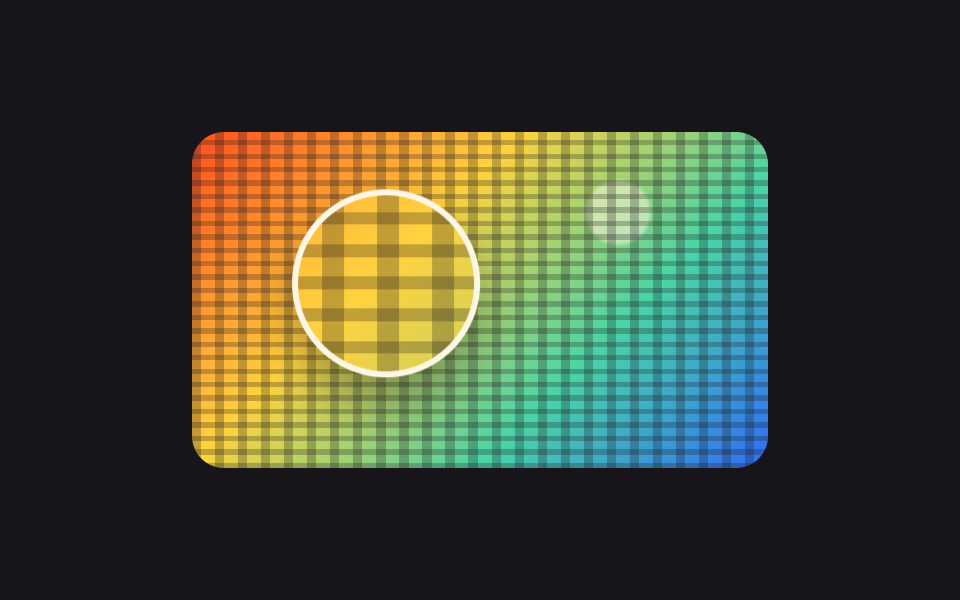 01 viewer-magnifier-lens
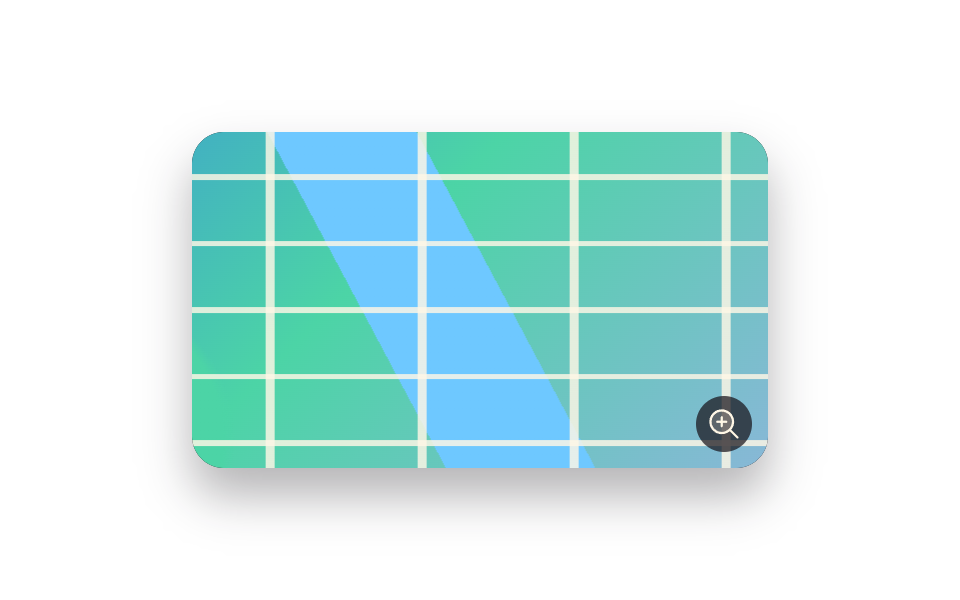 02 viewer-wheel-zoom-pan
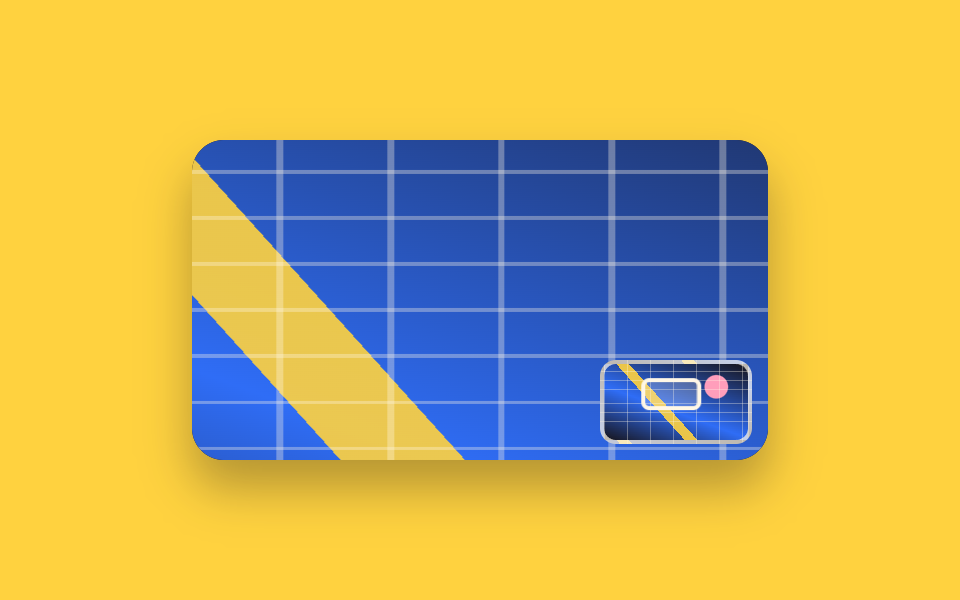 03 viewer-zoom-minimap
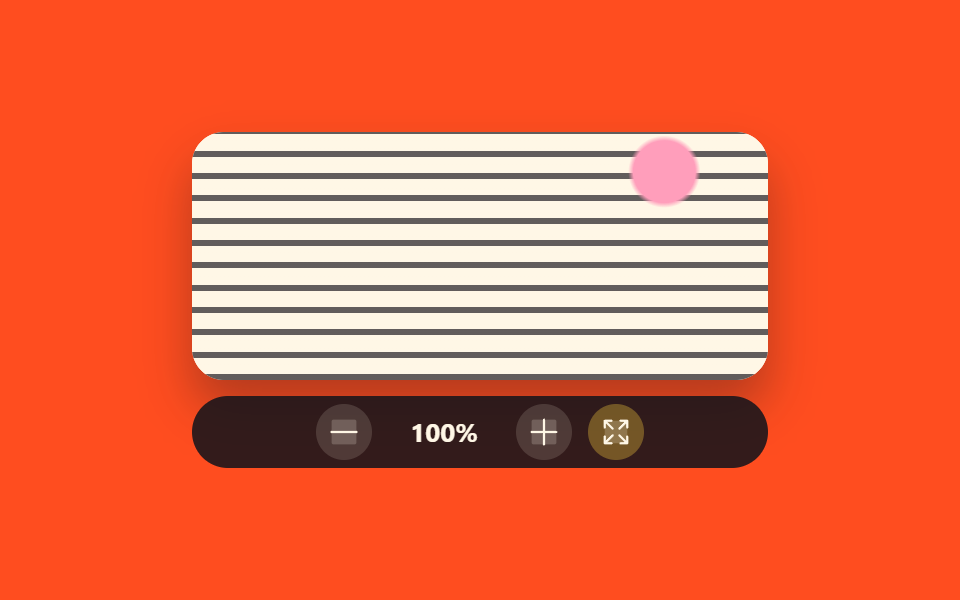 04 viewer-zoom-level-control
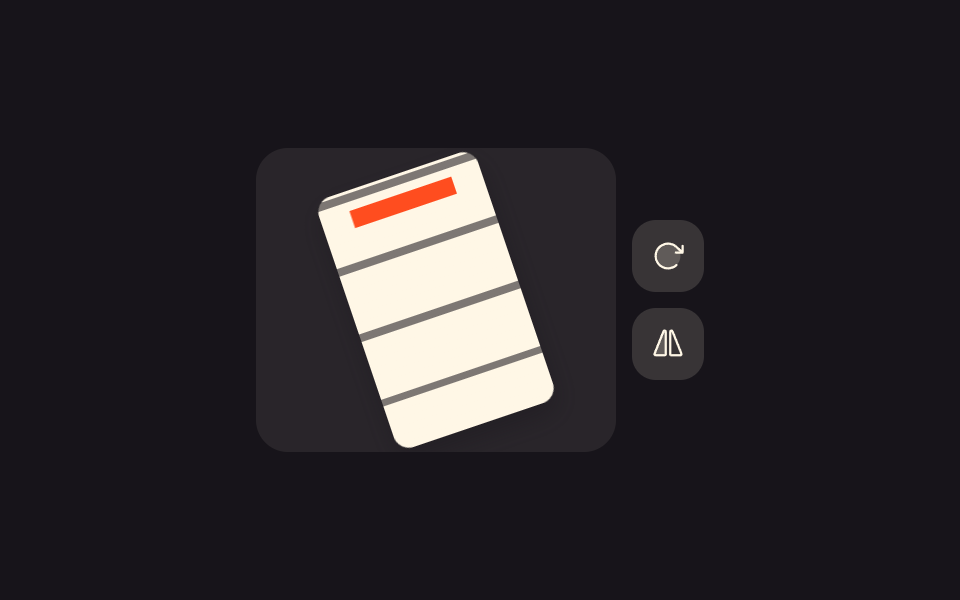 05 viewer-rotate-flip-toolbar
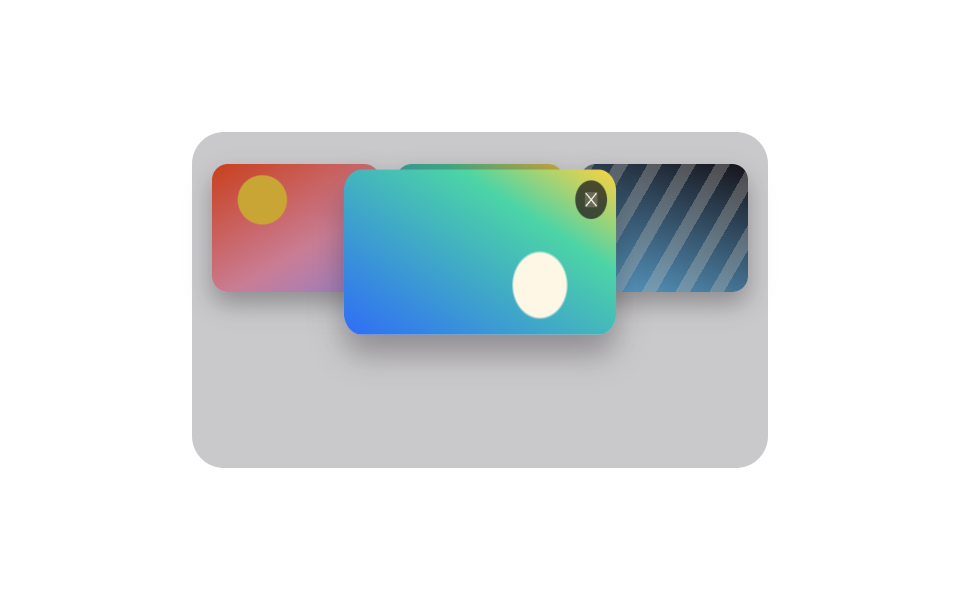 06 viewer-lightbox-flip
 07 viewer-360-spin-drag
 08 viewer-spotlight-mask
 09 viewer-hotspot-pin-popover
Auto-plays · click a tile to jump to its section · all nine in one zip
- 01 Magnifier lens that follows the pointer
- 02 Wheel to zoom, drag to pan
- 03 Minimap that shows where you are
- 04 Zoom control bar with snapped steps
- 05 Rotate and flip toolbar
- 06 Lightbox that grows out of its thumbnail
- 07 360-degree view you drag around
- 08 Spotlight that lights up under the pointer
- 09 Caption pins stuck onto the picture
The order follows how someone actually inspects a picture rather than how popular each pattern is. You start by magnifying one spot without committing to anything (01), then pull the whole frame in and drag it around (02). Once you are zoomed in, you lose your place, so a minimap arrives (03), and when the exact ratio matters, a stepped control joins it (04). A sideways scan gets turned upright (05), one thumbnail out of several opens full size (06), a product spins so you can see its back (07), and an explanation either lights up one spot (08) or plants a label on it (09). Each one, image zoom on hover included, is under sixty lines of vanilla JavaScript, and the artwork inside is nothing but linear-gradient, radial-gradient, and their repeating variants. Laying this viewer's output out as a showcase is Portfolio Gallery HTML CSS, and standing the zoom axis upright turns it into 3D Hover Effect CSS.
01Magnifier lens that follows the pointer
What this image zoom css shows
The round lens holds a second copy of the same background, drawn at 2.4 times the size. Multiply the pointer coordinate by that factor, subtract the lens radius, and the result is the background-position that keeps both layers locked together.
<main class="stage">
  <div class="mg is-demo" id="mg">
    <div class="mg__photo" id="mg-photo" tabindex="0" role="img" aria-label="Checked fabric. Move the magnifier with the arrow keys">
      <div class="mg__lens" id="mg-lens" aria-hidden="true"></div>
    </div>
  </div>
</main>
@use "../../../../site/static/demo-tokens" as *;
$duration: $dur-quick;
$easing: $ease-spring;
$color: $subject-cream;
@include stage($stage-ink);
// 가짜 사진 — 파일 없이 그라디언트만으로 짠 격자 원단.
// 렌즈가 같은 배경 스택을 2.4배 크기로 다시 그리므로 두 겹이 정확히 겹친다.
$photo:
repeating-linear-gradient(0deg, rgba(23, 20, 26, .26) 0 1.6%, transparent 1.6% 4%),
repeating-linear-gradient(90deg, rgba(23, 20, 26, .26) 0 1.6%, transparent 1.6% 4%),
radial-gradient(circle at 74% 24%, rgba(255, 247, 230, .5) 0 6%, transparent 7%),
linear-gradient(135deg, $stage-orange 0%, $stage-yellow 36%, $subject-mint 68%, $subject-blue 100%);
$pw: 288px;
$ph: 168px;
$zoom: 2.4;
$lens: 88px;
.mg { position: relative; }
.mg__photo {
position: relative;
box-sizing: border-box;
width: $pw;
height: $ph;
overflow: hidden;
border-radius: $r-card;
background: $photo;
background-size: $pw $ph;
cursor: crosshair;
}
.mg__photo:focus-visible { outline: 3px solid $color; outline-offset: 2px; }
.mg__lens {
position: absolute;
left: 0;
top: 0;
width: $lens;
height: $lens;
border: 3px solid $color;
border-radius: 50%;
background: $photo;
background-size: $pw * $zoom $ph * $zoom;
background-position: -138.4px -100px; // 기본 자리 = 루프 1번 지점
box-shadow: $shadow-raised;
transform: translate(32px, 16px);
pointer-events: none;
}
// ── 자동 루프 (2s) ────────────────────────────────────
// 세 지점을 P1 → P2 → P3 → P2 → P1 으로 왕복한다. 끝점이 시작점이라 이음매가 없다.
.mg.is-demo .mg__lens {
animation-name: mg-lens;
animation-duration: $dur-loop;
animation-timing-function: $easing;
animation-iteration-count: infinite;
}
@keyframes mg-lens {
0% { transform: translate(32px, 16px); background-position: -138.4px -100px; }
28% { transform: translate(106px, 68px); background-position: -316px -224.8px; }
52% { transform: translate(188px, 18px); background-position: -512.8px -104.8px; }
78% { transform: translate(106px, 68px); background-position: -316px -224.8px; }
100% { transform: translate(32px, 16px); background-position: -138.4px -100px; }
}
@media (prefers-reduced-motion: reduce) {
.mg.is-demo .mg__lens { animation: none !important; }
}html, body {
margin: 0;
overflow: hidden;
}
.stage {
box-sizing: border-box;
min-height: 100vh;
display: grid;
place-items: center;
margin: 0;
background: #17141a;
font-family: -apple-system, "Segoe UI", "Noto Sans KR", sans-serif;
padding: clamp(8px, 4vw, 24px);
}
.mg {
position: relative;
}
.mg__photo {
position: relative;
box-sizing: border-box;
width: 288px;
height: 168px;
overflow: hidden;
border-radius: 16px;
background: repeating-linear-gradient(0deg, rgba(23, 20, 26, 0.26) 0 1.6%, transparent 1.6% 4%), repeating-linear-gradient(90deg, rgba(23, 20, 26, 0.26) 0 1.6%, transparent 1.6% 4%), radial-gradient(circle at 74% 24%, rgba(255, 247, 230, 0.5) 0 6%, transparent 7%), linear-gradient(135deg, #ff4d1f 0%, #ffd23f 36%, #4cd4a6 68%, #2f6df6 100%);
background-size: 288px 168px;
cursor: crosshair;
}
.mg__photo:focus-visible {
outline: 3px solid #fff7e6;
outline-offset: 2px;
}
.mg__lens {
position: absolute;
left: 0;
top: 0;
width: 88px;
height: 88px;
border: 3px solid #fff7e6;
border-radius: 50%;
background: repeating-linear-gradient(0deg, rgba(23, 20, 26, 0.26) 0 1.6%, transparent 1.6% 4%), repeating-linear-gradient(90deg, rgba(23, 20, 26, 0.26) 0 1.6%, transparent 1.6% 4%), radial-gradient(circle at 74% 24%, rgba(255, 247, 230, 0.5) 0 6%, transparent 7%), linear-gradient(135deg, #ff4d1f 0%, #ffd23f 36%, #4cd4a6 68%, #2f6df6 100%);
background-size: 691.2px 403.2px;
background-position: -138.4px -100px;
box-shadow: 0 14px 24px rgba(23, 20, 26, 0.32);
transform: translate(32px, 16px);
pointer-events: none;
}
.mg.is-demo .mg__lens {
animation-name: mg-lens;
animation-duration: 2s;
animation-timing-function: cubic-bezier(0.2, 0.8, 0.2, 1);
animation-iteration-count: infinite;
}
@keyframes mg-lens {
0% {
transform: translate(32px, 16px);
background-position: -138.4px -100px;
}
28% {
transform: translate(106px, 68px);
background-position: -316px -224.8px;
}
52% {
transform: translate(188px, 18px);
background-position: -512.8px -104.8px;
}
78% {
transform: translate(106px, 68px);
background-position: -316px -224.8px;
}
100% {
transform: translate(32px, 16px);
background-position: -138.4px -100px;
}
}
@media (prefers-reduced-motion: reduce) {
.mg.is-demo .mg__lens {
animation: none !important;
}
}// 실제 동작: 포인터가 가리키는 지점을 2.4배로 키워 렌즈 안에 보여 준다.
var mg = document.getElementById('mg');
var mgPhoto = document.getElementById('mg-photo');
var mgLens = document.getElementById('mg-lens');
var MG_ZOOM = 2.4;
var mgX = 76, mgY = 60;
function mgPaint() {
var box = mgPhoto.getBoundingClientRect();
var half = mgLens.offsetWidth / 2;
mgX = Math.min(Math.max(mgX, half), box.width - half);
mgY = Math.min(Math.max(mgY, half), box.height - half);
mgLens.style.transform = 'translate(' + (mgX - half) + 'px,' + (mgY - half) + 'px)';
mgLens.style.backgroundPosition = -(mgX * MG_ZOOM - half) + 'px ' + -(mgY * MG_ZOOM - half) + 'px';
}
mgPhoto.addEventListener('pointermove', function (e) {
mg.classList.remove('is-demo'); // 사람이 손대면 자동 루프를 멈춘다
var box = mgPhoto.getBoundingClientRect();
mgX = e.clientX - box.left;
mgY = e.clientY - box.top;
mgPaint();
});
mgPhoto.addEventListener('keydown', function (e) {
var step = { ArrowLeft: [-16, 0], ArrowRight: [16, 0], ArrowUp: [0, -16], ArrowDown: [0, 16] }[e.key];
if (!step) return;
e.preventDefault();
mg.classList.remove('is-demo');
mgX += step[0]; mgY += step[1];
mgPaint();
});import { useRef, useState } from "react";
import type { CSSProperties } from "react";
import styles from "./MagnifierLens.module.scss";
export type MagnifierLensProps = {
label?: string;
/** 렌즈 안 배율. style.scss 의 $zoom 과 같은 값이어야 두 겹이 겹친다 */
zoom?: number;
/** 자동 재생 루프 (갤러리용). 사람이 손대면 꺼진다 */
demo?: boolean;
duration?: number;
easing?: string;
color?: string;
};
type Vars = CSSProperties & { "--duration"?: string; "--easing"?: string; "--color"?: string };
type PointerEvt = { clientX: number; clientY: number };
type KeyEvt = { key: string; preventDefault: () => void };
const HALF = 44;
const clamp = (v: number, lo: number, hi: number) => Math.min(Math.max(v, lo), hi);
export default function MagnifierLens({
label = "Checked fabric. Move the magnifier with the arrow keys",
zoom = 2.4,
demo = true,
duration = 220,
easing = "cubic-bezier(.2,.8,.2,1)",
color = "#fff7e6",
}: MagnifierLensProps) {
const photo = useRef<HTMLDivElement>(null);
const [live, setLive] = useState(demo);
const [at, setAt] = useState({ x: 76, y: 60 });
function move(x: number, y: number) {
const box = photo.current ? photo.current.getBoundingClientRect() : null;
const w = box ? box.width : 288;
const h = box ? box.height : 168;
setLive(false);
setAt({ x: clamp(x, HALF, w - HALF), y: clamp(y, HALF, h - HALF) });
}
const vars: Vars = { "--duration": `${duration}ms`, "--easing": easing, "--color": color };
const lens: CSSProperties = {
transform: `translate(${at.x - HALF}px,${at.y - HALF}px)`,
backgroundPosition: `${-(at.x * zoom - HALF)}px ${-(at.y * zoom - HALF)}px`,
};
return (
<div className={[styles.root, live ? styles.isDemo : ""].join(" ")} style={vars}>
<div
className={styles.photo}
ref={photo}
tabIndex={0}
role="img"
aria-label={label}
onPointerMove={(e: PointerEvt) => {
const box = photo.current ? photo.current.getBoundingClientRect() : { left: 0, top: 0 };
move(e.clientX - box.left, e.clientY - box.top);
}}
onKeyDown={(e: KeyEvt) => {
const step: { [k: string]: number[] } = {
ArrowLeft: [-16, 0], ArrowRight: [16, 0], ArrowUp: [0, -16], ArrowDown: [0, 16],
};
if (!step[e.key]) return;
e.preventDefault();
move(at.x + step[e.key][0], at.y + step[e.key][1]);
}}
>
<div className={styles.lens} aria-hidden="true" style={live ? undefined : lens} />
</div>
</div>
);
}01 · Magnifier lens that follows the pointer — Measured area 20.113% · moving frames 23/23Original by GODRICH · SCSS and React ship in the zip · See the password
Where to look in the code
The coordinate is clamped between the radius and the picture edge so the lens never slips past the edge of the artwork.
var MG_ZOOM = 2.4;
function mgPaint() {
  var box = mgPhoto.getBoundingClientRect();
  var half = mgLens.offsetWidth / 2;
  mgX = Math.min(Math.max(mgX, half), box.width - half);
  mgY = Math.min(Math.max(mgY, half), box.height - half);
  mgLens.style.transform = 'translate(' + (mgX - half) + 'px,' + (mgY - half) + 'px)';
  mgLens.style.backgroundPosition = -(mgX * MG_ZOOM - half) + 'px ' + -(mgY * MG_ZOOM - half) + 'px';
}
mgPhoto.addEventListener('pointermove', function (e) {
  var box = mgPhoto.getBoundingClientRect();
  mgX = e.clientX - box.left;
  mgY = e.clientY - box.top;
  mgPaint();
});
02Wheel to zoom, drag to pan
What happens on screen
The wheel runs the scale from 1x to 3x, and dragging slides the map under your finger. How far it may slide is (width × (scale − 1)) ÷ 2 ÷ scale, worked out before the transform is written.
<main class="stage">
  <div class="zp is-demo" id="zp">
    <div class="zp__view" id="zp-view" tabindex="0" role="img" aria-label="City map. Zoom with the wheel, pan with the arrow keys">
      <div class="zp__layer" id="zp-layer"></div>
      <span class="zp__badge" aria-hidden="true"><svg viewBox="0 0 256 256" width="18" height="18"><g fill="currentColor"><path d="M192 112a80 80 0 1 1-80-80a80 80 0 0 1 80 80" opacity=".2"/><path d="m229.66 218.34l-50.06-50.06a88.21 88.21 0 1 0-11.32 11.31l50.06 50.07a8 8 0 0 0 11.32-11.32M40 112a72 72 0 1 1 72 72a72.08 72.08 0 0 1-72-72m112 0a8 8 0 0 1-8 8h-24v24a8 8 0 0 1-16 0v-24H80a8 8 0 0 1 0-16h24V80a8 8 0 0 1 16 0v24h24a8 8 0 0 1 8 8"/></g></svg></span>
    </div>
  </div>
</main>
@use "../../../../site/static/demo-tokens" as *;
$duration: $dur-base;
$easing: $ease-spring;
$color: $subject-blue;
@include stage($stage-paper);
// 가짜 사진 — 파일 없이 그린 도시 지도. 골목이 촘촘해서 당길수록 볼 것이 늘어난다
$map:
repeating-linear-gradient(0deg, rgba(255, 247, 230, .82) 0 .7%, transparent .7% 9%),
repeating-linear-gradient(90deg, rgba(255, 247, 230, .82) 0 .7%, transparent .7% 12%),
linear-gradient(62deg, transparent 0 44%, $subject-sky 44% 53%, transparent 53%),
radial-gradient(circle at 22% 72%, $subject-mint 0 12%, transparent 13%),
linear-gradient(135deg, $subject-blue 0%, $subject-mint 46%, $subject-lilac 100%);
.zp { position: relative; }
.zp__view {
position: relative;
box-sizing: border-box;
width: 288px;
height: 168px;
overflow: hidden;
border-radius: $r-card;
background: $stage-ink;
box-shadow: $shadow-raised;
cursor: grab;
touch-action: none;
}
.zp__view:focus-visible { outline: 3px solid $color; outline-offset: 2px; }
.zp__layer {
width: 100%;
height: 100%;
background: $map;
transform-origin: center center;
transform: scale(1) translate(0, 0);
}
.zp__badge {
position: absolute;
right: $sp-2;
bottom: $sp-2;
display: inline-flex;
width: 28px;
height: 28px;
align-items: center;
justify-content: center;
border-radius: 50%;
background: rgba(23, 20, 26, .72);
color: $subject-cream;
pointer-events: none;
}
// ── 자동 루프 (2s) ────────────────────────────────────
// 1배에서 2.2배까지 당겼다가 두 곳을 둘러보고 다시 1배로 돌아온다. 끝과 처음이 같은 값이다
.zp.is-demo .zp__layer {
animation-name: zp-pan;
animation-duration: $dur-loop;
animation-timing-function: $easing;
animation-iteration-count: infinite;
}
@keyframes zp-pan {
0% { transform: scale(1) translate(0, 0); }
30% { transform: scale(2.2) translate(-38px, -22px); }
62% { transform: scale(2.2) translate(34px, 18px); }
100% { transform: scale(1) translate(0, 0); }
}
@media (prefers-reduced-motion: reduce) {
.zp.is-demo .zp__layer { animation: none !important; transform: scale(1.6) translate(0, 0); }
}html, body {
margin: 0;
overflow: hidden;
}
.stage {
box-sizing: border-box;
min-height: 100vh;
display: grid;
place-items: center;
margin: 0;
background: #ffffff;
font-family: -apple-system, "Segoe UI", "Noto Sans KR", sans-serif;
padding: clamp(8px, 4vw, 24px);
}
.zp {
position: relative;
}
.zp__view {
position: relative;
box-sizing: border-box;
width: 288px;
height: 168px;
overflow: hidden;
border-radius: 16px;
background: #17141a;
box-shadow: 0 14px 24px rgba(23, 20, 26, 0.32);
cursor: grab;
touch-action: none;
}
.zp__view:focus-visible {
outline: 3px solid #2f6df6;
outline-offset: 2px;
}
.zp__layer {
width: 100%;
height: 100%;
background: repeating-linear-gradient(0deg, rgba(255, 247, 230, 0.82) 0 0.7%, transparent 0.7% 9%), repeating-linear-gradient(90deg, rgba(255, 247, 230, 0.82) 0 0.7%, transparent 0.7% 12%), linear-gradient(62deg, transparent 0 44%, #6ec8ff 44% 53%, transparent 53%), radial-gradient(circle at 22% 72%, #4cd4a6 0 12%, transparent 13%), linear-gradient(135deg, #2f6df6 0%, #4cd4a6 46%, #b9a0ff 100%);
transform-origin: center center;
transform: scale(1) translate(0, 0);
}
.zp__badge {
position: absolute;
right: 8px;
bottom: 8px;
display: inline-flex;
width: 28px;
height: 28px;
align-items: center;
justify-content: center;
border-radius: 50%;
background: rgba(23, 20, 26, 0.72);
color: #fff7e6;
pointer-events: none;
}
.zp.is-demo .zp__layer {
animation-name: zp-pan;
animation-duration: 2s;
animation-timing-function: cubic-bezier(0.2, 0.8, 0.2, 1);
animation-iteration-count: infinite;
}
@keyframes zp-pan {
0% {
transform: scale(1) translate(0, 0);
}
30% {
transform: scale(2.2) translate(-38px, -22px);
}
62% {
transform: scale(2.2) translate(34px, 18px);
}
100% {
transform: scale(1) translate(0, 0);
}
}
@media (prefers-reduced-motion: reduce) {
.zp.is-demo .zp__layer {
animation: none !important;
transform: scale(1.6) translate(0, 0);
}
}// 실제 동작: 휠은 배율, 드래그는 위치. 옮길 수 있는 거리는 배율에서 계산해 잘라 낸다.
var zp = document.getElementById('zp');
var zpView = document.getElementById('zp-view');
var zpLayer = document.getElementById('zp-layer');
var zpScale = 1, zpX = 0, zpY = 0, zpDrag = null;
function zpPaint() {
var box = zpView.getBoundingClientRect();
var maxX = box.width * (zpScale - 1) / 2 / zpScale;
var maxY = box.height * (zpScale - 1) / 2 / zpScale;
zpX = Math.min(Math.max(zpX, -maxX), maxX);
zpY = Math.min(Math.max(zpY, -maxY), maxY);
zpLayer.style.transform = 'scale(' + zpScale + ') translate(' + zpX + 'px,' + zpY + 'px)';
}
function zpZoom(d) { zp.classList.remove('is-demo'); zpScale = Math.min(Math.max(zpScale + d, 1), 3); zpPaint(); }
zpView.addEventListener('wheel', function (e) { e.preventDefault(); zpZoom(-e.deltaY / 400); }, { passive: false });
zpView.addEventListener('pointerdown', function (e) {
zp.classList.remove('is-demo');
zpDrag = { x: e.clientX, y: e.clientY };
zpView.setPointerCapture(e.pointerId);
});
zpView.addEventListener('pointermove', function (e) {
if (!zpDrag) return;
zpX += (e.clientX - zpDrag.x) / zpScale;
zpY += (e.clientY - zpDrag.y) / zpScale;
zpDrag = { x: e.clientX, y: e.clientY };
zpPaint();
});
zpView.addEventListener('pointerup', function () { zpDrag = null; });
zpView.addEventListener('keydown', function (e) {
var pan = { ArrowLeft: [24, 0], ArrowRight: [-24, 0], ArrowUp: [0, 24], ArrowDown: [0, -24] }[e.key];
if (pan) { e.preventDefault(); zp.classList.remove('is-demo'); zpX += pan[0]; zpY += pan[1]; zpPaint(); }
if (e.key === '+' || e.key === '=') { e.preventDefault(); zpZoom(0.4); }
if (e.key === '-') { e.preventDefault(); zpZoom(-0.4); }
});import { useRef, useState } from "react";
import type { CSSProperties } from "react";
import styles from "./WheelZoomPan.module.scss";
export type WheelZoomPanProps = {
label?: string;
minScale?: number;
maxScale?: number;
/** 자동 재생 루프 (갤러리용). 사람이 손대면 꺼진다 */
demo?: boolean;
duration?: number;
easing?: string;
color?: string;
};
type Vars = CSSProperties & { "--duration"?: string; "--easing"?: string; "--color"?: string };
type WheelEvt = { deltaY: number; preventDefault: () => void };
type DragEvt = { clientX: number; clientY: number; pointerId: number };
type KeyEvt = { key: string; preventDefault: () => void };
const clamp = (v: number, lo: number, hi: number) => Math.min(Math.max(v, lo), hi);
export default function WheelZoomPan({
label = "City map. Zoom with the wheel, pan with the arrow keys",
minScale = 1,
maxScale = 3,
demo = true,
duration = 300,
easing = "cubic-bezier(.2,.8,.2,1)",
color = "#2f6df6",
}: WheelZoomPanProps) {
const view = useRef<HTMLDivElement>(null);
const drag = useRef<{ x: number; y: number } | null>(null);
const [live, setLive] = useState(demo);
const [scale, setScale] = useState(1);
const [at, setAt] = useState({ x: 0, y: 0 });
function fit(next: number, x: number, y: number) {
const box = view.current ? view.current.getBoundingClientRect() : null;
const w = box ? box.width : 288;
const h = box ? box.height : 168;
const maxX = (w * (next - 1)) / 2 / next;
const maxY = (h * (next - 1)) / 2 / next;
setLive(false);
setScale(next);
setAt({ x: clamp(x, -maxX, maxX), y: clamp(y, -maxY, maxY) });
}
const vars: Vars = { "--duration": `${duration}ms`, "--easing": easing, "--color": color };
const layer: CSSProperties = { transform: `scale(${scale}) translate(${at.x}px,${at.y}px)` };
return (
<div className={[styles.root, live ? styles.isDemo : ""].join(" ")} style={vars}>
<div
className={styles.view}
ref={view}
tabIndex={0}
role="img"
aria-label={label}
onWheel={(e: WheelEvt) => {
e.preventDefault();
fit(clamp(scale - e.deltaY / 400, minScale, maxScale), at.x, at.y);
}}
onPointerDown={(e: DragEvt) => { drag.current = { x: e.clientX, y: e.clientY }; }}
onPointerMove={(e: DragEvt) => {
const d = drag.current;
if (!d) return;
fit(scale, at.x + (e.clientX - d.x) / scale, at.y + (e.clientY - d.y) / scale);
drag.current = { x: e.clientX, y: e.clientY };
}}
onPointerUp={() => { drag.current = null; }}
onKeyDown={(e: KeyEvt) => {
const pan: { [k: string]: number[] } = {
ArrowLeft: [24, 0], ArrowRight: [-24, 0], ArrowUp: [0, 24], ArrowDown: [0, -24],
};
if (pan[e.key]) {
e.preventDefault();
fit(scale, at.x + pan[e.key][0], at.y + pan[e.key][1]);
}
if (e.key === "+" || e.key === "=") { e.preventDefault(); fit(clamp(scale + 0.4, minScale, maxScale), at.x, at.y); }
if (e.key === "-") { e.preventDefault(); fit(clamp(scale - 0.4, minScale, maxScale), at.x, at.y); }
}}
>
<div className={styles.layer} style={live ? undefined : layer} />
<span className={styles.badge} aria-hidden="true" />
</div>
</div>
);
}02 · Wheel to zoom, drag to pan — Measured area 33.417% · moving frames 23/23Original by GODRICH · SCSS and React ship in the zip · See the password
How to read the code
Without that clamp, one firm drag pushes the artwork off its own frame and exposes the empty backing.
function zpPaint() {
  var box = zpView.getBoundingClientRect();
  var maxX = box.width * (zpScale - 1) / 2 / zpScale;
  var maxY = box.height * (zpScale - 1) / 2 / zpScale;
  zpX = Math.min(Math.max(zpX, -maxX), maxX);
  zpY = Math.min(Math.max(zpY, -maxY), maxY);
  zpLayer.style.transform = 'scale(' + zpScale + ') translate(' + zpX + 'px,' + zpY + 'px)';
}
zpView.addEventListener('wheel', function (e) {
  e.preventDefault();
  zpScale = Math.min(Math.max(zpScale - e.deltaY / 400, 1), 3);
  zpPaint();
}, { passive: false });
03Minimap that shows where you are
What moves
The tile in the corner is the whole blueprint shrunk down, and the white box inside it marks the slice currently on screen. At 2.4x the box is 1 ÷ 2.4 of the minimap, or 41.67 percent, and the remaining 58.33 percent is the distance it can travel.
<main class="stage">
  <div class="mm is-demo" id="mm">
    <div class="mm__view" id="mm-view" tabindex="0" role="img" aria-label="Zoomed blueprint. Move the view with the arrow keys">
      <div class="mm__layer" id="mm-layer"></div>
      <div class="mm__map" id="mm-map" aria-hidden="true"><div class="mm__box" id="mm-box"></div></div>
    </div>
  </div>
</main>
@use "../../../../site/static/demo-tokens" as *;
$duration: $dur-base;
$easing: $ease-spring;
$color: $subject-cream;
@include stage($stage-yellow);
// 가짜 사진 — 파일 없이 그린 설계 도면. 확대하면 어디를 보고 있는지 잃어버리기 딱 좋은 그림
$plan:
repeating-linear-gradient(0deg, rgba(255, 247, 230, .34) 0 .5%, transparent .5% 6%),
repeating-linear-gradient(90deg, rgba(255, 247, 230, .34) 0 .5%, transparent .5% 8%),
radial-gradient(circle at 78% 30%, $subject-pink 0 9%, transparent 10%),
linear-gradient(48deg, transparent 0 38%, rgba($stage-yellow, .9) 38% 44%, transparent 44%),
linear-gradient(200deg, $stage-ink 0%, $subject-blue 58%, $stage-ink 100%);
.mm { position: relative; }
.mm__view {
position: relative;
box-sizing: border-box;
width: 288px;
height: 160px;
overflow: hidden;
border-radius: $r-card;
background: $stage-ink;
box-shadow: $shadow-raised;
cursor: grab;
touch-action: none;
}
.mm__view:focus-visible { outline: 3px solid $stage-ink; outline-offset: 2px; }
.mm__layer {
width: 100%;
height: 100%;
background: $plan;
transform-origin: center center;
transform: scale(2.4) translate(0, 0);
}
// 미니맵 — 같은 그림을 통째로 줄여 둔다. 비율은 aspect-ratio 로 본 화면과 맞춘다
.mm__map {
position: absolute;
right: $sp-2;
bottom: $sp-2;
box-sizing: border-box;
width: 76px;
aspect-ratio: 288 / 160;
overflow: hidden;
border: 2px solid rgba(255, 247, 230, .72);
border-radius: $r-sm;
background: $plan;
background-size: 100% 100%;
}
.mm__box {
box-sizing: border-box;
width: 41.67%;
height: 41.67%;
border: 2px solid $color;
border-radius: $r-xs;
background: rgba(255, 247, 230, .22);
transform: translate(21px, 11.7px);
}
// ── 자동 루프 (2s) ────────────────────────────────────
// 본 화면과 미니맵 상자가 같은 시간표로 움직인다. 값이 어긋나면 상자가 거짓말을 한다
.mm.is-demo .mm__layer {
animation-name: mm-layer;
animation-duration: $dur-loop;
animation-timing-function: $easing;
animation-iteration-count: infinite;
}
.mm.is-demo .mm__box {
animation-name: mm-box;
animation-duration: $dur-loop;
animation-timing-function: $easing;
animation-iteration-count: infinite;
}
@keyframes mm-layer {
0% { transform: scale(2.4) translate(0, 0); }
26% { transform: scale(2.4) translate(-84px, -28px); }
54% { transform: scale(2.4) translate(75.6px, 32.7px); }
80% { transform: scale(2.4) translate(-33.6px, 9.3px); }
100% { transform: scale(2.4) translate(0, 0); }
}
@keyframes mm-box {
0% { transform: translate(21px, 11.7px); }
26% { transform: translate(42px, 18.7px); }
54% { transform: translate(2.1px, 3.5px); }
80% { transform: translate(29.4px, 9.4px); }
100% { transform: translate(21px, 11.7px); }
}
@media (prefers-reduced-motion: reduce) {
.mm.is-demo .mm__layer,
.mm.is-demo .mm__box { animation: none !important; }
}html, body {
margin: 0;
overflow: hidden;
}
.stage {
box-sizing: border-box;
min-height: 100vh;
display: grid;
place-items: center;
margin: 0;
background: #ffd23f;
font-family: -apple-system, "Segoe UI", "Noto Sans KR", sans-serif;
padding: clamp(8px, 4vw, 24px);
}
.mm {
position: relative;
}
.mm__view {
position: relative;
box-sizing: border-box;
width: 288px;
height: 160px;
overflow: hidden;
border-radius: 16px;
background: #17141a;
box-shadow: 0 14px 24px rgba(23, 20, 26, 0.32);
cursor: grab;
touch-action: none;
}
.mm__view:focus-visible {
outline: 3px solid #17141a;
outline-offset: 2px;
}
.mm__layer {
width: 100%;
height: 100%;
background: repeating-linear-gradient(0deg, rgba(255, 247, 230, 0.34) 0 0.5%, transparent 0.5% 6%), repeating-linear-gradient(90deg, rgba(255, 247, 230, 0.34) 0 0.5%, transparent 0.5% 8%), radial-gradient(circle at 78% 30%, #ff9ebb 0 9%, transparent 10%), linear-gradient(48deg, transparent 0 38%, rgba(255, 210, 63, 0.9) 38% 44%, transparent 44%), linear-gradient(200deg, #17141a 0%, #2f6df6 58%, #17141a 100%);
transform-origin: center center;
transform: scale(2.4) translate(0, 0);
}
.mm__map {
position: absolute;
right: 8px;
bottom: 8px;
box-sizing: border-box;
width: 76px;
aspect-ratio: 288/160;
overflow: hidden;
border: 2px solid rgba(255, 247, 230, 0.72);
border-radius: 8px;
background: repeating-linear-gradient(0deg, rgba(255, 247, 230, 0.34) 0 0.5%, transparent 0.5% 6%), repeating-linear-gradient(90deg, rgba(255, 247, 230, 0.34) 0 0.5%, transparent 0.5% 8%), radial-gradient(circle at 78% 30%, #ff9ebb 0 9%, transparent 10%), linear-gradient(48deg, transparent 0 38%, rgba(255, 210, 63, 0.9) 38% 44%, transparent 44%), linear-gradient(200deg, #17141a 0%, #2f6df6 58%, #17141a 100%);
background-size: 100% 100%;
}
.mm__box {
box-sizing: border-box;
width: 41.67%;
height: 41.67%;
border: 2px solid #fff7e6;
border-radius: 4px;
background: rgba(255, 247, 230, 0.22);
transform: translate(21px, 11.7px);
}
.mm.is-demo .mm__layer {
animation-name: mm-layer;
animation-duration: 2s;
animation-timing-function: cubic-bezier(0.2, 0.8, 0.2, 1);
animation-iteration-count: infinite;
}
.mm.is-demo .mm__box {
animation-name: mm-box;
animation-duration: 2s;
animation-timing-function: cubic-bezier(0.2, 0.8, 0.2, 1);
animation-iteration-count: infinite;
}
@keyframes mm-layer {
0% {
transform: scale(2.4) translate(0, 0);
}
26% {
transform: scale(2.4) translate(-84px, -28px);
}
54% {
transform: scale(2.4) translate(75.6px, 32.7px);
}
80% {
transform: scale(2.4) translate(-33.6px, 9.3px);
}
100% {
transform: scale(2.4) translate(0, 0);
}
}
@keyframes mm-box {
0% {
transform: translate(21px, 11.7px);
}
26% {
transform: translate(42px, 18.7px);
}
54% {
transform: translate(2.1px, 3.5px);
}
80% {
transform: translate(29.4px, 9.4px);
}
100% {
transform: translate(21px, 11.7px);
}
}
@media (prefers-reduced-motion: reduce) {
.mm.is-demo .mm__layer,
.mm.is-demo .mm__box {
animation: none !important;
}
}// 실제 동작: 큰 화면을 옮기면 미니맵 상자가 같은 비율로 따라간다.
var mm = document.getElementById('mm');
var mmView = document.getElementById('mm-view');
var mmLayer = document.getElementById('mm-layer');
var mmMap = document.getElementById('mm-map');
var mmBox = document.getElementById('mm-box');
var MM_SCALE = 2.4;
var mmPx = 0, mmPy = 0, mmDrag = null;
function mmPaint() {
var view = mmView.getBoundingClientRect();
var map = mmMap.getBoundingClientRect();
var rest = (1 - 1 / MM_SCALE) / 2;
mmPx = Math.min(Math.max(mmPx, -1), 1);
mmPy = Math.min(Math.max(mmPy, -1), 1);
var tx = mmPx * view.width * (MM_SCALE - 1) / 2 / MM_SCALE;
var ty = mmPy * view.height * (MM_SCALE - 1) / 2 / MM_SCALE;
mmLayer.style.transform = 'scale(' + MM_SCALE + ') translate(' + tx + 'px,' + ty + 'px)';
mmBox.style.transform = 'translate(' + rest * map.width * (1 - mmPx) + 'px,' + rest * map.height * (1 - mmPy) + 'px)';
}
function mmMoveBy(dx, dy) { mm.classList.remove('is-demo'); mmPx += dx; mmPy += dy; mmPaint(); }
mmView.addEventListener('pointerdown', function (e) { mmDrag = { x: e.clientX, y: e.clientY }; mmView.setPointerCapture(e.pointerId); });
mmView.addEventListener('pointermove', function (e) {
if (!mmDrag) return;
var view = mmView.getBoundingClientRect();
mmMoveBy((e.clientX - mmDrag.x) / view.width * 2, (e.clientY - mmDrag.y) / view.height * 2);
mmDrag = { x: e.clientX, y: e.clientY };
});
mmView.addEventListener('pointerup', function () { mmDrag = null; });
mmView.addEventListener('keydown', function (e) {
var pan = { ArrowLeft: [0.2, 0], ArrowRight: [-0.2, 0], ArrowUp: [0, 0.2], ArrowDown: [0, -0.2] }[e.key];
if (!pan) return;
e.preventDefault();
mmMoveBy(pan[0], pan[1]);
});import { useRef, useState } from "react";
import type { CSSProperties } from "react";
import styles from "./ZoomMinimap.module.scss";
export type ZoomMinimapProps = {
label?: string;
/** 본 화면 배율. style.scss 의 scale 값과 같아야 미니맵 상자가 맞는다 */
scale?: number;
/** 자동 재생 루프 (갤러리용). 사람이 손대면 꺼진다 */
demo?: boolean;
duration?: number;
easing?: string;
color?: string;
};
type Vars = CSSProperties & { "--duration"?: string; "--easing"?: string; "--color"?: string };
type DragEvt = { clientX: number; clientY: number; pointerId: number };
type KeyEvt = { key: string; preventDefault: () => void };
const clamp = (v: number, lo: number, hi: number) => Math.min(Math.max(v, lo), hi);
export default function ZoomMinimap({
label = "Zoomed blueprint. Move the view with the arrow keys",
scale = 2.4,
demo = true,
duration = 300,
easing = "cubic-bezier(.2,.8,.2,1)",
color = "#fff7e6",
}: ZoomMinimapProps) {
const view = useRef<HTMLDivElement>(null);
const map = useRef<HTMLDivElement>(null);
const drag = useRef<{ x: number; y: number } | null>(null);
const [live, setLive] = useState(demo);
const [p, setP] = useState({ x: 0, y: 0 });
function moveBy(dx: number, dy: number) {
setLive(false);
setP({ x: clamp(p.x + dx, -1, 1), y: clamp(p.y + dy, -1, 1) });
}
const viewBox = view.current ? view.current.getBoundingClientRect() : null;
const mapBox = map.current ? map.current.getBoundingClientRect() : null;
const w = viewBox ? viewBox.width : 288;
const h = viewBox ? viewBox.height : 160;
const mw = mapBox ? mapBox.width : 76;
const mh = mapBox ? mapBox.height : 42;
const rest = (1 - 1 / scale) / 2;
const vars: Vars = { "--duration": `${duration}ms`, "--easing": easing, "--color": color };
const layer: CSSProperties = {
transform: `scale(${scale}) translate(${(p.x * w * (scale - 1)) / 2 / scale}px,${(p.y * h * (scale - 1)) / 2 / scale}px)`,
};
const box: CSSProperties = {
transform: `translate(${rest * mw * (1 - p.x)}px,${rest * mh * (1 - p.y)}px)`,
};
return (
<div className={[styles.root, live ? styles.isDemo : ""].join(" ")} style={vars}>
<div
className={styles.view}
ref={view}
tabIndex={0}
role="img"
aria-label={label}
onPointerDown={(e: DragEvt) => { drag.current = { x: e.clientX, y: e.clientY }; }}
onPointerMove={(e: DragEvt) => {
const d = drag.current;
if (!d) return;
moveBy(((e.clientX - d.x) / w) * 2, ((e.clientY - d.y) / h) * 2);
drag.current = { x: e.clientX, y: e.clientY };
}}
onPointerUp={() => { drag.current = null; }}
onKeyDown={(e: KeyEvt) => {
const pan: { [k: string]: number[] } = {
ArrowLeft: [0.2, 0], ArrowRight: [-0.2, 0], ArrowUp: [0, 0.2], ArrowDown: [0, -0.2],
};
if (!pan[e.key]) return;
e.preventDefault();
moveBy(pan[e.key][0], pan[e.key][1]);
}}
>
<div className={styles.layer} style={live ? undefined : layer} />
<div className={styles.map} ref={map} aria-hidden="true">
<div className={styles.box} style={live ? undefined : box} />
</div>
</div>
</div>
);
}03 · Minimap that shows where you are — Measured area 30.806% · moving frames 23/23Original by GODRICH · SCSS and React ship in the zip · See the password
What to change
Both the big view and the box derive from the same pan values, so they cannot drift apart.
var MM_SCALE = 2.4;
function mmPaint() {
  var view = mmView.getBoundingClientRect();
  var map = mmMap.getBoundingClientRect();
  var rest = (1 - 1 / MM_SCALE) / 2;
  var tx = mmPx * view.width * (MM_SCALE - 1) / 2 / MM_SCALE;
  var ty = mmPy * view.height * (MM_SCALE - 1) / 2 / MM_SCALE;
  mmLayer.style.transform = 'scale(' + MM_SCALE + ') translate(' + tx + 'px,' + ty + 'px)';
  mmBox.style.transform = 'translate(' + rest * map.width * (1 - mmPx) + 'px,'
    + rest * map.height * (1 - mmPy) + 'px)';
}
04Zoom control bar with snapped steps
What you see
The scale only ever lands on the four values in the array. At either end, the matching button turns itself off with disabled, so nobody keeps pressing a control that has nothing left to do.
<main class="stage">
  <div class="zl is-demo" id="zl">
    <div class="zl__view"><div class="zl__layer" id="zl-layer"></div></div>
    <div class="zl__bar">
      <button class="zl__btn" id="zl-out" type="button" aria-label="Zoom out one step"><svg viewBox="0 0 256 256" width="18" height="18" aria-hidden="true"><g fill="currentColor"><path d="M216 56v144a16 16 0 0 1-16 16H56a16 16 0 0 1-16-16V56a16 16 0 0 1 16-16h144a16 16 0 0 1 16 16" opacity=".2"/><path d="M224 128a8 8 0 0 1-8 8H40a8 8 0 0 1 0-16h176a8 8 0 0 1 8 8"/></g></svg></button>
      <span class="zl__pct" id="zl-pct" role="status" aria-live="polite">
        <span class="zl__n zl__n--1">100%</span><span class="zl__n zl__n--2">150%</span><span class="zl__n zl__n--3">200%</span><span class="zl__n zl__n--4">300%</span>
      </span>
      <button class="zl__btn" id="zl-in" type="button" aria-label="Zoom in one step"><svg viewBox="0 0 256 256" width="18" height="18" aria-hidden="true"><g fill="currentColor"><path d="M216 56v144a16 16 0 0 1-16 16H56a16 16 0 0 1-16-16V56a16 16 0 0 1 16-16h144a16 16 0 0 1 16 16" opacity=".2"/><path d="M224 128a8 8 0 0 1-8 8h-80v80a8 8 0 0 1-16 0v-80H40a8 8 0 0 1 0-16h80V40a8 8 0 0 1 16 0v80h80a8 8 0 0 1 8 8"/></g></svg></button>
      <button class="zl__btn zl__btn--fit" id="zl-fit" type="button" aria-label="Fit to screen"><svg viewBox="0 0 256 256" width="18" height="18" aria-hidden="true"><g fill="currentColor"><path d="M208 48v160H48V48Z" opacity=".2"/><path d="M216 48v48a8 8 0 0 1-16 0V67.31l-42.34 42.35a8 8 0 0 1-11.32-11.32L188.69 56H160a8 8 0 0 1 0-16h48a8 8 0 0 1 8 8M98.34 146.34L56 188.69V160a8 8 0 0 0-16 0v48a8 8 0 0 0 8 8h48a8 8 0 0 0 0-16H67.31l42.35-42.34a8 8 0 0 0-11.32-11.32M208 152a8 8 0 0 0-8 8v28.69l-42.34-42.35a8 8 0 0 0-11.32 11.32L188.69 200H160a8 8 0 0 0 0 16h48a8 8 0 0 0 8-8v-48a8 8 0 0 0-8-8M67.31 56H96a8 8 0 0 0 0-16H48a8 8 0 0 0-8 8v48a8 8 0 0 0 16 0V67.31l42.34 42.35a8 8 0 0 0 11.32-11.32Z"/></g></svg></button>
    </div>
  </div>
</main>
@use "../../../../site/static/demo-tokens" as *;
$duration: $dur-quick;
$easing: $ease-spring;
$color: $subject-ink;
@include stage($stage-orange);
// 가짜 사진 — 파일 없이 그린 문서 한 장. 배율이 바뀌면 글줄 굵기가 그대로 커진다
$doc:
radial-gradient(circle at 82% 16%, $subject-pink 0 6%, transparent 7%),
repeating-linear-gradient(0deg, rgba(23, 20, 26, .68) 0 2.4%, transparent 2.4% 9%),
linear-gradient($subject-cream, $subject-cream);
.zl {
display: flex;
flex-direction: column;
gap: $sp-2;
width: 288px;
}
.zl__view {
box-sizing: border-box;
width: 100%;
height: 124px;
overflow: hidden;
border-radius: $r-card;
background: $subject-cream;
box-shadow: $shadow-raised;
}
.zl__layer {
width: 100%;
height: 100%;
background: $doc;
transform-origin: center center;
transform: scale(1);
}
.zl__bar {
display: flex;
align-items: center;
justify-content: center;
gap: $sp-2;
height: 36px;
padding: 0 $sp-2;
border-radius: $r-pill;
background: rgba(23, 20, 26, .88);
color: $subject-cream;
}
.zl__btn {
display: inline-flex;
width: 28px;
height: 28px;
align-items: center;
justify-content: center;
padding: 0;
border: 0;
border-radius: 50%;
background: rgba(255, 247, 230, .14);
color: inherit;
cursor: pointer;
}
.zl__btn:disabled { opacity: .38; cursor: default; }
.zl__btn:focus-visible { outline: 2px solid $subject-cream; outline-offset: 2px; }
.zl__btn--fit { background: rgba(255, 210, 63, .32); }
.zl__pct {
position: relative;
width: 56px;
height: 20px;
text-align: center;
font-size: 13px;
line-height: 20px;
font-weight: 700;
font-variant-numeric: tabular-nums;
}
.zl__n {
position: absolute;
left: 0;
top: 0;
width: 100%;
opacity: 0;
}
.zl__n--1 { opacity: 1; } // 루프 밖 기본 표시
// ── 자동 루프 (2s) ────────────────────────────────────
// 100 → 150 → 200 → 300 → 200 → 150 → 100. 올라간 길로 되돌아오므로 끝에서 튀지 않는다.
// 단계가 끊어지는 컨트롤이라 배율도 숫자도 steps(1, end) 로 한 프레임에 갈아 끼운다
.zl.is-demo .zl__layer,
.zl.is-demo .zl__n {
animation-duration: $dur-loop;
animation-timing-function: steps(1, end);
animation-iteration-count: infinite;
}
.zl.is-demo .zl__layer { animation-name: zl-zoom; }
.zl.is-demo .zl__n--1 { animation-name: zl-n1; }
.zl.is-demo .zl__n--2 { animation-name: zl-n2; }
.zl.is-demo .zl__n--3 { animation-name: zl-n3; }
.zl.is-demo .zl__n--4 { animation-name: zl-n4; }
@keyframes zl-zoom {
0% { transform: scale(1); }
14% { transform: scale(1.5); }
28% { transform: scale(2); }
44% { transform: scale(3); }
58% { transform: scale(2); }
72% { transform: scale(1.5); }
86% { transform: scale(1); }
100% { transform: scale(1); }
}
@keyframes zl-n1 {
0% { opacity: 1; }
14% { opacity: 0; }
86% { opacity: 1; }
100% { opacity: 1; }
}
@keyframes zl-n2 {
0% { opacity: 0; }
14% { opacity: 1; }
28% { opacity: 0; }
72% { opacity: 1; }
86% { opacity: 0; }
100% { opacity: 0; }
}
@keyframes zl-n3 {
0% { opacity: 0; }
28% { opacity: 1; }
44% { opacity: 0; }
58% { opacity: 1; }
72% { opacity: 0; }
100% { opacity: 0; }
}
@keyframes zl-n4 {
0% { opacity: 0; }
44% { opacity: 1; }
58% { opacity: 0; }
100% { opacity: 0; }
}
@media (max-width: 360px) {
.zl__view { height: 116px; }
}
@media (prefers-reduced-motion: reduce) {
.zl.is-demo .zl__layer,
.zl.is-demo .zl__n { animation: none !important; }
.zl.is-demo .zl__layer { transform: scale(2); }
.zl.is-demo .zl__n--1 { opacity: 0; }
.zl.is-demo .zl__n--3 { opacity: 1; }
}html, body {
margin: 0;
overflow: hidden;
}
.stage {
box-sizing: border-box;
min-height: 100vh;
display: grid;
place-items: center;
margin: 0;
background: #ff4d1f;
font-family: -apple-system, "Segoe UI", "Noto Sans KR", sans-serif;
padding: clamp(8px, 4vw, 24px);
}
.zl {
display: flex;
flex-direction: column;
gap: 8px;
width: 288px;
}
.zl__view {
box-sizing: border-box;
width: 100%;
height: 124px;
overflow: hidden;
border-radius: 16px;
background: #fff7e6;
box-shadow: 0 14px 24px rgba(23, 20, 26, 0.32);
}
.zl__layer {
width: 100%;
height: 100%;
background: radial-gradient(circle at 82% 16%, #ff9ebb 0 6%, transparent 7%), repeating-linear-gradient(0deg, rgba(23, 20, 26, 0.68) 0 2.4%, transparent 2.4% 9%), linear-gradient(#fff7e6, #fff7e6);
transform-origin: center center;
transform: scale(1);
}
.zl__bar {
display: flex;
align-items: center;
justify-content: center;
gap: 8px;
height: 36px;
padding: 0 8px;
border-radius: 999px;
background: rgba(23, 20, 26, 0.88);
color: #fff7e6;
}
.zl__btn {
display: inline-flex;
width: 28px;
height: 28px;
align-items: center;
justify-content: center;
padding: 0;
border: 0;
border-radius: 50%;
background: rgba(255, 247, 230, 0.14);
color: inherit;
cursor: pointer;
}
.zl__btn:disabled {
opacity: 0.38;
cursor: default;
}
.zl__btn:focus-visible {
outline: 2px solid #fff7e6;
outline-offset: 2px;
}
.zl__btn--fit {
background: rgba(255, 210, 63, 0.32);
}
.zl__pct {
position: relative;
width: 56px;
height: 20px;
text-align: center;
font-size: 13px;
line-height: 20px;
font-weight: 700;
font-variant-numeric: tabular-nums;
}
.zl__n {
position: absolute;
left: 0;
top: 0;
width: 100%;
opacity: 0;
}
.zl__n--1 {
opacity: 1;
}
.zl.is-demo .zl__layer,
.zl.is-demo .zl__n {
animation-duration: 2s;
animation-timing-function: steps(1, end);
animation-iteration-count: infinite;
}
.zl.is-demo .zl__layer {
animation-name: zl-zoom;
}
.zl.is-demo .zl__n--1 {
animation-name: zl-n1;
}
.zl.is-demo .zl__n--2 {
animation-name: zl-n2;
}
.zl.is-demo .zl__n--3 {
animation-name: zl-n3;
}
.zl.is-demo .zl__n--4 {
animation-name: zl-n4;
}
@keyframes zl-zoom {
0% {
transform: scale(1);
}
14% {
transform: scale(1.5);
}
28% {
transform: scale(2);
}
44% {
transform: scale(3);
}
58% {
transform: scale(2);
}
72% {
transform: scale(1.5);
}
86% {
transform: scale(1);
}
100% {
transform: scale(1);
}
}
@keyframes zl-n1 {
0% {
opacity: 1;
}
14% {
opacity: 0;
}
86% {
opacity: 1;
}
100% {
opacity: 1;
}
}
@keyframes zl-n2 {
0% {
opacity: 0;
}
14% {
opacity: 1;
}
28% {
opacity: 0;
}
72% {
opacity: 1;
}
86% {
opacity: 0;
}
100% {
opacity: 0;
}
}
@keyframes zl-n3 {
0% {
opacity: 0;
}
28% {
opacity: 1;
}
44% {
opacity: 0;
}
58% {
opacity: 1;
}
72% {
opacity: 0;
}
100% {
opacity: 0;
}
}
@keyframes zl-n4 {
0% {
opacity: 0;
}
44% {
opacity: 1;
}
58% {
opacity: 0;
}
100% {
opacity: 0;
}
}
@media (max-width: 360px) {
.zl__view {
height: 116px;
}
}
@media (prefers-reduced-motion: reduce) {
.zl.is-demo .zl__layer,
.zl.is-demo .zl__n {
animation: none !important;
}
.zl.is-demo .zl__layer {
transform: scale(2);
}
.zl.is-demo .zl__n--1 {
opacity: 0;
}
.zl.is-demo .zl__n--3 {
opacity: 1;
}
}// 실제 동작: 배율은 네 단계뿐이다. 사이 값으로는 절대 서지 않는다.
var ZL_STOPS = [1, 1.5, 2, 3];
var zl = document.getElementById('zl');
var zlLayer = document.getElementById('zl-layer');
var zlPct = document.getElementById('zl-pct');
var zlStep = 0;
function zlPaint() {
zl.classList.remove('is-demo'); // 사람이 누르면 자동 루프를 멈춘다
zlLayer.style.transform = 'scale(' + ZL_STOPS[zlStep] + ')';
zlPct.textContent = Math.round(ZL_STOPS[zlStep] * 100) + '%';
document.getElementById('zl-out').disabled = zlStep === 0;
document.getElementById('zl-in').disabled = zlStep === ZL_STOPS.length - 1;
}
document.getElementById('zl-out').addEventListener('click', function () { zlStep = Math.max(zlStep - 1, 0); zlPaint(); });
document.getElementById('zl-in').addEventListener('click', function () { zlStep = Math.min(zlStep + 1, ZL_STOPS.length - 1); zlPaint(); });
document.getElementById('zl-fit').addEventListener('click', function () { zlStep = 0; zlPaint(); });import { useState } from "react";
import type { CSSProperties } from "react";
import styles from "./ZoomLevelControl.module.scss";
export type ZoomLevelControlProps = {
/** 배율 단계. 사이 값으로는 서지 않는다 */
stops?: number[];
outLabel?: string;
inLabel?: string;
fitLabel?: string;
/** 자동 재생 루프 (갤러리용). 사람이 누르면 꺼진다 */
demo?: boolean;
duration?: number;
easing?: string;
color?: string;
};
type Vars = CSSProperties & { "--duration"?: string; "--easing"?: string; "--color"?: string };
const Minus = () => (
<svg viewBox="0 0 256 256" width="18" height="18" aria-hidden="true">
<g fill="currentColor">
<path d="M216 56v144a16 16 0 0 1-16 16H56a16 16 0 0 1-16-16V56a16 16 0 0 1 16-16h144a16 16 0 0 1 16 16" opacity=".2" />
<path d="M224 128a8 8 0 0 1-8 8H40a8 8 0 0 1 0-16h176a8 8 0 0 1 8 8" />
</g>
</svg>
);
const Plus = () => (
<svg viewBox="0 0 256 256" width="18" height="18" aria-hidden="true">
<g fill="currentColor">
<path d="M216 56v144a16 16 0 0 1-16 16H56a16 16 0 0 1-16-16V56a16 16 0 0 1 16-16h144a16 16 0 0 1 16 16" opacity=".2" />
<path d="M224 128a8 8 0 0 1-8 8h-80v80a8 8 0 0 1-16 0v-80H40a8 8 0 0 1 0-16h80V40a8 8 0 0 1 16 0v80h80a8 8 0 0 1 8 8" />
</g>
</svg>
);
const Fit = () => (
<svg viewBox="0 0 256 256" width="18" height="18" aria-hidden="true">
<g fill="currentColor">
<path d="M208 48v160H48V48Z" opacity=".2" />
<path d="M216 48v48a8 8 0 0 1-16 0V67.31l-42.34 42.35a8 8 0 0 1-11.32-11.32L188.69 56H160a8 8 0 0 1 0-16h48a8 8 0 0 1 8 8M98.34 146.34L56 188.69V160a8 8 0 0 0-16 0v48a8 8 0 0 0 8 8h48a8 8 0 0 0 0-16H67.31l42.35-42.34a8 8 0 0 0-11.32-11.32M208 152a8 8 0 0 0-8 8v28.69l-42.34-42.35a8 8 0 0 0-11.32 11.32L188.69 200H160a8 8 0 0 0 0 16h48a8 8 0 0 0 8-8v-48a8 8 0 0 0-8-8M67.31 56H96a8 8 0 0 0 0-16H48a8 8 0 0 0-8 8v48a8 8 0 0 0 16 0V67.31l42.34 42.35a8 8 0 0 0 11.32-11.32Z" />
</g>
</svg>
);
export default function ZoomLevelControl({
stops = [1, 1.5, 2, 3],
outLabel = "Zoom out one step",
inLabel = "Zoom in one step",
fitLabel = "Fit to screen",
demo = true,
duration = 220,
easing = "cubic-bezier(.2,.8,.2,1)",
color = "#17141a",
}: ZoomLevelControlProps) {
const [live, setLive] = useState(demo);
const [step, setStep] = useState(0);
function go(next: number) {
setLive(false);
setStep(Math.min(Math.max(next, 0), stops.length - 1));
}
const vars: Vars = { "--duration": `${duration}ms`, "--easing": easing, "--color": color };
const layer: CSSProperties = { transform: `scale(${stops[step]})` };
return (
<div className={[styles.root, live ? styles.isDemo : ""].join(" ")} style={vars}>
<div className={styles.view}>
<div className={styles.layer} style={live ? undefined : layer} />
</div>
<div className={styles.bar}>
<button className={styles.btn} type="button" aria-label={outLabel} disabled={!live && step === 0} onClick={() => go(step - 1)}>
<Minus />
</button>
<span className={styles.pct} role="status" aria-live="polite">
{live ? (
<>
<span className={[styles.n, styles.n1].join(" ")}>100%</span>
<span className={[styles.n, styles.n2].join(" ")}>150%</span>
<span className={[styles.n, styles.n3].join(" ")}>200%</span>
<span className={[styles.n, styles.n4].join(" ")}>300%</span>
</>
) : (
`${Math.round(stops[step] * 100)}%`
)}
</span>
<button className={styles.btn} type="button" aria-label={inLabel} disabled={!live && step === stops.length - 1} onClick={() => go(step + 1)}>
<Plus />
</button>
<button className={[styles.btn, styles.btnFit].join(" ")} type="button" aria-label={fitLabel} onClick={() => go(0)}>
<Fit />
</button>
</div>
</div>
);
}04 · Zoom control bar with snapped steps — Measured area 21.867% · moving frames 6/23Original by GODRICH · SCSS and React ship in the zip · See the password
Where to look in the code
The reading sits in an element with role="status", which hands the new ratio to a screen reader once per change.
var ZL_STOPS = [1, 1.5, 2, 3];
function zlPaint() {
  zlLayer.style.transform = 'scale(' + ZL_STOPS[zlStep] + ')';
  zlPct.textContent = Math.round(ZL_STOPS[zlStep] * 100) + '%';
  document.getElementById('zl-out').disabled = zlStep === 0;
  document.getElementById('zl-in').disabled = zlStep === ZL_STOPS.length - 1;
}
document.getElementById('zl-in').addEventListener('click', function () {
  zlStep = Math.min(zlStep + 1, ZL_STOPS.length - 1);
  zlPaint();
});
05Rotate and flip toolbar
What happens on screen
The angle only ever grows by 90; it is never wrapped back to zero at 360. Letting the number climb keeps every turn going the same way, so the scan never rewinds in front of the reader.
<main class="stage">
  <div class="rf is-demo" id="rf">
    <div class="rf__view"><div class="rf__paper" id="rf-paper" role="img" aria-label="Receipt scan captured sideways"></div></div>
    <div class="rf__bar">
      <button class="rf__btn" id="rf-turn" type="button" aria-label="Rotate 90 degrees"><svg viewBox="0 0 256 256" width="18" height="18" aria-hidden="true"><g fill="currentColor"><path d="M216 128a88 88 0 1 1-88-88a88 88 0 0 1 88 88" opacity=".2"/><path d="M240 56v48a8 8 0 0 1-8 8h-48a8 8 0 0 1 0-16h27.4l-26.59-24.36l-.25-.24a80 80 0 1 0-1.67 114.78a8 8 0 0 1 11 11.63A95.44 95.44 0 0 1 128 224h-1.32a96 96 0 1 1 69.07-164L224 85.8V56a8 8 0 1 1 16 0"/></g></svg></button>
      <button class="rf__btn" id="rf-flip" type="button" aria-pressed="false" aria-label="Flip horizontally"><svg viewBox="0 0 256 256" width="18" height="18" aria-hidden="true"><g fill="currentColor"><path d="M112 40v160a8 8 0 0 1-8 8H40a8 8 0 0 1-7.37-11.12l64-160C100 28.86 112 31.29 112 40" opacity=".2"/><path d="M107.18 24.33a15.86 15.86 0 0 0-17.92 9.45l-.06.14l-64 159.93A16 16 0 0 0 40 216h64a16 16 0 0 0 16-16V40a15.85 15.85 0 0 0-12.82-15.67M104 200H40l.06-.15L104 40Zm126.77-6.15l-64-159.93l-.06-.14A16 16 0 0 0 136 40v160a16 16 0 0 0 16 16h64a16 16 0 0 0 14.78-22.15ZM152 200V40l63.93 159.84l.06.15Z"/></g></svg></button>
    </div>
  </div>
</main>
@use "../../../../site/static/demo-tokens" as *;
$duration: $dur-base;
$easing: $ease-spring;
$color: $subject-cream;
@include stage($stage-ink);
// 가짜 사진 — 파일 없이 그린 영수증 스캔본. 돌아간 방향이 한눈에 보이도록 세로로 길다
$receipt:
linear-gradient($stage-orange 0 0) no-repeat 50% 8% / 64% 7%,
repeating-linear-gradient(0deg, transparent 0 18%, rgba(23, 20, 26, .56) 18% 21%, transparent 21% 26%),
linear-gradient($subject-cream, $subject-cream);
.rf {
display: flex;
align-items: center;
gap: $sp-2;
}
.rf__view {
box-sizing: border-box;
display: grid;
place-items: center;
width: 180px;
height: 152px;
overflow: hidden;
border-radius: $r-card;
background: rgba(255, 247, 230, .08);
}
.rf__paper {
width: 84px;
height: 132px;
border-radius: $r-sm;
background: $receipt;
box-shadow: $shadow-press;
transform-origin: center center;
transform: rotate(0deg) scaleX(1);
}
.rf__bar {
display: flex;
flex-direction: column;
gap: $sp-2;
}
.rf__btn {
display: inline-flex;
width: 36px;
height: 36px;
align-items: center;
justify-content: center;
padding: 0;
border: 0;
border-radius: $r-control;
background: rgba(255, 247, 230, .14);
color: $color;
cursor: pointer;
}
.rf__btn:focus-visible { outline: 2px solid $color; outline-offset: 2px; }
.rf__btn[aria-pressed="true"] { background: $stage-yellow; color: $subject-ink; }
// ── 자동 루프 (2s) ────────────────────────────────────
// 0 → 360 도로 한 바퀴를 다 돌아 제자리로 온다. 중간에 좌우를 한 번 뒤집었다가 되돌린다.
// 뒤집기는 2% 구간(40ms)에 끝나므로 24장 미리보기에 납작해진 프레임이 남지 않는다
.rf.is-demo .rf__paper {
animation-name: rf-turn;
animation-duration: $dur-loop;
animation-timing-function: $easing;
animation-iteration-count: infinite;
}
@keyframes rf-turn {
0% { transform: rotate(0deg) scaleX(1); }
22% { transform: rotate(90deg) scaleX(1); }
44% { transform: rotate(180deg) scaleX(1); }
46% { transform: rotate(180deg) scaleX(-1); }
66% { transform: rotate(270deg) scaleX(-1); }
84% { transform: rotate(360deg) scaleX(-1); }
86% { transform: rotate(360deg) scaleX(1); }
100% { transform: rotate(360deg) scaleX(1); }
}
@media (max-width: 360px) {
.rf__view { width: 160px; height: 144px; }
.rf__paper { width: 76px; height: 120px; }
}
@media (prefers-reduced-motion: reduce) {
.rf.is-demo .rf__paper { animation: none !important; transform: rotate(90deg) scaleX(1); }
}html, body {
margin: 0;
overflow: hidden;
}
.stage {
box-sizing: border-box;
min-height: 100vh;
display: grid;
place-items: center;
margin: 0;
background: #17141a;
font-family: -apple-system, "Segoe UI", "Noto Sans KR", sans-serif;
padding: clamp(8px, 4vw, 24px);
}
.rf {
display: flex;
align-items: center;
gap: 8px;
}
.rf__view {
box-sizing: border-box;
display: grid;
place-items: center;
width: 180px;
height: 152px;
overflow: hidden;
border-radius: 16px;
background: rgba(255, 247, 230, 0.08);
}
.rf__paper {
width: 84px;
height: 132px;
border-radius: 8px;
background: linear-gradient(#ff4d1f 0 0) no-repeat 50% 8%/64% 7%, repeating-linear-gradient(0deg, transparent 0 18%, rgba(23, 20, 26, 0.56) 18% 21%, transparent 21% 26%), linear-gradient(#fff7e6, #fff7e6);
box-shadow: 0 6px 12px rgba(23, 20, 26, 0.32);
transform-origin: center center;
transform: rotate(0deg) scaleX(1);
}
.rf__bar {
display: flex;
flex-direction: column;
gap: 8px;
}
.rf__btn {
display: inline-flex;
width: 36px;
height: 36px;
align-items: center;
justify-content: center;
padding: 0;
border: 0;
border-radius: 12px;
background: rgba(255, 247, 230, 0.14);
color: #fff7e6;
cursor: pointer;
}
.rf__btn:focus-visible {
outline: 2px solid #fff7e6;
outline-offset: 2px;
}
.rf__btn[aria-pressed=true] {
background: #ffd23f;
color: #17141a;
}
.rf.is-demo .rf__paper {
animation-name: rf-turn;
animation-duration: 2s;
animation-timing-function: cubic-bezier(0.2, 0.8, 0.2, 1);
animation-iteration-count: infinite;
}
@keyframes rf-turn {
0% {
transform: rotate(0deg) scaleX(1);
}
22% {
transform: rotate(90deg) scaleX(1);
}
44% {
transform: rotate(180deg) scaleX(1);
}
46% {
transform: rotate(180deg) scaleX(-1);
}
66% {
transform: rotate(270deg) scaleX(-1);
}
84% {
transform: rotate(360deg) scaleX(-1);
}
86% {
transform: rotate(360deg) scaleX(1);
}
100% {
transform: rotate(360deg) scaleX(1);
}
}
@media (max-width: 360px) {
.rf__view {
width: 160px;
height: 144px;
}
.rf__paper {
width: 76px;
height: 120px;
}
}
@media (prefers-reduced-motion: reduce) {
.rf.is-demo .rf__paper {
animation: none !important;
transform: rotate(90deg) scaleX(1);
}
}// 실제 동작: 각도는 90도씩 더하고, 뒤집기는 scaleX 의 부호만 바꾼다.
var rf = document.getElementById('rf');
var rfPaper = document.getElementById('rf-paper');
var rfFlip = document.getElementById('rf-flip');
var rfAngle = 0, rfMirror = 1;
function rfPaint() {
rf.classList.remove('is-demo'); // 사람이 누르면 자동 루프를 멈춘다
rfPaper.style.transform = 'rotate(' + rfAngle + 'deg) scaleX(' + rfMirror + ')';
rfFlip.setAttribute('aria-pressed', rfMirror === -1 ? 'true' : 'false');
}
document.getElementById('rf-turn').addEventListener('click', function () { rfAngle += 90; rfPaint(); });
rfFlip.addEventListener('click', function () { rfMirror = -rfMirror; rfPaint(); });import { useState } from "react";
import type { CSSProperties } from "react";
import styles from "./RotateFlipToolbar.module.scss";
export type RotateFlipToolbarProps = {
paperLabel?: string;
turnLabel?: string;
flipLabel?: string;
/** 자동 재생 루프 (갤러리용). 사람이 누르면 꺼진다 */
demo?: boolean;
duration?: number;
easing?: string;
color?: string;
};
type Vars = CSSProperties & { "--duration"?: string; "--easing"?: string; "--color"?: string };
const Turn = () => (
<svg viewBox="0 0 256 256" width="18" height="18" aria-hidden="true">
<g fill="currentColor">
<path d="M216 128a88 88 0 1 1-88-88a88 88 0 0 1 88 88" opacity=".2" />
<path d="M240 56v48a8 8 0 0 1-8 8h-48a8 8 0 0 1 0-16h27.4l-26.59-24.36l-.25-.24a80 80 0 1 0-1.67 114.78a8 8 0 0 1 11 11.63A95.44 95.44 0 0 1 128 224h-1.32a96 96 0 1 1 69.07-164L224 85.8V56a8 8 0 1 1 16 0" />
</g>
</svg>
);
const Flip = () => (
<svg viewBox="0 0 256 256" width="18" height="18" aria-hidden="true">
<g fill="currentColor">
<path d="M112 40v160a8 8 0 0 1-8 8H40a8 8 0 0 1-7.37-11.12l64-160C100 28.86 112 31.29 112 40" opacity=".2" />
<path d="M107.18 24.33a15.86 15.86 0 0 0-17.92 9.45l-.06.14l-64 159.93A16 16 0 0 0 40 216h64a16 16 0 0 0 16-16V40a15.85 15.85 0 0 0-12.82-15.67M104 200H40l.06-.15L104 40Zm126.77-6.15l-64-159.93l-.06-.14A16 16 0 0 0 136 40v160a16 16 0 0 0 16 16h64a16 16 0 0 0 14.78-22.15ZM152 200V40l63.93 159.84l.06.15Z" />
</g>
</svg>
);
export default function RotateFlipToolbar({
paperLabel = "Receipt scan captured sideways",
turnLabel = "Rotate 90 degrees",
flipLabel = "Flip horizontally",
demo = true,
duration = 300,
easing = "cubic-bezier(.2,.8,.2,1)",
color = "#fff7e6",
}: RotateFlipToolbarProps) {
const [live, setLive] = useState(demo);
const [angle, setAngle] = useState(0);
const [mirror, setMirror] = useState(1);
const vars: Vars = { "--duration": `${duration}ms`, "--easing": easing, "--color": color };
const paper: CSSProperties = { transform: `rotate(${angle}deg) scaleX(${mirror})` };
return (
<div className={[styles.root, live ? styles.isDemo : ""].join(" ")} style={vars}>
<div className={styles.view}>
<div className={styles.paper} role="img" aria-label={paperLabel} style={live ? undefined : paper} />
</div>
<div className={styles.bar}>
<button
className={styles.btn}
type="button"
aria-label={turnLabel}
onClick={() => { setLive(false); setAngle(angle + 90); }}
>
<Turn />
</button>
<button
className={styles.btn}
type="button"
aria-pressed={mirror === -1}
aria-label={flipLabel}
onClick={() => { setLive(false); setMirror(-mirror); }}
>
<Flip />
</button>
</div>
</div>
);
}05 · Rotate and flip toolbar — Measured area 11.597% · moving frames 21/23Original by GODRICH · SCSS and React ship in the zip · See the password
How to read the code
Flipping is one sign change on scaleX, and that state is written into aria-pressed, so people who cannot see the highlight still know the picture is mirrored.
var rfAngle = 0, rfMirror = 1;
function rfPaint() {
  rfPaper.style.transform = 'rotate(' + rfAngle + 'deg) scaleX(' + rfMirror + ')';
  rfFlip.setAttribute('aria-pressed', rfMirror === -1 ? 'true' : 'false');
}
document.getElementById('rf-turn').addEventListener('click', function () {
  rfAngle += 90;
  rfPaint();
});
rfFlip.addEventListener('click', function () {
  rfMirror = -rfMirror;
  rfPaint();
});
06Lightbox that grows out of its thumbnail
What moves
The panel is laid out where it finally belongs, then pushed backward by its distance from the pressed thumbnail and released. The transition has to be off while that offset is applied, and it can only be switched back on one requestAnimationFrame later.
<main class="stage">
  <div class="lb is-demo" id="lb" data-i="2">
    <div class="lb__grid">
      <button class="lb__t lb__t--1" type="button" data-open="1" aria-label="Open the first photo"></button>
      <button class="lb__t lb__t--2" type="button" data-open="2" aria-label="Open the second photo"></button>
      <button class="lb__t lb__t--3" type="button" data-open="3" aria-label="Open the third photo"></button>
    </div>
    <div class="lb__sheet" role="dialog" aria-modal="true" aria-label="Photo viewer">
      <div class="lb__scrim" id="lb-scrim"></div>
      <div class="lb__panel" id="lb-panel">
        <button class="lb__x" id="lb-x" type="button" aria-label="Close"><svg viewBox="0 0 256 256" width="16" height="16" aria-hidden="true"><g fill="currentColor"><path d="M216 56v144a16 16 0 0 1-16 16H56a16 16 0 0 1-16-16V56a16 16 0 0 1 16-16h144a16 16 0 0 1 16 16" opacity=".2"/><path d="M205.66 194.34a8 8 0 0 1-11.32 11.32L128 139.31l-66.34 66.35a8 8 0 0 1-11.32-11.32L116.69 128L50.34 61.66a8 8 0 0 1 11.32-11.32L128 116.69l66.34-66.35a8 8 0 0 1 11.32 11.32L139.31 128Z"/></g></svg></button>
      </div>
    </div>
  </div>
</main>
@use "../../../../site/static/demo-tokens" as *;
$duration: $dur-base;
$easing: $ease-spring;
$color: $subject-blue;
@include stage($stage-paper);
// 가짜 사진 세 장 — 파일 없이 그라디언트로만 그렸다
$p1: radial-gradient(circle at 30% 28%, $stage-yellow 0 16%, transparent 17%), linear-gradient(150deg, $stage-orange, $subject-pink 62%, $subject-lilac);
$p2: radial-gradient(circle at 72% 70%, $subject-cream 0 12%, transparent 13%), linear-gradient(28deg, $subject-blue, $subject-mint 70%, $stage-yellow);
$p3: repeating-linear-gradient(120deg, rgba(255, 247, 230, .3) 0 6%, transparent 6% 14%), linear-gradient(200deg, $stage-ink, $subject-sky);
.lb {
position: relative;
box-sizing: border-box;
width: 288px;
height: 168px;
}
.lb__grid {
display: flex;
justify-content: center;
gap: $sp-2;
padding-top: $sp-4;
}
.lb__t {
width: 84px;
height: 64px;
padding: 0;
border: 0;
border-radius: $r-sm;
box-shadow: $shadow-press;
cursor: zoom-in;
}
.lb__t:focus-visible { outline: 3px solid $color; outline-offset: 2px; }
.lb__t--1 { background: $p1; }
.lb__t--2 { background: $p2; }
.lb__t--3 { background: $p3; }
// ── 열린 판 ───────────────────────────────────────────
.lb__sheet {
position: absolute;
inset: 0;
display: none;
place-items: center;
}
// 루프 중에도 판은 보이지만 클릭은 통과시킨다 — 안 그러면 스크림이 썸네일을 덮어
// 사람이 열 수가 없다 (Playwright 실측: 클릭이 .lb__scrim 에 가로막혔다)
.lb.is-demo .lb__sheet { display: grid; pointer-events: none; }
.lb.is-open .lb__sheet { display: grid; pointer-events: auto; }
.lb__scrim {
position: absolute;
inset: 0;
border-radius: $r-card;
background: rgba(23, 20, 26, .72);
}
.lb__panel {
position: relative;
box-sizing: border-box;
width: 240px;
height: 120px;
border-radius: $r-card;
box-shadow: $shadow-raised;
transform-origin: center center;
transition: transform $dur-enter $easing;
}
.lb[data-i="1"] .lb__panel { background: $p1; }
.lb[data-i="2"] .lb__panel { background: $p2; }
.lb[data-i="3"] .lb__panel { background: $p3; }
.lb__x {
position: absolute;
right: $sp-2;
top: $sp-2;
display: inline-flex;
width: 28px;
height: 28px;
align-items: center;
justify-content: center;
padding: 0;
border: 0;
border-radius: 50%;
background: rgba(23, 20, 26, .72);
color: $subject-cream;
cursor: pointer;
}
.lb__x:focus-visible { outline: 2px solid $subject-cream; outline-offset: 2px; }
// ── 자동 루프 (2s) ────────────────────────────────────
// 두 번째 썸네일 자리(0, -36px · 0.35×0.53배)에서 자라나 제자리로 돌아간다.
// 나타나고 사라지는 순간은 steps 없이도 1% 구간이라 반투명 유령 프레임이 남지 않는다
.lb.is-demo .lb__panel {
transition: none;
animation-name: lb-panel;
animation-duration: $dur-loop;
animation-timing-function: $easing;
animation-iteration-count: infinite;
}
.lb.is-demo .lb__scrim {
animation-name: lb-scrim;
animation-duration: $dur-loop;
animation-timing-function: $ease-out;
animation-iteration-count: infinite;
}
@keyframes lb-panel {
0% { opacity: 0; transform: translate(0, -36px) scale(.35, .533); }
9% { opacity: 0; transform: translate(0, -36px) scale(.35, .533); }
10% { opacity: 1; transform: translate(0, -36px) scale(.35, .533); }
40% { opacity: 1; transform: translate(0, 0) scale(1, 1); }
70% { opacity: 1; transform: translate(0, 0) scale(1, 1); }
86% { opacity: 1; transform: translate(0, -36px) scale(.35, .533); }
87% { opacity: 0; transform: translate(0, -36px) scale(.35, .533); }
100% { opacity: 0; transform: translate(0, -36px) scale(.35, .533); }
}
@keyframes lb-scrim {
0% { opacity: 0; }
10% { opacity: 0; }
22% { opacity: 1; }
78% { opacity: 1; }
87% { opacity: 0; }
100% { opacity: 0; }
}
@media (max-width: 360px) {
.lb { height: 160px; }
.lb__grid { padding-top: $sp-2; }
.lb__panel { width: 224px; height: 112px; }
}
@media (prefers-reduced-motion: reduce) {
.lb.is-demo .lb__panel,
.lb.is-demo .lb__scrim { animation: none !important; }
.lb.is-demo .lb__panel { opacity: 1; transform: translate(0, 0) scale(1, 1); }
.lb.is-demo .lb__scrim { opacity: 1; }
.lb__panel { transition: none; }
}html, body {
margin: 0;
overflow: hidden;
}
.stage {
box-sizing: border-box;
min-height: 100vh;
display: grid;
place-items: center;
margin: 0;
background: #ffffff;
font-family: -apple-system, "Segoe UI", "Noto Sans KR", sans-serif;
padding: clamp(8px, 4vw, 24px);
}
.lb {
position: relative;
box-sizing: border-box;
width: 288px;
height: 168px;
}
.lb__grid {
display: flex;
justify-content: center;
gap: 8px;
padding-top: 16px;
}
.lb__t {
width: 84px;
height: 64px;
padding: 0;
border: 0;
border-radius: 8px;
box-shadow: 0 6px 12px rgba(23, 20, 26, 0.32);
cursor: zoom-in;
}
.lb__t:focus-visible {
outline: 3px solid #2f6df6;
outline-offset: 2px;
}
.lb__t--1 {
background: radial-gradient(circle at 30% 28%, #ffd23f 0 16%, transparent 17%), linear-gradient(150deg, #ff4d1f, #ff9ebb 62%, #b9a0ff);
}
.lb__t--2 {
background: radial-gradient(circle at 72% 70%, #fff7e6 0 12%, transparent 13%), linear-gradient(28deg, #2f6df6, #4cd4a6 70%, #ffd23f);
}
.lb__t--3 {
background: repeating-linear-gradient(120deg, rgba(255, 247, 230, 0.3) 0 6%, transparent 6% 14%), linear-gradient(200deg, #17141a, #6ec8ff);
}
.lb__sheet {
position: absolute;
inset: 0;
display: none;
place-items: center;
}
.lb.is-demo .lb__sheet {
display: grid;
pointer-events: none;
}
.lb.is-open .lb__sheet {
display: grid;
pointer-events: auto;
}
.lb__scrim {
position: absolute;
inset: 0;
border-radius: 16px;
background: rgba(23, 20, 26, 0.72);
}
.lb__panel {
position: relative;
box-sizing: border-box;
width: 240px;
height: 120px;
border-radius: 16px;
box-shadow: 0 14px 24px rgba(23, 20, 26, 0.32);
transform-origin: center center;
transition: transform 600ms cubic-bezier(0.2, 0.8, 0.2, 1);
}
.lb[data-i="1"] .lb__panel {
background: radial-gradient(circle at 30% 28%, #ffd23f 0 16%, transparent 17%), linear-gradient(150deg, #ff4d1f, #ff9ebb 62%, #b9a0ff);
}
.lb[data-i="2"] .lb__panel {
background: radial-gradient(circle at 72% 70%, #fff7e6 0 12%, transparent 13%), linear-gradient(28deg, #2f6df6, #4cd4a6 70%, #ffd23f);
}
.lb[data-i="3"] .lb__panel {
background: repeating-linear-gradient(120deg, rgba(255, 247, 230, 0.3) 0 6%, transparent 6% 14%), linear-gradient(200deg, #17141a, #6ec8ff);
}
.lb__x {
position: absolute;
right: 8px;
top: 8px;
display: inline-flex;
width: 28px;
height: 28px;
align-items: center;
justify-content: center;
padding: 0;
border: 0;
border-radius: 50%;
background: rgba(23, 20, 26, 0.72);
color: #fff7e6;
cursor: pointer;
}
.lb__x:focus-visible {
outline: 2px solid #fff7e6;
outline-offset: 2px;
}
.lb.is-demo .lb__panel {
transition: none;
animation-name: lb-panel;
animation-duration: 2s;
animation-timing-function: cubic-bezier(0.2, 0.8, 0.2, 1);
animation-iteration-count: infinite;
}
.lb.is-demo .lb__scrim {
animation-name: lb-scrim;
animation-duration: 2s;
animation-timing-function: ease-out;
animation-iteration-count: infinite;
}
@keyframes lb-panel {
0% {
opacity: 0;
transform: translate(0, -36px) scale(0.35, 0.533);
}
9% {
opacity: 0;
transform: translate(0, -36px) scale(0.35, 0.533);
}
10% {
opacity: 1;
transform: translate(0, -36px) scale(0.35, 0.533);
}
40% {
opacity: 1;
transform: translate(0, 0) scale(1, 1);
}
70% {
opacity: 1;
transform: translate(0, 0) scale(1, 1);
}
86% {
opacity: 1;
transform: translate(0, -36px) scale(0.35, 0.533);
}
87% {
opacity: 0;
transform: translate(0, -36px) scale(0.35, 0.533);
}
100% {
opacity: 0;
transform: translate(0, -36px) scale(0.35, 0.533);
}
}
@keyframes lb-scrim {
0% {
opacity: 0;
}
10% {
opacity: 0;
}
22% {
opacity: 1;
}
78% {
opacity: 1;
}
87% {
opacity: 0;
}
100% {
opacity: 0;
}
}
@media (max-width: 360px) {
.lb {
height: 160px;
}
.lb__grid {
padding-top: 8px;
}
.lb__panel {
width: 224px;
height: 112px;
}
}
@media (prefers-reduced-motion: reduce) {
.lb.is-demo .lb__panel,
.lb.is-demo .lb__scrim {
animation: none !important;
}
.lb.is-demo .lb__panel {
opacity: 1;
transform: translate(0, 0) scale(1, 1);
}
.lb.is-demo .lb__scrim {
opacity: 1;
}
.lb__panel {
transition: none;
}
}// 실제 동작: 눌린 썸네일 자리에서 큰 판이 자라난다 (FLIP — 재고, 되돌리고, 한 프레임 뒤 푼다).
var lb = document.getElementById('lb');
var lbPanel = document.getElementById('lb-panel');
var lbThumbs = [].slice.call(lb.querySelectorAll('.lb__t'));
function lbOpen(i) {
lb.classList.remove('is-demo'); // 사람이 누르면 자동 루프를 멈춘다
lb.setAttribute('data-i', String(i));
lb.classList.add('is-open');
var from = lbThumbs[i - 1].getBoundingClientRect();
var to = lbPanel.getBoundingClientRect();
lbPanel.style.transition = 'none';
lbPanel.style.transform = 'translate(' + (from.left - to.left + (from.width - to.width) / 2) + 'px,'
+ (from.top - to.top + (from.height - to.height) / 2) + 'px) scale('
+ (from.width / to.width) + ',' + (from.height / to.height) + ')';
requestAnimationFrame(function () {
lbPanel.style.transition = '';
lbPanel.style.transform = '';
document.getElementById('lb-x').focus({ preventScroll: true });
});
}
function lbClose() {
lb.classList.remove('is-open');
lbThumbs[Number(lb.getAttribute('data-i')) - 1].focus({ preventScroll: true });
}
lbThumbs.forEach(function (t) { t.addEventListener('click', function () { lbOpen(Number(t.getAttribute('data-open'))); }); });
document.getElementById('lb-x').addEventListener('click', lbClose);
document.getElementById('lb-scrim').addEventListener('click', lbClose);
document.addEventListener('keydown', function (e) {
if (!lb.classList.contains('is-open')) return;
if (e.key === 'Escape') { e.preventDefault(); lbClose(); }
if (e.key === 'ArrowLeft' || e.key === 'ArrowRight') {
e.preventDefault();
var n = Number(lb.getAttribute('data-i')) + (e.key === 'ArrowRight' ? 1 : -1);
lb.setAttribute('data-i', String(n < 1 ? 3 : n > 3 ? 1 : n));
}
});import { useRef, useState } from "react";
import type { CSSProperties } from "react";
import styles from "./LightboxFlip.module.scss";
export type LightboxFlipProps = {
thumbLabels?: string[];
dialogLabel?: string;
closeLabel?: string;
/** 자동 재생 루프 (갤러리용). 사람이 누르면 꺼진다 */
demo?: boolean;
duration?: number;
easing?: string;
color?: string;
};
type Vars = CSSProperties & { "--duration"?: string; "--easing"?: string; "--color"?: string };
type KeyEvt = { key: string; preventDefault: () => void };
const Close = () => (
<svg viewBox="0 0 256 256" width="16" height="16" aria-hidden="true">
<g fill="currentColor">
<path d="M216 56v144a16 16 0 0 1-16 16H56a16 16 0 0 1-16-16V56a16 16 0 0 1 16-16h144a16 16 0 0 1 16 16" opacity=".2" />
<path d="M205.66 194.34a8 8 0 0 1-11.32 11.32L128 139.31l-66.34 66.35a8 8 0 0 1-11.32-11.32L116.69 128L50.34 61.66a8 8 0 0 1 11.32-11.32L128 116.69l66.34-66.35a8 8 0 0 1 11.32 11.32L139.31 128Z" />
</g>
</svg>
);
export default function LightboxFlip({
thumbLabels = ["Open the first photo", "Open the second photo", "Open the third photo"],
dialogLabel = "Photo viewer",
closeLabel = "Close",
demo = true,
duration = 300,
easing = "cubic-bezier(.2,.8,.2,1)",
color = "#2f6df6",
}: LightboxFlipProps) {
const thumbsRef = useRef<HTMLButtonElement[]>([]);
const thumbs: HTMLButtonElement[] = thumbsRef.current || (thumbsRef.current = []);
const panel = useRef<HTMLDivElement>(null);
const closeBtn = useRef<HTMLButtonElement>(null);
const [live, setLive] = useState(demo);
const [open, setOpen] = useState(false);
const [index, setIndex] = useState(2);
// FLIP — 두 자리를 재고, 차이만큼 되돌려 놓고, 한 프레임 뒤에 푼다
function flipFrom(i: number) {
const from = thumbs[i - 1] ? thumbs[i - 1].getBoundingClientRect() : null;
const to = panel.current ? panel.current.getBoundingClientRect() : null;
if (!from || !to || !panel.current) return;
panel.current.style.transition = "none";
panel.current.style.transform =
`translate(${from.left - to.left + (from.width - to.width) / 2}px,` +
`${from.top - to.top + (from.height - to.height) / 2}px) ` +
`scale(${from.width / to.width},${from.height / to.height})`;
requestAnimationFrame(() => {
if (!panel.current) return;
panel.current.style.transition = "";
panel.current.style.transform = "";
if (closeBtn.current) closeBtn.current.focus({ preventScroll: true });
});
}
function openAt(i: number) {
setLive(false);
setIndex(i);
setOpen(true);
flipFrom(i);
}
function close() {
setOpen(false);
const t = thumbs[index - 1];
if (t) t.focus({ preventScroll: true });
}
const vars: Vars = { "--duration": `${duration}ms`, "--easing": easing, "--color": color };
const cls = [styles.root, live ? styles.isDemo : "", open ? styles.isOpen : ""].join(" ");
return (
<div
className={cls}
style={vars}
data-i={index}
onKeyDown={(e: KeyEvt) => {
if (!open) return;
if (e.key === "Escape") { e.preventDefault(); close(); }
if (e.key === "ArrowLeft" || e.key === "ArrowRight") {
e.preventDefault();
const n = index + (e.key === "ArrowRight" ? 1 : -1);
setIndex(n < 1 ? 3 : n > 3 ? 1 : n);
}
}}
>
<div className={styles.grid}>
{[1, 2, 3].map((i) => (
<button
key={i}
className={[styles.t, i === 1 ? styles.t1 : i === 2 ? styles.t2 : styles.t3].join(" ")}
type="button"
aria-label={thumbLabels[i - 1]}
ref={(el: HTMLButtonElement) => { thumbs[i - 1] = el; }}
onClick={() => openAt(i)}
/>
))}
</div>
<div className={styles.sheet} role="dialog" aria-modal="true" aria-label={dialogLabel}>
<div className={styles.scrim} onClick={close} />
<div className={styles.panel} ref={panel}>
<button className={styles.x} type="button" aria-label={closeLabel} ref={closeBtn} onClick={close}>
<Close />
</button>
</div>
</div>
</div>
);
}06 · Lightbox that grows out of its thumbnail — Measured area 33.357% · moving frames 13/23Original by GODRICH · SCSS and React ship in the zip · See the password
What to change
Do both in the same frame and the browser collapses the two values into one, leaving no animation at all.
function lbOpen(i) {
  lb.setAttribute('data-i', String(i));
  lb.classList.add('is-open');
  var from = lbThumbs[i - 1].getBoundingClientRect();
  var to = lbPanel.getBoundingClientRect();
  lbPanel.style.transition = 'none';
  lbPanel.style.transform = 'translate(' + (from.left - to.left + (from.width - to.width) / 2) + 'px,'
    + (from.top - to.top + (from.height - to.height) / 2) + 'px) scale('
    + (from.width / to.width) + ',' + (from.height / to.height) + ')';
  requestAnimationFrame(function () {
    lbPanel.style.transition = '';
    lbPanel.style.transform = '';
    document.getElementById('lb-x').focus({ preventScroll: true });
  });
}
07360-degree view you drag around
What you see
Twelve cells sit in one row, and the window shows exactly one. Drag distance divided by 18 and rounded becomes the cell number, and a doubled modulo folds negatives back into the range 0 to 11.
<main class="stage">
  <div class="sp is-demo" id="sp">
    <div class="sp__win" id="sp-win" tabindex="0" role="img" aria-label="Mug in 360 degrees. Turn it with the arrow keys">
      <div class="sp__track" id="sp-track">
        <div class="sp__f"><i class="sp__handle"></i><i class="sp__body"></i><i class="sp__logo"></i></div>
        <div class="sp__f"><i class="sp__handle"></i><i class="sp__body"></i><i class="sp__logo"></i></div>
        <div class="sp__f"><i class="sp__handle"></i><i class="sp__body"></i><i class="sp__logo"></i></div>
        <div class="sp__f"><i class="sp__handle"></i><i class="sp__body"></i><i class="sp__logo"></i></div>
        <div class="sp__f"><i class="sp__handle"></i><i class="sp__body"></i><i class="sp__logo"></i></div>
        <div class="sp__f"><i class="sp__handle"></i><i class="sp__body"></i><i class="sp__logo"></i></div>
        <div class="sp__f"><i class="sp__handle"></i><i class="sp__body"></i><i class="sp__logo"></i></div>
        <div class="sp__f"><i class="sp__handle"></i><i class="sp__body"></i><i class="sp__logo"></i></div>
        <div class="sp__f"><i class="sp__handle"></i><i class="sp__body"></i><i class="sp__logo"></i></div>
        <div class="sp__f"><i class="sp__handle"></i><i class="sp__body"></i><i class="sp__logo"></i></div>
        <div class="sp__f"><i class="sp__handle"></i><i class="sp__body"></i><i class="sp__logo"></i></div>
        <div class="sp__f"><i class="sp__handle"></i><i class="sp__body"></i><i class="sp__logo"></i></div>
      </div>
    </div>
  </div>
</main>
@use "../../../../site/static/demo-tokens" as *;
$duration: $dur-base;
$easing: $ease-out;
$color: $subject-ink;
@include stage($stage-yellow);
.sp { position: relative; }
.sp__win {
box-sizing: border-box;
width: 288px;
height: 168px;
overflow: hidden;
border-radius: $r-card;
background: linear-gradient($stage-ink, #2f2838);
box-shadow: $shadow-raised;
cursor: grab;
touch-action: none;
}
.sp__win:focus-visible { outline: 3px solid $subject-ink; outline-offset: 2px; }
// 열두 칸이 한 줄로 붙어 있고 창은 한 칸만 보여 준다. gap 은 0 — 있으면 한 바퀴마다 어긋난다
.sp__track {
display: flex;
width: 1200%;
height: 100%;
transform: translateX(0);
}
.sp__f {
position: relative;
flex: 0 0 8.3333%;
height: 100%;
display: grid;
place-items: center;
}
.sp__f > i {
position: absolute;
left: 50%;
top: 50%;
display: block;
}
// 가짜 사진 — 파일 없이 그린 머그컵. 손잡이와 로고가 각도마다 자리를 바꾼다
.sp__body {
width: 92px;
height: 108px;
margin-left: -46px;
margin-top: -54px;
border-radius: $r-control $r-control $r-card $r-card;
background: linear-gradient(90deg, #a96953 0 14%, $stage-orange 38%, $subject-pink 58%, $error 100%);
box-shadow: inset 0 -12px 20px rgba(23, 20, 26, .45);
z-index: 1;
}
.sp__handle {
width: 44px;
height: 56px;
margin-left: -22px;
margin-top: -24px;
border: 10px solid #b98272;
border-radius: 50%;
transform: translateX(calc(44px * var(--sin))) scaleX(var(--hs));
z-index: var(--hz);
}
.sp__logo {
width: 36px;
height: 36px;
margin-left: -18px;
margin-top: -16px;
border-radius: 50%;
background: $stage-yellow;
opacity: var(--lo);
transform: translateX(calc(-44px * var(--sin))) scaleX(var(--ls));
z-index: 2;
}
// 30도씩 열두 각도. --sin 은 손잡이 가로 위치(반지름 44px 에 곱한다),
// --hs 는 옆으로 뻗은 손잡이가 정면을 볼수록 납작해지는 정도, --ls 는 컵에 찍힌 로고가 돌아가며 눌리는 정도,
// --hz 는 손잡이가 컵 앞(2)인지 뒤(0)인지, --lo 는 로고가 이쪽을 보는지.
// 첫 칸을 60도로 잡아, 루프를 끈 정지 화면에서도 손잡이가 보이는 3/4 각도로 선다
.sp__f:nth-child(1) { --sin: .87; --hs: .87; --ls: .5; --hz: 2; --lo: 0; }
.sp__f:nth-child(2) { --sin: 1; --hs: 1; --ls: 0; --hz: 2; --lo: 0; }
.sp__f:nth-child(3) { --sin: .87; --hs: .87; --ls: .5; --hz: 0; --lo: 1; }
.sp__f:nth-child(4) { --sin: .5; --hs: .5; --ls: .87; --hz: 0; --lo: 1; }
.sp__f:nth-child(5) { --sin: 0; --hs: .06; --ls: 1; --hz: 0; --lo: 1; }
.sp__f:nth-child(6) { --sin: -.5; --hs: .5; --ls: .87; --hz: 0; --lo: 1; }
.sp__f:nth-child(7) { --sin: -.87; --hs: .87; --ls: .5; --hz: 0; --lo: 1; }
.sp__f:nth-child(8) { --sin: -1; --hs: 1; --ls: 0; --hz: 2; --lo: 0; }
.sp__f:nth-child(9) { --sin: -.87; --hs: .87; --ls: .5; --hz: 2; --lo: 0; }
.sp__f:nth-child(10) { --sin: -.5; --hs: .5; --ls: .87; --hz: 2; --lo: 0; }
.sp__f:nth-child(11) { --sin: 0; --hs: .06; --ls: 1; --hz: 2; --lo: 0; }
.sp__f:nth-child(12) { --sin: .5; --hs: .5; --ls: .87; --hz: 2; --lo: 0; }
// ── 자동 루프 (2s) ────────────────────────────────────
// steps(12, end) 가 0/12 부터 11/12 까지 열두 칸을 정확히 밟는다.
// 열두 번째 다음이 첫 장이고 그 둘은 이어지는 각도라 한 바퀴가 매끄럽다
.sp.is-demo .sp__track {
animation-name: sp-spin;
animation-duration: $dur-loop;
animation-timing-function: steps(12, end);
animation-iteration-count: infinite;
}
@keyframes sp-spin {
0% { transform: translateX(0); }
100% { transform: translateX(-100%); }
}
@media (max-width: 360px) {
.sp__win { height: 160px; }
.sp__body { width: 84px; height: 100px; margin-left: -42px; margin-top: -50px; }
}
@media (prefers-reduced-motion: reduce) {
.sp.is-demo .sp__track { animation: none !important; transform: translateX(-25%); }
}html, body {
margin: 0;
overflow: hidden;
}
.stage {
box-sizing: border-box;
min-height: 100vh;
display: grid;
place-items: center;
margin: 0;
background: #ffd23f;
font-family: -apple-system, "Segoe UI", "Noto Sans KR", sans-serif;
padding: clamp(8px, 4vw, 24px);
}
.sp {
position: relative;
}
.sp__win {
box-sizing: border-box;
width: 288px;
height: 168px;
overflow: hidden;
border-radius: 16px;
background: linear-gradient(#17141a, #2f2838);
box-shadow: 0 14px 24px rgba(23, 20, 26, 0.32);
cursor: grab;
touch-action: none;
}
.sp__win:focus-visible {
outline: 3px solid #17141a;
outline-offset: 2px;
}
.sp__track {
display: flex;
width: 1200%;
height: 100%;
transform: translateX(0);
}
.sp__f {
position: relative;
flex: 0 0 8.3333%;
height: 100%;
display: grid;
place-items: center;
}
.sp__f > i {
position: absolute;
left: 50%;
top: 50%;
display: block;
}
.sp__body {
width: 92px;
height: 108px;
margin-left: -46px;
margin-top: -54px;
border-radius: 12px 12px 16px 16px;
background: linear-gradient(90deg, #a96953 0 14%, #ff4d1f 38%, #ff9ebb 58%, #c2361a 100%);
box-shadow: inset 0 -12px 20px rgba(23, 20, 26, 0.45);
z-index: 1;
}
.sp__handle {
width: 44px;
height: 56px;
margin-left: -22px;
margin-top: -24px;
border: 10px solid #b98272;
border-radius: 50%;
transform: translateX(calc(44px * var(--sin))) scaleX(var(--hs));
z-index: var(--hz);
}
.sp__logo {
width: 36px;
height: 36px;
margin-left: -18px;
margin-top: -16px;
border-radius: 50%;
background: #ffd23f;
opacity: var(--lo);
transform: translateX(calc(-44px * var(--sin))) scaleX(var(--ls));
z-index: 2;
}
.sp__f:nth-child(1) {
--sin: .87;
--hs: .87;
--ls: .5;
--hz: 2;
--lo: 0;
}
.sp__f:nth-child(2) {
--sin: 1;
--hs: 1;
--ls: 0;
--hz: 2;
--lo: 0;
}
.sp__f:nth-child(3) {
--sin: .87;
--hs: .87;
--ls: .5;
--hz: 0;
--lo: 1;
}
.sp__f:nth-child(4) {
--sin: .5;
--hs: .5;
--ls: .87;
--hz: 0;
--lo: 1;
}
.sp__f:nth-child(5) {
--sin: 0;
--hs: .06;
--ls: 1;
--hz: 0;
--lo: 1;
}
.sp__f:nth-child(6) {
--sin: -.5;
--hs: .5;
--ls: .87;
--hz: 0;
--lo: 1;
}
.sp__f:nth-child(7) {
--sin: -.87;
--hs: .87;
--ls: .5;
--hz: 0;
--lo: 1;
}
.sp__f:nth-child(8) {
--sin: -1;
--hs: 1;
--ls: 0;
--hz: 2;
--lo: 0;
}
.sp__f:nth-child(9) {
--sin: -.87;
--hs: .87;
--ls: .5;
--hz: 2;
--lo: 0;
}
.sp__f:nth-child(10) {
--sin: -.5;
--hs: .5;
--ls: .87;
--hz: 2;
--lo: 0;
}
.sp__f:nth-child(11) {
--sin: 0;
--hs: .06;
--ls: 1;
--hz: 2;
--lo: 0;
}
.sp__f:nth-child(12) {
--sin: .5;
--hs: .5;
--ls: .87;
--hz: 2;
--lo: 0;
}
.sp.is-demo .sp__track {
animation-name: sp-spin;
animation-duration: 2s;
animation-timing-function: steps(12, end);
animation-iteration-count: infinite;
}
@keyframes sp-spin {
0% {
transform: translateX(0);
}
100% {
transform: translateX(-100%);
}
}
@media (max-width: 360px) {
.sp__win {
height: 160px;
}
.sp__body {
width: 84px;
height: 100px;
margin-left: -42px;
margin-top: -50px;
}
}
@media (prefers-reduced-motion: reduce) {
.sp.is-demo .sp__track {
animation: none !important;
transform: translateX(-25%);
}
}// 실제 동작: 끈 거리를 프레임 번호로 바꾼다. 열두 장이 한 바퀴다.
var sp = document.getElementById('sp');
var spWin = document.getElementById('sp-win');
var spTrack = document.getElementById('sp-track');
var SP_N = 12, SP_STEP = 18;
var spI = 0, spDrag = null;
function spPaint() {
sp.classList.remove('is-demo'); // 사람이 손대면 자동 루프를 멈춘다
spI = ((spI % SP_N) + SP_N) % SP_N;
spTrack.style.transform = 'translateX(' + (-spI * 100 / SP_N) + '%)';
}
spWin.addEventListener('pointerdown', function (e) {
spDrag = { x: e.clientX, i: spI };
spWin.setPointerCapture(e.pointerId);
});
spWin.addEventListener('pointermove', function (e) {
if (!spDrag) return;
spI = spDrag.i - Math.round((e.clientX - spDrag.x) / SP_STEP);
spPaint();
});
spWin.addEventListener('pointerup', function () { spDrag = null; });
spWin.addEventListener('keydown', function (e) {
if (e.key !== 'ArrowLeft' && e.key !== 'ArrowRight') return;
e.preventDefault();
spI += e.key === 'ArrowRight' ? 1 : -1;
spPaint();
});import { useRef, useState } from "react";
import type { CSSProperties } from "react";
import styles from "./SpinView360.module.scss";
export type SpinView360Props = {
label?: string;
/** 한 바퀴를 이루는 칸 수. module.scss 의 steps(N, end) 와 같아야 한다 */
frames?: number;
/** 한 칸을 넘기는 데 필요한 드래그 거리(px) */
dragStep?: number;
/** 자동 재생 루프 (갤러리용). 사람이 손대면 꺼진다 */
demo?: boolean;
duration?: number;
easing?: string;
color?: string;
};
type Vars = CSSProperties & { "--duration"?: string; "--easing"?: string; "--color"?: string };
type DragEvt = { clientX: number; pointerId: number };
type KeyEvt = { key: string; preventDefault: () => void };
export default function SpinView360({
label = "Mug in 360 degrees. Turn it with the arrow keys",
frames = 12,
dragStep = 18,
demo = true,
duration = 300,
easing = "ease-out",
color = "#17141a",
}: SpinView360Props) {
const drag = useRef<{ x: number; i: number } | null>(null);
const [live, setLive] = useState(demo);
const [i, setI] = useState(0);
function go(next: number) {
setLive(false);
setI(((next % frames) + frames) % frames);
}
const vars: Vars = { "--duration": `${duration}ms`, "--easing": easing, "--color": color };
const track: CSSProperties = { transform: `translateX(${(-i * 100) / frames}%)` };
return (
<div className={[styles.root, live ? styles.isDemo : ""].join(" ")} style={vars}>
<div
className={styles.win}
tabIndex={0}
role="img"
aria-label={label}
onPointerDown={(e: DragEvt) => { drag.current = { x: e.clientX, i }; }}
onPointerMove={(e: DragEvt) => {
const d = drag.current;
if (!d) return;
go(d.i - Math.round((e.clientX - d.x) / dragStep));
}}
onPointerUp={() => { drag.current = null; }}
onKeyDown={(e: KeyEvt) => {
if (e.key !== "ArrowLeft" && e.key !== "ArrowRight") return;
e.preventDefault();
go(i + (e.key === "ArrowRight" ? 1 : -1));
}}
>
<div className={styles.track} style={live ? undefined : track}>
{Array.from({ length: frames }, (_, k) => (
<div className={styles.f} key={k}>
<i className={styles.handle} />
<i className={styles.body} />
<i className={styles.logo} />
</div>
))}
</div>
</div>
</div>
);
}07 · 360-degree view you drag around — Measured area 5.815% · moving frames 11/23Original by GODRICH · SCSS and React ship in the zip · See the password
Where to look in the code
The handle's horizontal offset and the logo's squash come from sine and cosine values written per cell, which is how a full turn happens without twelve real photographs.
var SP_N = 12, SP_STEP = 18;
function spPaint() {
  spI = ((spI % SP_N) + SP_N) % SP_N;
  spTrack.style.transform = 'translateX(' + (-spI * 100 / SP_N) + '%)';
}
spWin.addEventListener('pointerdown', function (e) {
  spDrag = { x: e.clientX, i: spI };
  spWin.setPointerCapture(e.pointerId);
});
spWin.addEventListener('pointermove', function (e) {
  if (!spDrag) return;
  spI = spDrag.i - Math.round((e.clientX - spDrag.x) / SP_STEP);
  spPaint();
});
08Spotlight that lights up under the pointer
What happens on screen
Two copies of the same artwork are stacked, and only the lower one is drained to gray. The upper copy survives only inside the circle fed to mask-image, so moving mask-position is enough to move the bright area.
<main class="stage">
  <div class="sl is-demo" id="sl">
    <div class="sl__view" id="sl-view" tabindex="0" role="img" aria-label="Group photo. Move the spotlight with the arrow keys">
      <div class="sl__dim"></div>
      <div class="sl__lit" id="sl-lit"></div>
    </div>
  </div>
</main>
@use "../../../../site/static/demo-tokens" as *;
$duration: $dur-base;
$easing: $ease-spring;
$color: $subject-cream;
@include stage($stage-orange);
// 가짜 사진 — 파일 없이 그린 단체 사진. 머리 여섯 개가 줄지어 서 있다
$crowd:
radial-gradient(circle at 14% 62%, $subject-pink 0 8%, transparent 9%),
radial-gradient(circle at 31% 54%, $subject-cream 0 8%, transparent 9%),
radial-gradient(circle at 48% 64%, $subject-mint 0 8%, transparent 9%),
radial-gradient(circle at 65% 52%, $stage-yellow 0 8%, transparent 9%),
radial-gradient(circle at 82% 62%, $subject-lilac 0 8%, transparent 9%),
radial-gradient(circle at 50% 18%, $subject-sky 0 22%, transparent 23%),
linear-gradient(170deg, #2b2540 0%, $stage-ink 100%);
.sl { position: relative; }
.sl__view {
position: relative;
box-sizing: border-box;
width: 288px;
height: 168px;
overflow: hidden;
border-radius: $r-card;
background: $stage-ink;
box-shadow: $shadow-raised;
cursor: crosshair;
}
.sl__view:focus-visible { outline: 3px solid $subject-ink; outline-offset: 2px; }
.sl__dim,
.sl__lit {
position: absolute;
inset: 0;
background: $crowd;
background-size: 288px 168px;
}
.sl__dim { filter: grayscale(1) brightness(.44); }
// 선명한 겹은 radial-gradient 로 오린 자리에서만 보인다
.sl__lit {
  -webkit-mask-image: radial-gradient(circle closest-side, #000 0 58%, transparent 100%);
  mask-image: radial-gradient(circle closest-side, #000 0 58%, transparent 100%);
  -webkit-mask-repeat: no-repeat;
  mask-repeat: no-repeat;
  -webkit-mask-size: 128px 128px;
  mask-size: 128px 128px;
  -webkit-mask-position: 12px -6px;
  mask-position: 12px -6px;
}
// ── 자동 루프 (2s) ────────────────────────────────────
// 조명이 세 사람을 훑고 첫 자리로 돌아온다. 끝값이 시작값이라 이음매가 없다
.sl.is-demo .sl__lit {
animation-name: sl-move;
animation-duration: $dur-loop;
animation-timing-function: $easing;
animation-iteration-count: infinite;
}
@keyframes sl-move {
0% { -webkit-mask-position: 12px -6px; mask-position: 12px -6px; }
34% { -webkit-mask-position: 132px 40px; mask-position: 132px 40px; }
68% { -webkit-mask-position: 56px 68px; mask-position: 56px 68px; }
100% { -webkit-mask-position: 12px -6px; mask-position: 12px -6px; }
}
@media (max-width: 360px) {
.sl__view { height: 160px; }
}
@media (prefers-reduced-motion: reduce) {
.sl.is-demo .sl__lit { animation: none !important; }
}html, body {
margin: 0;
overflow: hidden;
}
.stage {
box-sizing: border-box;
min-height: 100vh;
display: grid;
place-items: center;
margin: 0;
background: #ff4d1f;
font-family: -apple-system, "Segoe UI", "Noto Sans KR", sans-serif;
padding: clamp(8px, 4vw, 24px);
}
.sl {
position: relative;
}
.sl__view {
position: relative;
box-sizing: border-box;
width: 288px;
height: 168px;
overflow: hidden;
border-radius: 16px;
background: #17141a;
box-shadow: 0 14px 24px rgba(23, 20, 26, 0.32);
cursor: crosshair;
}
.sl__view:focus-visible {
outline: 3px solid #17141a;
outline-offset: 2px;
}
.sl__dim,
.sl__lit {
position: absolute;
inset: 0;
background: radial-gradient(circle at 14% 62%, #ff9ebb 0 8%, transparent 9%), radial-gradient(circle at 31% 54%, #fff7e6 0 8%, transparent 9%), radial-gradient(circle at 48% 64%, #4cd4a6 0 8%, transparent 9%), radial-gradient(circle at 65% 52%, #ffd23f 0 8%, transparent 9%), radial-gradient(circle at 82% 62%, #b9a0ff 0 8%, transparent 9%), radial-gradient(circle at 50% 18%, #6ec8ff 0 22%, transparent 23%), linear-gradient(170deg, #2b2540 0%, #17141a 100%);
background-size: 288px 168px;
}
.sl__dim {
filter: grayscale(1) brightness(0.44);
}
.sl__lit {
-webkit-mask-image: radial-gradient(circle closest-side, #000 0 58%, transparent 100%);
mask-image: radial-gradient(circle closest-side, #000 0 58%, transparent 100%);
-webkit-mask-repeat: no-repeat;
mask-repeat: no-repeat;
-webkit-mask-size: 128px 128px;
mask-size: 128px 128px;
-webkit-mask-position: 12px -6px;
mask-position: 12px -6px;
}
.sl.is-demo .sl__lit {
animation-name: sl-move;
animation-duration: 2s;
animation-timing-function: cubic-bezier(0.2, 0.8, 0.2, 1);
animation-iteration-count: infinite;
}
@keyframes sl-move {
0% {
-webkit-mask-position: 12px -6px;
mask-position: 12px -6px;
}
34% {
-webkit-mask-position: 132px 40px;
mask-position: 132px 40px;
}
68% {
-webkit-mask-position: 56px 68px;
mask-position: 56px 68px;
}
100% {
-webkit-mask-position: 12px -6px;
mask-position: 12px -6px;
}
}
@media (max-width: 360px) {
.sl__view {
height: 160px;
}
}
@media (prefers-reduced-motion: reduce) {
.sl.is-demo .sl__lit {
animation: none !important;
}
}// 실제 동작: 선명한 겹을 원형 마스크로 오려 보여 준다. 원이 가는 자리만 밝아진다.
var sl = document.getElementById('sl');
var slView = document.getElementById('sl-view');
var slLit = document.getElementById('sl-lit');
var SL_R = 64;
var slX = 76, slY = 58;
function slPaint() {
var box = slView.getBoundingClientRect();
slX = Math.min(Math.max(slX, 0), box.width);
slY = Math.min(Math.max(slY, 0), box.height);
var pos = (slX - SL_R) + 'px ' + (slY - SL_R) + 'px';
slLit.style.maskPosition = pos;
slLit.style.webkitMaskPosition = pos;
}
slView.addEventListener('pointermove', function (e) {
sl.classList.remove('is-demo'); // 사람이 손대면 자동 루프를 멈춘다
var box = slView.getBoundingClientRect();
slX = e.clientX - box.left;
slY = e.clientY - box.top;
slPaint();
});
slView.addEventListener('keydown', function (e) {
var step = { ArrowLeft: [-20, 0], ArrowRight: [20, 0], ArrowUp: [0, -20], ArrowDown: [0, 20] }[e.key];
if (!step) return;
e.preventDefault();
sl.classList.remove('is-demo');
slX += step[0]; slY += step[1];
slPaint();
});import { useRef, useState } from "react";
import type { CSSProperties } from "react";
import styles from "./SpotlightMask.module.scss";
export type SpotlightMaskProps = {
label?: string;
/** 마스크 원의 반지름(px). module.scss 의 mask-size 절반과 같아야 한다 */
radius?: number;
/** 자동 재생 루프 (갤러리용). 사람이 손대면 꺼진다 */
demo?: boolean;
duration?: number;
easing?: string;
color?: string;
};
type Vars = CSSProperties & { "--duration"?: string; "--easing"?: string; "--color"?: string };
type MaskStyle = CSSProperties & { WebkitMaskPosition?: string; maskPosition?: string };
type PointerEvt = { clientX: number; clientY: number };
type KeyEvt = { key: string; preventDefault: () => void };
const clamp = (v: number, lo: number, hi: number) => Math.min(Math.max(v, lo), hi);
export default function SpotlightMask({
label = "Group photo. Move the spotlight with the arrow keys",
radius = 64,
demo = true,
duration = 300,
easing = "cubic-bezier(.2,.8,.2,1)",
color = "#fff7e6",
}: SpotlightMaskProps) {
const view = useRef<HTMLDivElement>(null);
const [live, setLive] = useState(demo);
const [at, setAt] = useState({ x: 76, y: 58 });
function move(x: number, y: number) {
const box = view.current ? view.current.getBoundingClientRect() : null;
setLive(false);
setAt({ x: clamp(x, 0, box ? box.width : 288), y: clamp(y, 0, box ? box.height : 168) });
}
const pos = `${at.x - radius}px ${at.y - radius}px`;
const vars: Vars = { "--duration": `${duration}ms`, "--easing": easing, "--color": color };
const lit: MaskStyle = { WebkitMaskPosition: pos, maskPosition: pos };
return (
<div className={[styles.root, live ? styles.isDemo : ""].join(" ")} style={vars}>
<div
className={styles.view}
ref={view}
tabIndex={0}
role="img"
aria-label={label}
onPointerMove={(e: PointerEvt) => {
const box = view.current ? view.current.getBoundingClientRect() : { left: 0, top: 0 };
move(e.clientX - box.left, e.clientY - box.top);
}}
onKeyDown={(e: KeyEvt) => {
const step: { [k: string]: number[] } = {
ArrowLeft: [-20, 0], ArrowRight: [20, 0], ArrowUp: [0, -20], ArrowDown: [0, 20],
};
if (!step[e.key]) return;
e.preventDefault();
move(at.x + step[e.key][0], at.y + step[e.key][1]);
}}
>
<div className={styles.dim} />
<div className={styles.lit} style={live ? undefined : lit} />
</div>
</div>
);
}08 · Spotlight that lights up under the pointer — Measured area 19.468% · moving frames 16/23Original by GODRICH · SCSS and React ship in the zip · See the password
How to read the code
Because mask-size pins the circle, the script has only two numbers to work out.
.sl__lit {
-webkit-mask-image: radial-gradient(circle closest-side, #000 0 58%, transparent 100%);
mask-image: radial-gradient(circle closest-side, #000 0 58%, transparent 100%);
-webkit-mask-repeat: no-repeat;
mask-repeat: no-repeat;
-webkit-mask-size: 128px 128px;
mask-size: 128px 128px;
-webkit-mask-position: 12px -6px;
mask-position: 12px -6px;
}
09Caption pins stuck onto the picture
What moves
Each pin is a <button> rather than a <div>, so the Tab key alone reaches all three. Open and closed live in aria-expanded instead of a class, and the rule that reveals the note uses that attribute as its selector.
<main class="stage">
  <div class="hs is-demo" id="hs">
    <div class="hs__view" role="img" aria-label="Desk photo">
      <div class="hs__spot hs__spot--1">
        <button class="hs__pin" type="button" aria-expanded="false" aria-controls="hs-n1" aria-label="About the top"><svg viewBox="0 0 256 256" width="14" height="14" aria-hidden="true"><g fill="currentColor"><path d="M224 128a96 96 0 1 1-96-96a96 96 0 0 1 96 96" opacity=".2"/><path d="M144 176a8 8 0 0 1-8 8a16 16 0 0 1-16-16v-40a8 8 0 0 1 0-16a16 16 0 0 1 16 16v40a8 8 0 0 1 8 8m88-48A104 104 0 1 1 128 24a104.11 104.11 0 0 1 104 104m-16 0a88 88 0 1 0-88 88a88.1 88.1 0 0 0 88-88m-92-32a12 12 0 1 0-12-12a12 12 0 0 0 12 12"/></g></svg></button>
        <span class="hs__note" id="hs-n1">Oak top</span>
      </div>
      <div class="hs__spot hs__spot--2">
        <button class="hs__pin" type="button" aria-expanded="false" aria-controls="hs-n2" aria-label="About the handle"><svg viewBox="0 0 256 256" width="14" height="14" aria-hidden="true"><g fill="currentColor"><path d="M224 128a96 96 0 1 1-96-96a96 96 0 0 1 96 96" opacity=".2"/><path d="M144 176a8 8 0 0 1-8 8a16 16 0 0 1-16-16v-40a8 8 0 0 1 0-16a16 16 0 0 1 16 16v40a8 8 0 0 1 8 8m88-48A104 104 0 1 1 128 24a104.11 104.11 0 0 1 104 104m-16 0a88 88 0 1 0-88 88a88.1 88.1 0 0 0 88-88m-92-32a12 12 0 1 0-12-12a12 12 0 0 0 12 12"/></g></svg></button>
        <span class="hs__note" id="hs-n2">Brass handle</span>
      </div>
      <div class="hs__spot hs__spot--3">
        <button class="hs__pin" type="button" aria-expanded="false" aria-controls="hs-n3" aria-label="About the legs"><svg viewBox="0 0 256 256" width="14" height="14" aria-hidden="true"><g fill="currentColor"><path d="M224 128a96 96 0 1 1-96-96a96 96 0 0 1 96 96" opacity=".2"/><path d="M144 176a8 8 0 0 1-8 8a16 16 0 0 1-16-16v-40a8 8 0 0 1 0-16a16 16 0 0 1 16 16v40a8 8 0 0 1 8 8m88-48A104 104 0 1 1 128 24a104.11 104.11 0 0 1 104 104m-16 0a88 88 0 1 0-88 88a88.1 88.1 0 0 0 88-88m-92-32a12 12 0 1 0-12-12a12 12 0 0 0 12 12"/></g></svg></button>
        <span class="hs__note" id="hs-n3">Matte black legs</span>
      </div>
    </div>
  </div>
</main>
@use "../../../../site/static/demo-tokens" as *;
$duration: $dur-quick;
$easing: $ease-pop;
$color: $stage-yellow;
@include stage($stage-ink);
// 가짜 사진 — 파일 없이 그린 책상. 상판·손잡이·다리 세 곳에 핀을 꽂는다
$desk:
linear-gradient(90deg, transparent 0 20%, #5f4128 20% 25%, transparent 25% 75%, #5f4128 75% 80%, transparent 80%) no-repeat 0 100% / 100% 28%,
radial-gradient(circle at 58% 66%, #d4c4a7 0 2.6%, transparent 3.4%),
linear-gradient(#9a6739, #6b4526) no-repeat 0 58% / 100% 16%,
radial-gradient(circle at 80% 22%, $subject-lilac 0 10%, transparent 11%),
linear-gradient(200deg, #2b2540, $stage-ink);
.hs { position: relative; }
.hs__view {
position: relative;
box-sizing: border-box;
width: 288px;
height: 168px;
overflow: hidden;
border-radius: $r-card;
background: $desk;
box-shadow: $shadow-raised;
}
.hs__spot { position: absolute; }
.hs__spot--1 { left: 22%; top: 66%; }
.hs__spot--2 { left: 58%; top: 66%; }
.hs__spot--3 { left: 78%; top: 88%; }
.hs__pin {
position: absolute;
left: -14px;
top: -14px;
display: inline-flex;
width: 28px;
height: 28px;
align-items: center;
justify-content: center;
padding: 0;
border: 2px solid rgba(255, 247, 230, .82);
border-radius: 50%;
background: rgba(23, 20, 26, .78);
color: $subject-cream;
cursor: pointer;
transform: scale(1);
transition: transform $duration $easing, background $duration $easing;
}
.hs__pin:focus-visible { outline: 3px solid $color; outline-offset: 2px; }
.hs__pin[aria-expanded="true"] { background: $color; color: $subject-ink; transform: scale(1.16); }
.hs__note {
position: absolute;
left: -60px;
top: 20px;
display: block;
box-sizing: border-box;
width: 120px;
padding: $sp-1 $sp-2;
border-radius: $r-sm;
background: $subject-cream;
color: $subject-ink;
text-align: center;
font-size: 11px;
line-height: 16px;
font-weight: 700;
opacity: 0;
transform-origin: center top;
transform: scale(.6);
transition: transform $duration $easing, opacity $duration $easing;
pointer-events: none;
}
.hs__spot--3 .hs__note { top: -44px; transform-origin: center bottom; }
.hs__pin[aria-expanded="true"] + .hs__note { opacity: 1; transform: scale(1); }
// ── 자동 루프 (2s) ────────────────────────────────────
// 세 쪽지가 차례로 부풀었다 사라지고 88% 에 모두 닫힌다 — 24장 미리보기의 마지막 장까지 닫힌 뒤다
.hs.is-demo .hs__note {
transition: none;
animation-duration: $dur-loop;
animation-timing-function: $easing;
animation-iteration-count: infinite;
}
.hs.is-demo .hs__pin {
transition: none;
animation-duration: $dur-loop;
animation-timing-function: steps(1, end);
animation-iteration-count: infinite;
}
.hs.is-demo .hs__spot--1 .hs__note { animation-name: hs-n1; }
.hs.is-demo .hs__spot--2 .hs__note { animation-name: hs-n2; }
.hs.is-demo .hs__spot--3 .hs__note { animation-name: hs-n3; }
.hs.is-demo .hs__spot--1 .hs__pin { animation-name: hs-p1; }
.hs.is-demo .hs__spot--2 .hs__pin { animation-name: hs-p2; }
.hs.is-demo .hs__spot--3 .hs__pin { animation-name: hs-p3; }
@keyframes hs-n1 {
0% { opacity: 0; transform: scale(.6); }
6% { opacity: 0; transform: scale(.6); }
7% { opacity: 1; transform: scale(.6); }
16% { opacity: 1; transform: scale(1); }
34% { opacity: 1; transform: scale(1); }
35% { opacity: 0; transform: scale(.6); }
100% { opacity: 0; transform: scale(.6); }
}
@keyframes hs-n2 {
0% { opacity: 0; transform: scale(.6); }
40% { opacity: 0; transform: scale(.6); }
41% { opacity: 1; transform: scale(.6); }
50% { opacity: 1; transform: scale(1); }
66% { opacity: 1; transform: scale(1); }
67% { opacity: 0; transform: scale(.6); }
100% { opacity: 0; transform: scale(.6); }
}
@keyframes hs-n3 {
0% { opacity: 0; transform: scale(.6); }
72% { opacity: 0; transform: scale(.6); }
73% { opacity: 1; transform: scale(.6); }
80% { opacity: 1; transform: scale(1); }
87% { opacity: 1; transform: scale(1); }
88% { opacity: 0; transform: scale(.6); }
100% { opacity: 0; transform: scale(.6); }
}
@keyframes hs-p1 {
0% { background: rgba(23, 20, 26, .78); color: $subject-cream; transform: scale(1); }
7% { background: $color; color: $subject-ink; transform: scale(1.16); }
35% { background: rgba(23, 20, 26, .78); color: $subject-cream; transform: scale(1); }
100% { background: rgba(23, 20, 26, .78); color: $subject-cream; transform: scale(1); }
}
@keyframes hs-p2 {
0% { background: rgba(23, 20, 26, .78); color: $subject-cream; transform: scale(1); }
41% { background: $color; color: $subject-ink; transform: scale(1.16); }
67% { background: rgba(23, 20, 26, .78); color: $subject-cream; transform: scale(1); }
100% { background: rgba(23, 20, 26, .78); color: $subject-cream; transform: scale(1); }
}
@keyframes hs-p3 {
0% { background: rgba(23, 20, 26, .78); color: $subject-cream; transform: scale(1); }
73% { background: $color; color: $subject-ink; transform: scale(1.16); }
88% { background: rgba(23, 20, 26, .78); color: $subject-cream; transform: scale(1); }
100% { background: rgba(23, 20, 26, .78); color: $subject-cream; transform: scale(1); }
}
@media (max-width: 360px) {
.hs__view { height: 160px; }
.hs__note { width: 112px; left: -56px; }
}
@media (prefers-reduced-motion: reduce) {
.hs.is-demo .hs__note,
.hs.is-demo .hs__pin { animation: none !important; }
.hs.is-demo .hs__spot--2 .hs__note { opacity: 1; transform: scale(1); }
.hs.is-demo .hs__spot--2 .hs__pin { background: $color; color: $subject-ink; }
}html, body {
margin: 0;
overflow: hidden;
}
.stage {
box-sizing: border-box;
min-height: 100vh;
display: grid;
place-items: center;
margin: 0;
background: #17141a;
font-family: -apple-system, "Segoe UI", "Noto Sans KR", sans-serif;
padding: clamp(8px, 4vw, 24px);
}
.hs {
position: relative;
}
.hs__view {
position: relative;
box-sizing: border-box;
width: 288px;
height: 168px;
overflow: hidden;
border-radius: 16px;
background: linear-gradient(90deg, transparent 0 20%, #5f4128 20% 25%, transparent 25% 75%, #5f4128 75% 80%, transparent 80%) no-repeat 0 100%/100% 28%, radial-gradient(circle at 58% 66%, #d4c4a7 0 2.6%, transparent 3.4%), linear-gradient(#9a6739, #6b4526) no-repeat 0 58%/100% 16%, radial-gradient(circle at 80% 22%, #b9a0ff 0 10%, transparent 11%), linear-gradient(200deg, #2b2540, #17141a);
box-shadow: 0 14px 24px rgba(23, 20, 26, 0.32);
}
.hs__spot {
position: absolute;
}
.hs__spot--1 {
left: 22%;
top: 66%;
}
.hs__spot--2 {
left: 58%;
top: 66%;
}
.hs__spot--3 {
left: 78%;
top: 88%;
}
.hs__pin {
position: absolute;
left: -14px;
top: -14px;
display: inline-flex;
width: 28px;
height: 28px;
align-items: center;
justify-content: center;
padding: 0;
border: 2px solid rgba(255, 247, 230, 0.82);
border-radius: 50%;
background: rgba(23, 20, 26, 0.78);
color: #fff7e6;
cursor: pointer;
transform: scale(1);
transition: transform 220ms cubic-bezier(0.2, 1.4, 0.4, 1), background 220ms cubic-bezier(0.2, 1.4, 0.4, 1);
}
.hs__pin:focus-visible {
outline: 3px solid #ffd23f;
outline-offset: 2px;
}
.hs__pin[aria-expanded=true] {
background: #ffd23f;
color: #17141a;
transform: scale(1.16);
}
.hs__note {
position: absolute;
left: -60px;
top: 20px;
display: block;
box-sizing: border-box;
width: 120px;
padding: 4px 8px;
border-radius: 8px;
background: #fff7e6;
color: #17141a;
text-align: center;
font-size: 11px;
line-height: 16px;
font-weight: 700;
opacity: 0;
transform-origin: center top;
transform: scale(0.6);
transition: transform 220ms cubic-bezier(0.2, 1.4, 0.4, 1), opacity 220ms cubic-bezier(0.2, 1.4, 0.4, 1);
pointer-events: none;
}
.hs__spot--3 .hs__note {
top: -44px;
transform-origin: center bottom;
}
.hs__pin[aria-expanded=true] + .hs__note {
opacity: 1;
transform: scale(1);
}
.hs.is-demo .hs__note {
transition: none;
animation-duration: 2s;
animation-timing-function: cubic-bezier(0.2, 1.4, 0.4, 1);
animation-iteration-count: infinite;
}
.hs.is-demo .hs__pin {
transition: none;
animation-duration: 2s;
animation-timing-function: steps(1, end);
animation-iteration-count: infinite;
}
.hs.is-demo .hs__spot--1 .hs__note {
animation-name: hs-n1;
}
.hs.is-demo .hs__spot--2 .hs__note {
animation-name: hs-n2;
}
.hs.is-demo .hs__spot--3 .hs__note {
animation-name: hs-n3;
}
.hs.is-demo .hs__spot--1 .hs__pin {
animation-name: hs-p1;
}
.hs.is-demo .hs__spot--2 .hs__pin {
animation-name: hs-p2;
}
.hs.is-demo .hs__spot--3 .hs__pin {
animation-name: hs-p3;
}
@keyframes hs-n1 {
0% {
opacity: 0;
transform: scale(0.6);
}
6% {
opacity: 0;
transform: scale(0.6);
}
7% {
opacity: 1;
transform: scale(0.6);
}
16% {
opacity: 1;
transform: scale(1);
}
34% {
opacity: 1;
transform: scale(1);
}
35% {
opacity: 0;
transform: scale(0.6);
}
100% {
opacity: 0;
transform: scale(0.6);
}
}
@keyframes hs-n2 {
0% {
opacity: 0;
transform: scale(0.6);
}
40% {
opacity: 0;
transform: scale(0.6);
}
41% {
opacity: 1;
transform: scale(0.6);
}
50% {
opacity: 1;
transform: scale(1);
}
66% {
opacity: 1;
transform: scale(1);
}
67% {
opacity: 0;
transform: scale(0.6);
}
100% {
opacity: 0;
transform: scale(0.6);
}
}
@keyframes hs-n3 {
0% {
opacity: 0;
transform: scale(0.6);
}
72% {
opacity: 0;
transform: scale(0.6);
}
73% {
opacity: 1;
transform: scale(0.6);
}
80% {
opacity: 1;
transform: scale(1);
}
87% {
opacity: 1;
transform: scale(1);
}
88% {
opacity: 0;
transform: scale(0.6);
}
100% {
opacity: 0;
transform: scale(0.6);
}
}
@keyframes hs-p1 {
0% {
background: rgba(23, 20, 26, 0.78);
color: #fff7e6;
transform: scale(1);
}
7% {
background: #ffd23f;
color: #17141a;
transform: scale(1.16);
}
35% {
background: rgba(23, 20, 26, 0.78);
color: #fff7e6;
transform: scale(1);
}
100% {
background: rgba(23, 20, 26, 0.78);
color: #fff7e6;
transform: scale(1);
}
}
@keyframes hs-p2 {
0% {
background: rgba(23, 20, 26, 0.78);
color: #fff7e6;
transform: scale(1);
}
41% {
background: #ffd23f;
color: #17141a;
transform: scale(1.16);
}
67% {
background: rgba(23, 20, 26, 0.78);
color: #fff7e6;
transform: scale(1);
}
100% {
background: rgba(23, 20, 26, 0.78);
color: #fff7e6;
transform: scale(1);
}
}
@keyframes hs-p3 {
0% {
background: rgba(23, 20, 26, 0.78);
color: #fff7e6;
transform: scale(1);
}
73% {
background: #ffd23f;
color: #17141a;
transform: scale(1.16);
}
88% {
background: rgba(23, 20, 26, 0.78);
color: #fff7e6;
transform: scale(1);
}
100% {
background: rgba(23, 20, 26, 0.78);
color: #fff7e6;
transform: scale(1);
}
}
@media (max-width: 360px) {
.hs__view {
height: 160px;
}
.hs__note {
width: 112px;
left: -56px;
}
}
@media (prefers-reduced-motion: reduce) {
.hs.is-demo .hs__note,
.hs.is-demo .hs__pin {
animation: none !important;
}
.hs.is-demo .hs__spot--2 .hs__note {
opacity: 1;
transform: scale(1);
}
.hs.is-demo .hs__spot--2 .hs__pin {
background: #ffd23f;
color: #17141a;
}
}// 실제 동작: 핀은 버튼이다. 열림 여부는 색이 아니라 aria-expanded 에 적힌다.
var hs = document.getElementById('hs');
var hsPins = [].slice.call(hs.querySelectorAll('.hs__pin'));
function hsOpen(pin) {
hs.classList.remove('is-demo'); // 사람이 누르면 자동 루프를 멈춘다
var was = pin.getAttribute('aria-expanded') === 'true';
hsPins.forEach(function (p) { p.setAttribute('aria-expanded', 'false'); });
pin.setAttribute('aria-expanded', was ? 'false' : 'true');
}
hsPins.forEach(function (pin) {
pin.addEventListener('click', function () { hsOpen(pin); });
});
document.addEventListener('keydown', function (e) {
if (e.key !== 'Escape') return;
hs.classList.remove('is-demo');
hsPins.forEach(function (p) { p.setAttribute('aria-expanded', 'false'); });
});import { useState } from "react";
import type { CSSProperties } from "react";
import styles from "./HotspotPins.module.scss";
export type Hotspot = { pinLabel: string; note: string };
export type HotspotPinsProps = {
viewLabel?: string;
spots?: Hotspot[];
/** 자동 재생 루프 (갤러리용). 사람이 누르면 꺼진다 */
demo?: boolean;
duration?: number;
easing?: string;
color?: string;
};
type Vars = CSSProperties & { "--duration"?: string; "--easing"?: string; "--color"?: string };
type KeyEvt = { key: string; preventDefault: () => void };
const Info = () => (
<svg viewBox="0 0 256 256" width="14" height="14" aria-hidden="true">
<g fill="currentColor">
<path d="M224 128a96 96 0 1 1-96-96a96 96 0 0 1 96 96" opacity=".2" />
<path d="M144 176a8 8 0 0 1-8 8a16 16 0 0 1-16-16v-40a8 8 0 0 1 0-16a16 16 0 0 1 16 16v40a8 8 0 0 1 8 8m88-48A104 104 0 1 1 128 24a104.11 104.11 0 0 1 104 104m-16 0a88 88 0 1 0-88 88a88.1 88.1 0 0 0 88-88m-92-32a12 12 0 1 0-12-12a12 12 0 0 0 12 12" />
</g>
</svg>
);
const DEFAULT_SPOTS: Hotspot[] = [
{ pinLabel: "About the top", note: "Oak top" },
{ pinLabel: "About the handle", note: "Brass handle" },
{ pinLabel: "About the legs", note: "Matte black legs" },
];
export default function HotspotPins({
viewLabel = "Desk photo",
spots = DEFAULT_SPOTS,
demo = true,
duration = 220,
easing = "cubic-bezier(.2,1.4,.4,1)",
color = "#ffd23f",
}: HotspotPinsProps) {
const [live, setLive] = useState(demo);
const [open, setOpen] = useState(-1);
const vars: Vars = { "--duration": `${duration}ms`, "--easing": easing, "--color": color };
const place = [styles.spot1, styles.spot2, styles.spot3];
return (
<div
className={[styles.root, live ? styles.isDemo : ""].join(" ")}
style={vars}
onKeyDown={(e: KeyEvt) => {
if (e.key !== "Escape") return;
setLive(false);
setOpen(-1);
}}
>
<div className={styles.view} role="img" aria-label={viewLabel}>
{spots.map((s, i) => (
<div className={[styles.spot, place[i]].join(" ")} key={i}>
<button
className={styles.pin}
type="button"
aria-expanded={open === i}
aria-controls={`hs-n${i + 1}`}
aria-label={s.pinLabel}
onClick={() => { setLive(false); setOpen(open === i ? -1 : i); }}
>
<Info />
</button>
<span className={styles.note} id={`hs-n${i + 1}`}>{s.note}</span>
</div>
))}
</div>
</div>
);
}09 · Caption pins stuck onto the picture — Measured area 7.31% · moving frames 14/23Original by GODRICH · SCSS and React ship in the zip · See the password
What to change
There is then no way for the announced state and the visible state to disagree.
function hsOpen(pin) {
  var was = pin.getAttribute('aria-expanded') === 'true';
  hsPins.forEach(function (p) { p.setAttribute('aria-expanded', 'false'); });
  pin.setAttribute('aria-expanded', was ? 'false' : 'true');
}
hsPins.forEach(function (pin) {
  pin.addEventListener('click', function () { hsOpen(pin); });
});
document.addEventListener('keydown', function (e) {
  if (e.key !== 'Escape') return;
  hsPins.forEach(function (p) { p.setAttribute('aria-expanded', 'false'); });
});
Where it breaks — the trap
The most common break in a viewer is an autoplay path that has drifted away from the path a real hand takes. All nine tiles in the grid run on a loop, and if that loop lives only in CSS keyframes, the screen empties the moment a pointer arrives and the loop class is dropped. The lens in 01 was exactly that case: the keyframes owned both transform and background-position, so the same two values had to be written as plain rules first and the loop layered on top. Every one of the nine was then screenshotted once with the loop removed, to see what a visitor sees.
The second trap is which corner counts as zero. Pointer coordinates start at the top left of the window, while coordinates inside the artwork start at the top left of the artwork, so without subtracting left and top from getBoundingClientRect, the lens and the spotlight trail the finger by tens of pixels. The lightbox in 06 runs the same measurement twice: once on the thumbnail, once on the open panel, using the difference as its inverted offset and adding half of each size difference so the two centers line up.
The last one shows up when the screen shrinks to palm size. These demos are embedded as 480×300 iframes and drop to 320×200 on a phone. Take away the stage padding and there are 294px across and 174px down, and measuring at 320px gave eight of the nine an identical 288px width (05 being the exception) with heights between 144px and 168px. The tallest, 01 and 02, leave six pixels of slack. Narrow-screen rules therefore only ever shrink the spacing, never grow it. Making the loupe follow a finger instead resolves with the same coordinate tracking in Mobile Touch Gestures. All nine live in one folder whose archive password is ce7bbmt2, and the vanilla files you are looking at ship alongside React ports of the same behavior.
Accessibility (reduced-motion)
A viewer that needs a mouse is not finished. Magnifying and panning are on the arrow keys, the ratio is on buttons, opening and closing are on Enter and Escape, and prefers-reduced-motion: reduce stops the autoplay while leaving the state it was showing in place. Turning off motion must not also turn off the fact that the picture is currently at 2x.
| Item | Mouse | Keyboard | Screen reader |
|---|---|---|---|
| 01 Magnifier lens | Pointer move | Arrow keys, 16px a press | role="img" plus usage hint |
| 02 Wheel zoom and pan | Wheel and drag | Arrow keys plus + and - |
role="img" plus usage hint |
| 03 Minimap | Drag | Arrow keys | role="img" plus usage hint |
| 04 Zoom control | Three buttons | Tab and Enter | aria-live reads the new ratio |
| 05 Rotate and flip | Two buttons | Tab and Enter | aria-pressed marks the mirror |
| 06 Lightbox | Thumbnail click | Escape and left/right arrows | role="dialog" plus a close button |
| 07 360-degree view | Drag | Left and right arrows | role="img" plus usage hint |
| 08 Spotlight | Pointer move | Arrow keys, 20px a press | role="img" plus usage hint |
| 09 Caption pins | Pin click | Tab, Enter, Escape | aria-expanded marks the open pin |
Item 06 is the only one of the nine that moves focus at all: to the close button when the lightbox opens and back to the pressed thumbnail when it closes, both through focus({ preventScroll: true }). Since the demo sits inside an iframe, dropping that option drags the host page down to the element. Browser support for masking, and where the prefixed property is still needed, is documented in the MDN mask-image page. Related screens are collected under the media category, and the ones that respond to a hovering pointer are under the hover category.
FAQ
Wouldn't a library be better than these image zoom examples?
All nine came in under sixty lines each, with no dependencies. Viewer libraries usually bring pinch zoom, inertial scrolling, and multi-image paging in one bundle, and on a product page that needs a single lens over a single photo, that whole bundle is dead weight. The calculation changes when the job involves changing the picture itself, such as saving a rotated original or converting formats; that is a job for a real imaging tool. Putting a color tool over the zoomed view pairs it with Custom Color Picker.
How do I stop a picture from going blurry when it is magnified?
These nine are drawn with gradients, so they are recomputed at any size and stay crisp. With real photographs, the only answer is to keep an original larger than its displayed size and swap it in while zoomed. On a lens-only screen like 01, you can give the big original to the lens background alone and leave the base layer as the small file.
Does the same code work on touch screens?
pointermove and pointerdown cover mouse, pen, and finger under one name, so 02, 03, and 07 drag as written. You do need touch-action: none on the box so the page does not scroll along with the finger, and two-finger pinch would mean tracking two pointermove streams yourself, which is why it is not in these nine. Instead, 02 reaches the same scale with the + and - keys, and 04 reaches it with buttons.
You might also like
 GalleriesCSS Image Filters: 9 Patterns, One Value
 GalleriesPortfolio Gallery HTML CSS: 9 UI Patterns
 Galleries9 CSS Rain Animation Layers for a Storm Window
 GalleriesCSS Masonry Layout: 9 Ways to Pack Uneven Cards
 Galleries9 CSS Image Gallery Grid Effects
 Galleries9 Before After Slider UIs — Drag to Compare
 GalleriesCSS Image Slider — 9 Responsive Sliders, No GSAP
 GalleriesImage Ripple Effect CSS: 9 Canvas Wave Patterns
 GalleriesWatercolor Effect CSS: 9 Bleeding Paint Scenes
 GalleriesSnow Animation CSS: 9 Snowfall Scenes in Canvas